How to manage factories in OnBoard Edge Service
Operations in OnBoard Edge Service are applicable only to local factories, while operations for cloud factories can be performed directly in OnBoard™ IoT Security (OBIS).
This article will guide you through the following operations in OnBoard Edge Service:
- Reset the Factory Manager password
- Delete a Factory Manager
- Lock or unlock an HSM U-Safe
- Lock or unlock an Identity U-Safe
Prerequisites
Before getting started, please ensure that you can sign in to OnBoard Edge Service.
Reset the Factory Manager password
After the password is reset, the system automatically generates a random password and sends it to the corresponding email address.
-
Sign in to OnBoard Edge Service.
-
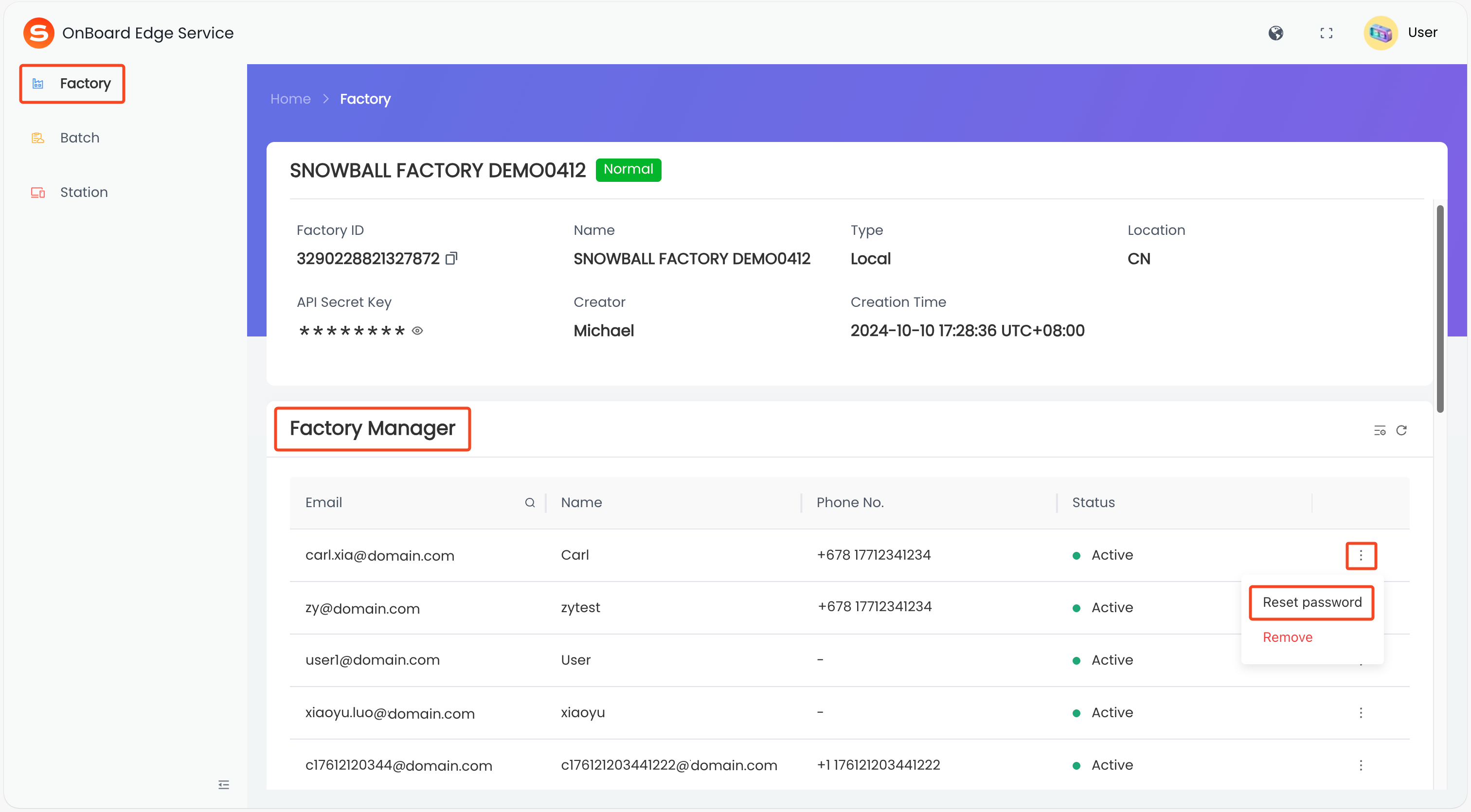
In the left menu, click Factory, locate the Factory Manager area, and then click the Options
 icon for the corresponding Factory Manager and select Reset password.
-
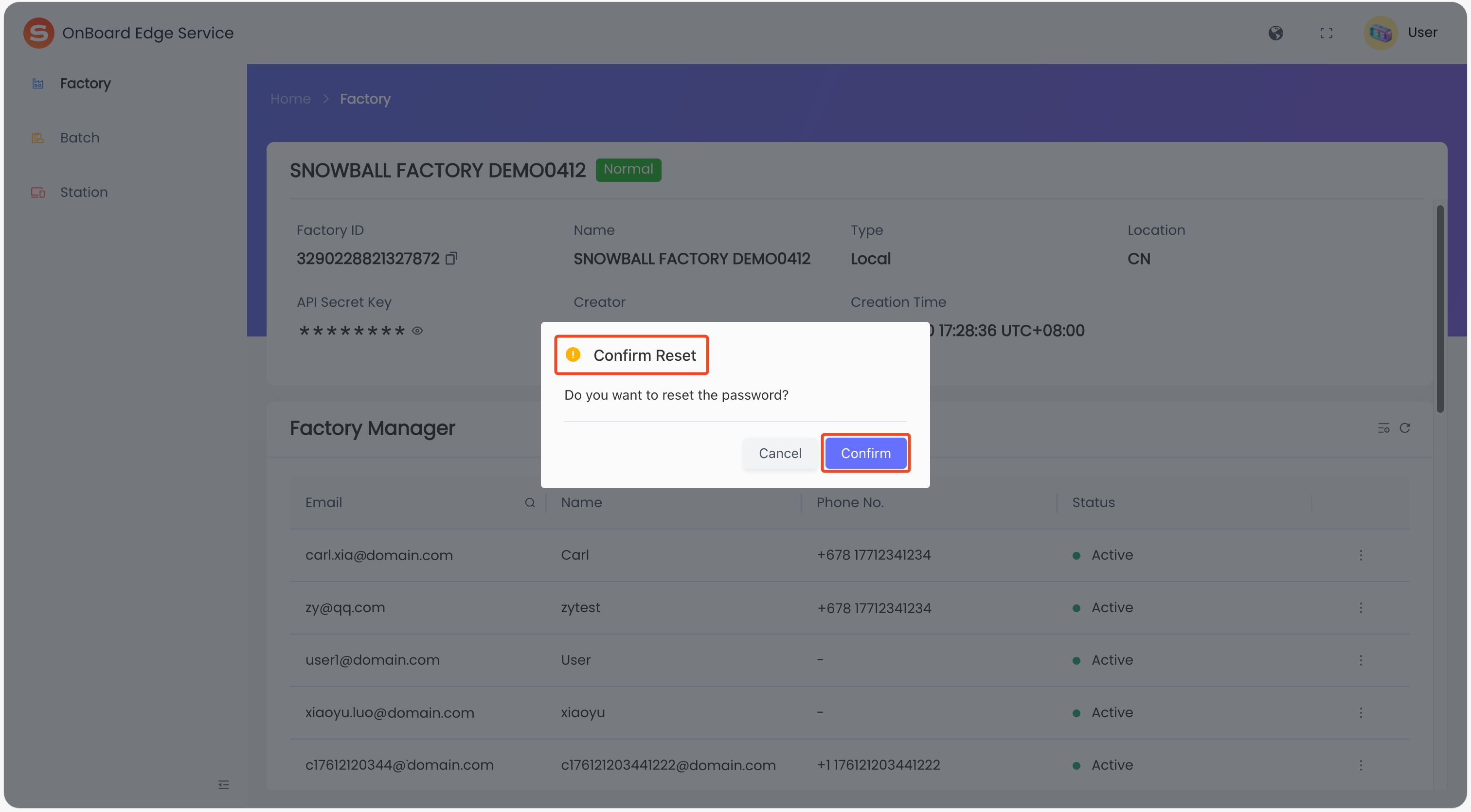
In the Confirm Reset window, click Confirm to reset the password.
Delete a Factory Manager
-
Sign in to OnBoard Edge Service.
-
In the left menu, click Factory, locate the Factory Manager area, and then click the Options
icon for the corresponding Factory Manager and select Remove.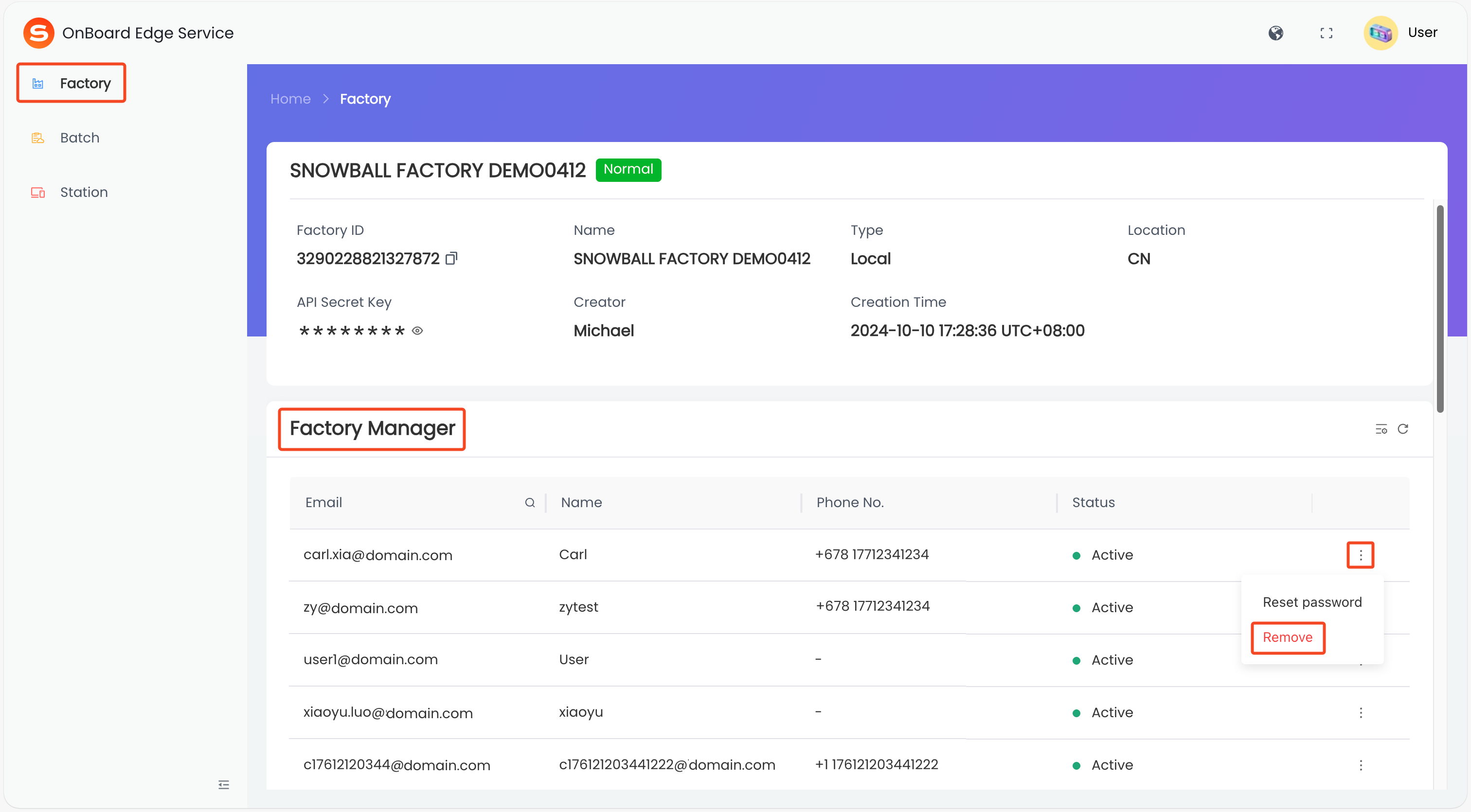
-
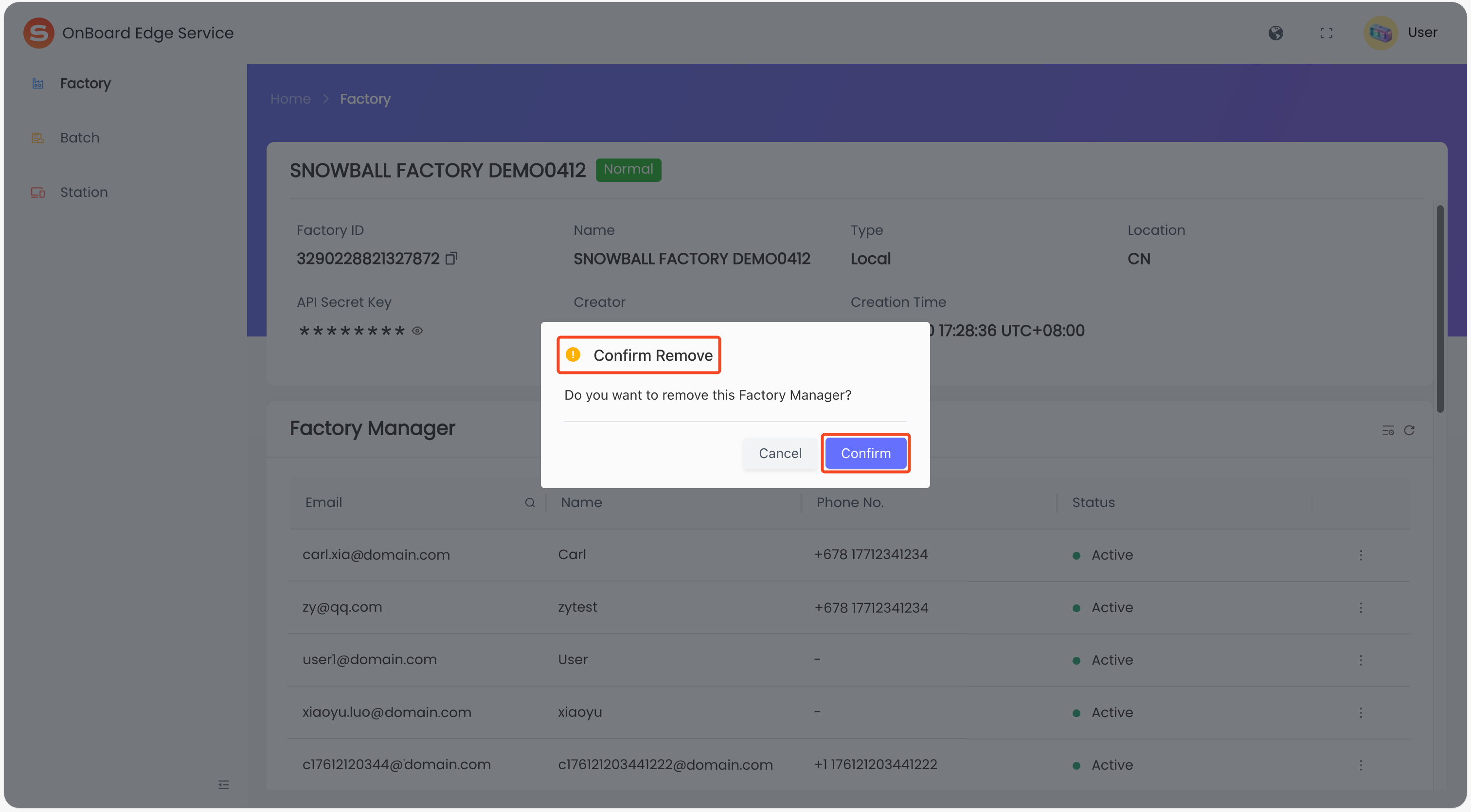
In the Confirm Remove window, click Confirm to delete the Factory Manager.
Lock or unlock an HSM U-Safe
Lock the HSM U-Safe to prevent its use and unbinding. Once locked, its status will change to Locked.
-
Sign in to OnBoard Edge Service.
-
In the left menu, click Factory, locate the HSM U-Safe area, and then click the Options
icon for the corresponding HSM U-Safe and select Lock or Unlock.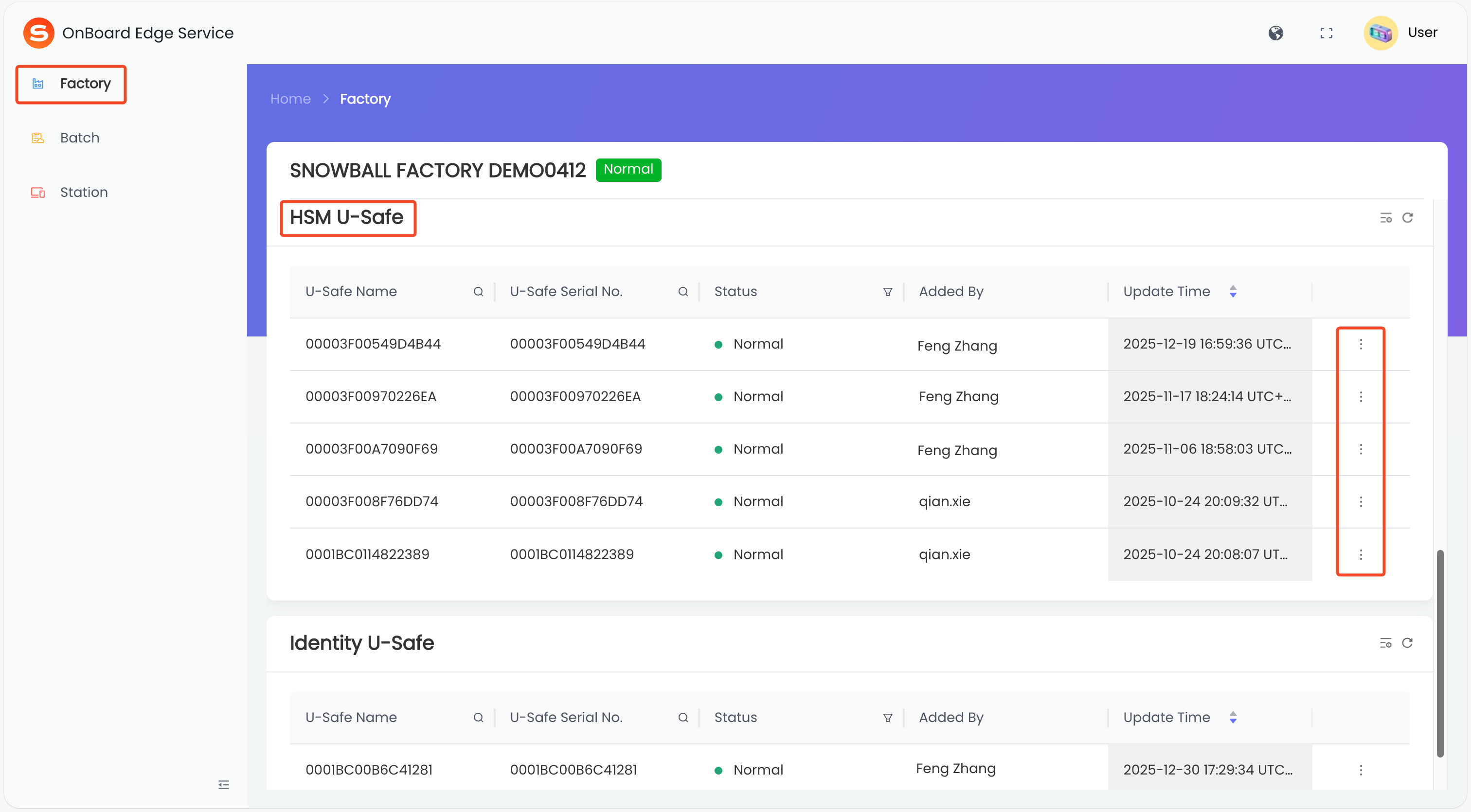
-
In the pop-up window, click Confirm to lock or unlock the HSM U-Safe.
Lock or unlock an Identity U-Safe
Lock the Identity U-Safe to prevent its use and unbinding. Once locked, its status will change to Locked.
-
Sign in to OnBoard Edge Service.
-
In the left menu, click Factory, locate the Identity U-Safe area, and then click the Options
icon for the corresponding Identity U-Safe and select Lock or Unlock.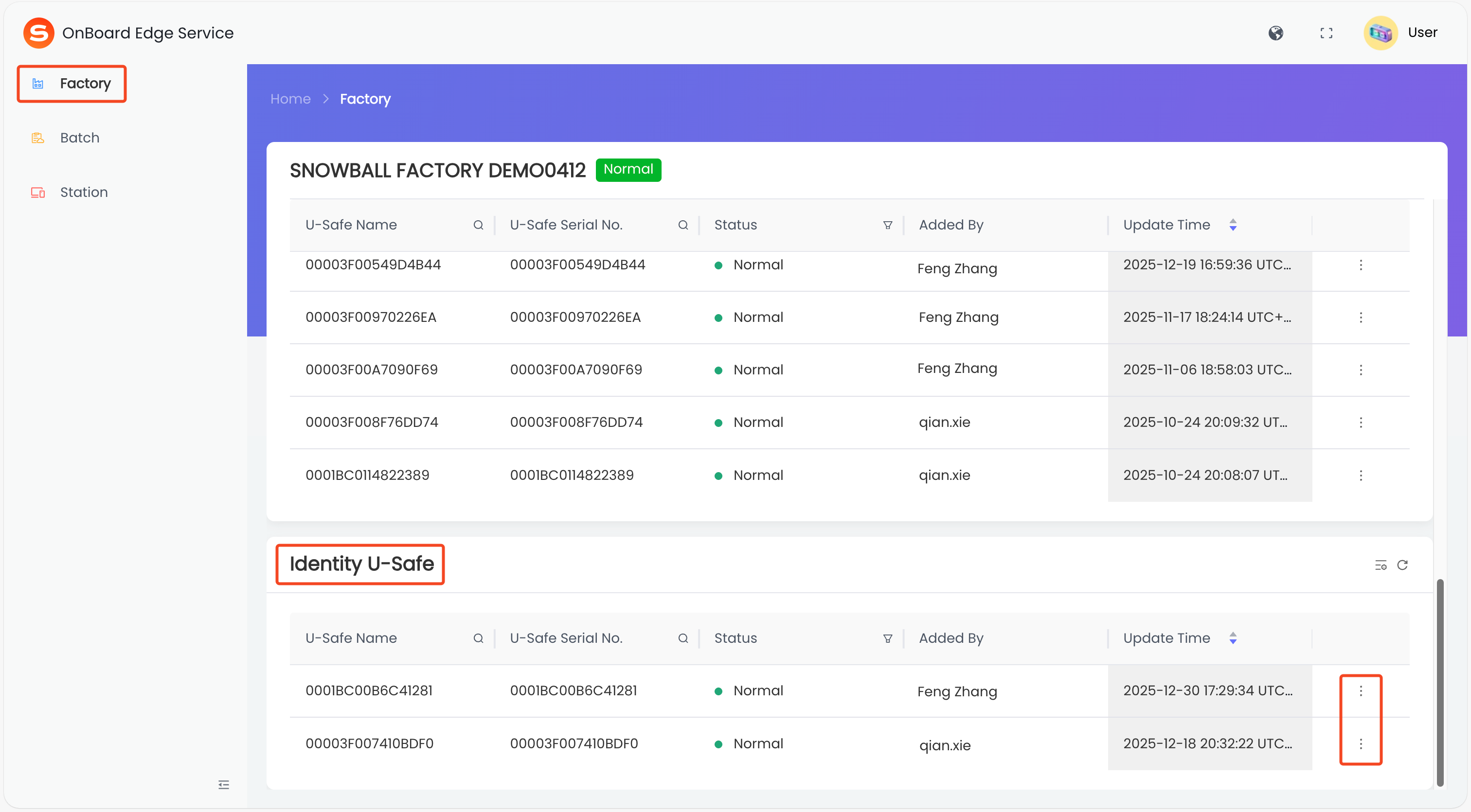
-
In the pop-up window, click Confirm to lock or unlock the Identity U-Safe.

 Download User Manual