How to create a product in OnBoard™ IoT Security
Currently, products can't be deleted after creation.
This article will guide you on how to create a product in OnBoard™ IoT Security (OBIS) to configure its basic information and prepare for product materials configuration.
Prerequisites
Before getting started, please ensure that you have OBIS role permissions as a System Manager or Product Manager.
Instructions
-
Sign in to OBIS.
-
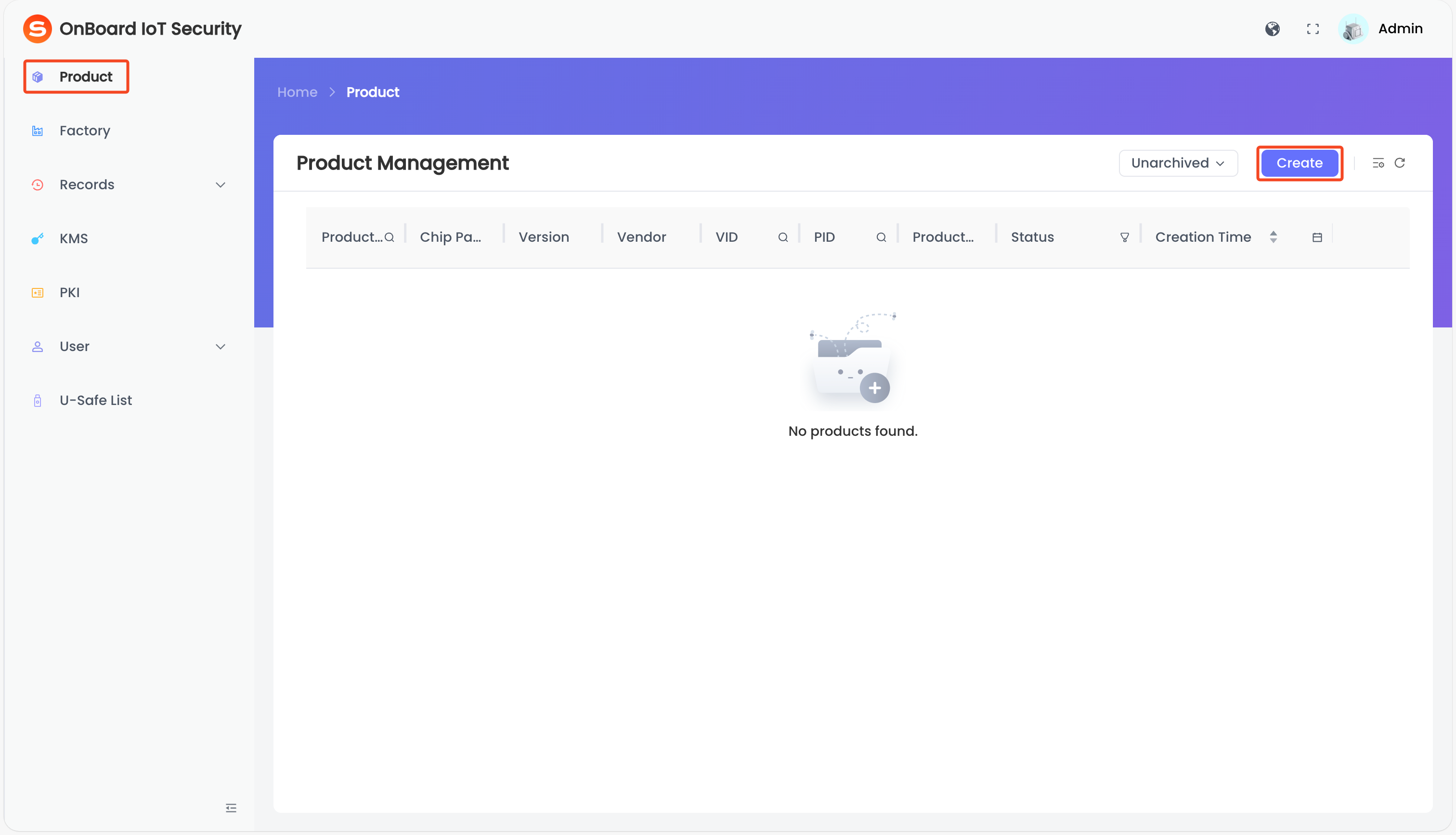
In the left menu, click Product, and then click Create.
-
On the Create panel, select and enter the required product basic information. After verifying that the information is correct, click Create to complete the product creation.
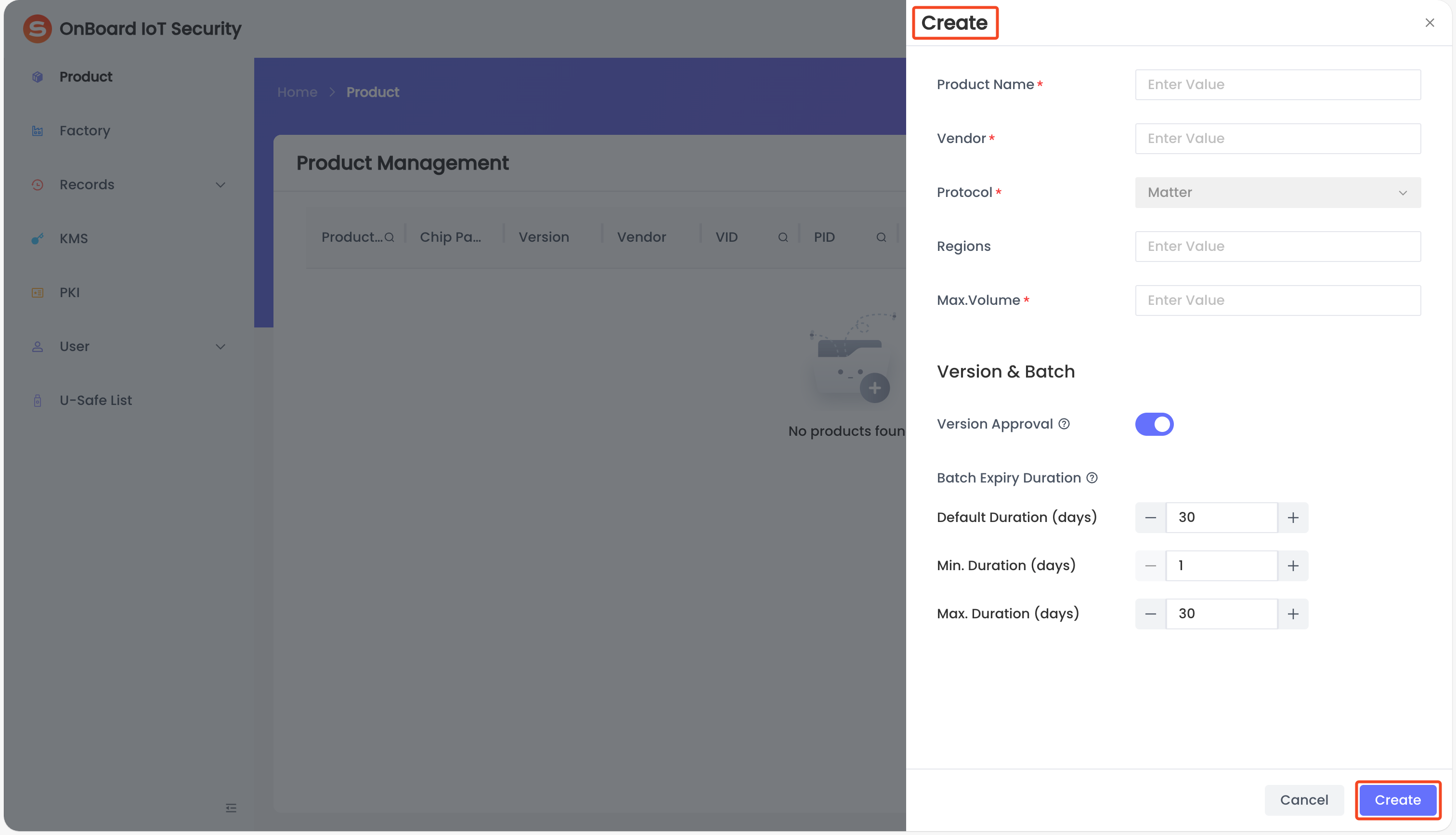
Description of product basic information:
Information Mandatory Description Product Name Yes The product name must be unique. Vendor Yes Automatically filled based on the tenant to ensure accuracy and reduce manual errors. You can manually change it if a different vendor name is needed. Protocol Yes Currently, only the Matter protocol is supported. Regions No Specify the regions where the product is supported. After entering a region, press Enter to generate a region label. Multiple region labels can be added.
Note: When creating a version, the selectable regions will be limited to these specified regions.Max.Volume Yes The maximum production volume of a product can't exceed 999,999,999. The total volume of batches can't exceed this limit. Version & Batch No - Version Approval: This feature is enabled by default to ensure that all version data used for device production is verified. After the feature is enabled, any version created in the PROD environment requires approval from the Product Owner or Product Manager before it can be used to create a batch.
- Batch Expiry Duration: You can set the Default Duration, Min. Duration and Max. Duration (in days). When creating a batch, the Expiry Date must be within this set range.
-
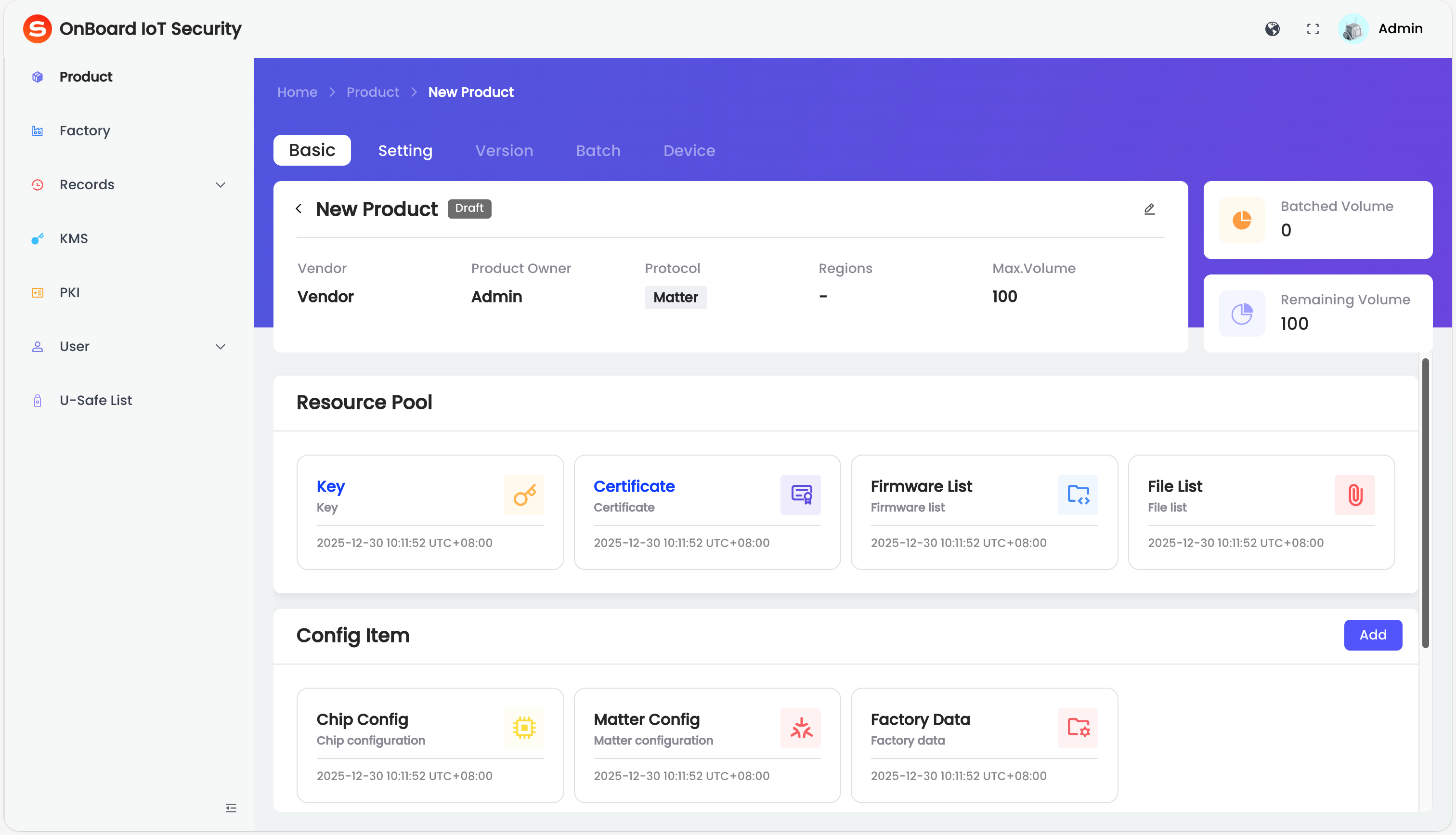
After the product is created, the page will navigate to the product page.
infoAfter a product is created, its initial status is Draft. Once a version is created, the product status will change to Released. For more information, refer to the description of product status.
tipBy default, the product creator is set as the Product Owner. To change the Product Owner, you can click the Edit
 icon on the product page, select a new Product Owner on the Edit panel, and then click Save.

 Download User Manual