How to configure and manage factories in OnBoard™ IoT Security
This article will guide you through the following operations in OnBoard™ IoT Security (OBIS):
- Add a Factory Manager
- Reset the Factory Manager password
- Delete a Factory Manager
- Add an Identity U-Safe
- Unbind, lock, or unlock an Identity U-Safe
- Lock or unlock a factory
Prerequisites
Before getting started, please ensure that:
- You have the Factory Manager role permission for the corresponding factory.
- You have obtained the Identity U-Safe required for identity authentication from Snowball.
Add a Factory Manager
Factory managers can manage and operate factory-related businesses. After a Factory Manager is added, the system automatically generates an initial password and sends it to the corresponding email address. Currently, this randomly generated password can be reset, but custom modification is not yet supported.
-
Sign in to OBIS.
-
In the left menu, click Factory, and then select the corresponding factory ID to navigate to the factory page.
-
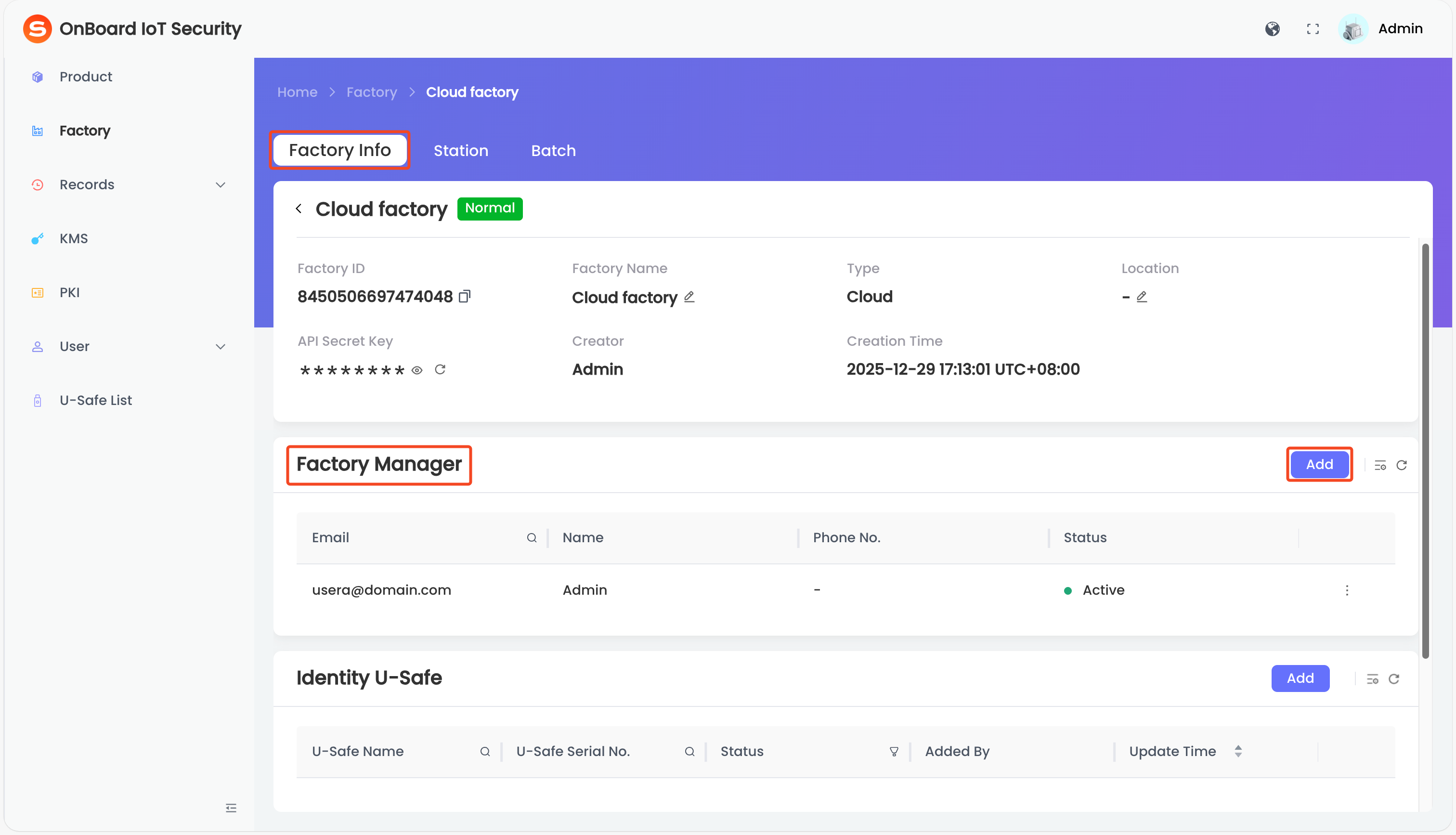
On the factory page, locate the Factory Manager area and then click Add.
-
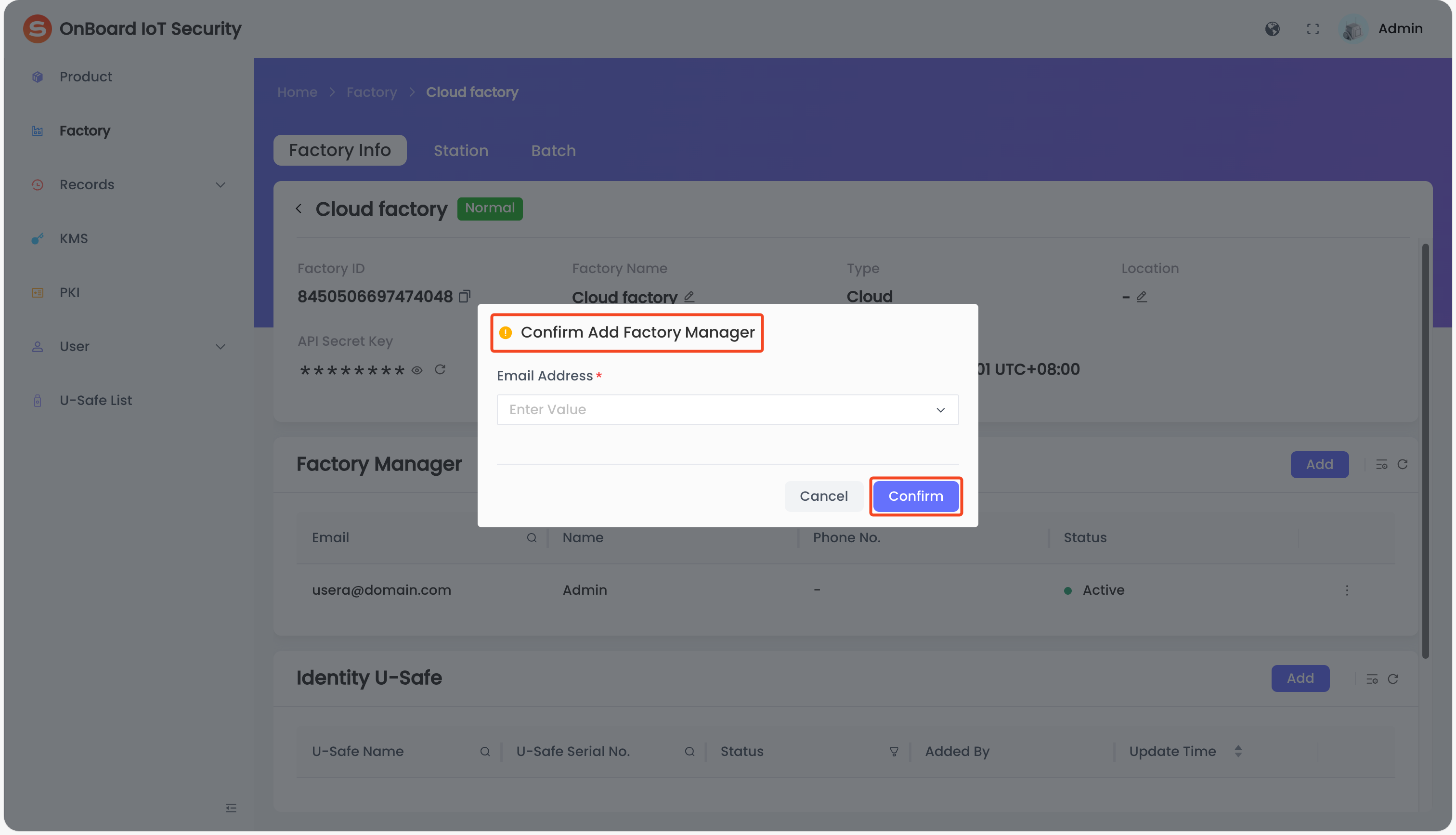
In the Confirm Add Factory Manager window, select and enter the email address of the new Factory Manager.
tipThe Factory Manager being added must be an Active user within the same tenant.
-
Click Confirm to complete adding a Factory Manager.
Reset the Factory Manager password
After the password is reset, the system automatically generates a random password and sends it to the corresponding email address.
-
Sign in to OBIS.
-
In the left menu, click Factory, and then select the corresponding factory ID to navigate to the factory page.
-
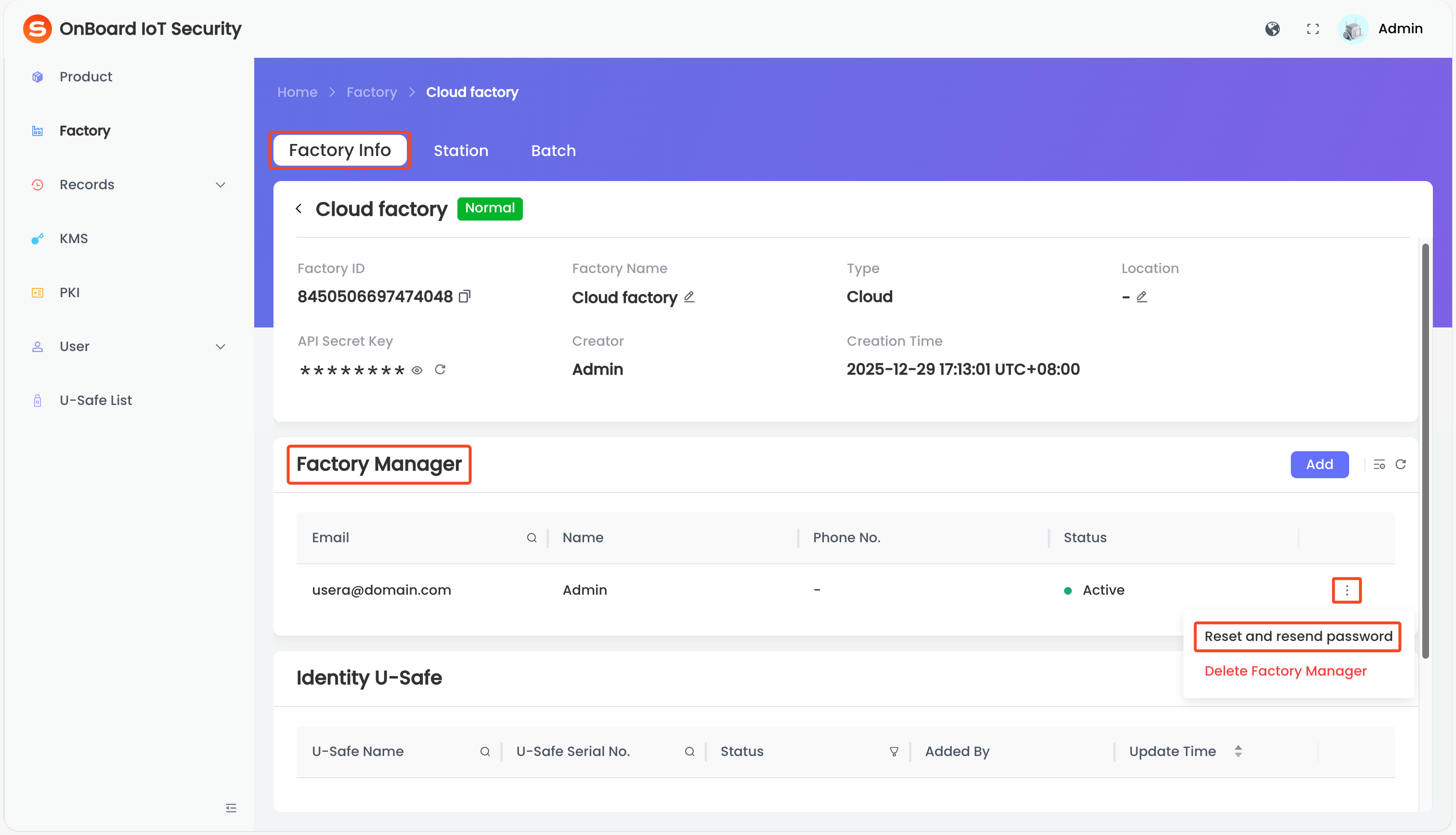
On the factory page, locate the Factory Manager area, and then click the Options
 icon for the corresponding Factory Manager and select Reset and resend password.
-
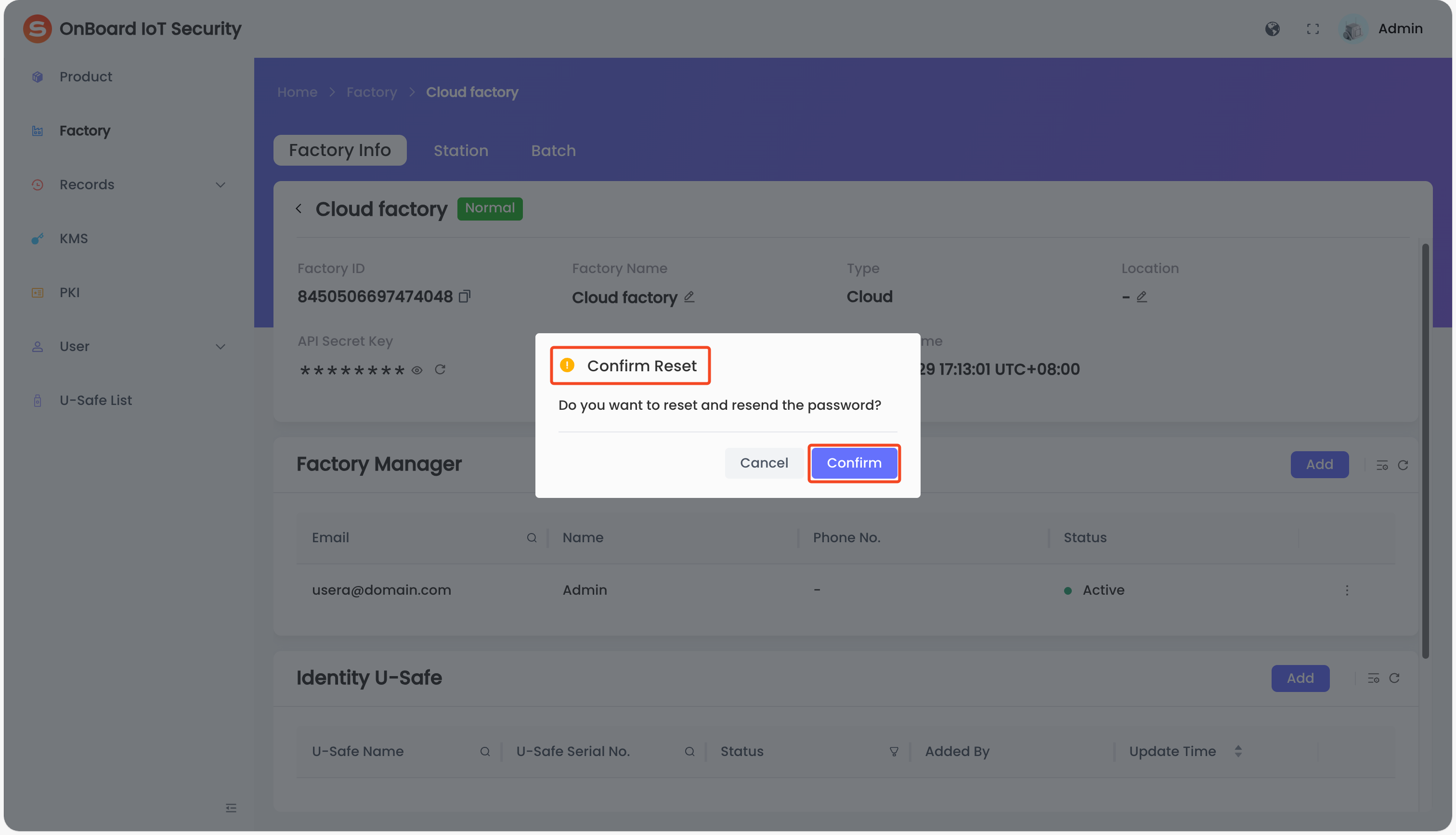
In the Confirm Reset window, click Confirm to reset the password.
Delete a Factory Manager
-
Sign in to OBIS.
-
In the left menu, click Factory, and then select the corresponding factory ID to navigate to the factory page.
-
On the factory page, locate the Factory Manager area, and then click the Options
icon for the corresponding Factory Manager and select Delete Factory Manager.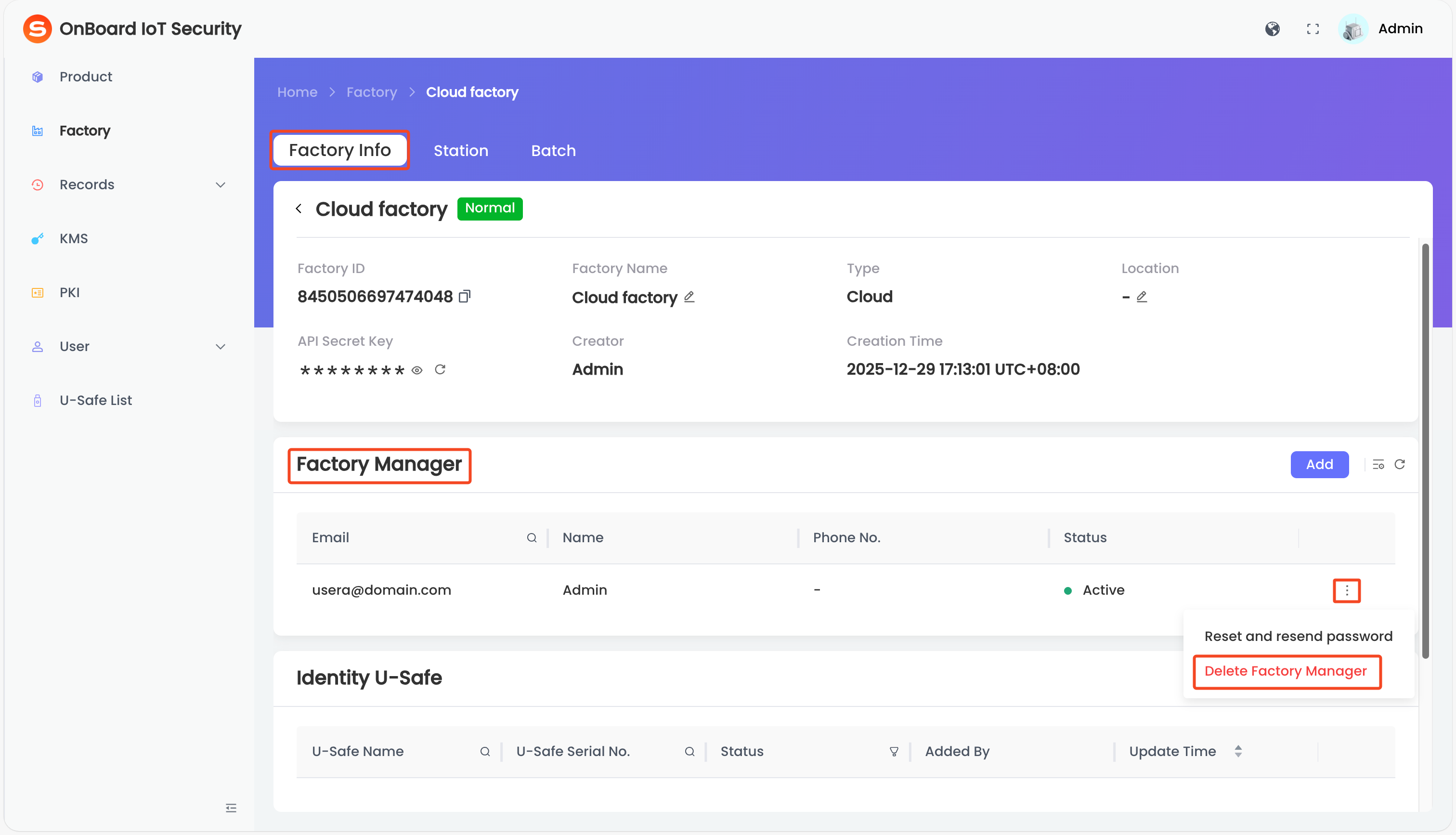
-
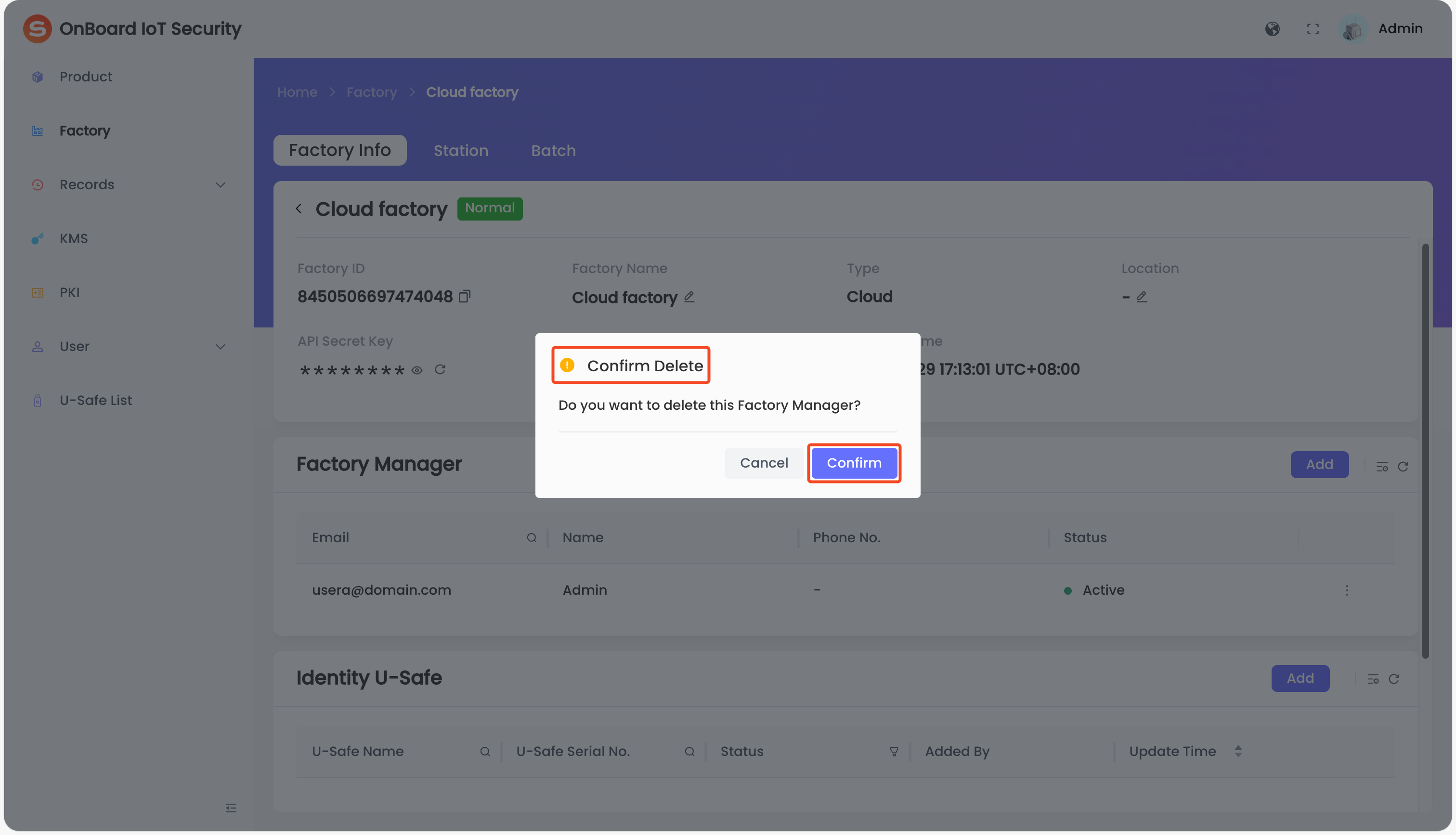
In the Confirm Delete window, click Confirm to delete the Factory Manager.
Add an Identity U-Safe
The purpose of adding an Identity U-Safe is to bind it to the corresponding factory. After binding it to a programming station, it can be used to sign in to the Programming Station client. Meanwhile, login authentication for the programming station is achieved through the Identity U-Safe management.
-
Sign in to OBIS.
-
In the left menu, click Factory, and then select the corresponding factory ID to navigate to the factory page.
-
On the factory page, locate the Identity U-Safe area and then click Add.
-
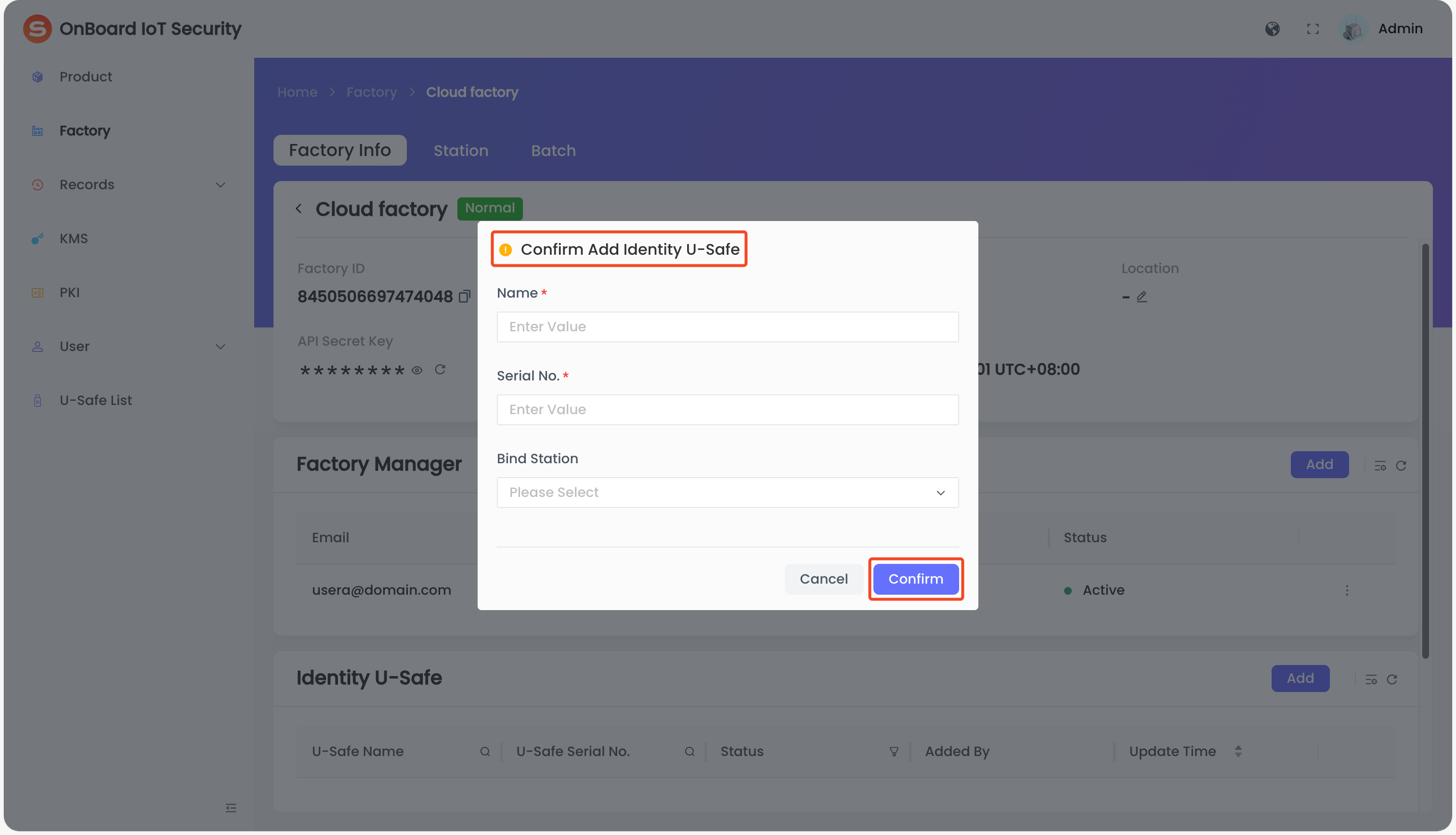
In the Confirm Add Identity U-Safe window, enter the Name (customizable) and Serial No. (which can be found on the device) of the Identity U-Safe you want to bind.
tip- If a programming station has already been added, you can select and bind the corresponding programming station.
- If a programming station hasn't been added yet, you can bind it when adding a programming station.
-
Click Confirm to bind the Identity U-Safe.
Unbind, lock, or unlock an Identity U-Safe
Lock the Identity U-Safe to prevent its use and unbinding. Once locked, its status will change to Locked.
-
Sign in to OBIS.
-
In the left menu, click Factory, and then select the corresponding factory ID to navigate to the factory page.
-
On the factory page, locate the Identity U-Safe area, and then click the Options
icon for the corresponding Identity U-Safe and select Unbind, Lock, or Unlock.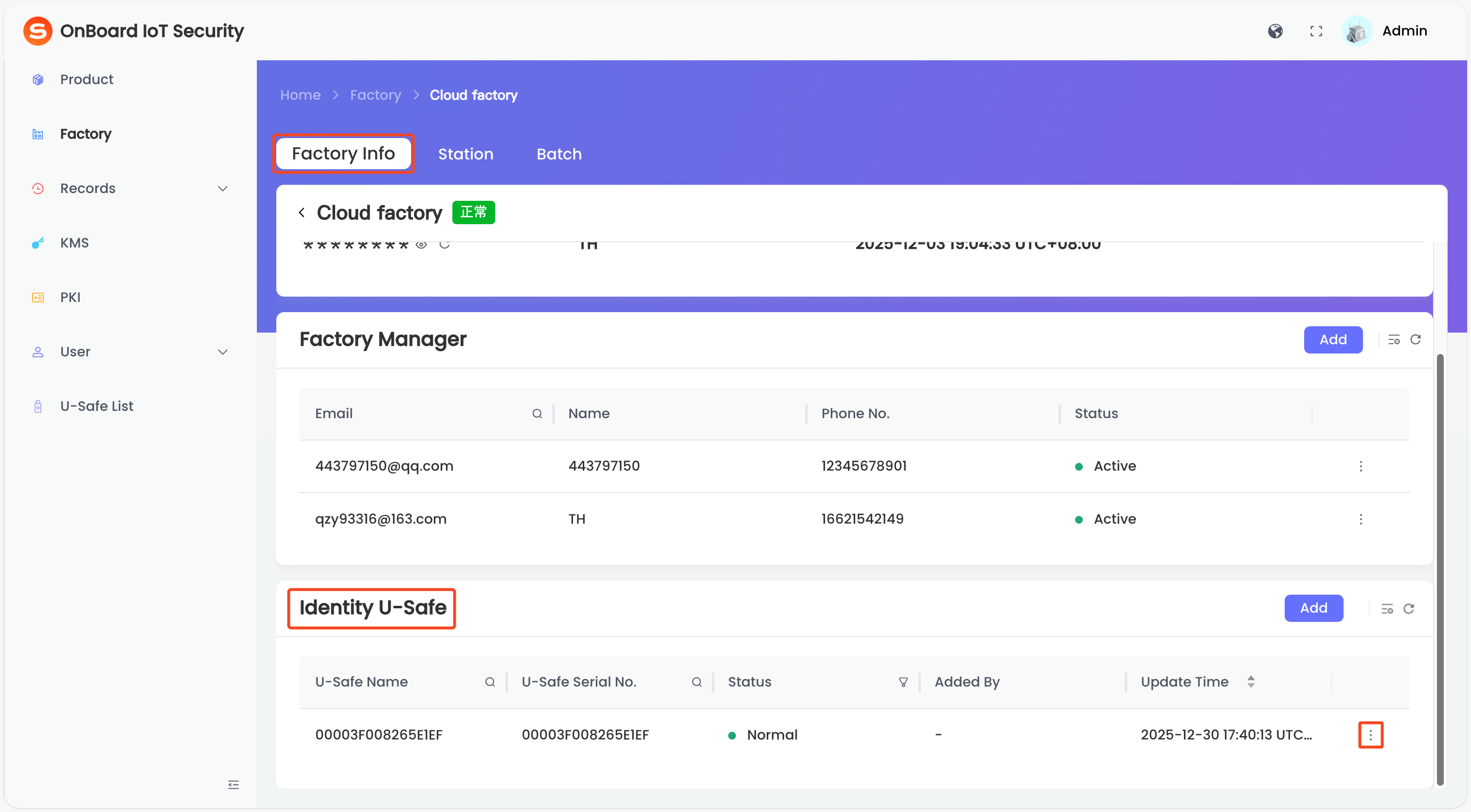
-
In the pop-up window, click Confirm to unbind, lock, or unlock the Identity U-Safe.
Lock or unlock a factory
Lock the factory to prevent its use. Once locked, its status will change to Locked.
-
Sign in to OBIS.
-
In the left menu, click Factory, and then click the Options
icon for the corresponding factory and select Lock or Unlock.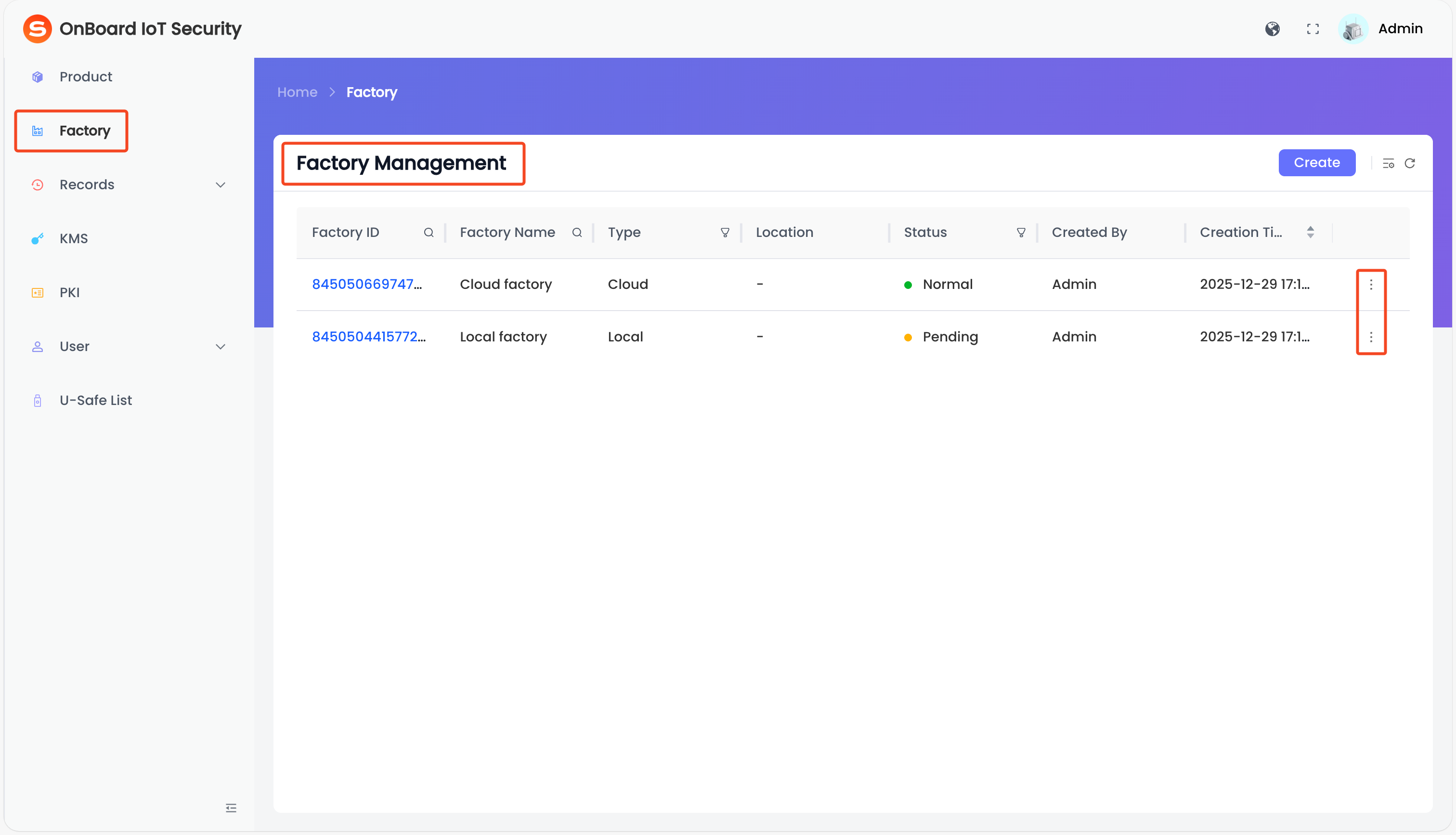
-
In the pop-up window, click OK to lock or unlock the factory.

 Download User Manual