How to configure and manage programming stations in OnBoard™ IoT Security
You can configure and manage the programming station in OnBoard™ IoT Security (OBIS) or OnBoard Edge Service as needed.
This article will guide you through the following operations in OBIS:
- Create a programming station
- Bind an Identity U-Safe to a programming station
- Unbind an Identity U-Safe from a programming station
- Delete a programming station
- Check the programming station password
Prerequisites
Before getting started, please ensure that:
- The factory has already been configured.
- You have the Factory Manager role permission for the corresponding factory.
- You have obtained the Identity U-Safe for identity authentication from Snowball.
Create a programming station
After creating a programming station for the factory, you can assign specific programming stations to batches in OnBoard Edge Service as needed. Before programming a device, it is necessary to query and retrieve the corresponding batch information and programming data based on the programming station ID.
Two programming methods are supported:
- Using the Programming Station client
- Using the OBIS Programming CLI
-
Sign in to OBIS.
-
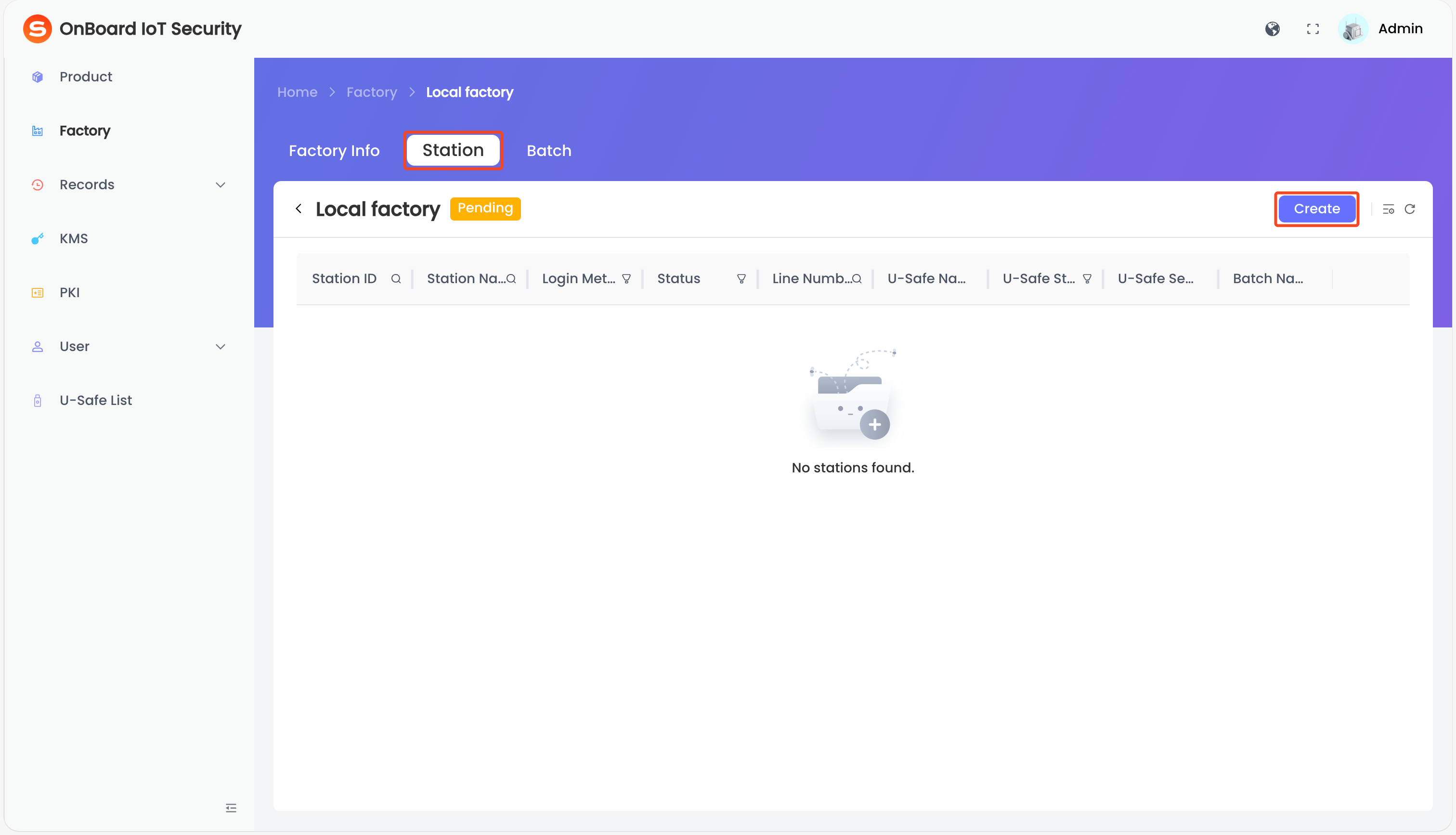
In the left menu, click Factory, and then select the corresponding factory ID to navigate to the factory page.
-
On the factory page, select the Station tab and then click Create.
-
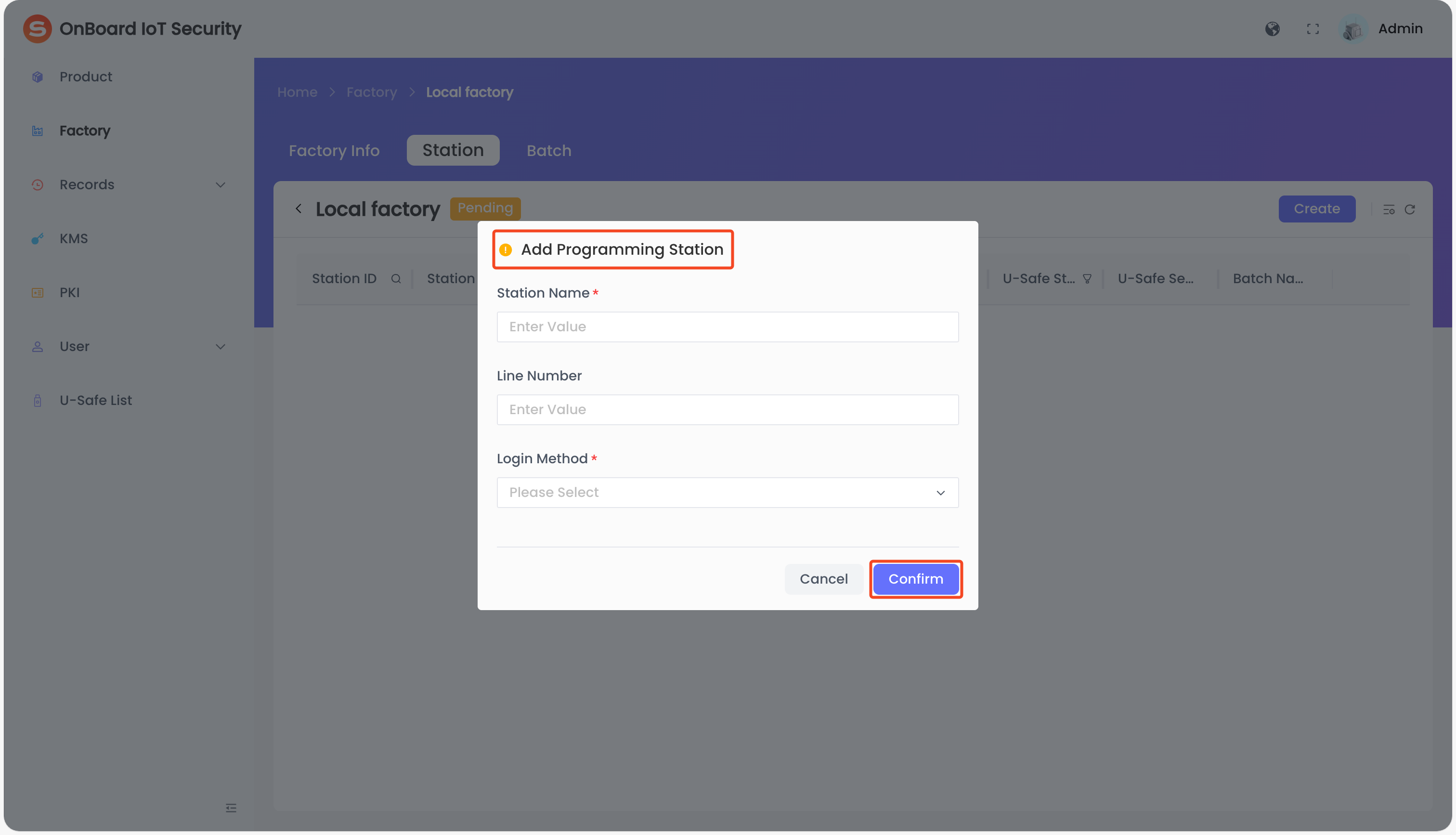
In the Add Programming Station window, enter the Station Name and Line Number, and then select the Login Method. The methods include: No Password, Password, or Identity U-Safe.
 tip
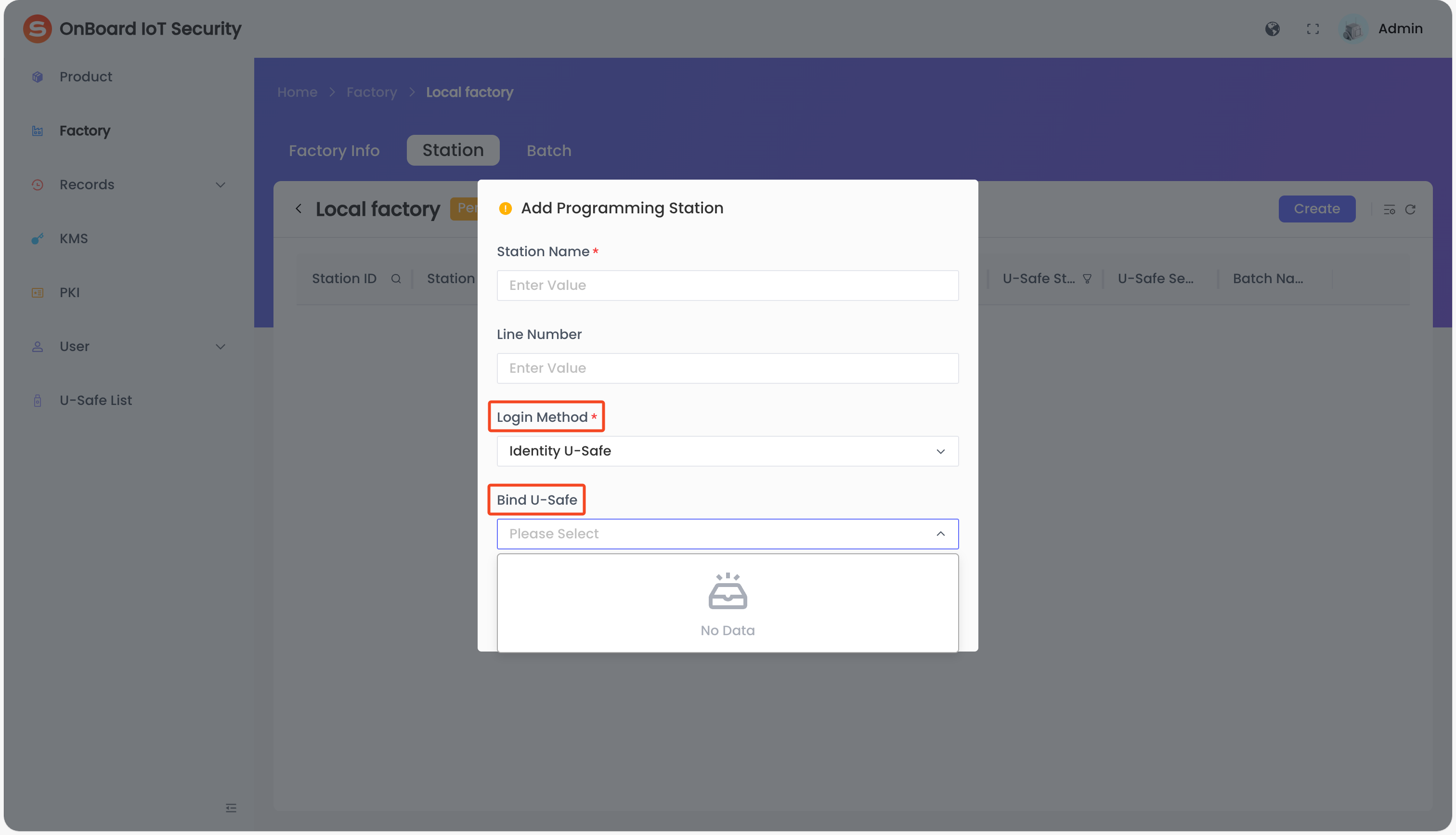
If the login method is Identity U-Safe, you can select an already added Identity U-Safe from the Bind U-Safe drop-down list to bind it, or you can bind it after adding the programming station.
-
Click Confirm to create the programming station.
Bind an Identity U-Safe to a programming station
You can use the Identity U-Safe to sign in to the Programming Station client after binding.
-
Sign in to OBIS.
-
In the left menu, click Factory, and then select the corresponding factory ID to navigate to the factory page.
-
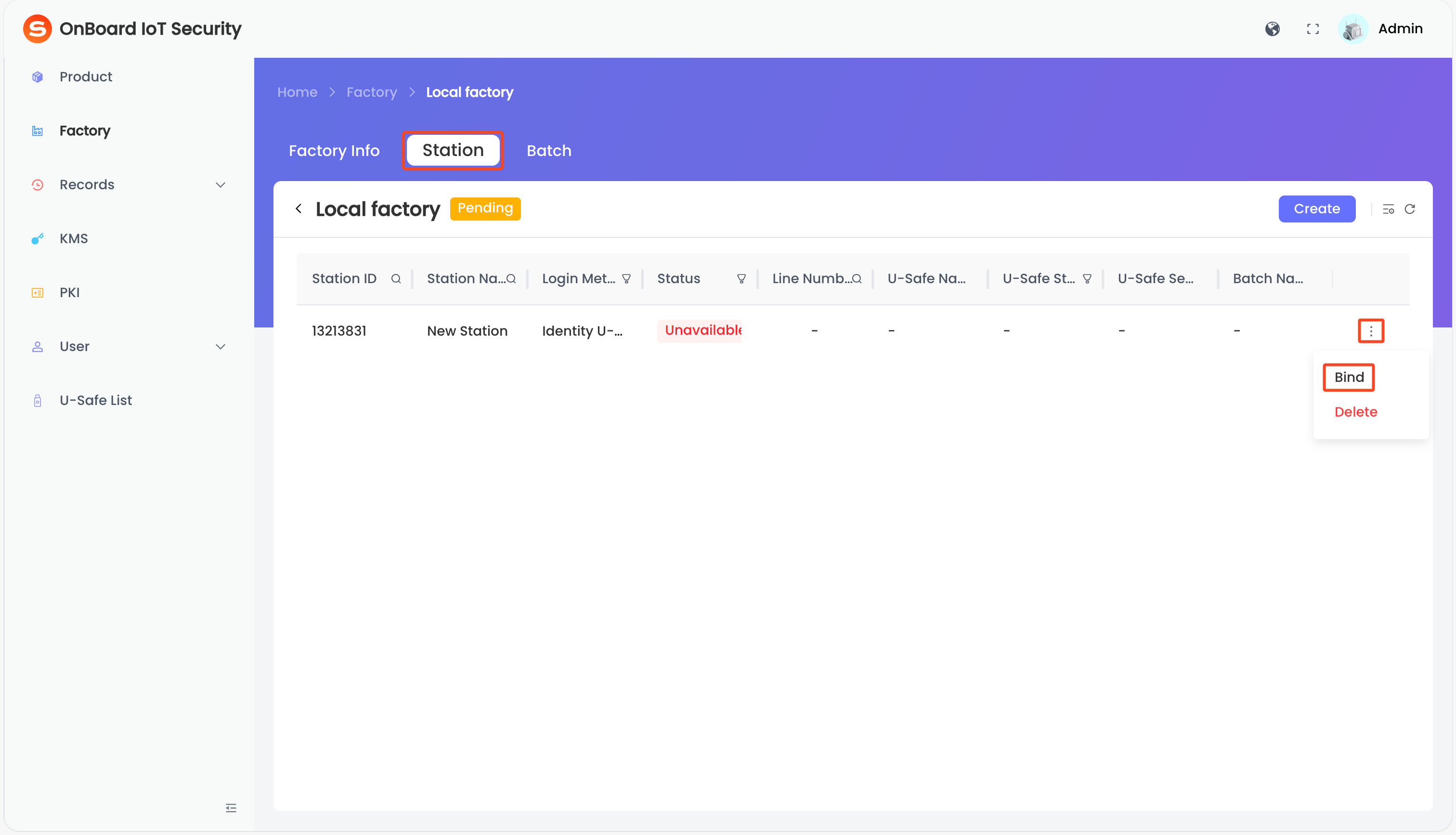
On the factory page, select the Station tab, and then click the Options
 icon for the corresponding programming station and select Bind.
-
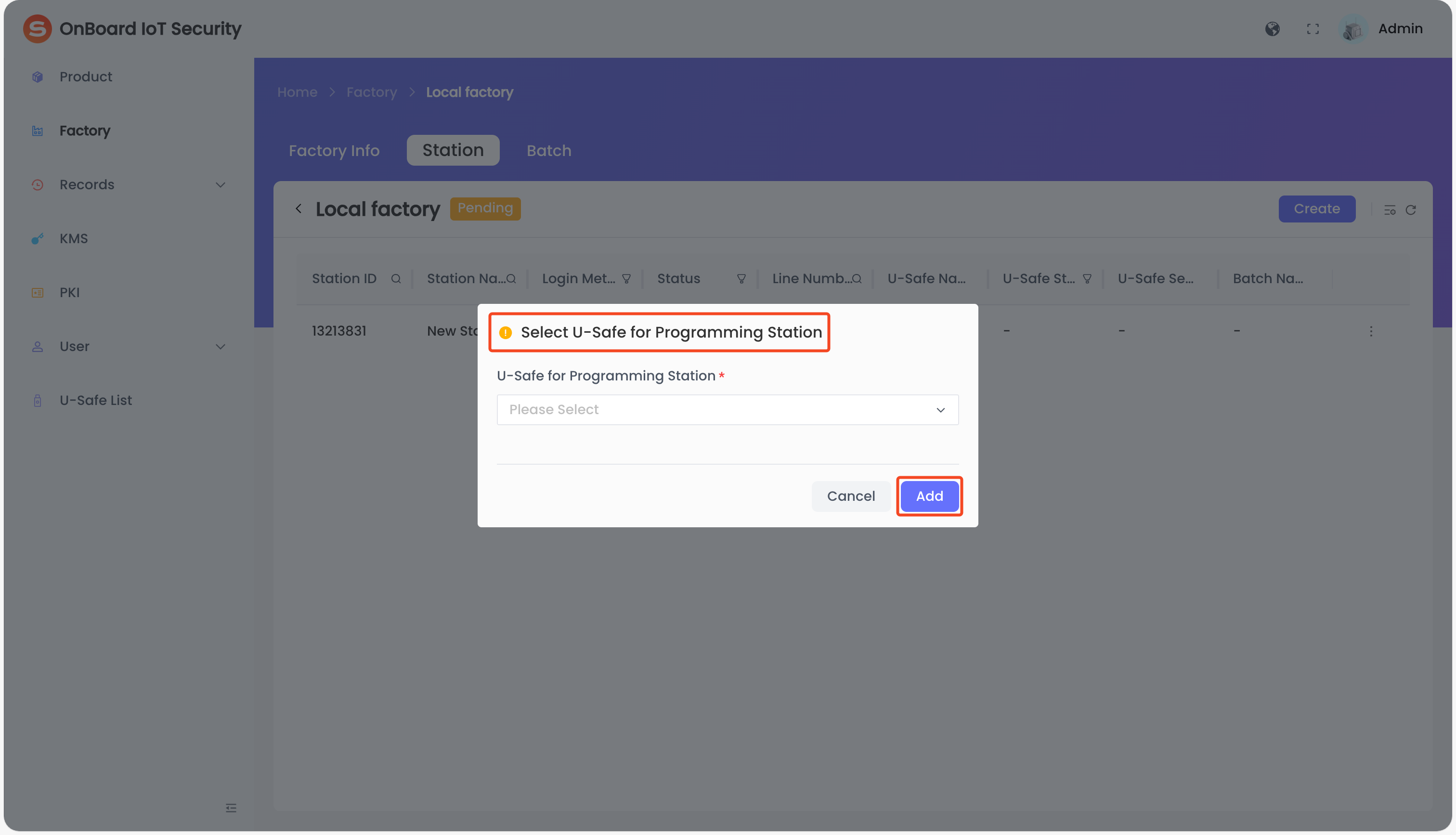
In the Select U-Safe for Programming Station window, select the Identity U-Safe you want to bind and then click Add to bind it to the programming station.
Unbind an Identity U-Safe from a programming station
After unbinding, the Identity U-Safe can no longer be used to sign in to the Programming Station client.
-
Sign in to OBIS.
-
In the left menu, click Factory, and then select the corresponding factory ID to navigate to the factory page.
-
On the factory page, select the Station tab, and then click the Options
icon for the corresponding programming station and select Unbind.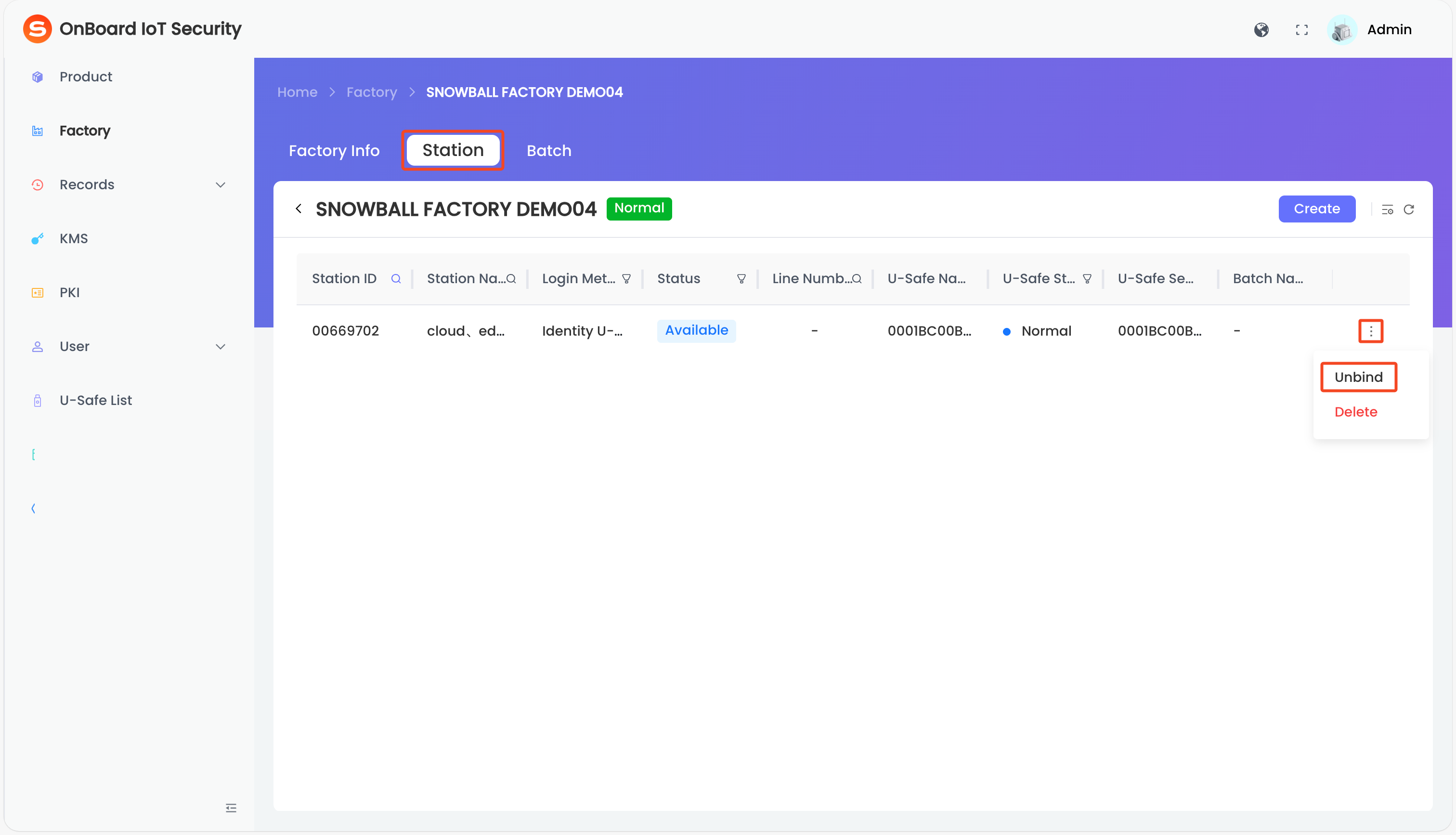
-
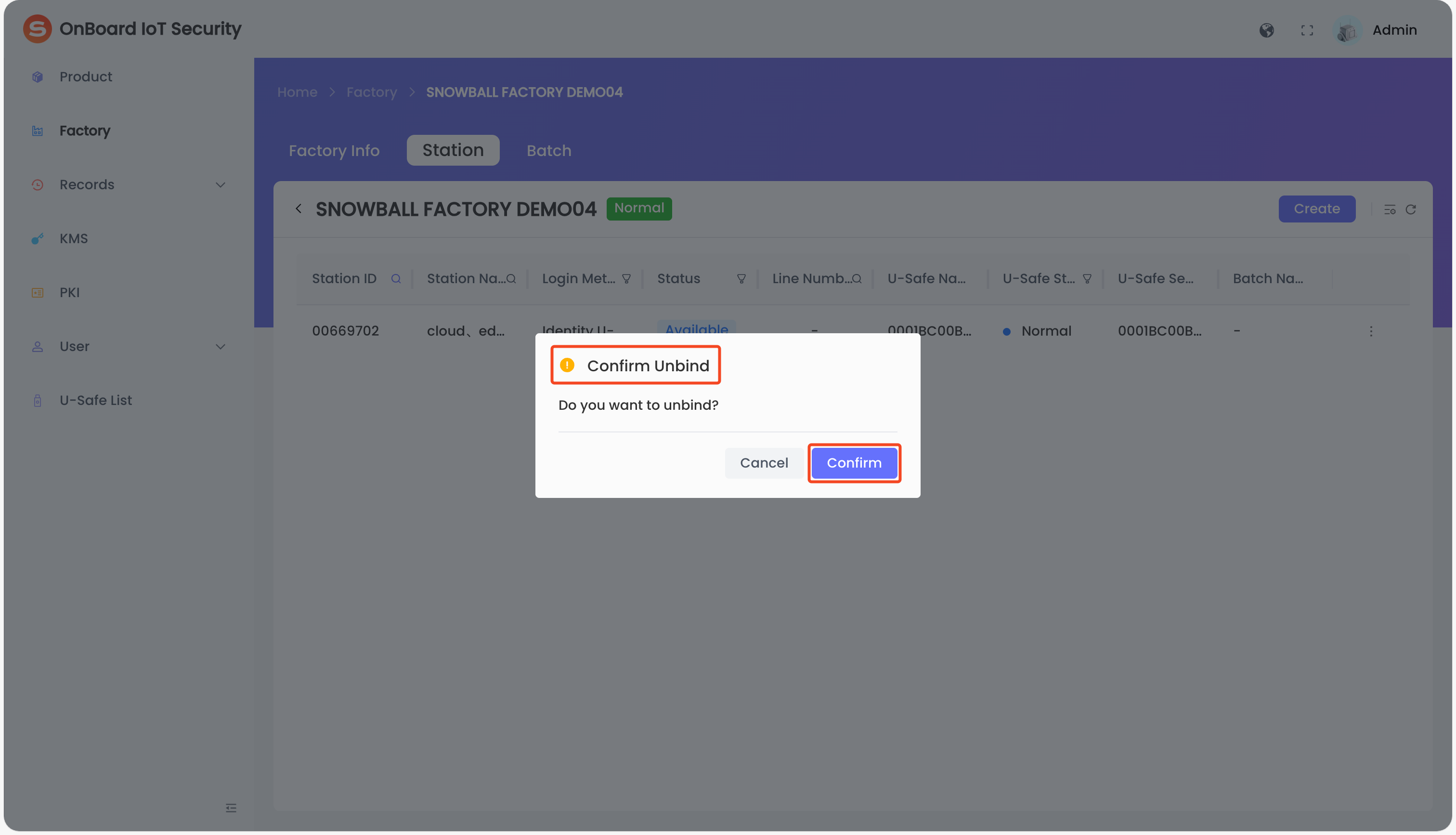
In the Confirm Unbind window, click Confirm to unbind the Identity U-Safe for the programming station.
Delete a programming station
-
Sign in to OBIS.
-
In the left menu, click Factory, and then select the corresponding factory ID to navigate to the factory page.
-
On the factory page, select the Station tab, and then click the Options
icon for the corresponding programming station and select Delete.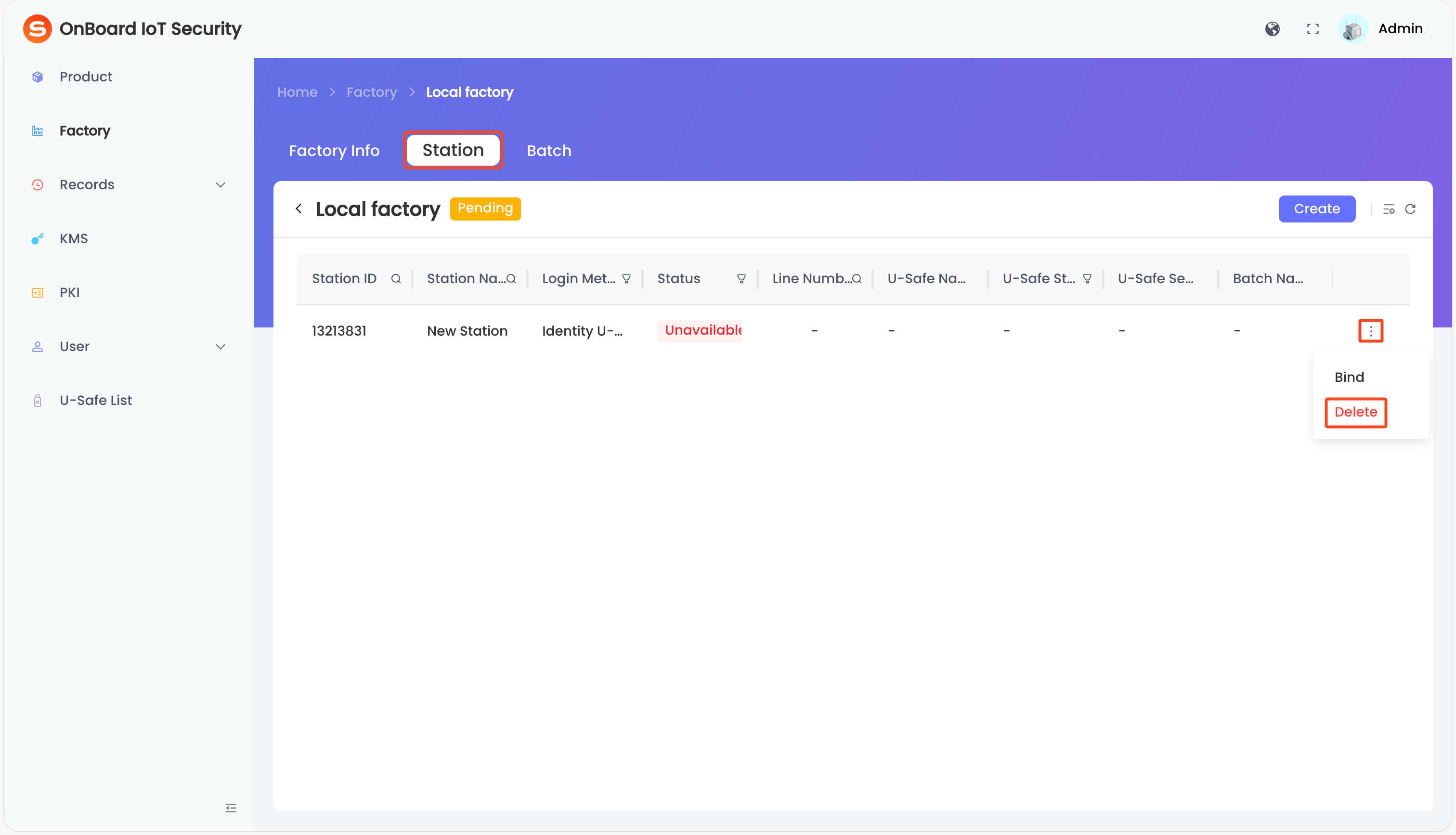
-
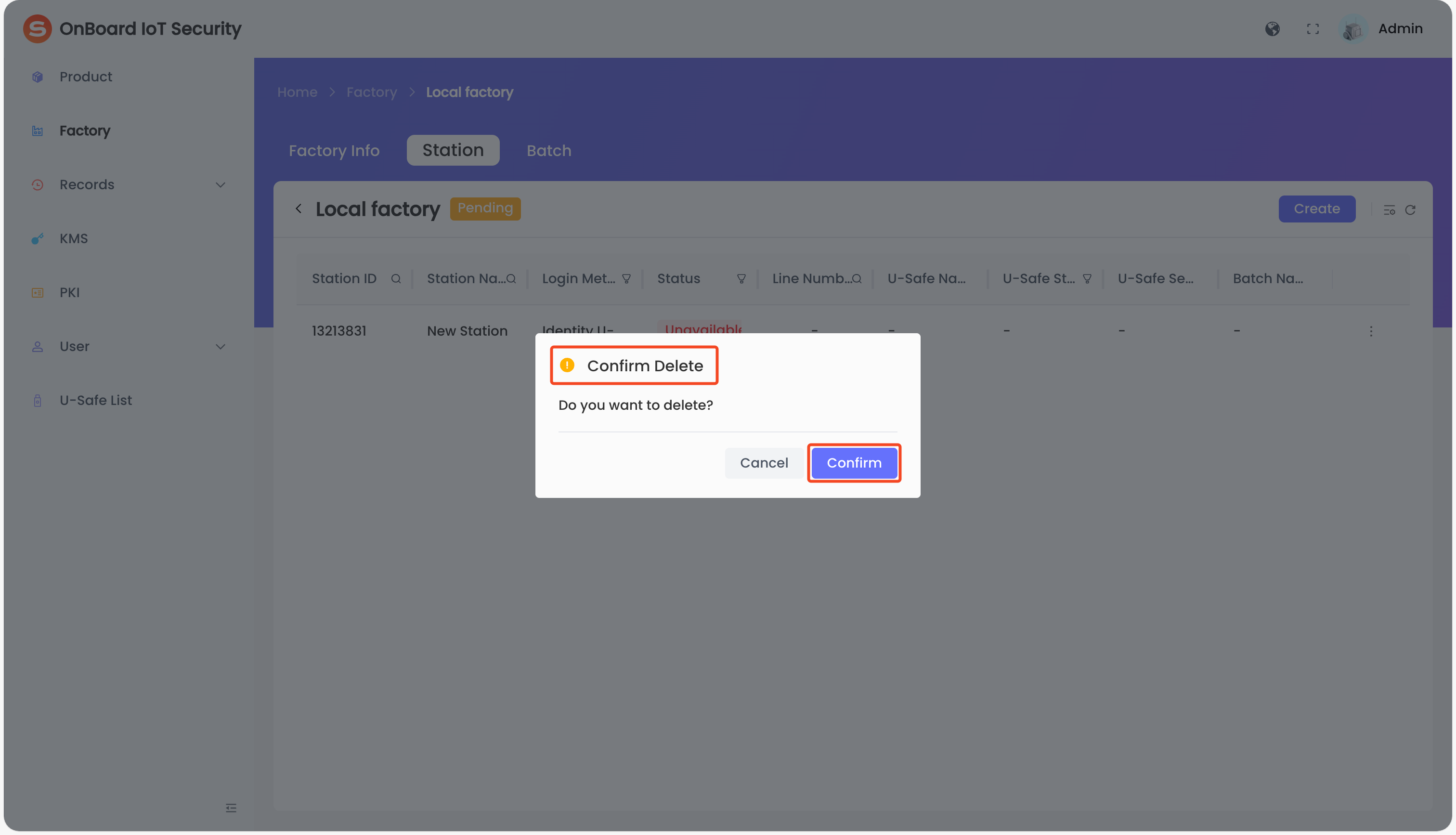
In the Confirm Delet window, click Confirm to delete the programming station.
Check the programming station password
When the login method for the programming station is Password, the system will generate a random password, which can be used to sign in to the Programming Station client. Currently, the randomly generated password can't be changed.
-
Sign in to OBIS.
-
In the left menu, click Factory, and then select the corresponding factory ID to navigate to the factory page.
-
On the factory page, select the Station tab, and then click the Options
icon for the corresponding programming station and select View Password.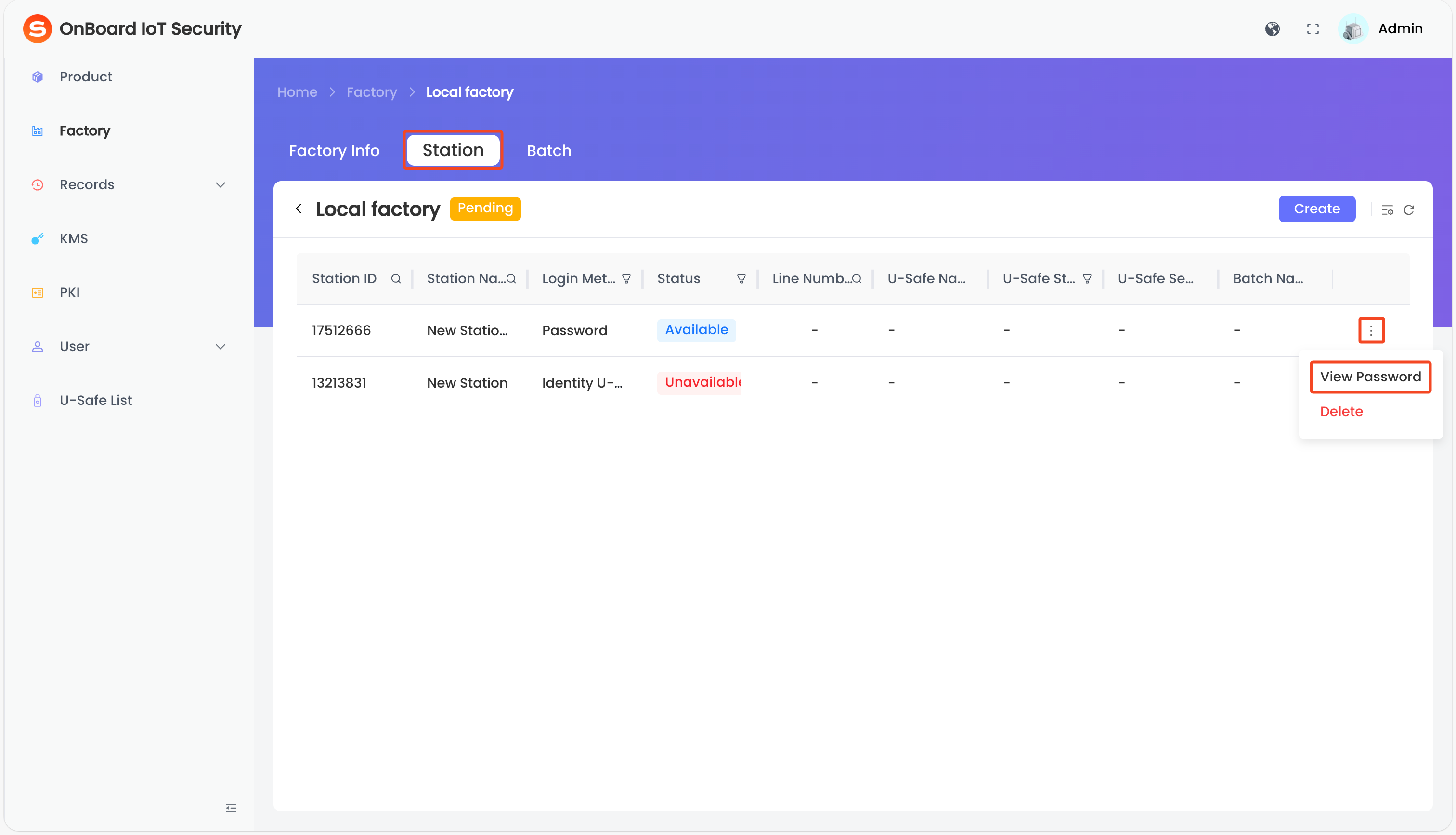
-
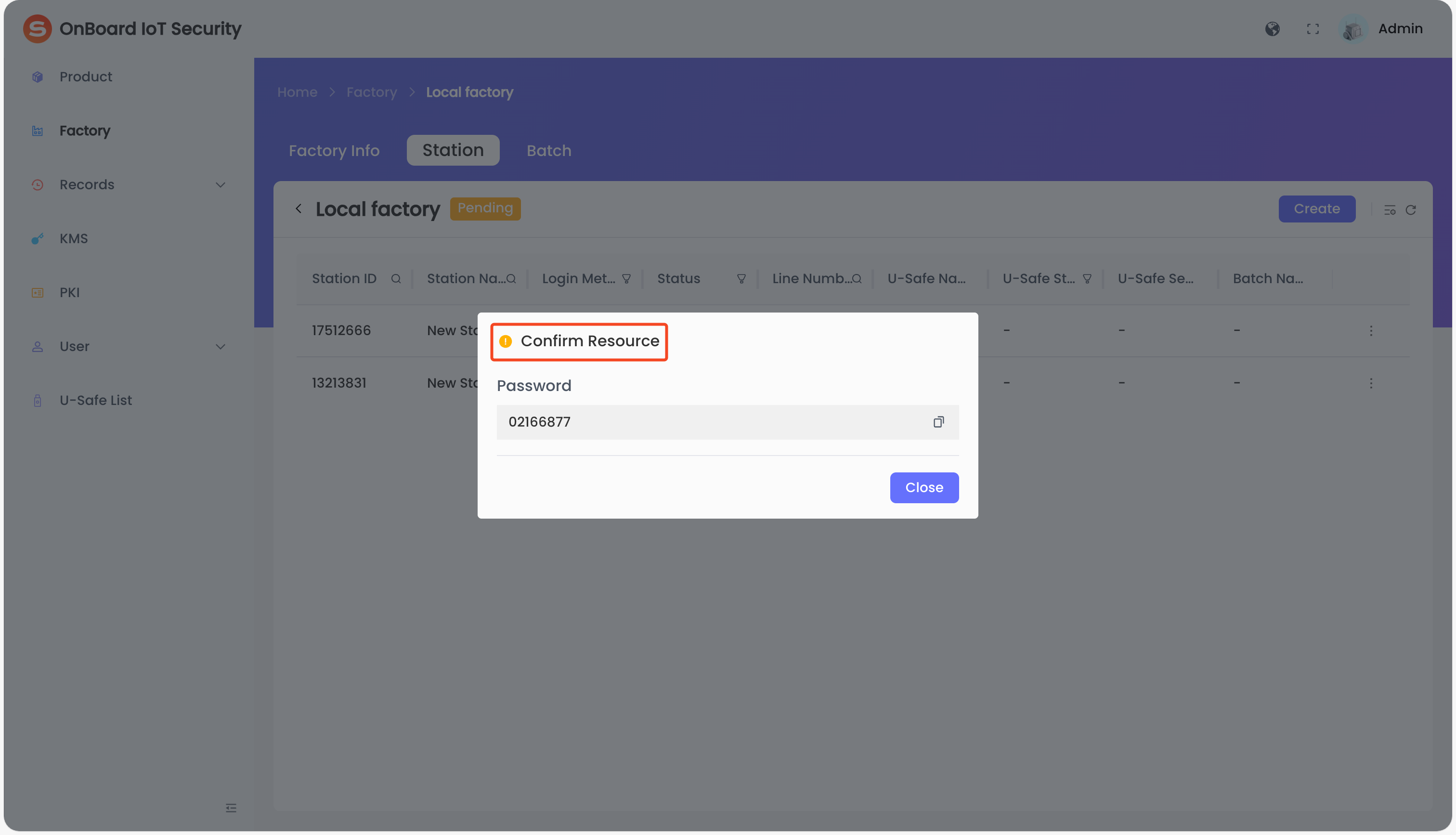
In the Confirm Resource window, you can check and copy the sign-in password for the programming station.

 Download User Manual