How to check groups in OnBoard™ IoT Security
This article will guide you on how to check group details and logs in OnBoard™ IoT Security (OBIS).
Check details
-
Sign in to OBIS.
-
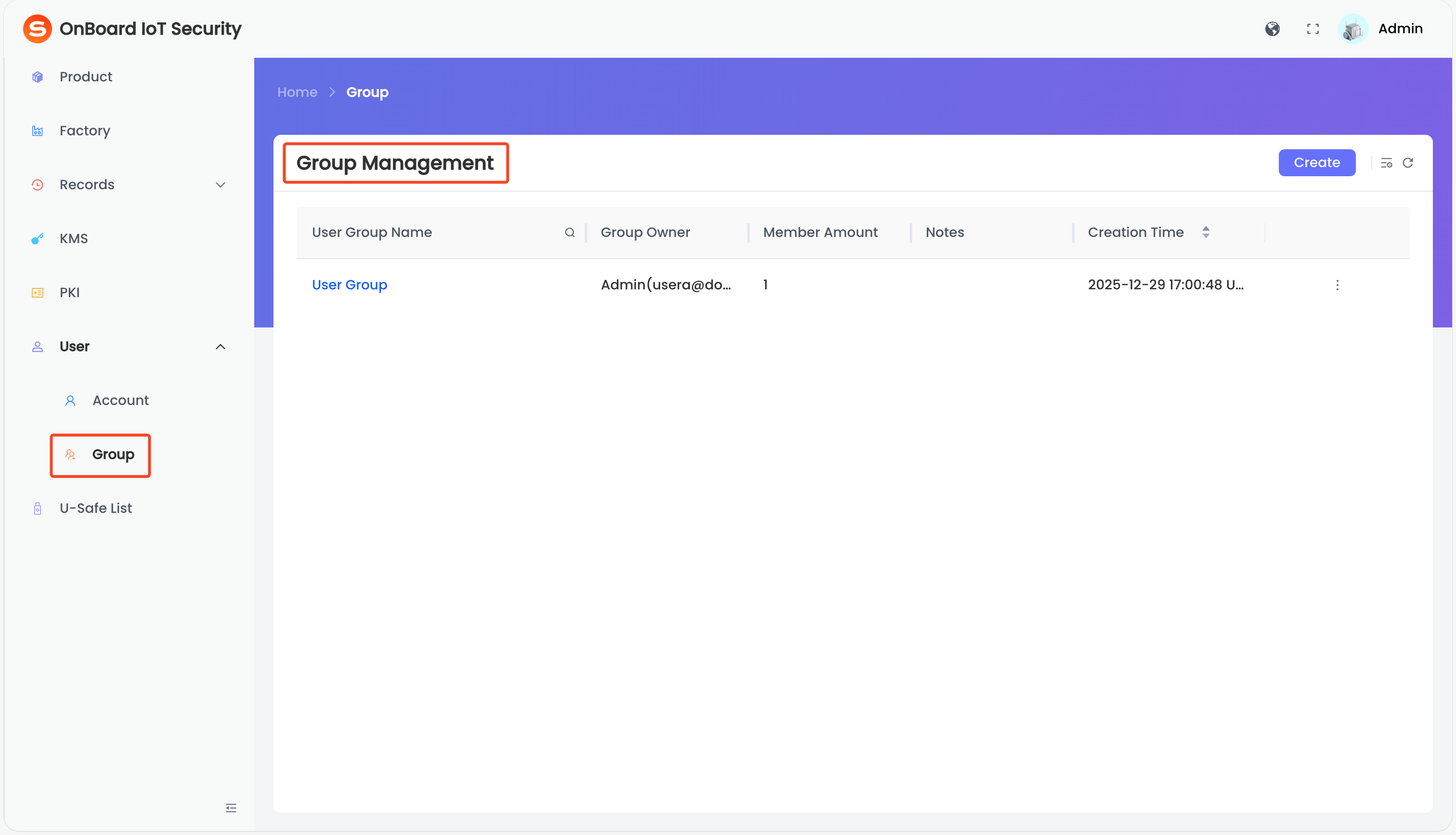
In the left menu, click User > Group to navigate to the Group Management page.
-
On the Group Management page, select the corresponding group name.
-
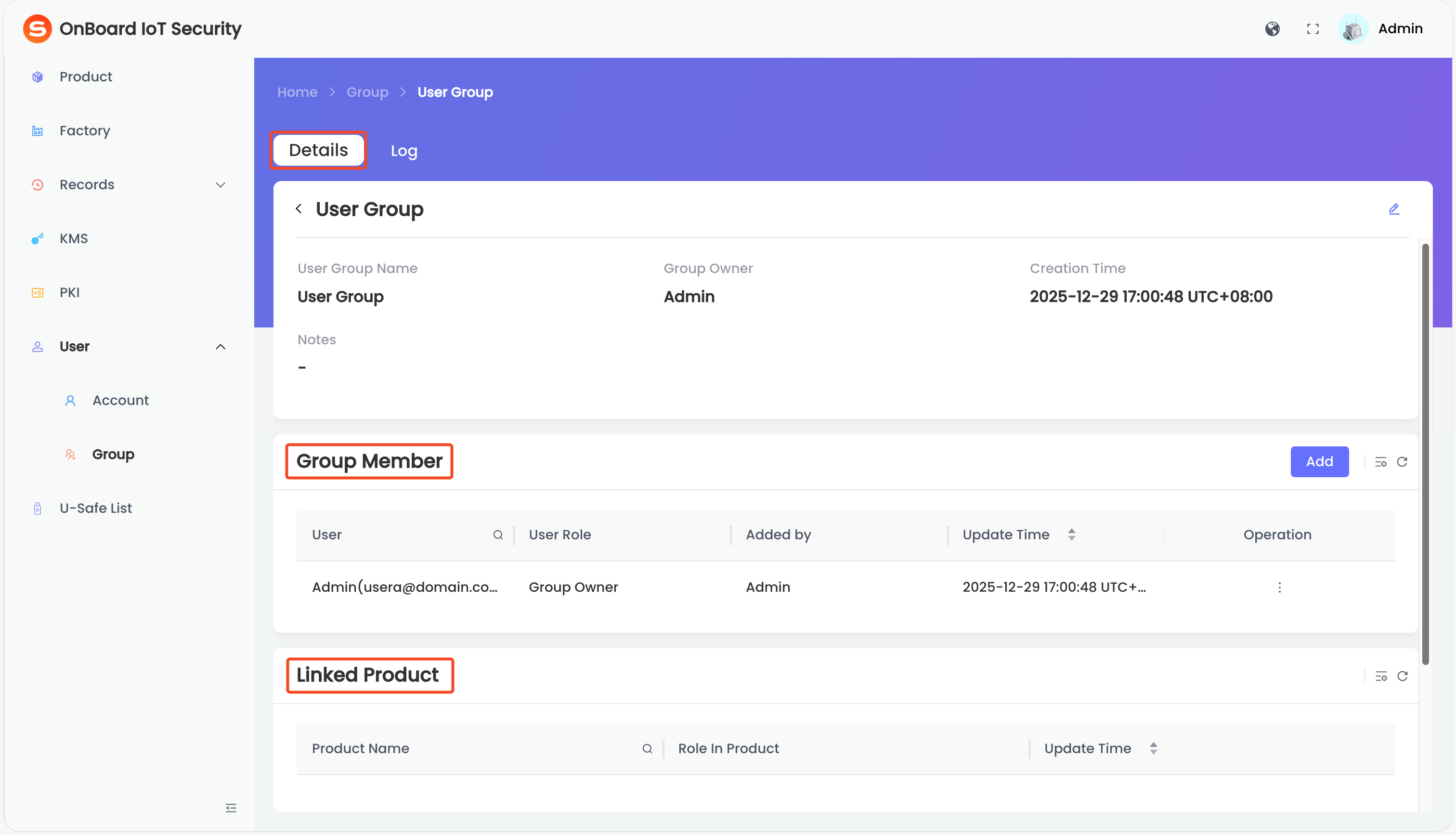
On the Details tab, you can check the group related information (such as User Group Name, Group Owner, and Linked Product).
Check logs
tip
Through the group logs, you can check the historical operations of the group.
-
Sign in to OBIS.
-
In the left menu, click User > Group to navigate to the Group Management page.
-
On the Group Management page, select the corresponding group name.
-
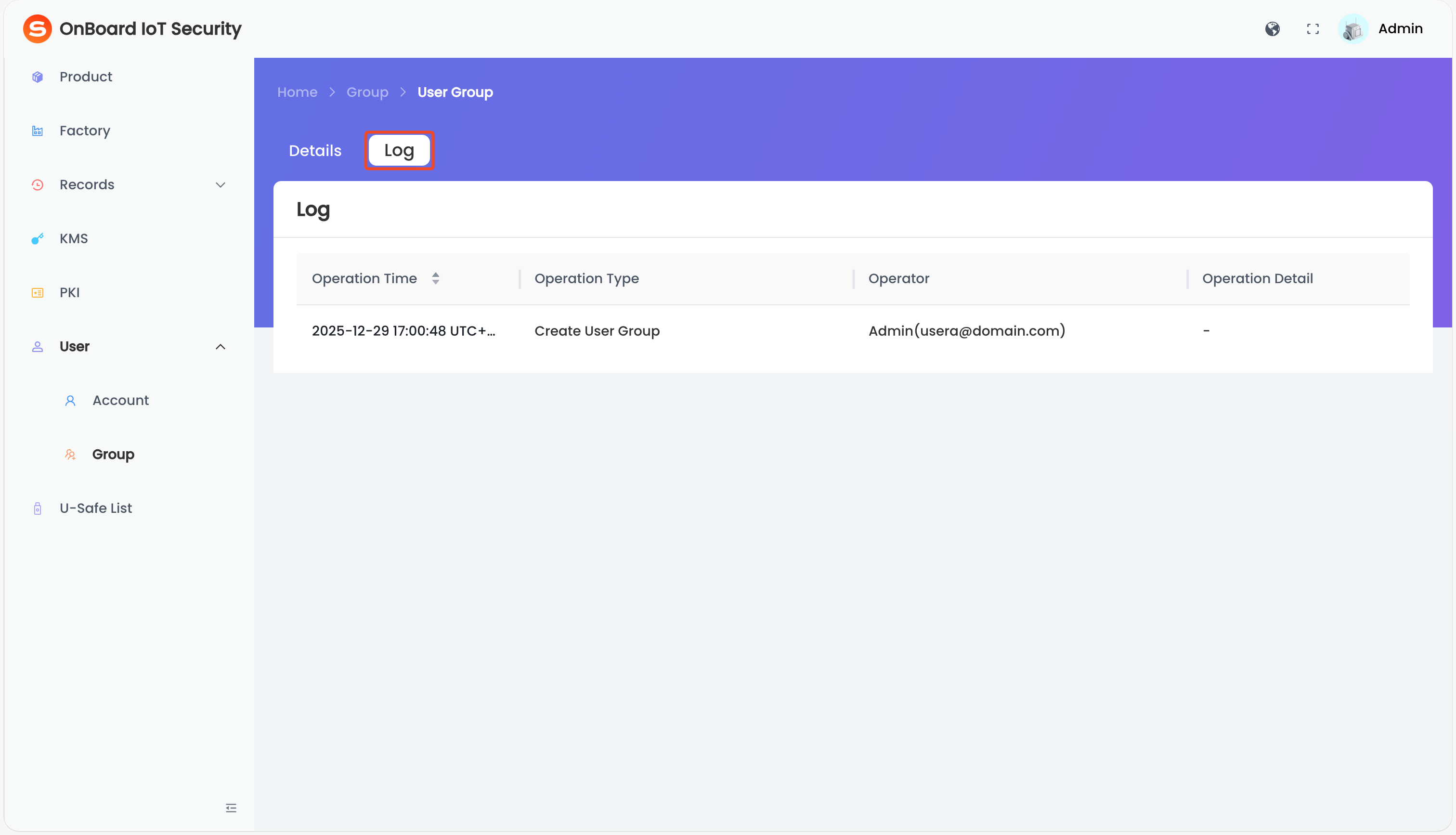
On the Log tab, you can check the historical operations of the group (such as Operation Time and Operation Type).

 Download User Manual