How to check certificates in OnBoard™ IoT Security
This article will guide you on how to check certificate basic information, certificate profile, and logs in OnBoard™ IoT Security (OBIS).
Check basic information
-
Sign in to OBIS.
-
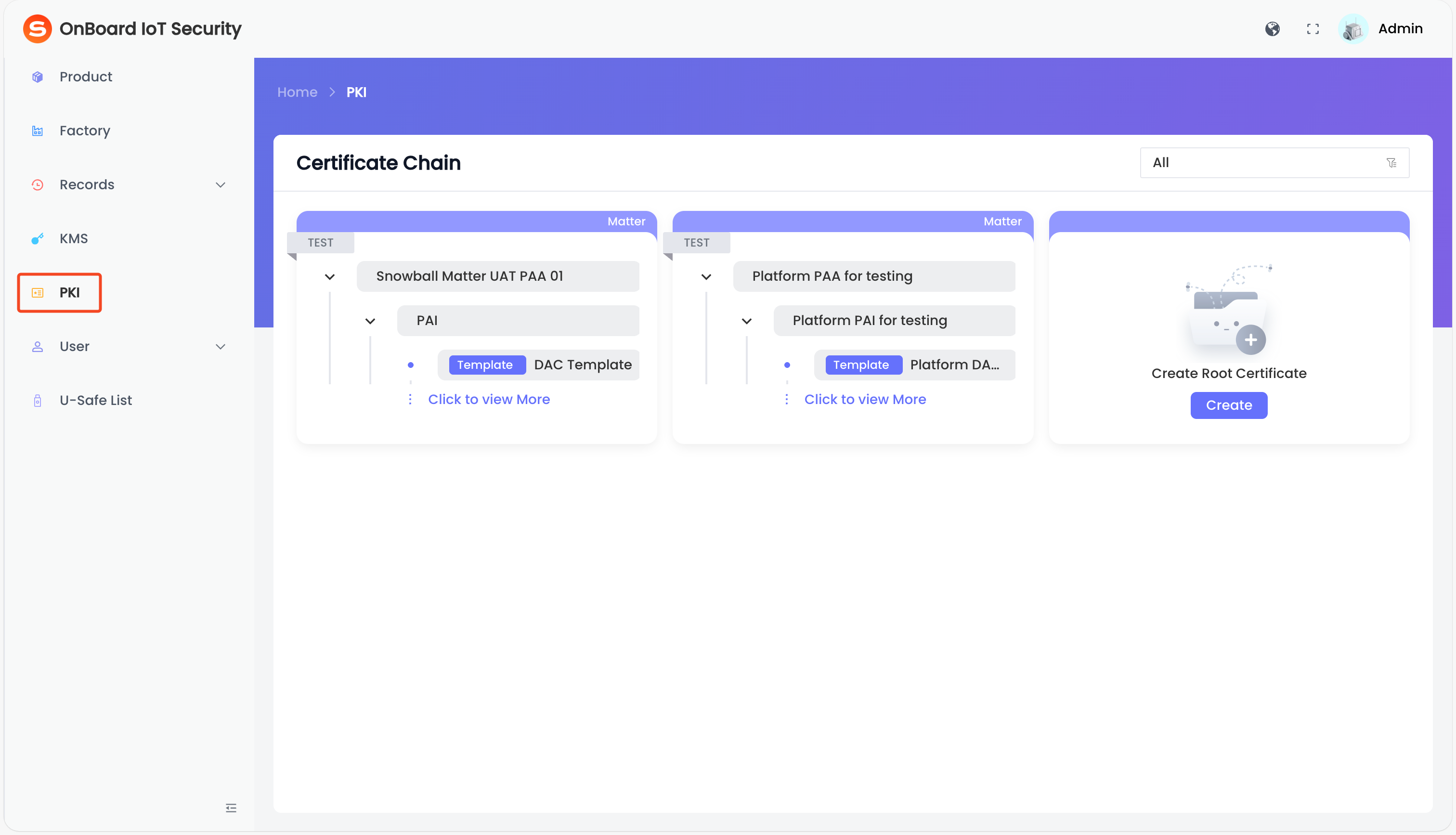
In the left menu, click PKI, and then select the corresponding certificate chain.
tipThe Key
 icon indicates that the certificate contains a private key.
-
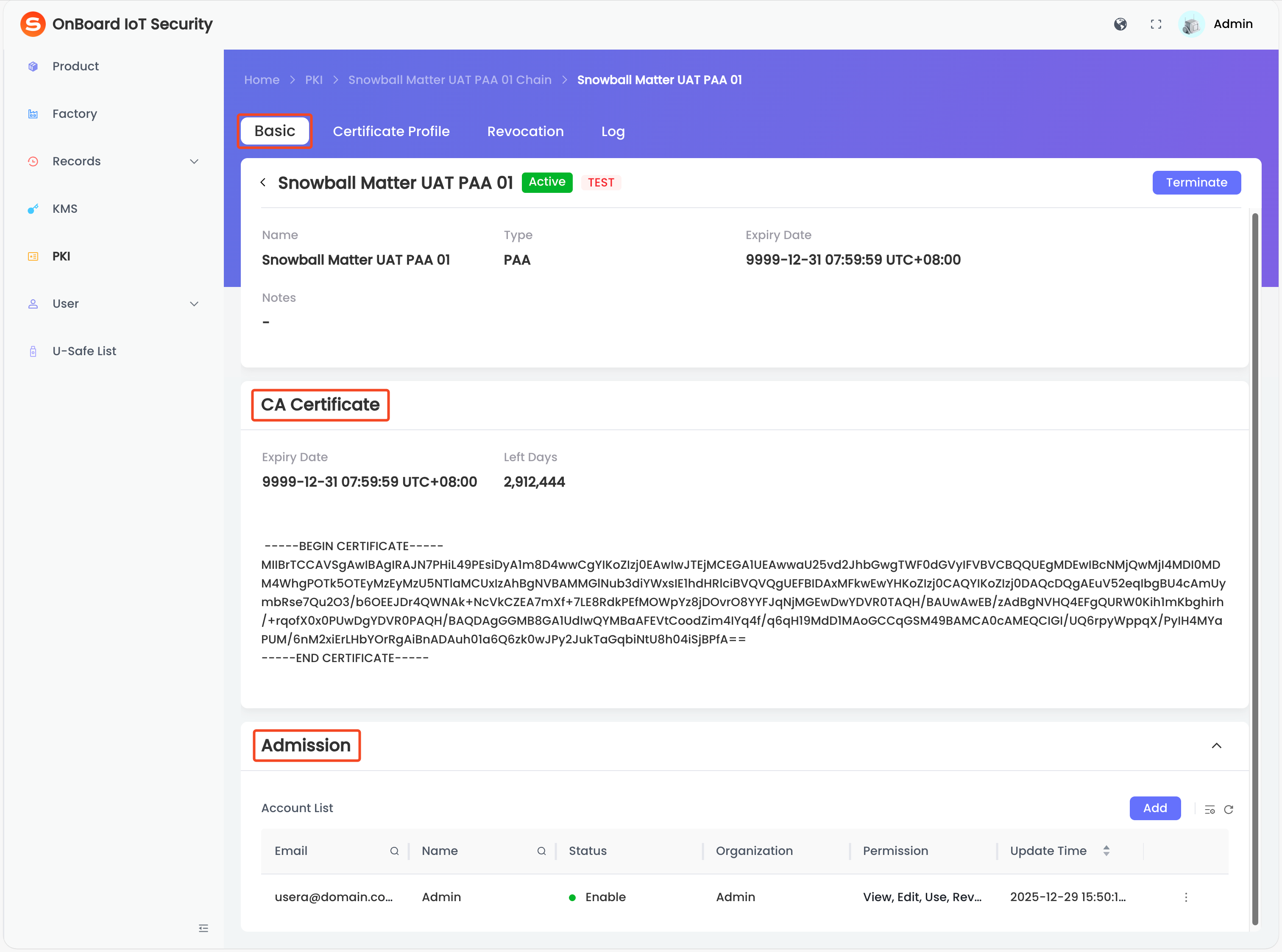
Select the corresponding certificate name. On the Basic tab of the certificate page, you can check the certificate-related information (such as Name, Type, and Expiry Date).
tipIn the CA Certificate area, you can extract certificate attributes such as the issuer information, validity period, and public key by parsing the encoding of the CA certificate.
In the Admission area, you can manage the certificate permissions.
Check certificate profile
-
Sign in to OBIS.
-
In the left menu, click PKI, and then select the corresponding certificate chain.
tipThe Key
icon indicates that the certificate contains a private key. -
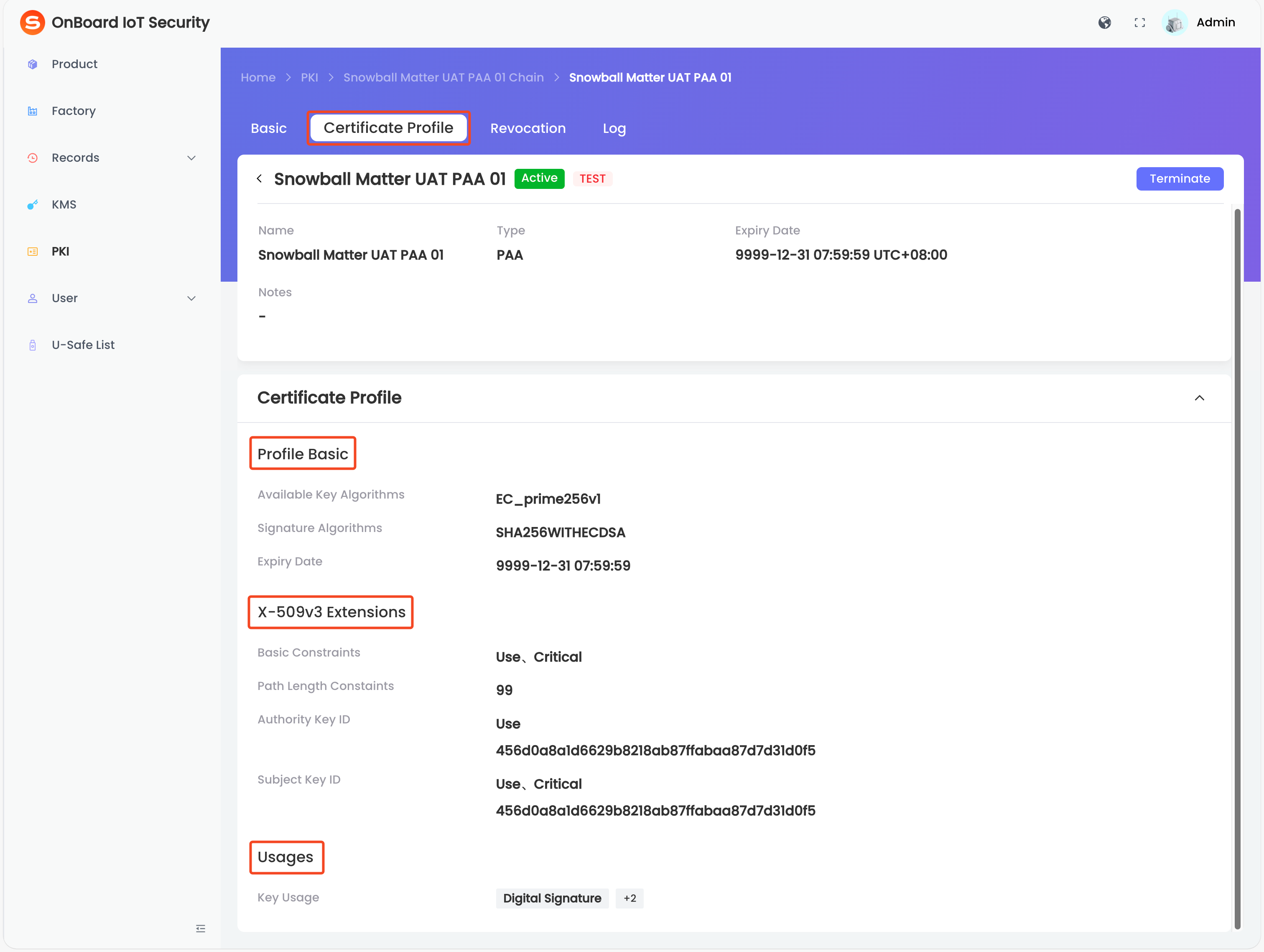
Select the corresponding certificate name. On the Certificate Profile tab of the certificate page, you can check the certificate configuration (such as Profile Basic, X-509v3 Extensions, and Usages).
Check logs
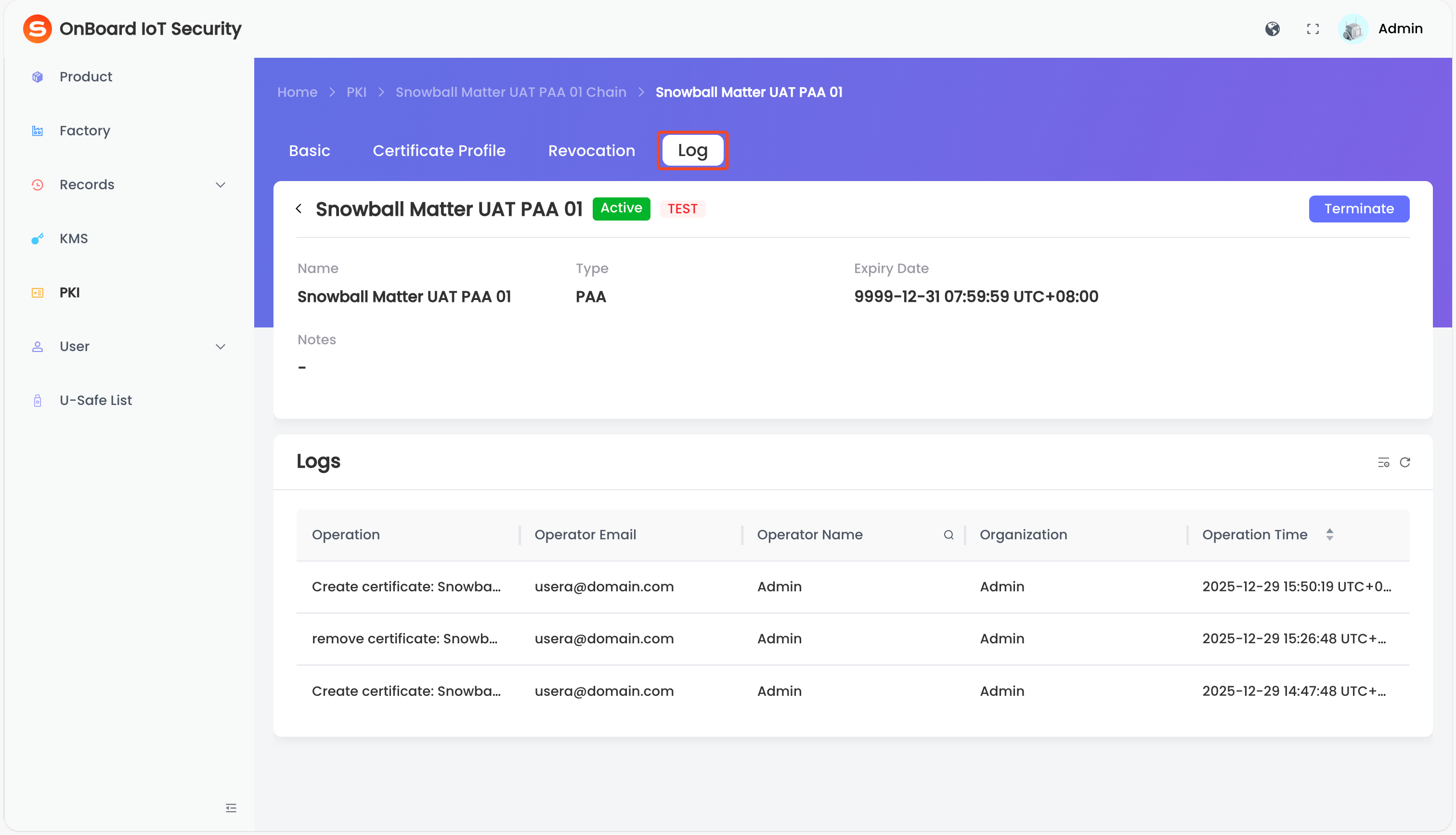
Through the certificate logs, you can check the historical operations of the certificate.
-
Sign in to OBIS.
-
In the left menu, click PKI, and then select the corresponding certificate chain.
tipThe Key
icon indicates that the certificate contains a private key. -
Select the corresponding certificate name. On the Log tab of the certificate page, you can check the certificate history (such as Operation and Operator Email).

 Download User Manual