How to check certificates in OnBoard™ IoT Security
This article will guide you through the following operations in OnBoard™ IoT Security (OBIS):
- Check basic information
- Check usage count
- Check verification service
- Check end-entity certificate
- Check audit
- Check members
Prerequisites
Before getting started, please ensure that you have permissions for the corresponding certificate.
Check basic information
-
Sign in to OBIS.
-
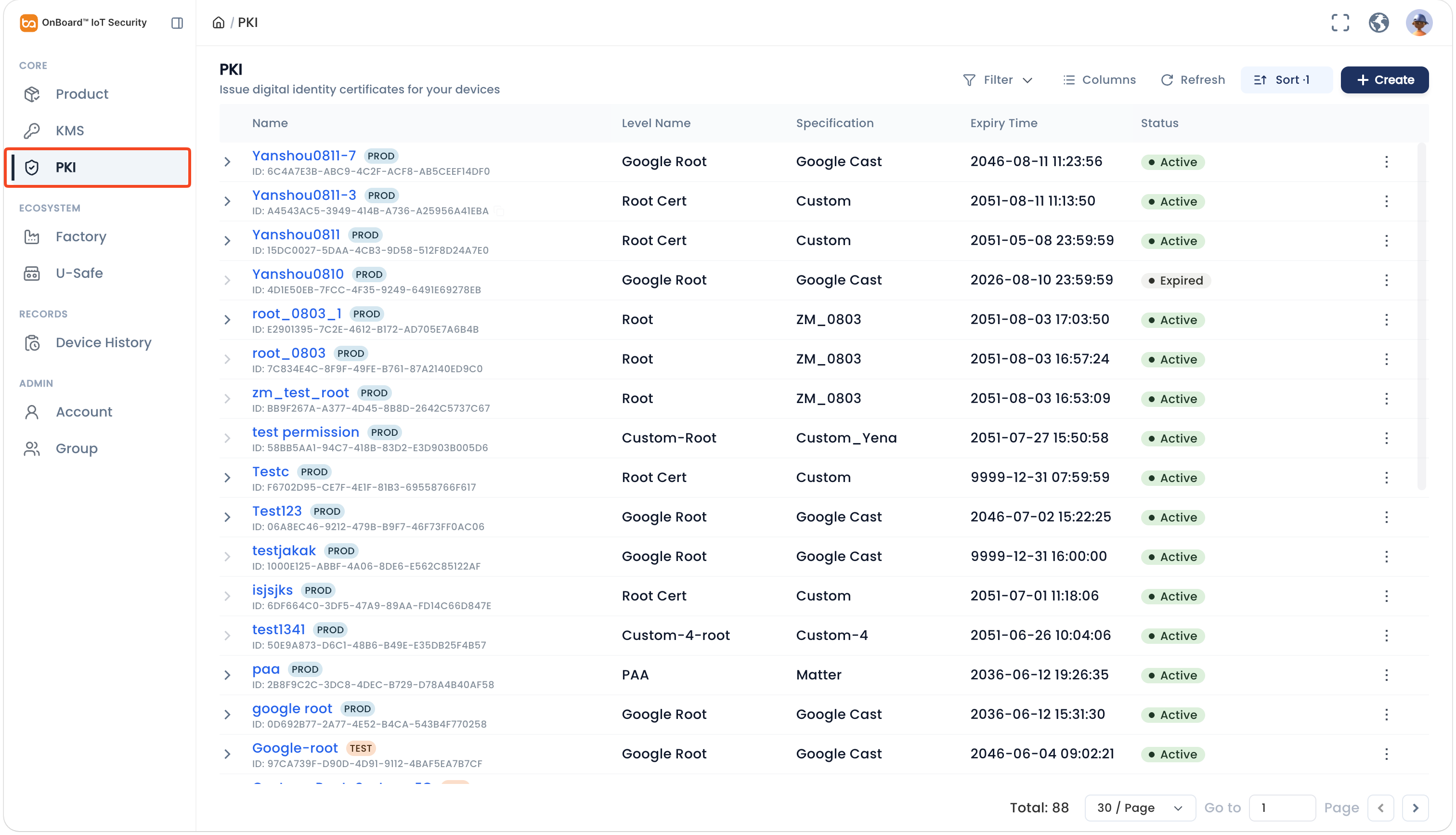
In the Core section of the left menu, click PKI. Expand the corresponding certificate chain, and then select the corresponding certificate.
tipClick the Filter
 , Sort
 , Refresh
 , and Columns Options
 icons to filter, sort, refresh data, and to customize which columns are shown and how they are ordered.
-
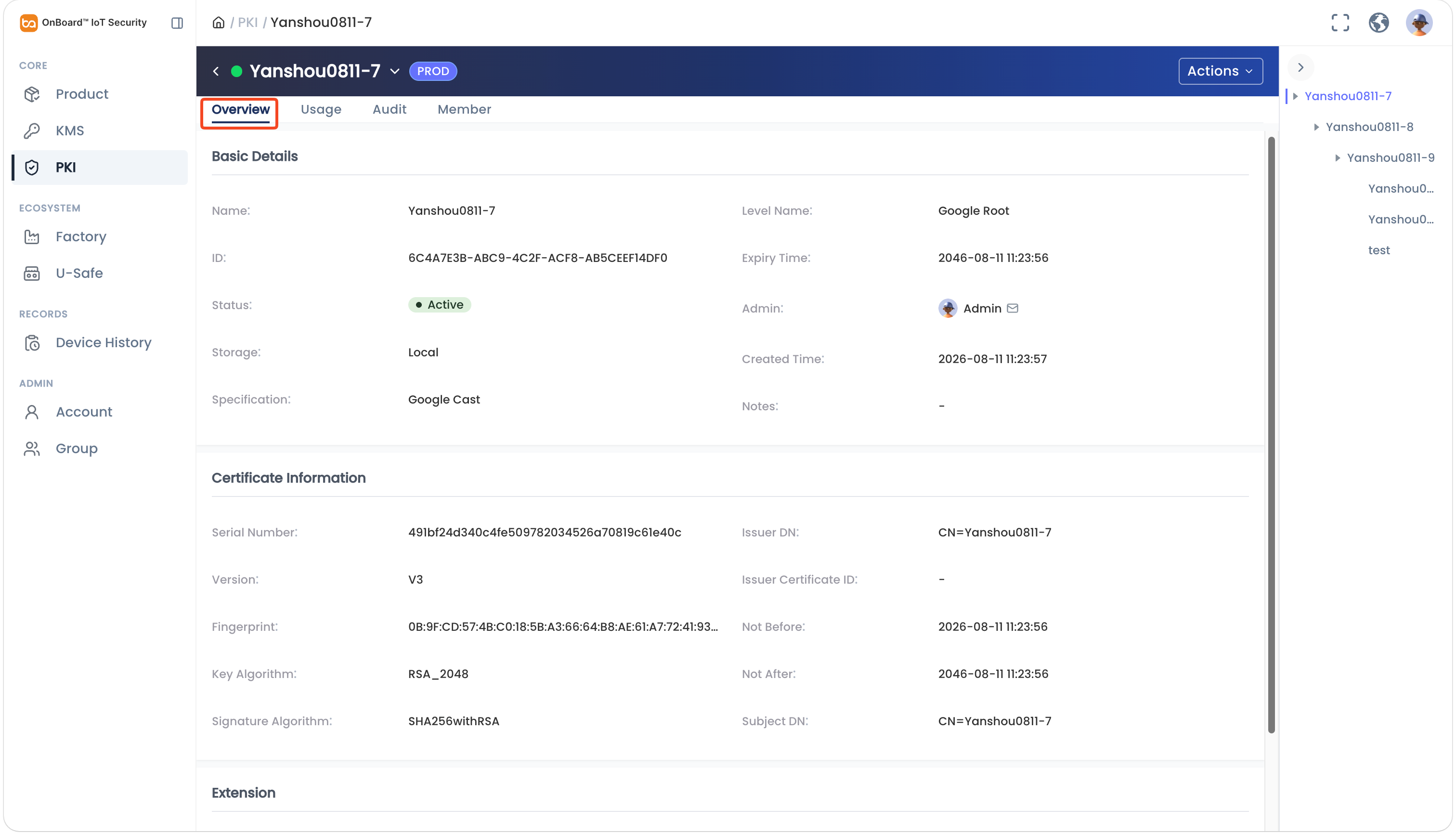
On the Overview tab, you can check the certificate-related information (Basic Details, Certificate Information, and Extension).
Check usage count
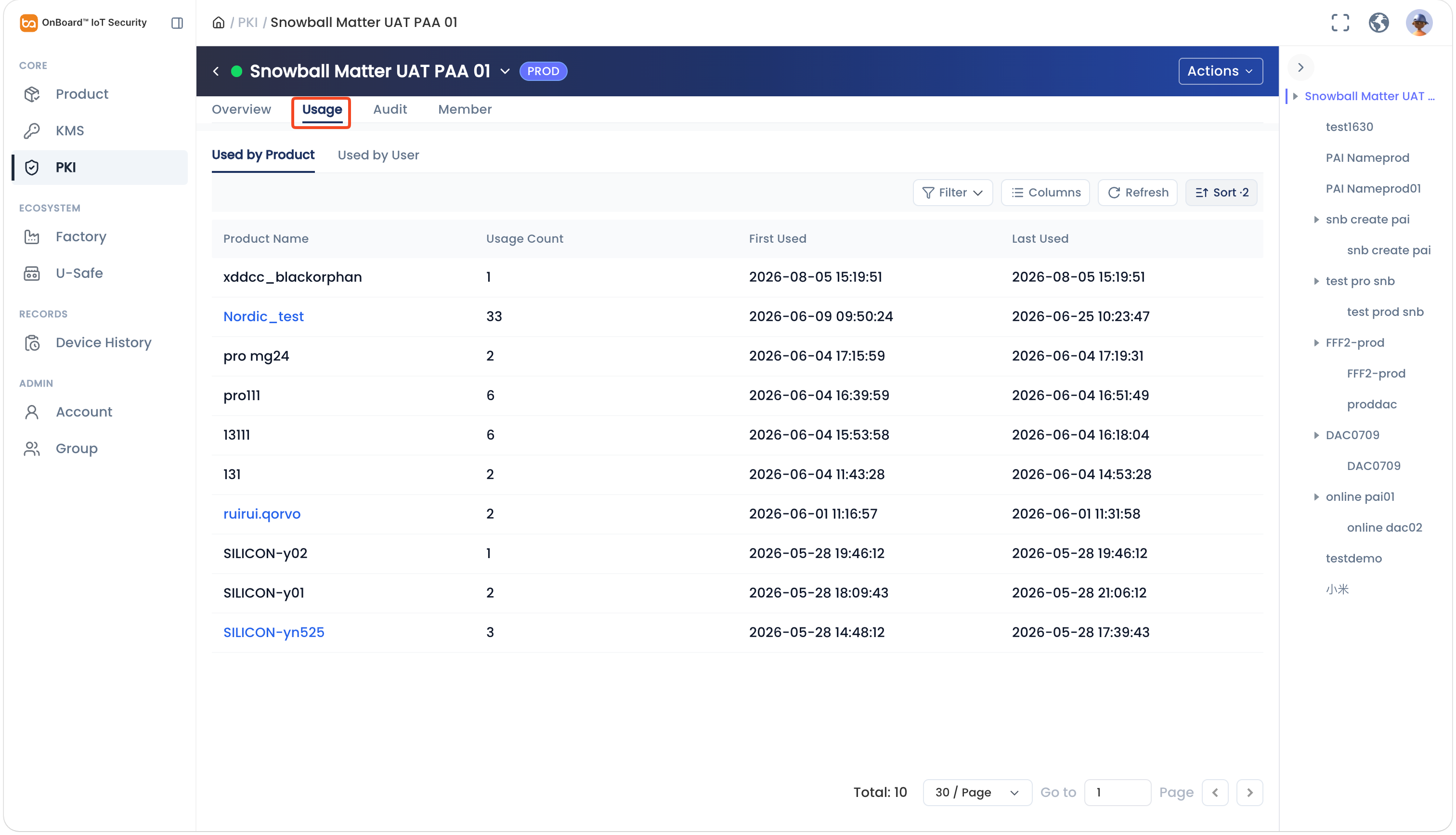
Certificate usage count can be used to view certificate dependencies and impact scope.
-
Sign in to OBIS.
-
In the Core section of the left menu, click PKI. Expand the corresponding certificate chain, and then select the corresponding certificate.
-
Select the Usage tab, you can check the usage count (such as Usage Count, First Used, and Last Used) for certificates used by users and products.
Check verification service
- If no verification services are configured for the certificate, the Verification Service tab is hidden.
- If only partial verification services are configured, only the corresponding configured service modules are displayed.
-
Sign in to OBIS.
-
In the Core section of the left menu, click PKI. Expand the corresponding certificate chain, and then select the corresponding certificate.
-
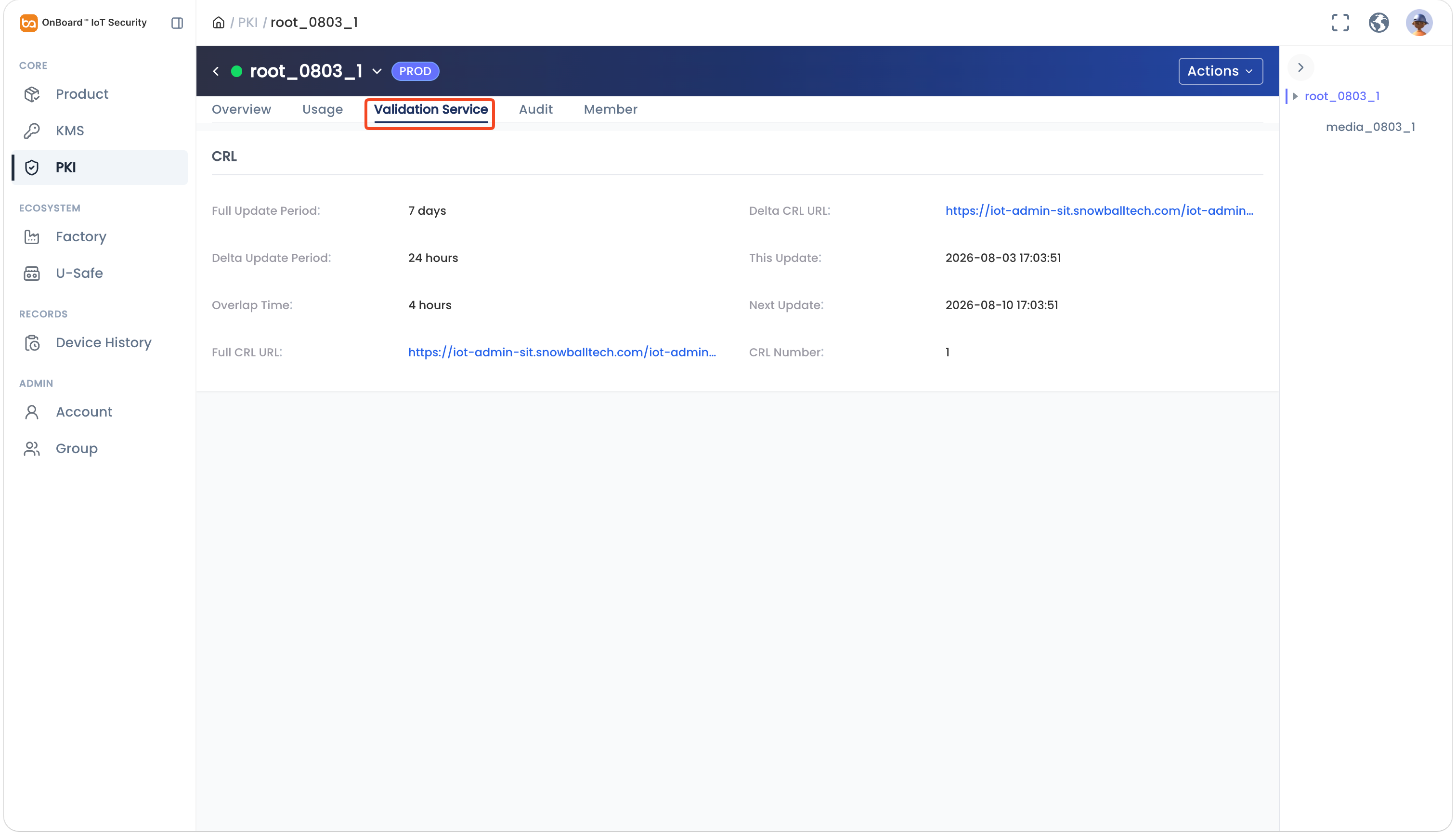
Select the Verification Services tab, you can check the verification service information (such as CRL, OSCP, and CA Issuers).
Check end-entity certificate
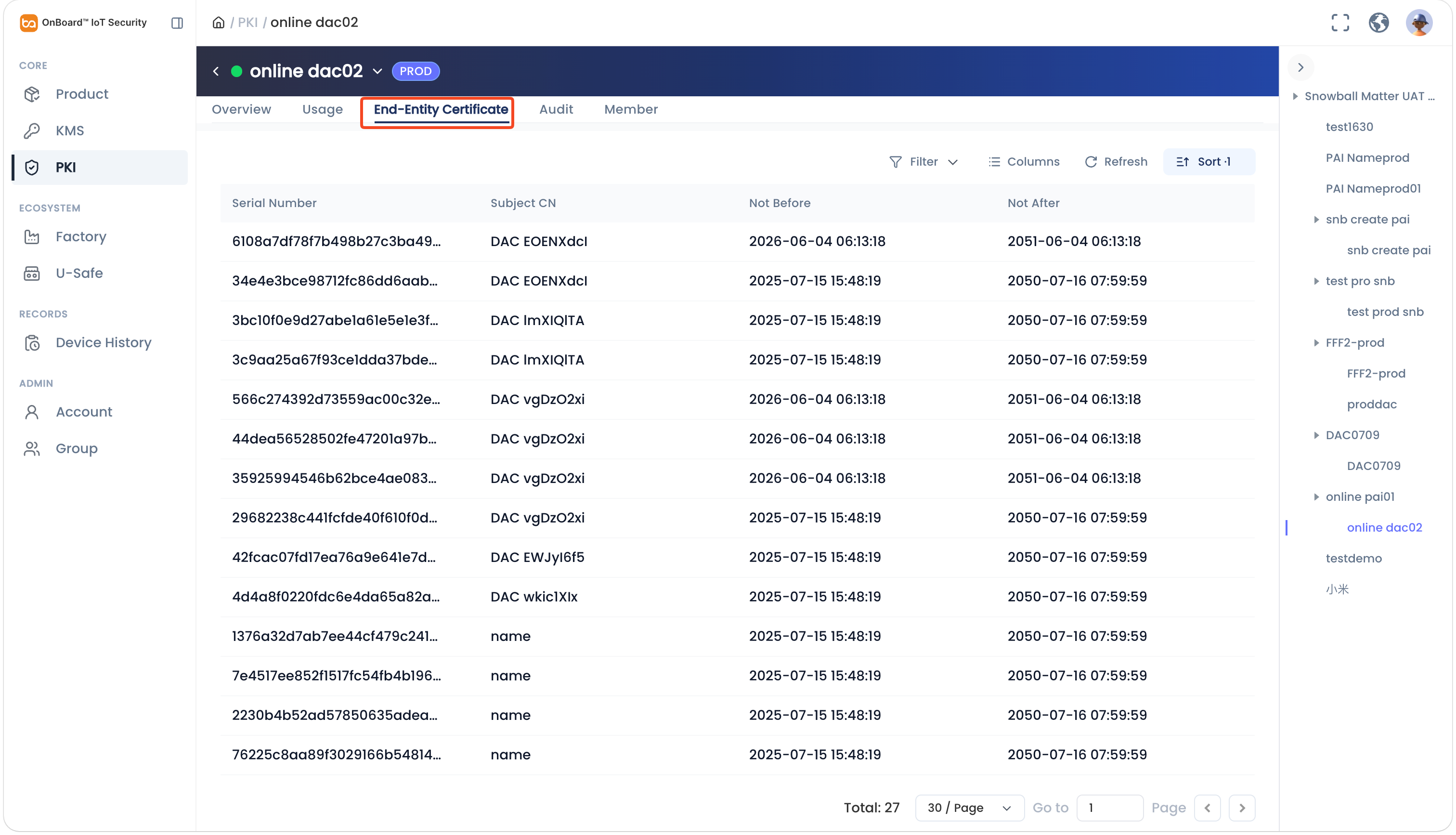
The end-entity certificate displays all end-entity certificates issued from the template, providing visibility into the template's actual issuance status.
-
Sign in to OBIS.
-
In the Core section of the left menu, click PKI. Expand the corresponding certificate chain, and then select the corresponding certificate template (DAC Template, Device Template, and Leaf Cert Template).
-
Select the End-Entity Certificate tab, you can check the relevant end-entity certificate information (such as Serial Number, Subject CN, Not Before, and Not After).
Check audit
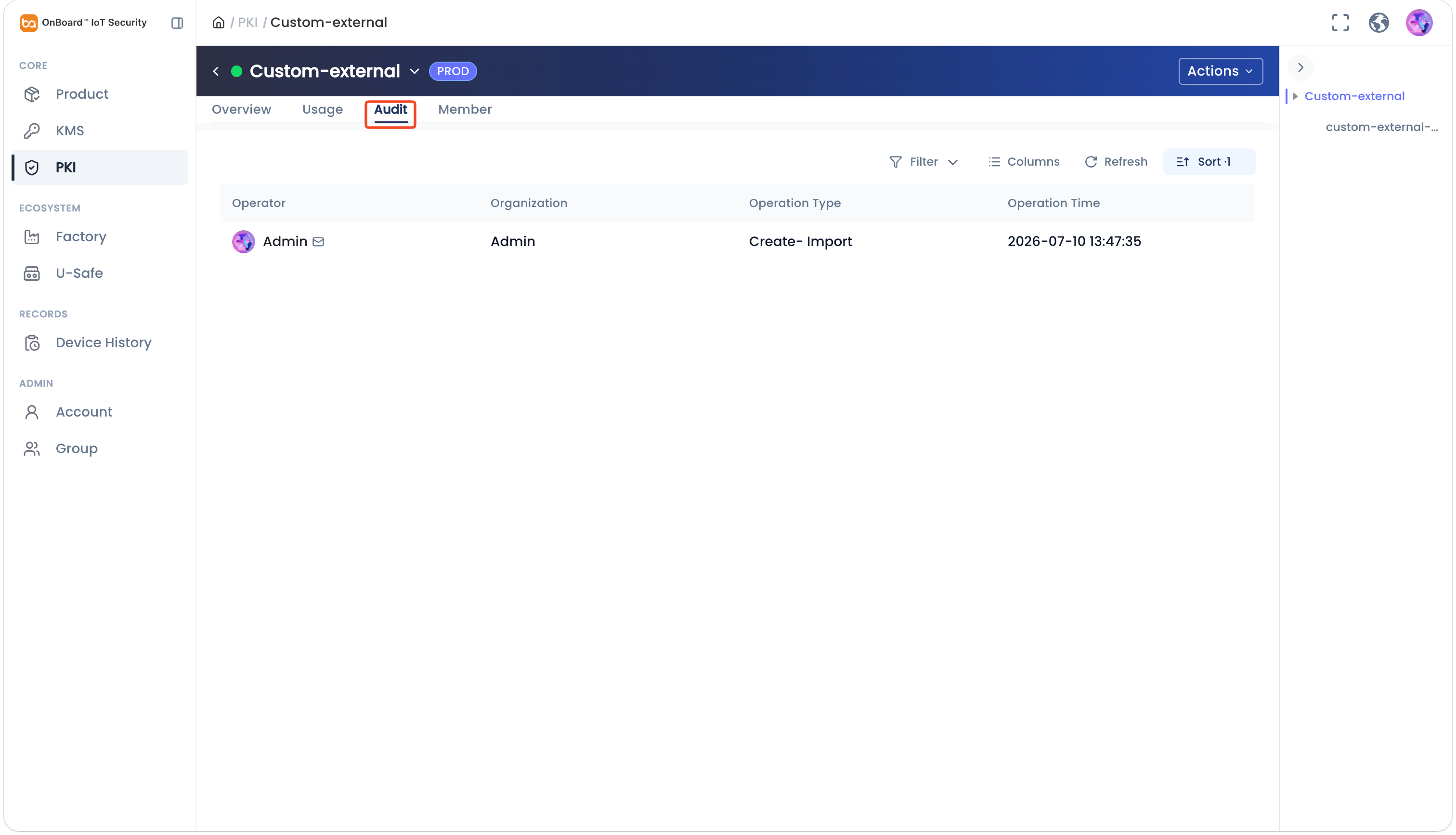
Through the certificate logs, you can check the historical operations of the certificate.
-
Sign in to OBIS.
-
In the Core section of the left menu, click PKI. Expand the corresponding certificate chain, and then select the corresponding certificate.
-
Select the Audit tab, you can check the certificate's historical records (such as Operator, Operation Type, and Operation Time).
Check members
-
Sign in to OBIS.
-
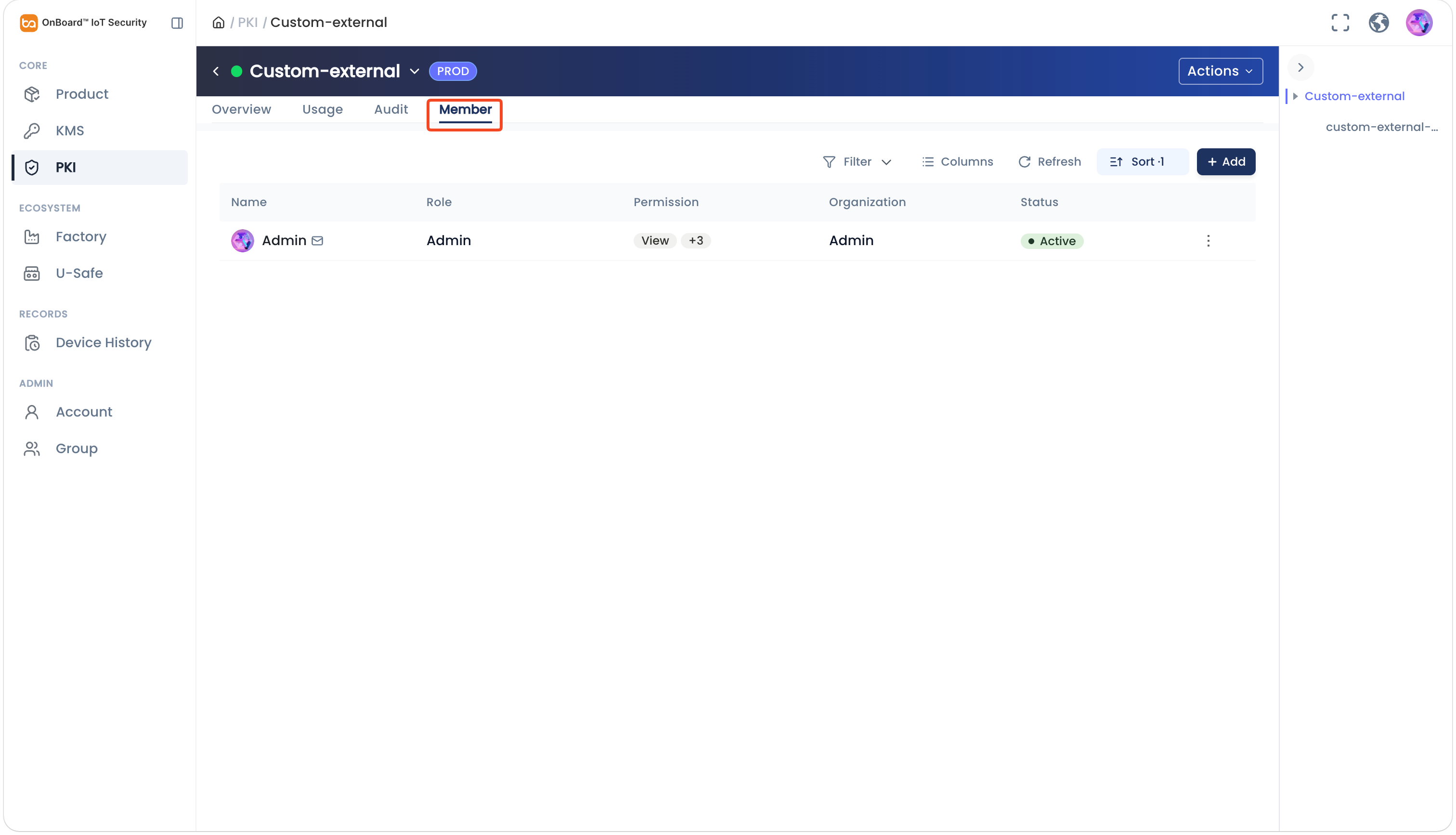
In the Core section of the left menu, click PKI. Expand the corresponding certificate chain, and then select the corresponding certificate.
-
Select the Member tab , you can check the user permissions for the certificate (such as Name, Role, and Permission).

 Download User Manual