How to sign in to OnBoard Edge Service
Operations in OnBoard Edge Service are applicable only to local factories, while operations for cloud factories can be performed directly in OnBoard™ IoT Security (OBIS).
This article will guide you on how to sign in to OnBoard Edge Service using either the "Email + Password" or "Email + Verification code" method.
Prerequisites
Before getting started, please ensure that:
- The factory has been created and configured. For detailed instructions, refer to the steps for creating a factory, configuring a factory, and configuring a programming station.
- You have factory role permissions as a Factory Manager.
- Have contacted Snowball for assistance in deploying of OnBoard Edge Service.
- You have obtained the HSM U-Safe for identity authentication from Snowball, and inserted the corresponding HSM U-Safe (added during factory configuration) into the local factory server.
- Your sign-in device is within the factory service intranet environment.
The factory server requires at least 1 HSM U-Safe. Inserting multiple HSM U-Safes can improve server performance, and the quantity can be purchased according to the needs of the production line.
Method one: Password
- When the Internet is disconnected, OnBoard Edge Service only supports identity verification using the "Email + Password" method.
- After a Factory Manager is added, the system automatically generates an initial password and sends it to the corresponding email address. Currently, this randomly generated password can be reset, but custom modification is not yet supported.
-
Enter the following address in the browser address bar: http://<Service Address>:32334/login.
tipReplace <Service Address> with the actual service IP. For more information, refer to how to check service address.
-
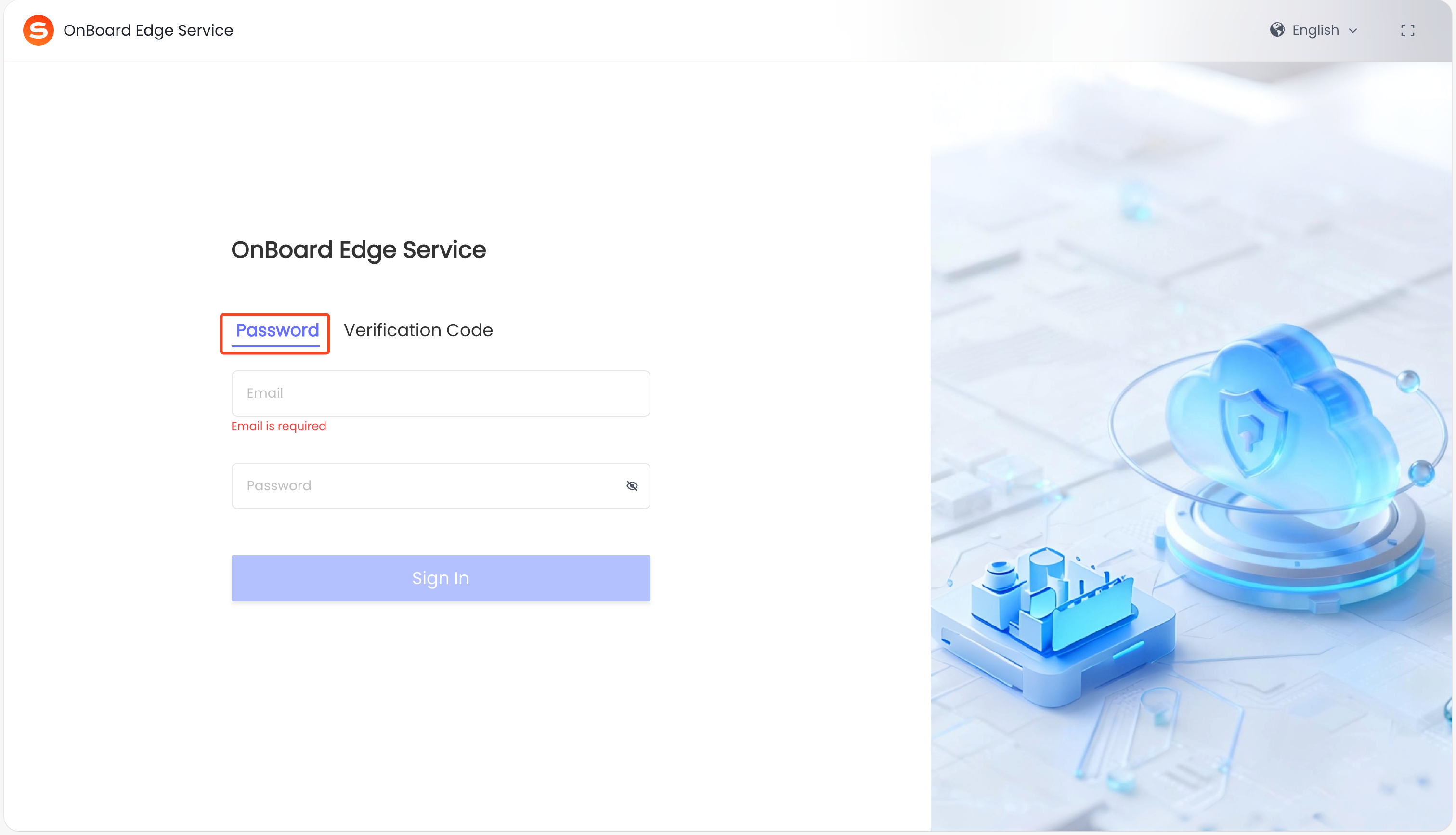
On the OnBoard Edge Service sign-in page, select Password, enter your email and password, and then click Sign In.
-
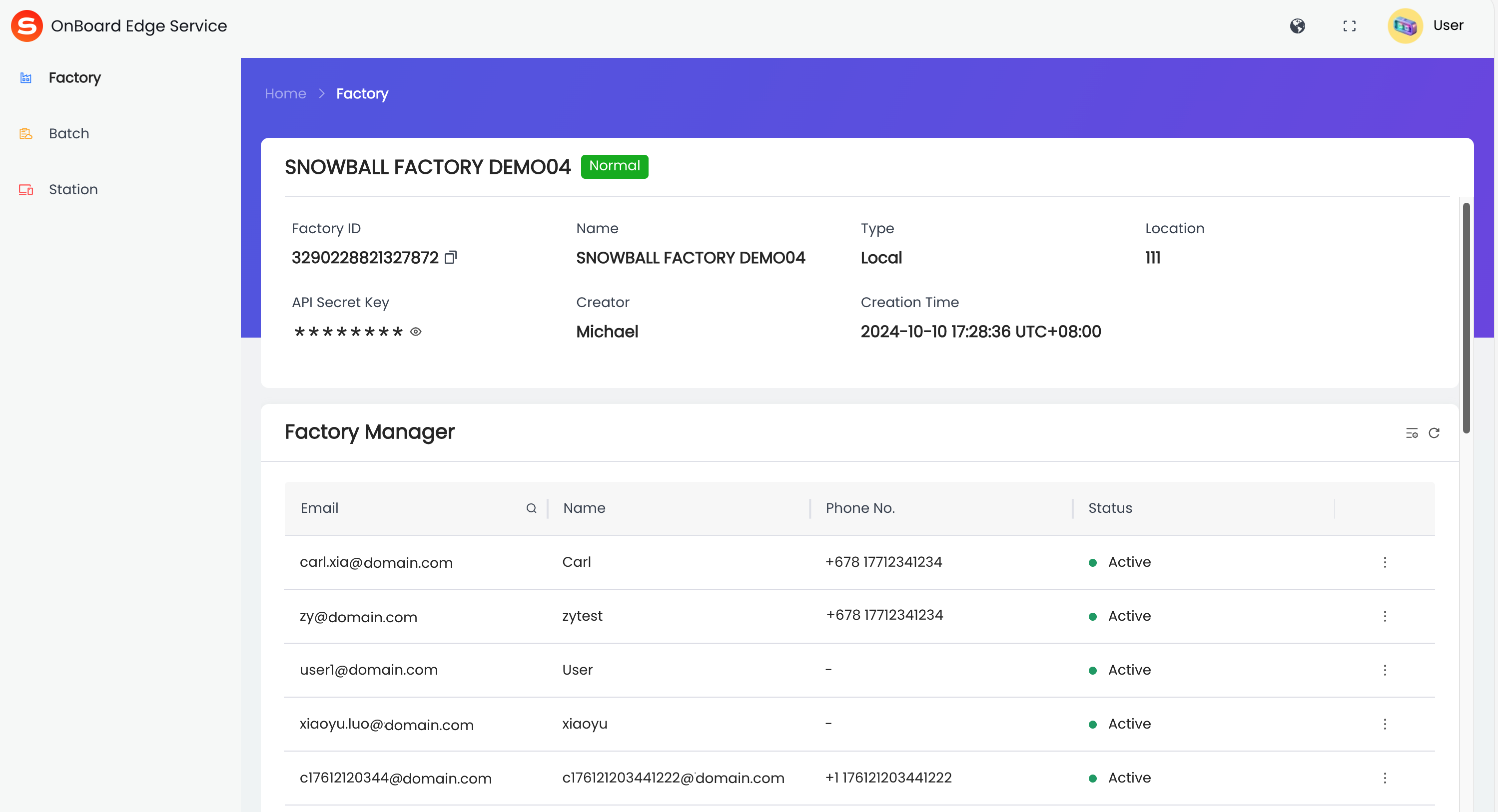
After a successful sign-in, the page will navigate to the home page of OnBoard Edge Service.
Method two: Verification code
-
Enter the following address in the browser address bar: http://<Service Address>:32334/login.
tipReplace <Service Address> with the actual service IP. For more information, refer to how to check service address.
-
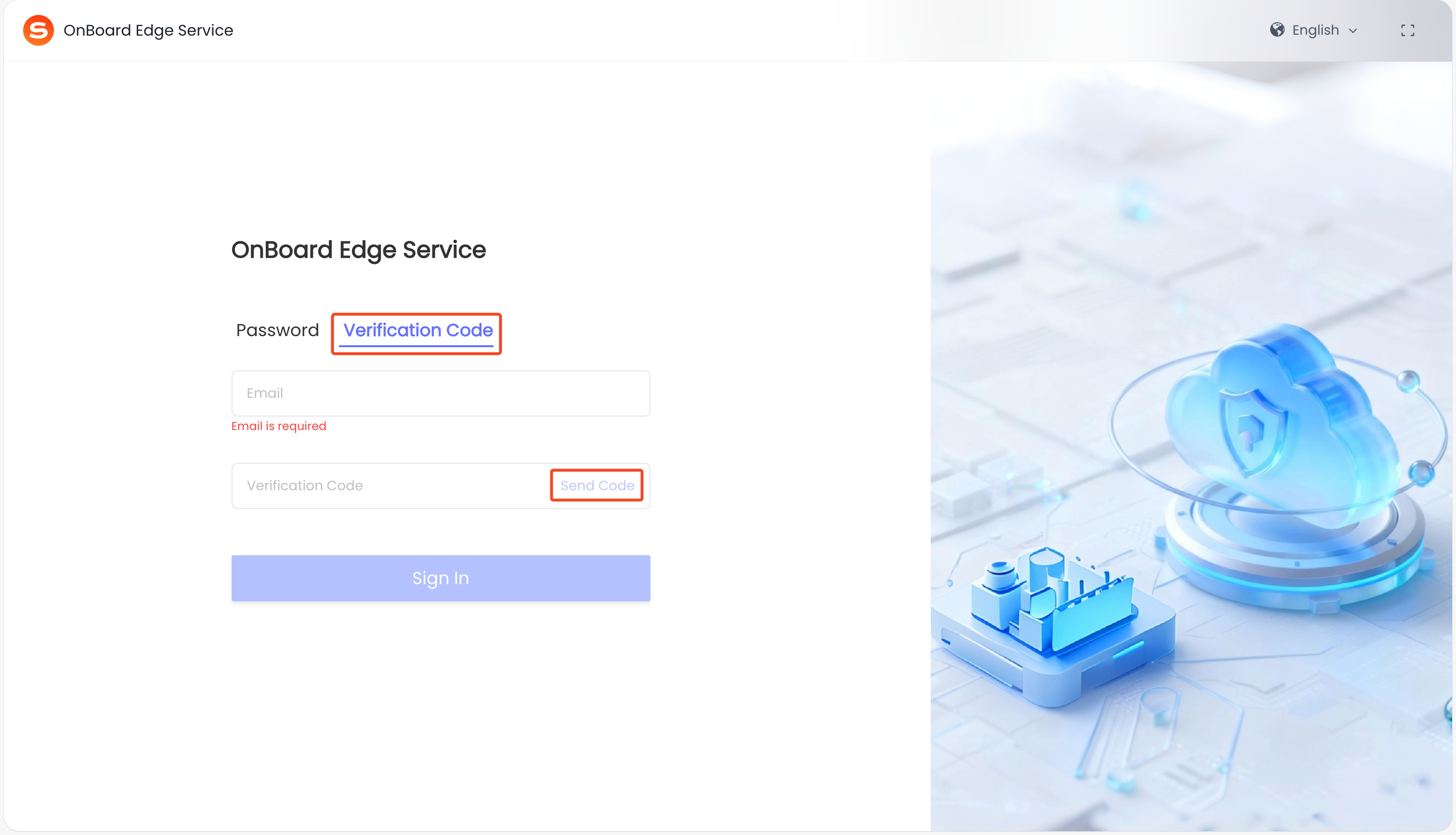
On the OnBoard Edge Service sign-in page, select Verification Code, enter your email, and then click Send Code.
-
Sign in to your email, check the verification email from OBIS which contains a six-digit verification code.
-
On the OBIS sign-in page, enter the six-digit verification code you received in your email, and then click Sign In.
-
After a successful sign-in, the page will navigate to the home page of OnBoard Edge Service.

 Download User Manual