Register and sign in to OnBoard™ IoT Security
Welcome to Snowball OnBoard™ IoT Security (OBIS)! This article will guide you to quickly complete the OBIS account registration and sign-in, so that you can start using the OBIS functions immediately. Please follow the steps below:
Step one: Register an OBIS account
Please contact us with the following information, and we will assist you in completing your OBIS account registration:
- Company Name
- Name
After you submit the information, we will contact you as soon as possible to complete the registration process.
Step two: Sign in to OBIS
After the account is registered, you can sign in using either a verification code or the SSO (Single Sign-On) method:
Method one: Verification code
You can contact Snowball to enable the enterprise Self-Registration feature, allowing users to sign up accounts on the OBIS sign-in page using their company email and sign in with a verification code. OBIS will automatically assign default role permissions to them.
-
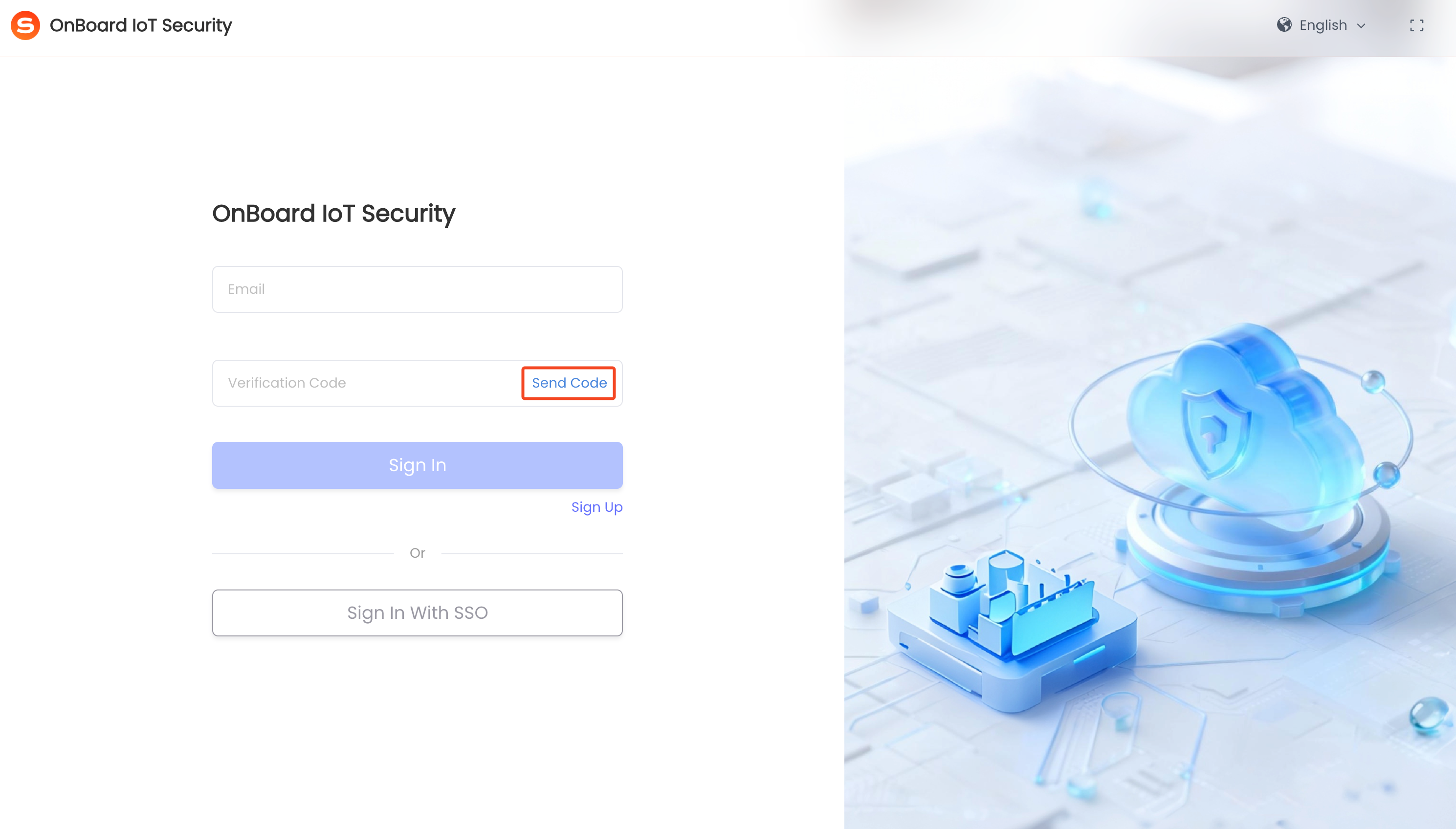
On the OBIS sign-in page, enter the email you provided when registering for the OBIS account, and then click Send Code.
-
Sign in to your email, check the verification email from OBIS which contains a six-digit verification code.
-
On the OBIS sign-in page, enter the six-digit verification code you received in your email, and then click Sign In.
-
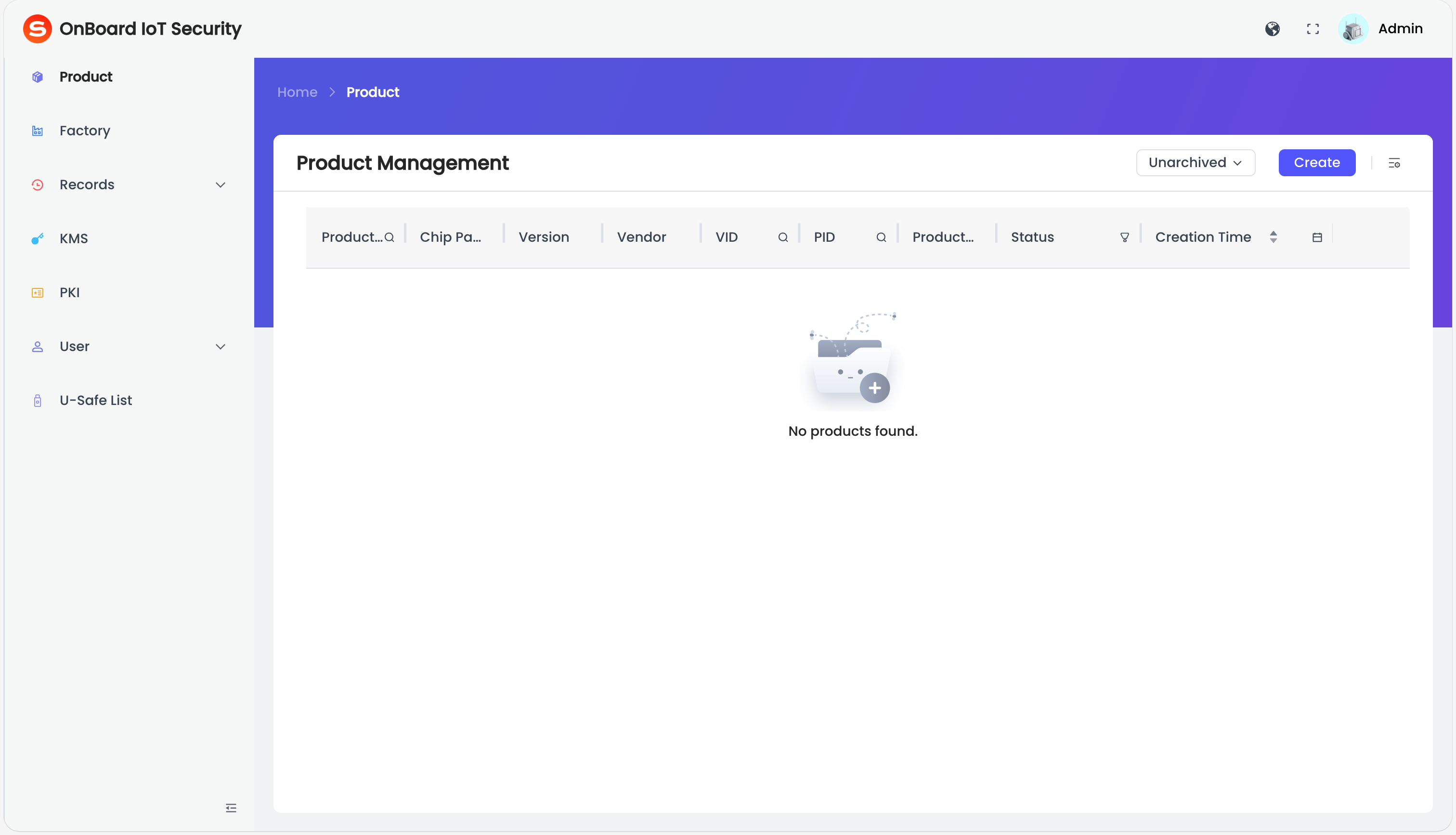
After a successful sign-in, the page will navigate to the OBIS home page.
Method two: SSO
You can contact Snowball to enable the Sign in with SSO feature, allowing users to sign in with their company email through the Enterprise Identity Provider (IdP). OBIS will automatically create an account for them and assign default role permissions. For more information, refer to Configure Sign in with SSO.
-
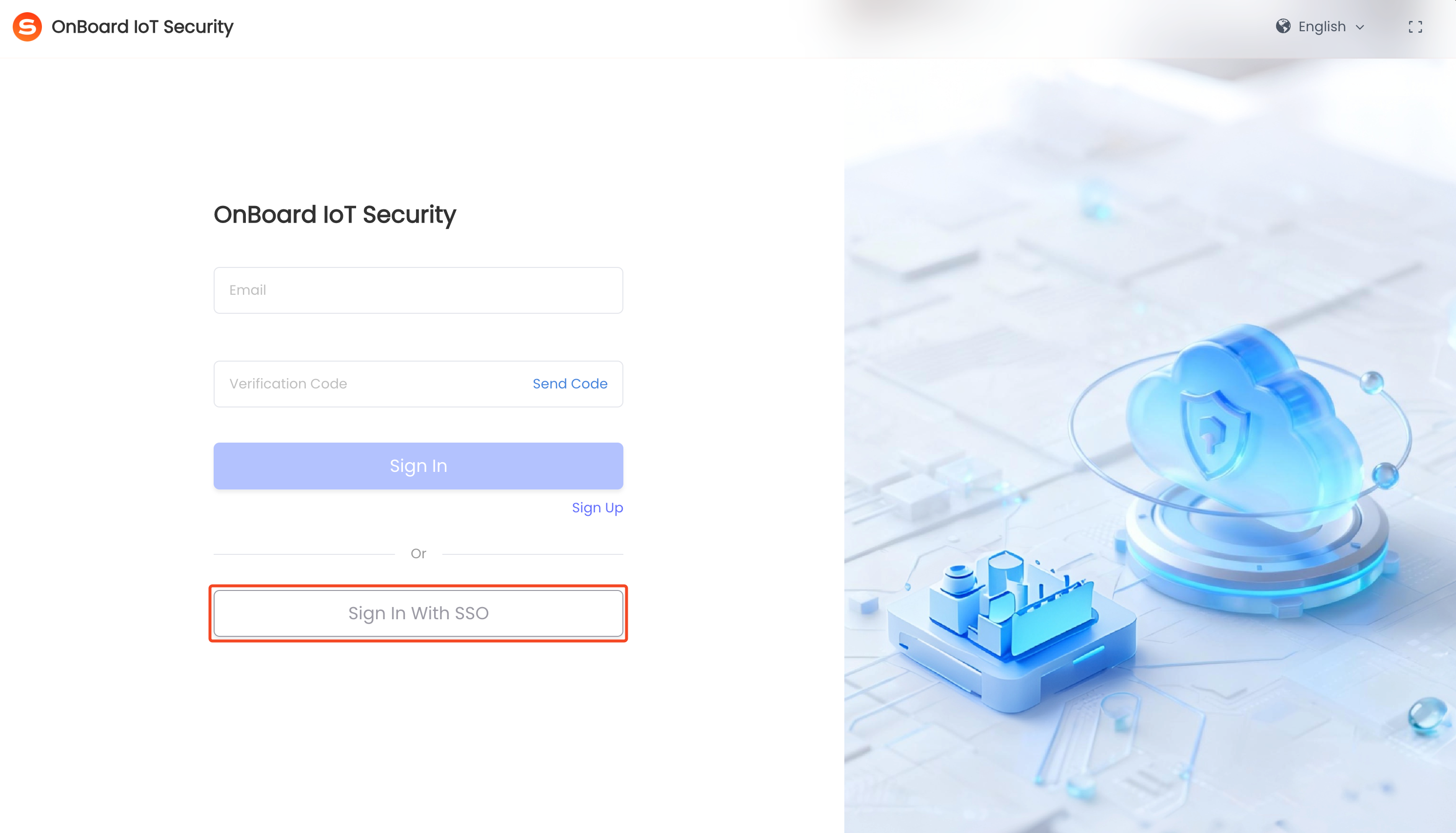
On the OBIS sign-in page, select Sign In With SSO.
-
Enter your company email and then click Next, the page will navigate to the enterprise IdP authentication page.
-
After successful authentication, the page will navigate to the OBIS home page.

 Download User Manual