How to check device history in OnBoard™ IoT Security
This article will guide you on how to check the device history records within the tenant in OnBoard™ IoT Security (OBIS).
Prerequisites
Before getting started, please ensure that:
- The device has already been programmed.
- You have either the product role permissions for the relevant product, or the factory role permissions for the relevant factory.
Instructions
-
Sign in to OBIS.
-
In the Records section of the left menu, click Device History, and then you can check the device history records on the Device History page.
tipClick the Filter
 , Sort
 , Refresh
 , and Columns Options
 icons to filter, sort, refresh data, and to customize which columns are shown and how they are ordered.
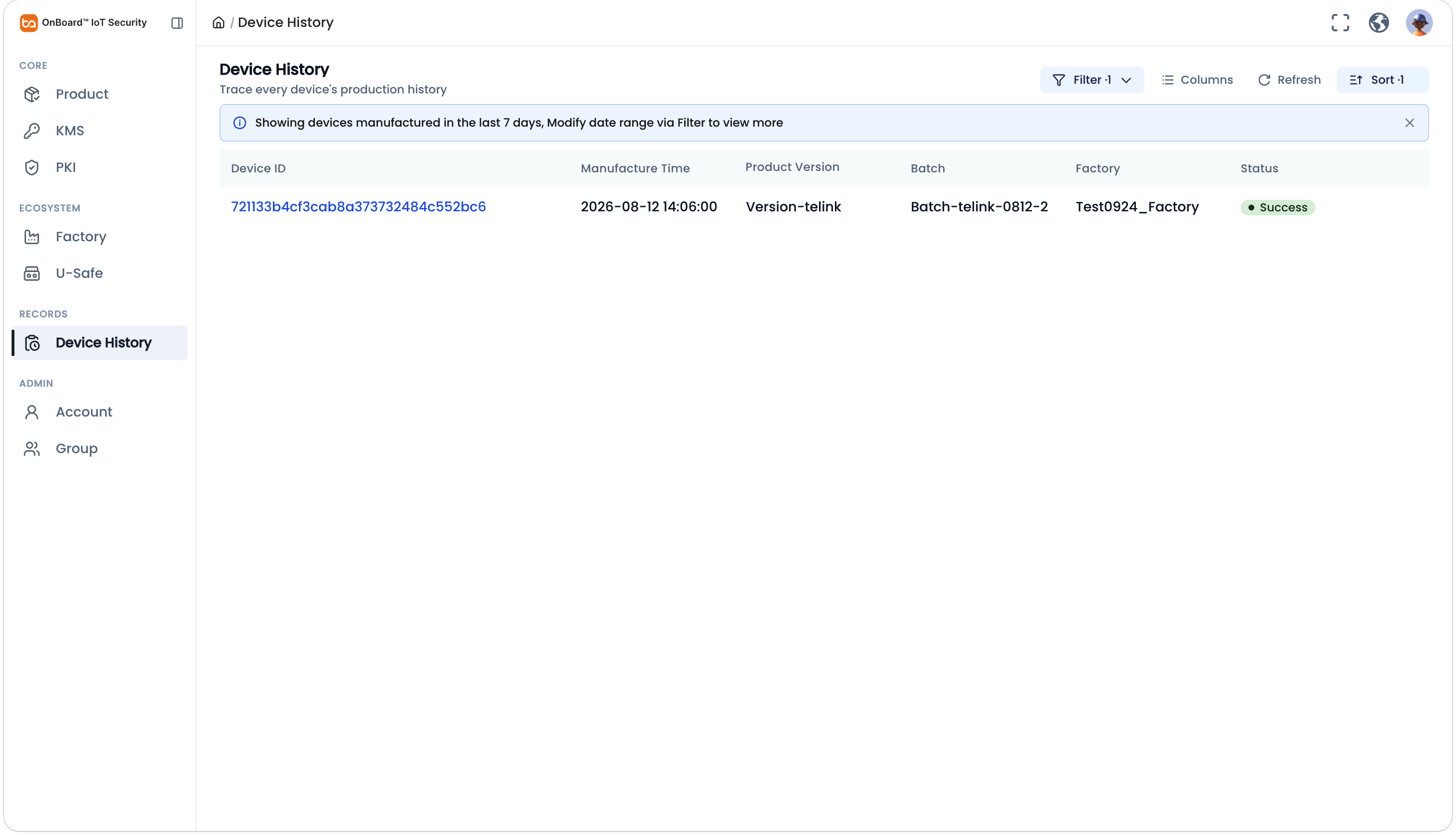
Description of device history information:
Information Description Device ID Device identifier. Manufacture Time The date and time of device manufacture, in the format YYYY-MM-DD HH:MM:SS. Product Version The version name of the corresponding device. Batch The batch name of the corresponding device. Factory The factory name of the corresponding device. Status The status of the device programming result, such as Success and Fail. -
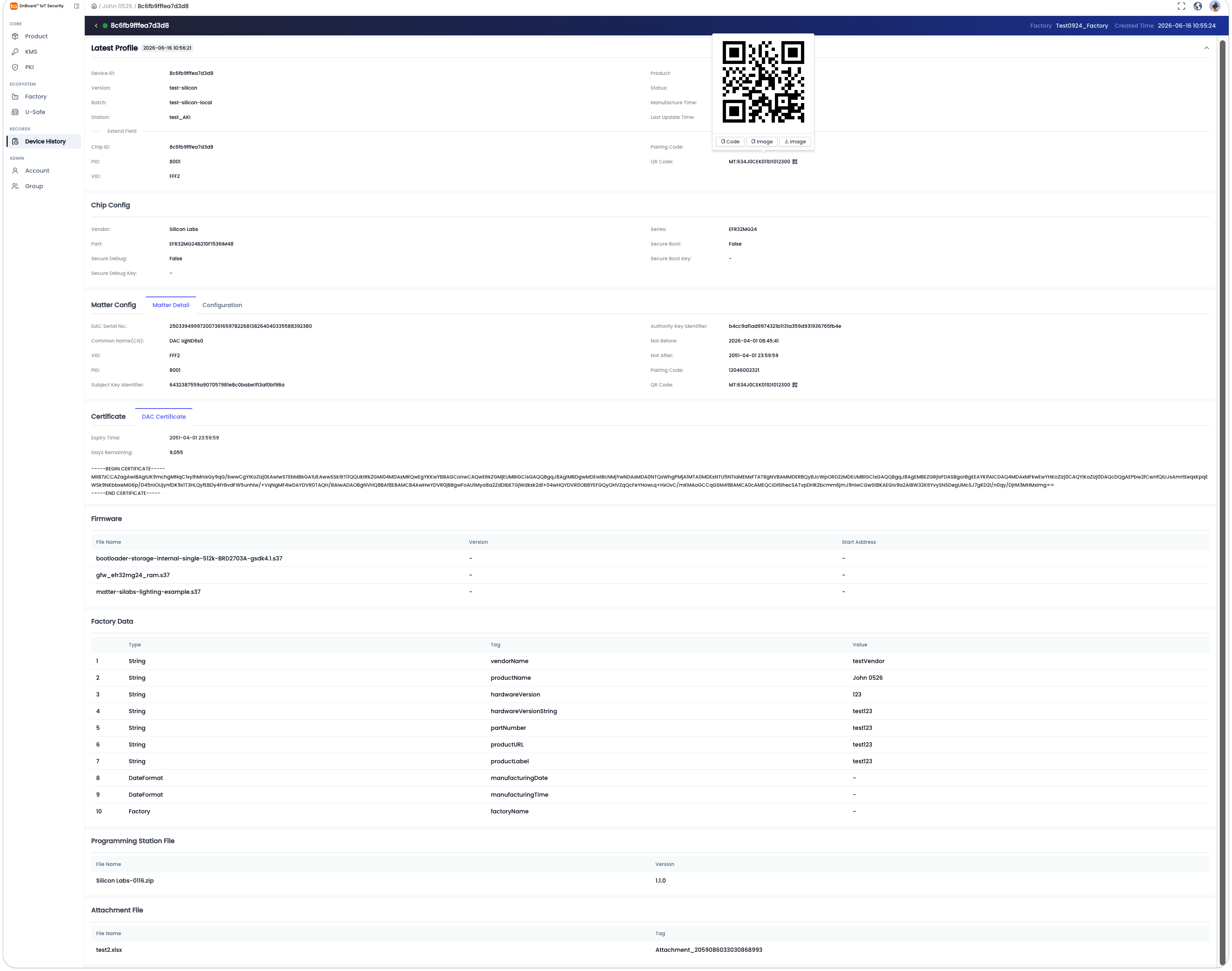
Select the corresponding Device ID to navigate to the device page, where you can check the device-related information.
tipHover the mouse over the QR code
 icon to display the device QR code, which is used for secure and fast commissioning.
- The Matter Detail section displays the DAC information (such as DAC Serial No., Not Before, and Not After). The DAC Serial No. can be used to revoke the certification of the corresponding device.
- The DAC Certificate section displays the encoding of the CA certificate. By parsing the encoding of the CA certificate, key certificate attributes such as the issuer information, validity period, and public key can be extracted.
- System and Extend fields
- Chip Config
- Matter Config (Matter Detail and Configuration)
- Certificate (DAC Certificate)
- Firmware
- Factory Data
- Programming Station File
- Attachment File

 Download User Manual