How to manage GlobalPlatform certificates in OnBoard™ IoT Security
This article will guide you through the following operations in OnBoard™ IoT Security (OBIS):
- Manage certificate permissions
- Lock or unlock a certificate
- Discard a certificate
- Revoke a certificate
- Destroy a certificate
Prerequisites
Before getting started, please ensure that:
- You have OBIS role permissions as a System Manager or SE Resource Manager.
- You have permissions for the corresponding certificate.
Manage certificate permissions
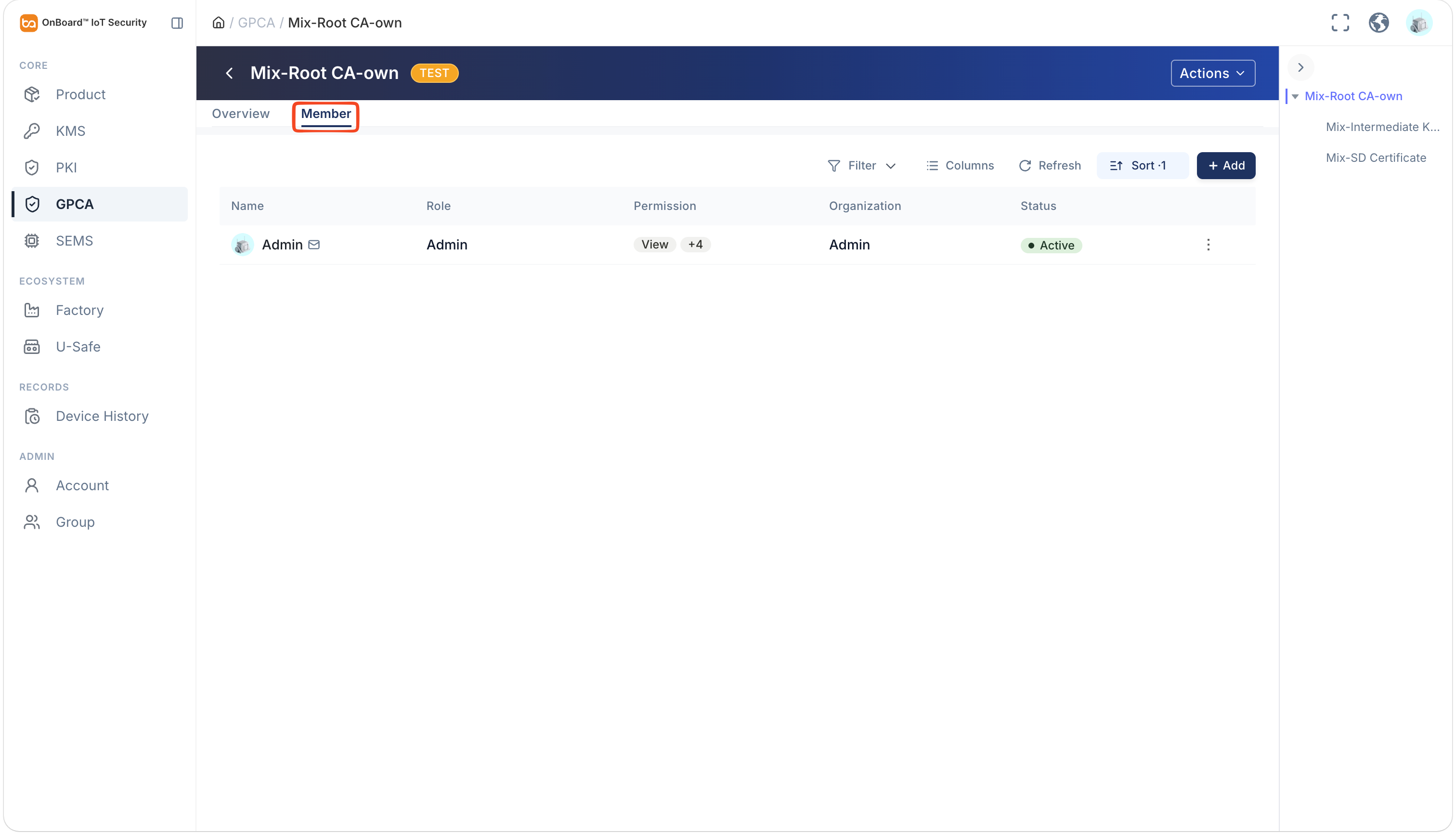
By default, the certificate creator is set as the Admin. To change the Admin, click the Options  icon for the Admin and select Transfer Admin on the Member tab, then choose the new Admin and click Confirm.
You can assign different operational permissions for the certificate to different members. The scope and descriptions of these permissions are as follows:
| Permissions | Applicable certificates | Description |
|---|---|---|
| View | All certificates | View certificate details (read-only). |
| Add Member | All certificates | Add members to this certificate and assign them permissions that do not exceed your own permissions. |
| Use | All certificates (excluding SD certificates) | CA / KA can be used to issue corresponding subordinate certificates; certificates in an OCE chain with this permission can be referenced in the SCP11c configuration of an SE Profile. |
| Create Authorization | Certificates in an SD chain | Certificates in an SD chain with this permission can be referenced in the SCP11c configuration of an SE Profile. |
| Manage Status | All certificates | Lock, unlock, or revoke a certificate. |
| Destroy | All certificates | Destroy certificates that have been revoked or have expired. |
You can adjust and set user permissions for certificates by following these steps:
-
Sign in to OBIS.
-
In the Core section of the left menu, click GPCA. Expand the corresponding certificate chain and then select the corresponding certificate.
-
On the certificate page, you can manage the user permissions for the certificate on the Member tab.
Lock or unlock a certificate
Once the certificate is locked, it can't be referenced by new configurations; existing references remain unaffected. Once unlocked, the certificate can be referenced as usual.
-
Sign in to OBIS.
-
In the Core section of the left menu, click GPCA. Expand the corresponding certificate chain, and then click the Options
icon for the corresponding certificate and select Lock or Unlock. Click Confirm to lock or unlock the certificate. When locking a certificate, you can optionally provide a reason.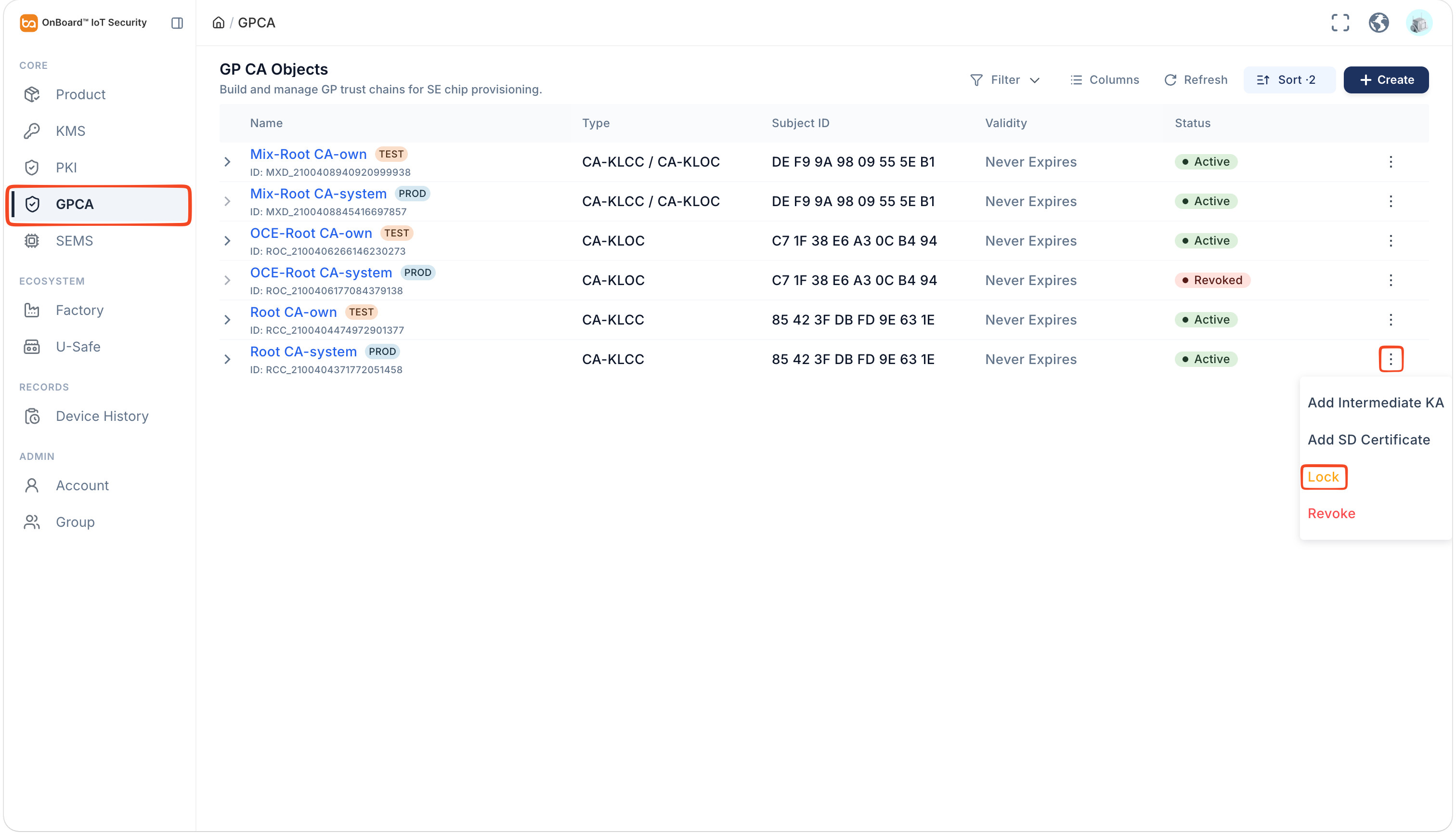
Discard a certificate
Discarded certificates cannot be recovered. Please proceed with caution.
Only certificates with a status of Pending can be discarded.
-
Sign in to OBIS.
-
In the Core section of the left menu, click GPCA. Expand the corresponding certificate chain, and then click the Options
icon for the corresponding certificate and select Discard.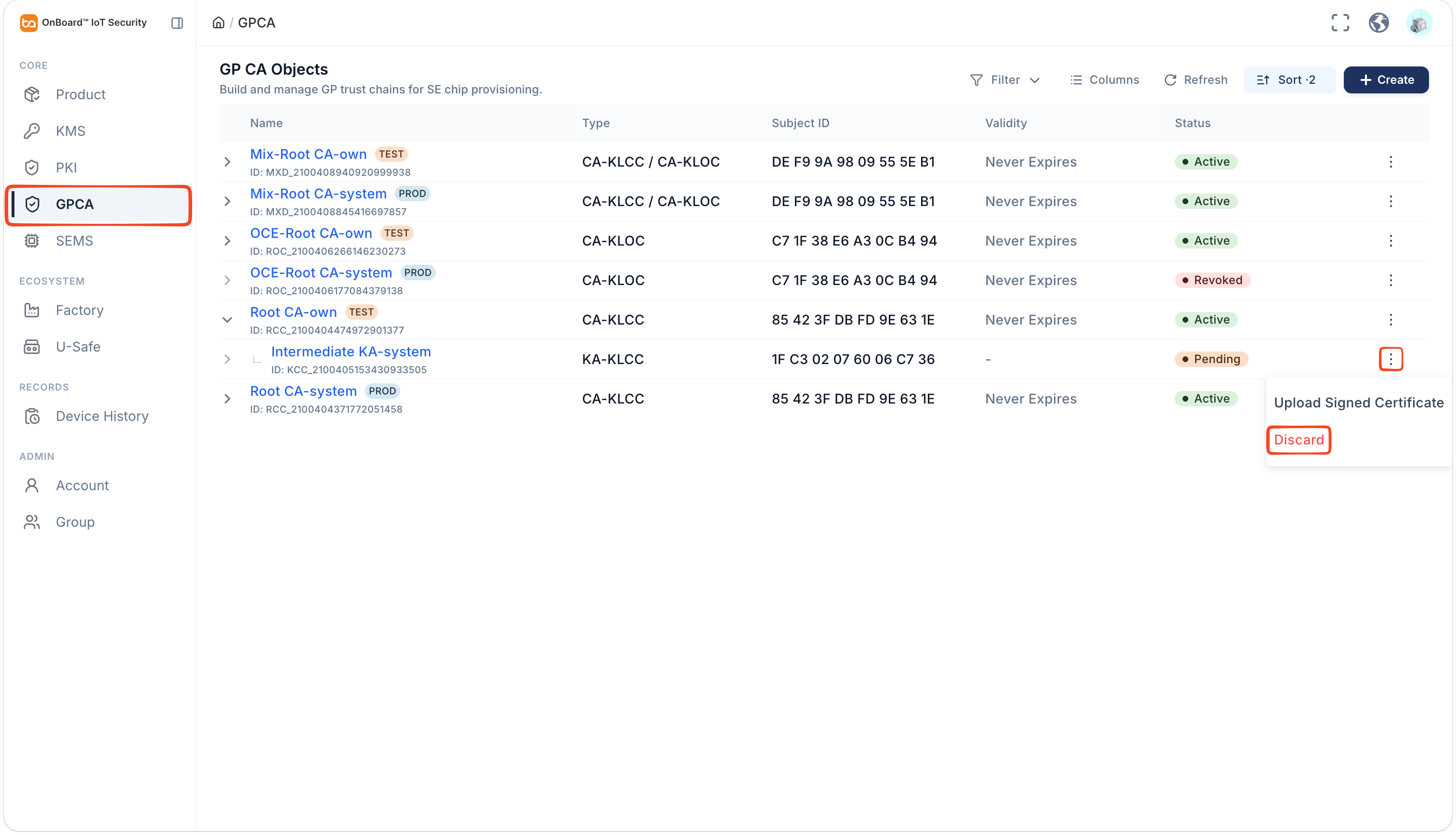
-
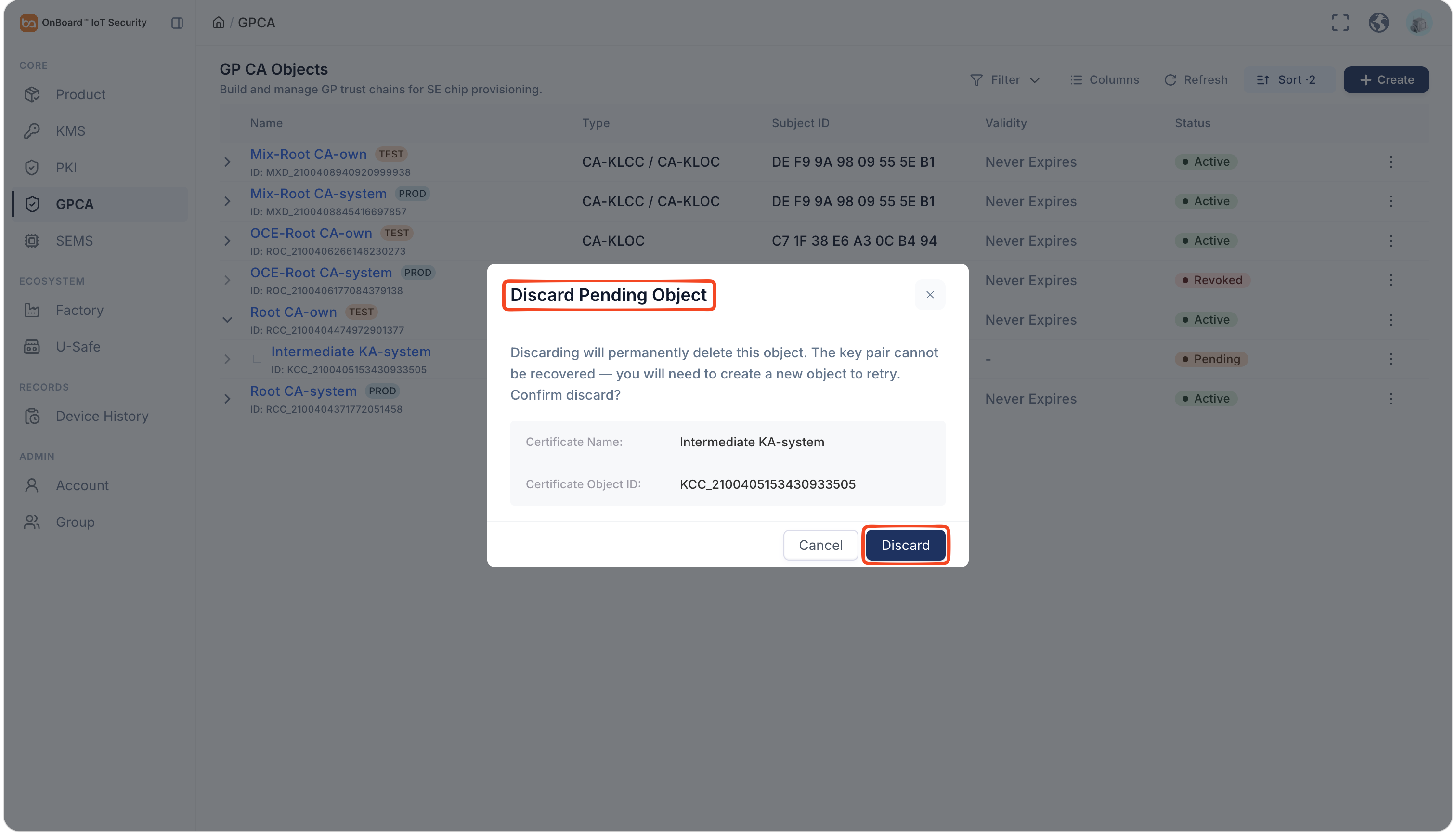
In the Discard Pending Object window, click Discard to discard the certificate.
Revoke a certificate
Revoked certificates will become permanently invalid. Please proceed with caution.
-
Sign in to OBIS.
-
In the Core section of the left menu, click GPCA. Expand the corresponding certificate chain, and then click the Options
icon for the corresponding certificate and select Revoke.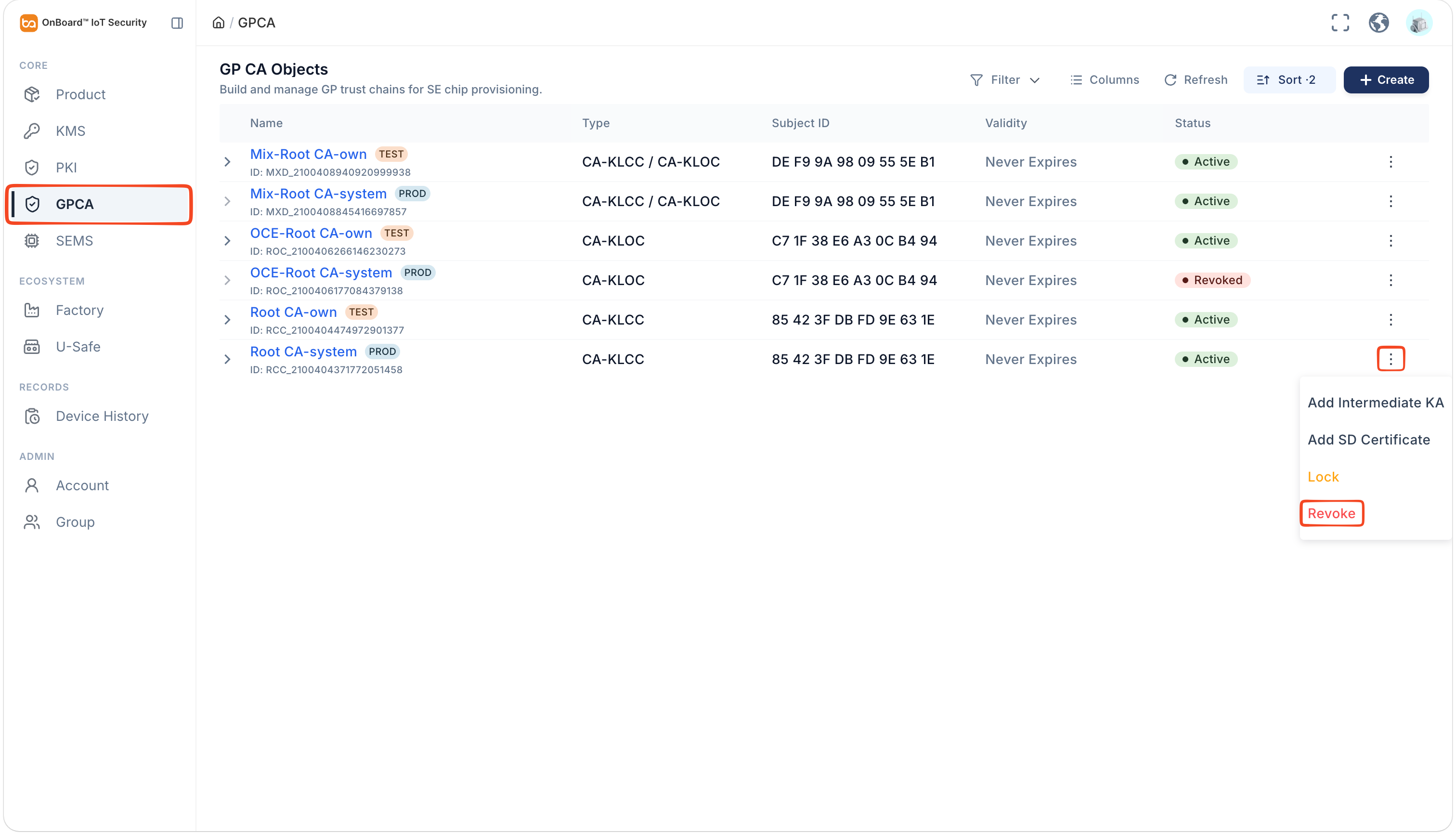
-
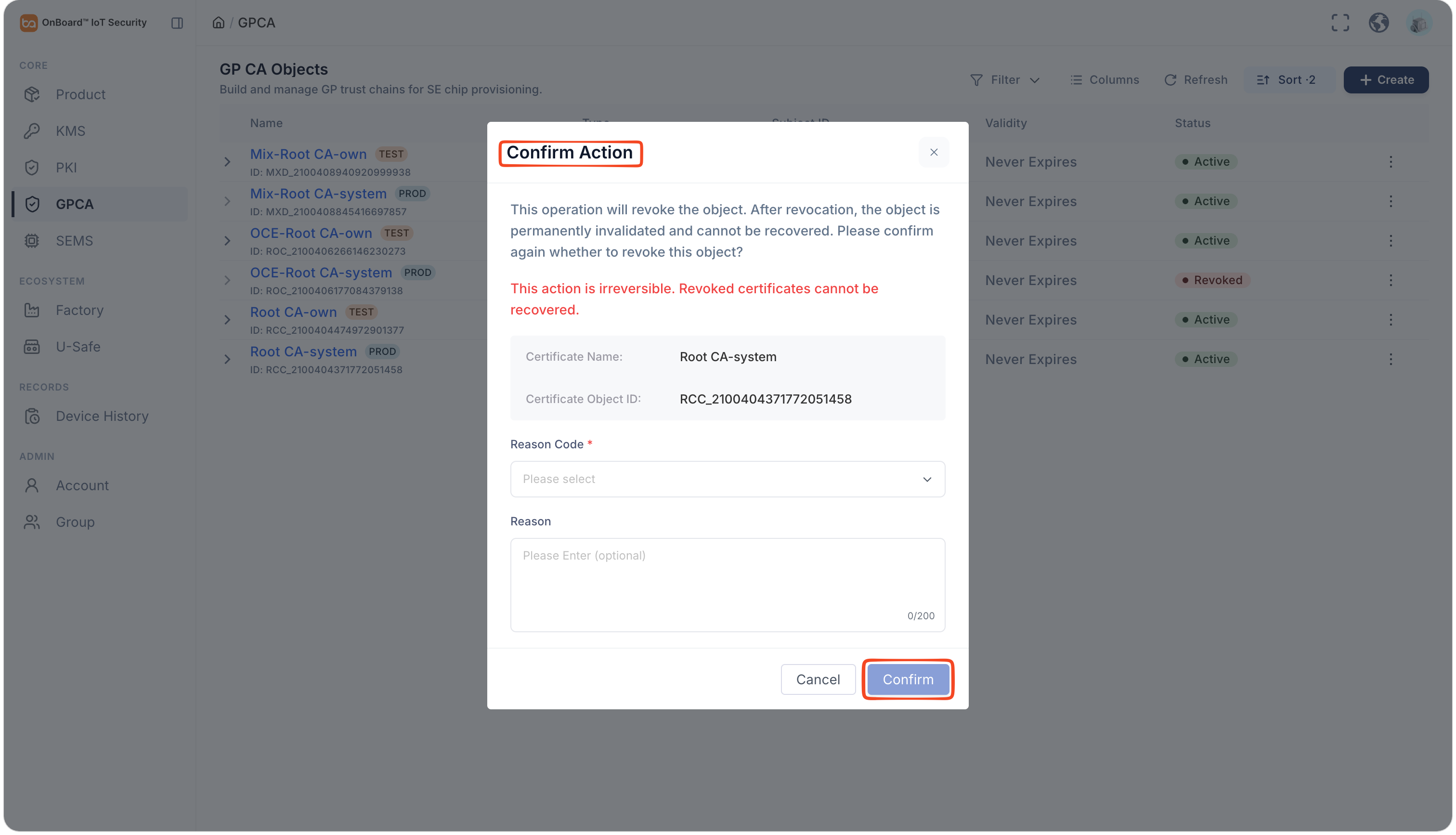
In the Confirm Action window, select the Reason Code and enter the Reason, then click Confirm to revoke the certificate.
Destroy a certificate
Destroyed certificates cannot be recovered. Please proceed with caution.
Only certificates with a status of Revoked or Expired can be destroyed.
Before destroying a certificate, ensure that all its sub-certificates are in the Revoked or Expired status. If any sub-certificates are in the Active, Locked, or Pending status, you will see the message "This object still has Active, Locked, or Pending Signature sub-certificates. Please revoke, discard, or wait for them to expire before destroying this object".
-
Sign in to OBIS.
-
In the Core section of the left menu, click GPCA. Expand the corresponding certificate chain, and then click the Options
icon for the corresponding certificate and select Destroy.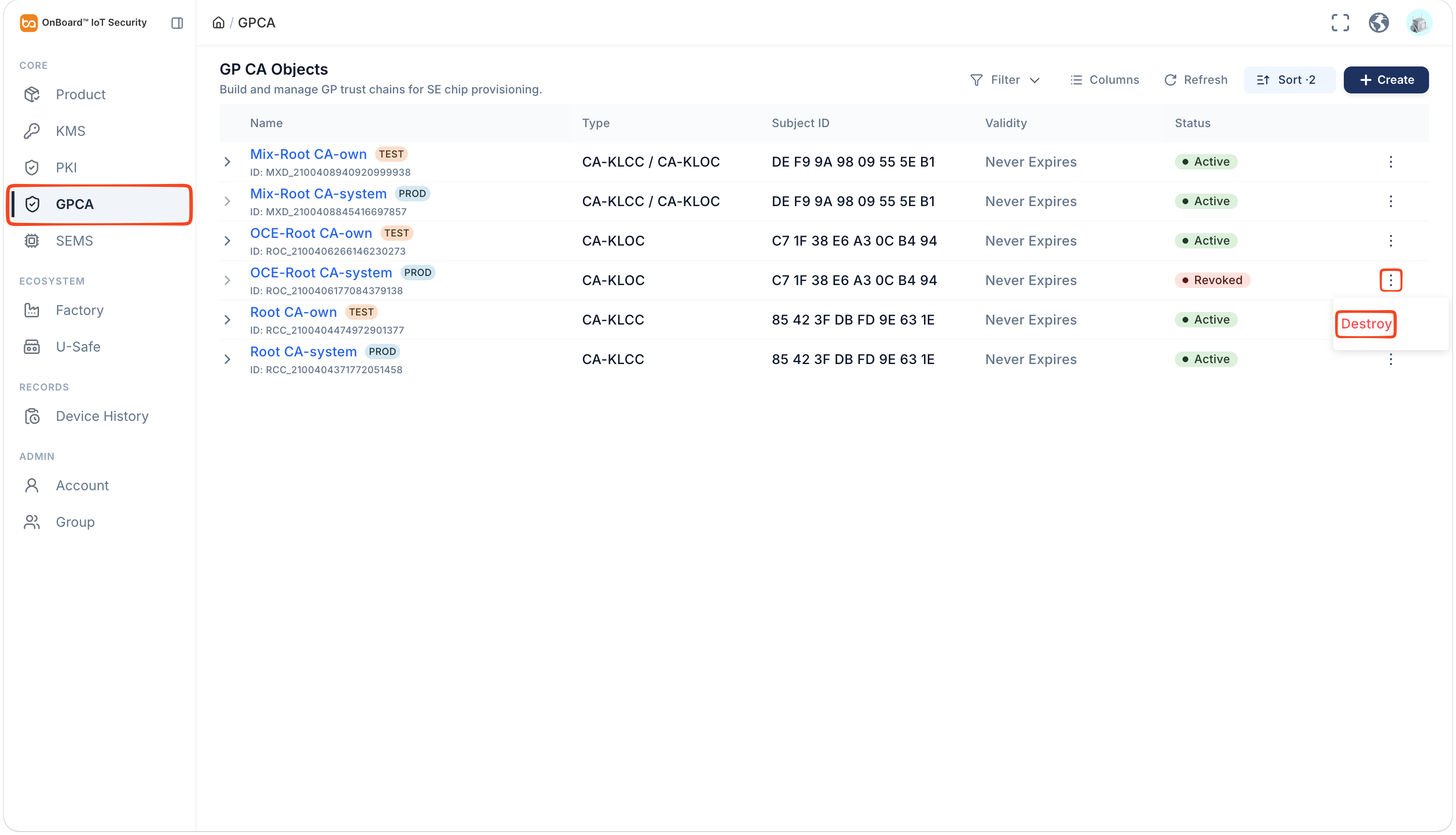
-
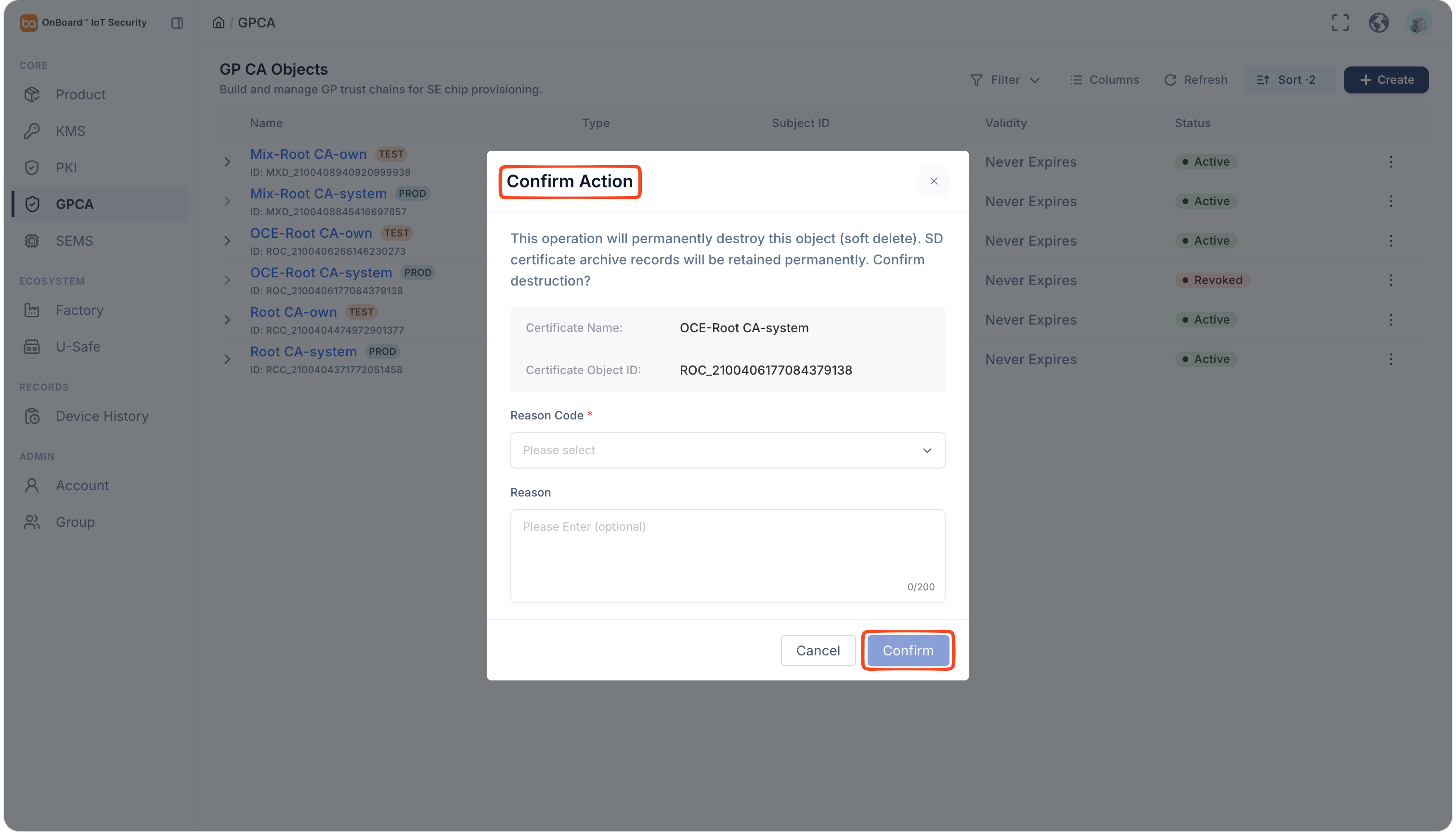
In the Confirm Action window, select the Reason Code and enter the Reason, then click Confirm to destroy the certificate.

 Download User Manual