How to configure a product in OnBoard™ IoT Security
This article will guide you through the following operations in OnBoard™ IoT Security (OBIS) to configure product materials and prepare for version creation:
- Configure the resource pool
- Set configuration items
- Upload programming station files
Prerequisites
Before getting started, please ensure that:
- You have product role permissions for the corresponding product: Product Owner, Product Manager, or Resource Manager.
- The certificates and keys have already been created.
Product material categories
Each product has its own independent material management system used to centrally manage various types of product materials. Users can upload firmware, configuration files, programming files, associate keys and certificate templates, and pre-configure product parameters. Product materials are divided into three categories, each containing different resource types:
| Categories | Material Type | Description |
|---|---|---|
| Resource Pool | Key | Add keys from KMS to the product. |
| Certificate | Add CA templates from PKI to the product. | |
| Firmware List | Upload the firmware files required for programming the product. Firmware formats supported: .bin, .hex, and .s37. | |
| File List | Upload other files required for version creation (excluding firmware). Files in any format are supported. | |
| Config Item | Chip Config | Select and configure the chip part and security options used by the product. |
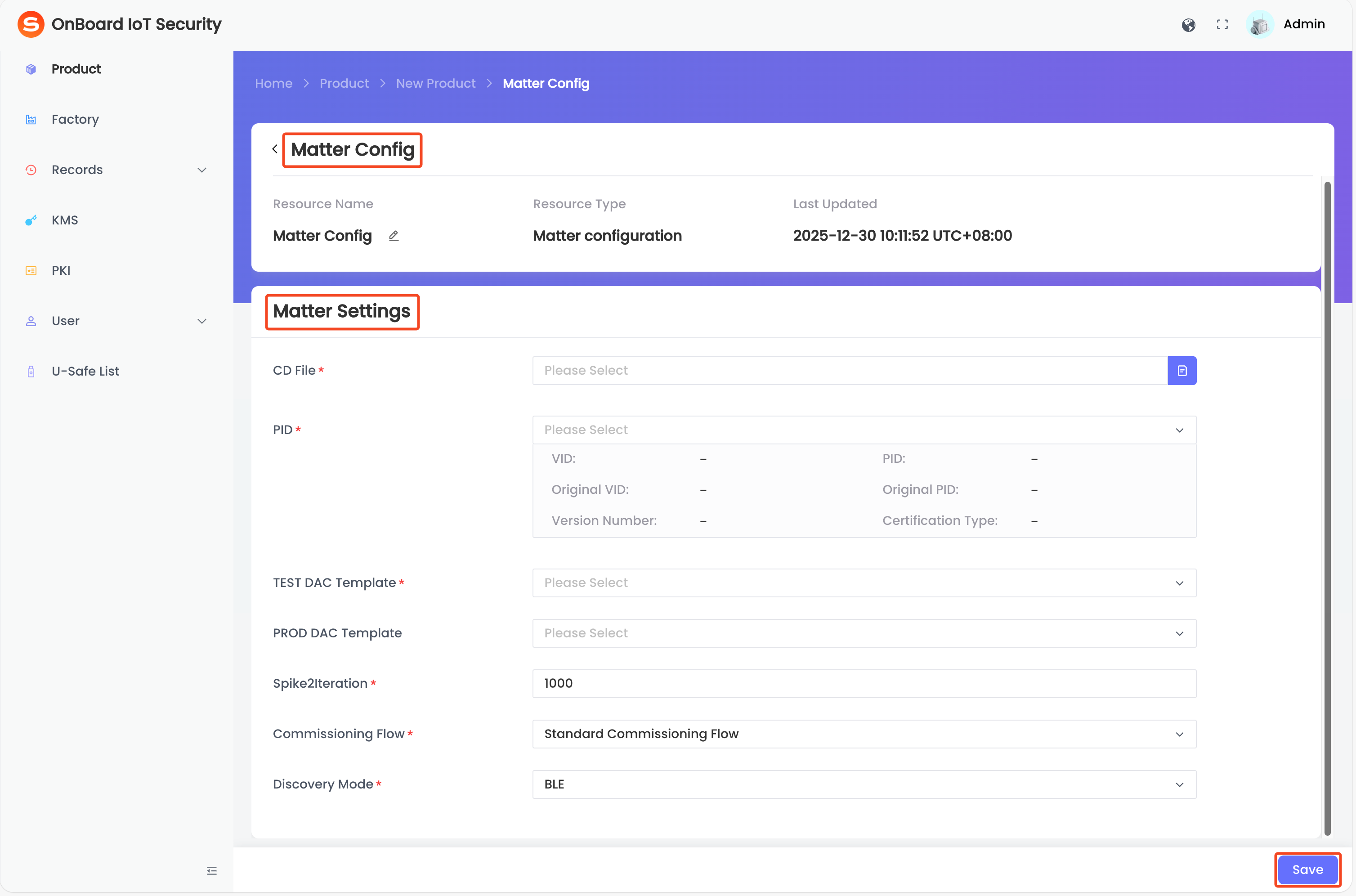
| Matter Config | Select and configure settings related to the Matter protocol. | |
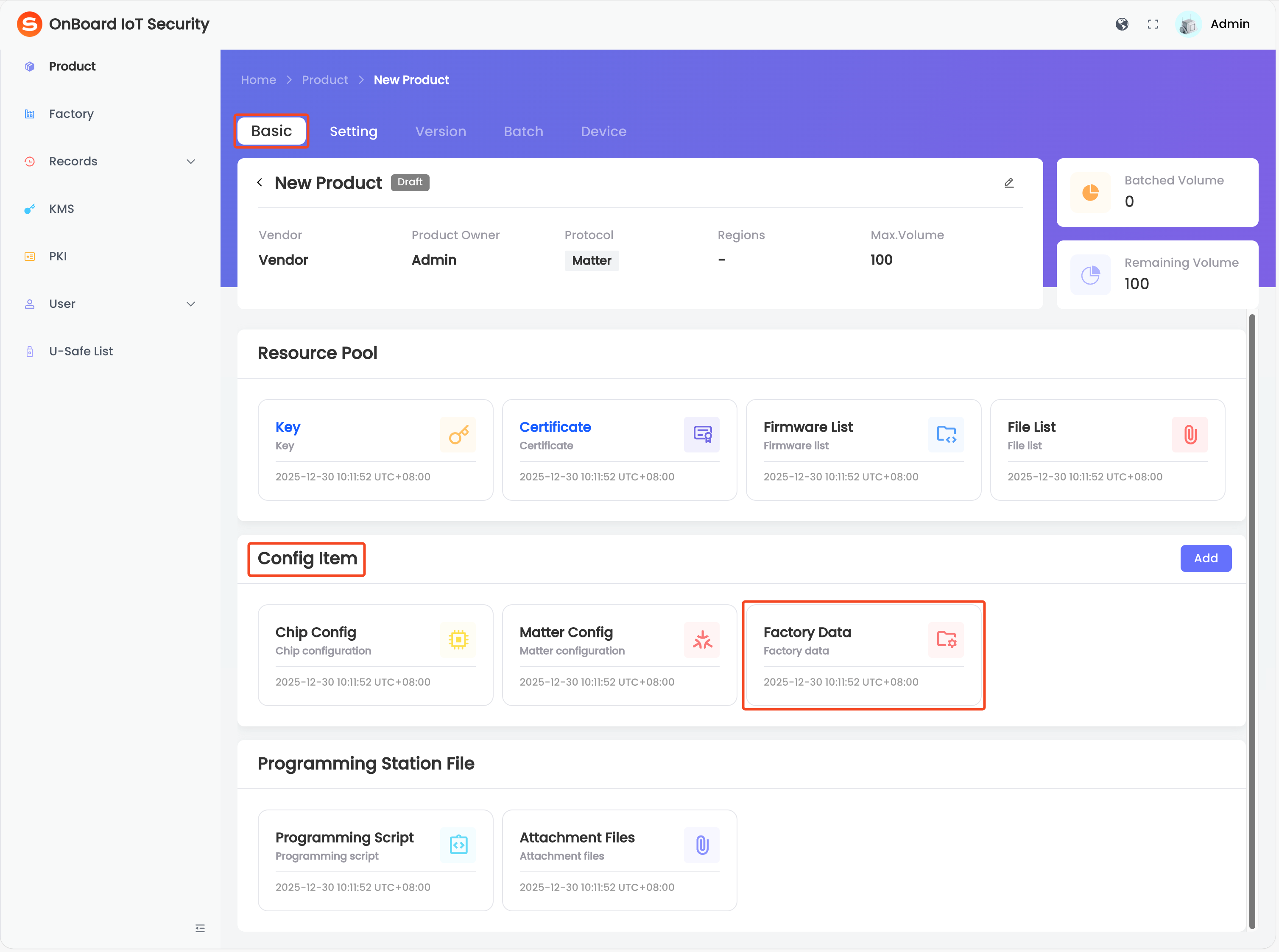
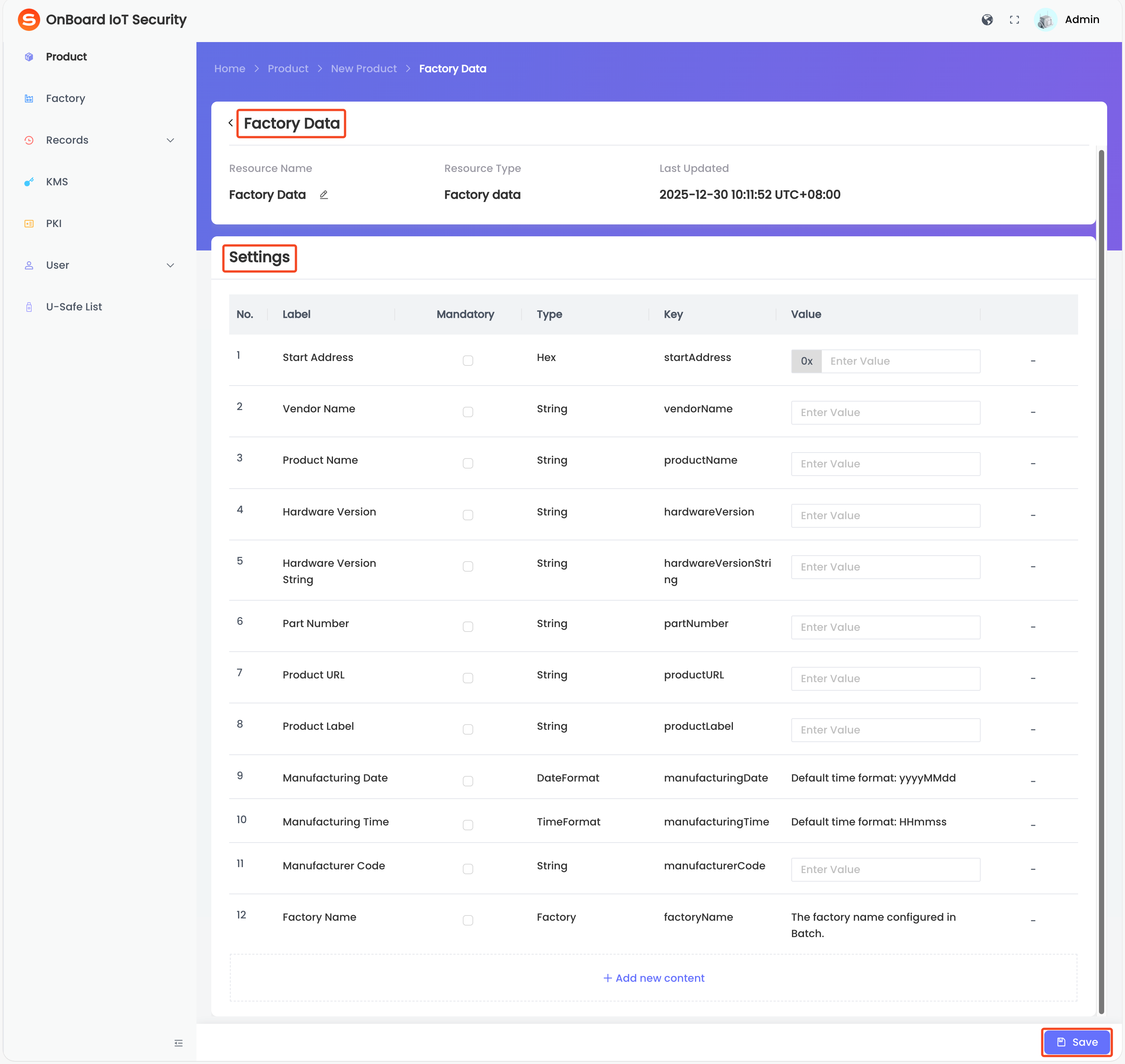
| Factory Data | Configure factory-related information. | |
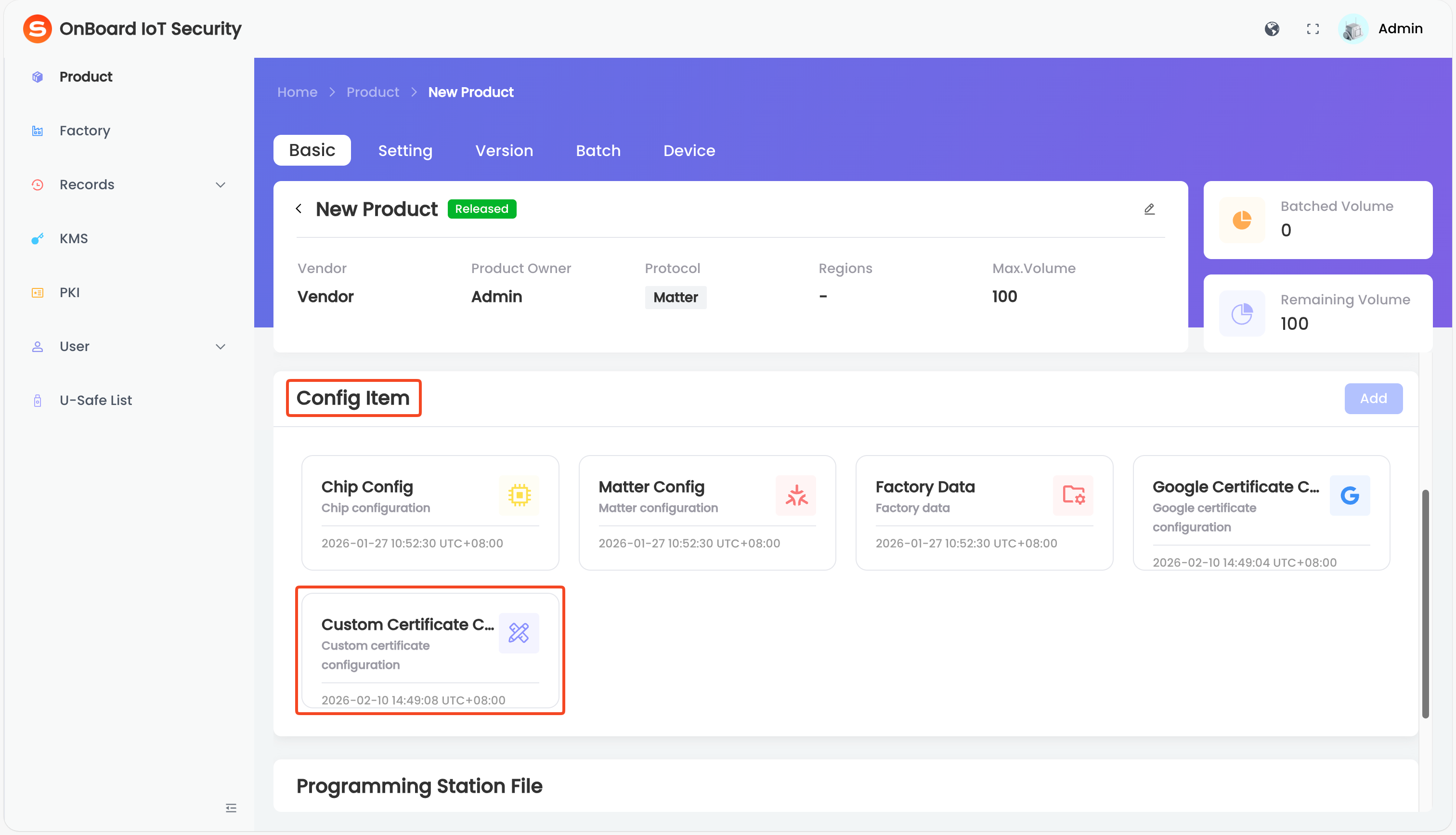
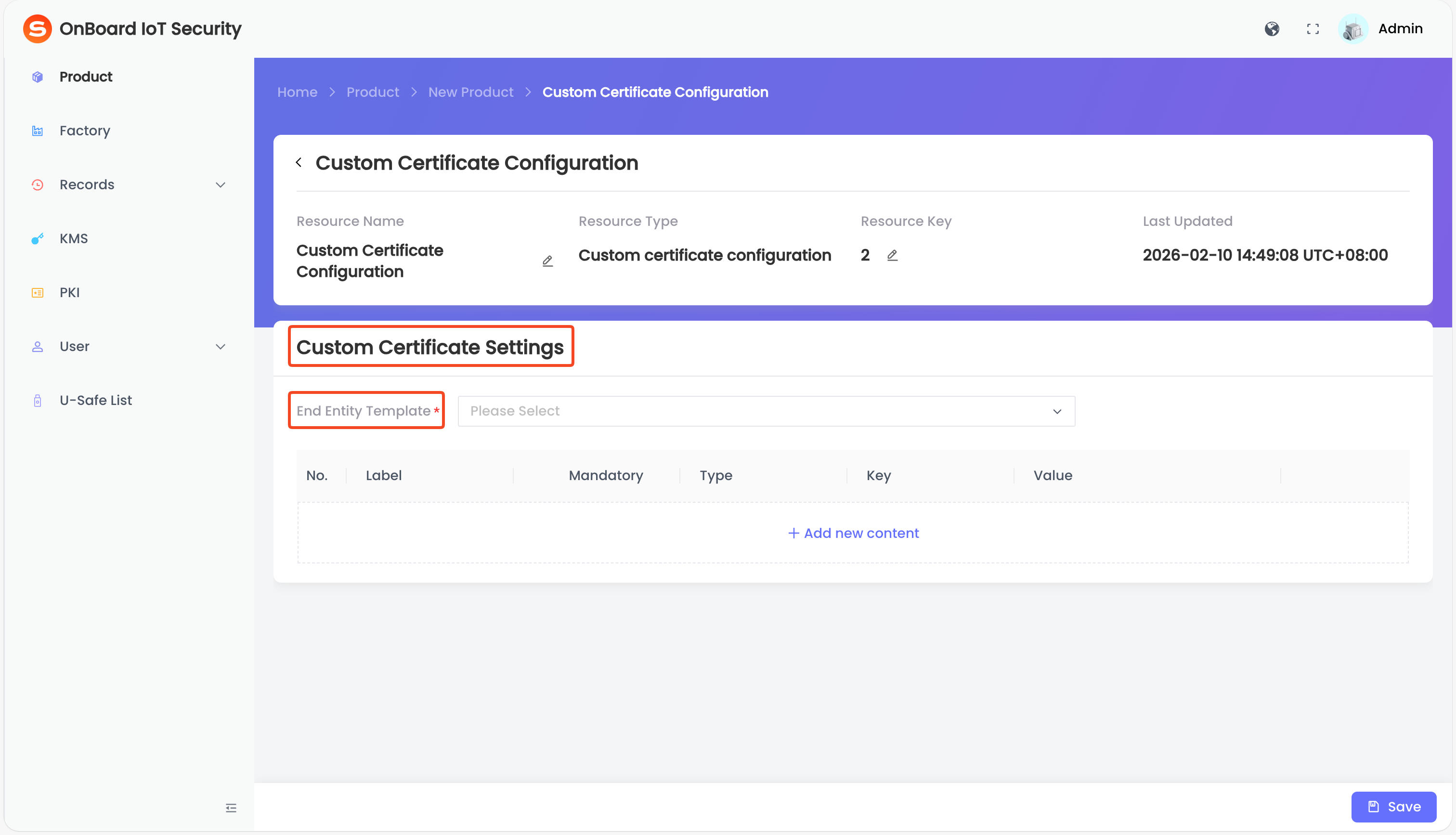
| Custom certificate configuration | Configure settings related to custom certificates. | |
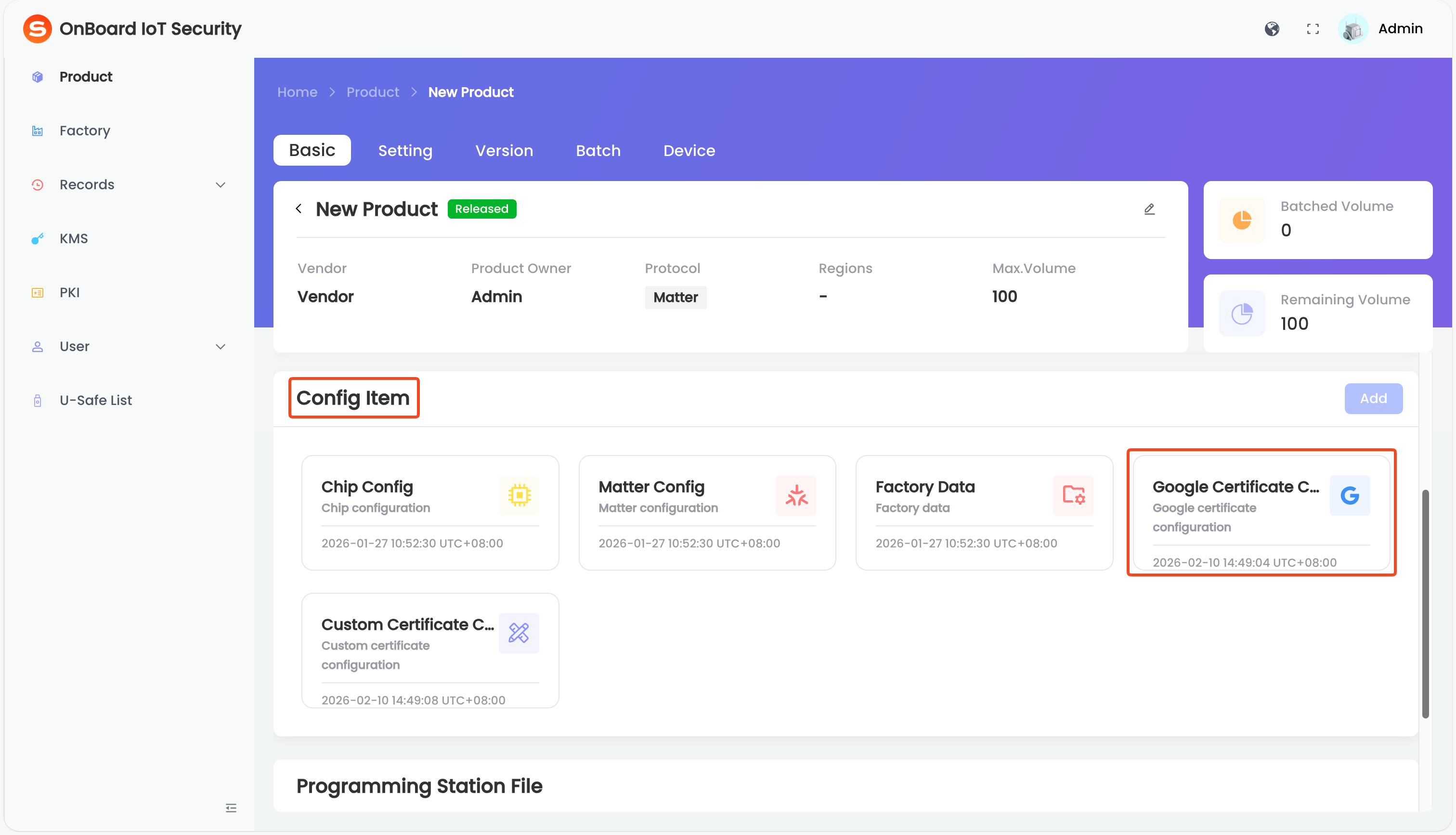
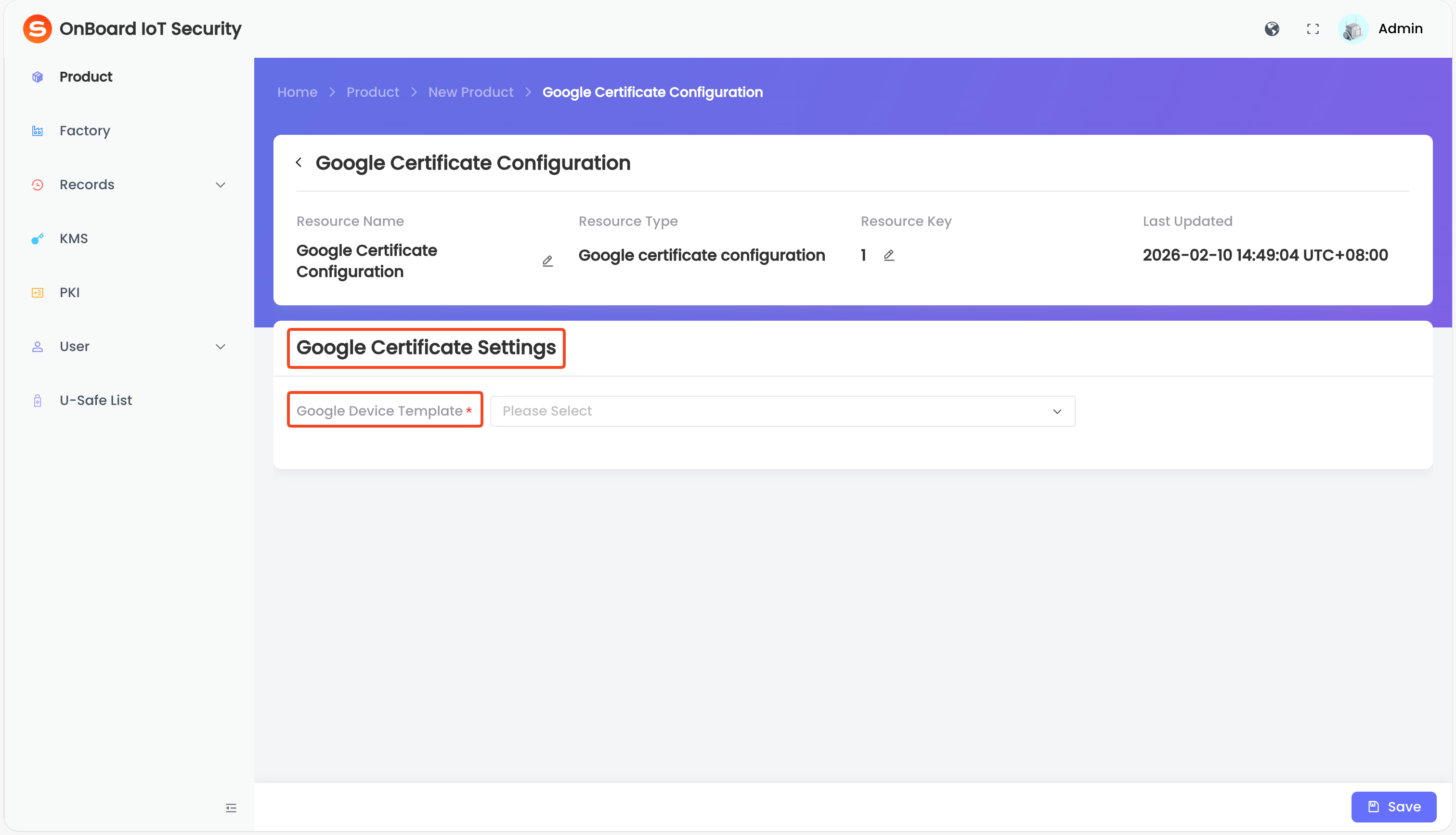
| Google certificate configuration | Configure settings related to the Google Cast protocol. | |
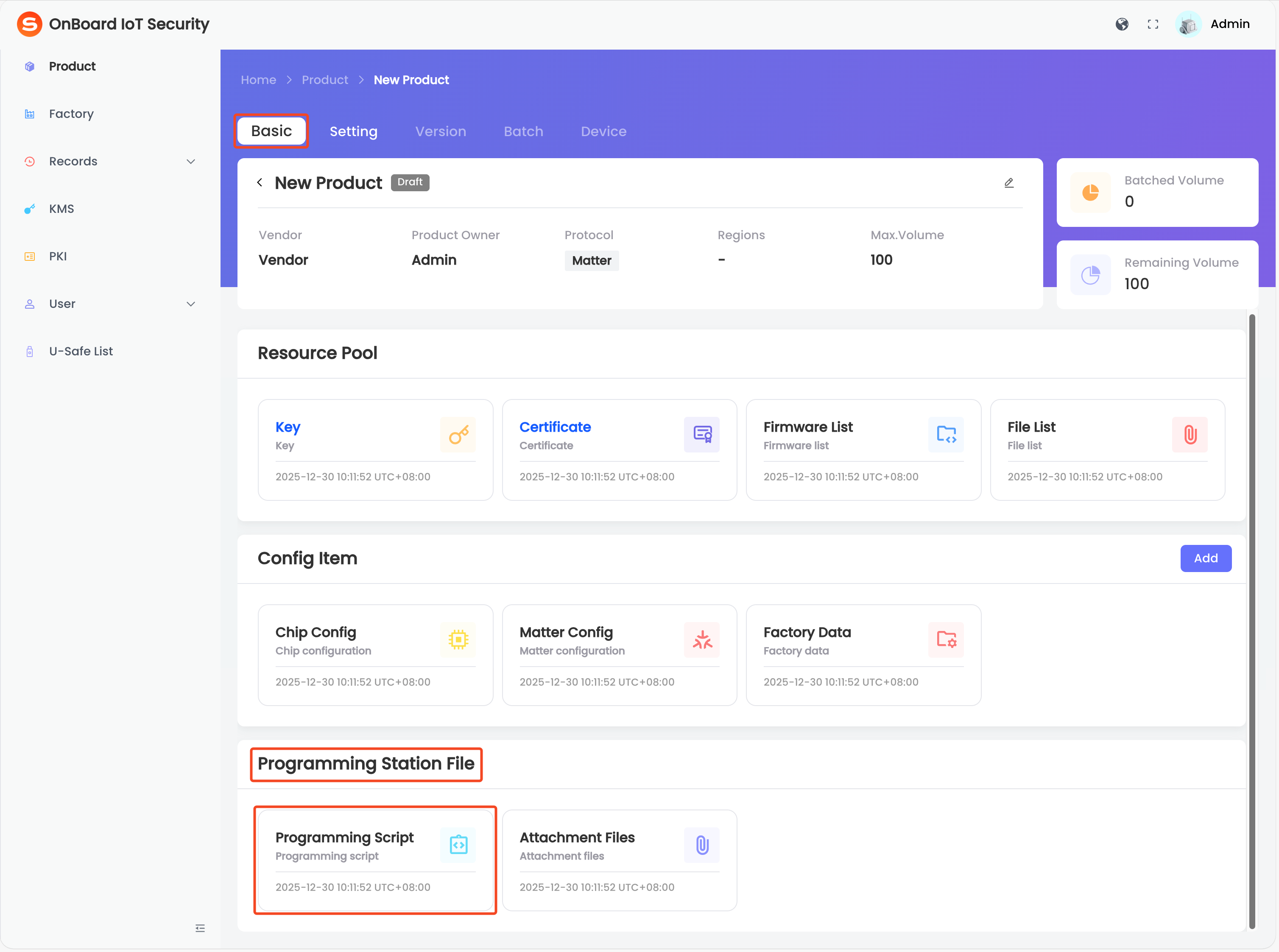
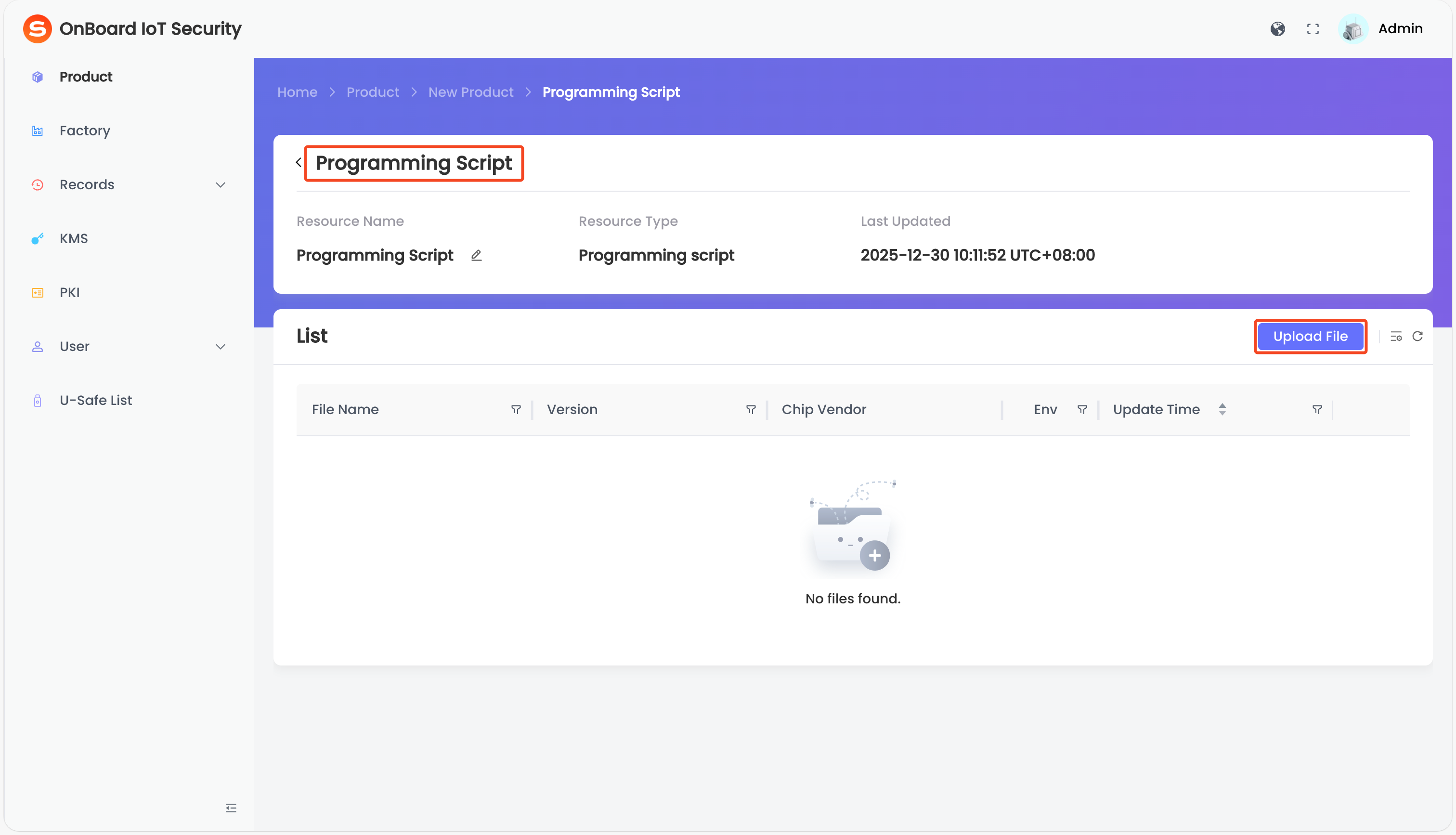
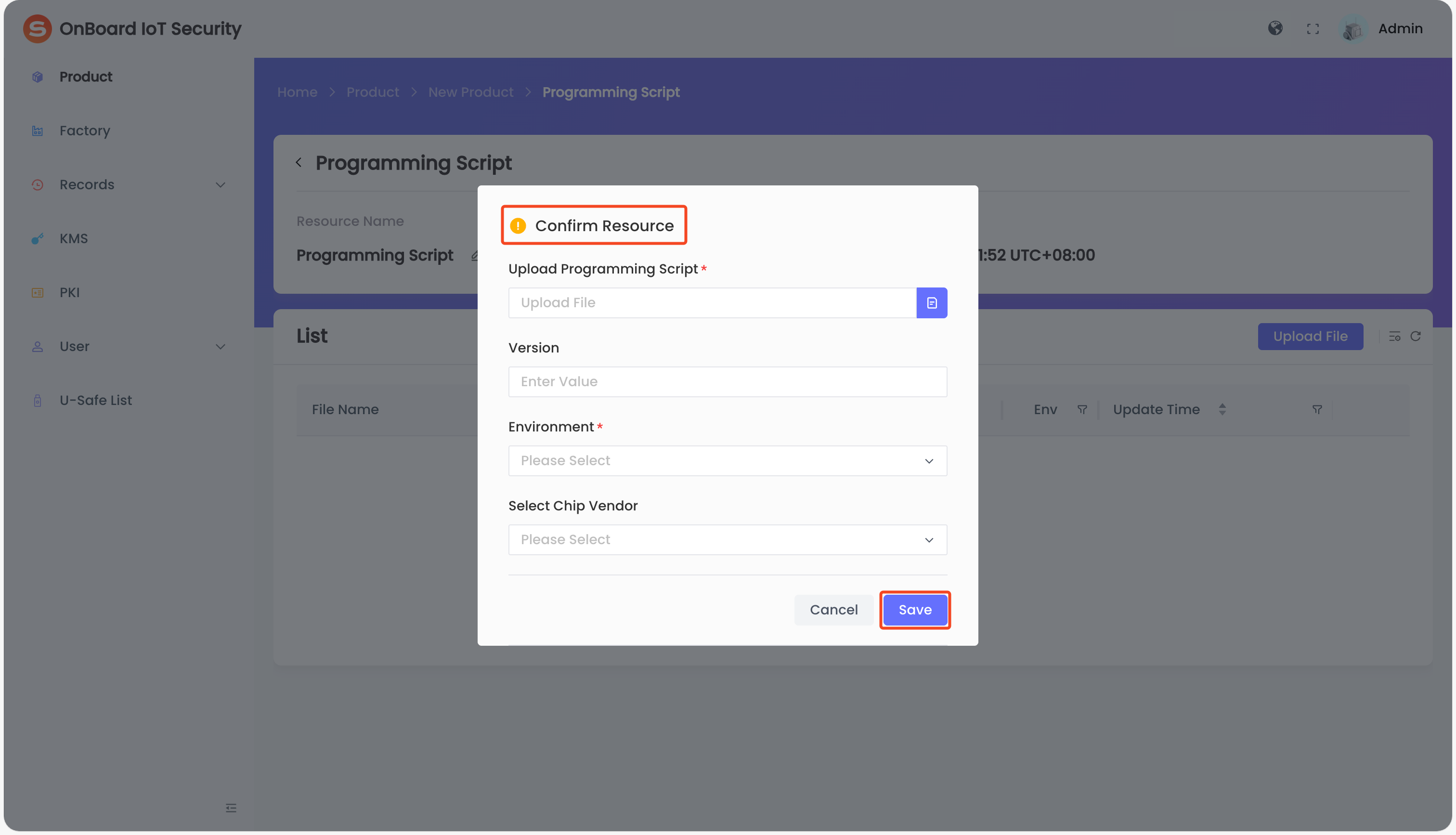
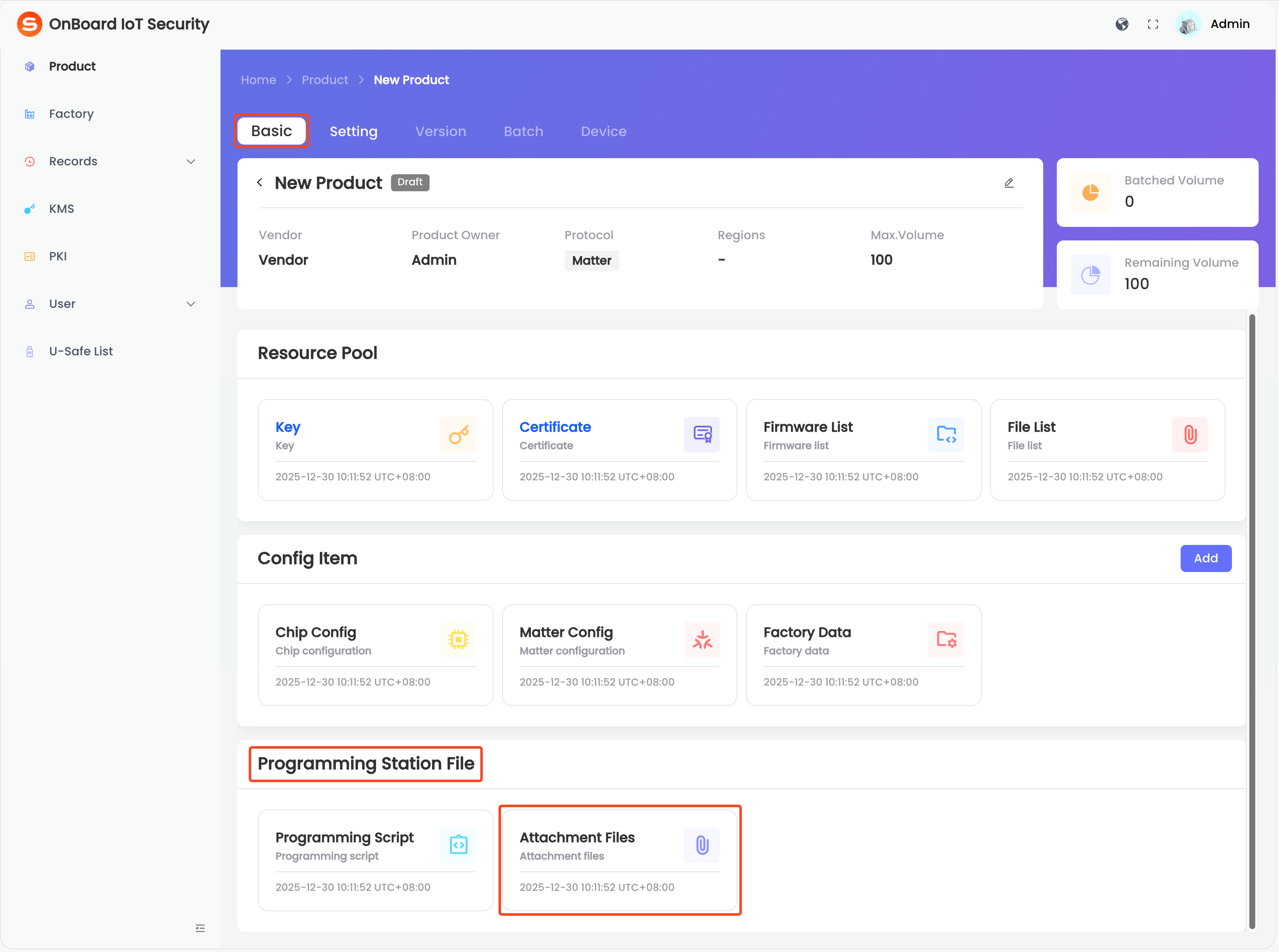
| Programming Station File | Programming Script | Upload script files used for device programming (any script format is supported). |
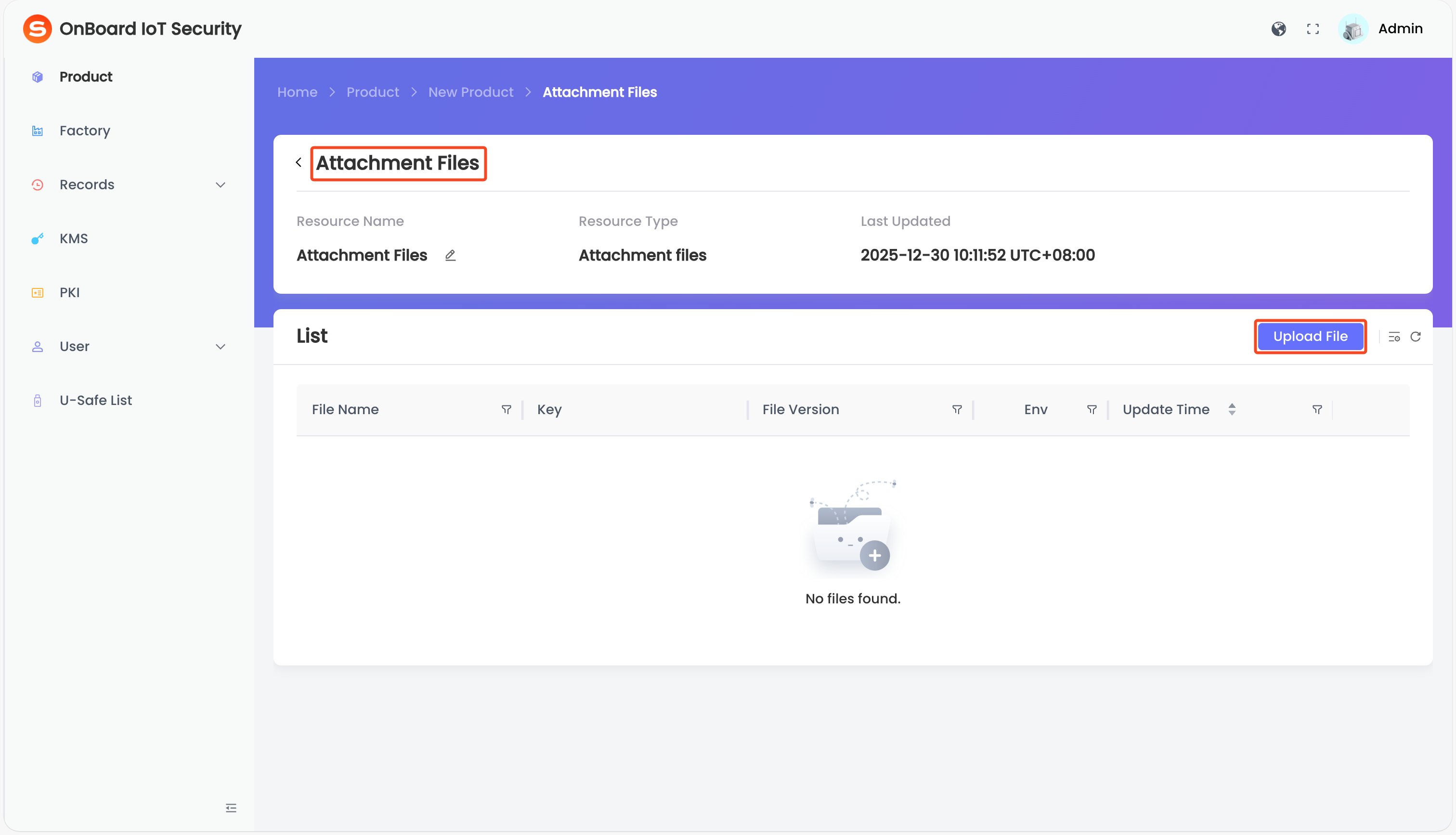
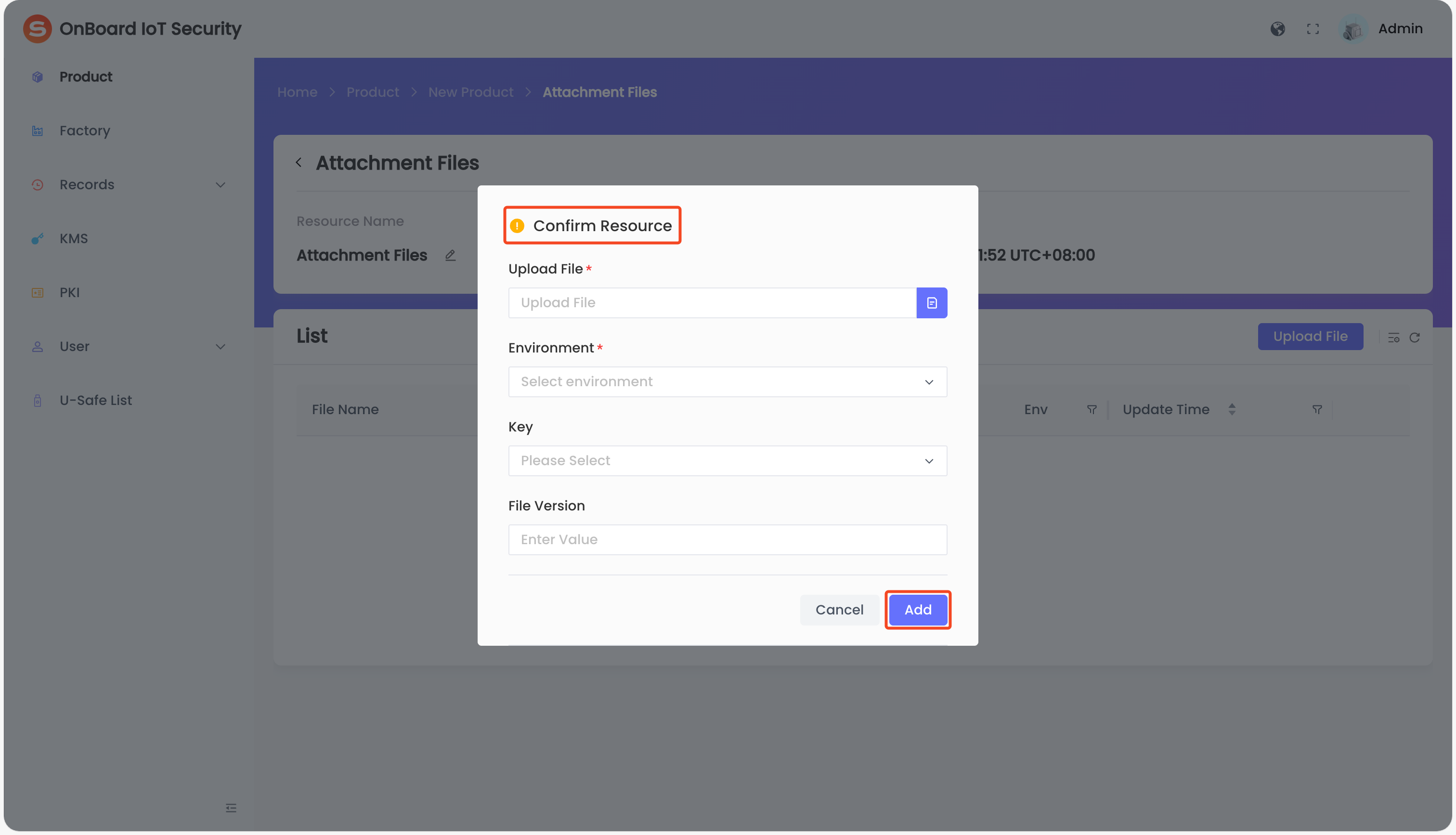
| Attachment Files | Upload other files required for batch creation (excluding programming scripts). Files in any format are supported. |
Instructions
-
Sign in to OBIS.
-
In the left menu, click Product and select the corresponding product. Then, on the product page, configure the items in the Resource Pool, Config Item, and Programming Station File areas.
info- The configurations of the Resource Pool and Config Item areas will be used for version creation. In these areas, configure the necessary resources and configuration items for the product (Certificate, Firmware List, Chip Config, Matter Config, and Factory Data). If the required configuration is not completed, version creation will be blocked, and the product status will remain in Draft.
- Files in the Programming Station File area will be used for batch creation. Upload the necessary files for programming (Programming Script) in this area. Alternatively, you can select a programming script for a specific batch later in the Programming Station client.
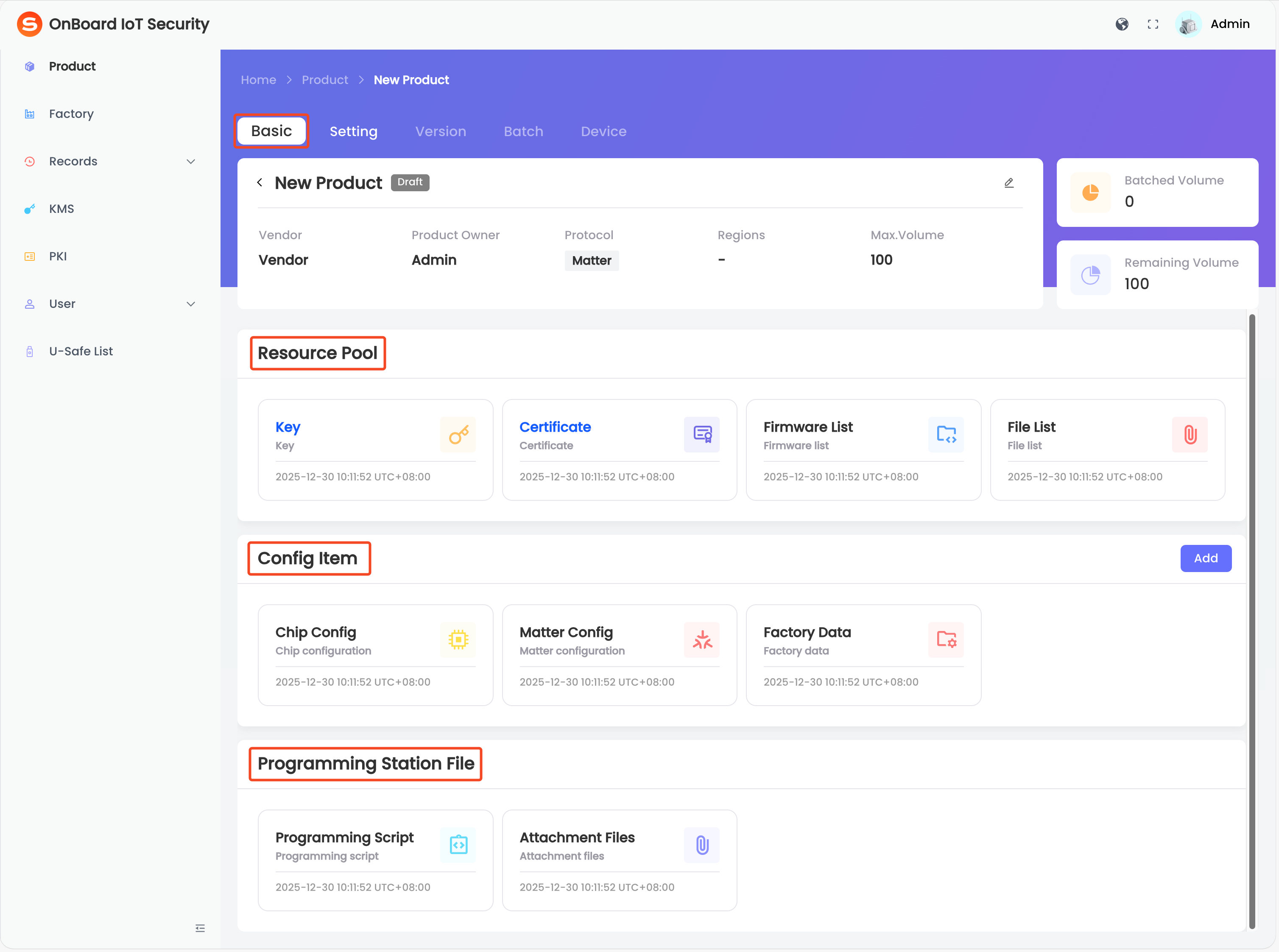
Step one: Configure the resource pool
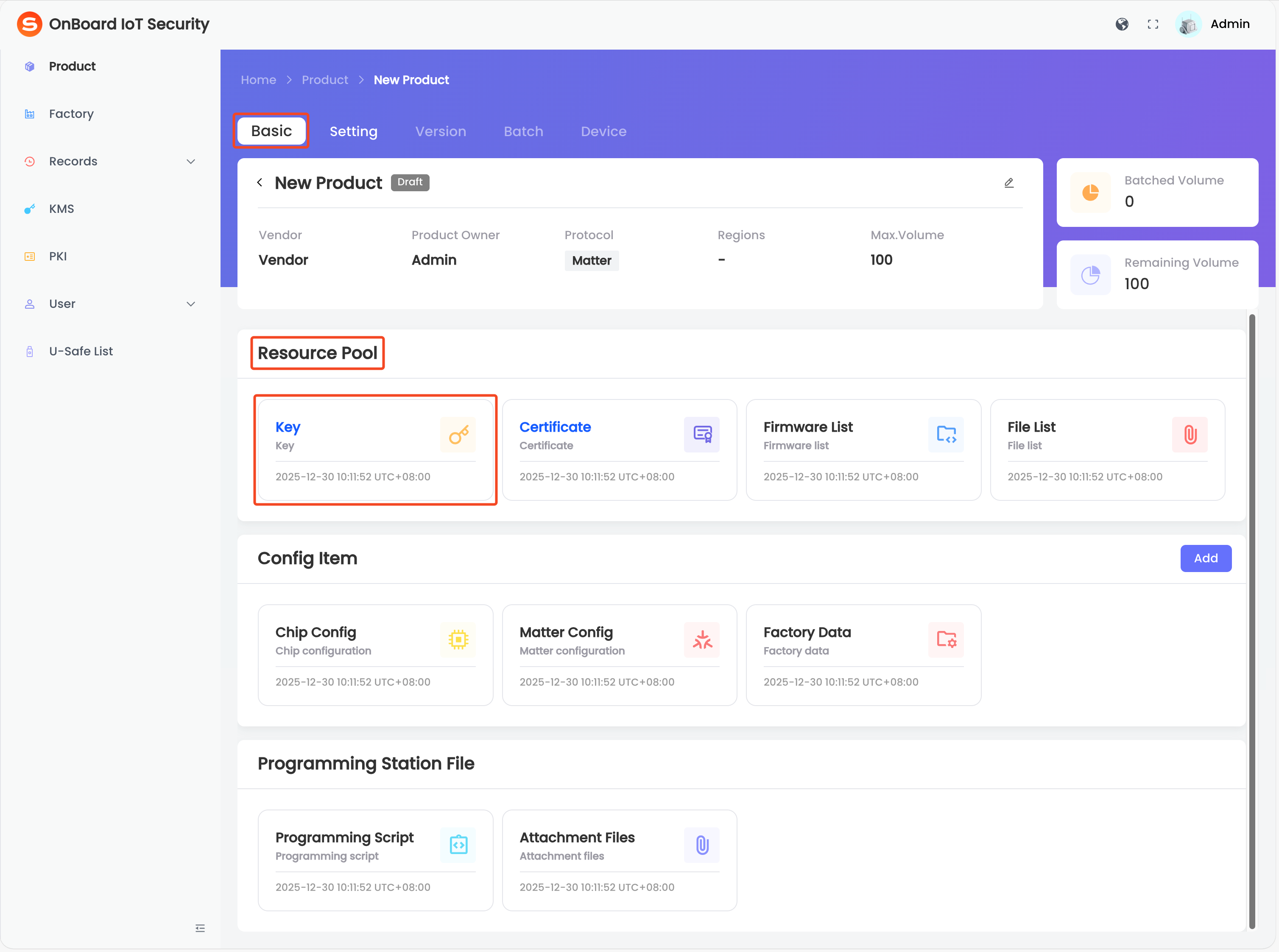
The configurations in the Resource Pool area will be used for version creation. The files uploaded when configuring Firmware List and File List can be downloaded at any time from the configuration page of the corresponding resource.
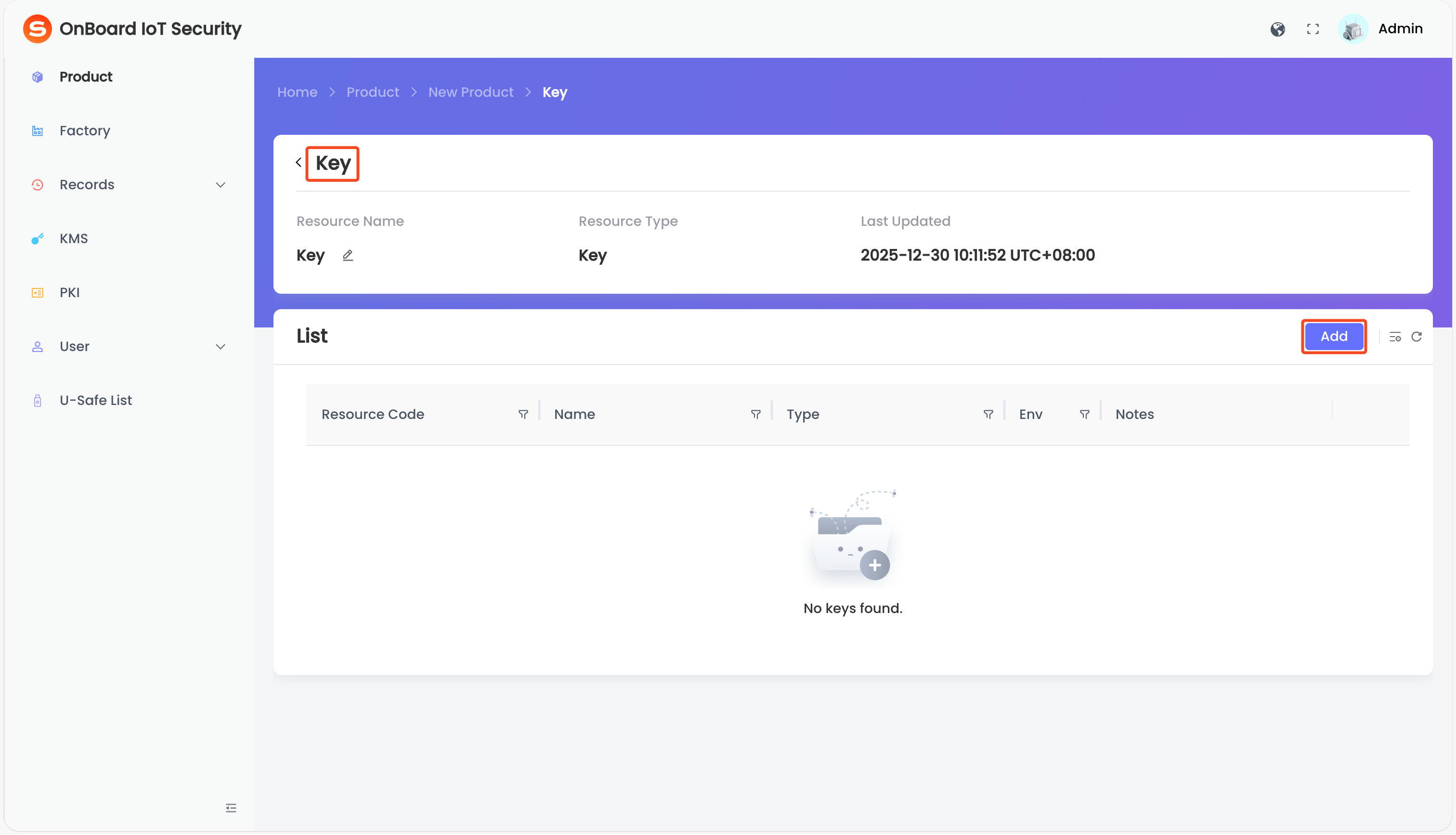
Key (optional)
 Key (optional)
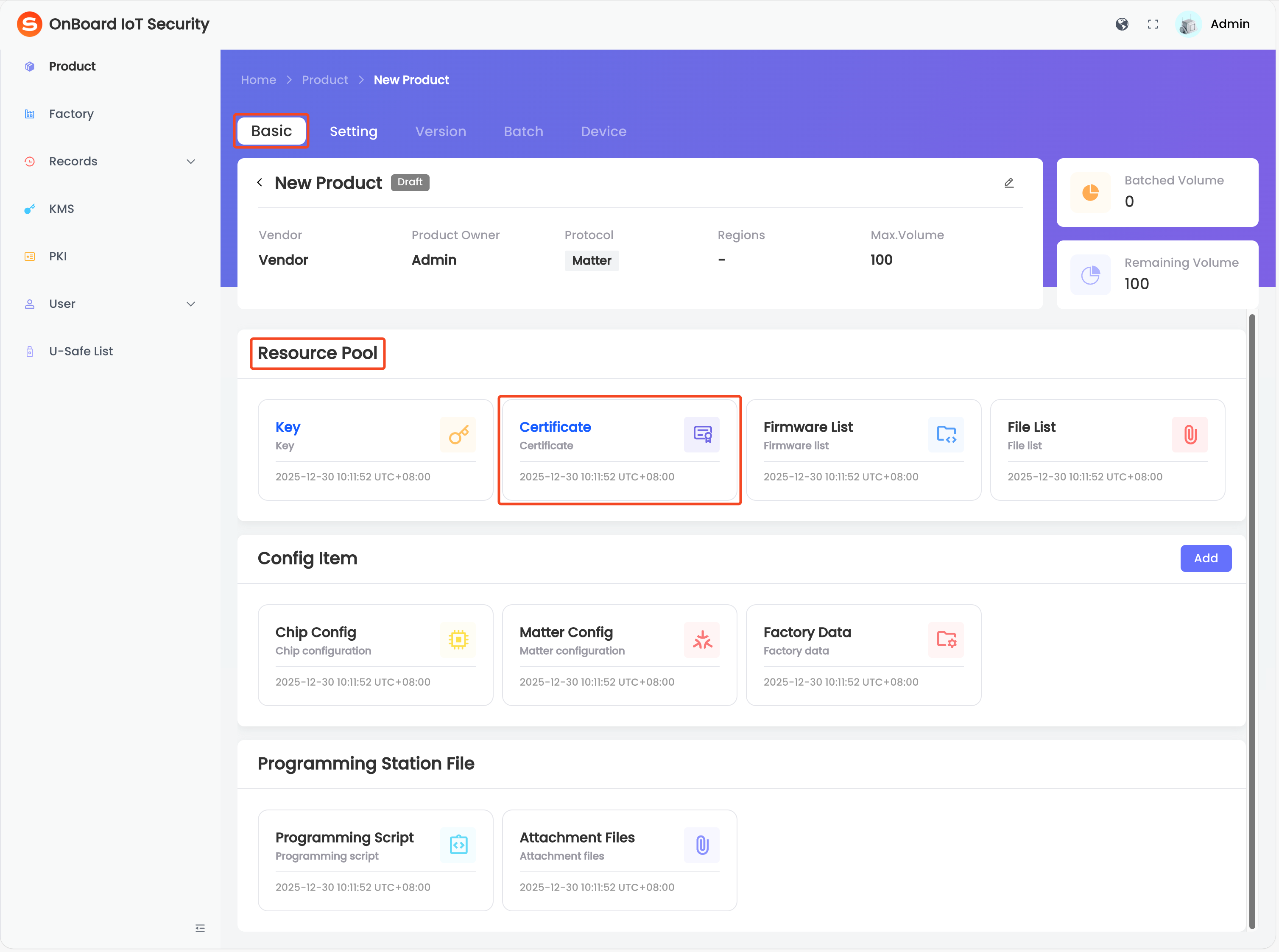
Certificate (required)
Certificate (required)
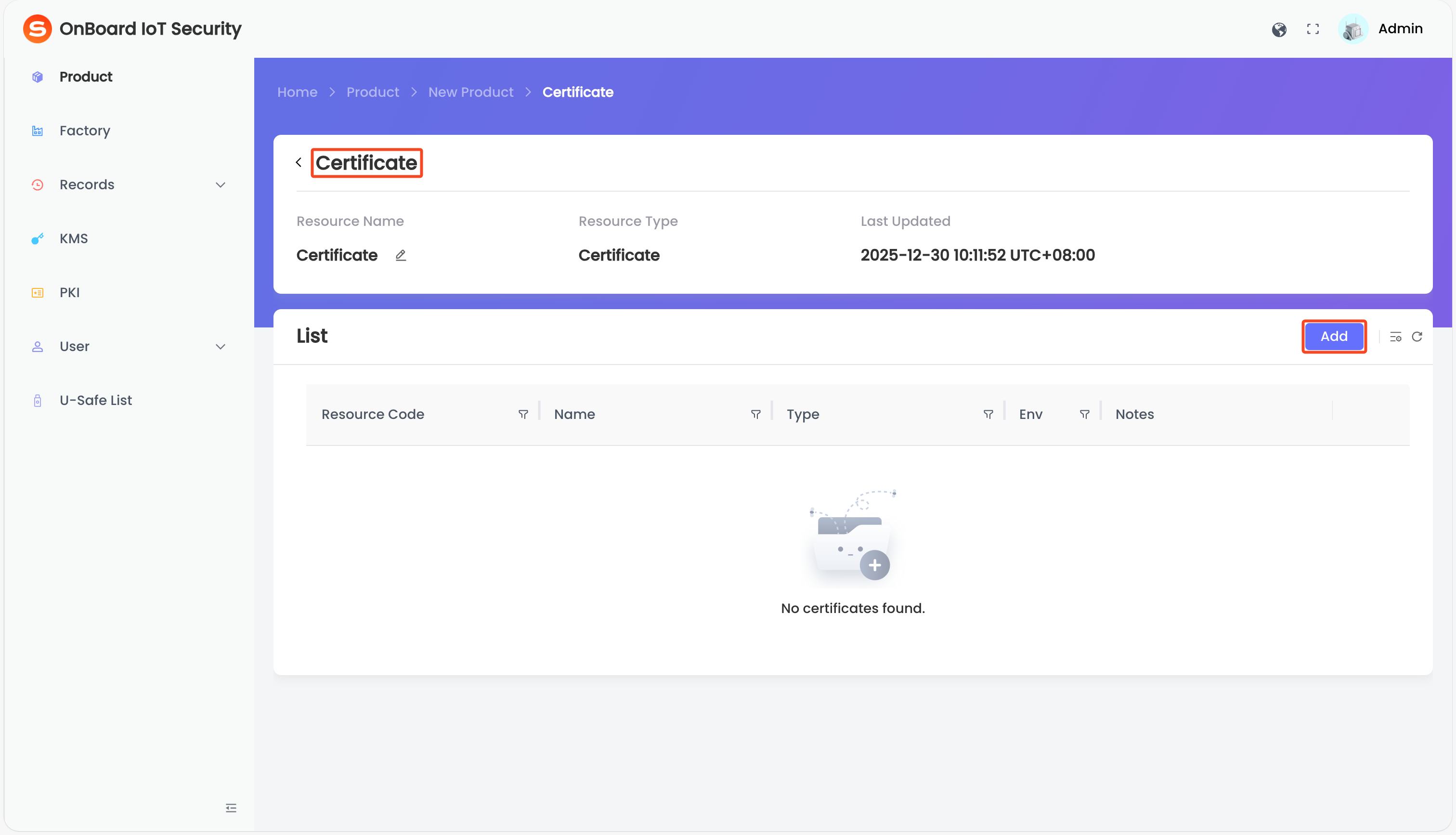
Firmware List (required)
Firmware List (required)
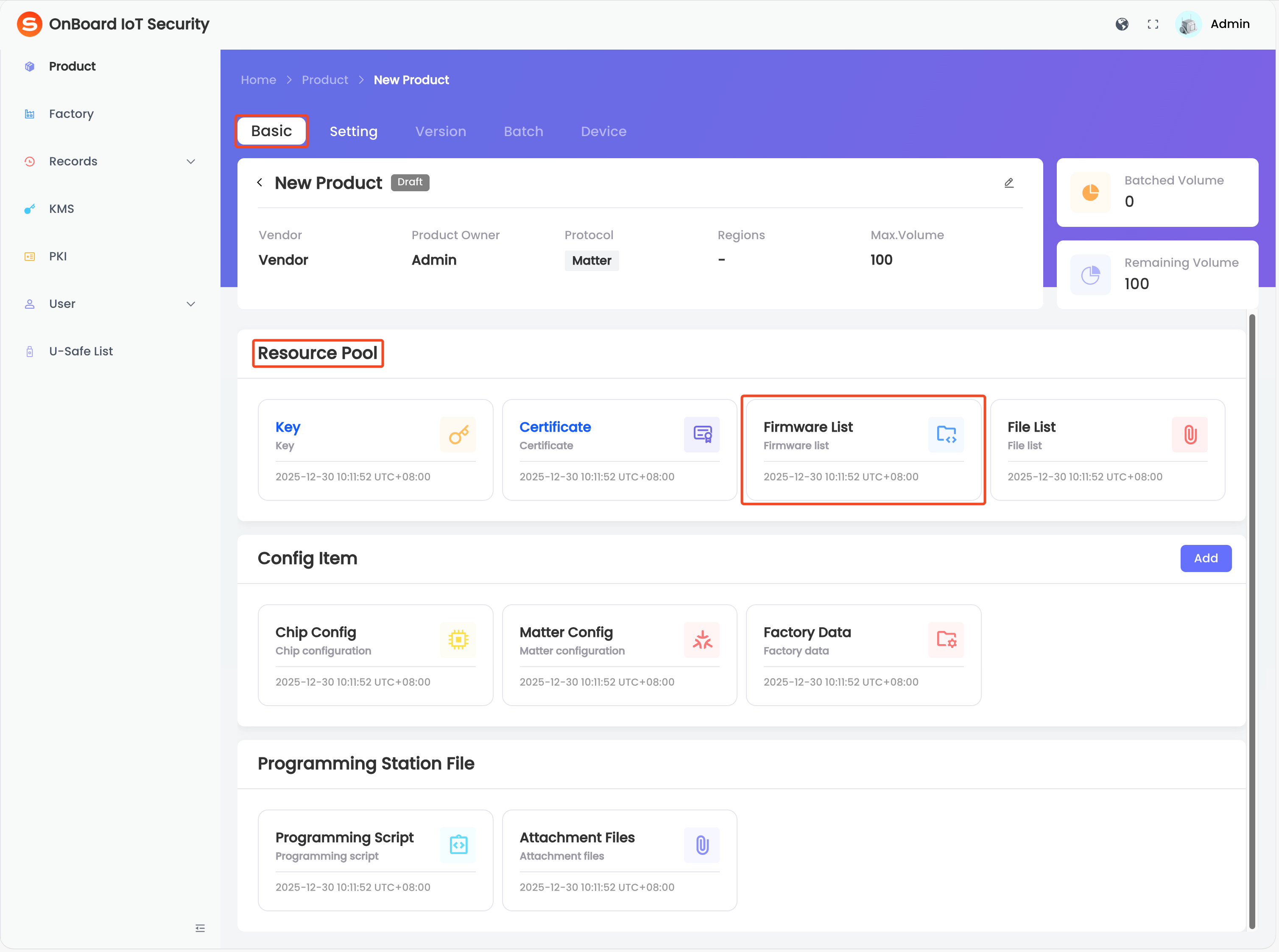
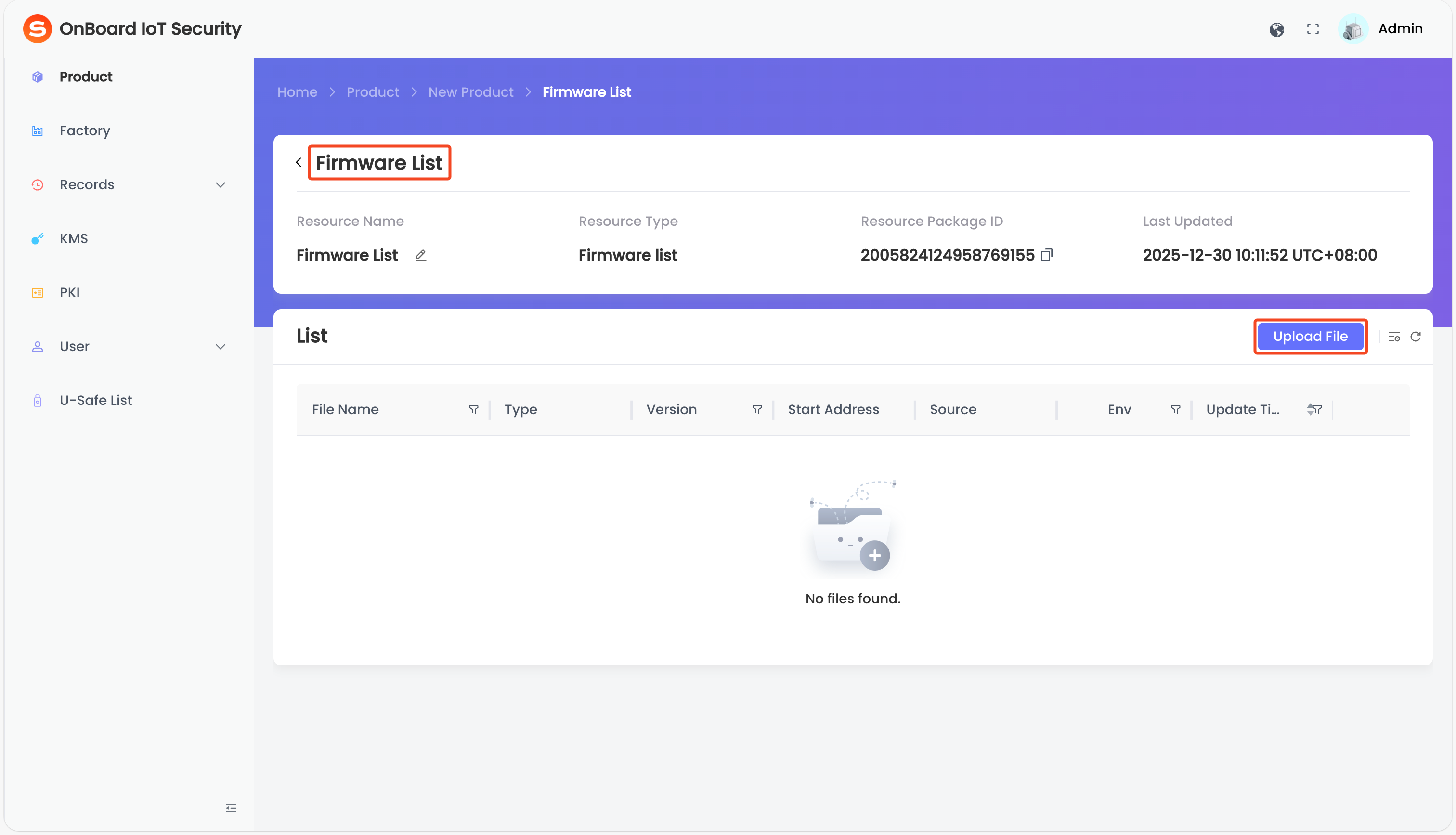
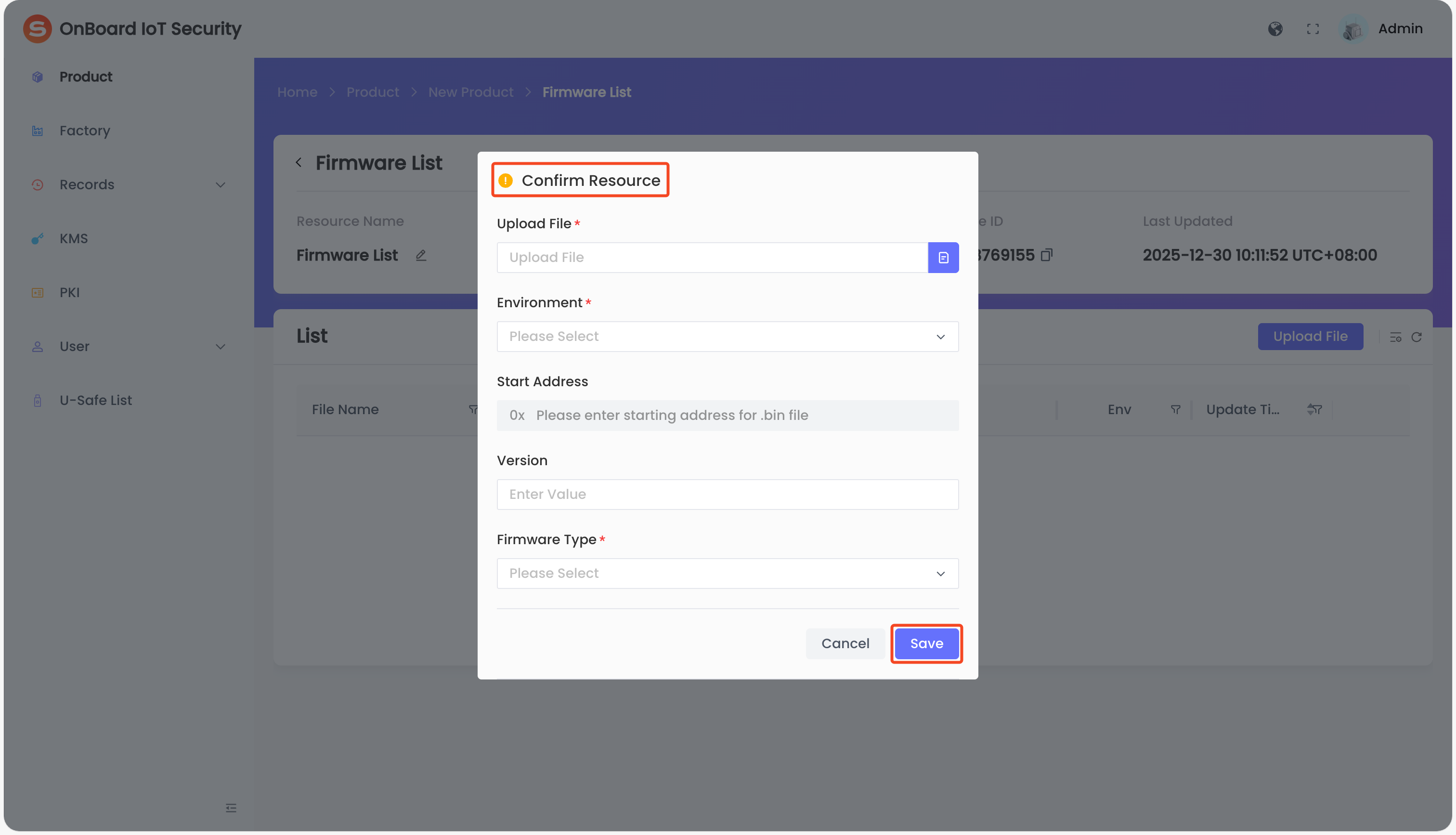
File List (optional)
File List (optional)
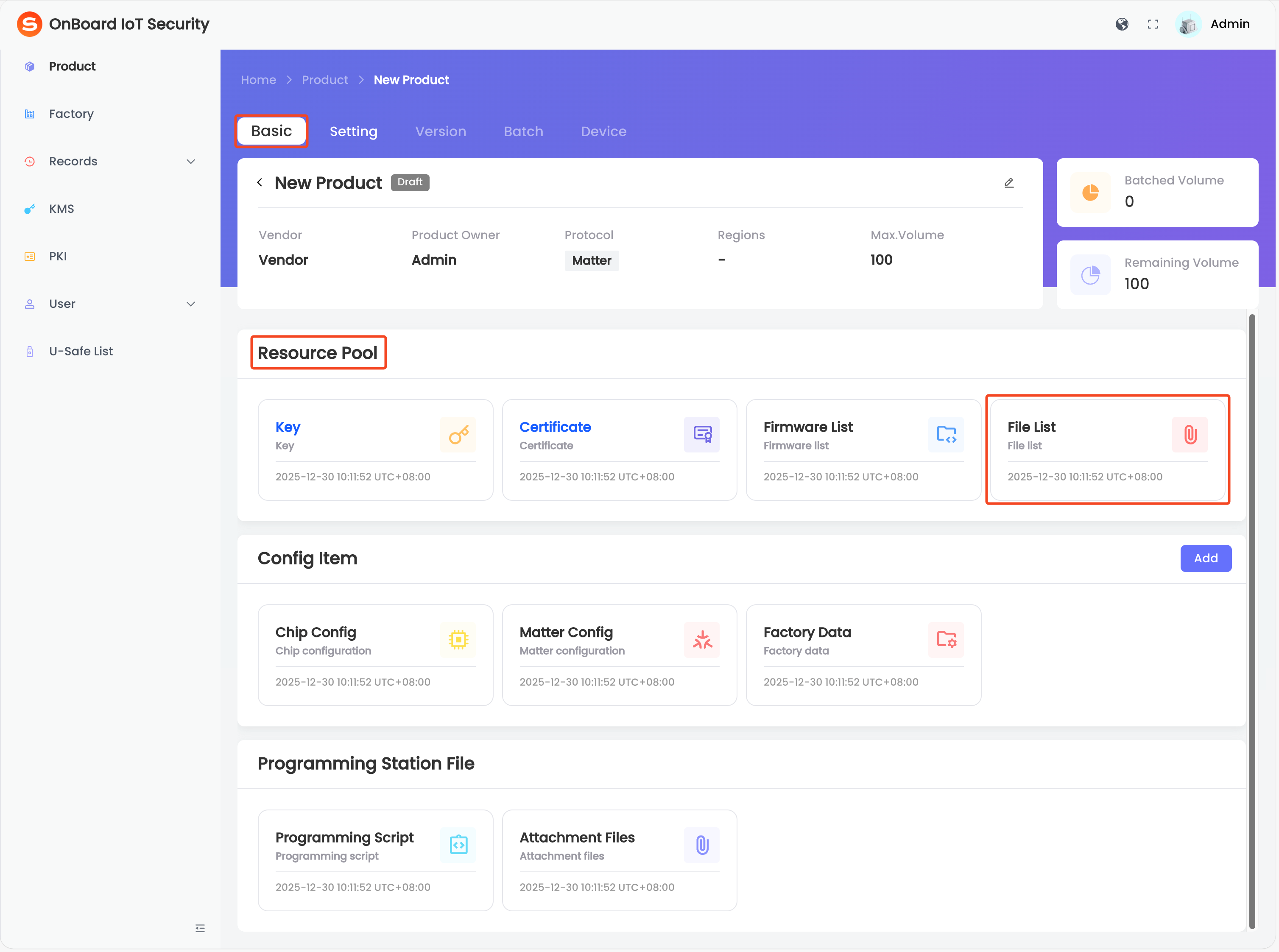
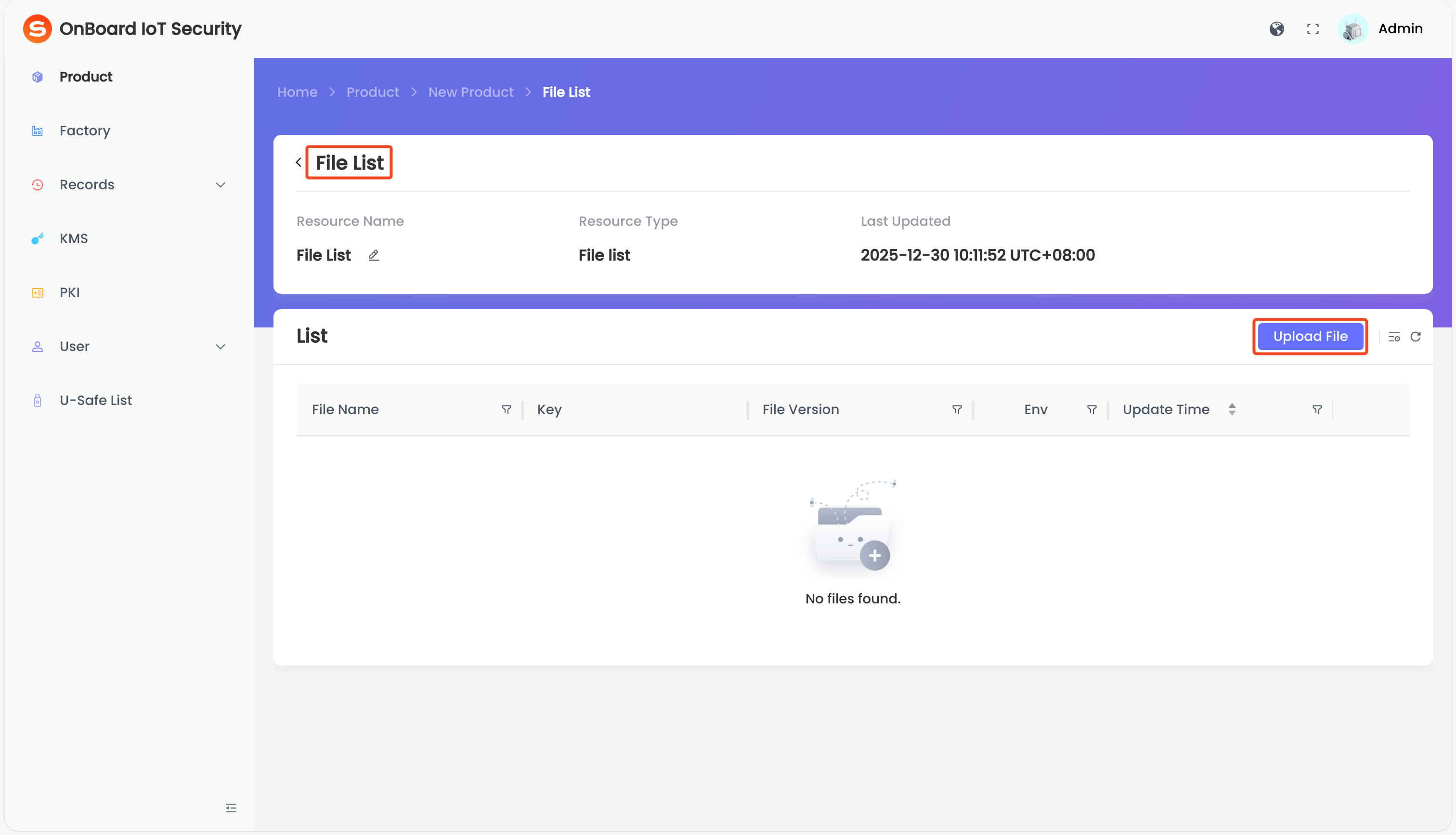
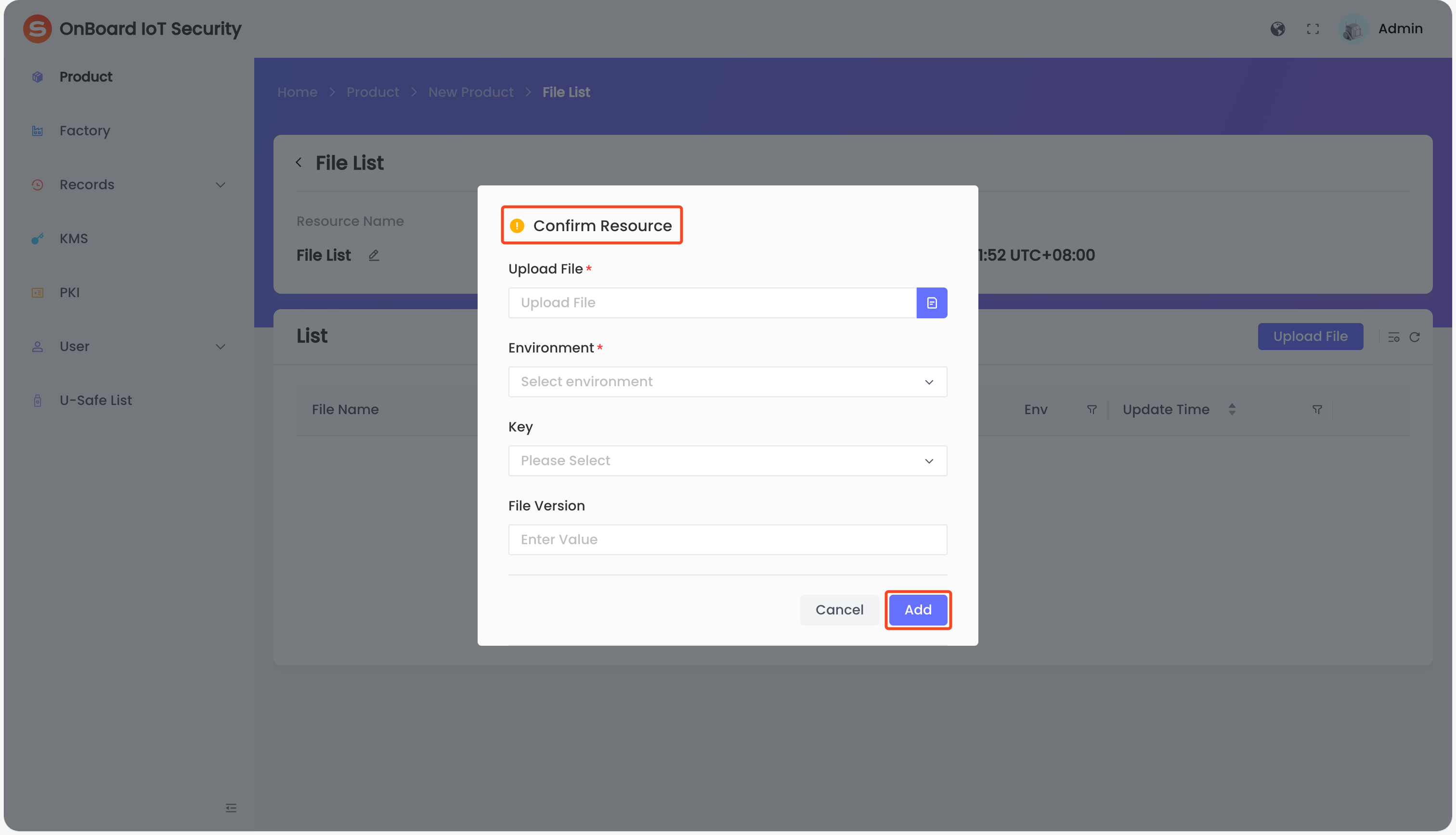
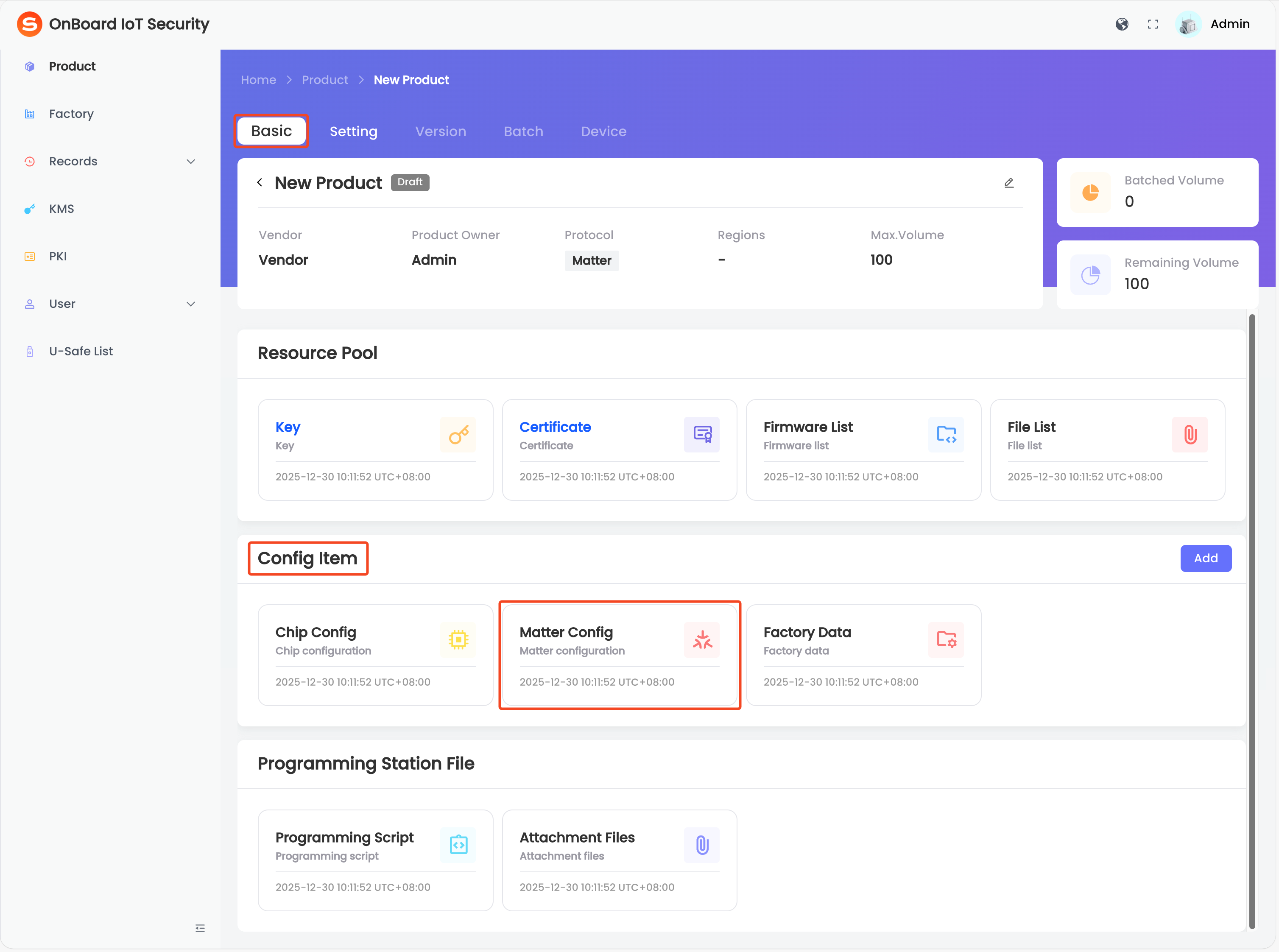
Step two: Set configuration items
The configurations in the Config Item area will be used for version creation. The files uploaded when configuring Matter Config and Factory Data can be downloaded at any time from the configuration page of the corresponding resource.
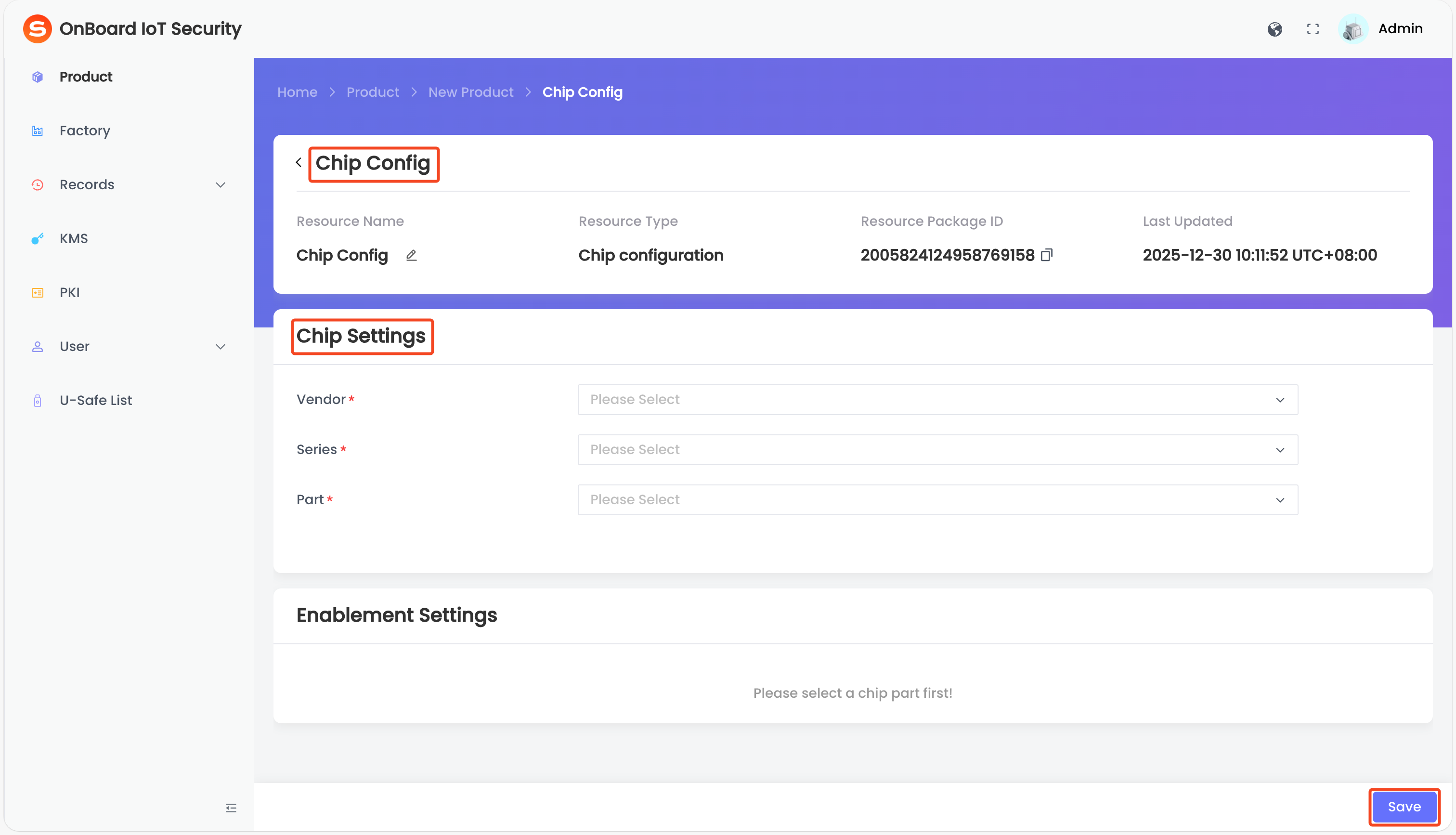
Chip Config (required)
Chip Config (required)
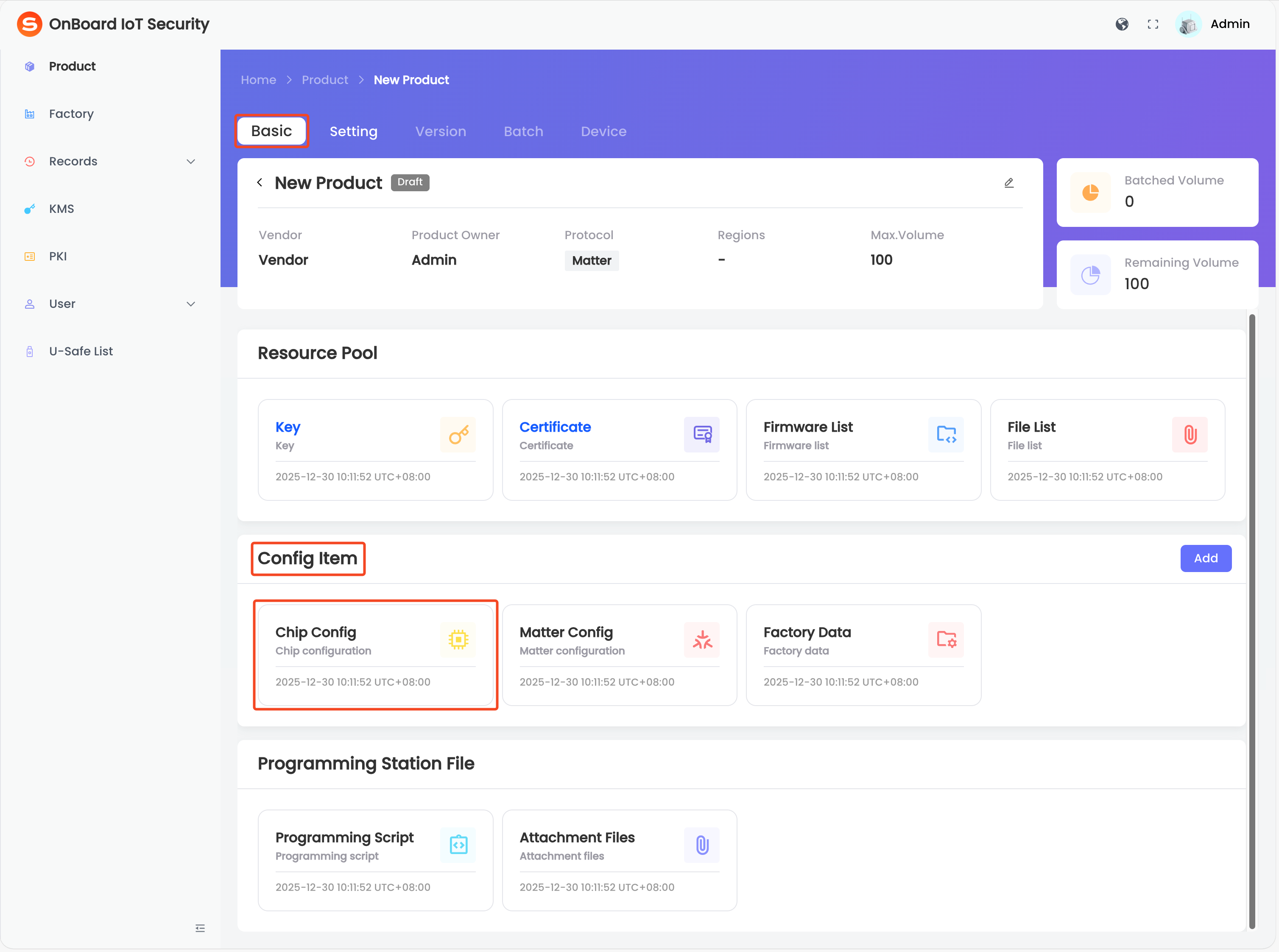
Matter Config (required)
Matter Config (required)
Factory Data (required)
Factory Data (required)
Custom certificate configuration (optional)
Custom certificate configuration (optional)
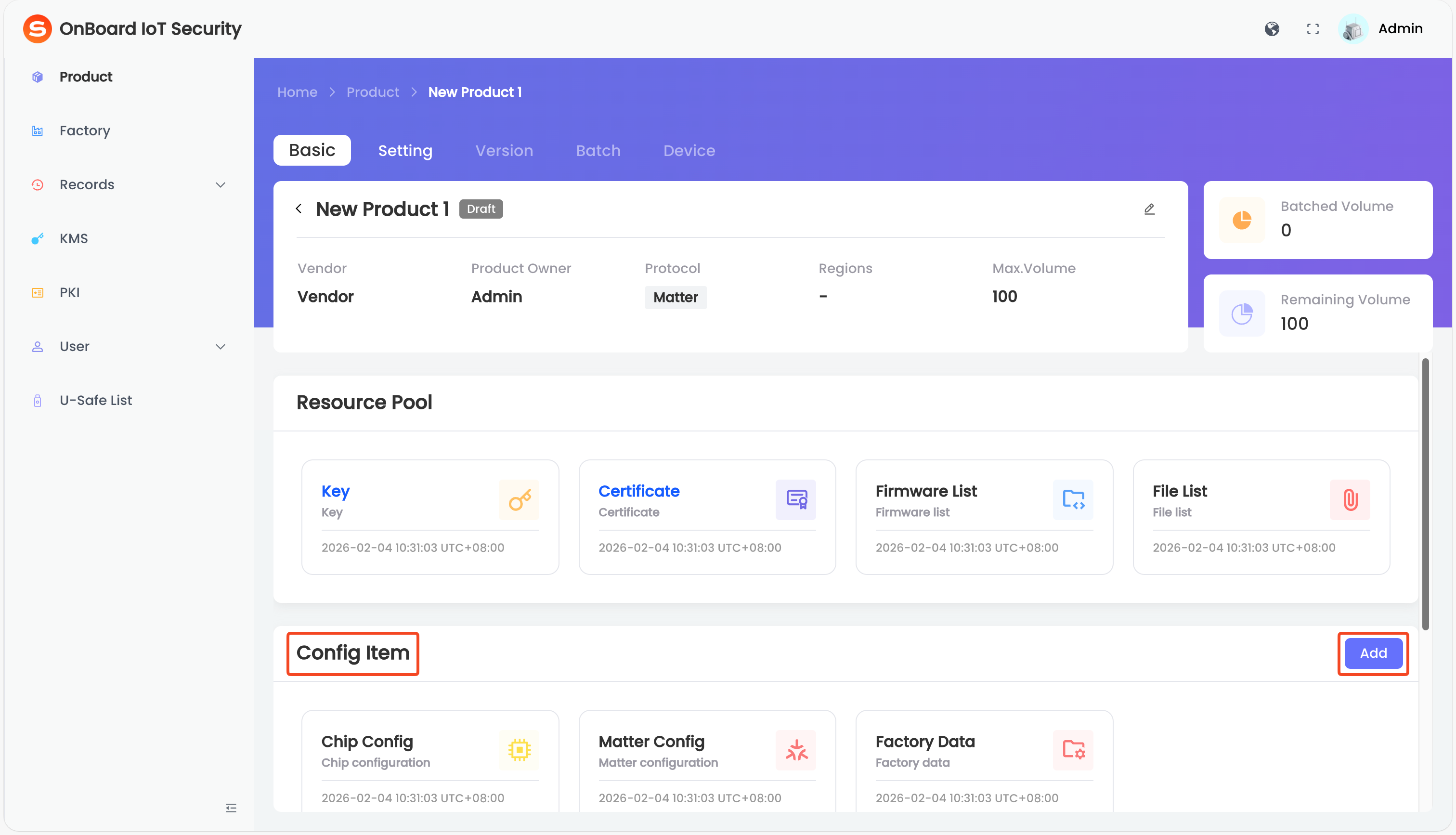
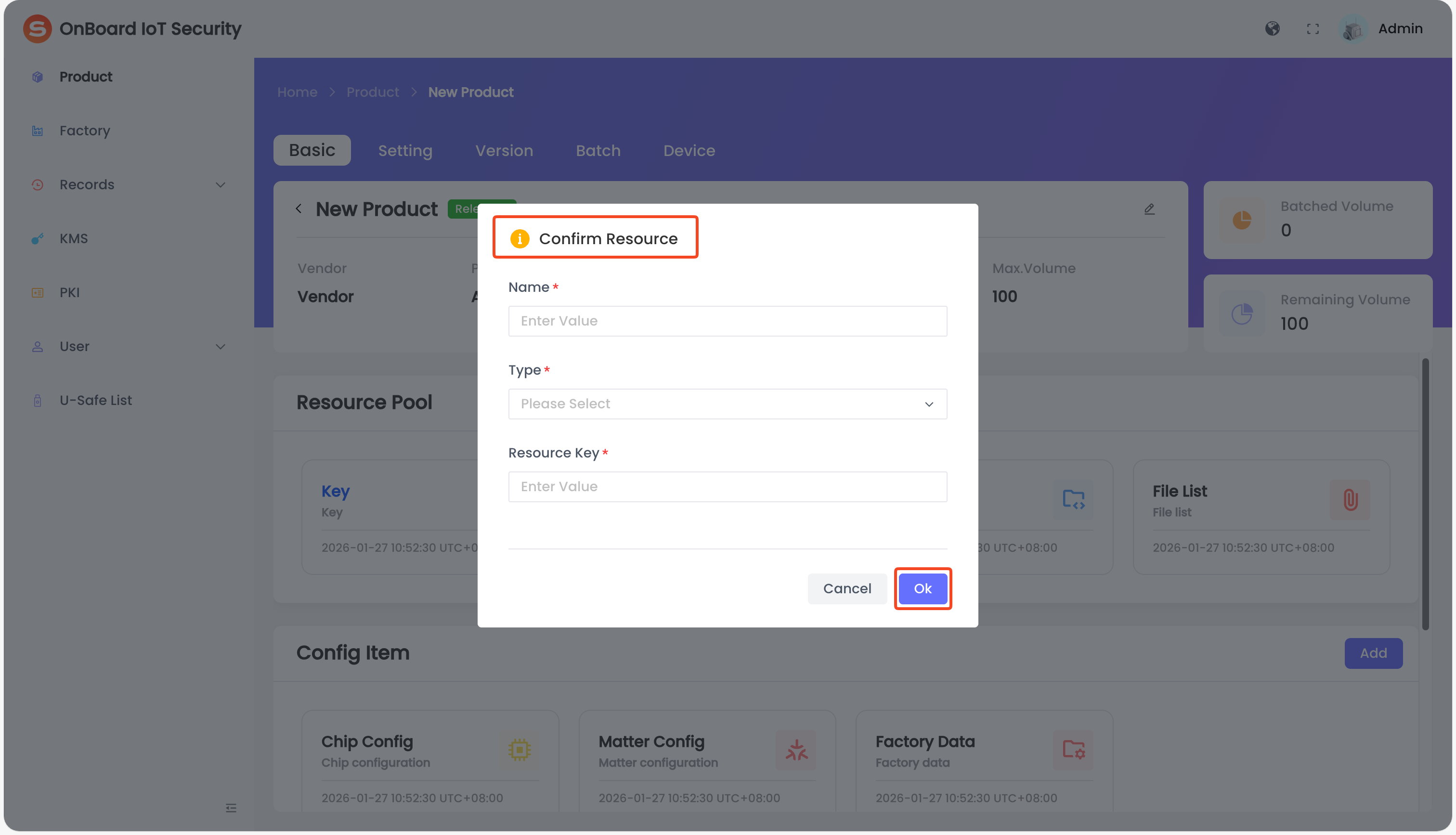
Google certificate configuration (optional)
Google certificate configuration (optional)
Step three: Upload programming station files
Files in the Programming Station File area will be used for batch creation. The files uploaded when configuring Programming Script and Attachment Files can be downloaded at any time from the configuration page of the corresponding resource.

 Download User Manual