How to create a certificate based on the SD certificate chain in OnBoard™ IoT Security
This article will guide you on how to create a certificate based on the SD (Security Domain) certificate chain in OnBoard™ IoT Security (OBIS).
Prerequisites
Before getting started, please ensure that you have OBIS role permissions as a System Manager or SE Resource Manager.
Instructions
After an SD certificate chain is created, when configuring the SE Profile in SEMS, you can select the corresponding CA-KLCC (Controlling Authority for Confidential Key Loading Card Certificates), KA-KLCC (Intermediate Key Authority for Confidential Key Loading Card Certificates), or SD certificate in the SCP11c Configuration.
-
Sign in to OBIS。
-
In the Core section of the left menu, click GPCA, and then click Create on the GP CA Objects page.
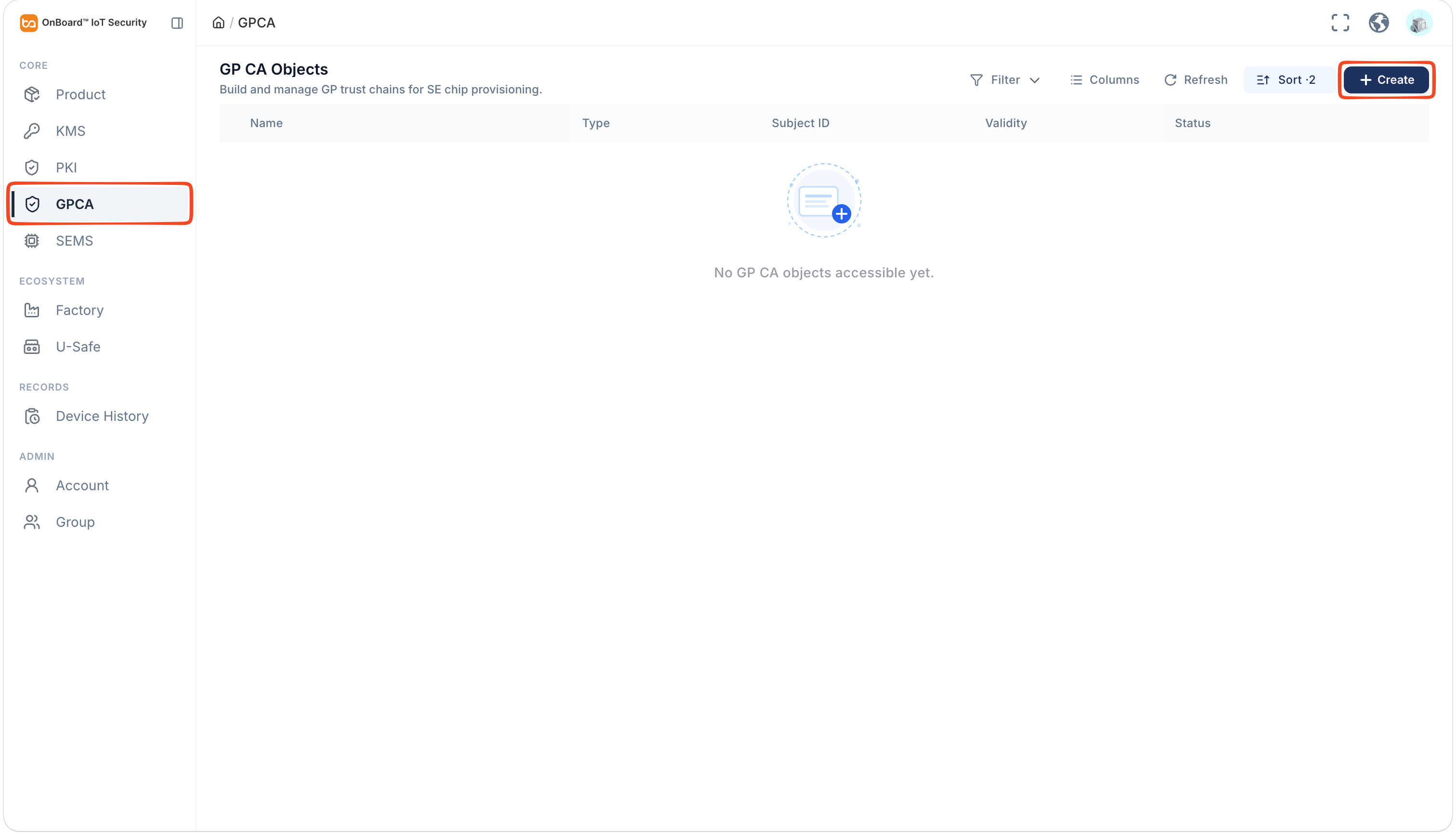
- Create a Root CA (CA-KLCC)
- Create an Intermediate KA (KA-KLCC)
- Create an SD certificate
CA-KLCC is the root CA of the SD certificate chain and is used to issue and manage the subordinate KA-KLCC and SD certificates.
-
On the Add Root CA panel, select Generate by System or Bring Your Own Root Certificate as needed.
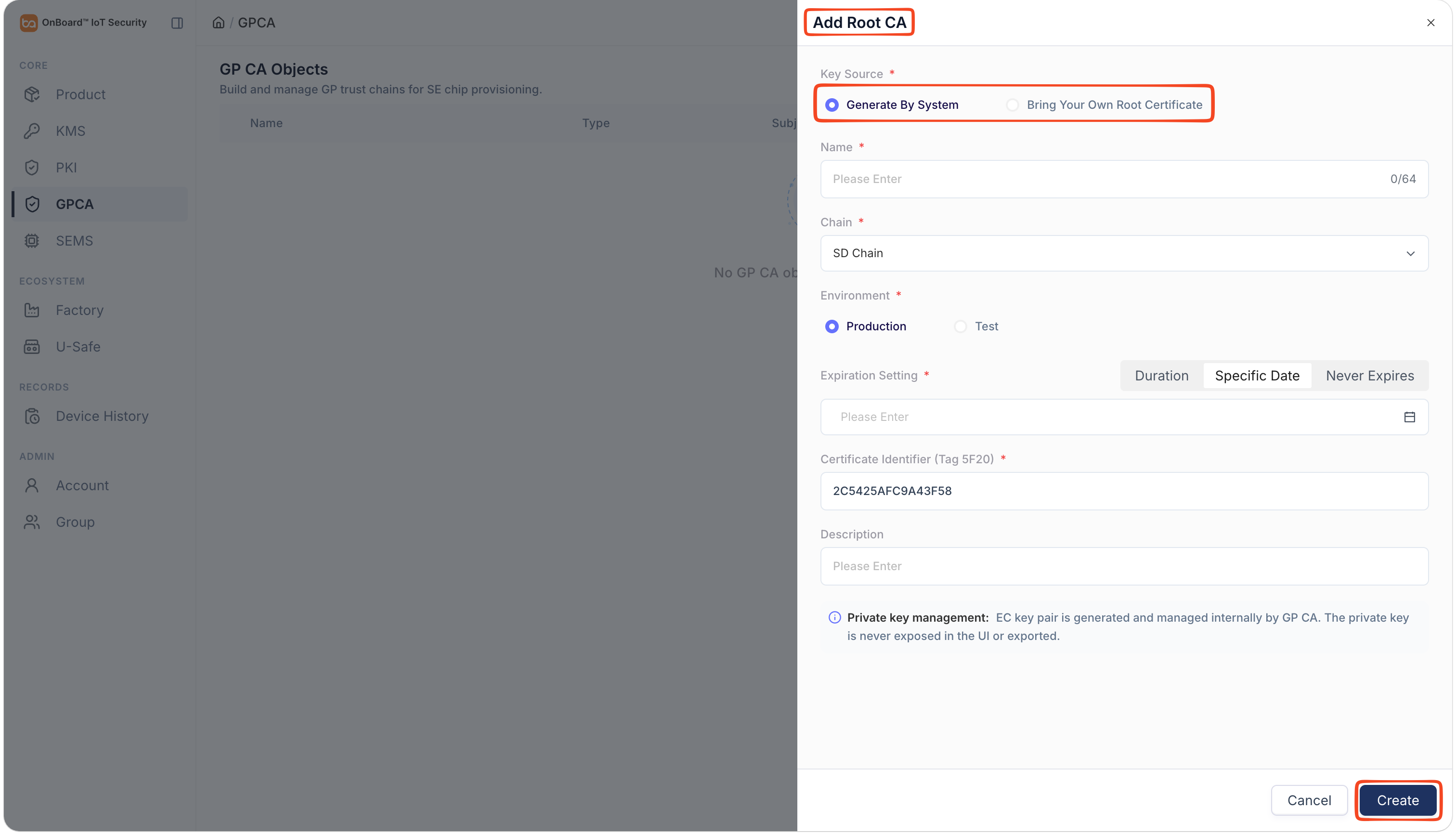
Description of Root CA basic information:
Information Generate by System Bring Your Own Root Certificate Certificate Data (7F21 Hex) N/A Enter the Hex certificate data in the GlobalPlatform certificate format (must start with 7F21).
Note: The Issuer Identifier and Subject Identifier of the certificate must match.Name The Root CA name must be unique in the same environment. Chain Select the SD Chain. Environment Two environments can be selected: Production or Test. Expiration Setting You can choose Duration, Specific Date, or Never Expires to set the validity period as needed. N/A Certificate Identifier (Tag 5F20) Hex-encoded data for the certificate identifier. The system generates a 16-byte random value by default, which can be manually modified. Description Provide additional information related to the Root CA, such as special requirements and important notes. -
After verifying that the information is correct, click Create to complete the Root CA creation.
tipBy default, the certificate creator is set as the Admin. To change the Admin, click the Options
 icon for the Admin and select Transfer Admin on the Member tab, then choose the new Admin and click Confirm.
Before creating an Intermediate KA, please ensure that at least one Root CA has been created so that it can be selected and inherited during configuration.
-
On the GP CA Objects page, expand the corresponding certificate chain, click the Options
icon for the corresponding Root CA and select Add Intermediate KA.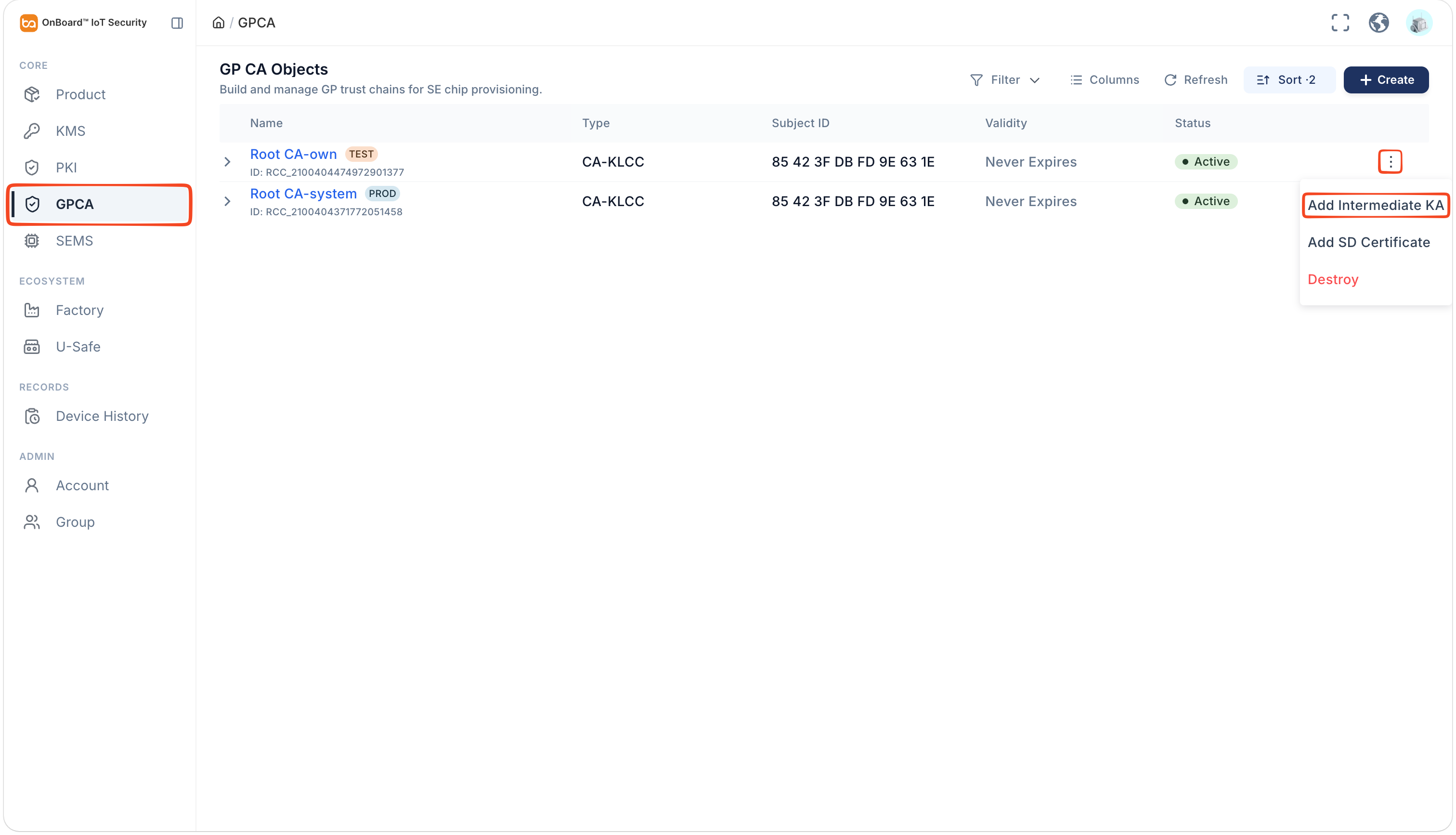
-
On the Add Intermediate KA panel, select and enter the basic information.
-
If the issuer of the intermediate KA is your own Root CA, you can select Generate key pair (offline signing) or Import signed certificate (your own intermediate KA) as needed
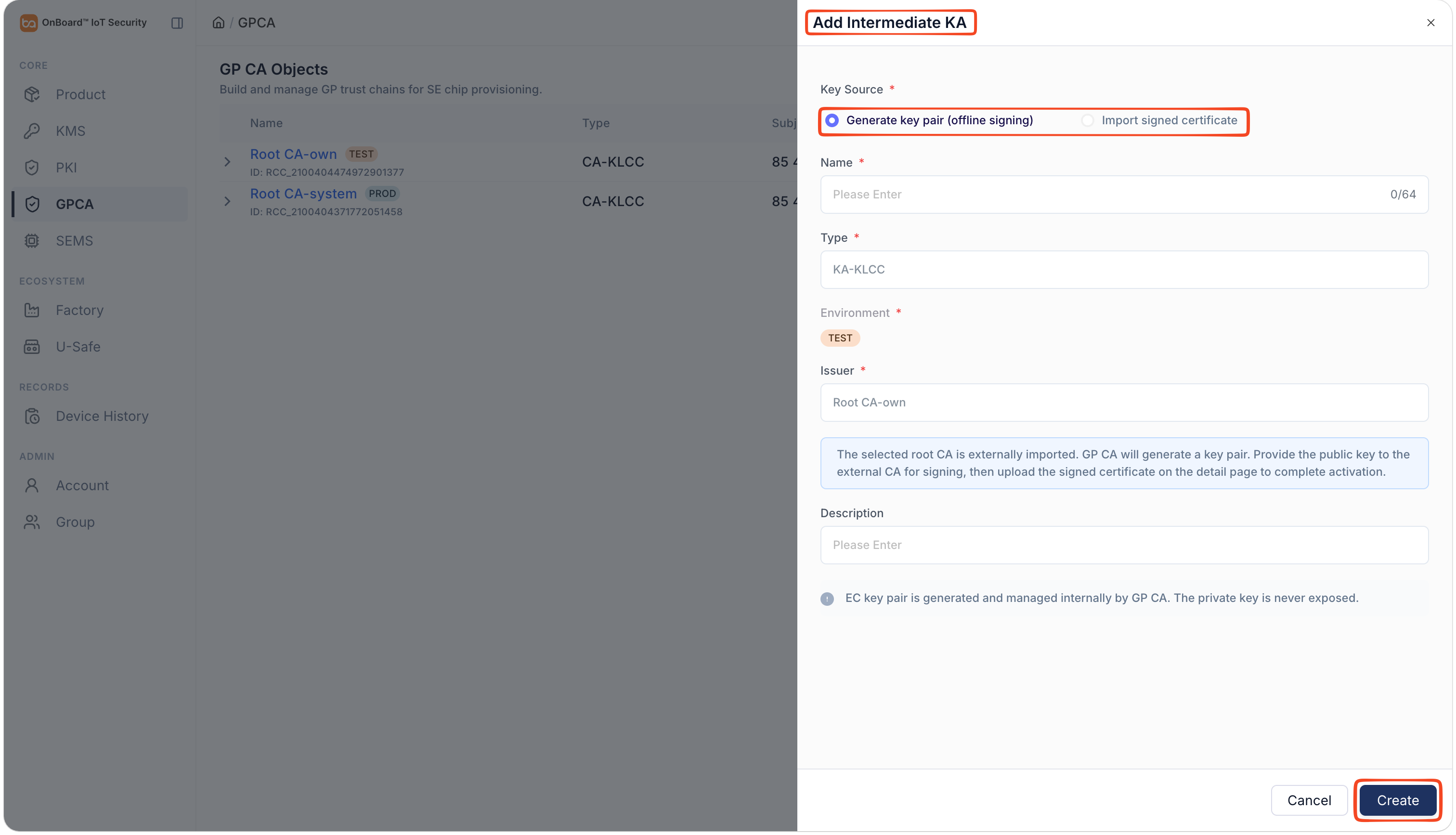
Information Generate key pair (offline signing) Import signed certificate Certificate Data (7F21 Hex) N/A Enter the Hex certificate data in the GlobalPlatform certificate format (must start with 7F21).
Note: The Issuer Identifier and Subject Identifier of the certificate must match.Name Within the same certificate chain, certificate names at the same hierarchy level must be unique. Type Default is KA-KLCC. Environment The environment is inherited from the Root CA. Issuer The inherited Root CA. Description Provide additional information related to the Intermediate KA, such as special requirements and important notes. -
If the issuer of the intermediate KA is the system-generated Root CA
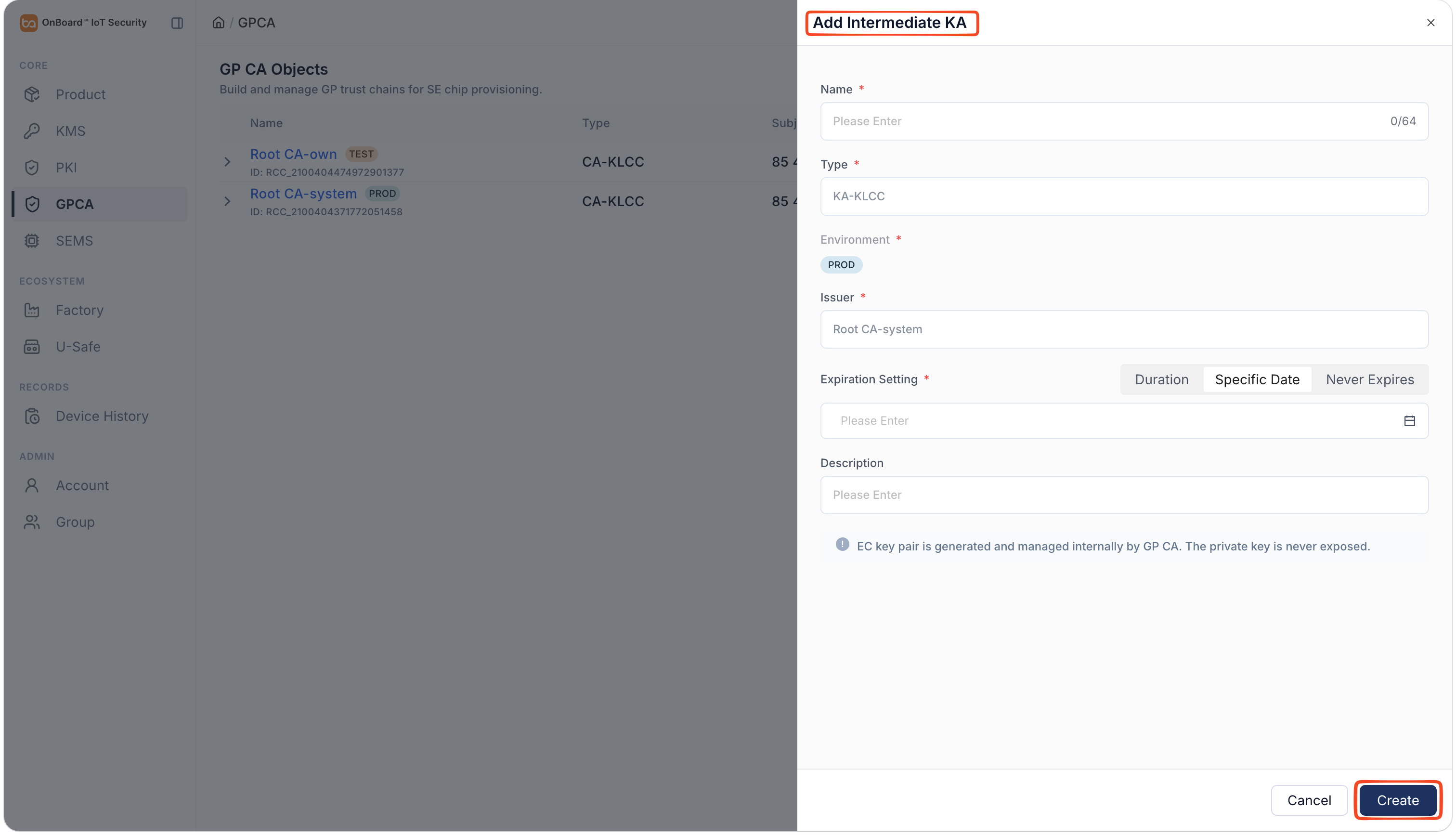
Information Description Name Within the same certificate chain, certificate names at the same hierarchy level must be unique. Type Default is KA-KLCC. Environment The environment is inherited from the Root CA. Issuer The inherited Root CA. Expiration Setting You can choose Duration, Specific Date, or Never Expires to set the validity period as needed. Description Provide additional information related to the Intermediate KA, such as special requirements and important notes.
-
-
After verifying that the information is correct, click Create to complete the Intermediate KA creation.
tipBy default, the certificate creator is set as the Admin. To change the Admin, click the Options
icon for the Admin and select Transfer Admin on the Member tab, then choose the new Admin and click Confirm.When creating an Intermediate KA, if the issuer is your own Root CA, you must complete the external issuance steps for the Intermediate KA. Before the external issuance is completed, the certificate will remain in the Pending status and can't be used.
External issuance steps for the Intermediate KA
When creating an Intermediate KA, if the issuer is your own root CA, refer to the following steps to complete the external issuance.
-
On the GP CA Objects page, expand the corresponding certificate chain, and then click the corresponding Intermediate KA.
-
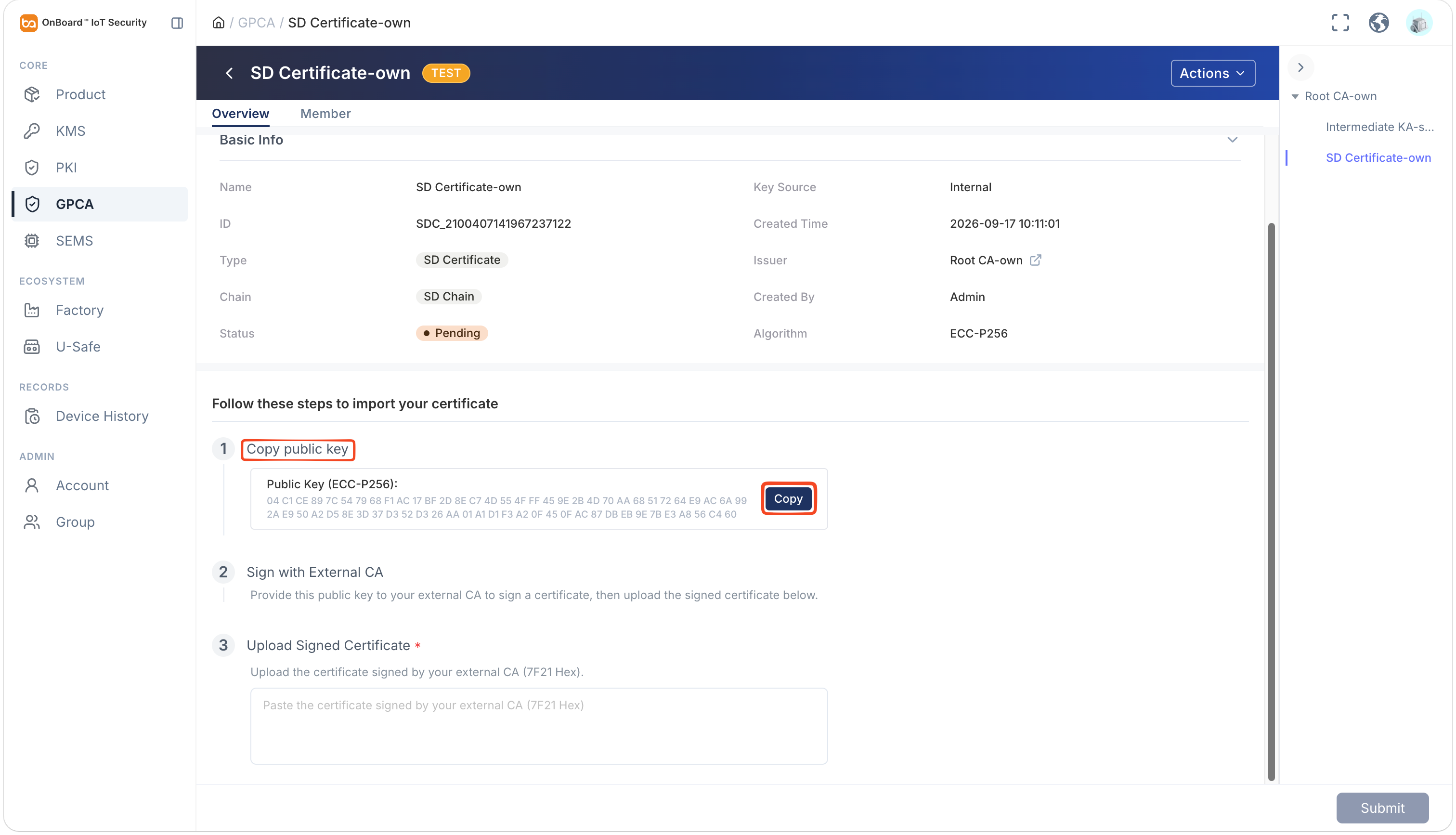
Locate the Copy public key section on the certificate page, click Copy. Then, use your external CA to sign this public key, thereby generating an intermediate CA certificate issued by the external CA.
-
After issuance is complete, enter the certificate data (7F21 Hex) issued by the external CA in the Upload Signed Certificate section.
-
Click Submit. Once the configuration is completed, the Intermediate KA status will change to Active.
Before creating an SD certificate, please ensure that at least one Root CA or Intermediate KA has been created so that it can be selected and inherited during configuration.
-
On the GP CA Objects page, expand the corresponding certificate chain, click the Options
icon for the corresponding root or Intermediate KA and select Add SD Certificate.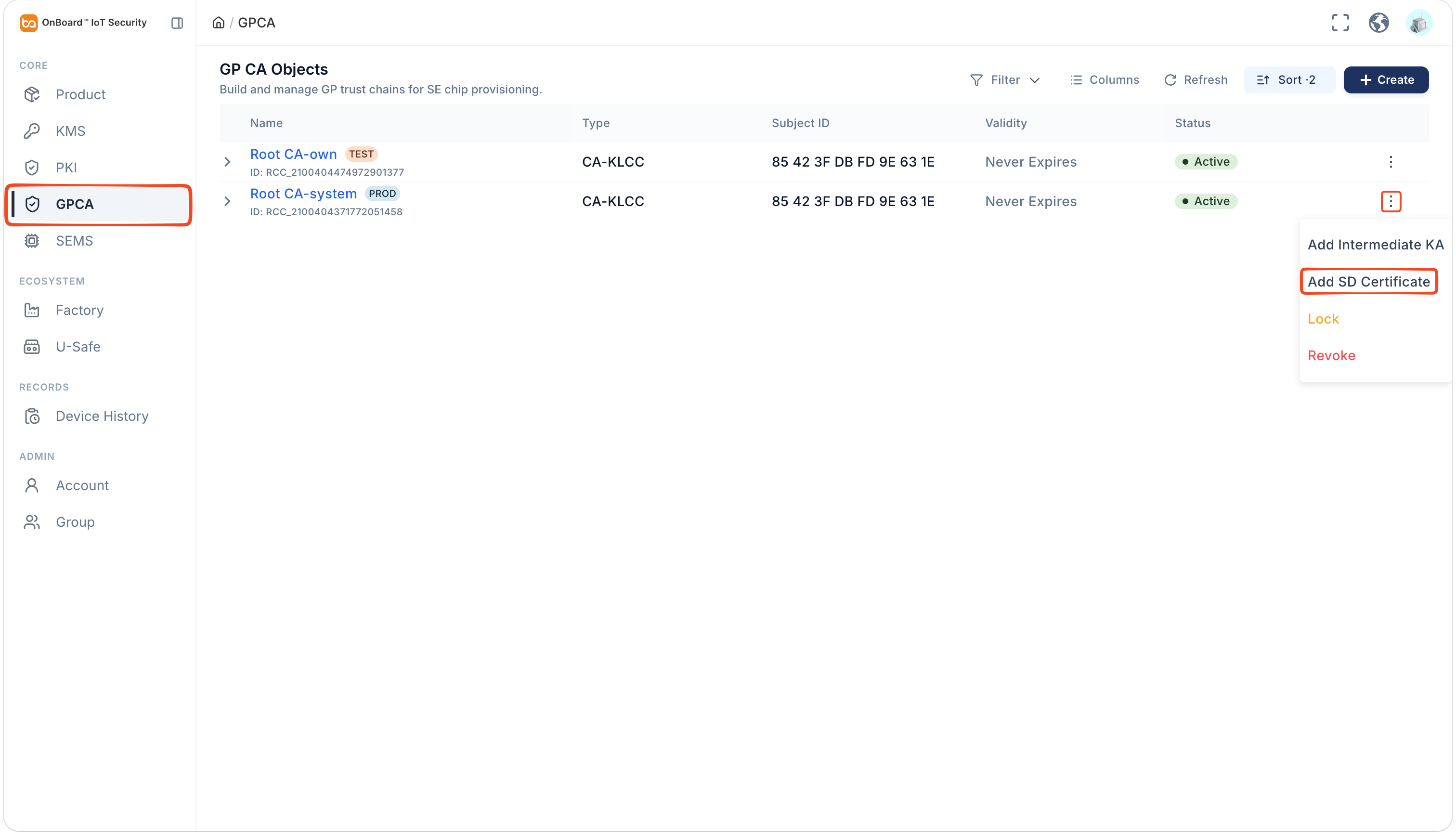
-
On the Add SD Certificate (Mode B) page, select and enter the basic information.
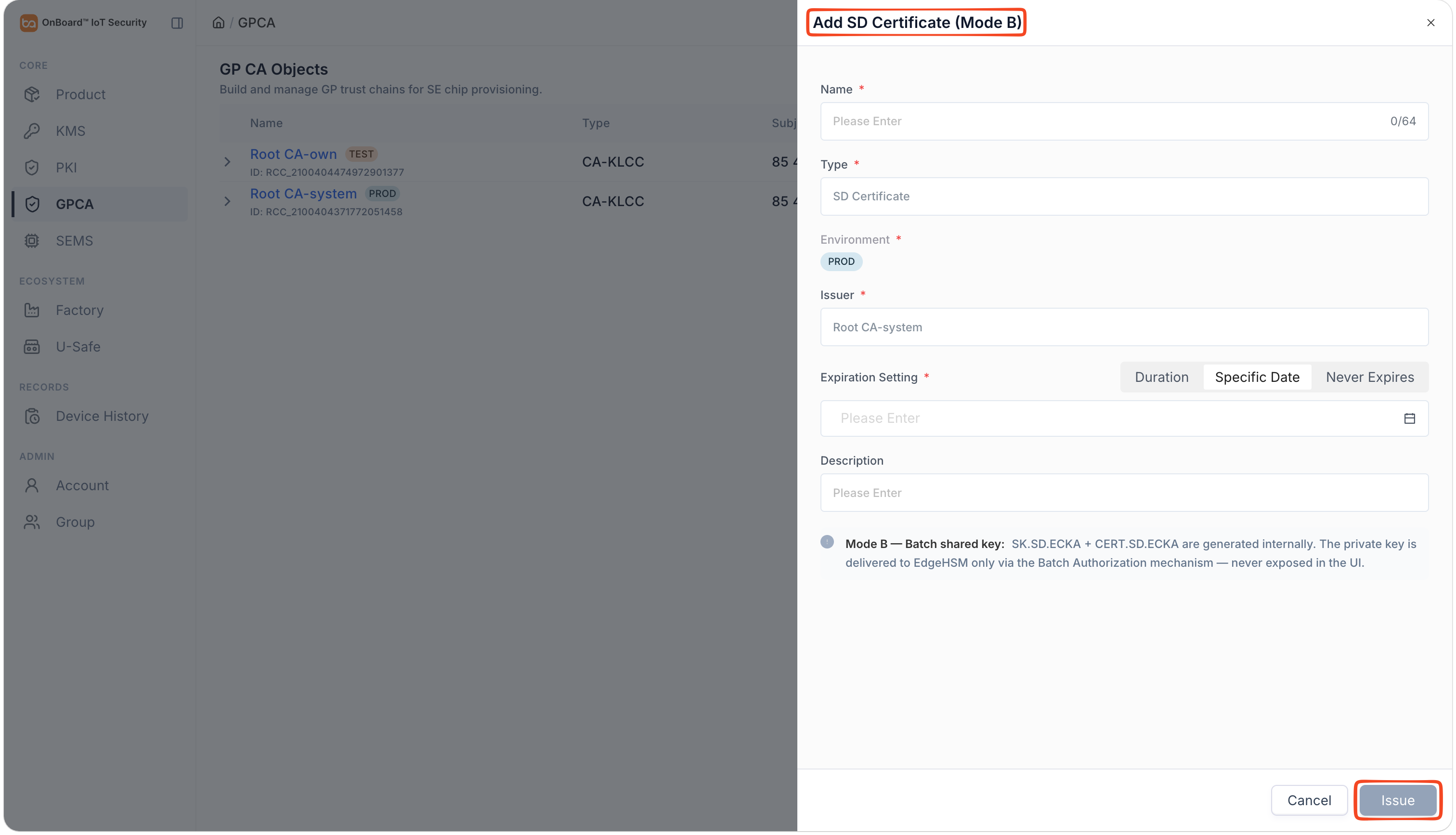
Description of SD certificate basic information:
Information Description Name Within the same certificate chain, certificate names at the same hierarchy level must be unique. Type Default is SD Certificate. Environment The environment is inherited from the Root CA or Intermediate KA. Issuer The inherited Root CA or Intermediate KA. Expiration Setting You can choose Duration, Specific Date, or Never Expires to set the validity period as needed.
Note: If the issuer is your own Root CA or Intermediate KA, the validity period will be inherited from the Root CA or Intermediate KA.Description Provide additional information related to the SD certificate, such as special requirements and important notes. -
After verifying that the information is correct, click Issue to complete the SD certificate creation.
tipBy default, the certificate creator is set as the Admin. To change the Admin, click the Options
icon for the Admin and select Transfer Admin on the Member tab, then choose the new Admin and click Confirm.When creating an SD certificate, if the issuer is your own Root CA or Intermediate KA, you must complete the external issuance steps for the SD certificate. Before the external issuance is completed, the template will remain in the Pending status and can't be used.
External issuance steps for the SD certificate
When creating an SD certificate, if the issuer is your own Root CA or Intermediate KA, refer to the following steps to complete the external issuance.
-
On the GP CA Objects page, expand the corresponding certificate chain, and then click the corresponding SD certificate.
-
Locate the Copy public key section on the certificate page, click Copy. Then, use your Root CA or Intermediate KA to sign the file, thereby generating an SD certificate signed by the Root CA or Intermediate KA.
-
After issuance is complete, enter the certificate data (7F21 Hex) issued by the external Root CA or Intermediate KA in the Upload Signed Certificate section.
-
Click Submit. Once the configuration is completed, the SD certificate status will change to Active.

 Download User Manual