How to configure and publish an SE Profile in OnBoard™ IoT Security
You can configure the SE Profile only when it is in the Draft state.
This article will guide you through the following operations in OnBoard™ IoT Security (OBIS):
- Configure basic information
- Configure Initial Profile
- Configure Post-Provision Profile
- Publish the SE Profile
Prerequisites
Before getting started, please ensure that:
- You have OBIS role permissions as a System Manager or SE Resource Manager.
- You have permissions for the corresponding SE Profile.
- The certificates and keys have already been created.
Configure basic information
-
Sign in to OBIS.
-
In the Core section of the left menu, click SEMS, and then select the corresponding SE Profile to navigate to the SE Profile page.
-
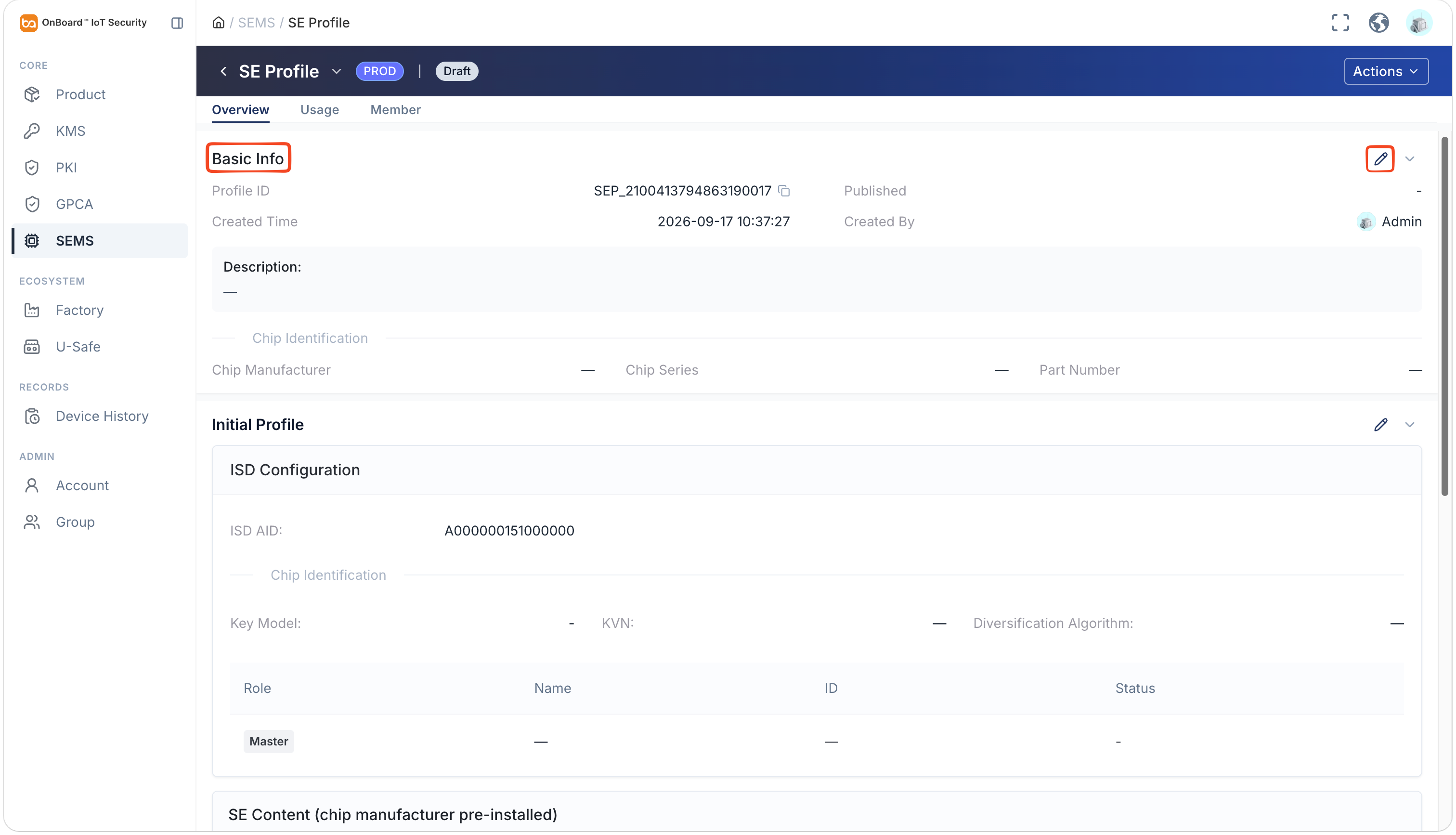
In the Basic Info section of the SE Profile page, click the Edit
 icon.
-
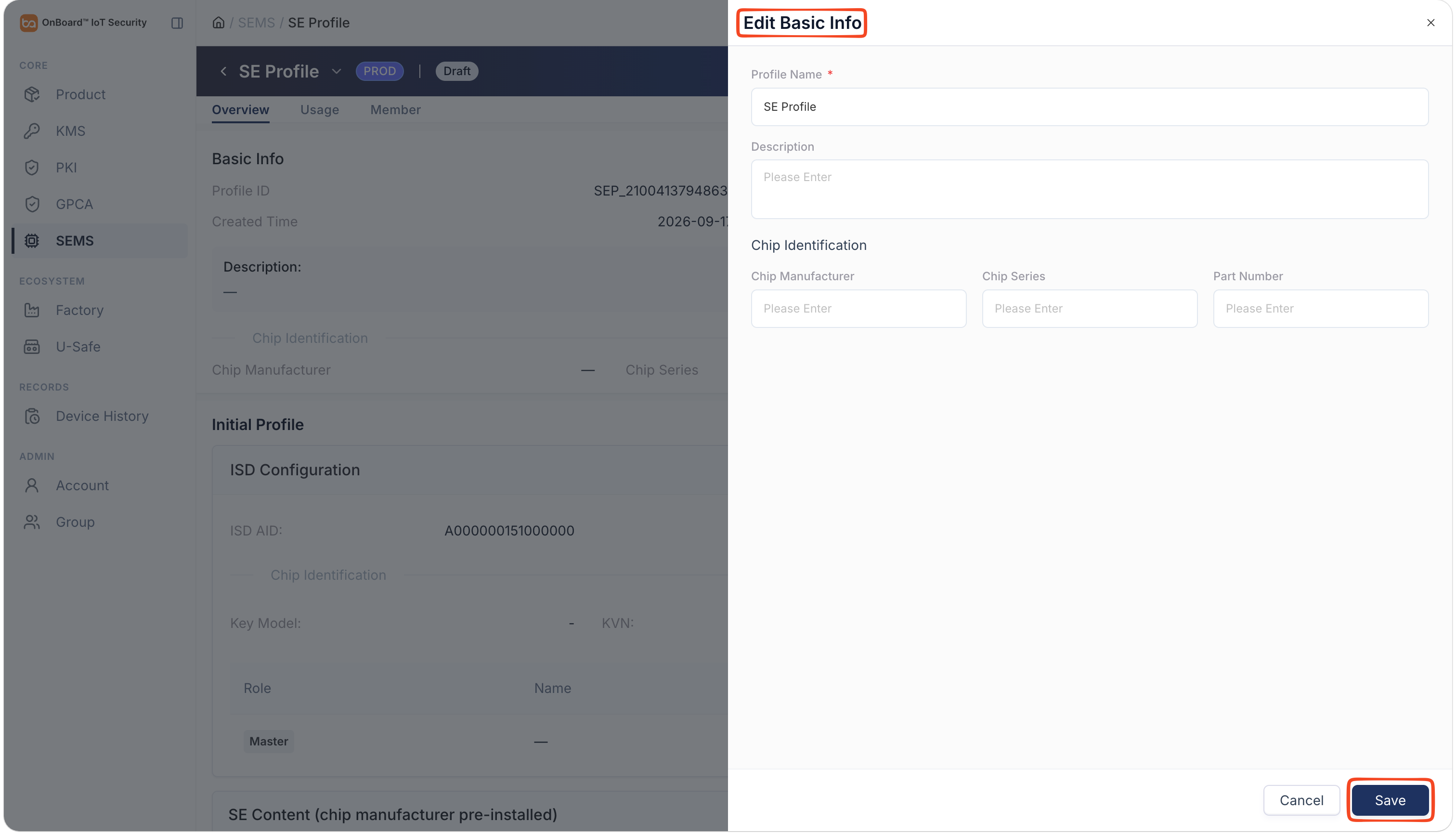
In the Edit Basic Info panel, verify the SE Profile name and description, and then enter the corresponding chip identification (chip manufacturer, series, and part number).
-
After verifying that the information is correct, click Save.
Configure Initial Profile
-
Sign in to OBIS.
-
In the Core section of the left menu, click SEMS, and then select the corresponding SE Profile to navigate to the SE Profile page.
Configure ISD
-
In the Initial Profile section, click the Edit
icon.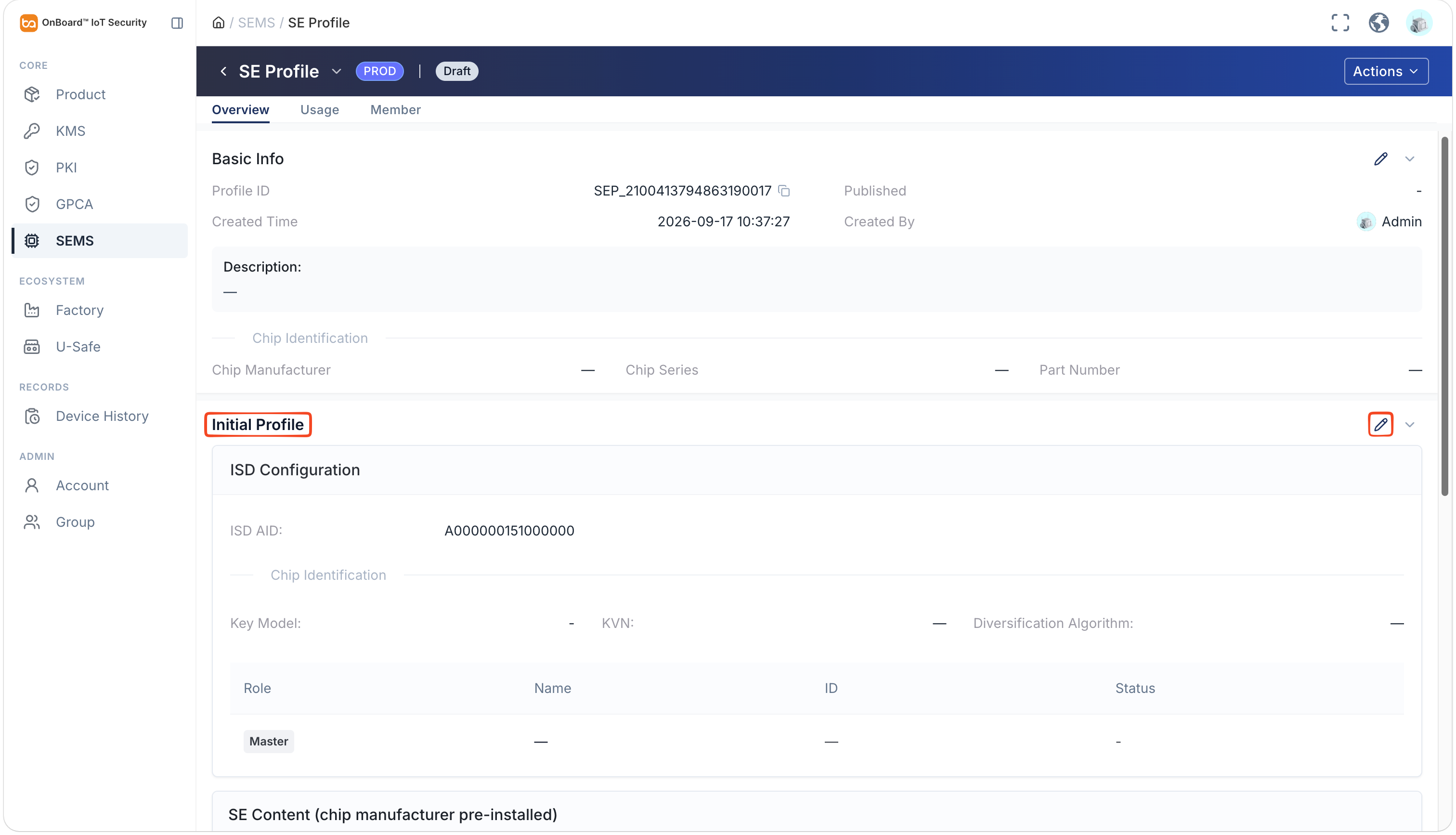
-
In the Edit ISD Config panel, enter and select the relevant information. You may also click Fill Defaults.
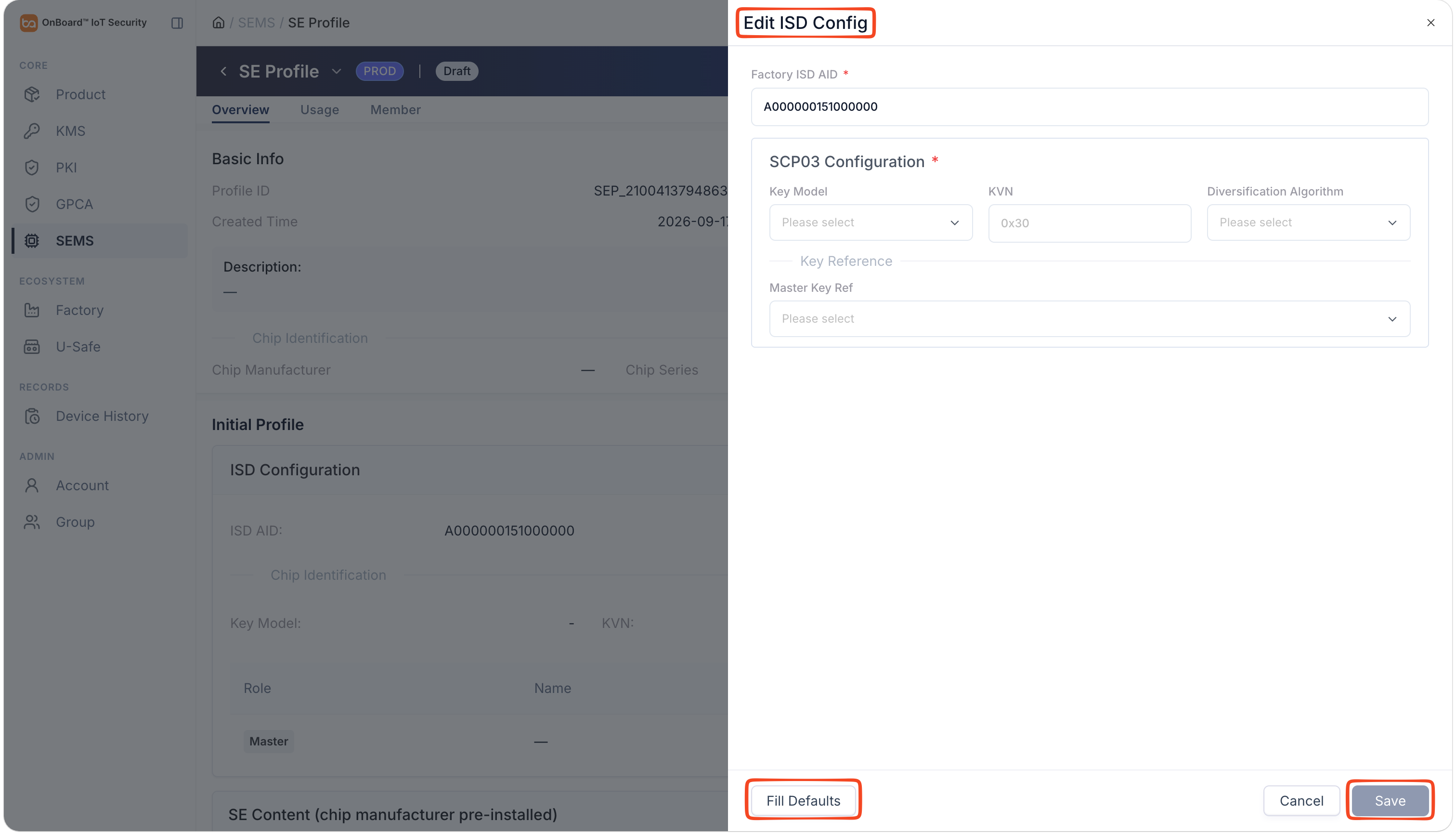
Description of the ISD configuration information:
Information Description Factory ISD AID The AID (Application Identifier) used to identify the Factory ISD (Issuer Security Domain) on the SE chip, which remains constant throughout the chip's lifecycle. The default value is A000000151000000. Key Model Two key models can be selected: Single Master Key and Triple Keys (ENC/MAC/DEK). The default setting is Single Master Key. KVN The key version number used within the current security domain to establish an SCP03 secure channel. The default value is 0x30. Diversification Algorithm Three diversification algorithms can be selected: EMV_CPS, AES_CMAC, and None. The default setting is EMV_CPS. Master Key Ref Select the key that has been created in KMS.
Note: When the key model is Triple Keys (ENC/MAC/DEK), you must specify the ENC key, MAC key, and DEK key individually. -
After verifying that the information is correct, click Save.
Configure SE Content
- Configure AMSD
- Configure SSD
- Configure CAP
- Configure Instance
-
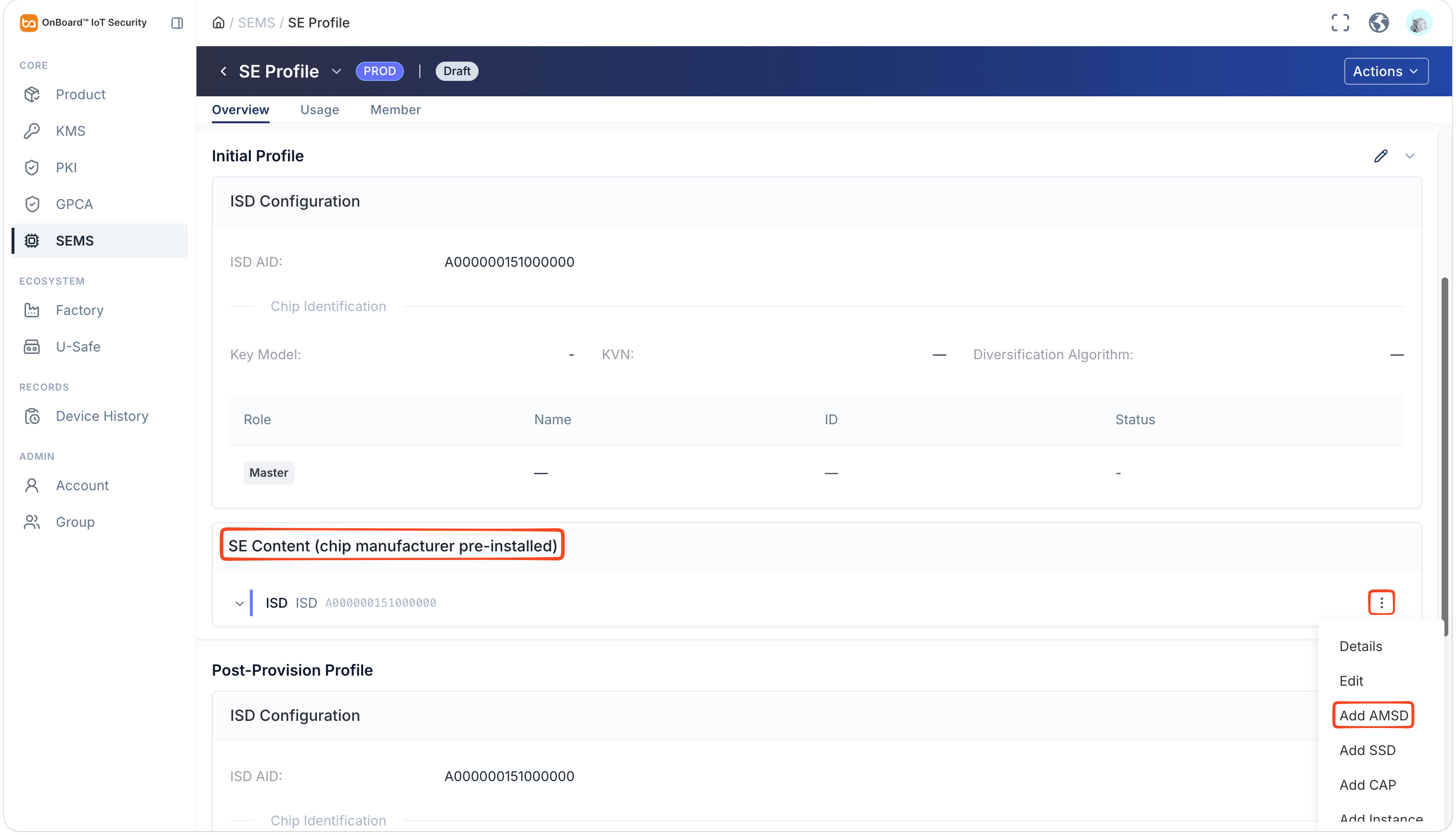
In the SE Content (chip manufacturer pre-installed) subsection, click the Options
 icon for the ISD and then select Add AMSD.
-
In the Add AMSD panel, enter and select the relevant information. You may also click Fill Defaults.
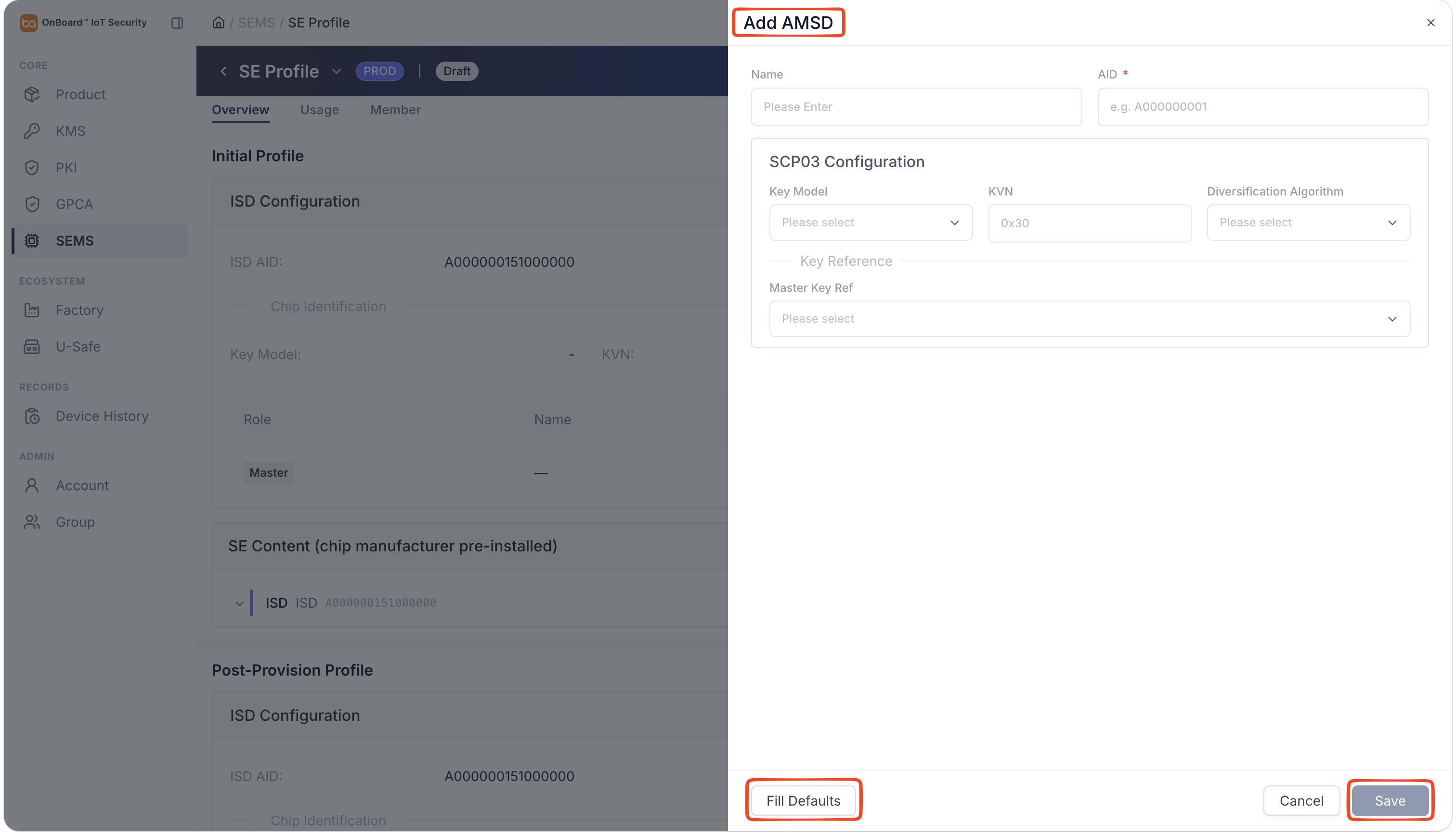
Description of the AMSD configuration information:
Information Description Name The AMSD (Application Management Security Domain) name must be unique. AID The AID (Application Identifier) used to identify an AMSD must be unique. Key Model Two key models can be selected: Single Master Key and Triple Keys (ENC/MAC/DEK). The default setting is Single Master Key. KVN The key version number used within the current security domain to establish an SCP03 secure channel. The default value is 0x30. Diversification Algorithm Three diversification algorithms can be selected: EMV_CPS, AES_CMAC, and None. The default setting is EMV_CPS. Master Key Ref Select the key that has been created in KMS.
Note: When the key model is Triple Keys (ENC/MAC/DEK), you must specify the ENC key, MAC key, and DEK key individually. -
After verifying that the information is correct, click Save.
-
In the SE Content (chip manufacturer pre-installed) subsection, click the Options
icon for the ISD or the corresponding AMSD, and then select Add SSD.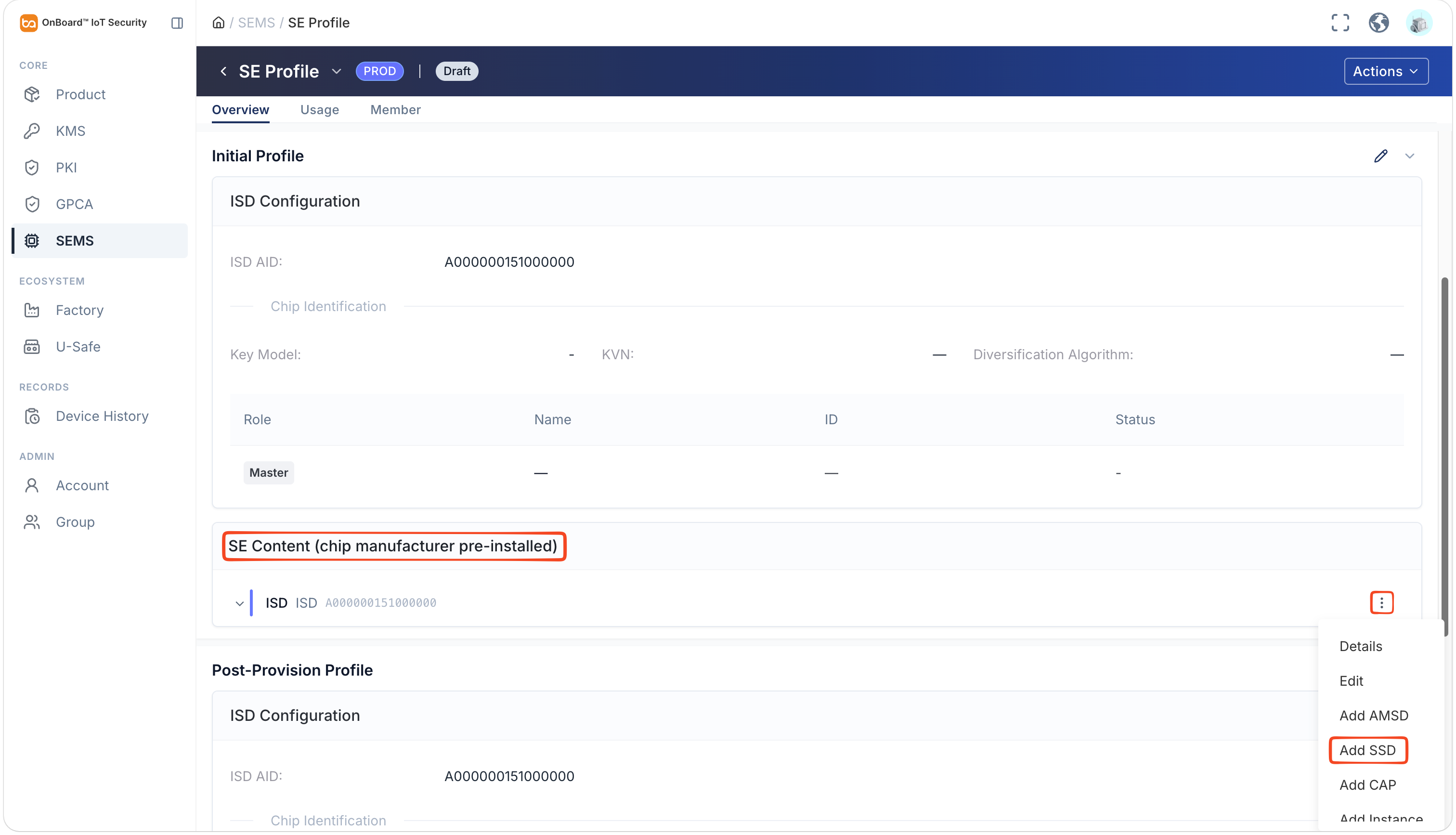
-
In the Add SSD panel, enter and select the relevant information. You may also click Fill Defaults.
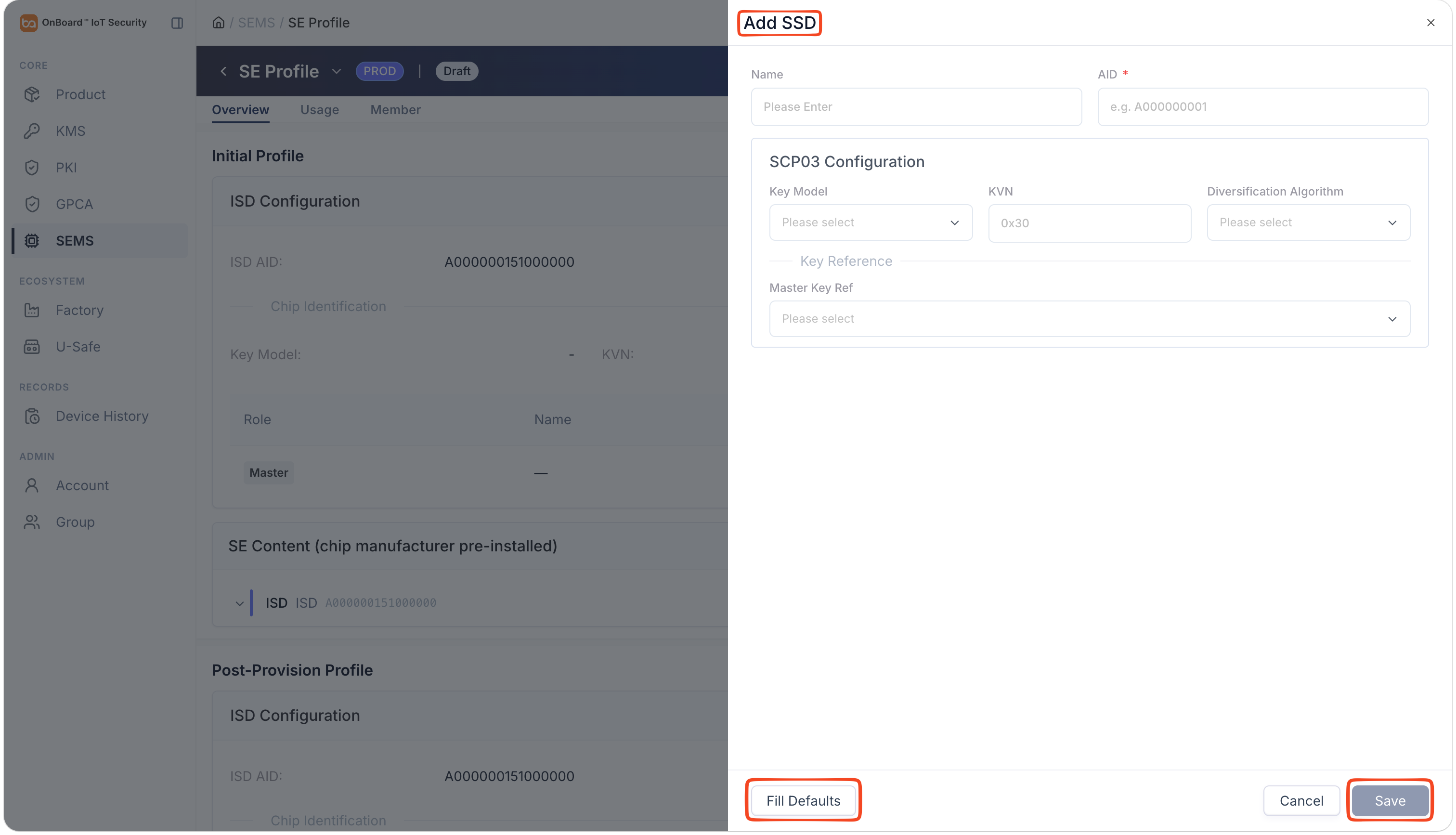
Description of the SSD configuration information:
Information Description Name The SSD (Supplementary Security Domain) name must be unique. AID The AID (Application Identifier) used to identify an AMSD must be unique. Key Model Two key models can be selected: Single Master Key and Triple Keys (ENC/MAC/DEK). The default setting is Single Master Key. KVN The key version number used within the current security domain to establish an SCP03 secure channel. The default value is 0x30. Diversification Algorithm Three diversification algorithms can be selected: EMV_CPS, AES_CMAC, and None. The default setting is EMV_CPS. Master Key Ref Select the key that has been created in KMS.
Note: When the key model is Triple Keys (ENC/MAC/DEK), you must specify the ENC key, MAC key, and DEK key individually. -
After verifying that the information is correct, click Save.
-
In the SE Content (chip manufacturer pre-installed) subsection, click the Options
icon for the ISD or the corresponding AMSD, and then select Add CAP.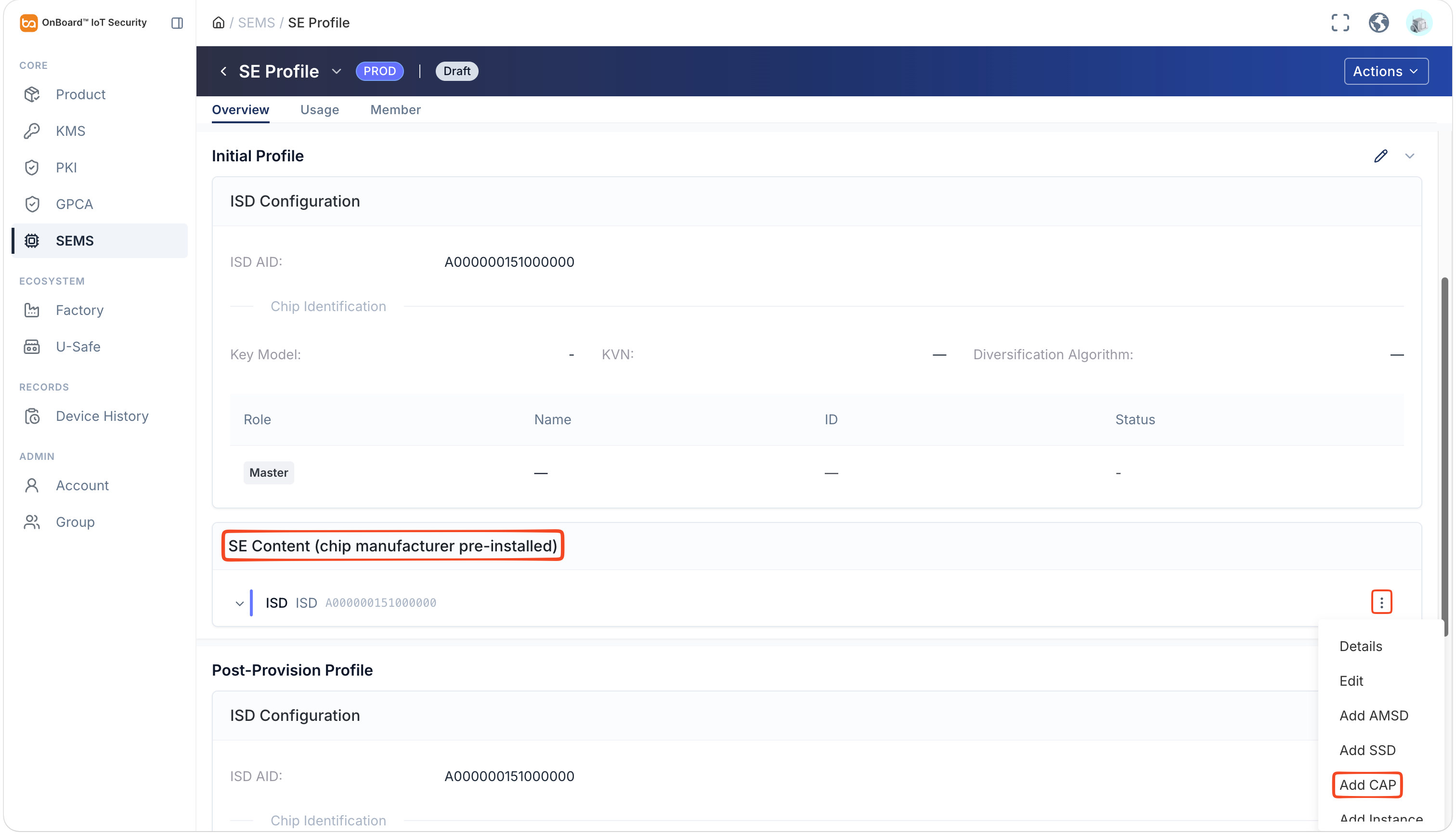
-
In the Add CAP panel, enter and select the relevant information.
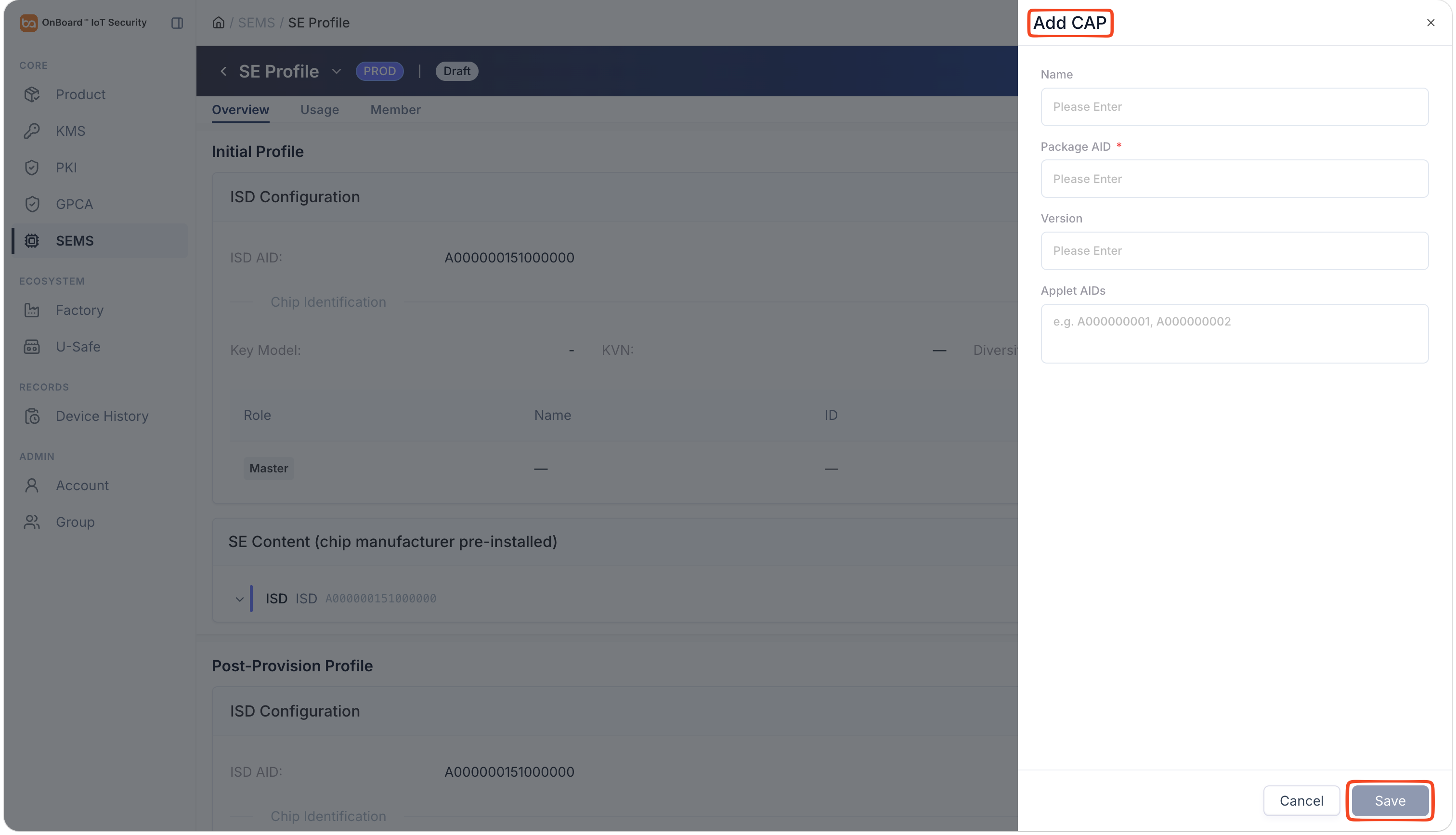
Description of the CAP configuration information:
Information Description Name The CAP (Card Application Package) name must be unique. Package AID The AID (Application Identifier) used to identify the CAP installation package must be unique. Version The version information is used to identify a CAP. Applet AIDs The AIDs used to identify the Applets within a CAP installation package must be unique. -
After verifying that the information is correct, click Save.
-
In the SE Content (chip manufacturer pre-installed) subsection, click the Options
icon for the ISD, the corresponding AMSD, or the corresponding SSD, and then select Add Instance.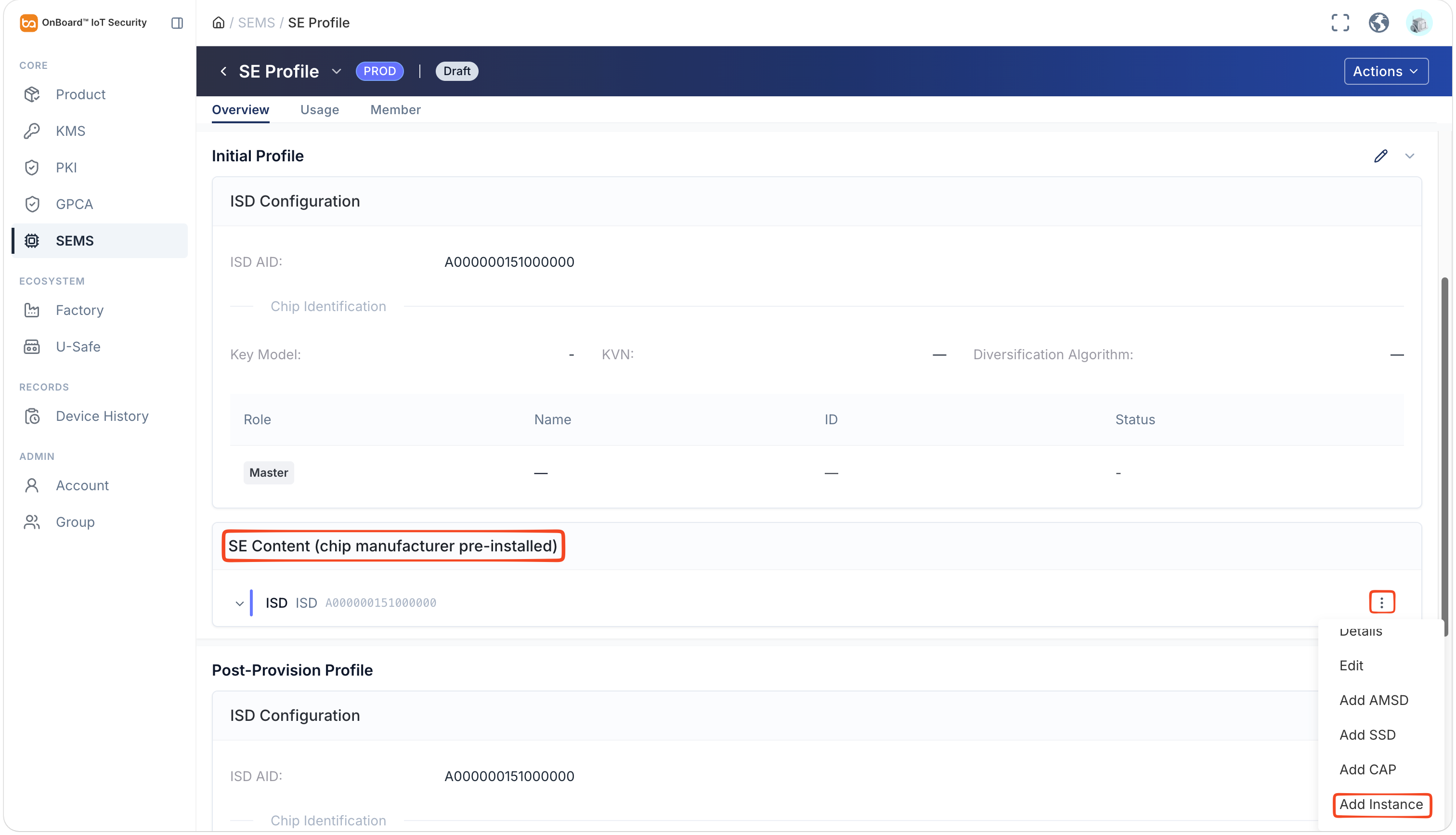
-
In the Add Instance panel, enter and select the relevant information.
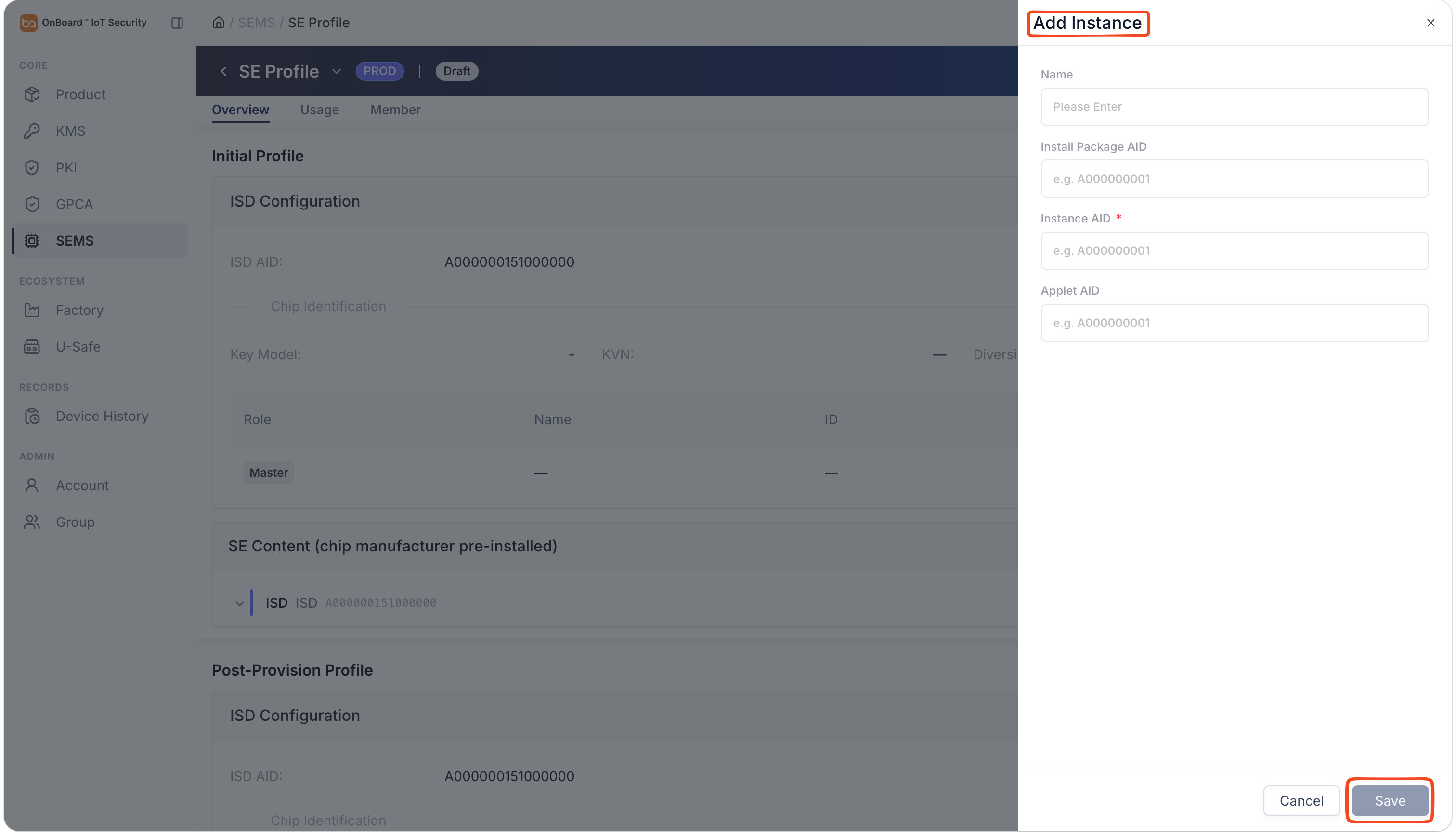
Description of the Instance configuration information:
Information Description Name The Instance name must be unique. Install Package AID The AID (Application Identifier) used to identify the installation package that created this Instance must be unique. Instance AID The AID used to identify the Instance must be unique. Applet AIDs The AID of the Applet used to create this Instance must be unique. -
After verifying that the information is correct, click Save.
Configure Post-Provision Profile
-
Sign in to OBIS.
-
In the Core section of the left menu, click SEMS, and then select the corresponding SE Profile to navigate to the SE Profile page.
Configure ISD
-
In the Post-Provision Profile section, click the Edit
icon.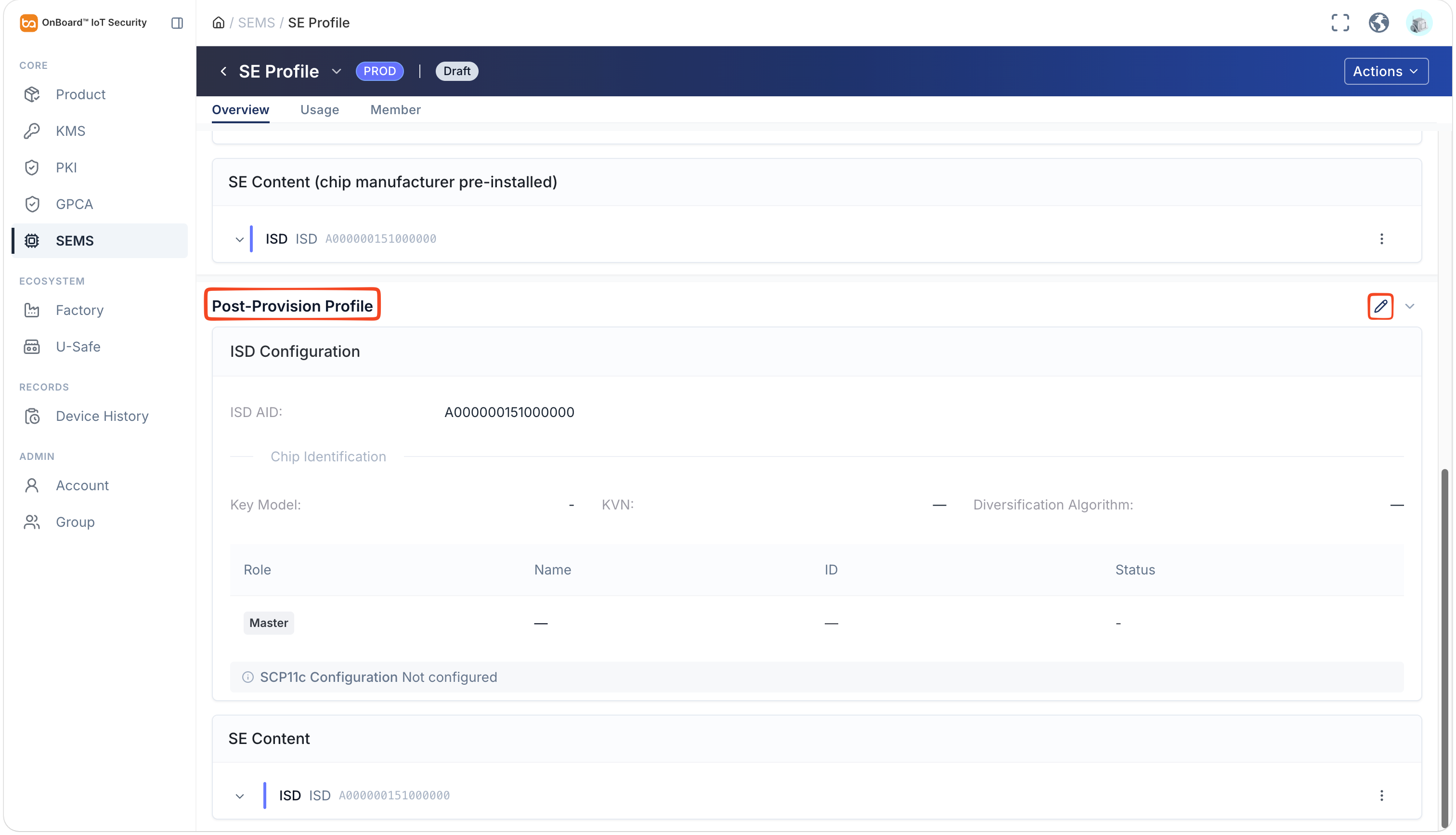
-
In the Edit ISD Config panel, enter and select the relevant information. You may also click Fill Defaults.
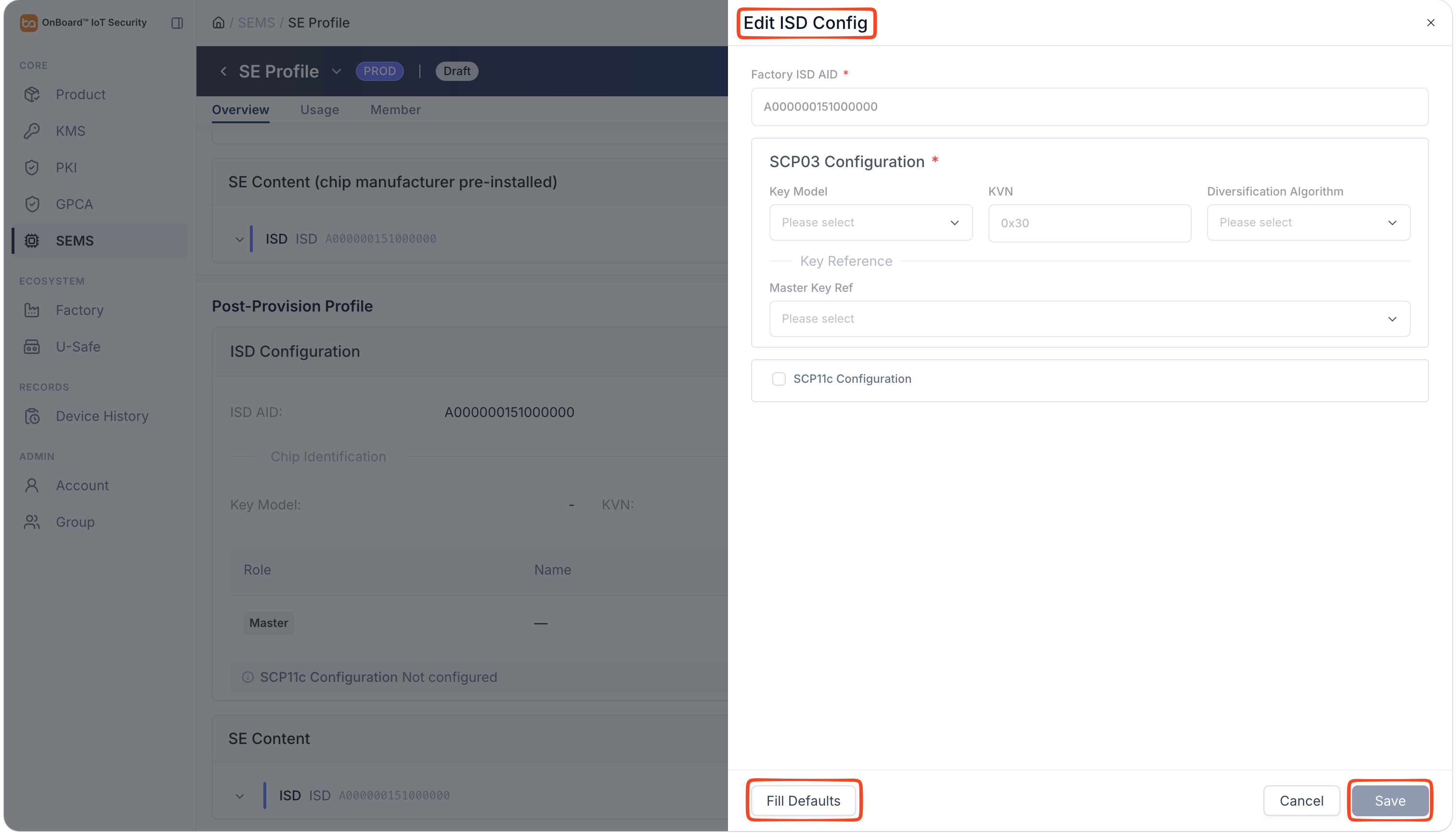
Description of the ISD configuration information:
Information Description General Configuration Factory ISD AID The AID (Application Identifier) used to identify the Factory ISD (Issuer Security Domain) on the SE chip, which remains constant throughout the chip's lifecycle. The default value is A000000151000000. SCP03 Configuration Key Model Two key models can be selected: Single Master Key and Triple Keys (ENC/MAC/DEK). The default setting is Single Master Key. KVN The key version number used within the current security domain to establish an SCP03 secure channel. The default value is 0x30. Diversification Algorithm Three diversification algorithms can be selected: EMV_CPS, AES_CMAC, and None. The default setting is EMV_CPS. Master Key Ref Select the key that has been created in KMS.
Note: When the key model is Triple Keys (ENC/MAC/DEK), you must specify the ENC key, MAC key, and DEK key individually.SCP11c Configuration Mode Two modes can be selected: Mode A (on-device generation) and Mode B (cloud pre-generation). SD Issuance Chain / SD Certificate Select the SD source based on the SD certificate generation mode:
For Mode A, select either CA-KLCC or KA-KLOC from the GPCA;
For Mode B, select an SD certificate from the GPCA.
The system displays only the available objects for which you have the authorization to create, within the current environment.SD KVN Identifies the SD key version number used within the current security domain to establish an SCP11c secure channel. CA-KLOC Select the CA-KLOC used to verify the OCE certificate chain, and the system will write its public key to the SE as an OCE trust anchor. OCE KVN Identifies the version number of the CA-KLOC trust anchor used within the current security domain to verify the OCE certificate chain. -
After verifying that the information is correct, click Save.
Configure SE Content
- Configure AMSD
- Configure SSD
- Configure CAP
- Configure Instance
Supports adjusting the positions of AMSD (Application Management Security Domain) nodes via drag-and-drop within an ISD, enabling flexible reconfiguration of the security domain structure and the download sequence for Java Card content.
-
In the SE Content subsection, click the Options
icon for the ISD and then select Add AMSD.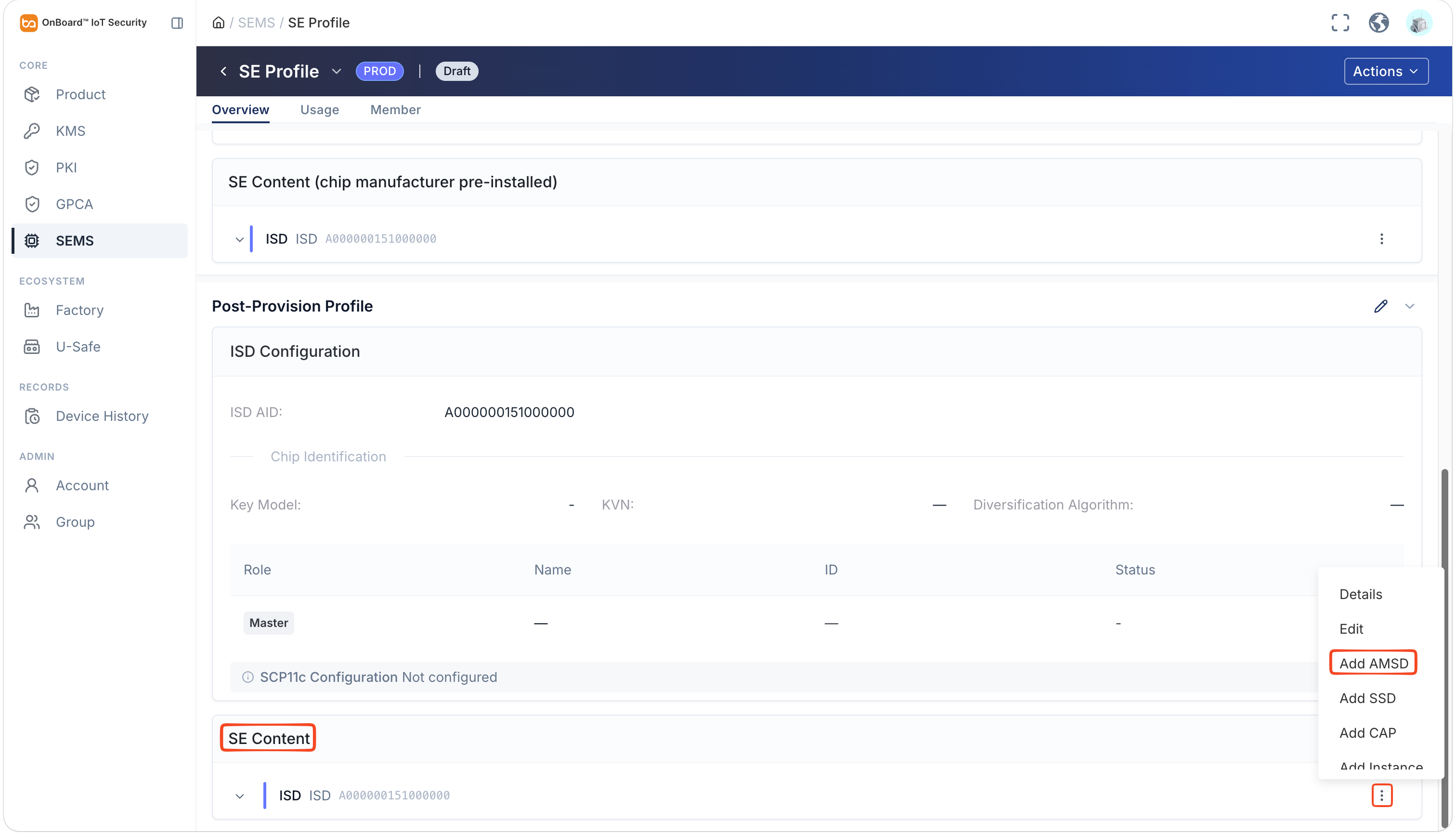
-
In the Add AMSD panel, enter and select the relevant information. You may also click Fill Defaults.
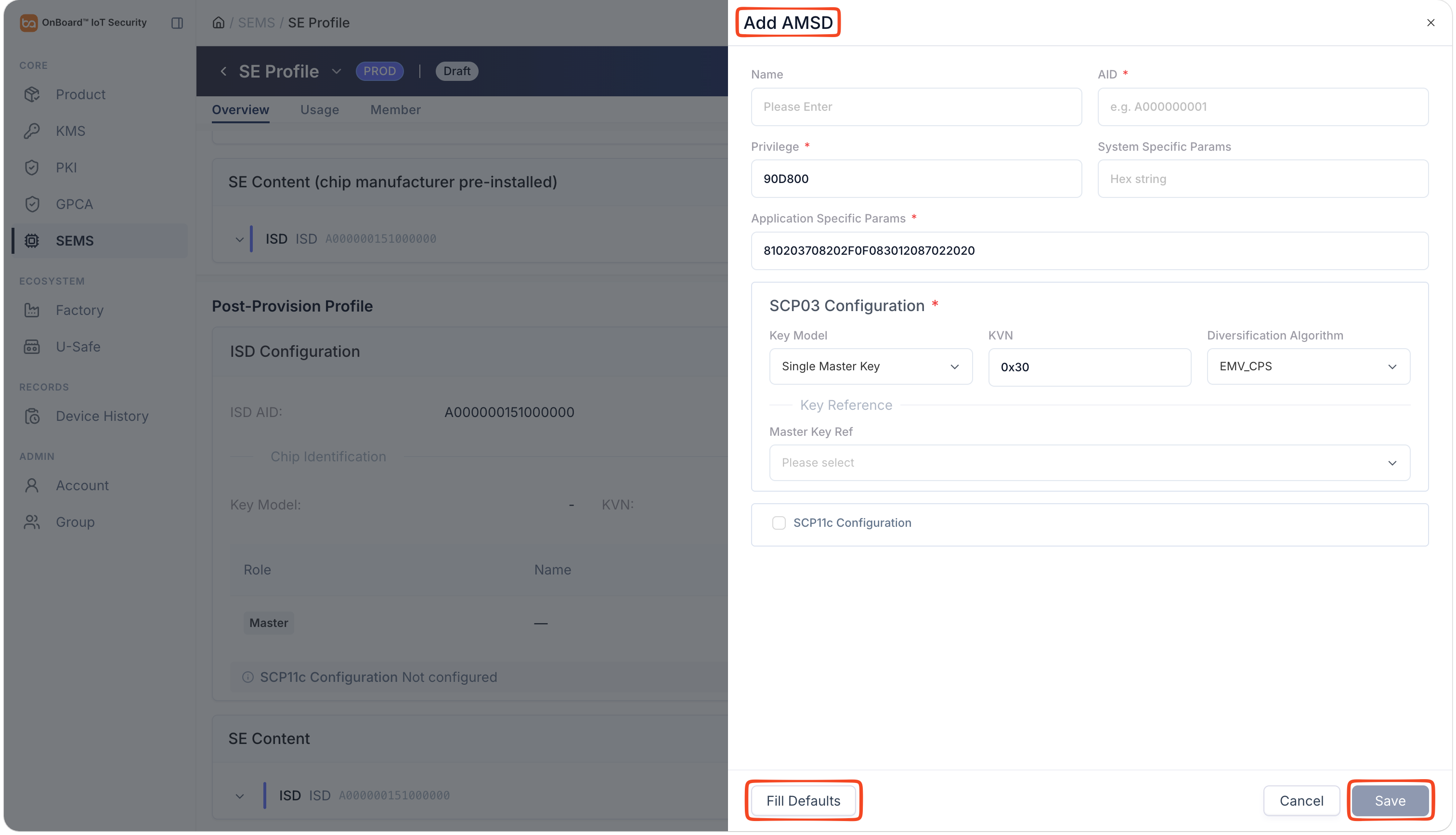
Description of the AMSD configuration information:
Information Description General Configuration Name The AMSD name must be unique. AID The AID (Application Identifier) used to identify an AMSD must be unique. Privilege It is used to configure the GlobalPlatform management privileges of an AMSD within the SE and is represented as a 3-byte hexadecimal value. System Specific Params It is used to configure parameters related to the SE platform or system implementation. Application Specific Params It is used to configure parameters related to specific applications or business requirements. SCP03 Configuration Key Model Two key models can be selected: Single Master Key and Triple Keys (ENC/MAC/DEK). The default setting is Single Master Key. KVN The key version number used within the current security domain to establish an SCP03 secure channel. The default value is 0x30. Diversification Algorithm Three diversification algorithms can be selected: EMV_CPS, AES_CMAC, and None. The default setting is EMV_CPS. Master Key Ref Select the key that has been created in KMS.
Note: When the key model is Triple Keys (ENC/MAC/DEK), you must specify the ENC key, MAC key, and DEK key individually.SCP11c Configuration Mode Two modes can be selected: Mode A (on-device generation) and Mode B (cloud pre-generation). SD Issuance Chain / SD Certificate Select the SD source based on the SD certificate generation mode:
For Mode A, select either CA-KLCC or KA-KLOC from the GPCA;
For Mode B, select an SD certificate from the GPCA.
The system displays only the available objects for which you have the authorization to create, within the current environment.SD KVN Identifies the SD key version number used within the current security domain to establish an SCP11c secure channel. CA-KLOC Select the CA-KLOC used to verify the OCE certificate chain, and the system will write its public key to the SE as an OCE trust anchor. OCE KVN Identifies the version number of the CA-KLOC trust anchor used within the current security domain to verify the OCE certificate chain. -
After verifying that the information is correct, click Save.
Supports adjusting the position of SSD (Supplementary Security Domain) nodes via drag-and-drop within an ISD or AMSD, as well as moving them across different AMSDs, enabling flexible configuration of the security domain structure and the download sequence for Java Card content.
-
In the SE Content subsection, click the Options
icon for the ISD or the corresponding AMSD, and then select Add SSD.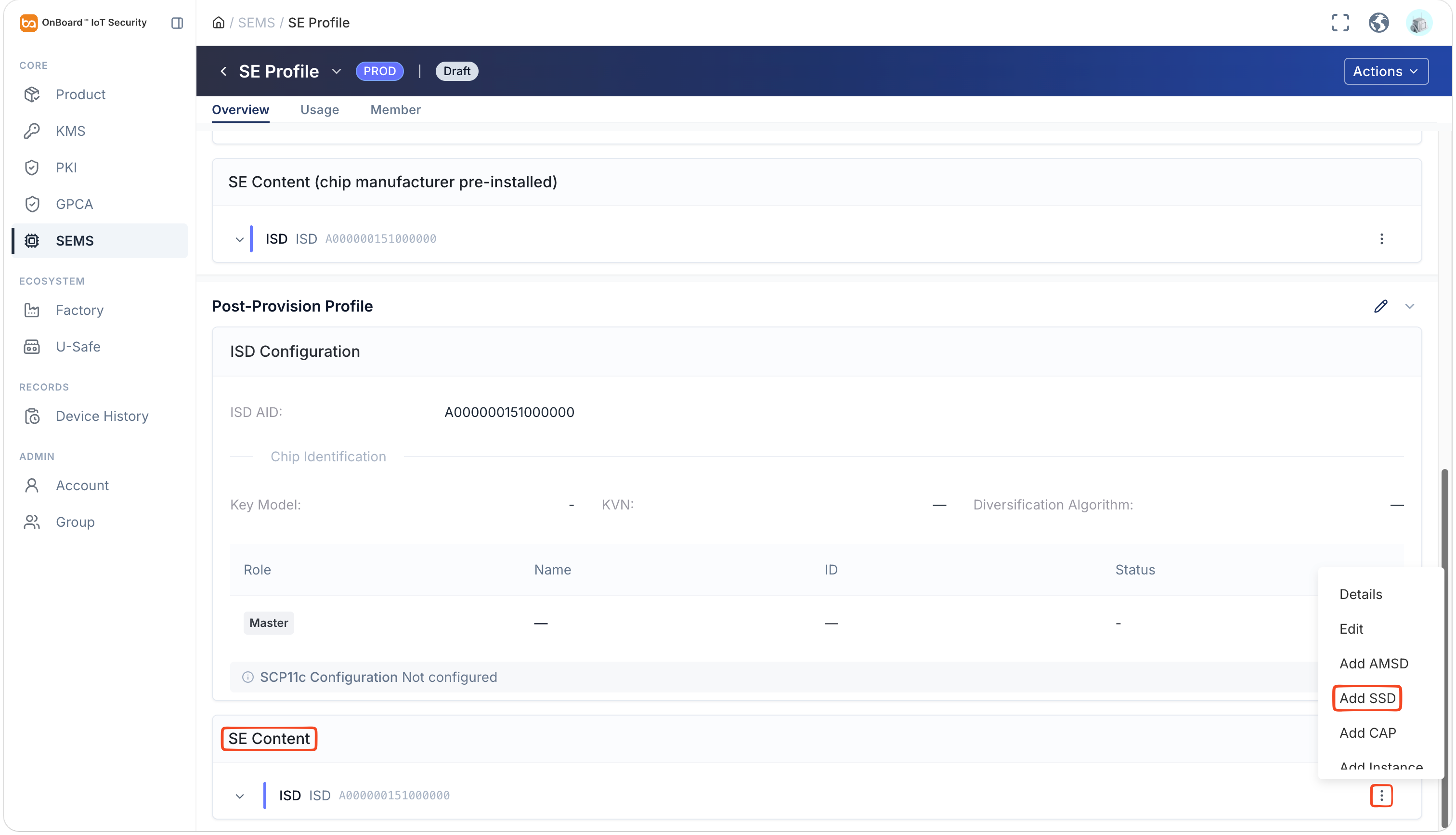
-
In the Add SSD panel, enter and select the relevant information. You may also click Fill Defaults.
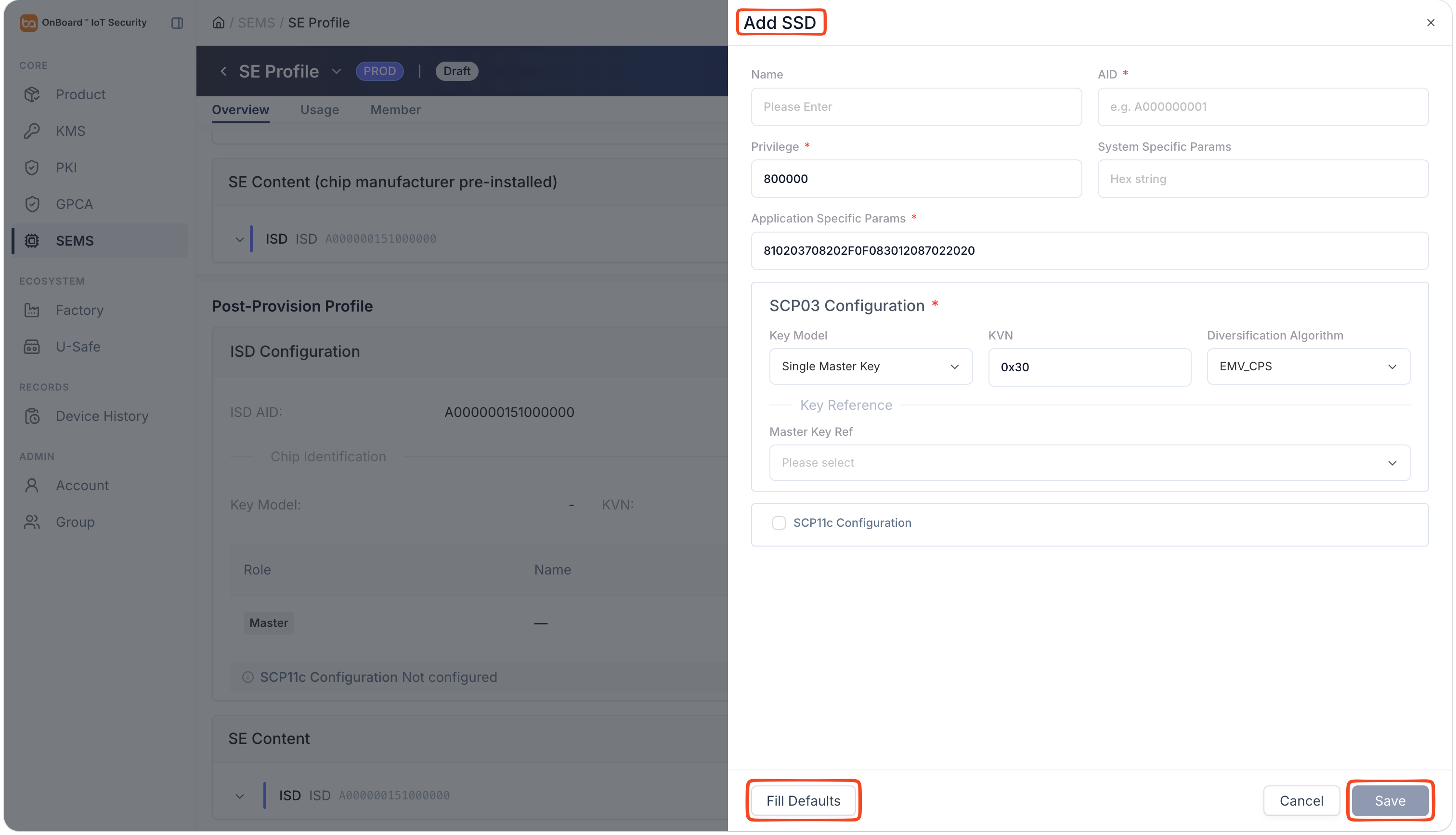
SSD Configuration Information Description:
Information Description General Configuration Name The SSD name must be unique. AID The AID (Application Identifier) used to identify an SSD must be unique. Privilege It is used to configure the GlobalPlatform management privileges of an SSD within the SE and is represented as a 3-byte hexadecimal value. System Specific Params It is used to configure parameters related to the SE platform or system implementation. Application Specific Params It is used to configure parameters related to specific applications or business requirements. SCP03 Configuration Key Model Two key models can be selected: Single Master Key and Triple Keys (ENC/MAC/DEK). The default setting is Single Master Key. KVN The key version number used within the current security domain to establish an SCP03 secure channel. The default value is 0x30. Diversification Algorithm Three diversification algorithms can be selected: EMV_CPS, AES_CMAC, and None. The default setting is EMV_CPS. Master Key Ref Select the key that has been created in KMS.
Note: When the key model is Triple Keys (ENC/MAC/DEK), you must specify the ENC key, MAC key, and DEK key individually.SCP11c Configuration Mode Two modes can be selected: Mode A (on-device generation) and Mode B (cloud pre-generation). SD Issuance Chain / SD Certificate Select the SD source based on the SD certificate generation mode:
For Mode A, select either CA-KLCC or KA-KLOC from the GPCA;
For Mode B, select an SD certificate from the GPCA.
The system displays only the available objects for which you have the authorization to create, within the current environment.SD KVN Identifies the SD key version number used within the current security domain to establish an SCP11c secure channel. CA-KLOC Select the CA-KLOC used to verify the OCE certificate chain, and the system will write its public key to the SE as an OCE trust anchor. OCE KVN Identifies the version number of the CA-KLOC trust anchor used within the current security domain to verify the OCE certificate chain. -
After verifying that the information is correct, click Save.
Supports adjusting the position of CAP (Card Application Package) nodes via drag-and-drop within an ISD or AMSD, as well as moving them across different AMSDs, enabling flexible reordering of Java Card content downloads.
-
In the SE Content subsection, click the Options
icon for the ISD or the corresponding AMSD, and then select Add CAP.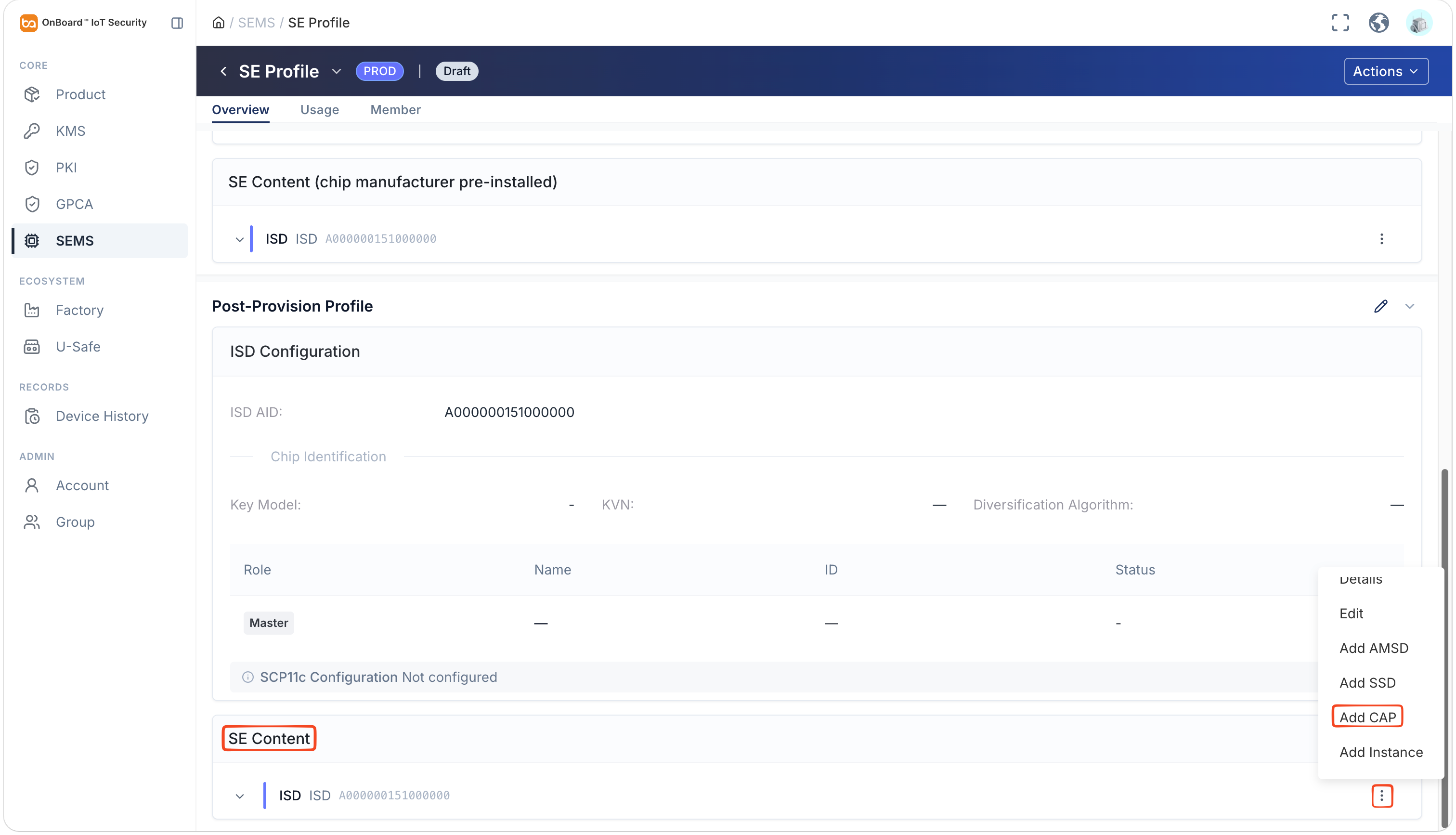
-
In the Add CAP panel, enter and select the relevant information.
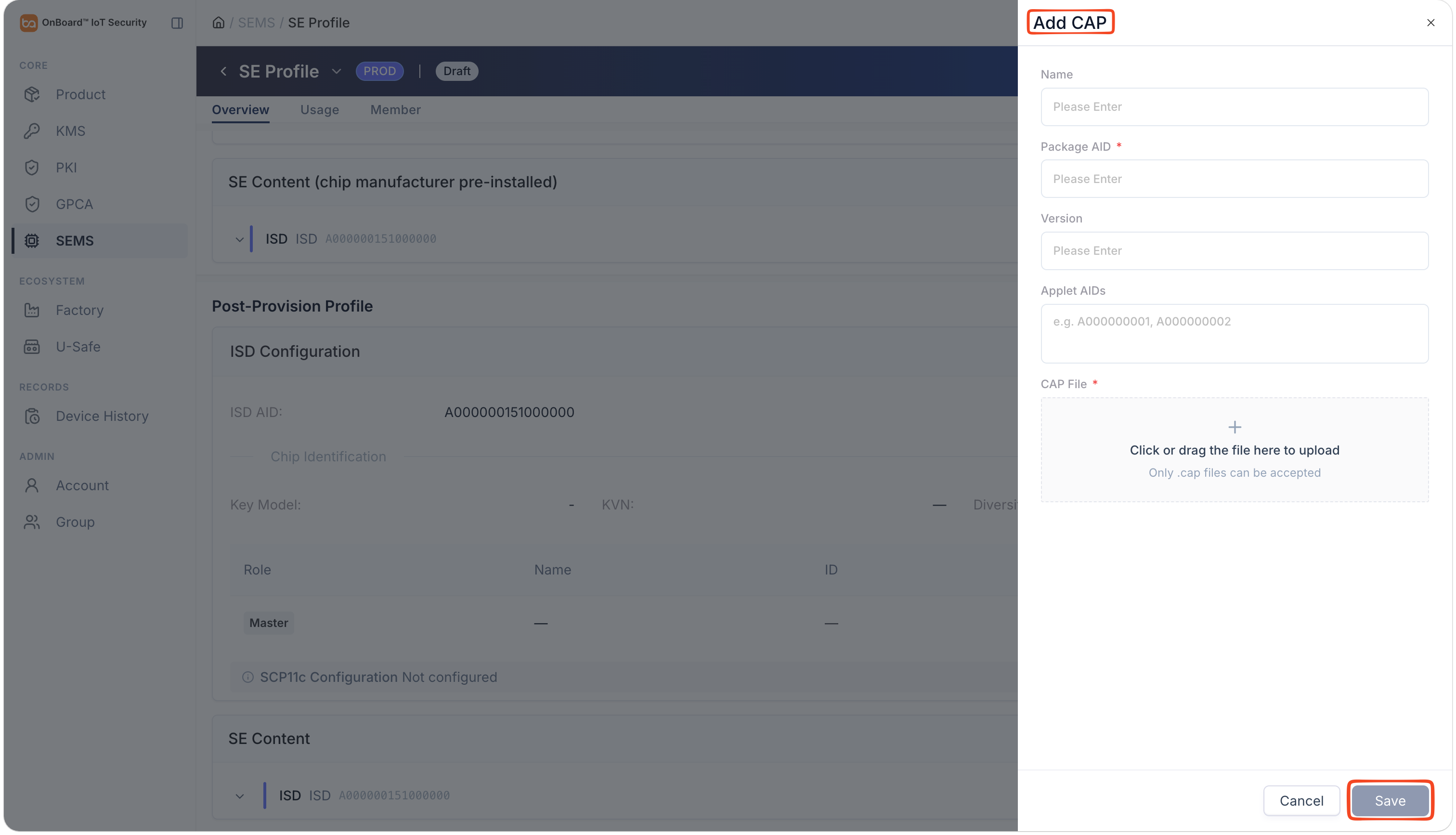
Description of the CAP configuration information:
-
After verifying that the information is correct, click Save.
 icon to select and upload a CAP file in .cap format, or directly drag your CAP file into the upload area.
Supports adjusting the position of Instance nodes via drag-and-drop within an ISD, AMSD, or SSD, as well as moving them across different AMSDs or SSDs, enabling flexible adjustment of the Java Card content download sequence.
-
In the SE Content subsection, click the Options
icon for the ISD, the corresponding AMSD, or the corresponding SSD, and then select Add Instance.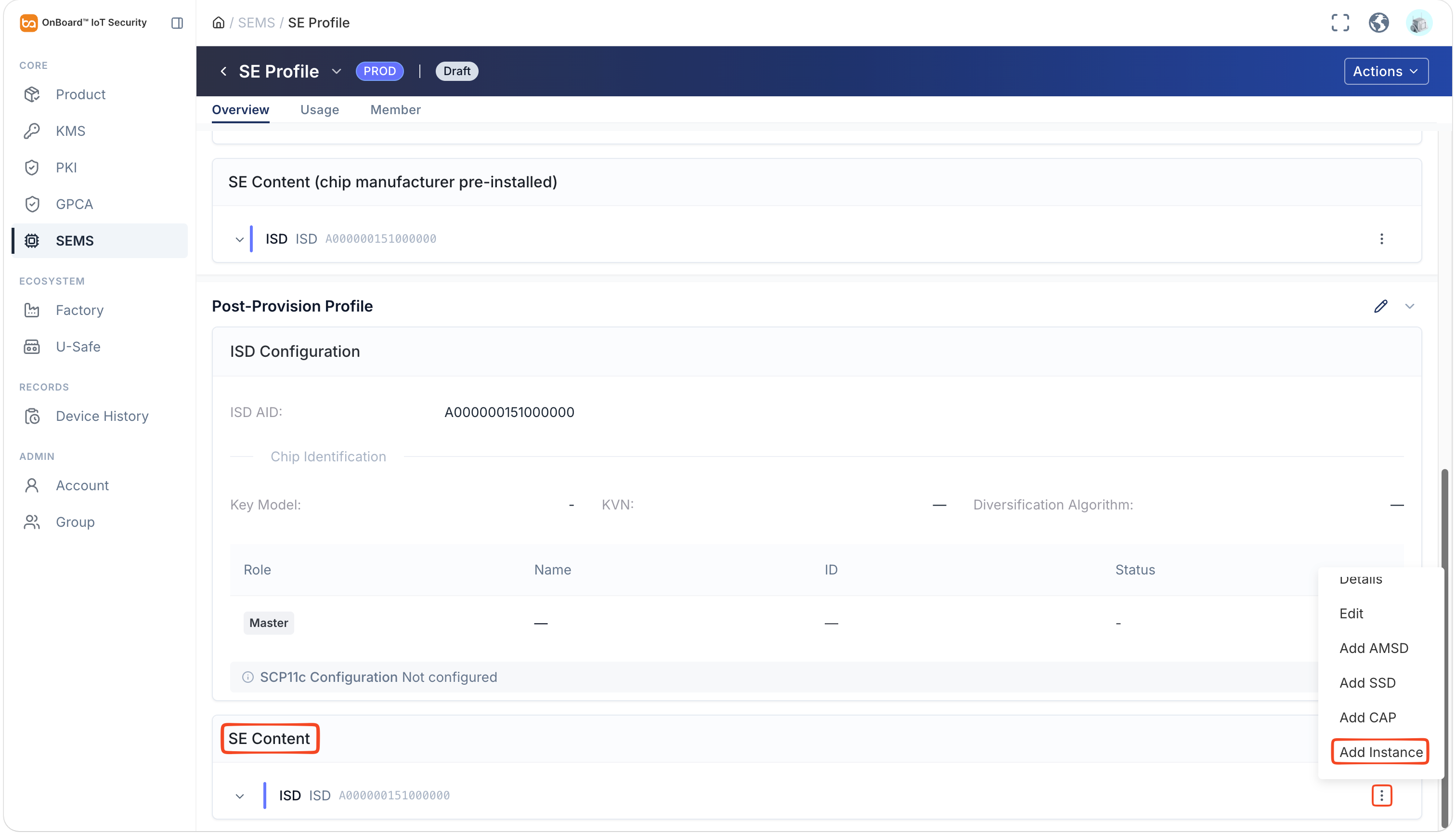
-
In the Add Instance panel, enter and select the relevant information.
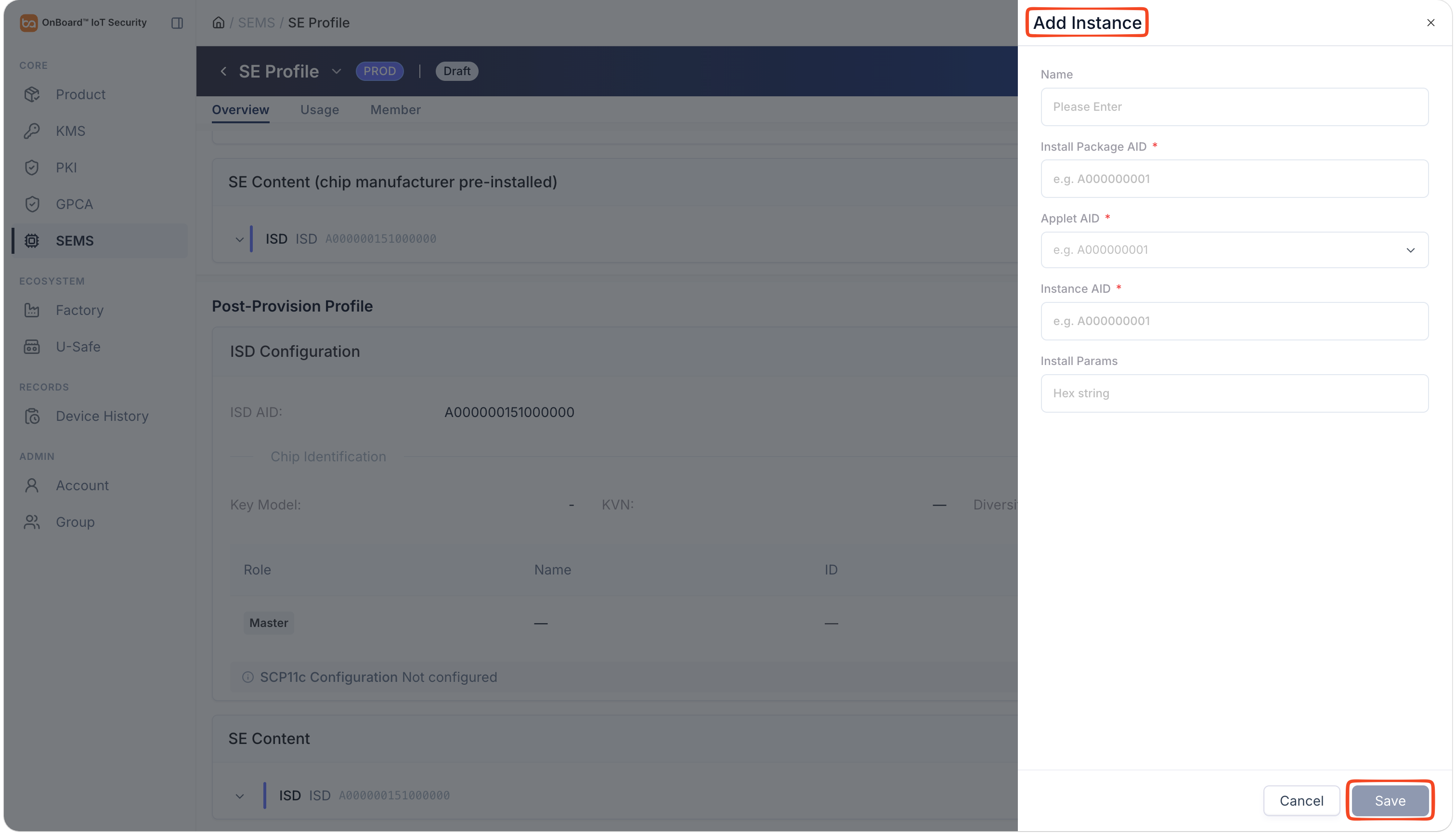
Description of the Instance configuration information:
| Information | Description |
|---|---|
| Name | The Instance name must be unique. |
| Install Package AID | The AID (Application Identifier) used to identify the installation package that created this Instance must be unique. |
| Applet AID | Select the Applet AID from the CAP file to specify the applet used to create the Instance. |
| Instance AID | The AID used to identify the Instance must be unique. |
| Install Params | Enter the installation parameters to be passed to the applet when the Instance is created. |
- After verifying that the information is correct, click Save.
Publish the SE Profile
You can publish an SE Profile only when it is in the Draft state and you have the necessary publishing permissions.
Once published, the SE Profile will be permanently locked, and none of its fields can be edited further.
-
Sign in to OBIS.
-
In the Core section of the left menu, click SEMS, and then select the corresponding SE Profile to navigate to the SE Profile page.
-
Verify that the following conditions are met, then click Actions and select Publish.
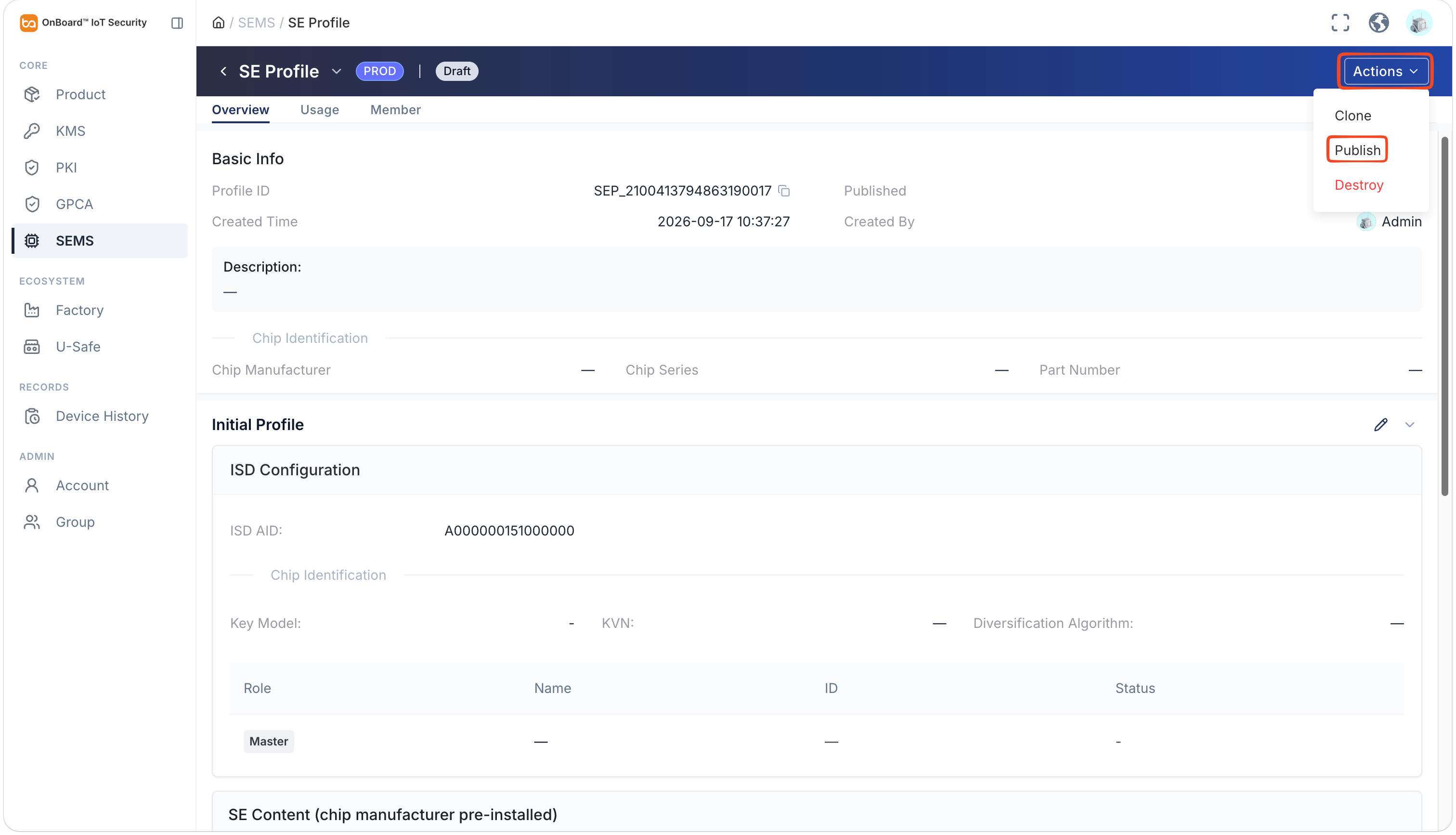
- The ISDs for both the initial profile and the Post-Provision Profile have been configured.
- All keys and GPCA objects referenced by any node are in the Active state.
- The SCP (SCP03 or SCP11c) for all security domains has been configured.
-
In the Confirm Publish window, click Confirm Publish to complete the publication of the SE Profile.

 Download User Manual