How to manage groups in OnBoard™ IoT Security
This article will guide you through the following operations in OnBoard™ IoT Security (OBIS) to manage the access and permissions of user group members for OBIS:
- Edit a user group
- Add a user group member
- Update the user group member role
- Remove a user group member
- Delete a user group
Prerequisites
Before getting started, please ensure that you have OBIS role permissions as a System Manager.
Edit a user group
-
Sign in to OBIS.
-
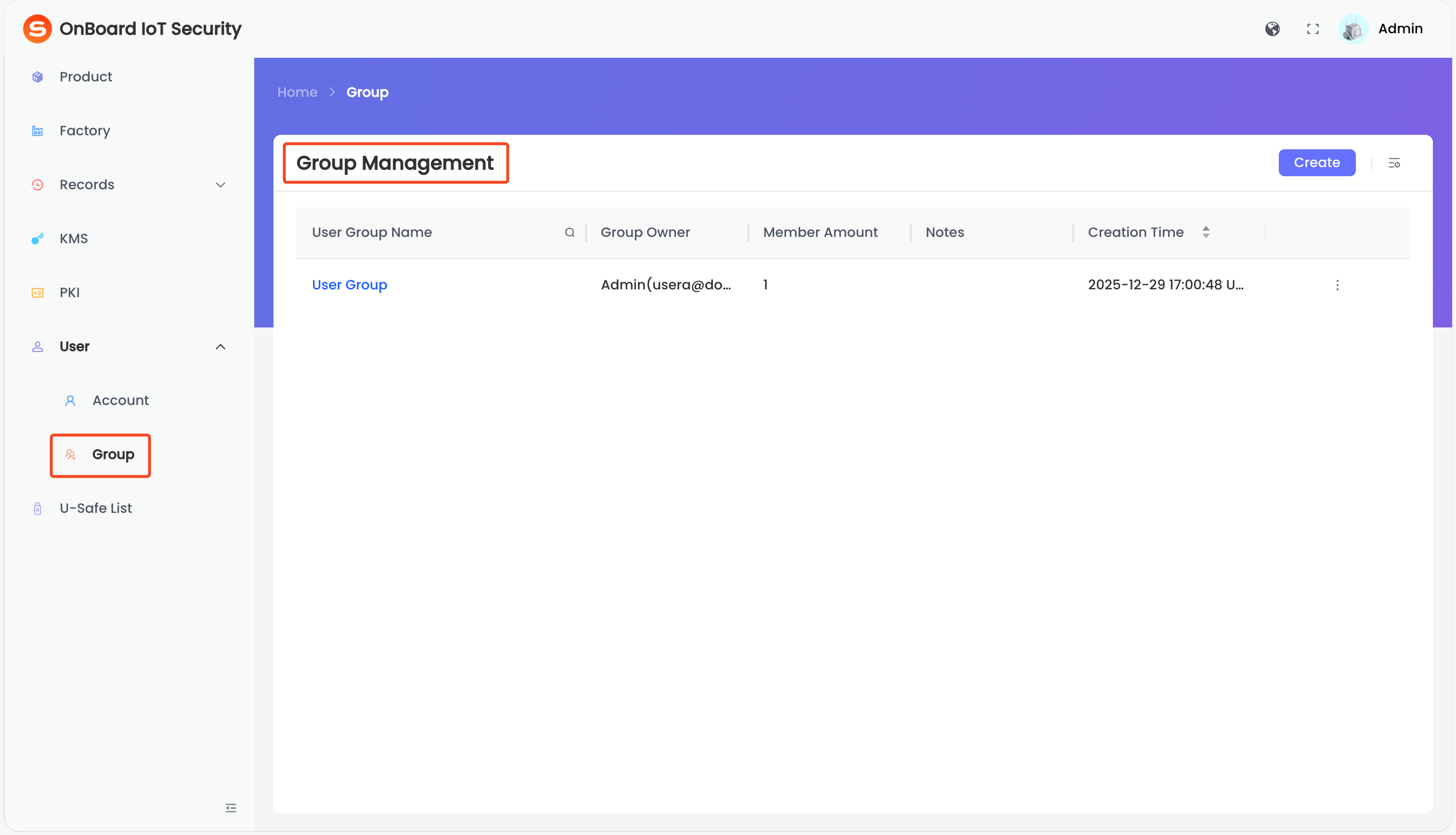
In the left menu, click User > Group to navigate to the Group Management page.
-
On the Group Management page, select the corresponding user group name.
-
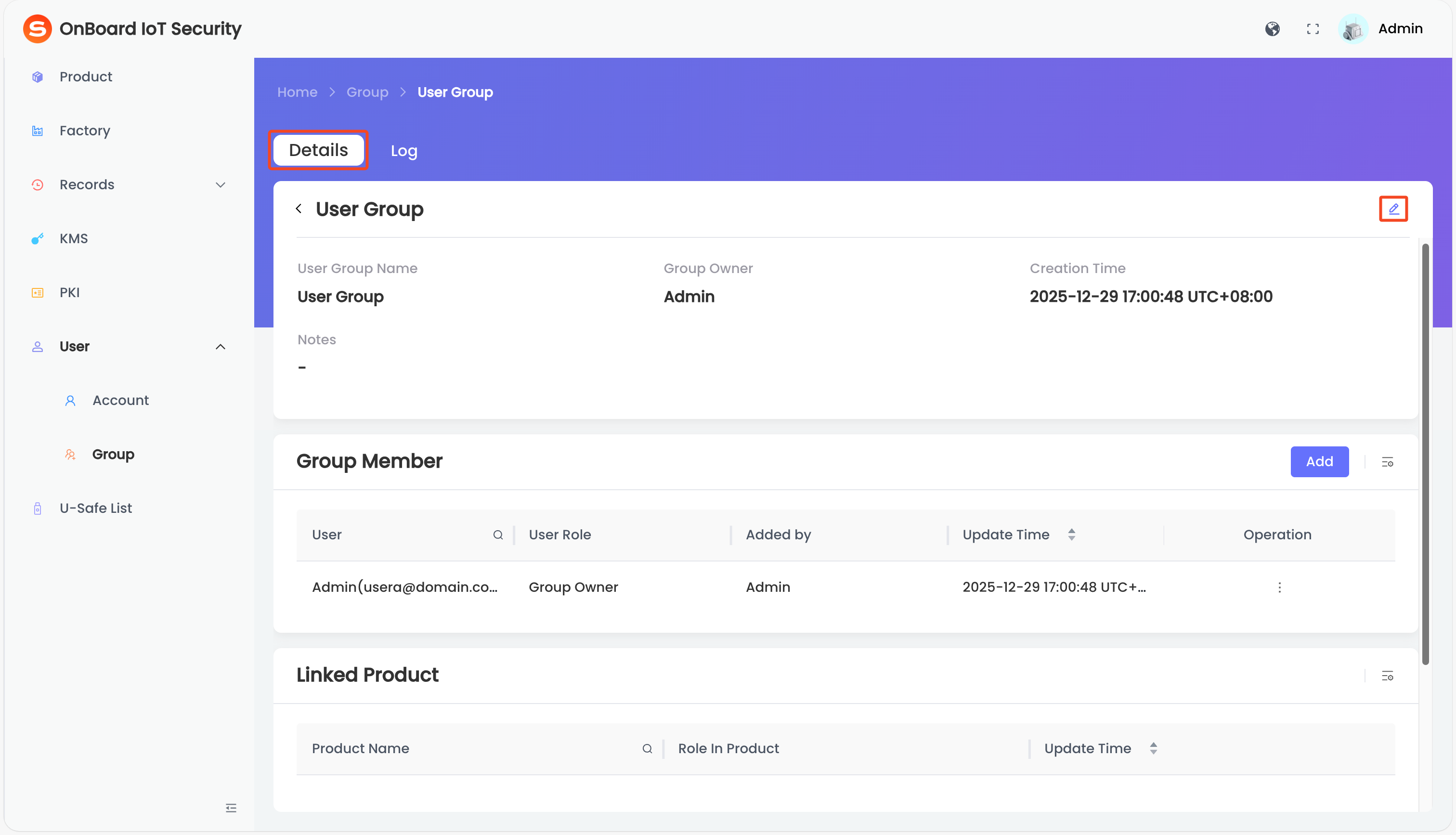
On the Details tab, click the Edit
 icon to change the user group information (User Group Name, Group Owner, and Notes).
Add a user group member
-
Sign in to OBIS.
-
In the left menu, click User > Group to navigate to the Group Management page.
-
On the Group Management page, click the corresponding user group name.
-
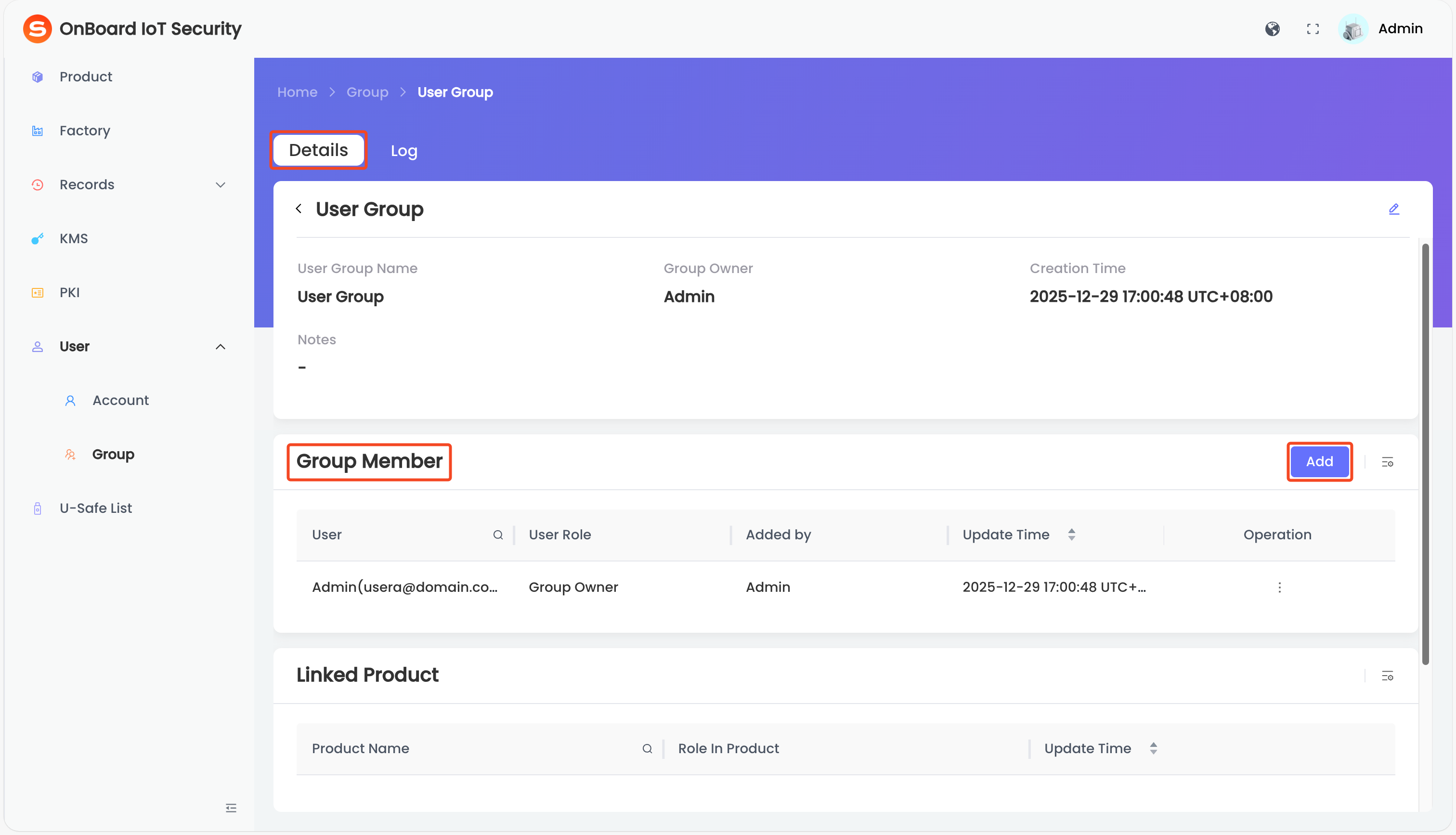
On the Details tab, click Add in the Group Member area.
-
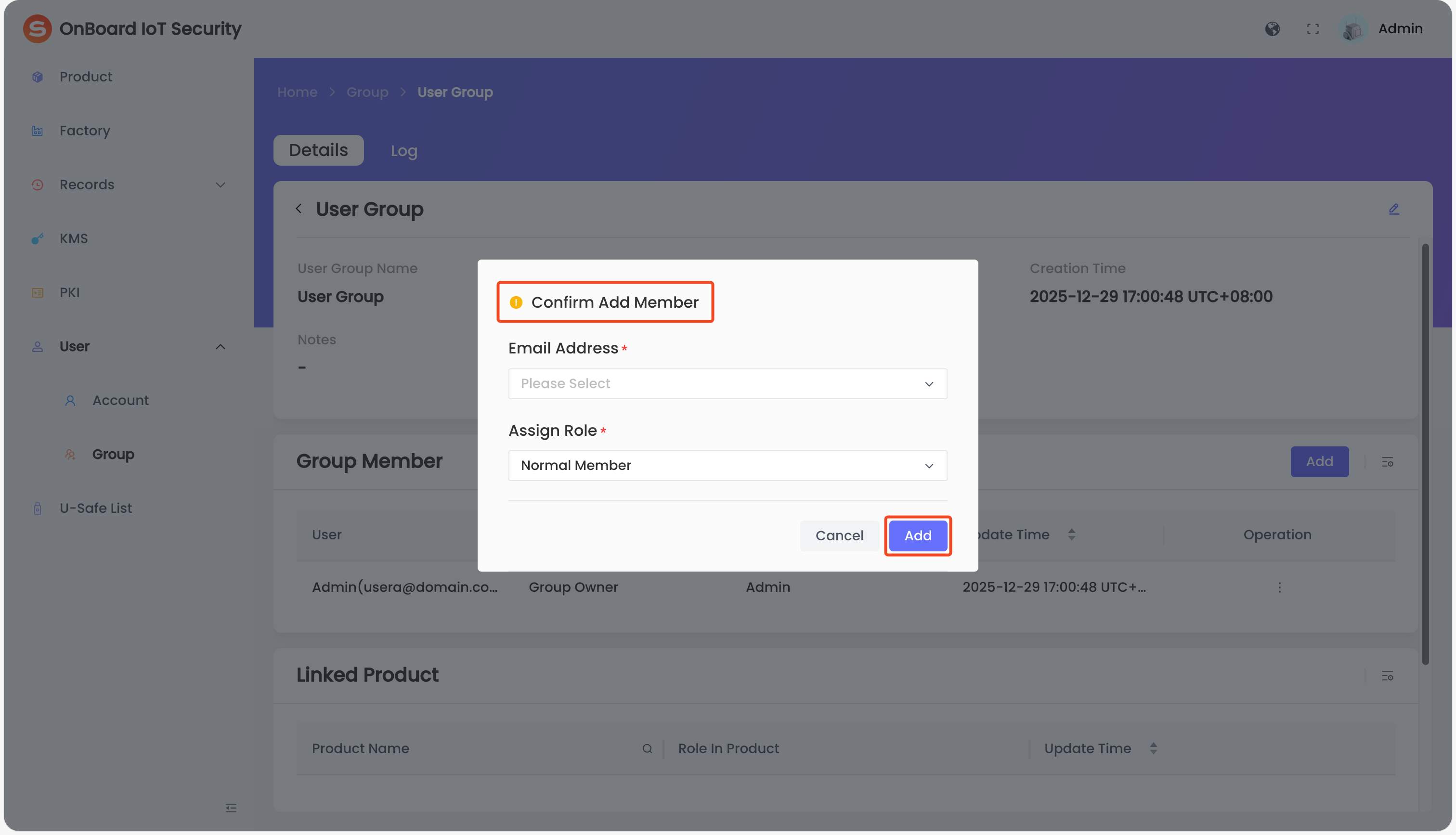
In the Confirm Add Member window, enter the email address and assign the corresponding roles. Then, click Add to complete adding the user group member.
Update a user group member role
-
Sign in to OBIS.
-
In the left menu, click User > Group to navigate to the Group Management page.
-
On the Group Management page, click the corresponding user group name.
-
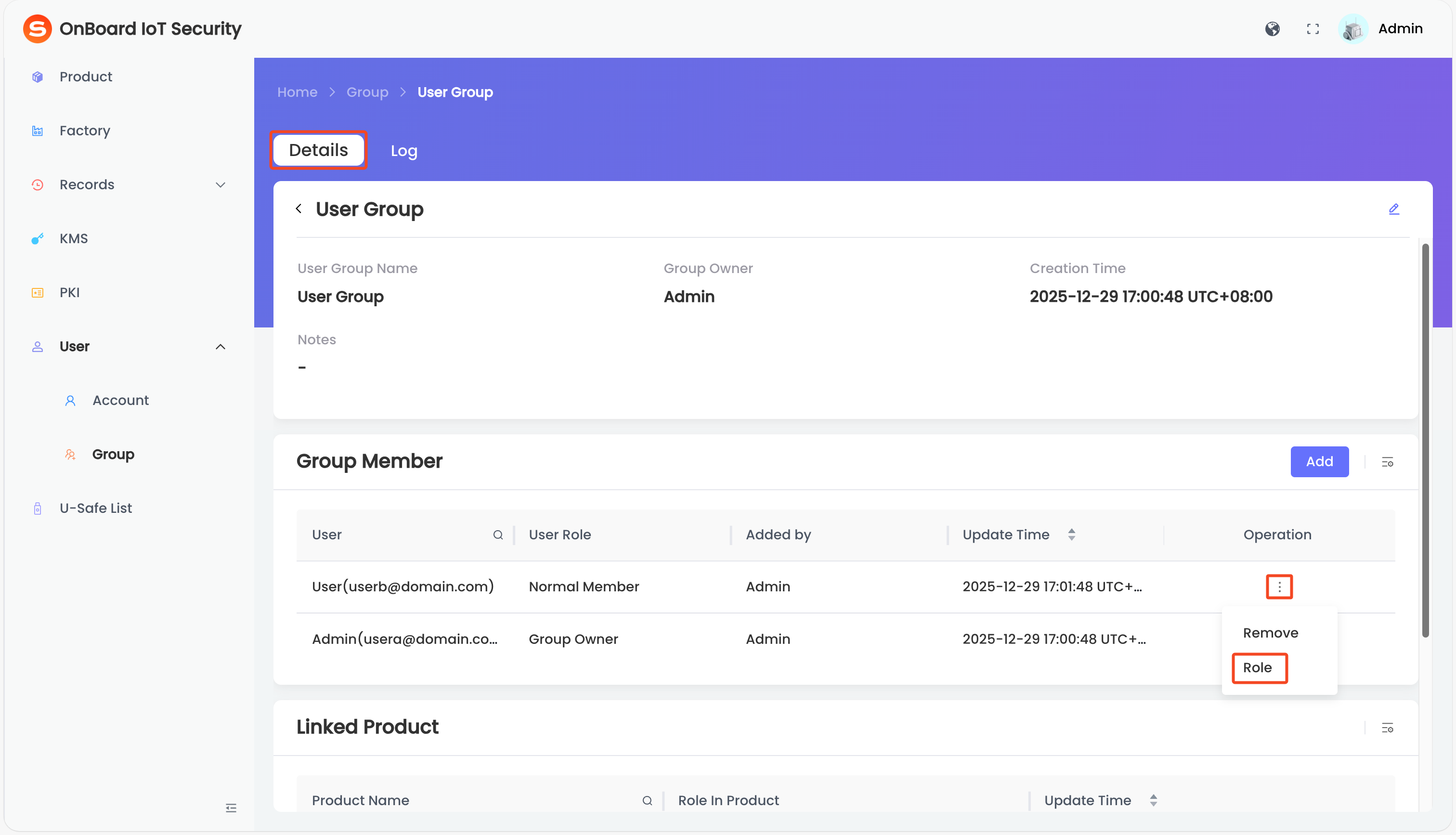
On the Details tab, locate the Group Member area and then click the Options
 icon for the corresponding member and select Role.
-
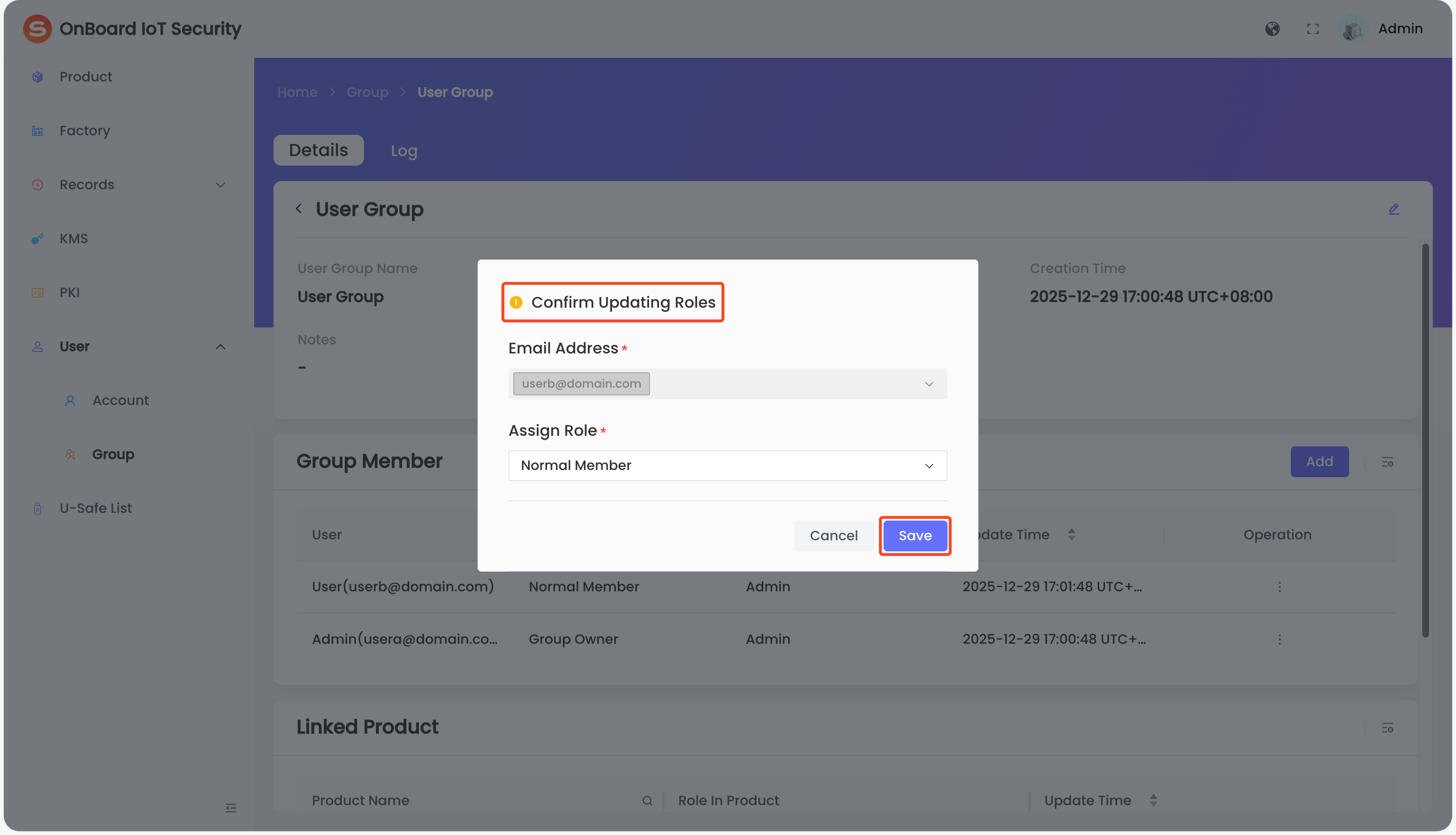
In the Confirm Updating Roles window, select the corresponding roles. Then, click Save to update the user group member role.
Remove a user group member
-
Sign in to OBIS.
-
In the left menu, click User > Group to navigate to the Group Management page.
-
On the Group Management page, select the corresponding user group name.
-
On the Details tab, locate the Group Member area and then click the Options
icon for the corresponding member and select Remove.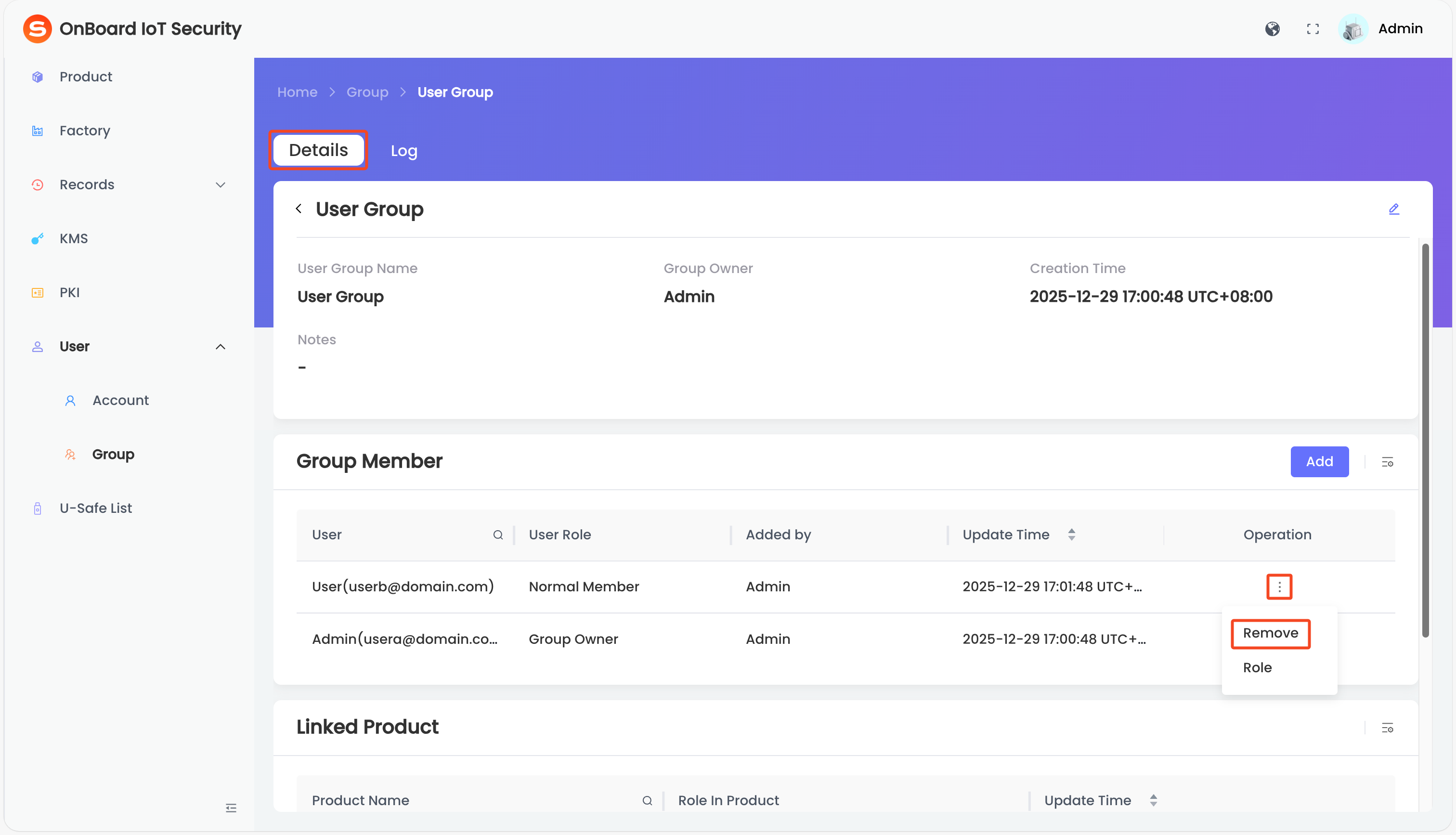
-
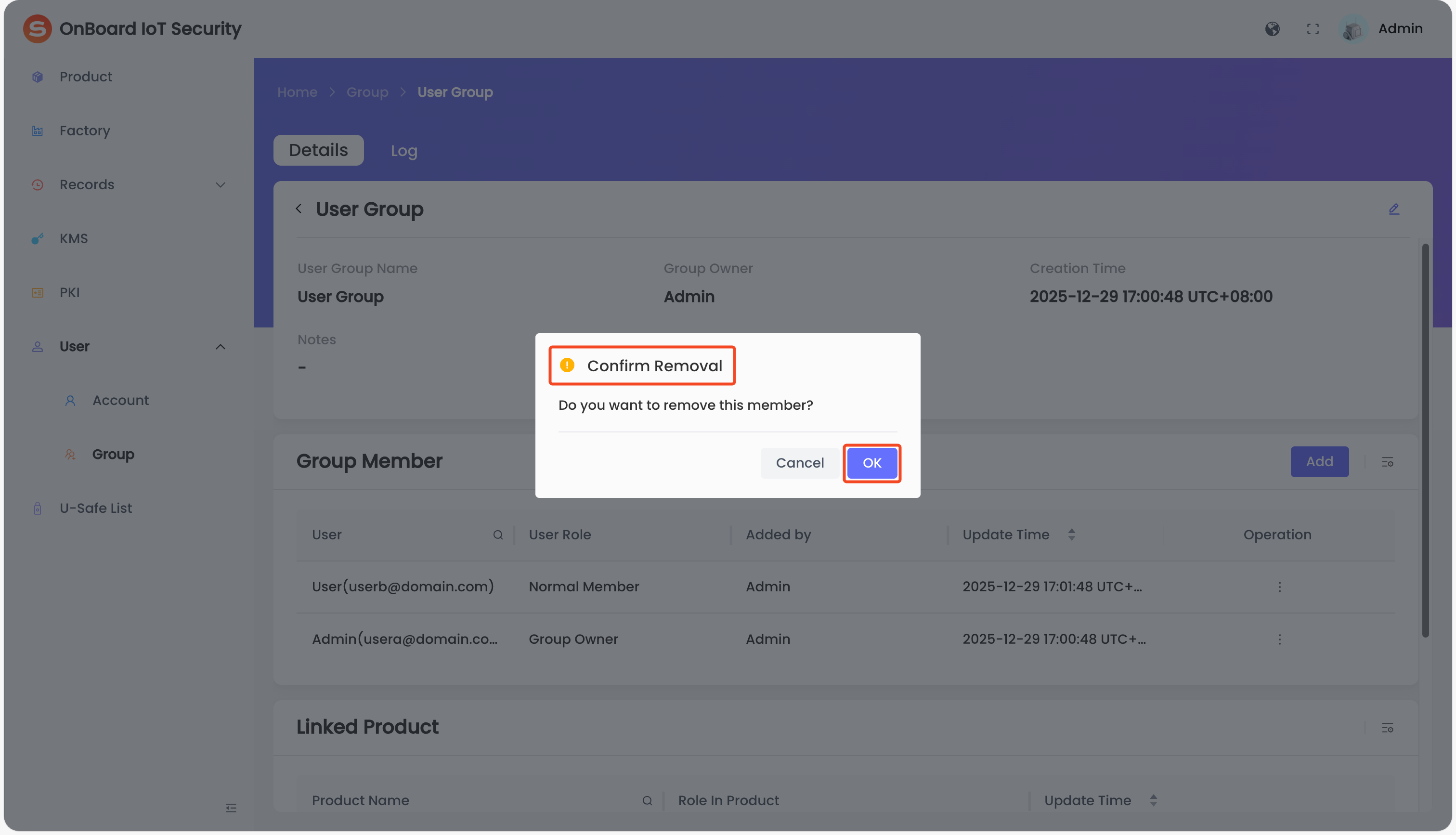
In the Confirm Removal window, click OK to remove the user group member.
Delete a user group
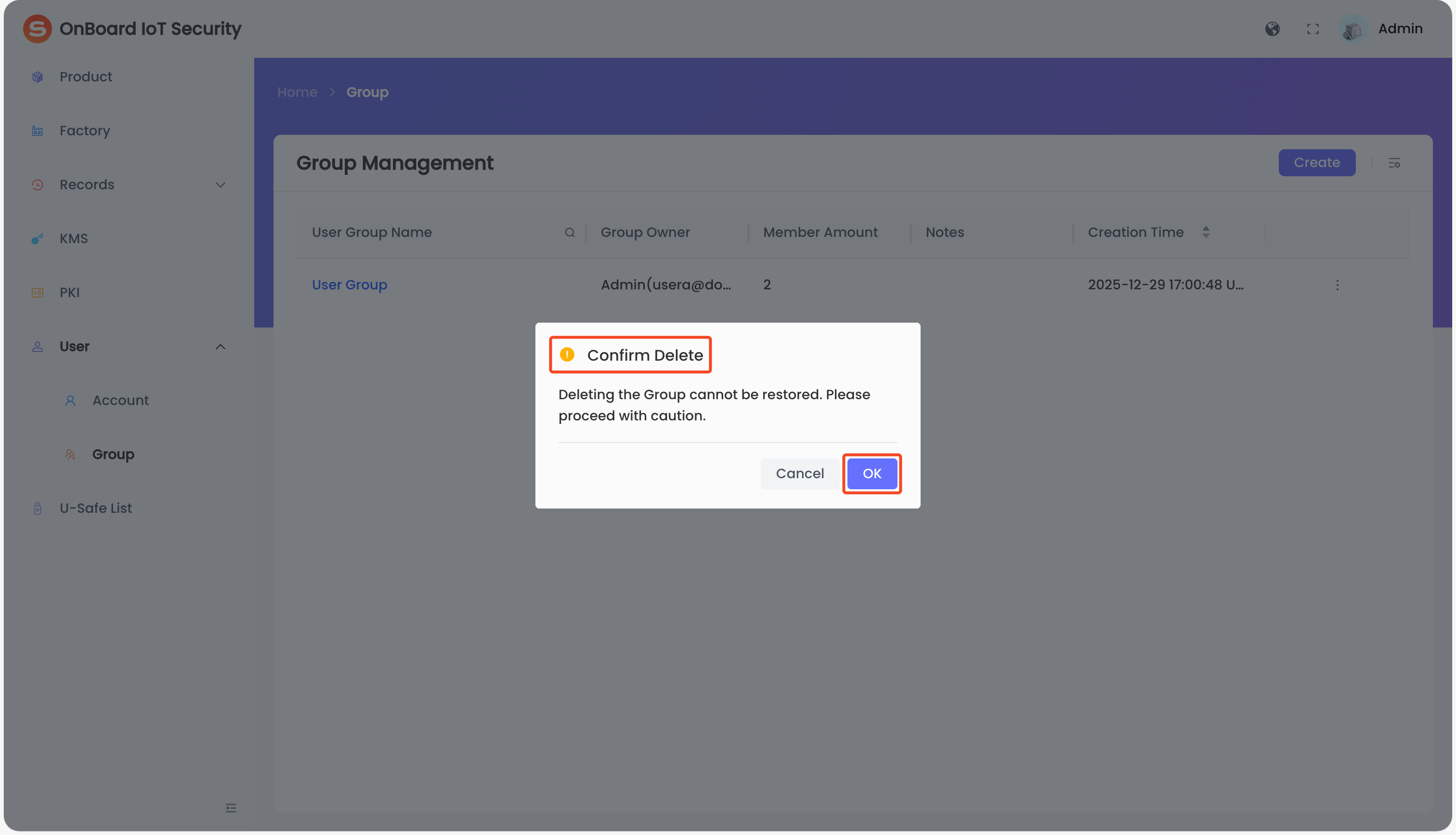
Deleting a group cannot be restored. Please proceed with caution.
-
Sign in to OBIS.
-
In the left menu, click User > Group to navigate to the Group Management page.
-
On the Group Management page, click the Options
icon for the corresponding user group name and select Delete.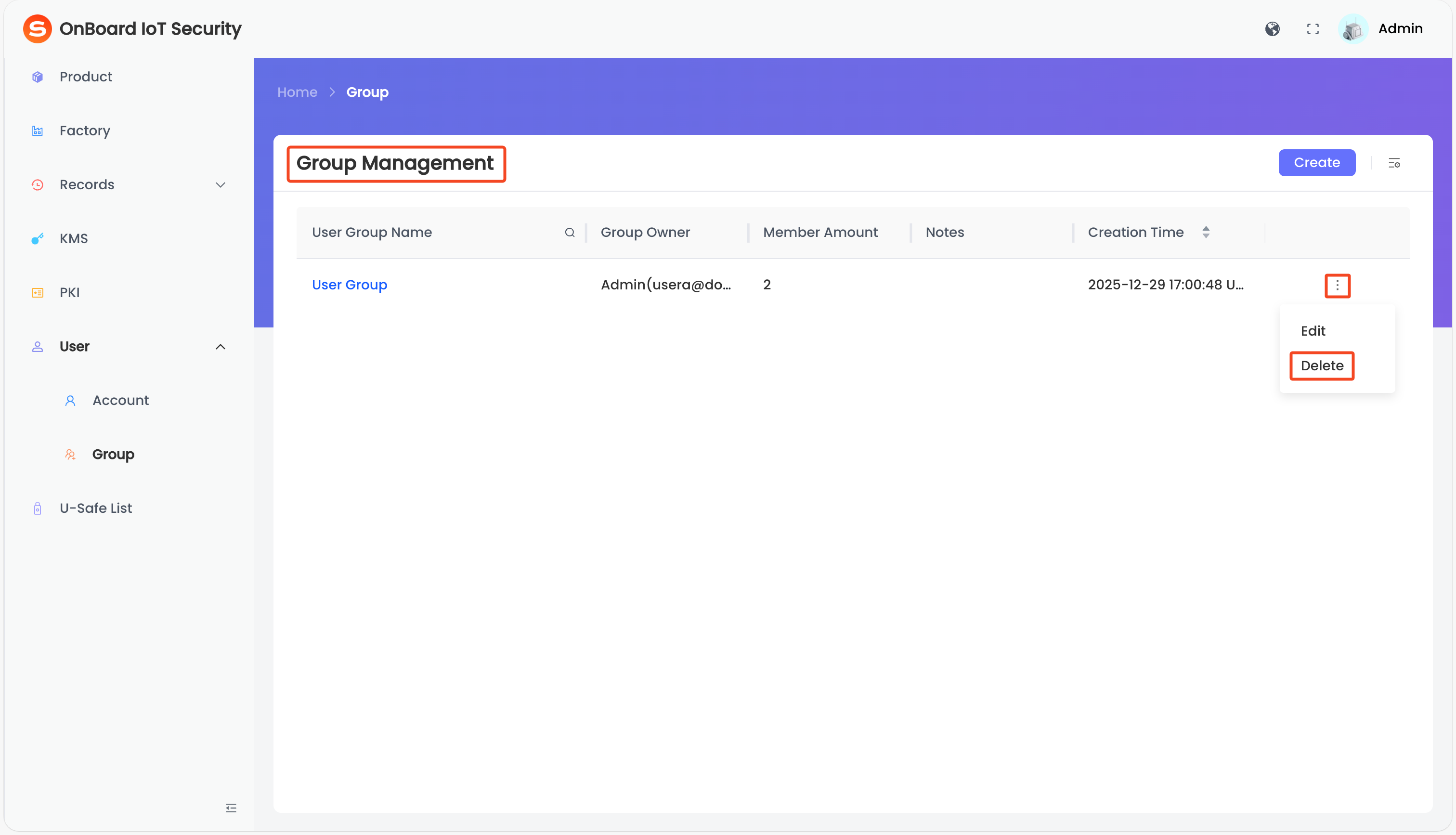
-
In the Confirm Delete window, click OK to delete the user group.

 Download User Manual