How to manage keys in OnBoard™ IoT Security
This article will guide you through the following operations in OnBoard™ IoT Security (OBIS):
- Manage key permissions
- Archive or unarchive a key
- Complete a key
- Download a key
- Lock or unlock a key
- Delete a key
Prerequisites
Before getting started, please ensure that you have OBIS role permissions as a System Manager or Resource Manager, or have operational permissions for the corresponding key.
Manage key permissions
You can adjust and set user permissions (View, Edit, Use, Lock, Archive, Grant, and Delete) for keys by following these steps:
-
Sign in to OBIS.
-
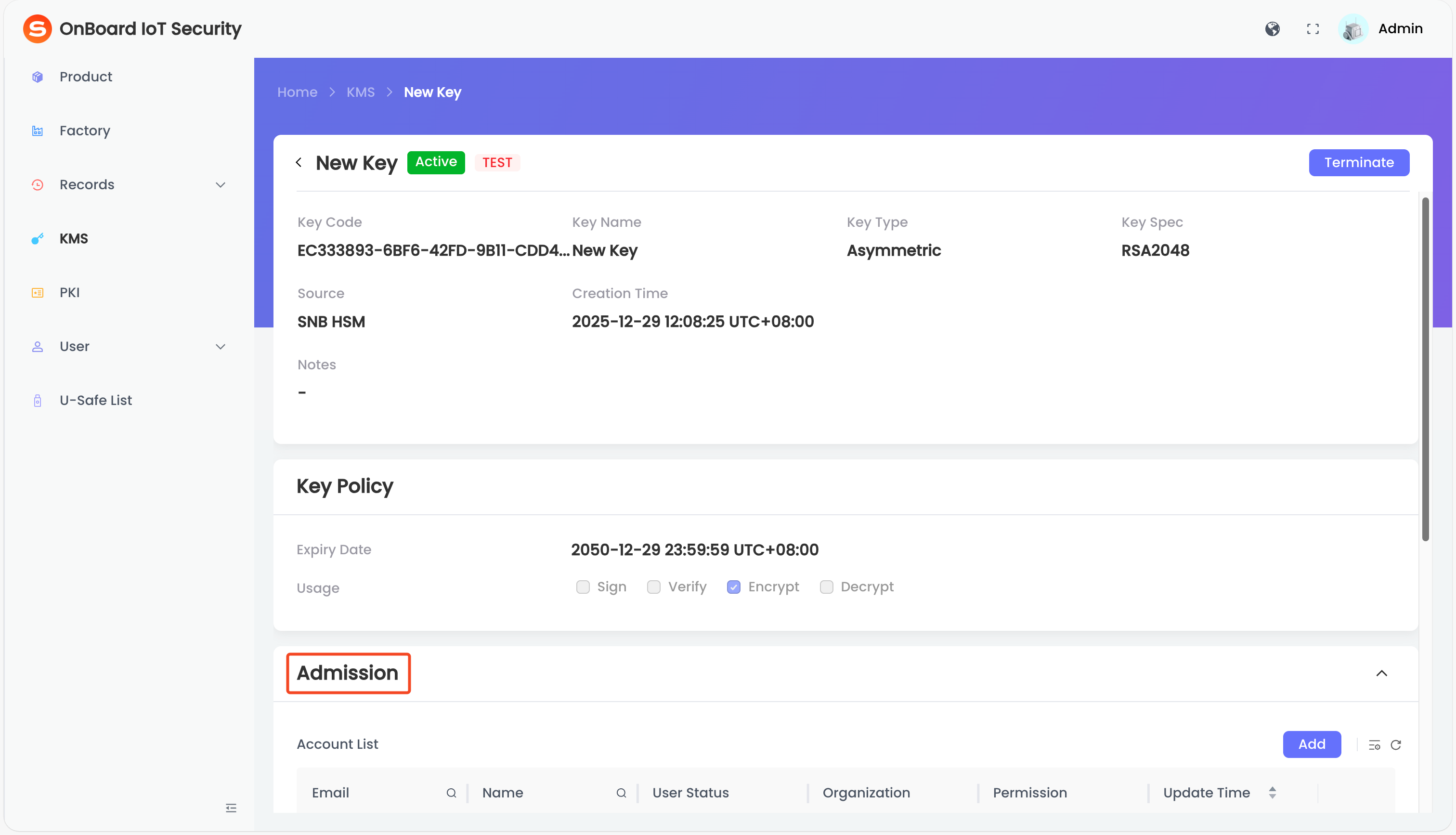
In the left menu, click KMS, and then select the corresponding key code to navigate to the key page.
-
On the key page, you can manage the key permissions in the Admission area.
Archive or unarchive a key
The key list defaults to displaying unarchived keys. After a key is archived, the key will be displayed at the bottom of the key list when configuring Key for the product.
-
Sign in to OBIS.
-
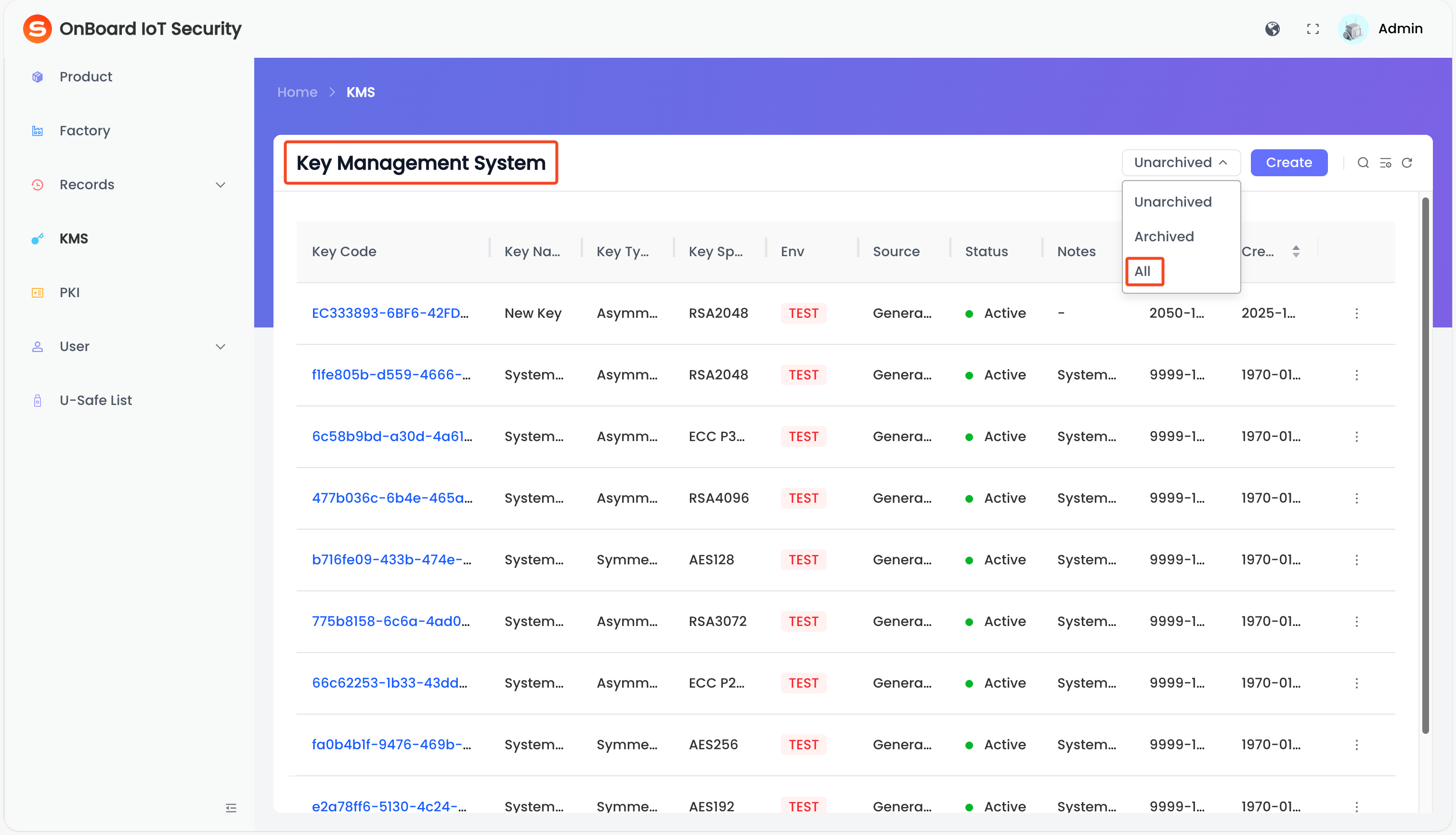
In the left menu, click KMS, and then select All in the top-right corner of the Key Management System page.
-
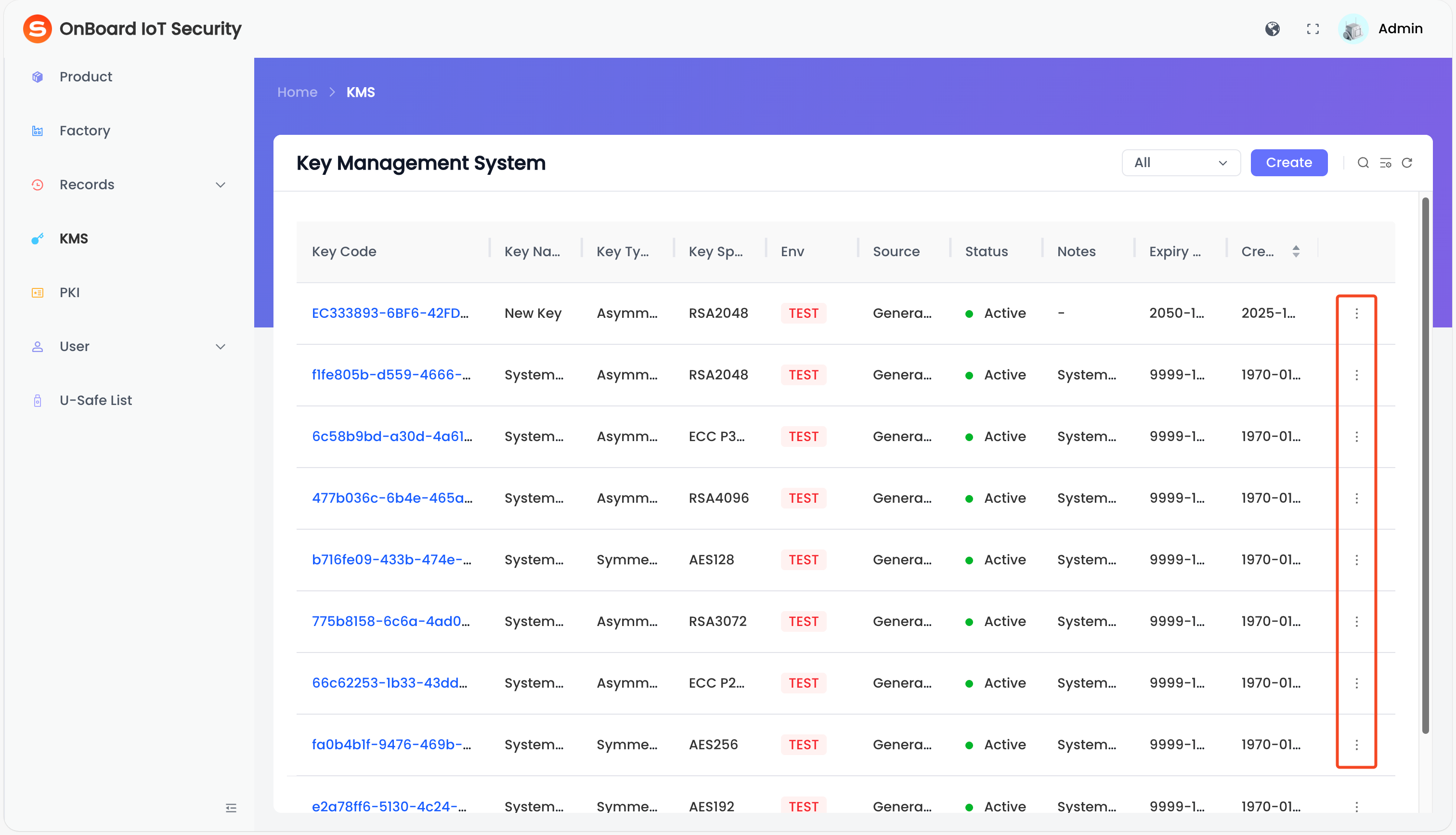
Click the Options
 icon for the corresponding key and then select Archive or Unarchive to archive or unarchive the key.
Complete a key
After completing the key creation, the key can be selected when configuring Key for the product.
-
Sign in to OBIS.
-
In the left menu, click KMS, and then click the Options
icon for the corresponding key and select Complete. Then, refer to the steps for creating a key to complete the key creation.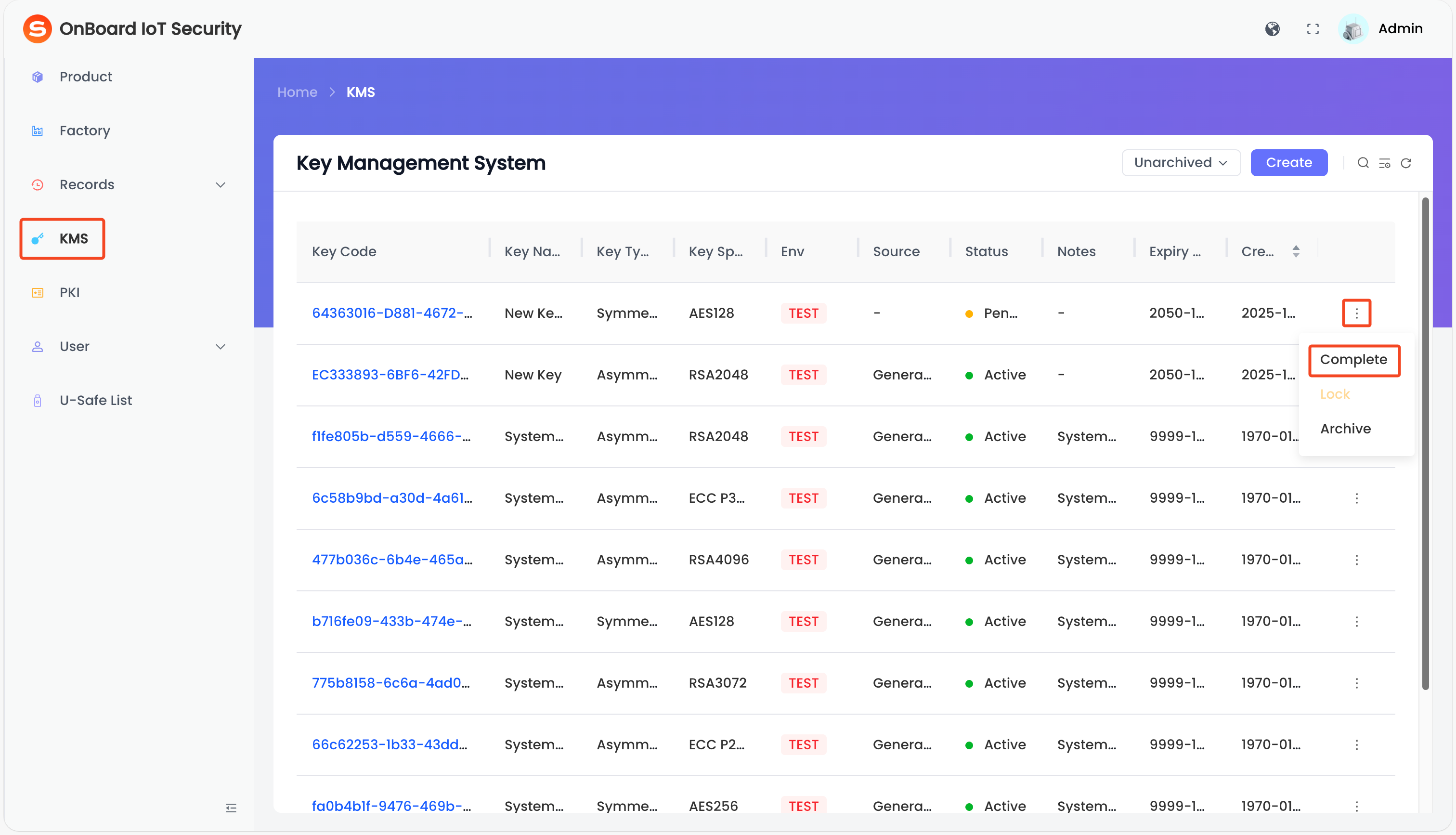
Download a key
Download the public key of the asymmetric key for encryption and verification.
-
Sign in to OBIS.
-
In the left menu, click KMS, and then click the Options
icon for the corresponding asymmetric key and select Download to download the public key of the asymmetric key.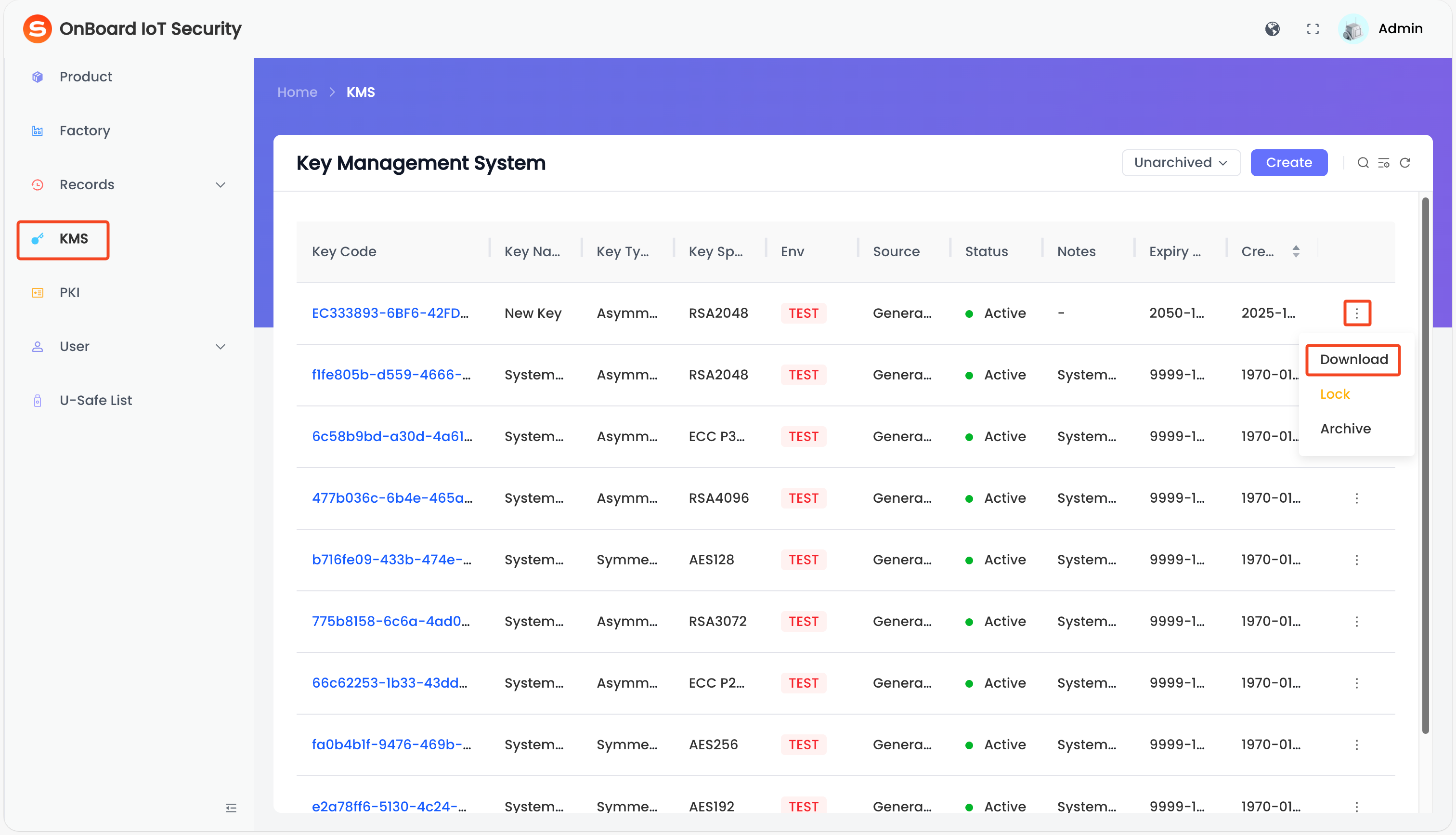
Lock or unlock a key
-
Sign in to OBIS.
-
In the left menu, click KMS, and then click the Options
icon for the corresponding key and select Lock or Unlock to lock or unlock the key.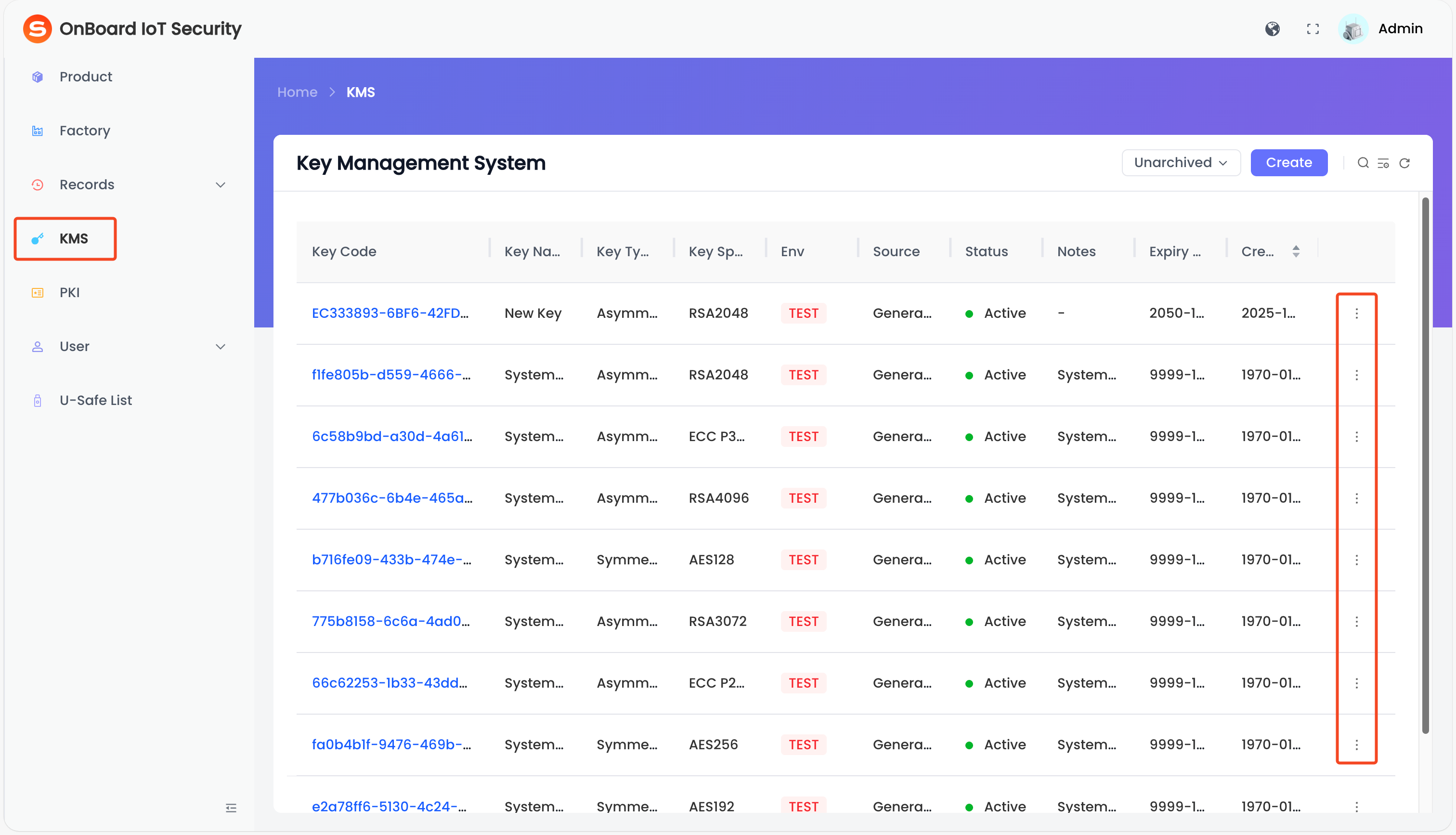
Delete a key
Before deleting a key, please ensure that the key is not referenced by any resources. If the key is in use, you will see the message "Key cannot be deleted, the Key is currently used by the following list" along with a list of the referencing resources.
-
Sign in to OBIS.
-
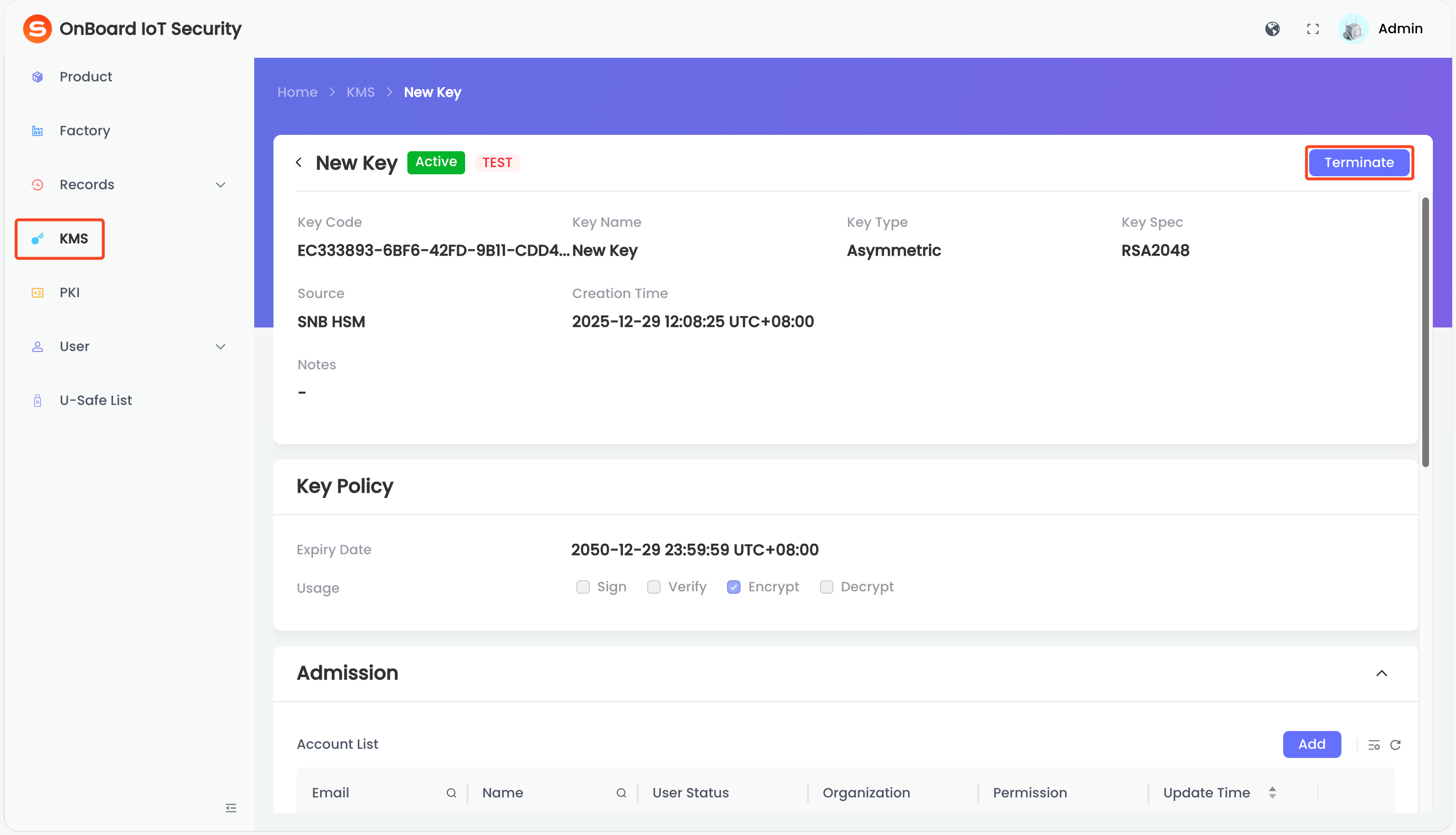
In the left menu, click KMS, and then select the corresponding key code to navigate to the key page.
-
On the key page, click Terminate.
-
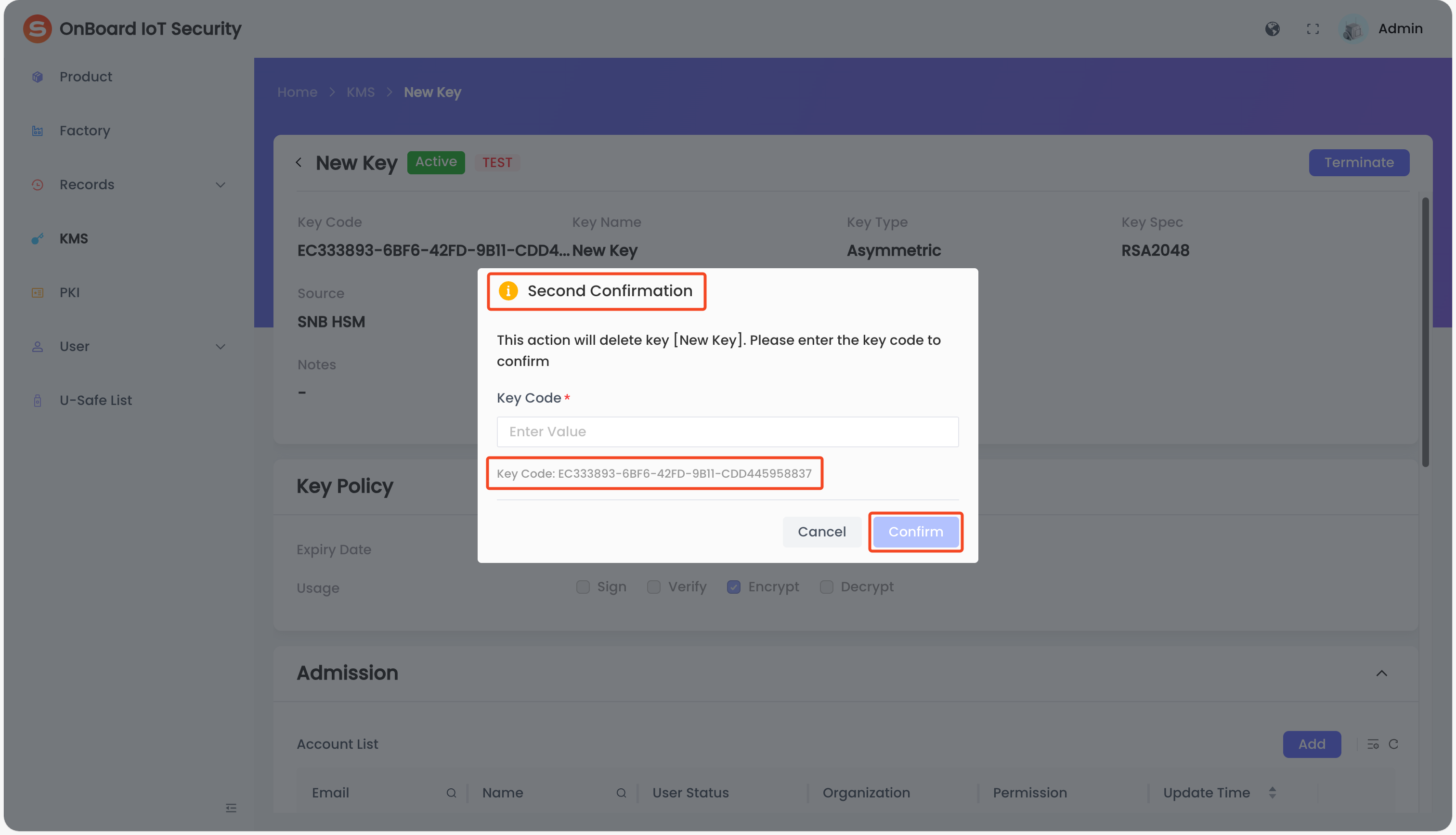
In the Second Confirmation window, enter the key code prompted at the bottom of the window, and then click Confirm to delete the key.

 Download User Manual