How to manage keys in OnBoard™ IoT Security
This article will guide you through the following operations in OnBoard™ IoT Security (OBIS):
- Manage key permissions
- Download a key
- Lock or unlock a key
Prerequisites
Before getting started, please ensure that you have permissions for the corresponding key.
Manage key permissions
By default, the key creator is set as the Admin. To change the Admin, click the Options  icon for the Admin and select Transfer Admin on the Member tab, then choose the new Admin and click Confirm.
You can adjust and set user permissions (View, Edit, Create Authorization, Lock, Unlock, and Add Member) for keys by following these steps:
-
Sign in to OBIS.
-
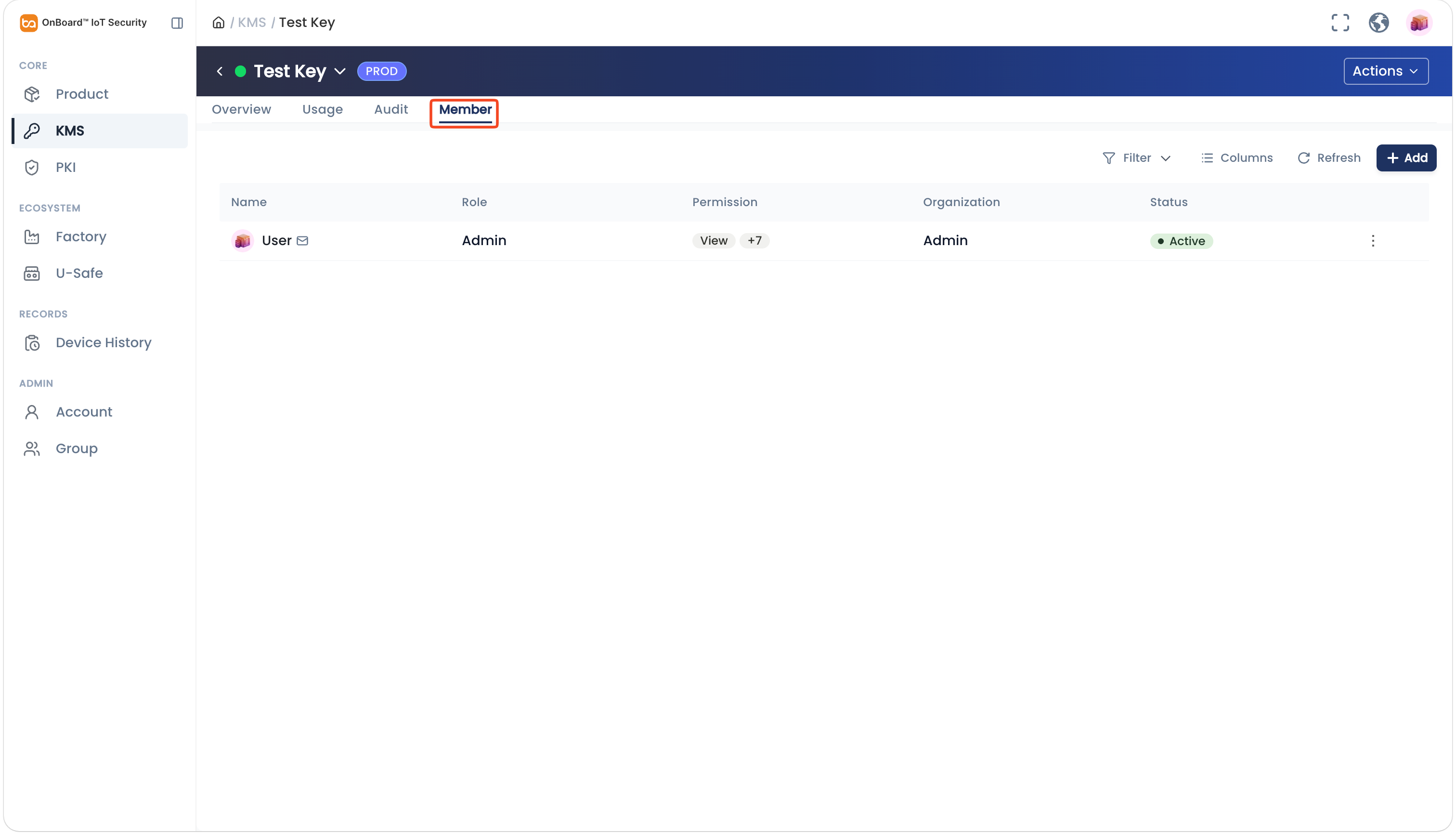
In the Core section of the left menu, click KMS, and then select the corresponding key to navigate to the key page.
-
On the key page, you can manage the user permissions for the key on the Member tab.
Download a key
Download the public key of the asymmetric key for encryption and verification.
Only keys in the Active state can be downloaded, and the same user can download the same key a maximum of 10 times per hour.
-
Sign in to OBIS.
-
In the Core section of the left menu, click KMS, and then click the Options
icon for the corresponding asymmetric key and select Download PK to download the public key of the asymmetric key.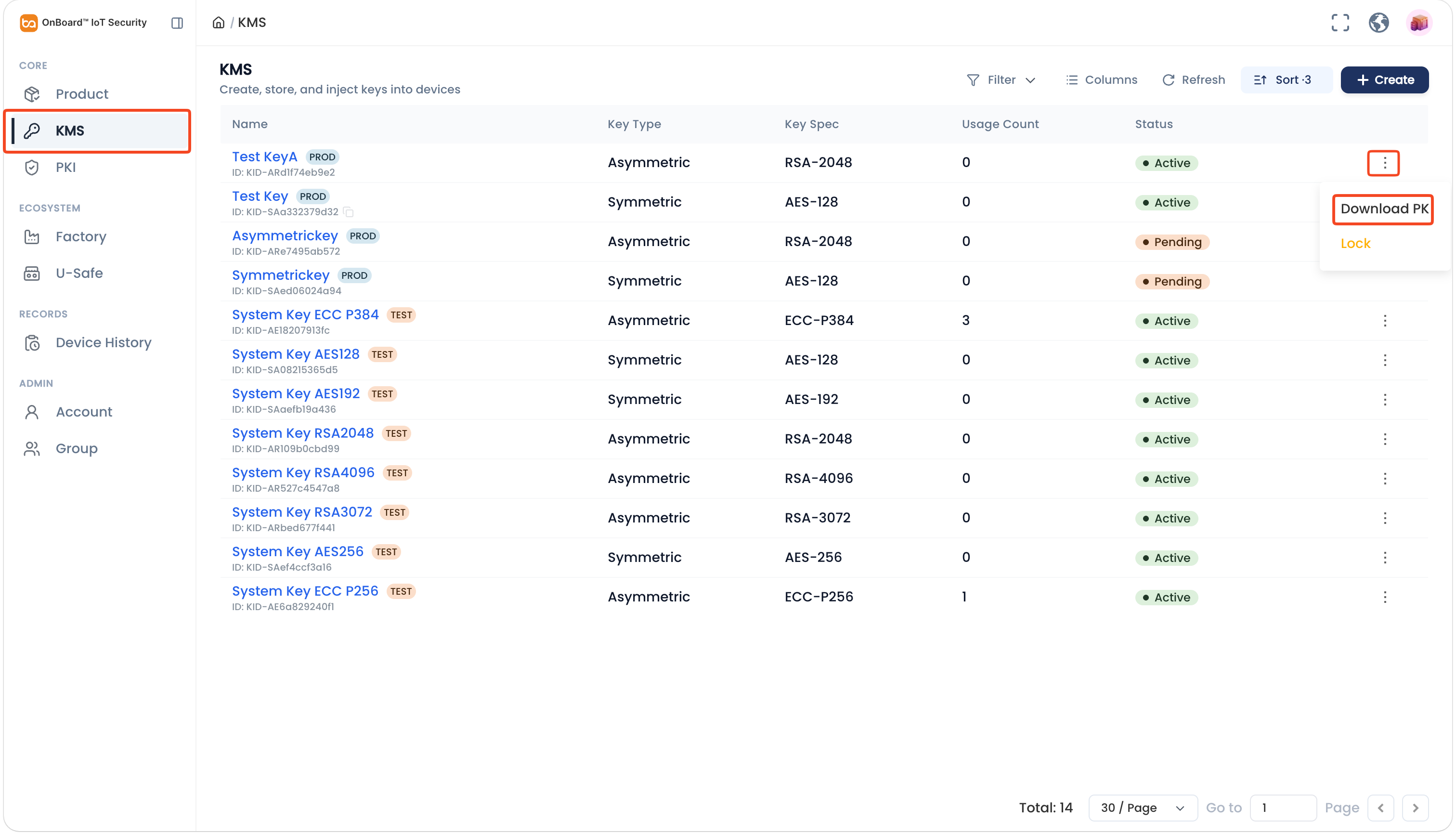
Lock or unlock a key
After the key is locked, the key can't be selected when configuring Keys for the product.
-
Sign in to OBIS.
-
In the Core section of the left menu, click KMS, and then click the Options
icon for the corresponding key and select Lock or Unlock to lock or unlock the key.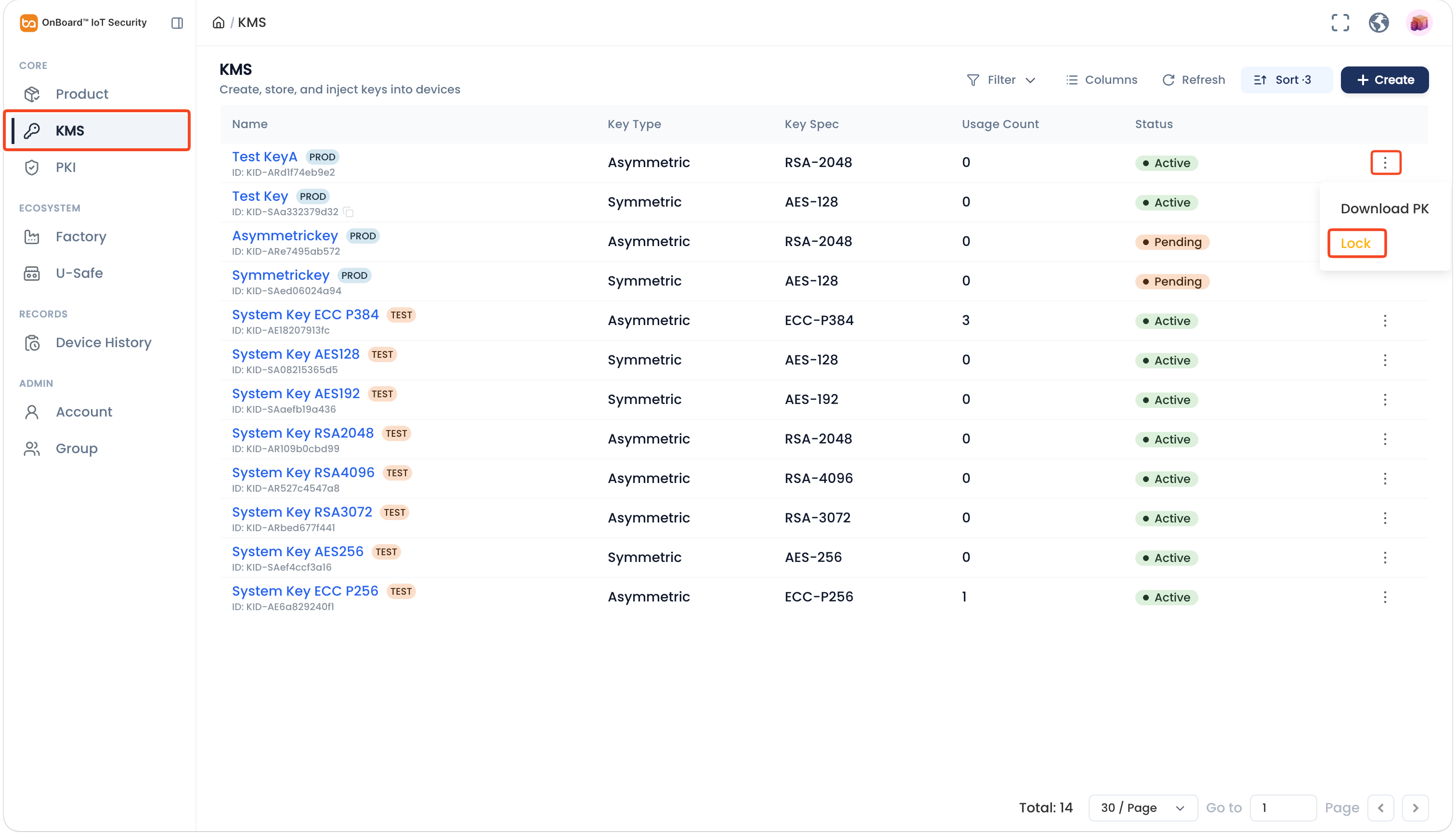

 Download User Manual