How to manage keys in OnBoard™ IoT Security
This article will guide you through the following operations in OnBoard™ IoT Security (OBIS):
- Manage key permissions
- Download a key
- Lock or unlock a key
- Revoke a key
- Destroy a key
Prerequisites
Before getting started, please ensure that you have permissions for the corresponding key.
Manage key permissions
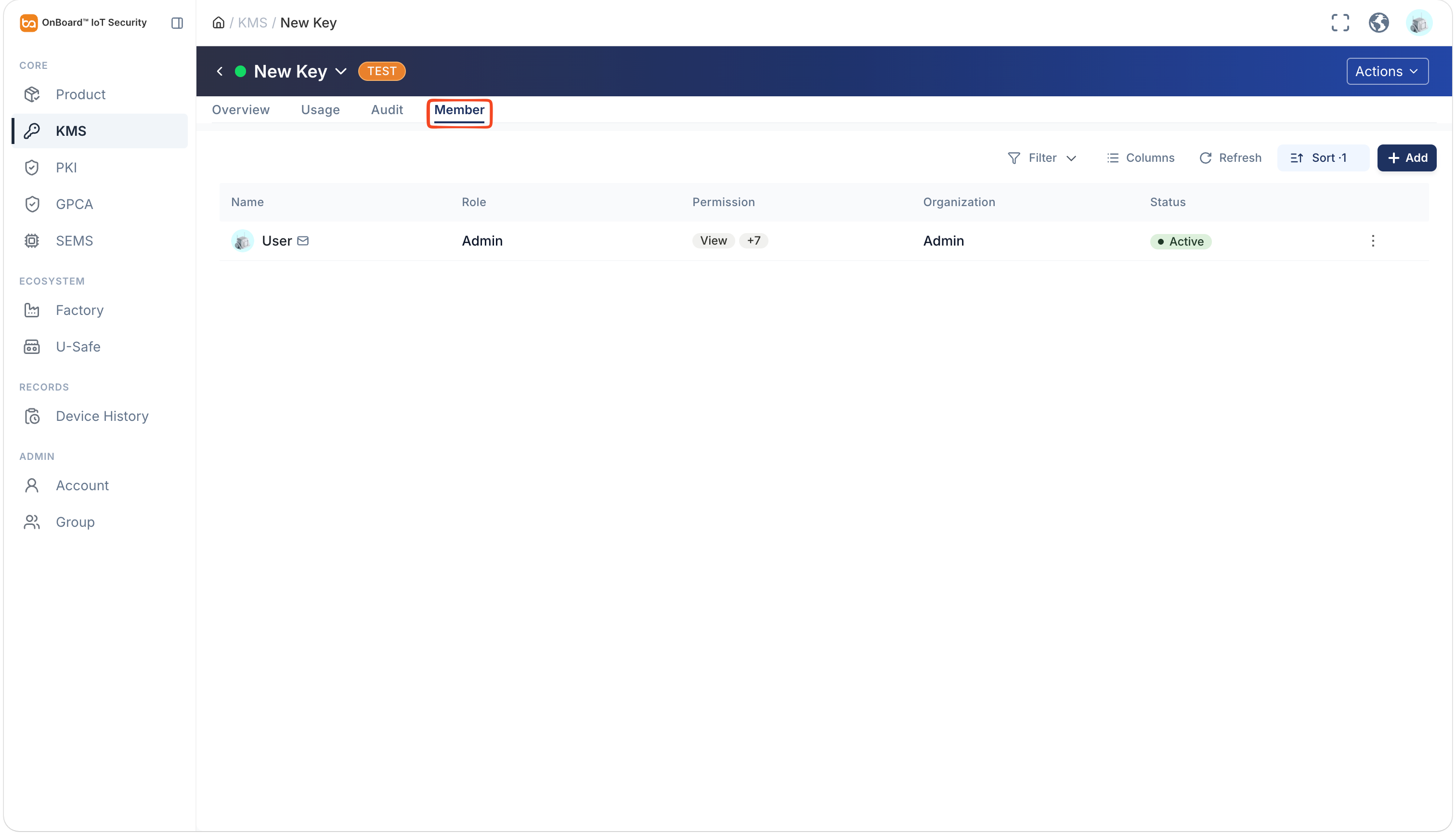
By default, the key creator is set as the Admin. To change the Admin, click the Options  icon for the Admin and select Transfer Admin on the Member tab, then choose the new Admin and click Confirm.
You can assign different operational permissions for the key to different members. The descriptions of these permissions are as follows:
| Permissions | Description |
|---|---|
| View | View key details (read-only). |
| Edit | Allow cryptographic configuration for the key. |
| Create Authorization | Allow the key to be referenced in product and SE Profile configurations. |
| Lock | Lock a key. |
| unlock | Unlock a locked key. |
| Add Member | Add members to this key and assign them permissions that do not exceed your own permissions. |
| Revoke | Revoke a key. |
| Destroy | Destroy a key. |
You can adjust and set user permissions for keys by following these steps:
-
Sign in to OBIS.
-
In the Core section of the left menu, click KMS, and then select the corresponding key to navigate to the key page.
-
On the key page, you can manage the user permissions for the key on the Member tab.
Download a key
Download the public key of the asymmetric key for encryption and verification.
Only keys in the Active state can be downloaded, and the same user can download the same key a maximum of 10 times per hour.
-
Sign in to OBIS.
-
In the Core section of the left menu, click KMS, and then click the Options
icon for the corresponding asymmetric key and select Download PK to download the public key of the asymmetric key.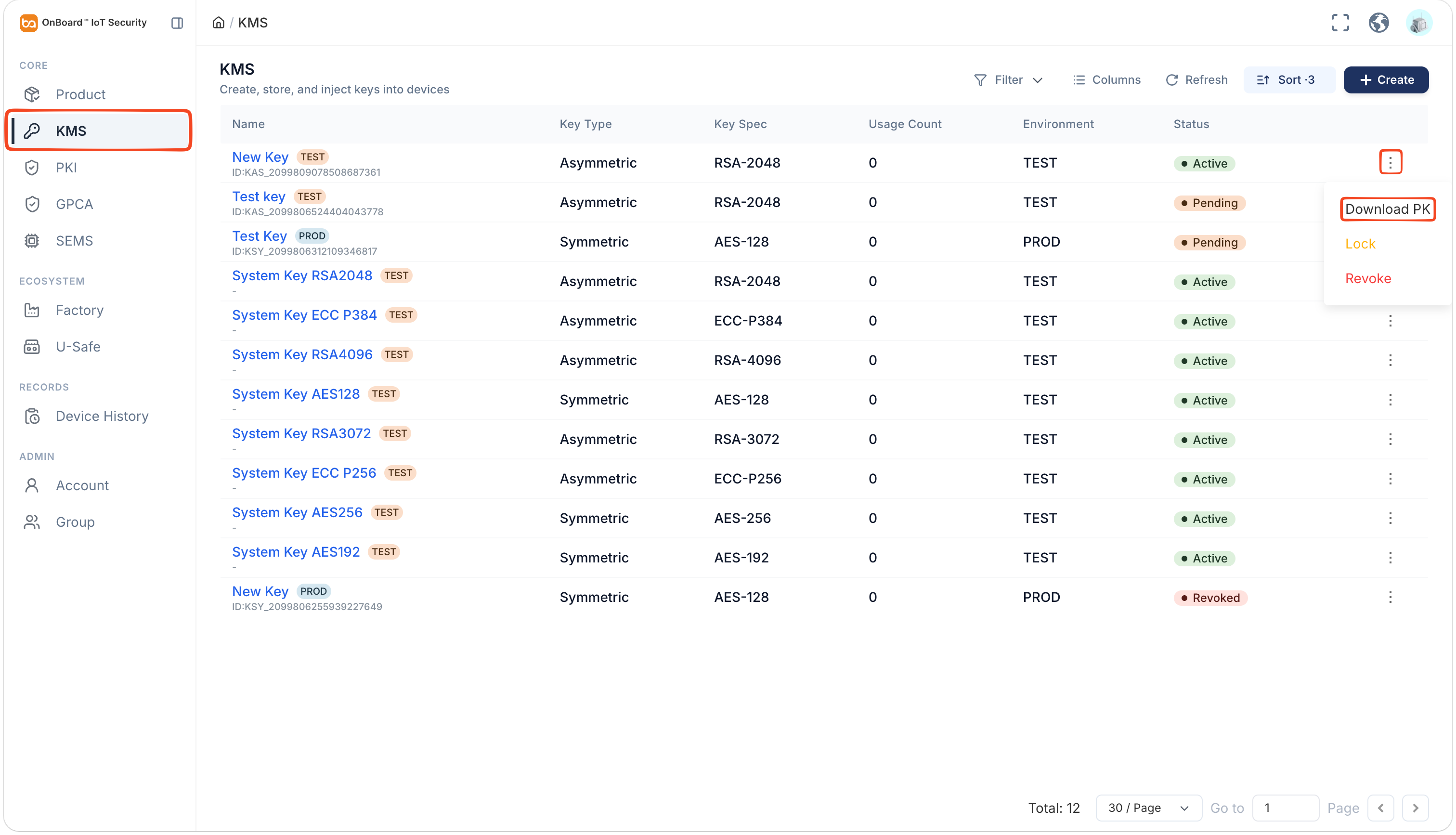
Lock or unlock a key
After the key is locked, the key can't be selected when configuring Keys for the product.
-
Sign in to OBIS.
-
In the Core section of the left menu, click KMS, and then click the Options
icon for the corresponding key and select Lock or Unlock. Click Confirm to lock or unlock the key. When locking a key, you can optionally provide a reason.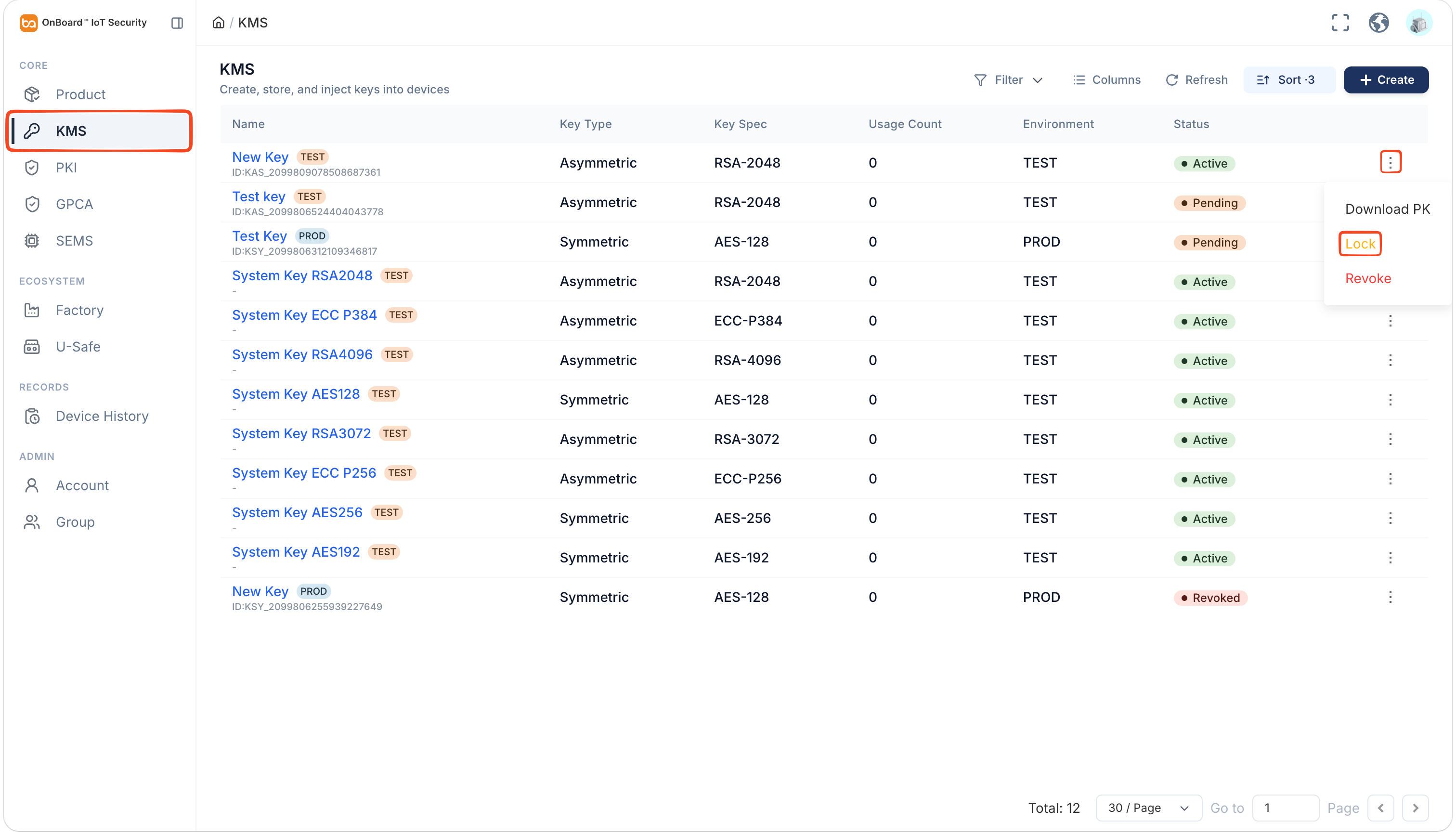
Revoke a key
After the key is revoked, its service capabilities are terminated to prevent further use.
-
Sign in to OBIS.
-
In the Core section of the left menu, click KMS, and then click the Options
icon for the corresponding key and select Revoke.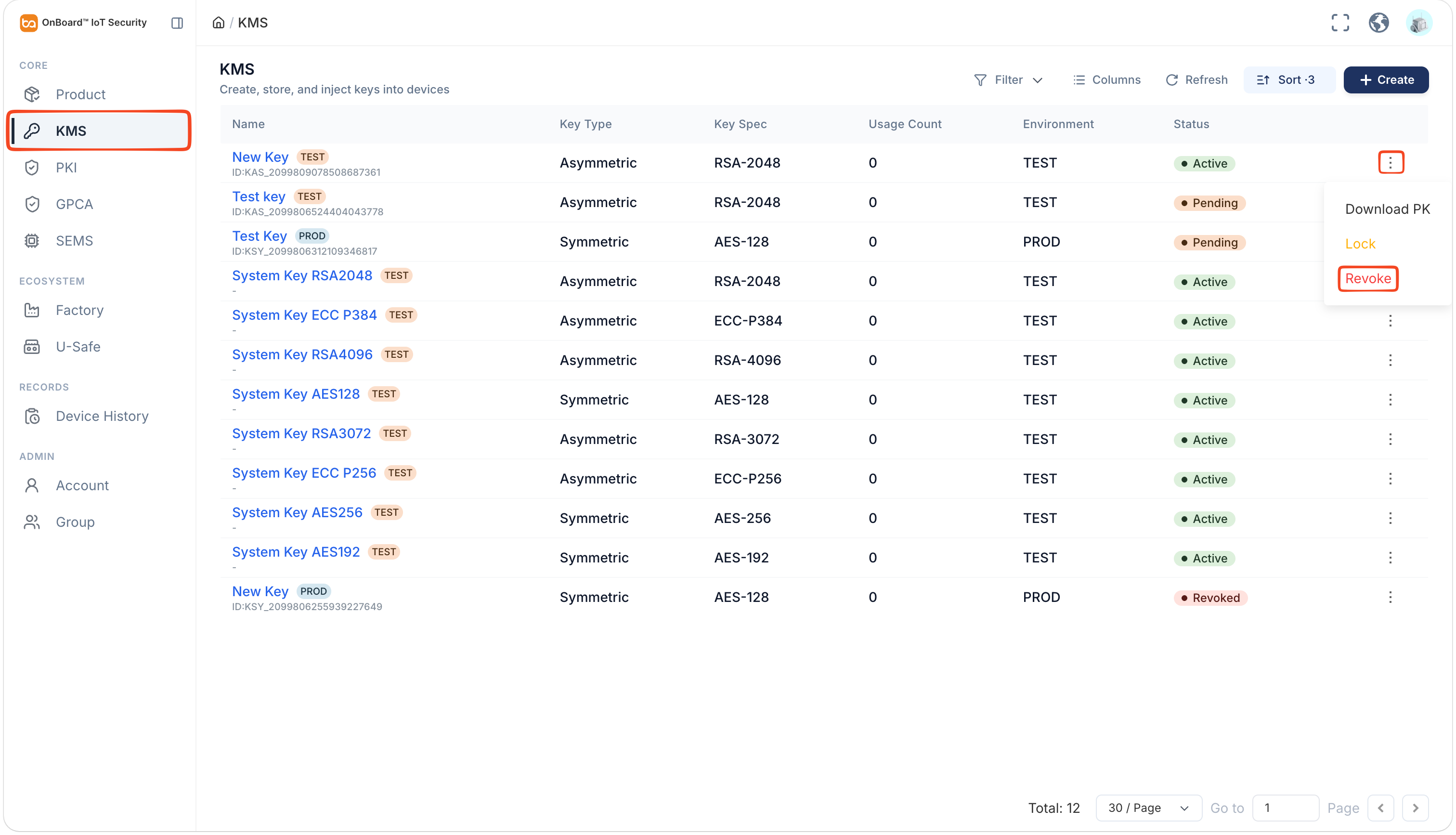
-
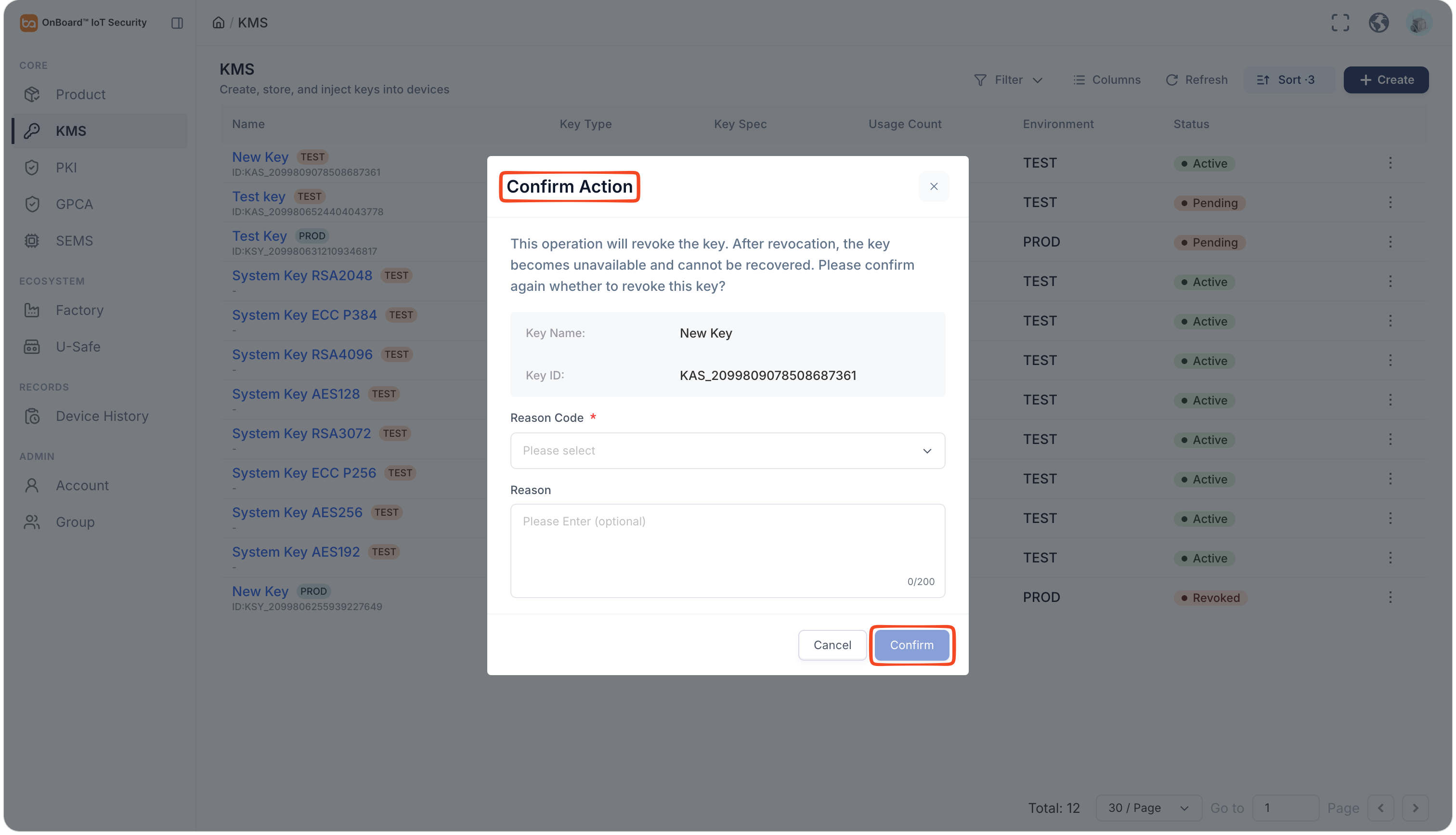
In the Confirm Action window, select the Reason Code and enter the Reason, then click Confirm to revoke the key.
Destroy a key
Destroyed keys cannot be recovered. Please proceed with caution.
Only keys with the status of Pending or Revoked can be destroyed.
Before destroying a key, please ensure that:
- The key is not in use. If the key is currently in use, you will see the message "The key is in use and cannot be destroyed".
- There are no valid authorizations associated with the key. If the key has been authorized for the product or SEMS, you will see the message "The key has valid authorizations. Please revoke them first".
- The revoked key exceeded the 90-day audit retention period. If the 90-day period has not yet elapsed, you will see the message "The key audit retention period has not expired. It cannot be destroyed yet".
-
Sign in to OBIS.
-
In the Core section of the left menu, click KMS, and then click the Options
icon for the corresponding key and select Destroy.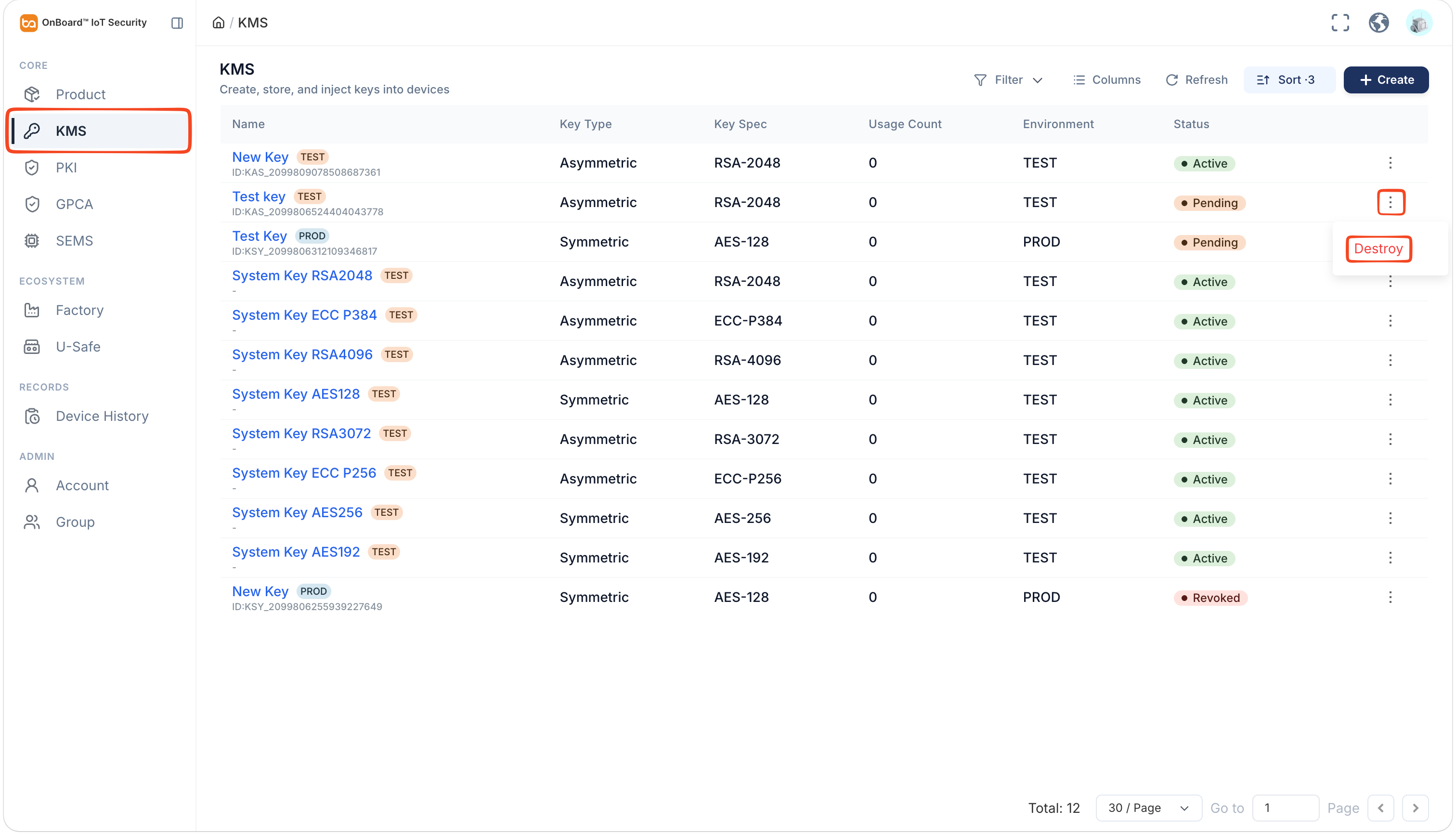
-
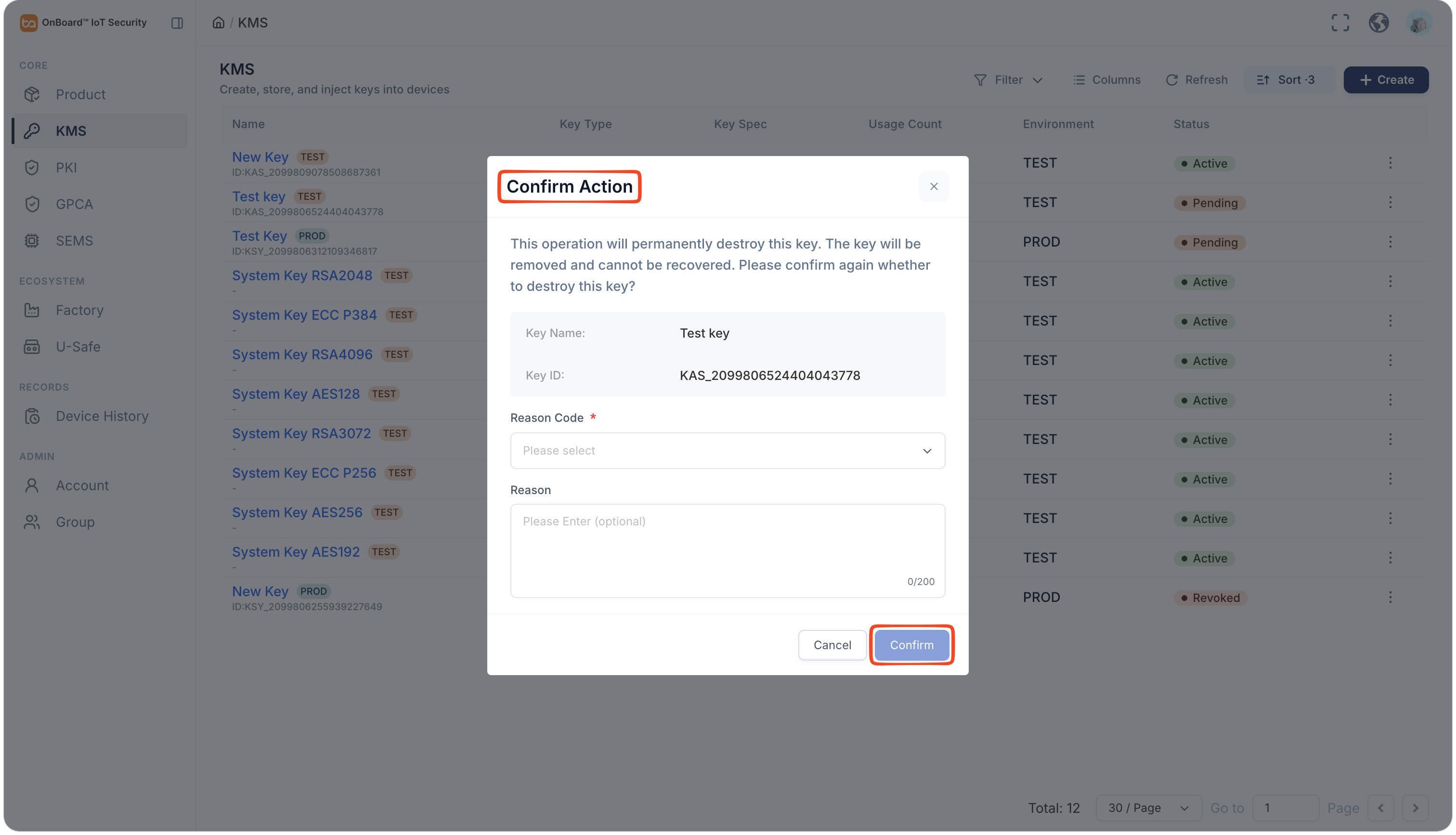
In the Confirm Action window, select the Reason Code and enter the Reason, then click Confirm to destroy the key.

 Download User Manual