How to manage accounts in OnBoard™ IoT Security
This article will guide you through the following operations in OnBoard™ IoT Security (OBIS) to manage user access and permissions for OBIS:
- Edit the information of an account
- Lock or unlock an account
- Delete an account
Prerequisites
Before getting started, please ensure that you have OBIS role permissions as a System Manager.
Edit the information of an account
-
Sign in to OBIS.
-
In the Admin section of the left menu, click Account to navigate to the Account page.
-
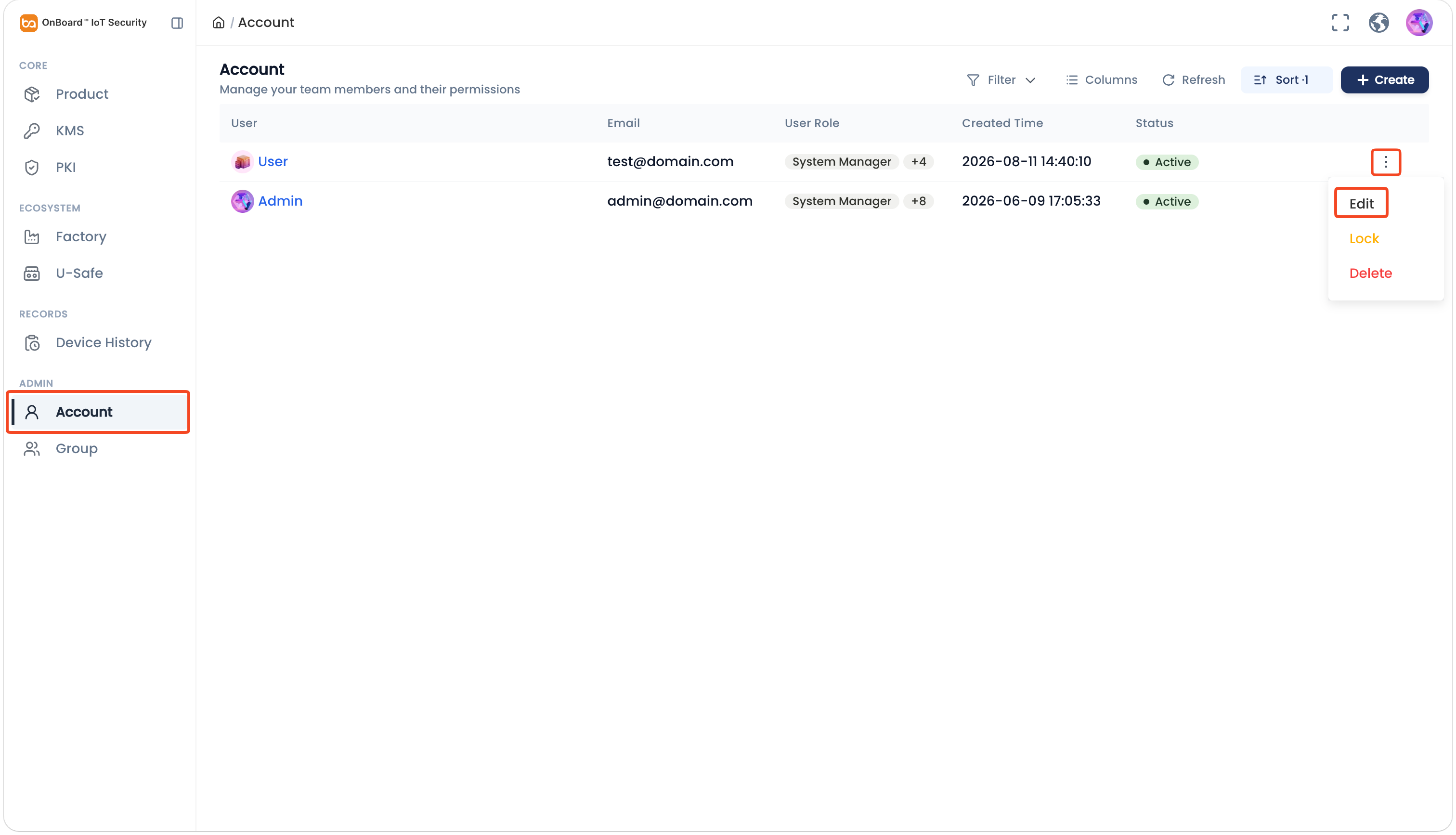
On the Account page, click the Options
 icon for the corresponding account and select Edit.
-
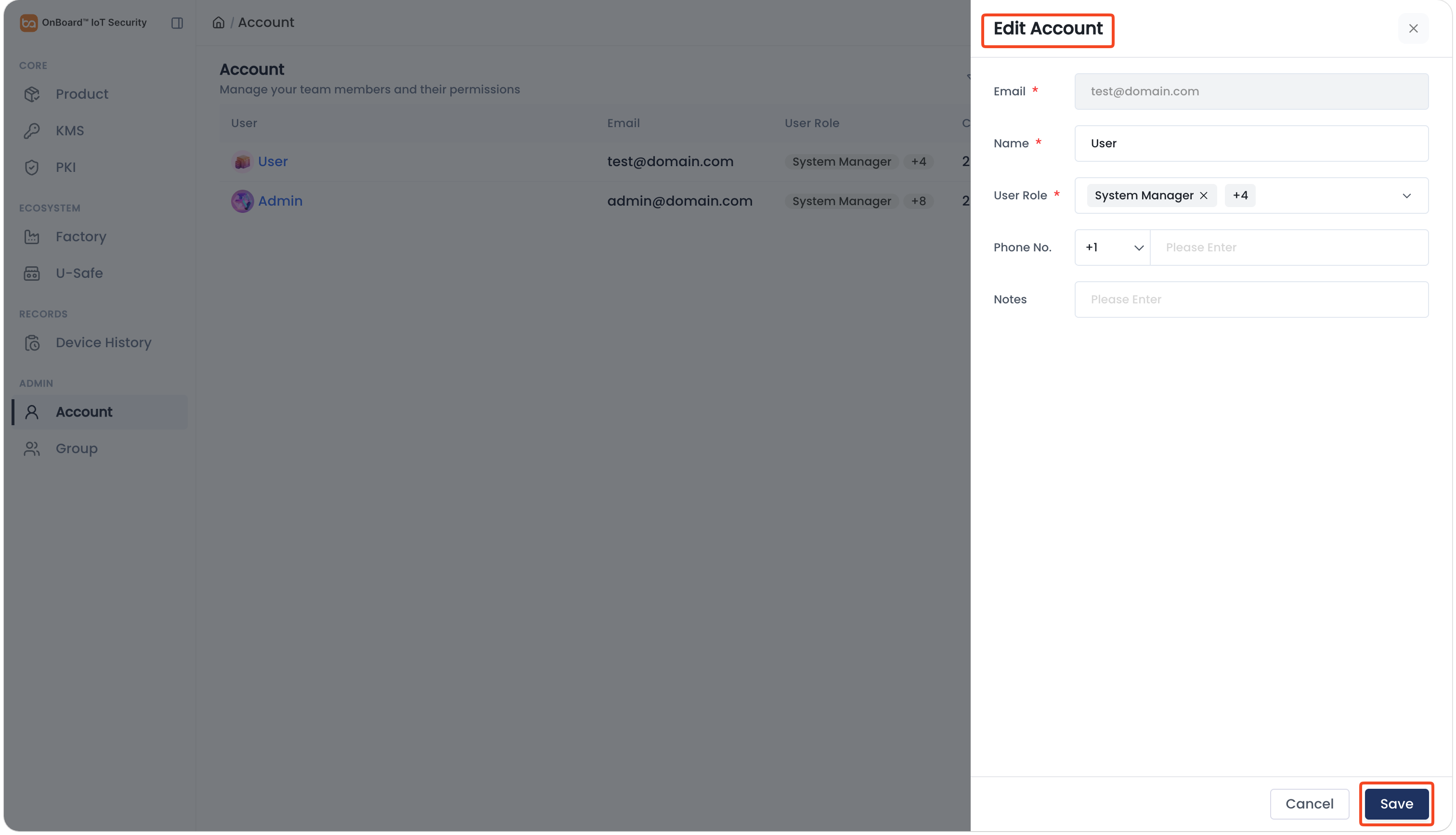
On the Edit Account panel, change the account information (Name, User Role, Phone No., and Notes), and then click Save.
tipA user can be assigned multiple roles. User roles determine the user's access and operation permissions. For more information, refer to the Role classification and permission description.
Lock or unlock an account
Lock the account to prevent its sign-in and use. Once locked, the account status will change to Disabled.
-
Sign in to OBIS.
-
In the Admin section of the left menu, click Account to navigate to the Account page.
-
On the Account page, click the Options
icon for the corresponding account and select Lock or Unlock.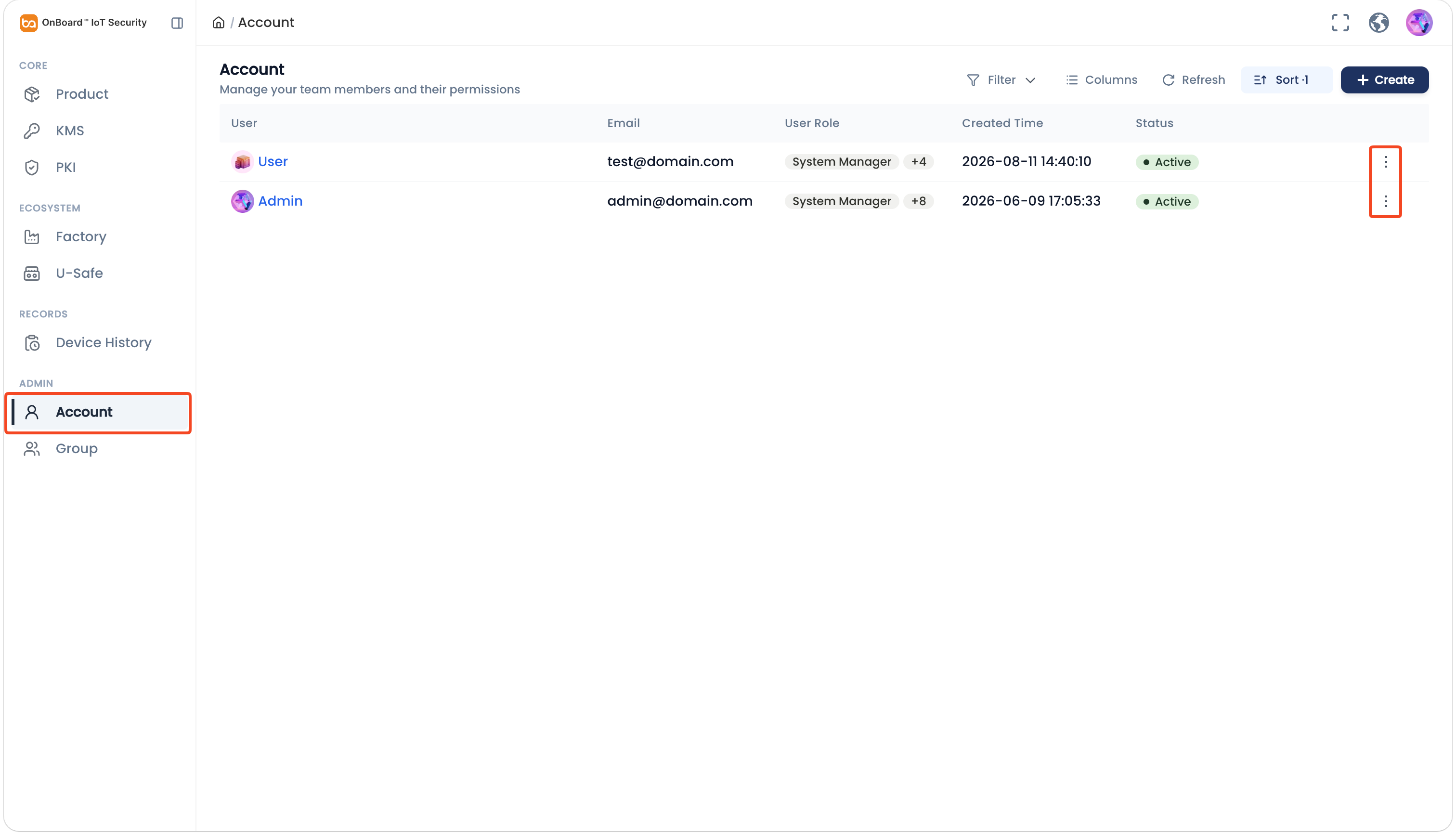
-
In the pop-up window, click Confirm to lock or unlock the account.
Delete an account
Deleted accounts cannot be recovered. Please proceed with caution.
-
Sign in to OBIS.
-
In the Admin section of the left menu, click Account to navigate to the Account page.
-
On the Account page, click the Options
icon for the corresponding account and select Delete.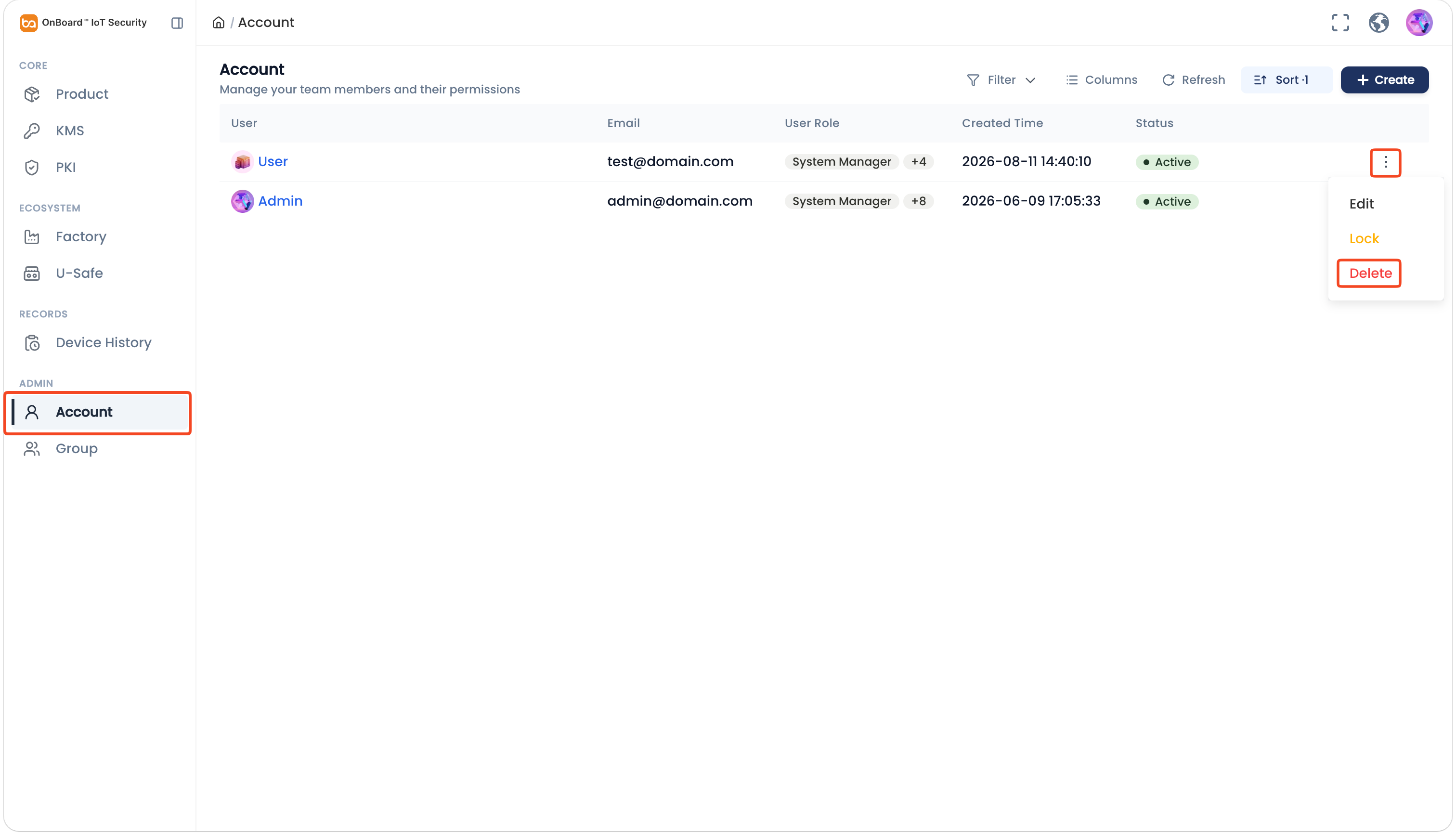
-
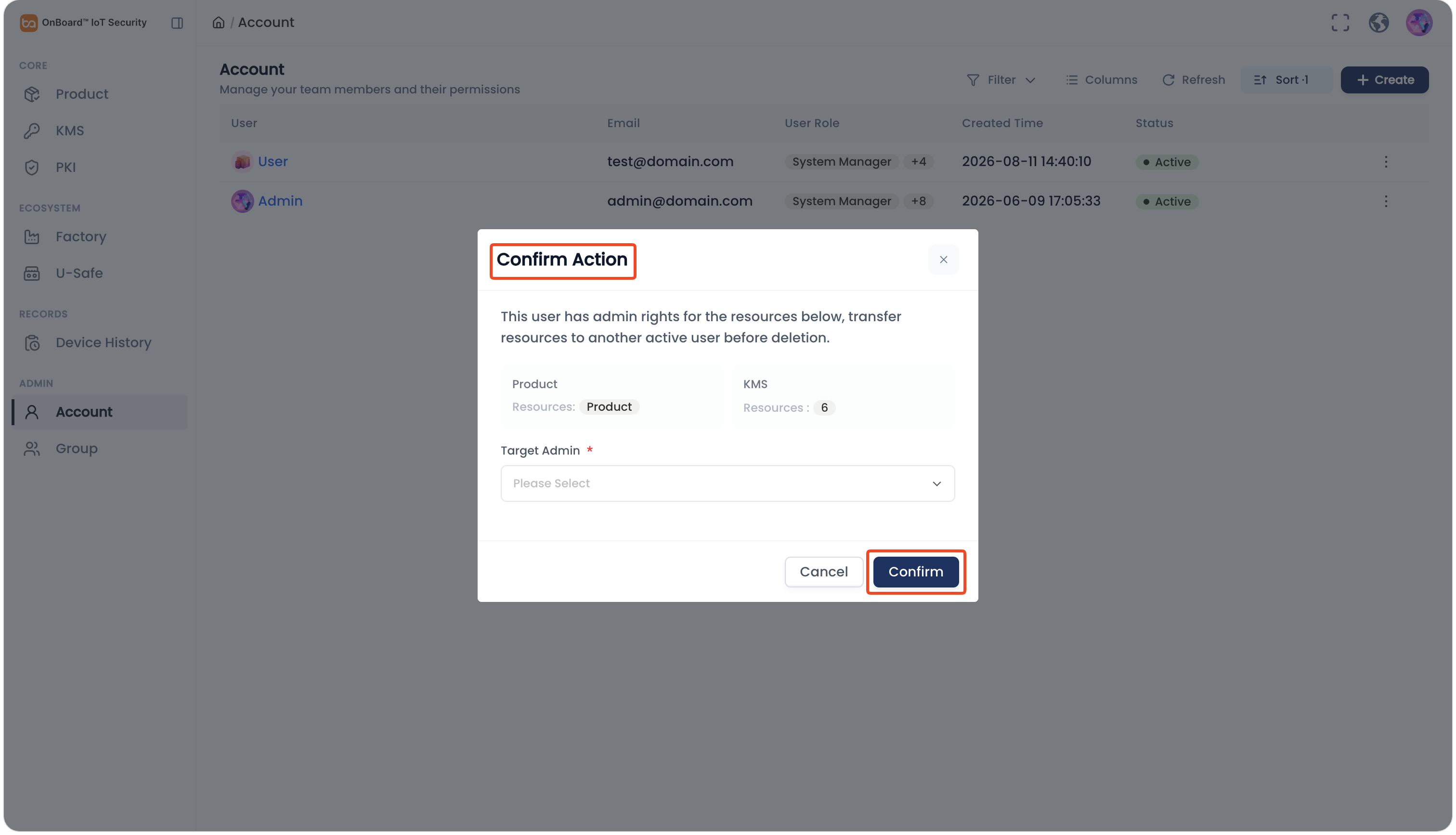
In the Confirm Action window, click Confirm to delete the account.
tipIf the user has admin rights for some resources, those resources must be transferred to another active user before the account is deleted.

 Download User Manual