How to manage a batch and assign a programming station in OnBoard Edge Service
Operations in OnBoard Edge Service are applicable only to local factories, while operations for cloud factories can be performed directly in OnBoard™ IoT Security (OBIS).
This article will guide you through the following operations in OnBoard Edge Service:
- Check batches
- Assign a programming station to a batch
- Unassign a programming station from a batch
- Turn off or delete a batch
Prerequisites
Before getting started, please ensure that you can sign in to OnBoard Edge Service.
Check batches
-
Sign in to OnBoard Edge Service.
-
In the left menu, click Batch to navigate to the Batch page.
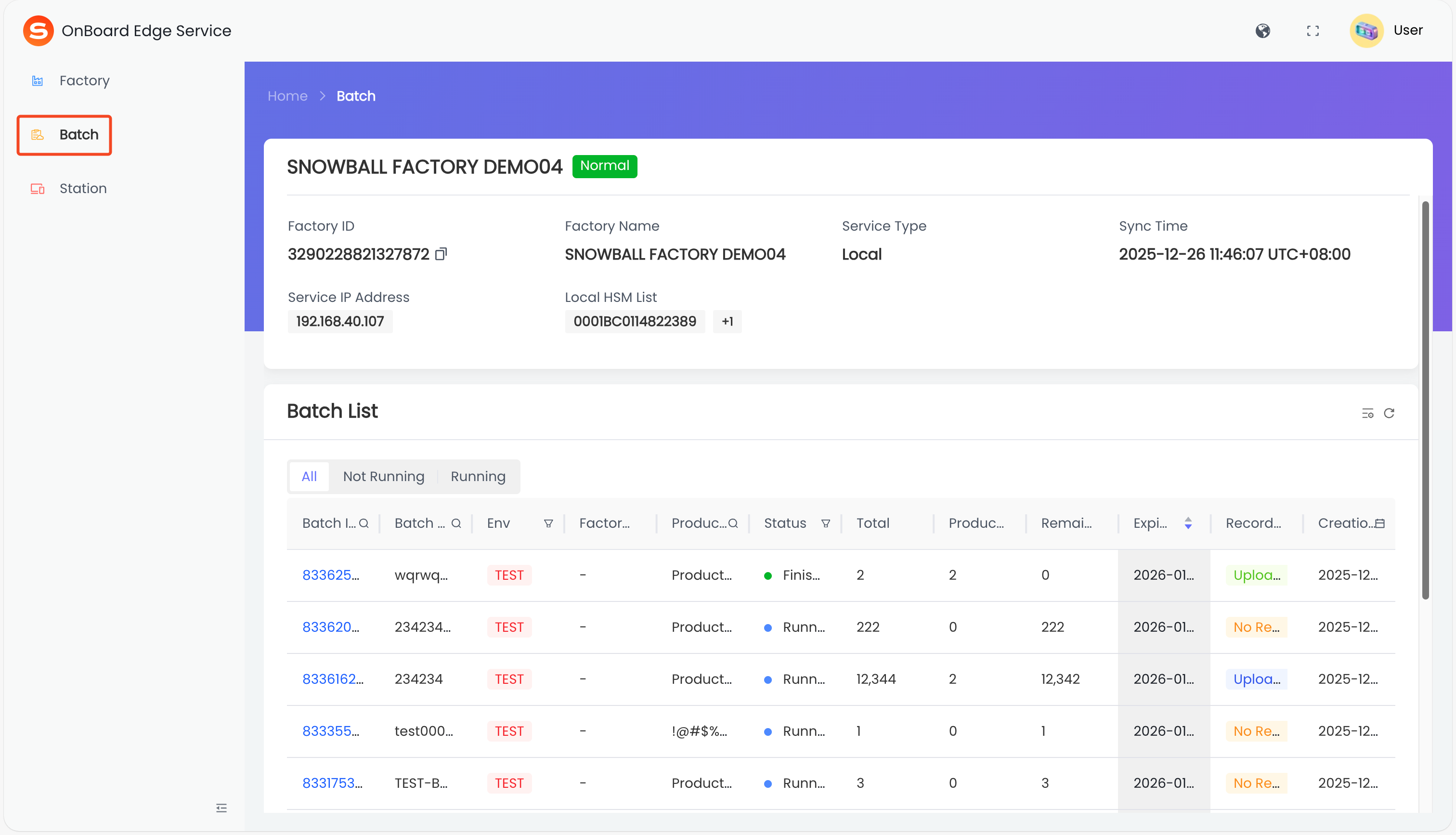
Description of batch status:
| Status | Can be turned on | Description |
|---|---|---|
| Running | - | The default state after creating a batch. You can bind it to a programming station. |
| Stopped | Yes | The batch is currently turned off. You can turn it on to bind it to a programming station. |
| Finished | No | The status after batch programming is completed. |
| Expired | No | The batch has expired before the programming was completed. Note: After a batch expires, most functions related to that batch in OnBoard Edge Service will no longer operate normally, including programming in the Programming Station client. It is recommended to delete the expired batches. |
-
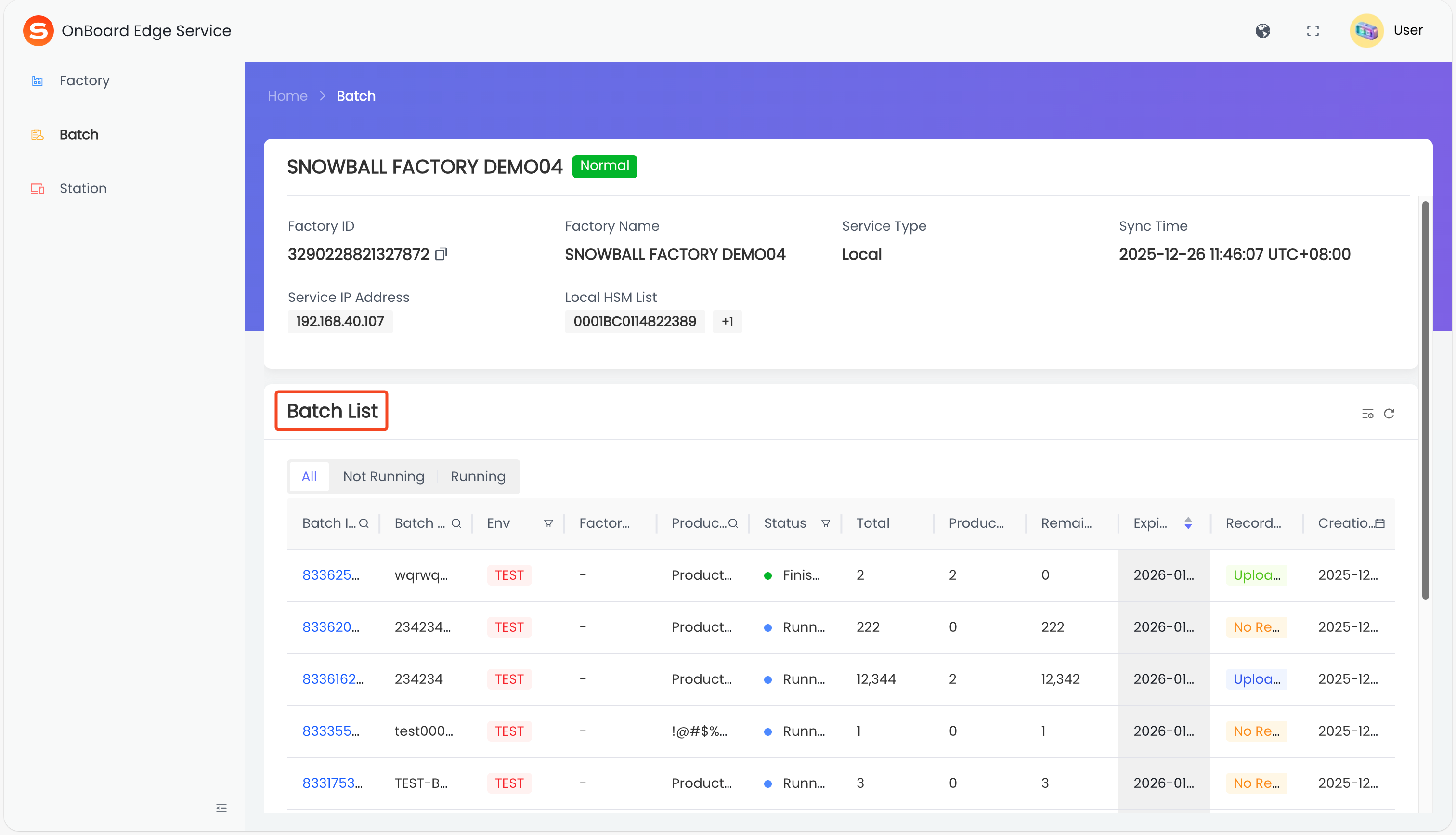
On the Batch page, locate the Batch List section, and then select the corresponding batch to navigate to the batch page.
-
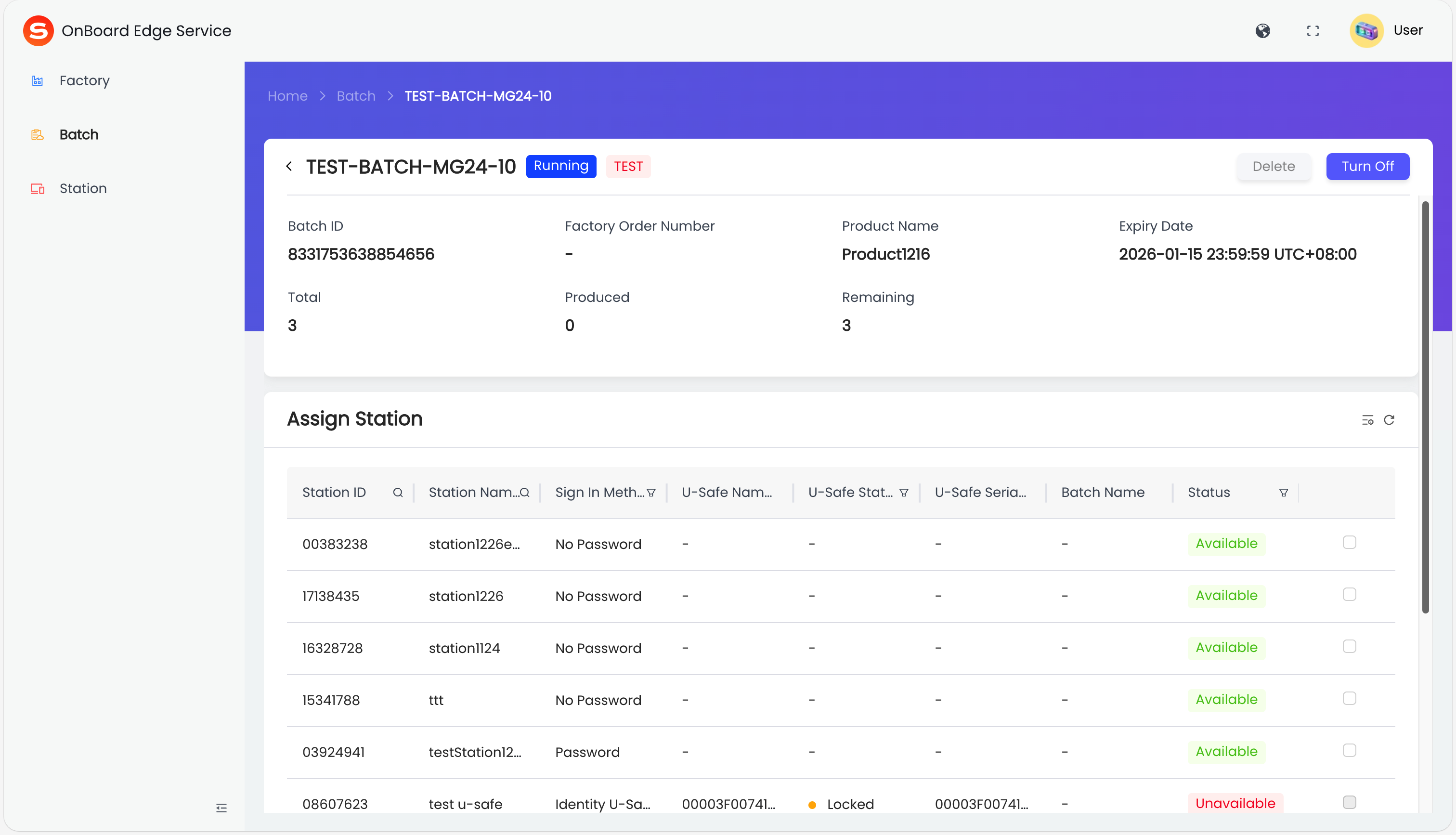
On the batch page, you can check the batch-related information.
Assign a programming station to a batch
A batch can be assigned to multiple programming stations, while a programming station can only program one batch at the same time.
Assign a programming station with the Available status to a batch for programming:
-
Sign in to OnBoard Edge Service.
-
In the left menu, click Batch, and then select the corresponding batch to navigate to the batch page.
-
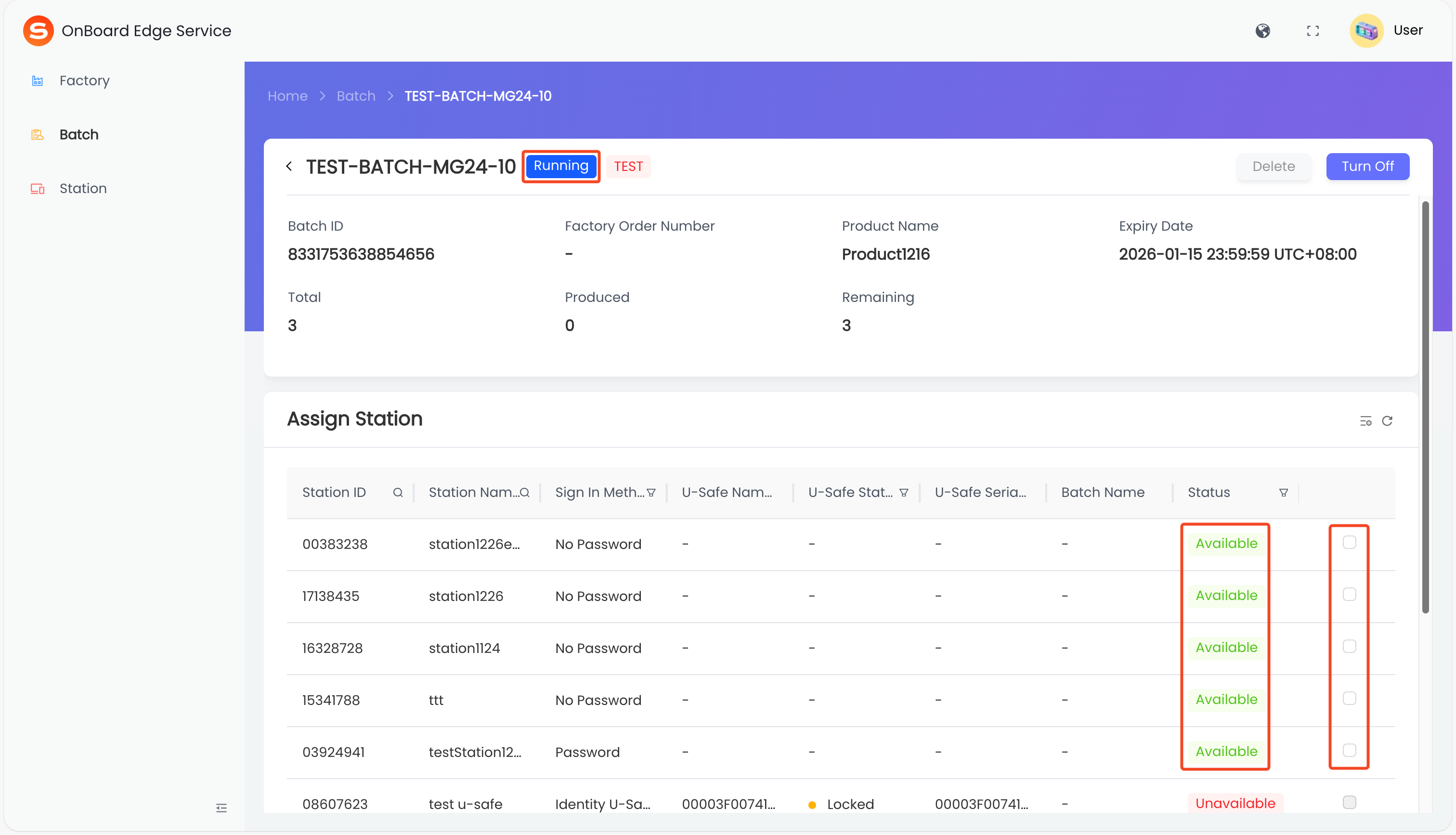
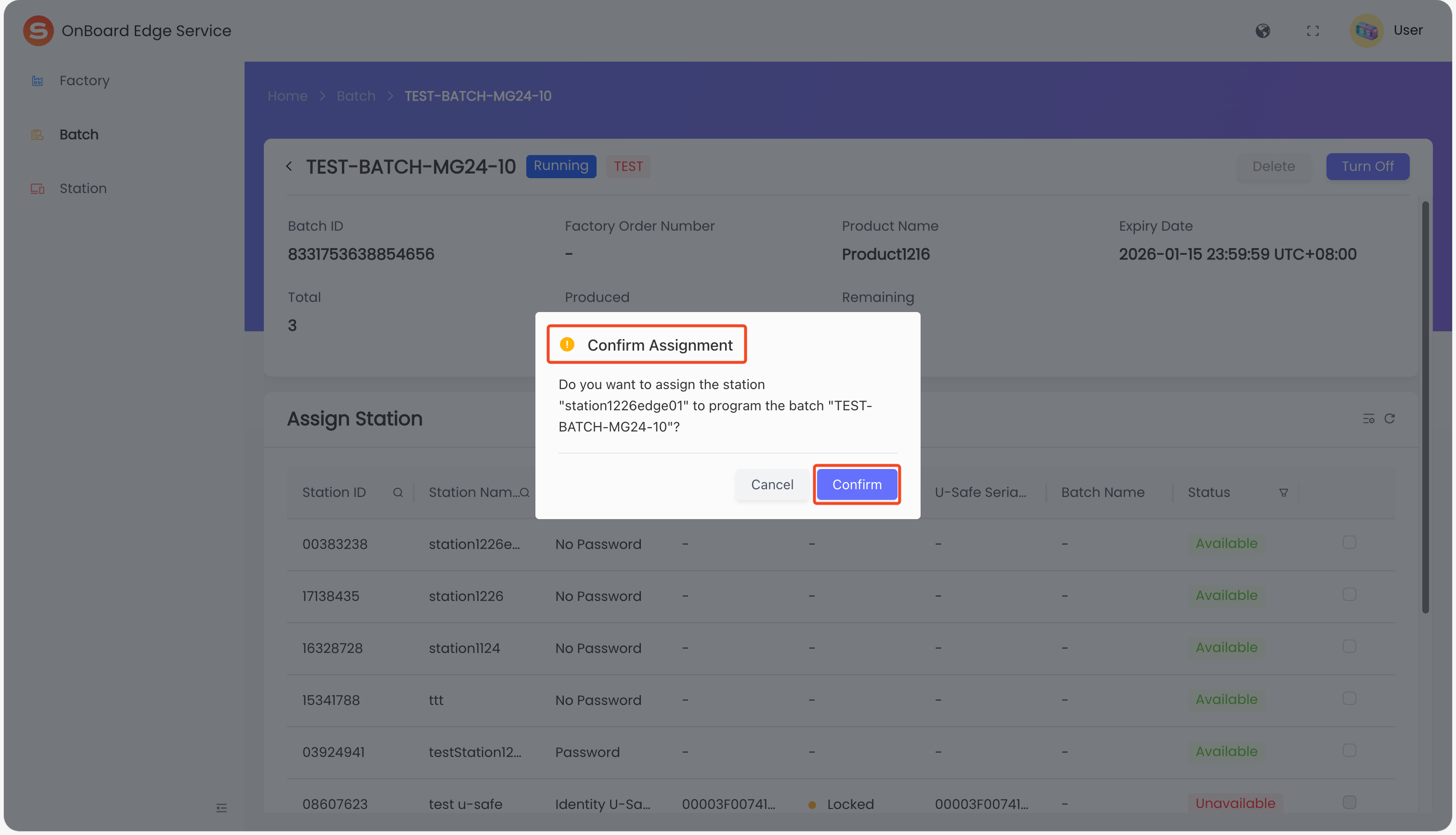
On the batch page, confirm that the batch status is Running, and then select the programming station with the Available status for assignment.
-
In the Confirm Assignment window, click Confirm to complete the assignment of the programming station. After the assignment, the programming station status will change to Busy.
Unassign a programming station from a batch
After unassignment, the corresponding programming station can no longer be used for programming this batch.
-
Sign in to OnBoard Edge Service.
-
In the left menu, click Batch, and then select the corresponding batch to navigate to the batch page.
-
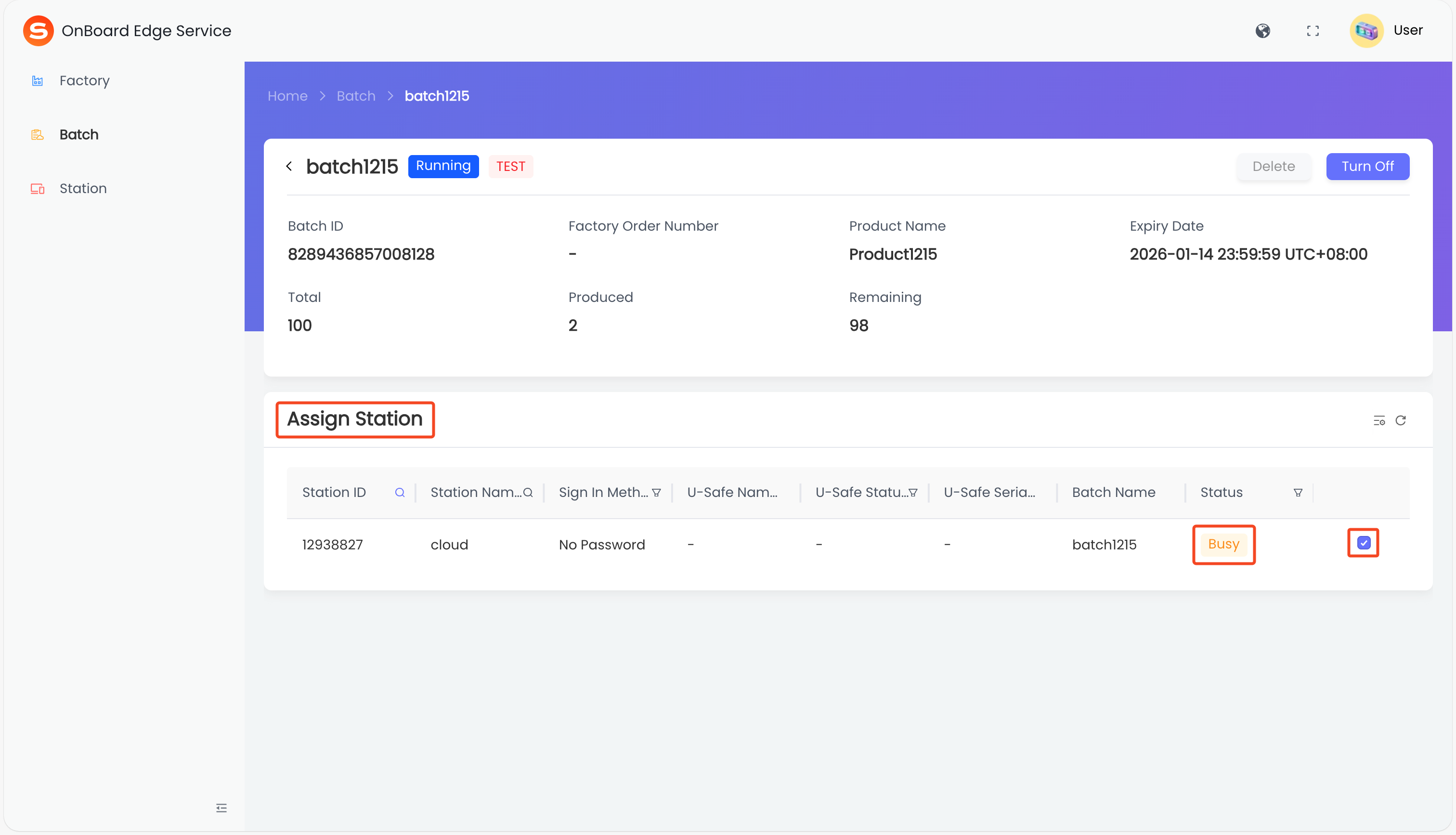
In the Assign Station section of the batch page, find the corresponding batch and uncheck the programming station with the Busy status.
-
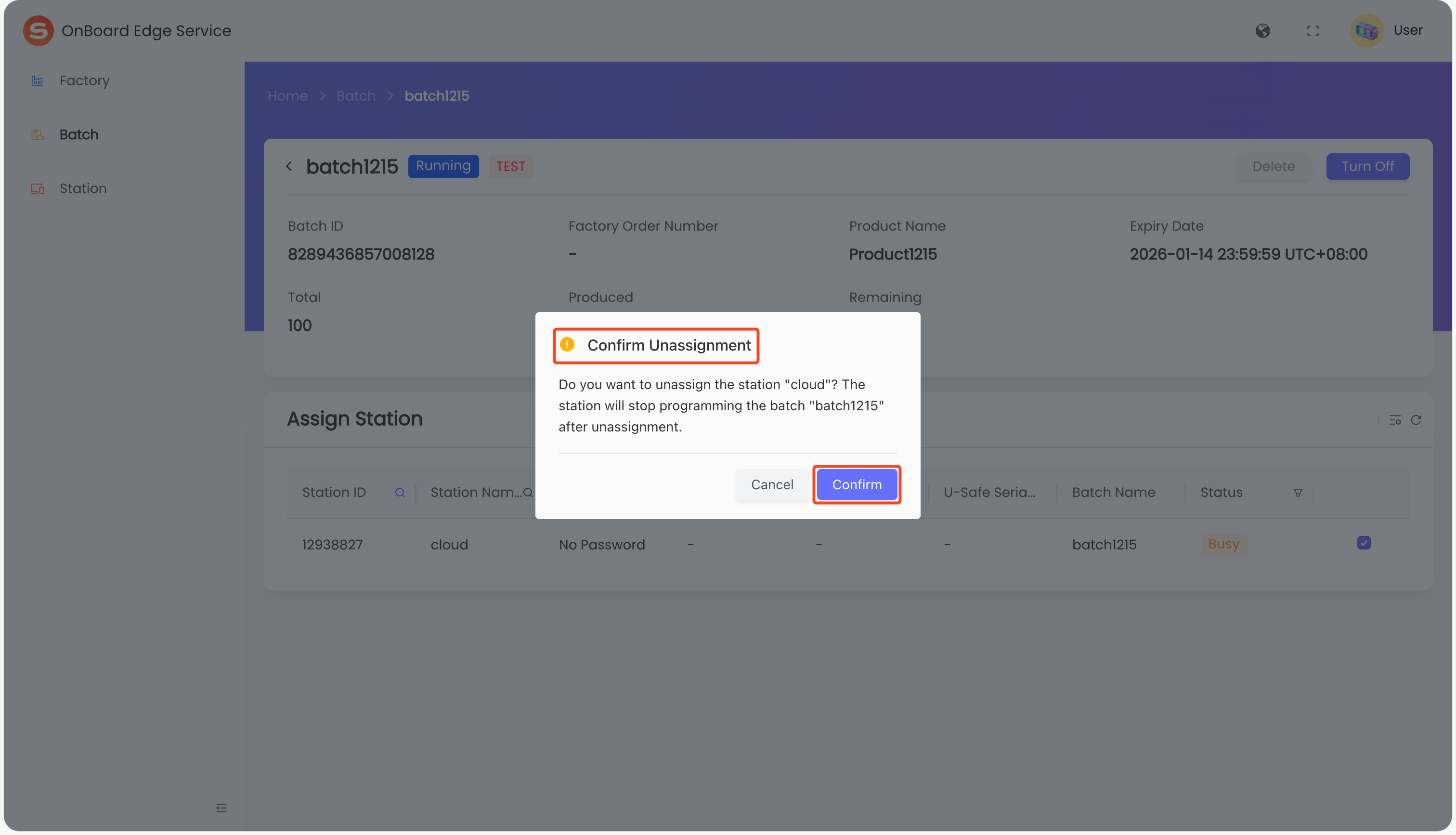
In the Confirm Unassignment window, click Confirm to complete the unassignment of the programming station. After unassignment, the programming station status will change to Available.
Turn off or delete a batch
After a batch is deleted, any programming stations assigned to that batch will be automatically unassigned.
-
Sign in to OnBoard Edge Service.
-
In the left menu, click Batch, and then select the corresponding batch to navigate to the batch page.
-
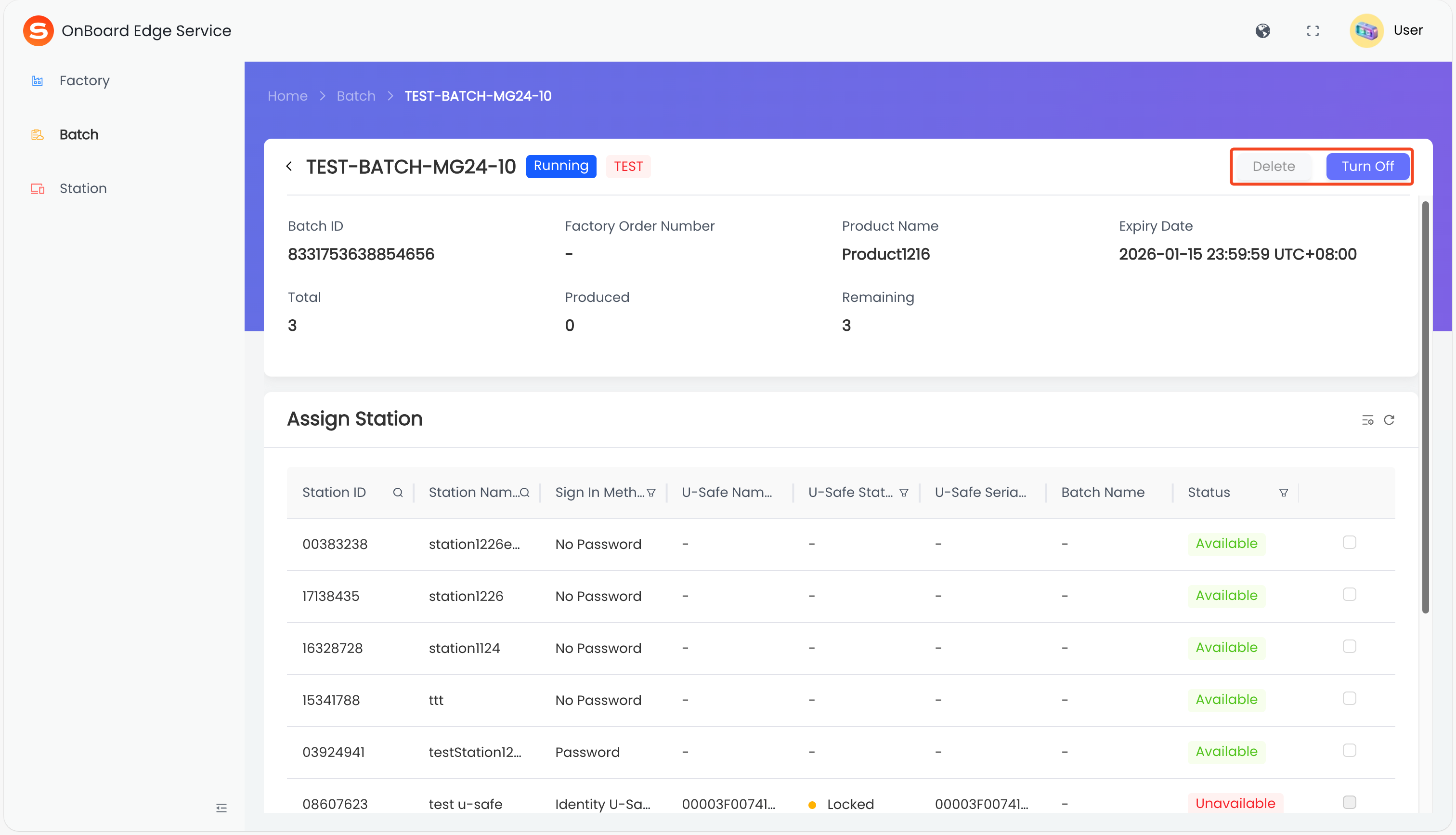
On the batch page, click Turn Off or Delete.
tipIf the Delete button appears grayed out, it is currently unavailable. Please click Turn Off to turn off the batch. Once the batch is in a non-running status, it can be deleted.

 Download User Manual