How to manage a batch and assign a programming station in OnBoard Edge Service
This article will guide you through the following operations in OnBoard™ IoT Security (OBIS):
- Check batch status
- Assign a programming station to a batch
- Unassign a programming station from a batch
- Turn off, turn on or delete a batch
Prerequisites
Before getting started, please ensure that:
- The factory has already been configured.
- You have factory role permissions as a Factory Admin or Factory Manager.
Check batch status
-
Sign in to OBIS.
-
In the Ecosystem section of the left menu, click Factory, and then select the corresponding factory to navigate to the factory page.
-
On the factory page, select the Batch tab, and then you can check the batch status.
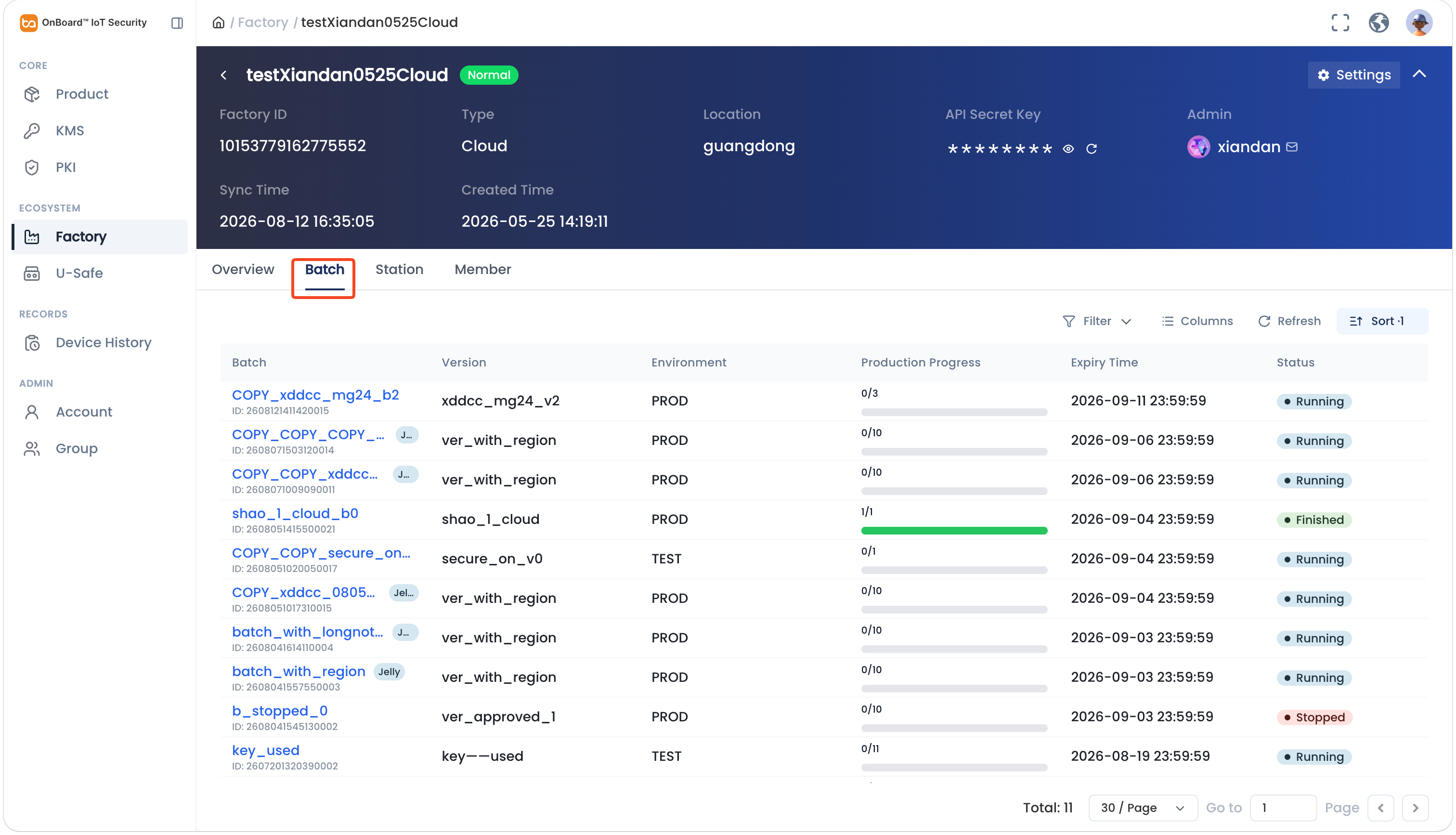
Description of batch status:
Status Can be turned on Description Running - The default state after creating a batch. You can bind it to a programming station. Stopped Yes The batch is currently turned off. You can turn it on to bind it to a programming station. Finished No The status after batch programming is completed. Expired No The batch has expired before the programming was completed.
Note: After a batch expires, most functions related to that batch will no longer operate normally, including programming in the Programming Station client. It is recommended to delete the expired batches.
Assign a programming station to a batch
A batch can be assigned to multiple programming stations, while a programming station can only program one batch at the same time.
Assign a programming station with the Available status to a batch for programming:
-
Sign in to OBIS.
-
In the Ecosystem section of the left menu, click Factory, and then select the corresponding factory to navigate to the factory page.
-
On the factory page, select the Batch tab and click the batch to navigate to the batch page.
-
In the Assign Station section of the batch page, confirm that the batch status is Running, and then select the programming station with the Available status for assignment.
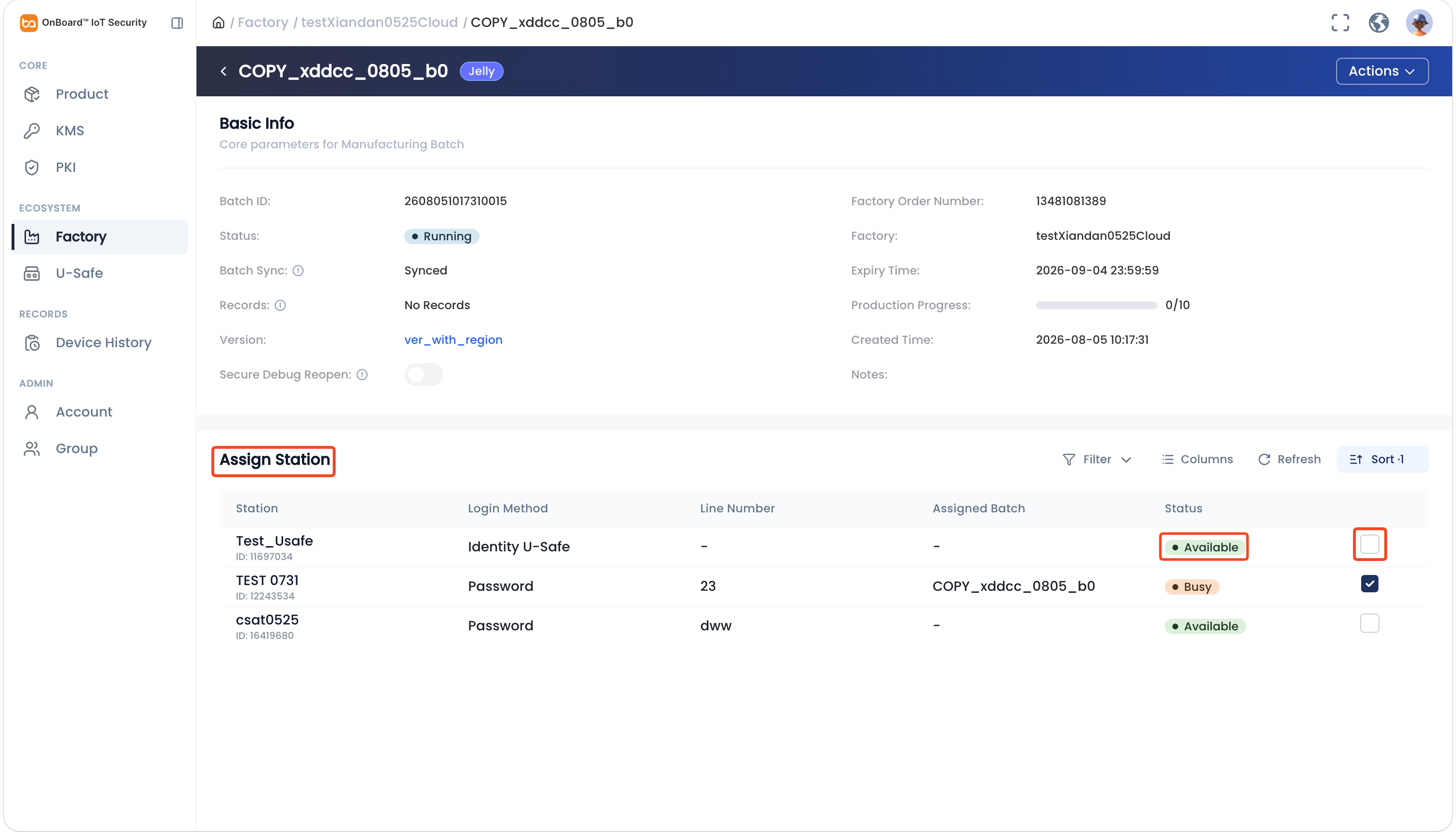
-
In the Confirm Action window, click Confirm to complete the assignment of the programming station. After the assignment, the programming station status will change to Busy.
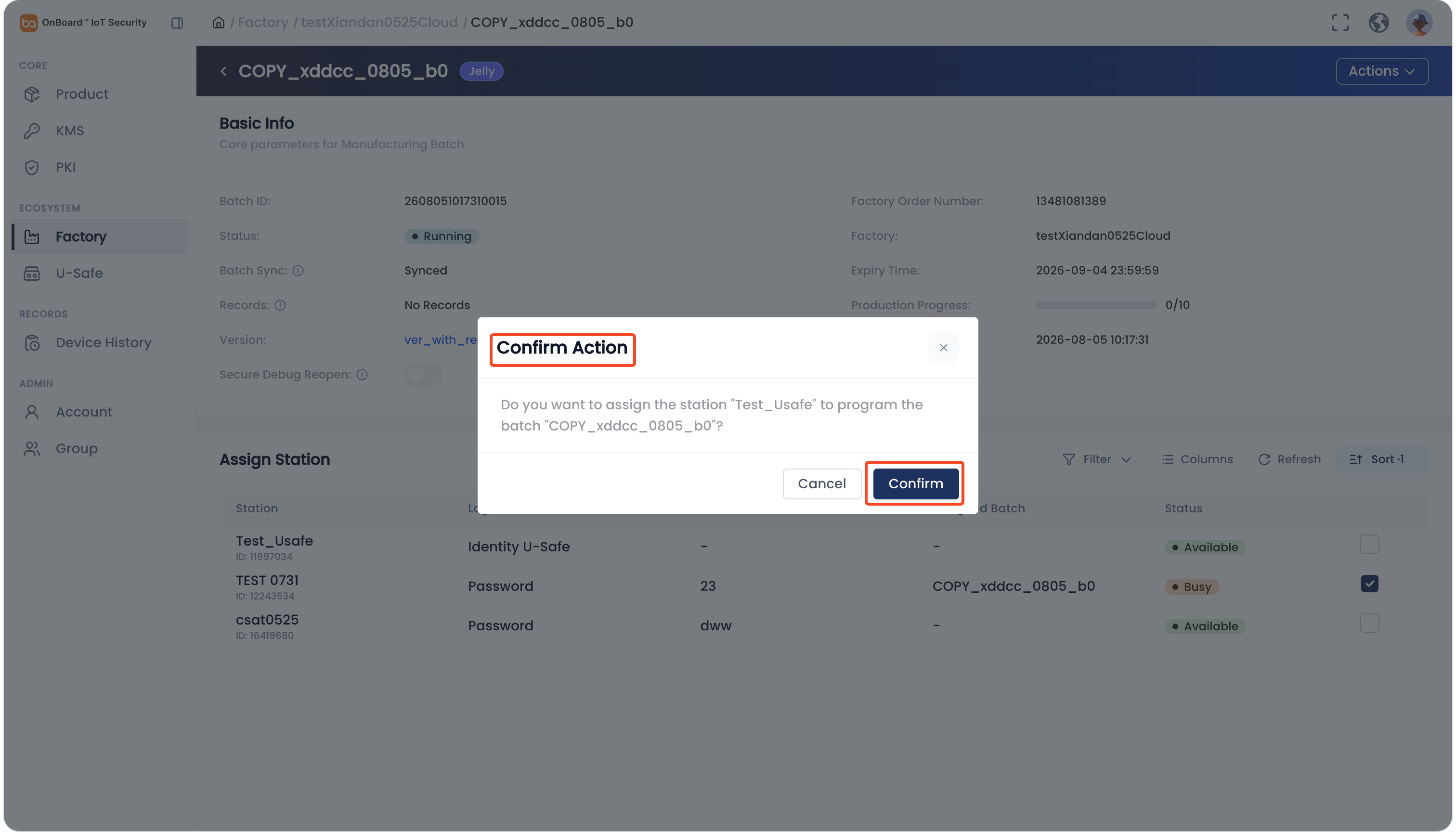
Unassign a programming station from a batch
After unassignment, the corresponding programming station can no longer be used for programming this batch.
-
Sign in to OBIS.
-
In the Ecosystem section of the left menu, click Factory, and then select the corresponding factory to navigate to the factory page.
-
On the factory page, select the Batch tab and click the batch to navigate to the batch page.
-
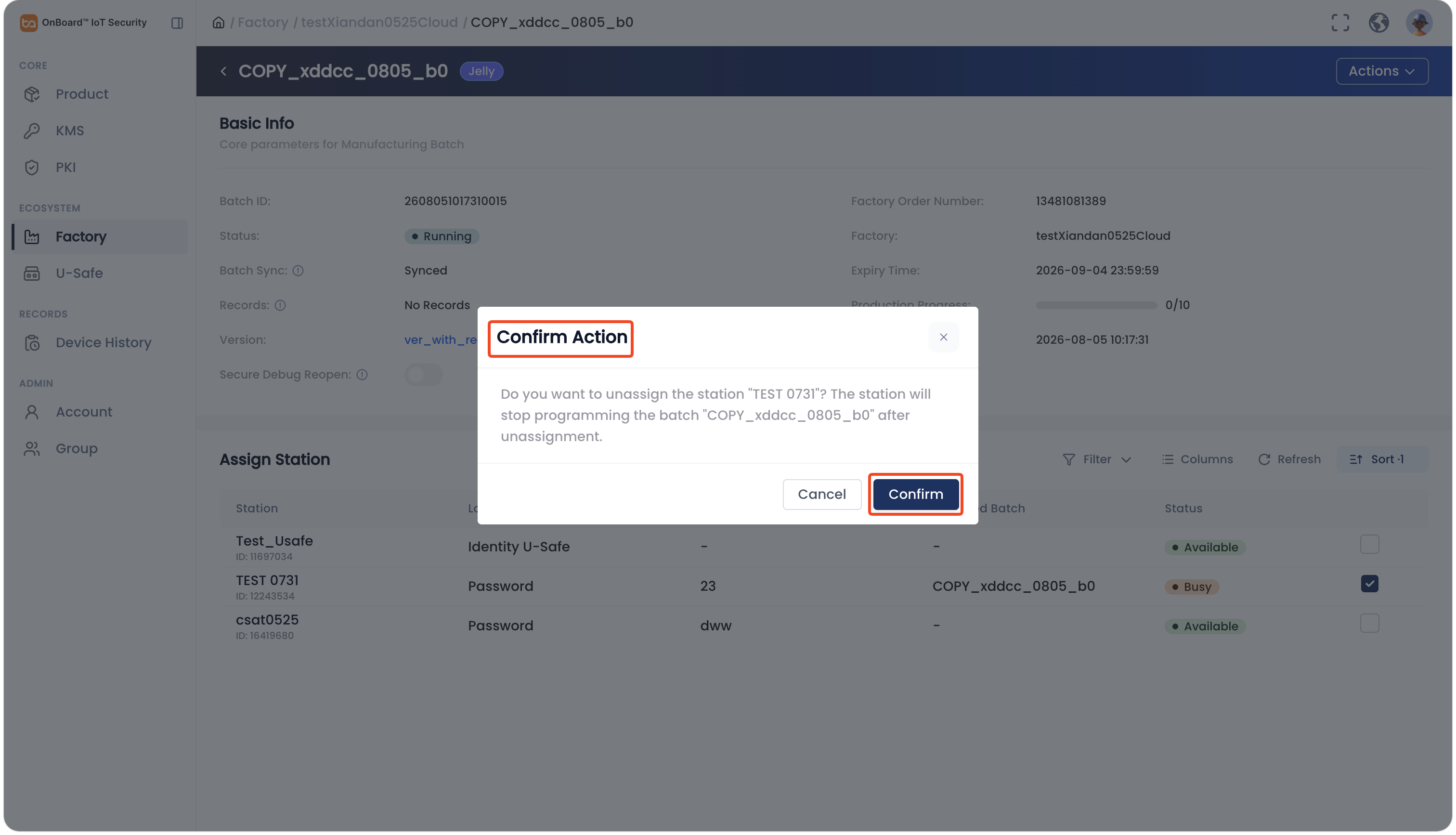
In the Assign Station section of the batch page, find the corresponding batch and uncheck the programming station with the Busy status.
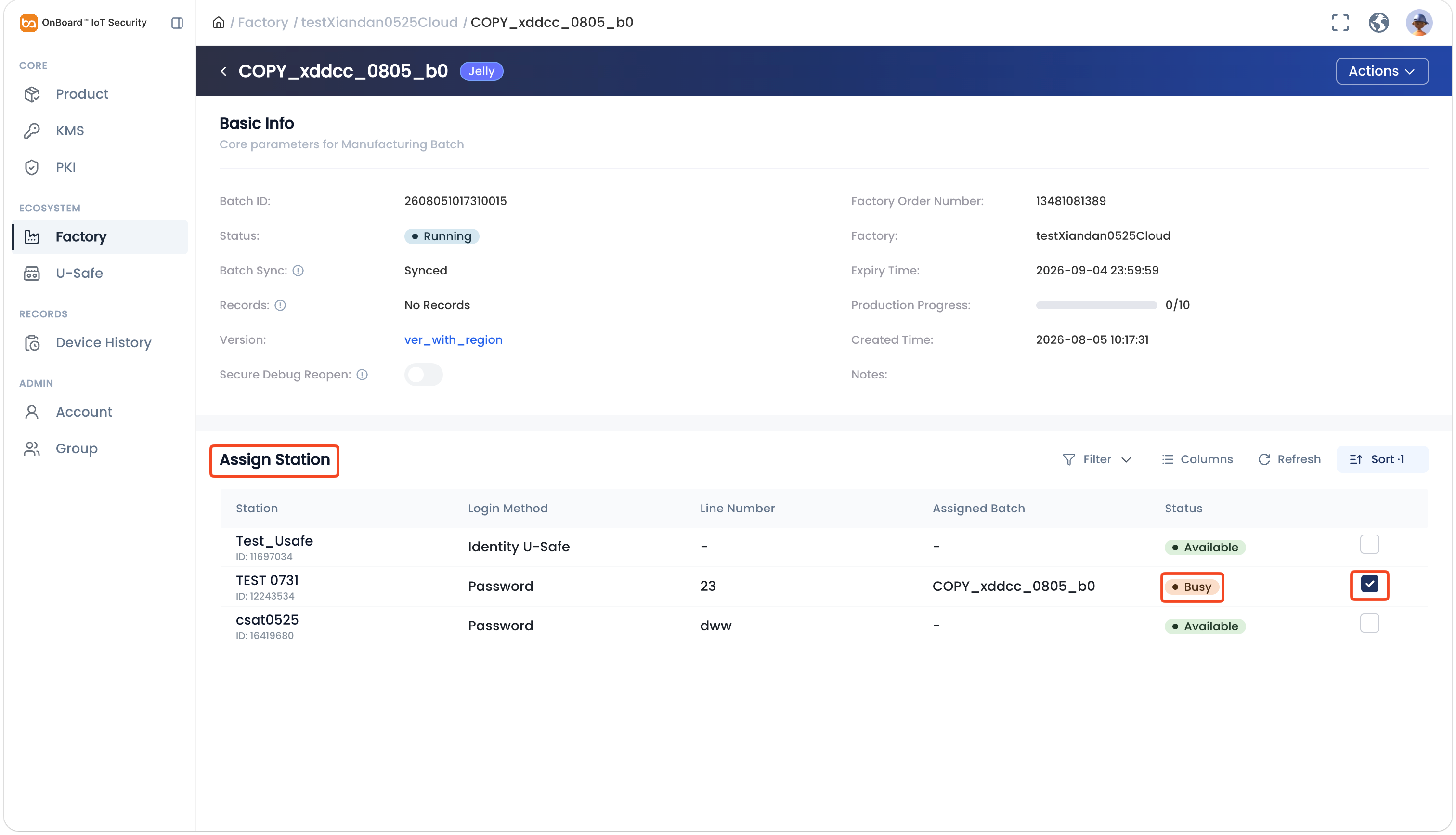
-
In the Confirm Action window, click Confirm to complete the unassignment of the programming station. After unassignment, the programming station status will change to Available.
Turn off, turn on or delete a batch
After a batch is deleted, any programming stations assigned to that batch will be automatically unassigned.
-
Sign in to OBIS.
-
In the Ecosystem section of the left menu, click Factory, and then select the corresponding factory to navigate to the factory page.
-
On the factory page, select the Batch tab and click the batch to navigate to the batch page.
-
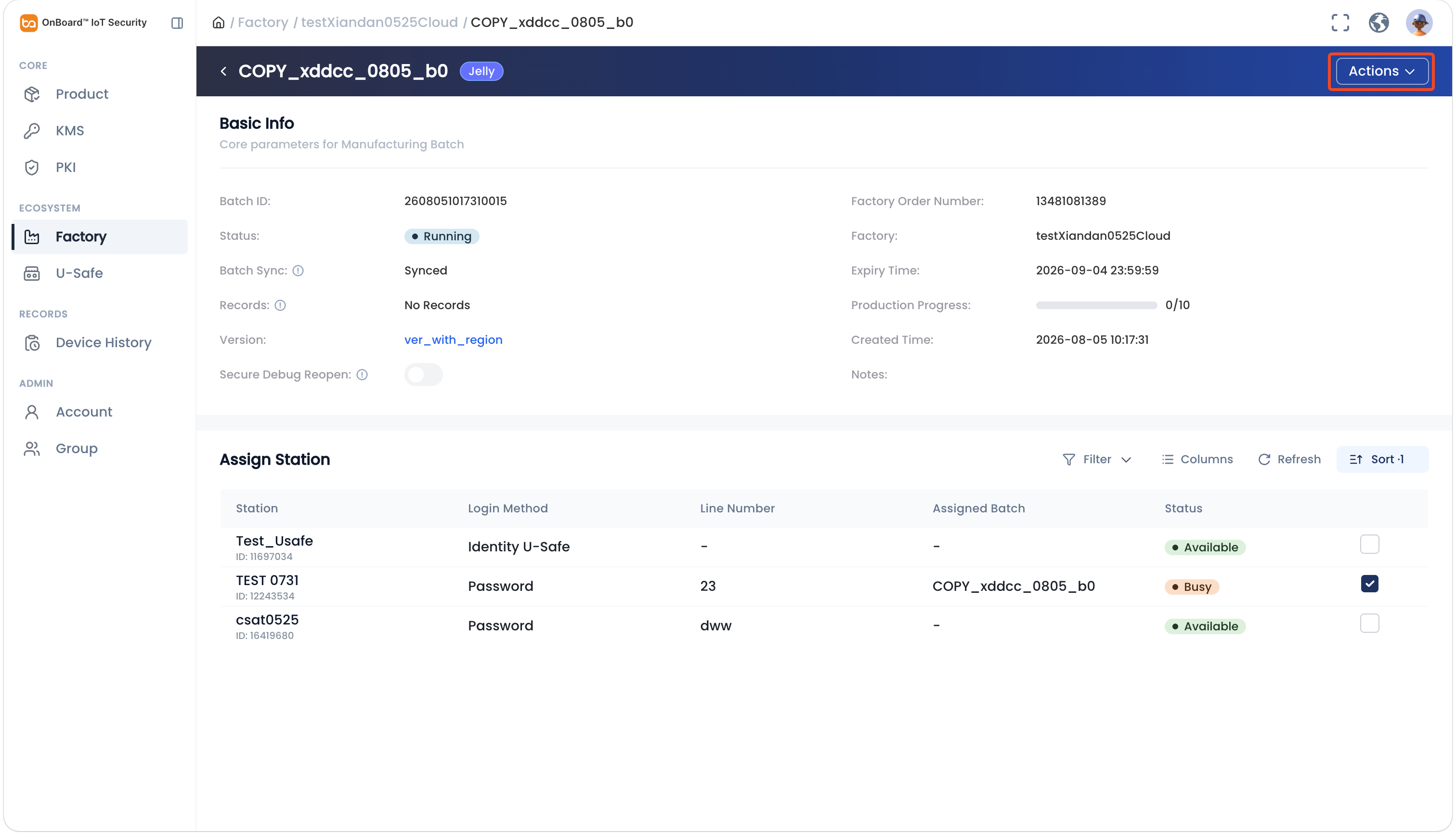
On the batch page, click Actions and then select Turn Off, Turn On or Delete.
tipA batch can only be deleted when it is in a non-running status.

 Download User Manual