How to sign in to Programming Station
Currently, the Programming Station client is available only on Windows.
This article will guide you on how to sign in to the Programming Station client using either the "No Password", "Password", or "Identity U-Safe" method.
Prerequisites
Before getting started, please ensure that:
- A programming station has been added in OnBoard™ IoT Security (OBIS) (local factory & cloud factory) or OnBoard Edge Service.
- The Programming Station client has been installed.
Local factory
Please ensure that you have contacted Snowball for assistance with the deployment of OnBoard Edge Service, and that your sign-in device is within the factory service intranet environment.
Method one: No Password
-
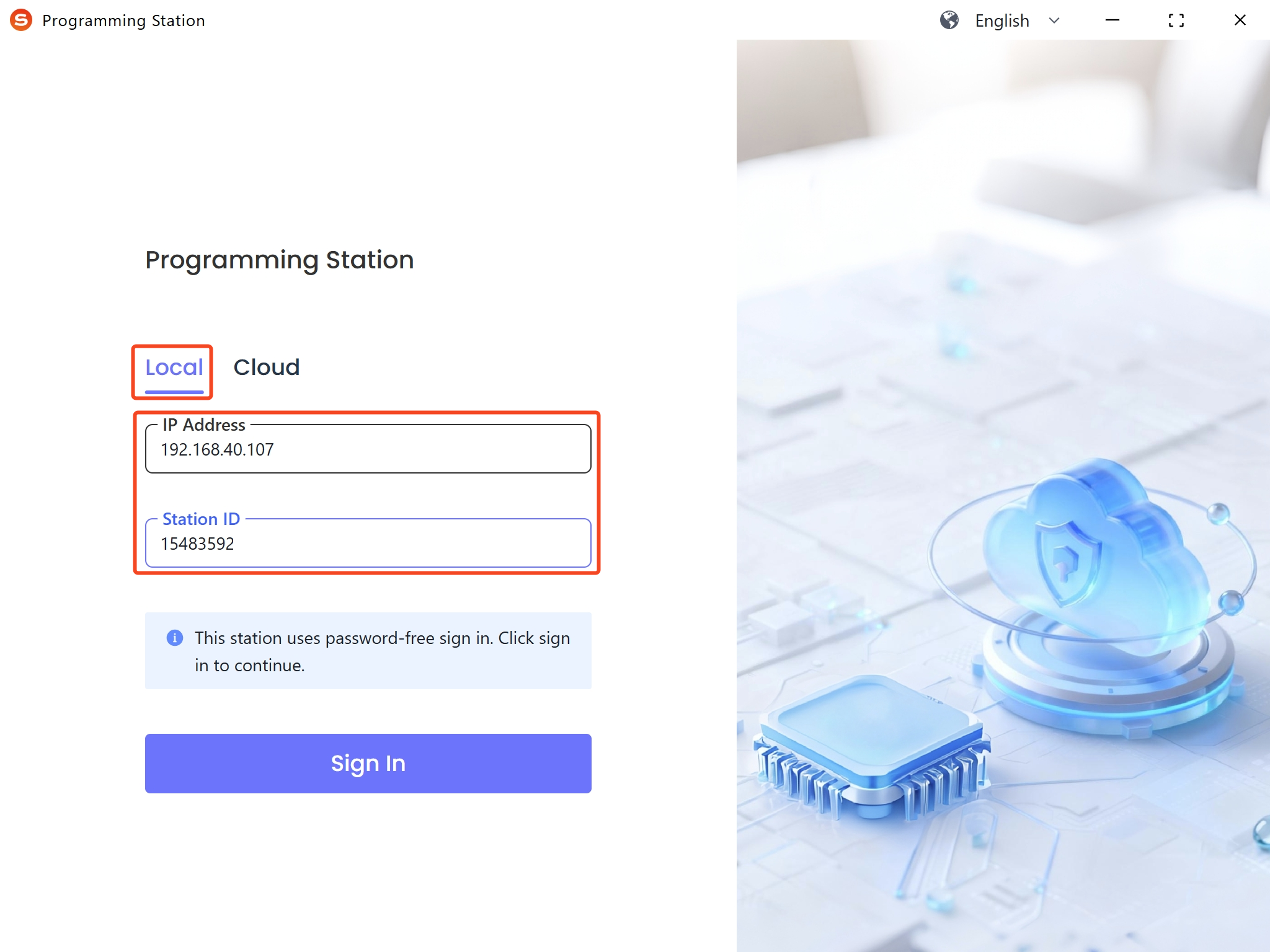
Start the Programming Station client, and then select Local.
-
Enter the IP address (for example, 192.168.0.1) in the IP Address field. For more information, refer to how to check service address.
-
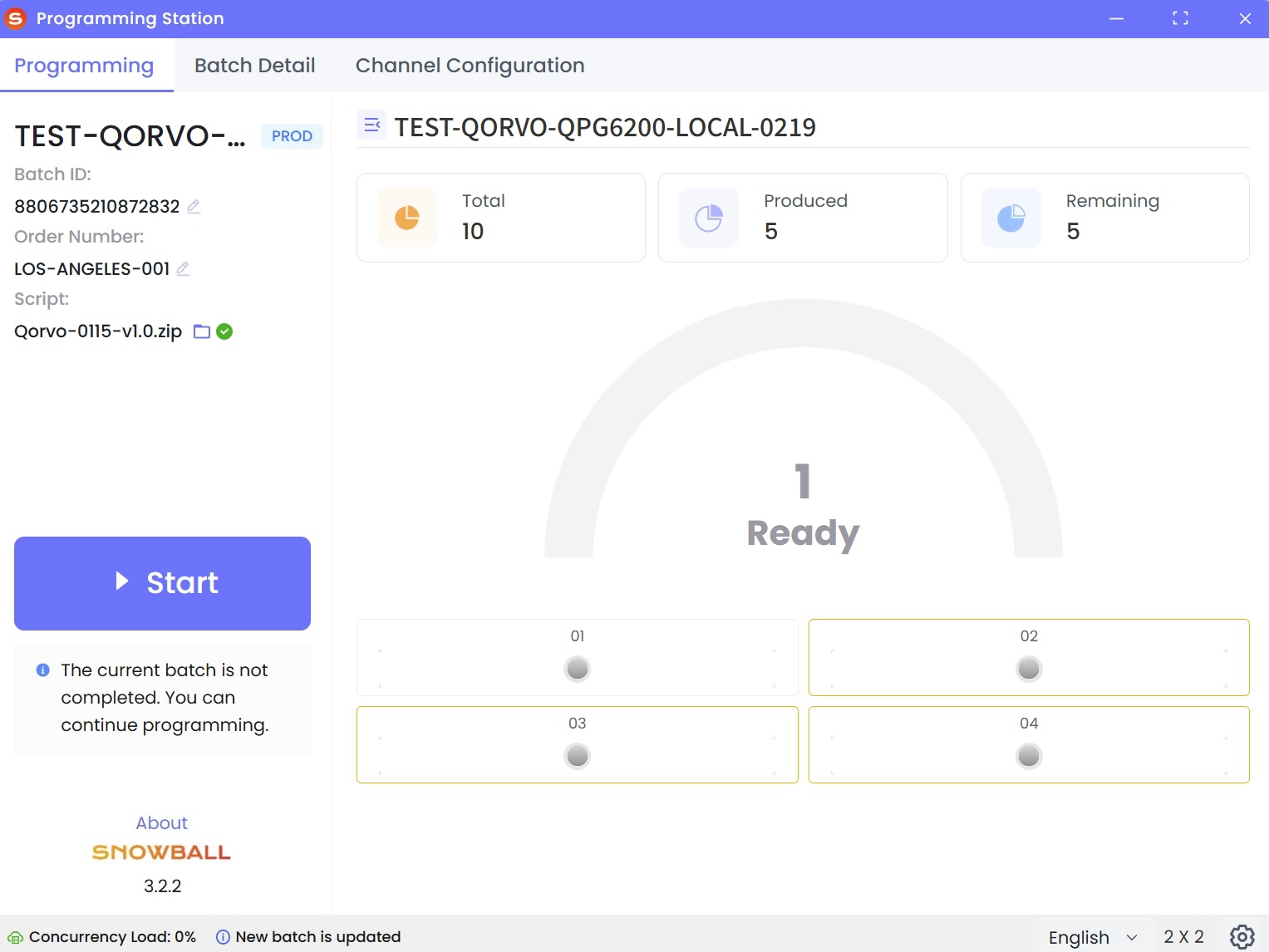
Enter the corresponding programming station ID and then click Sign In. Once signed in, the page will navigate to the main window of the Programming Station client.
Method two: Password
The initial sign-in password is randomly generated by the system after a programming station is added to the factory. You can check the sign-in password in OBIS or OnBoard Edge Service. Currently, the randomly generated password can't be changed.
-
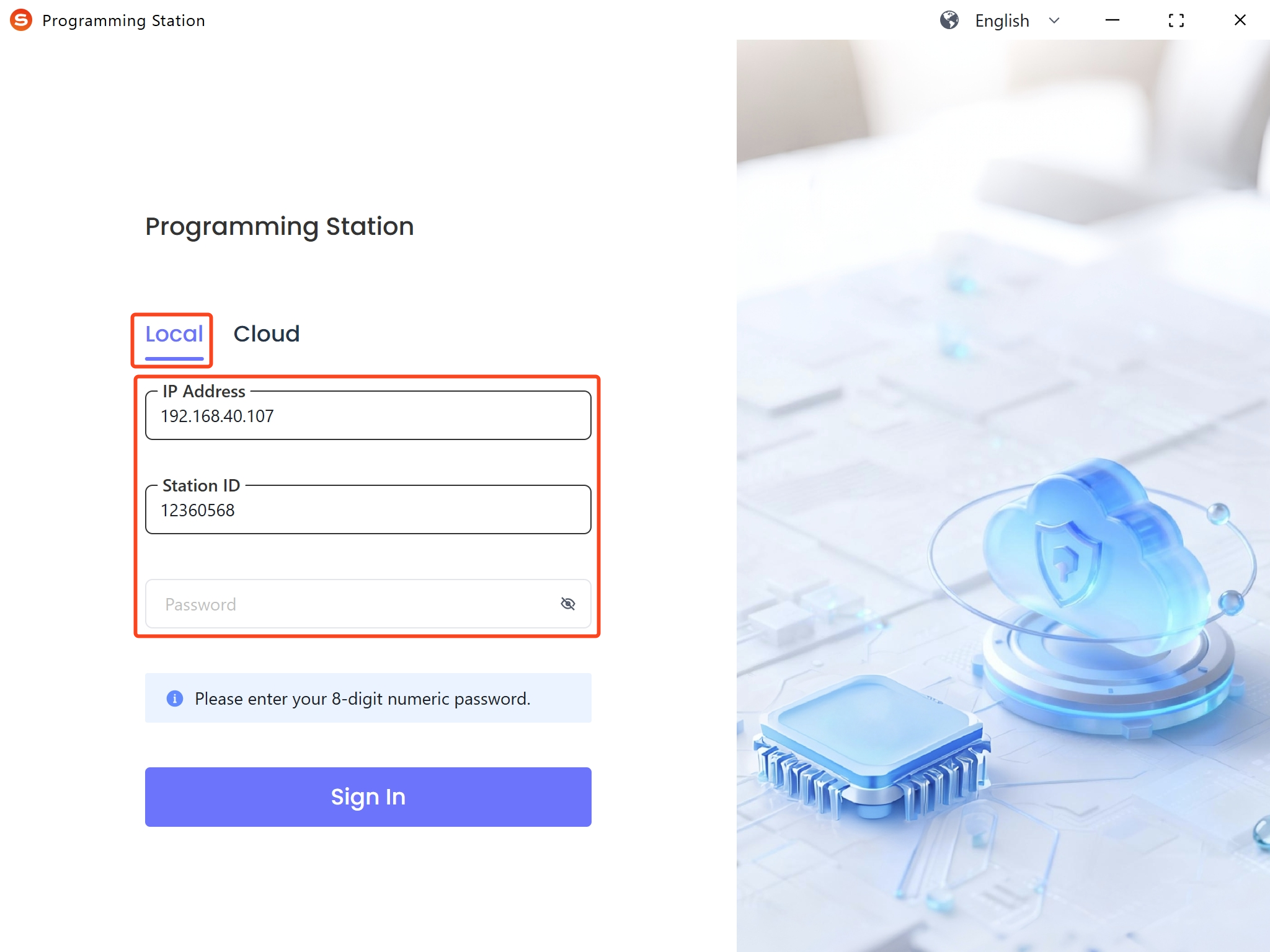
Start the Programming Station client, and then select Local.
-
Enter the IP address (for example, 192.168.0.1) in the IP Address field. For more information, refer to how to check service address.
-
Enter the corresponding programming station ID and password, and then click Sign In. Once signed in, the page will navigate to the main window of the Programming Station client.
Method three: Identity U-Safe
When signing in using the Identity U-Safe method, you need to obtain the Identity U-Safe used for identity authentication from Snowball, and insert the corresponding Identity U-Safe (added during factory configuration) into the device that has installed the Programming Station client. After insertion, if the Identify U-Safe is already bound to the programming station, the client will recognize the station ID.
Only one Identify U-Safe can be inserted at a time; otherwise, sign-in will fail.
-
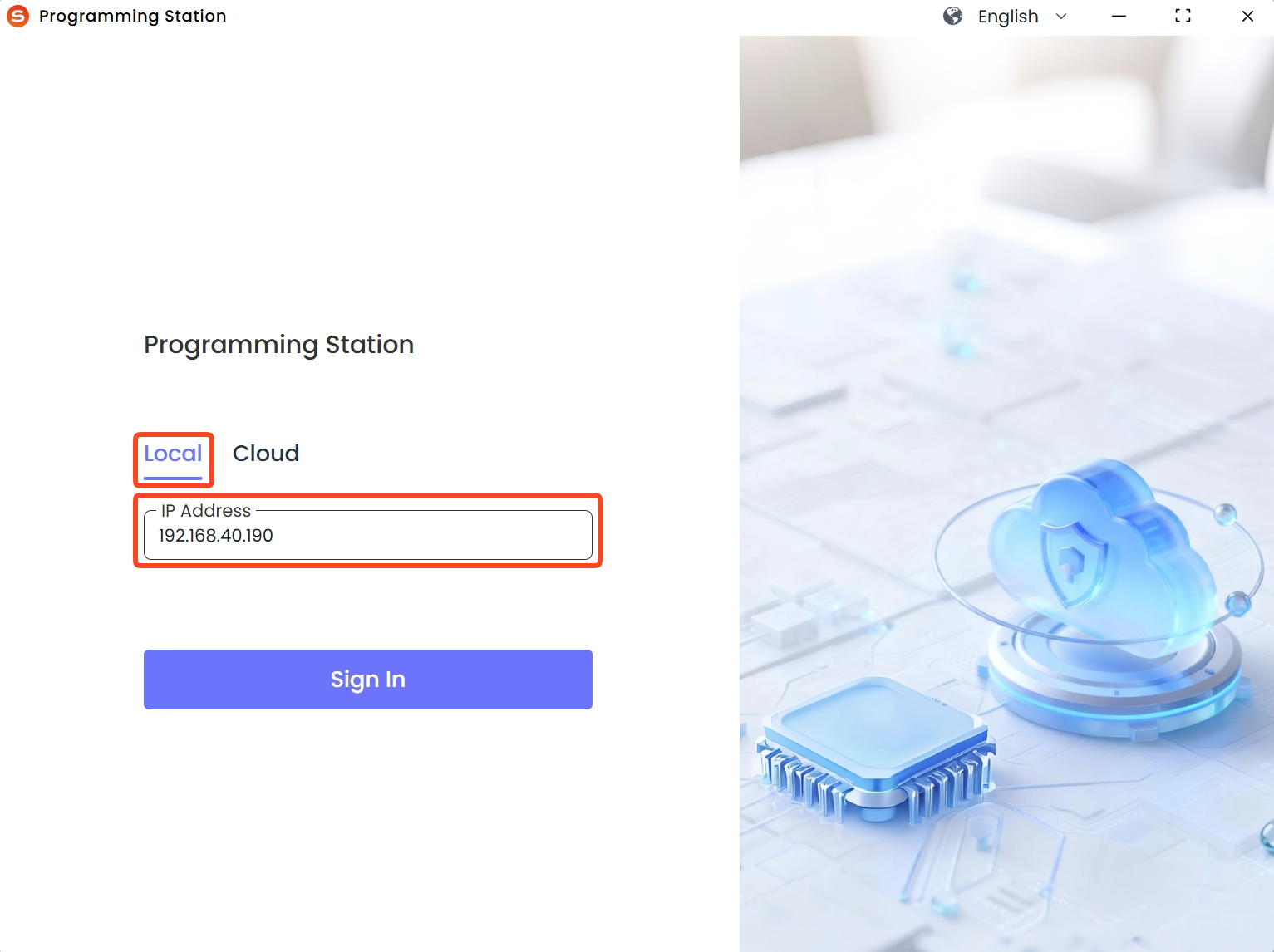
Start the Programming Station client, then select Local and insert the Identity U-Safe.
-
Enter the IP address (for example, 192.168.0.1) in the IP Address field. For more information, refer to how to check service address.
-
Click Sign In. Once signed in, the page will navigate to the main window of the Programming Station client.
Cloud factory
Method one: Password
The initial sign-in password is randomly generated by the system after a programming station is added to the factory. You can check the sign-in password in OBIS. Currently, the randomly generated password can't be changed.
-
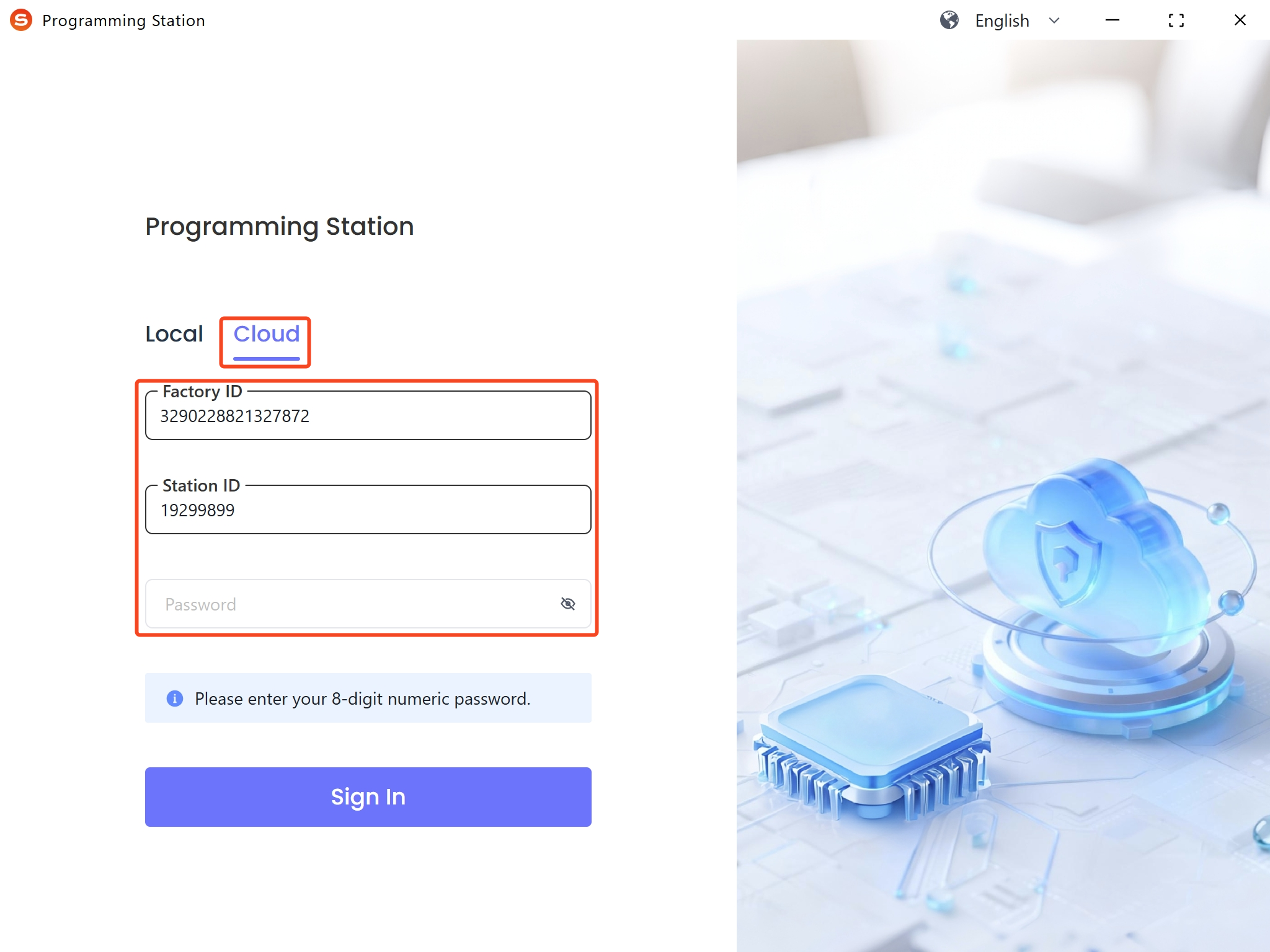
Start the Programming Station client, select Cloud, and then enter the corresponding factory ID.
-
Enter the corresponding programming station ID and password, and then click Sign In. Once signed in, the page will navigate to the main window of the Programming Station client.
Method two: Identity U-Safe
When signing in using the Identity U-Safe method, you need to obtain the Identity U-Safe used for identity authentication from Snowball, and insert the corresponding Identity U-Safe (added during factory configuration) into the device that has installed the Programming Station client. After insertion, if the Identify U-Safe is already bound to the programming station, the client will recognize the station ID.
Only one Identify U-Safe can be inserted at a time; otherwise, sign-in will fail.
-
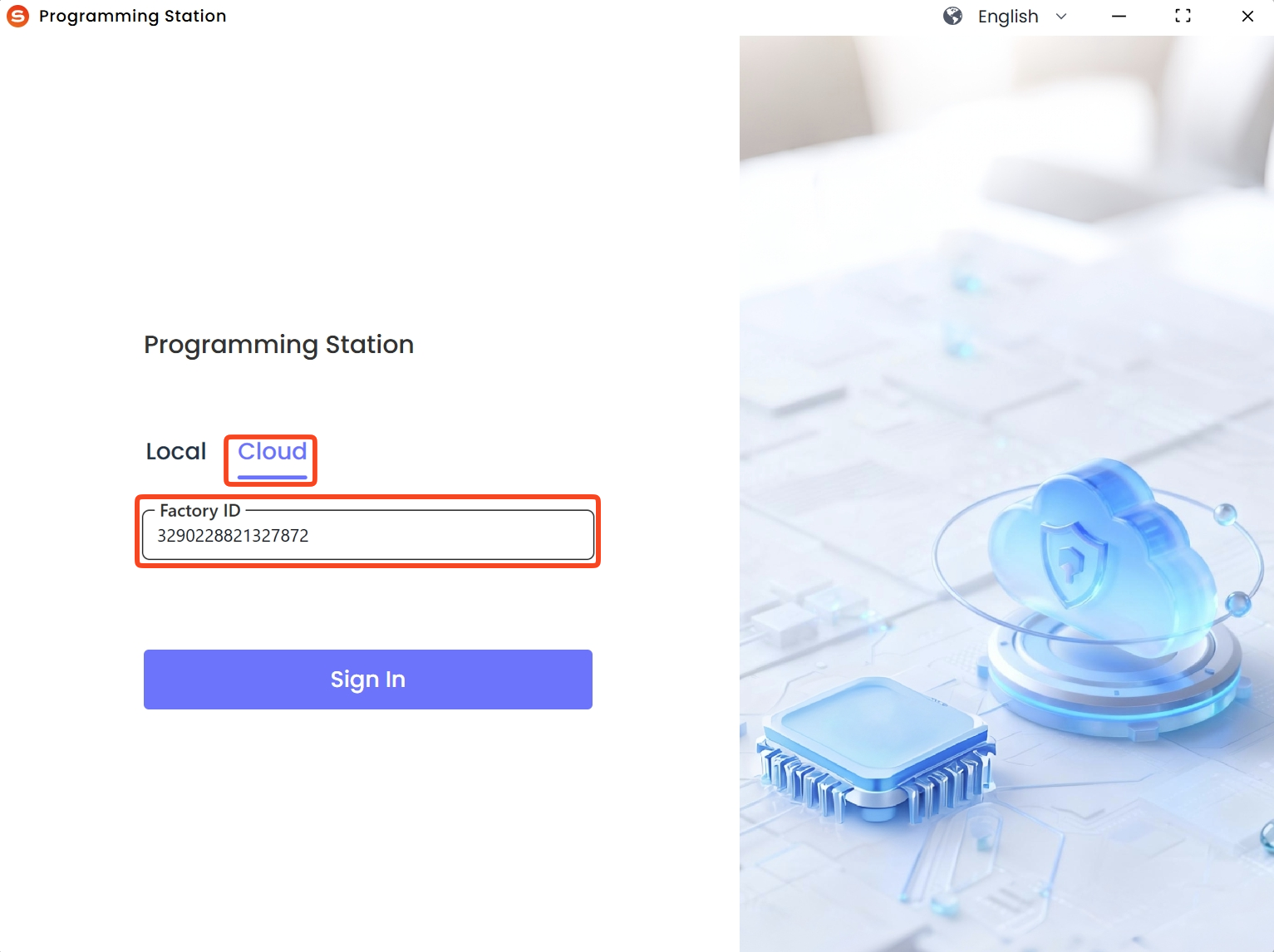
Start the Programming Station client, select Cloud, then enter the corresponding factory ID and insert the Identity U-Safe.
-
Click Sign In. Once signed in, the page will navigate to the main window of the Programming Station client.

 Download User Manual