How to configure and manage programming stations in OnBoard™ IoT Security
This article will guide you through the following operations in OnBoard™ IoT Security (OBIS):
- Create a programming station
- Bind an Identity U-Safe to a programming station
- Unbind an Identity U-Safe from a programming station
- Edit a programming station
- Delete a programming station
- Check the programming station password
Prerequisites
Before getting started, please ensure that:
- The factory has already been configured.
- You have factory role permissions as a Factory Admin or Factory Manager.
- You have obtained the Identity U-Safe for identity authentication from Snowball.
Create a programming station
After creating a programming station for the factory, you can assign specific programming stations to batches as needed. Before programming a device, it is necessary to query and retrieve the corresponding batch information and programming data based on the programming station ID.
Two programming methods are supported:
- Using the Programming Station client
- Using the OBIS Programming CLI
-
Sign in to OBIS.
-
In the Ecosystem section of the left menu, click Factory, and then select the corresponding factory to navigate to the factory page.
-
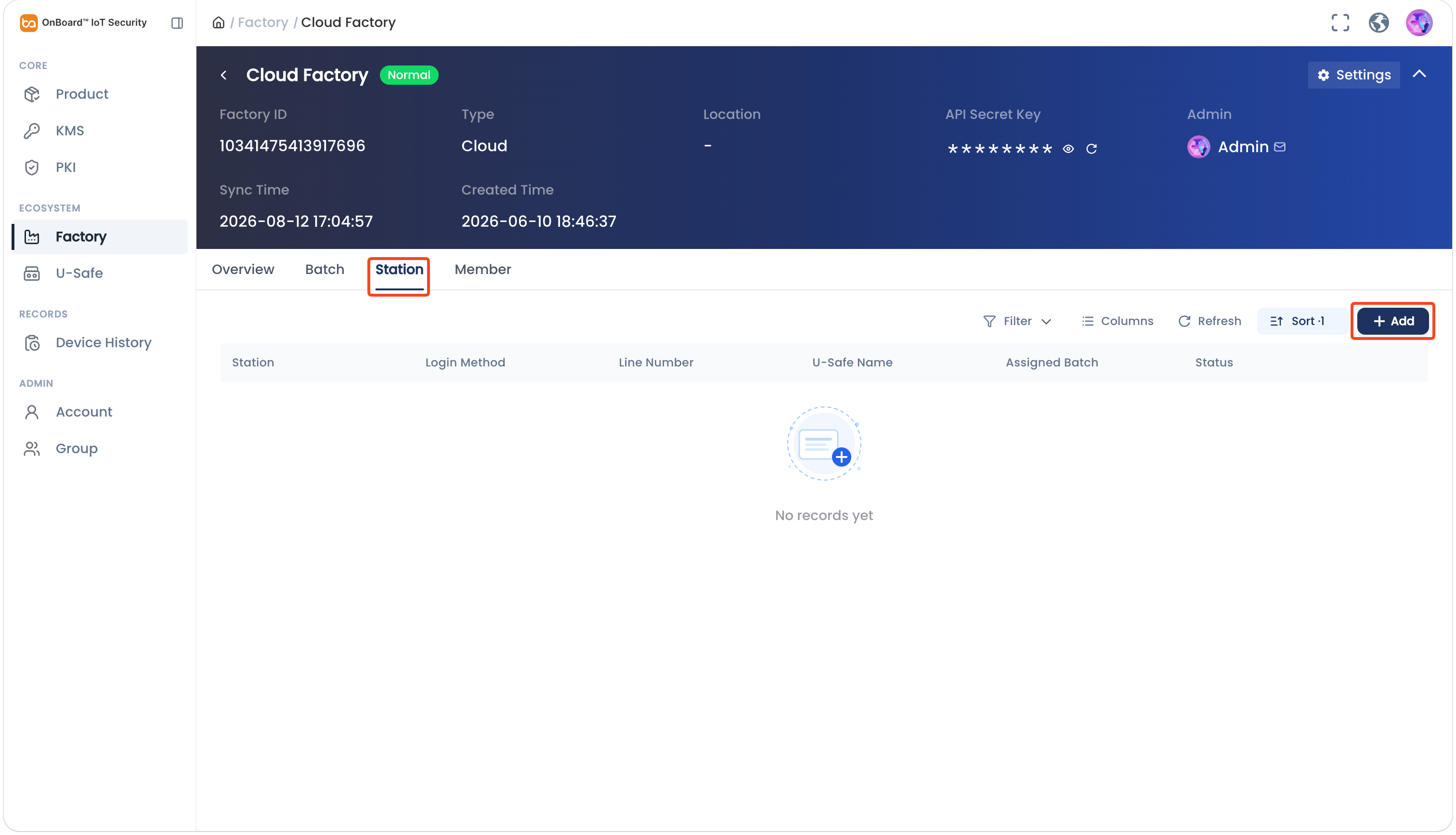
On the factory page, select the Station tab, and then click Add.
-
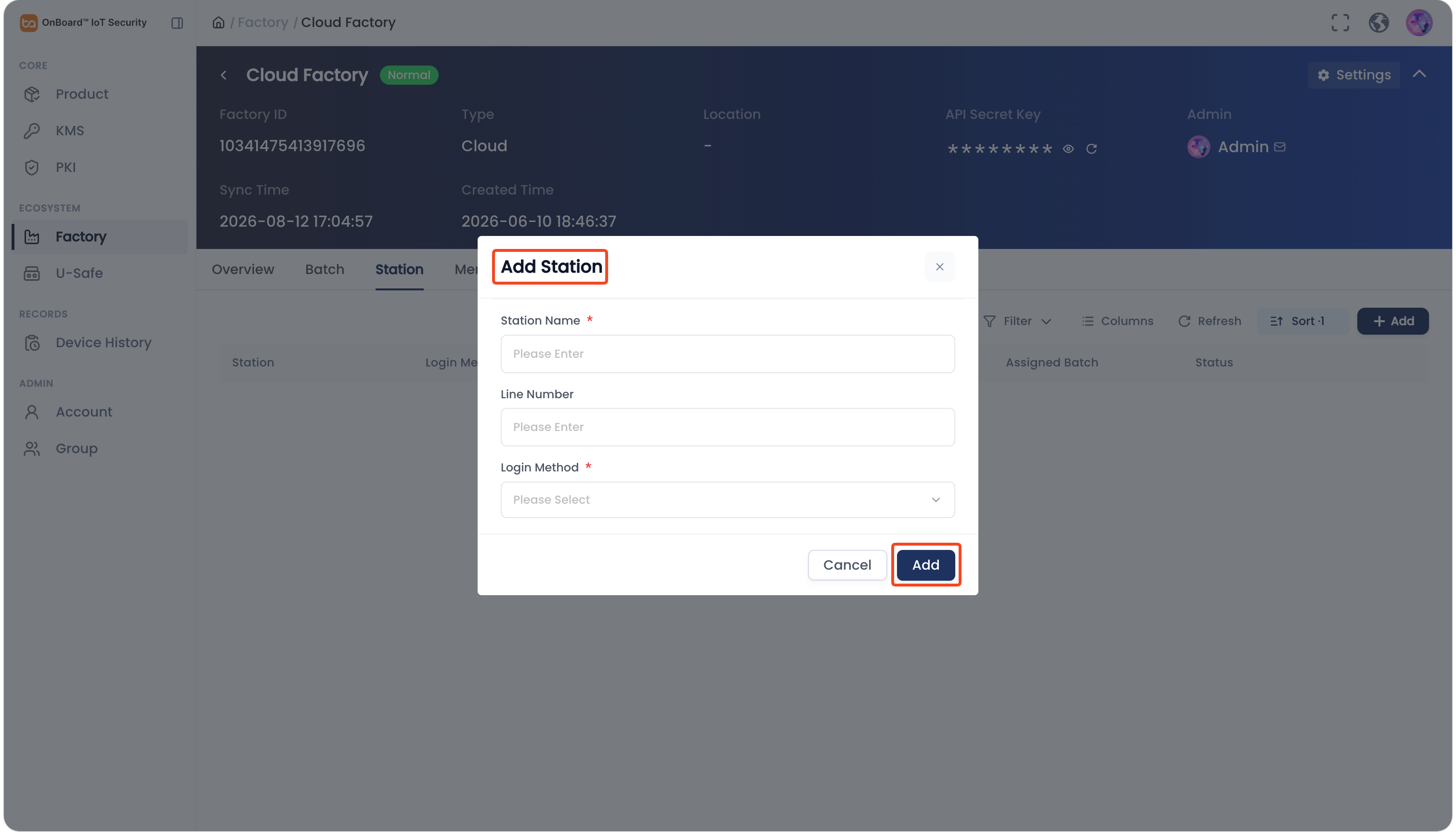
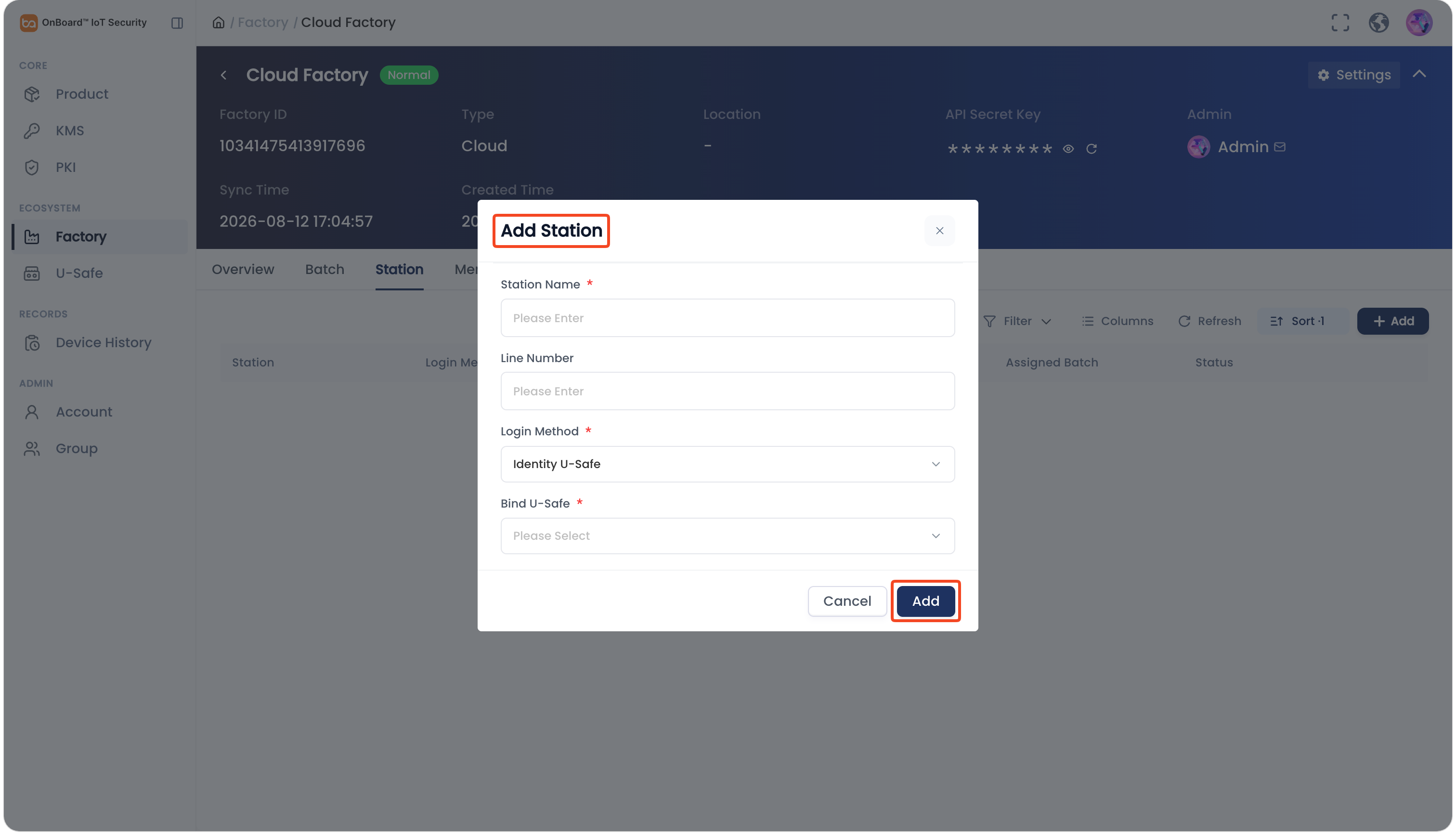
In the Add Station window, enter the Station Name and Line Number, and then select the Login Method. The methods include: Password or Identity U-Safe.
 tip
If the login method is Identity U-Safe, you can select an already added Identity U-Safe from the Bind U-Safe drop-down list to bind it.
-
Click Add to create the programming station.
Bind an Identity U-Safe to a programming station
You can use the Identity U-Safe to sign in to the Programming Station client after binding.
-
Sign in to OBIS.
-
In the Ecosystem section of the left menu, click Factory, and then select the corresponding factory to navigate to the factory page.
-
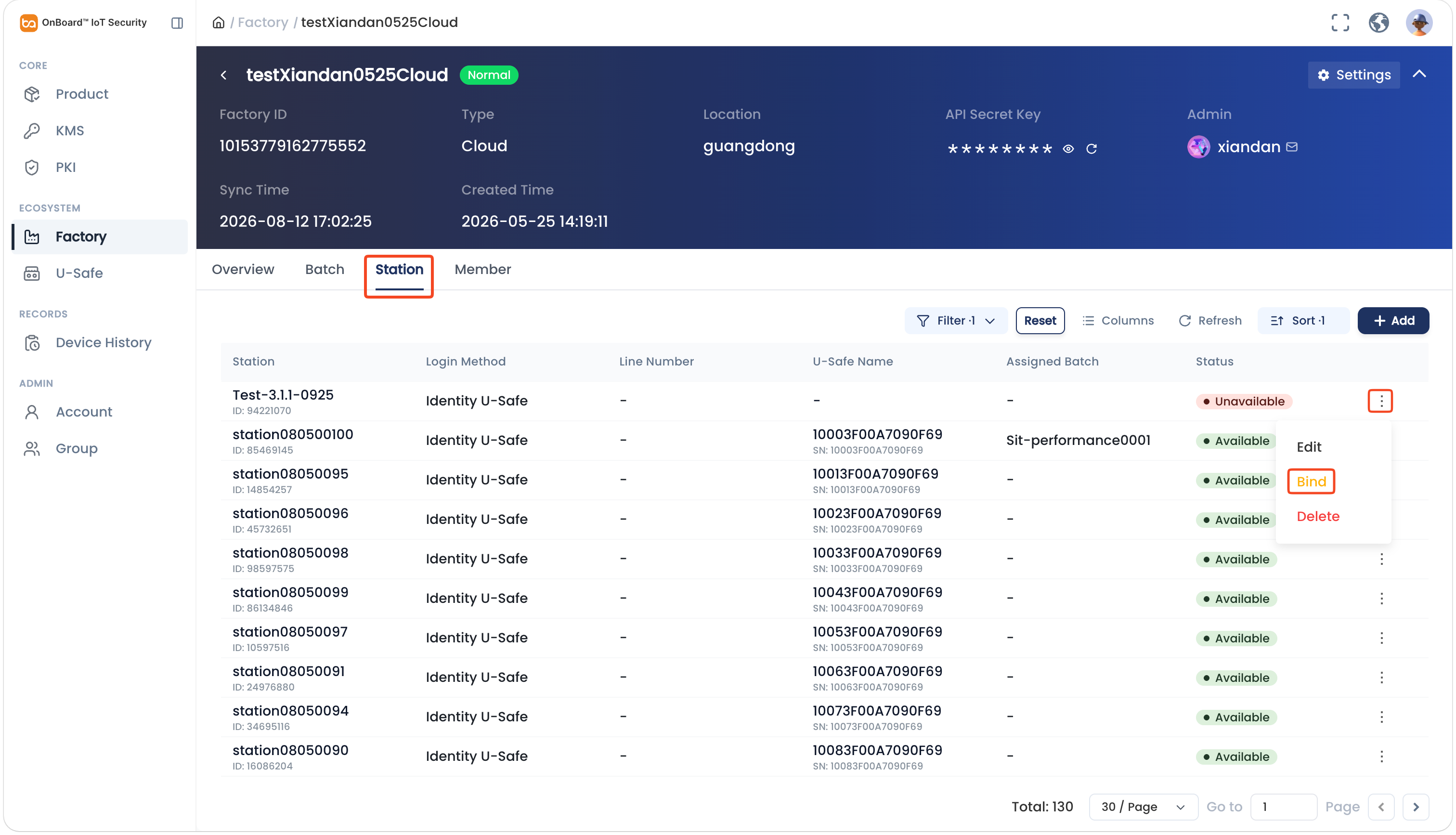
On the factory page, select the Station tab, and then click the Options
 icon for the corresponding programming station and select Bind.
-
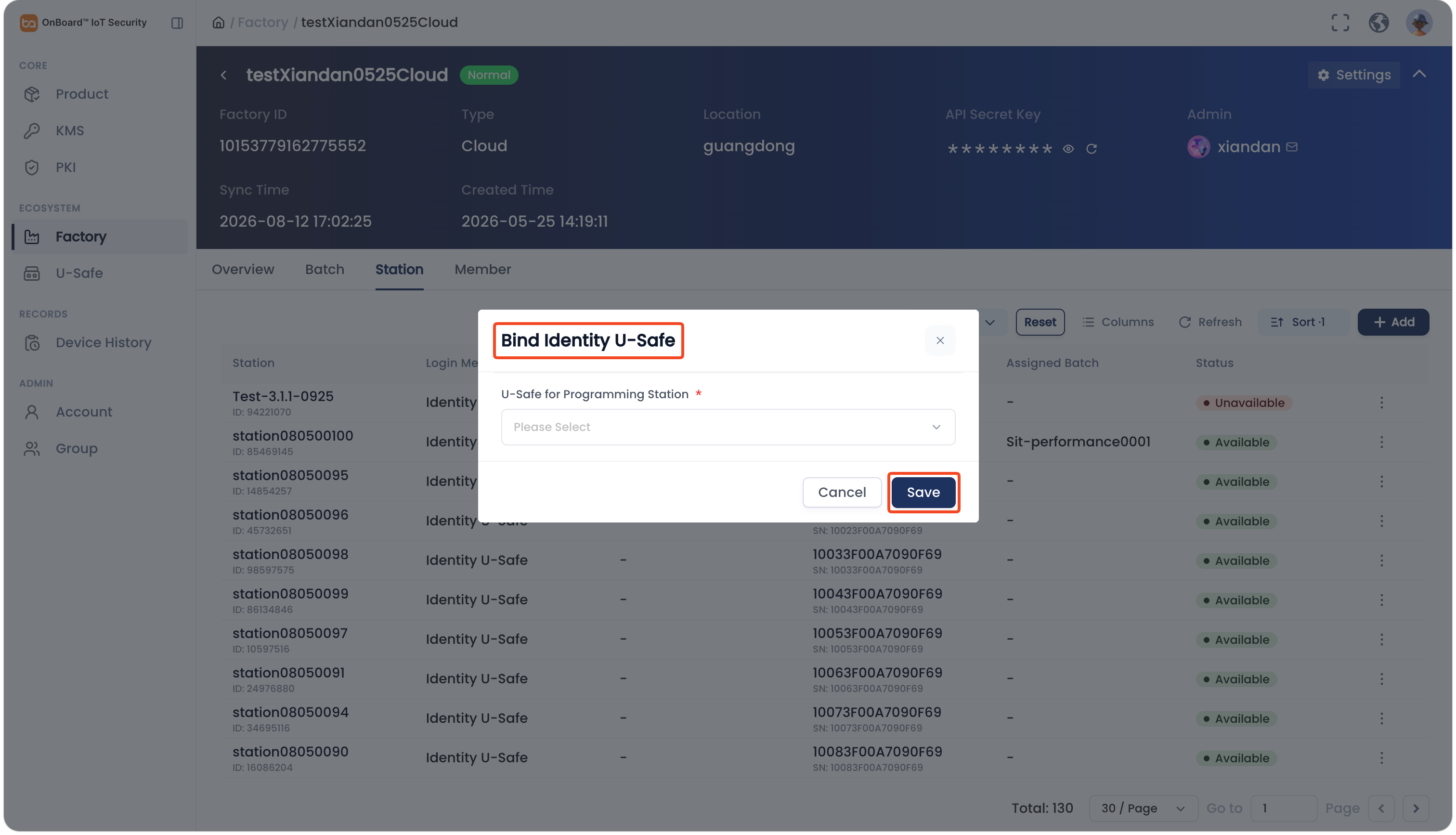
In the Bind Identity U-Safe window, select the Identity U-Safe you want to bind and then click Add to bind it to the programming station.
Unbind an Identity U-Safe from a programming station
After unbinding, the Identity U-Safe can no longer be used to sign in to the Programming Station client.
-
Sign in to OBIS.
-
In the Ecosystem section of the left menu, click Factory, and then select the corresponding factory to navigate to the factory page.
-
On the factory page, select the Station tab, and then click the Options
icon for the corresponding programming station and select Unbind.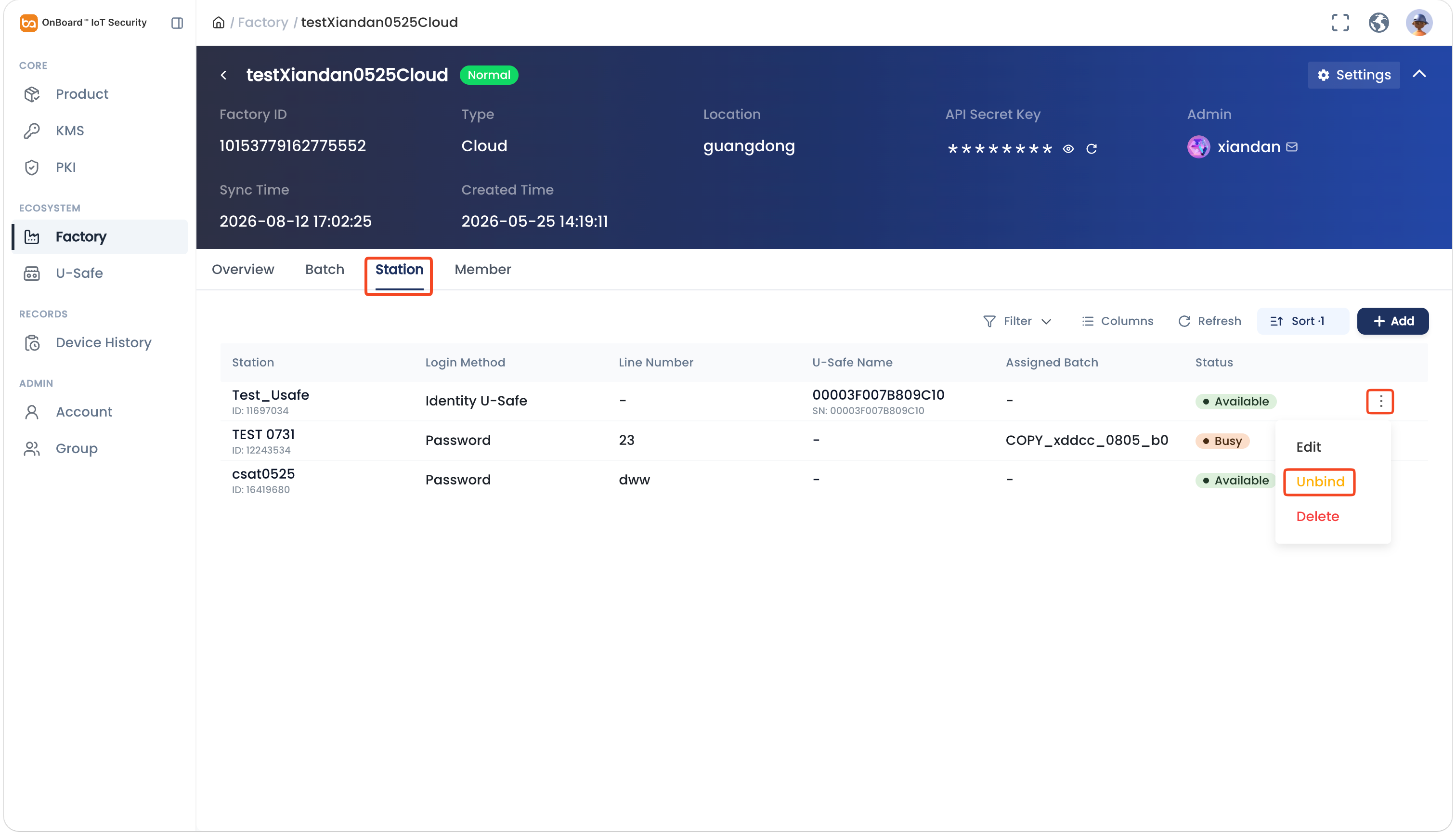
-
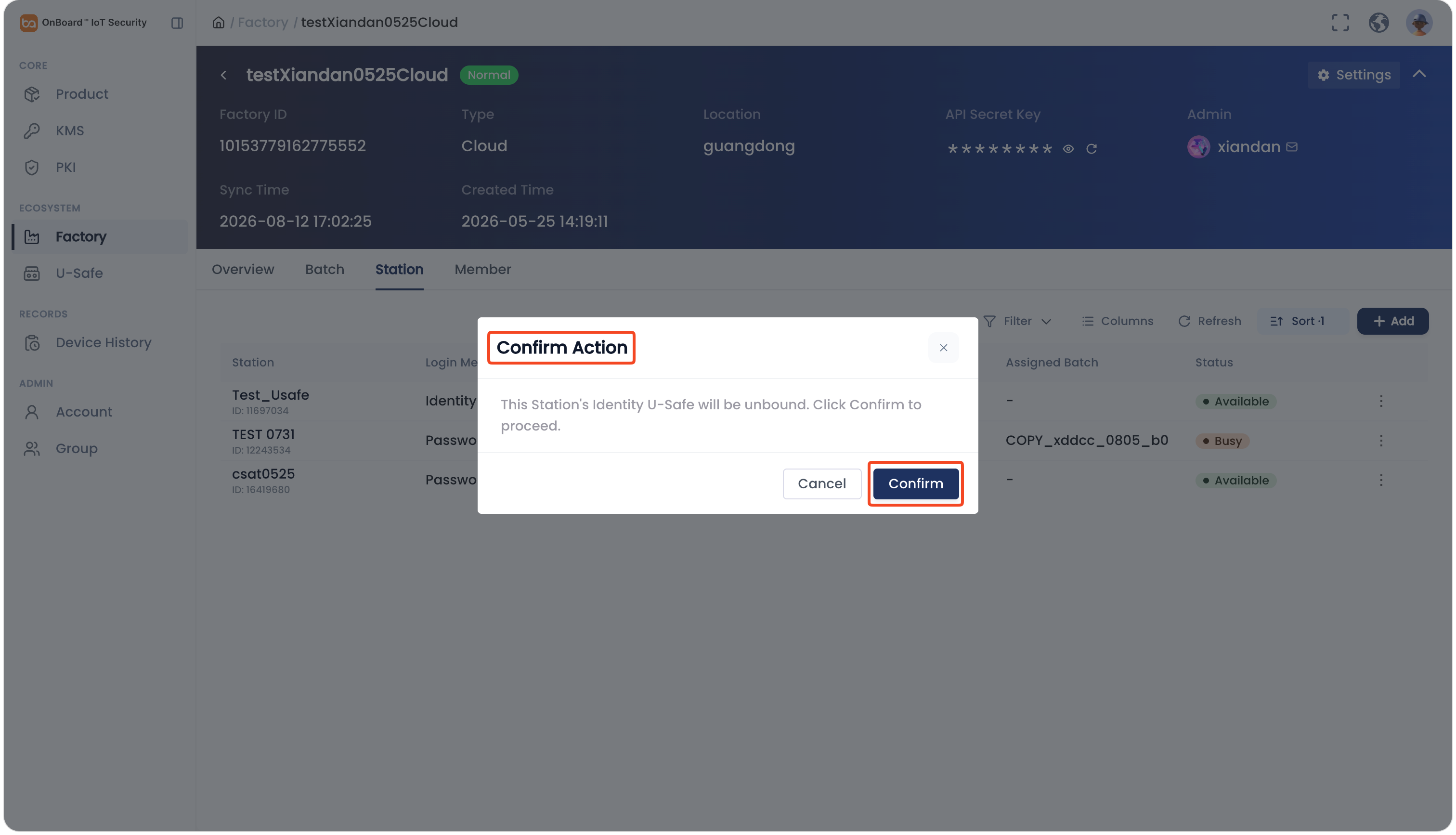
In the Confirm Action window, click Confirm to unbind the Identity U-Safe for the programming station.
Edit a programming station
When the programming station status is Busy, the Edit option is grayed out and unavailable. After unassigning the programming station from the batch, the station status changes to Available, and the station can then be edited.
-
Sign in to OBIS.
-
In the Ecosystem section of the left menu, click Factory, and then select the corresponding factory to navigate to the factory page.
-
On the factory page, select the Station tab, and then click the Options
icon for the corresponding programming station and select Edit.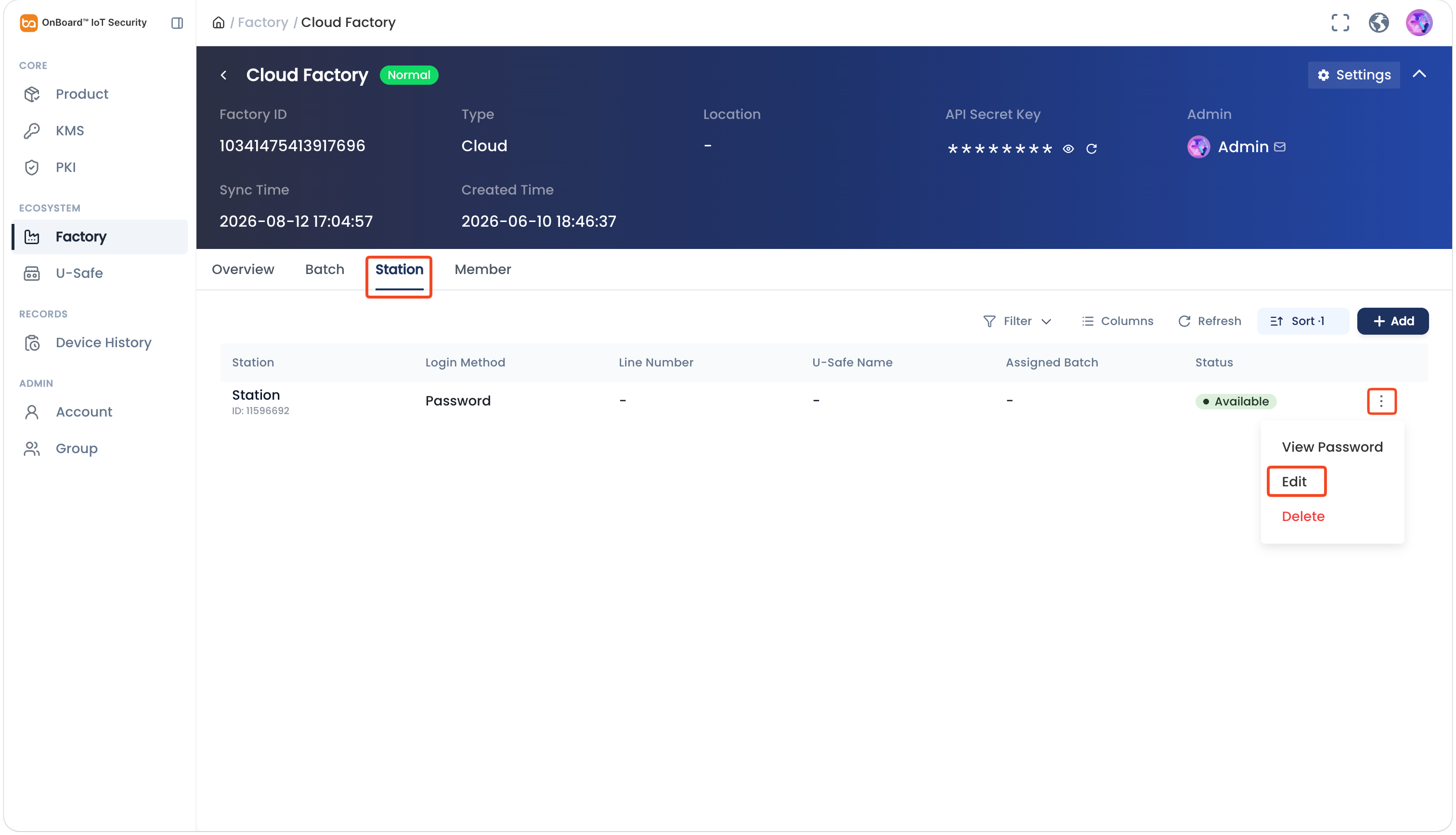
-
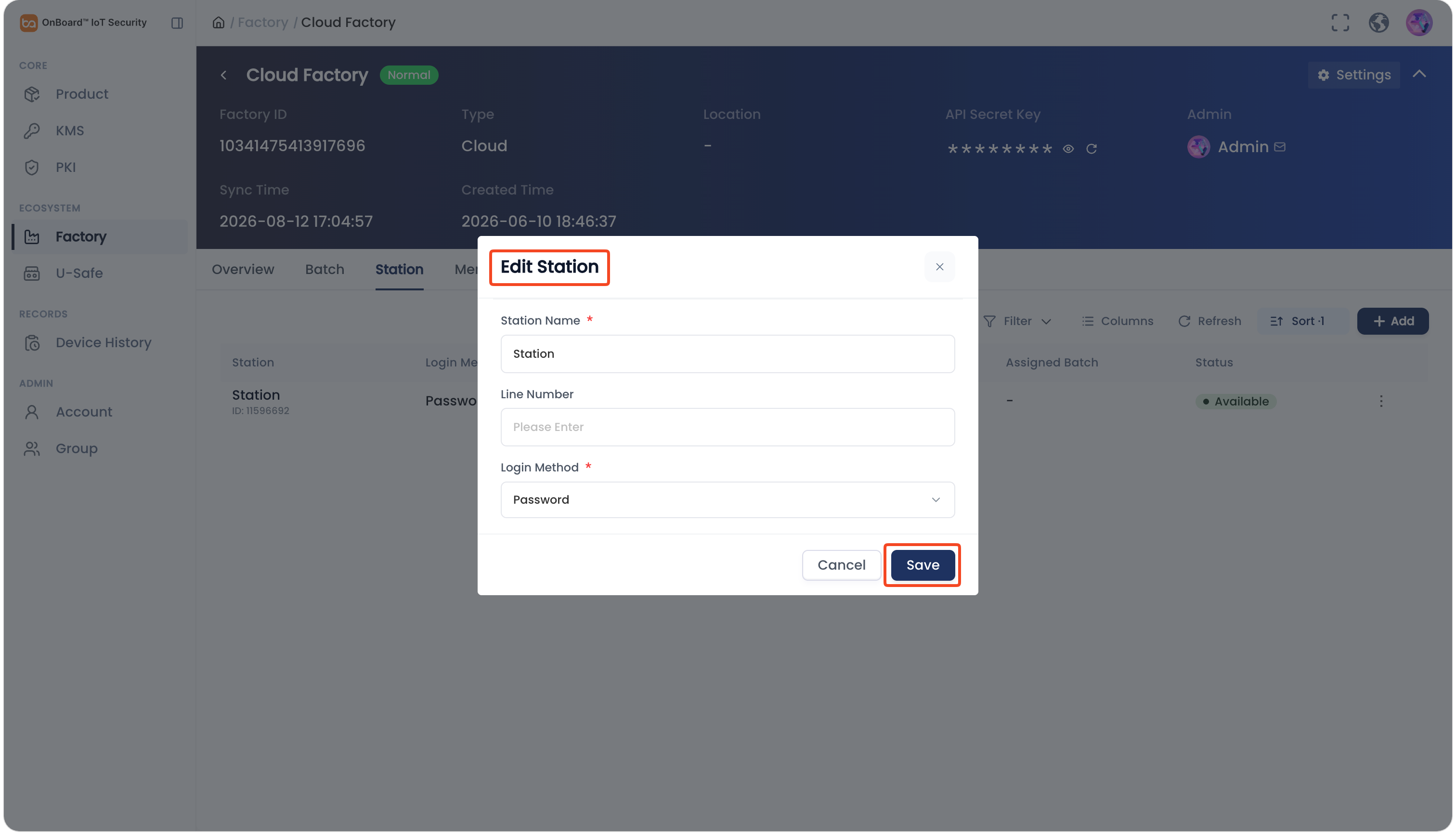
In the Edit Station window, enter the Station Name and Line Number, select the Login Method, and then click Save to edit the programming station.
Delete a programming station
Deleted programming stations cannot be recovered. Please proceed with caution.
-
Sign in to OBIS.
-
In the Ecosystem section of the left menu, click Factory, and then select the corresponding factory to navigate to the factory page.
-
On the factory page, select the Station tab, and then click the Options
icon for the corresponding programming station and select Delete.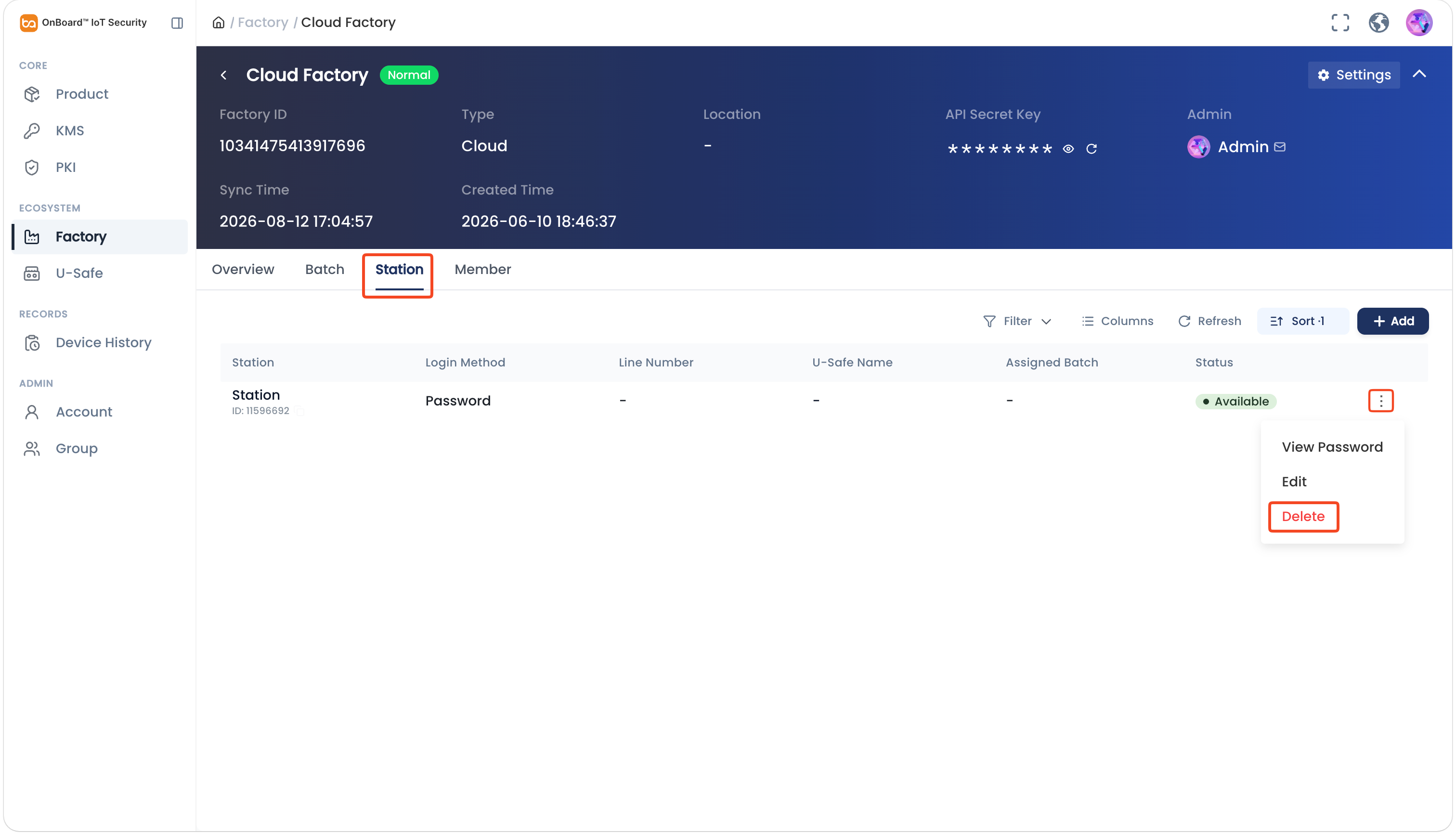
-
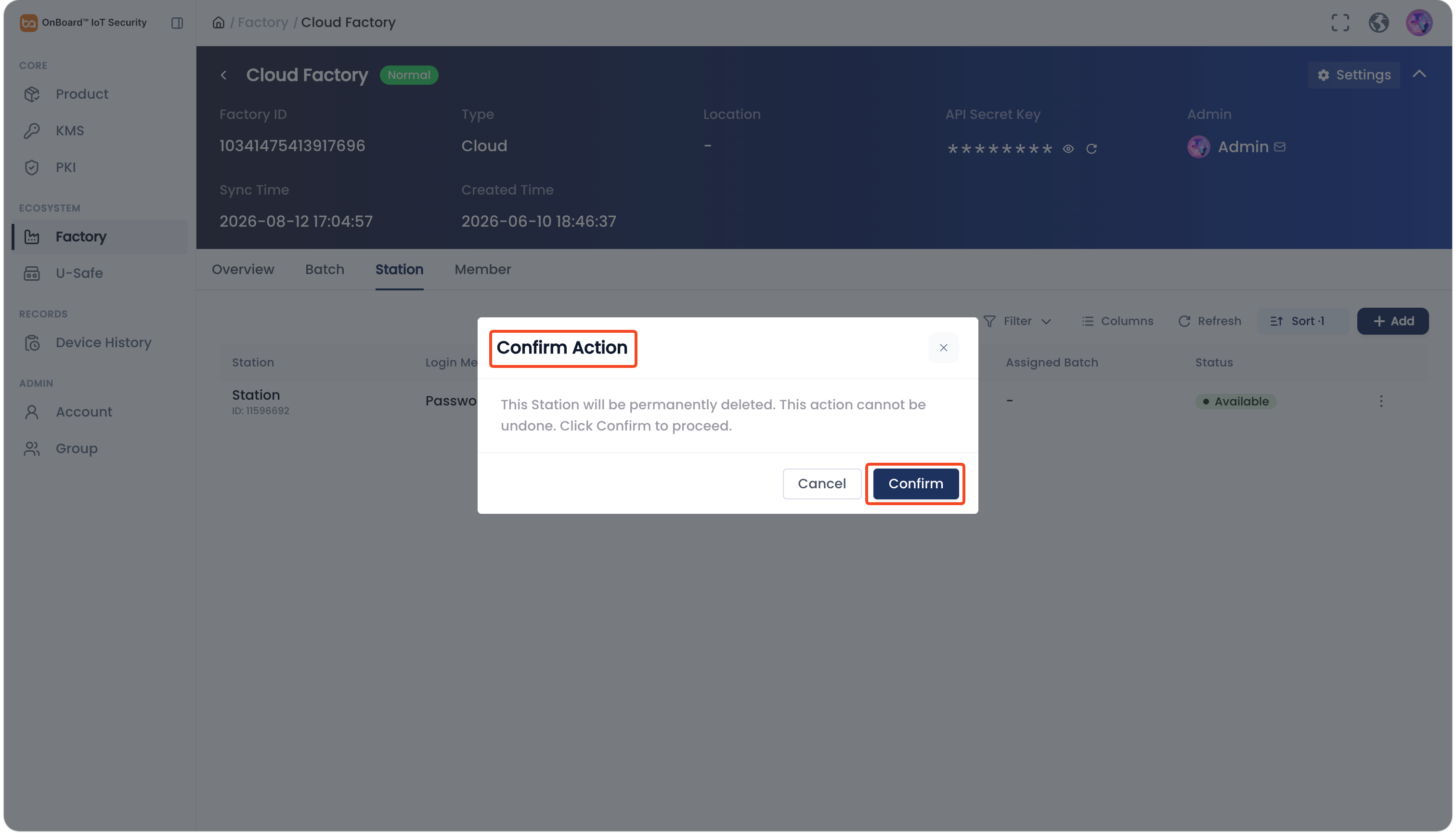
In the Confirm Action window, click Confirm to delete the programming station.
Check the programming station password
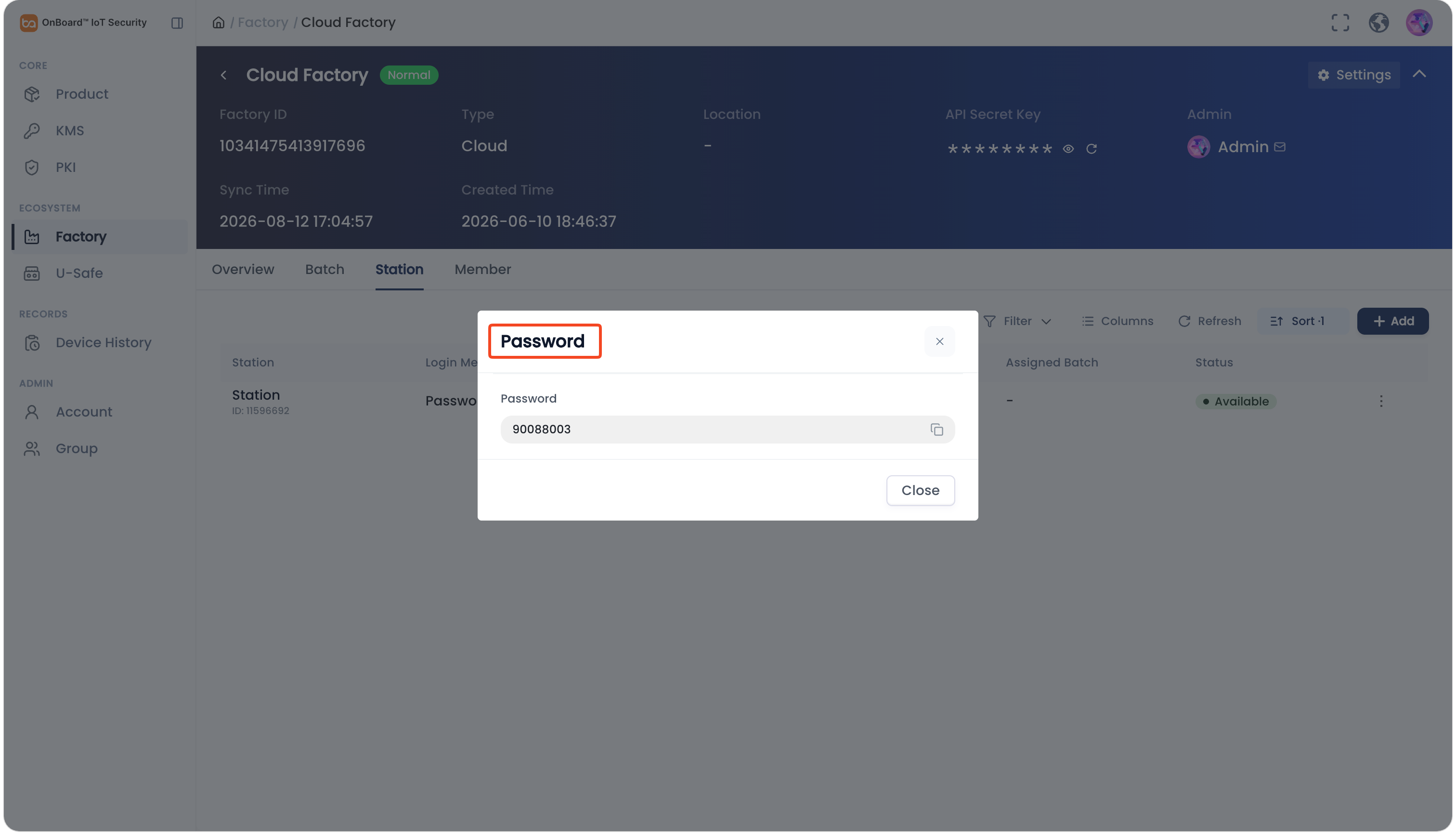
When the login method for the programming station is Password, the system will generate a random password, which can be used to sign in to the Programming Station client. Currently, the randomly generated password can't be changed.
-
Sign in to OBIS.
-
In the Ecosystem section of the left menu, click Factory, and then select the corresponding factory to navigate to the factory page.
-
On the factory page, select the Station tab, and then click the Options
icon for the corresponding programming station and select View Password.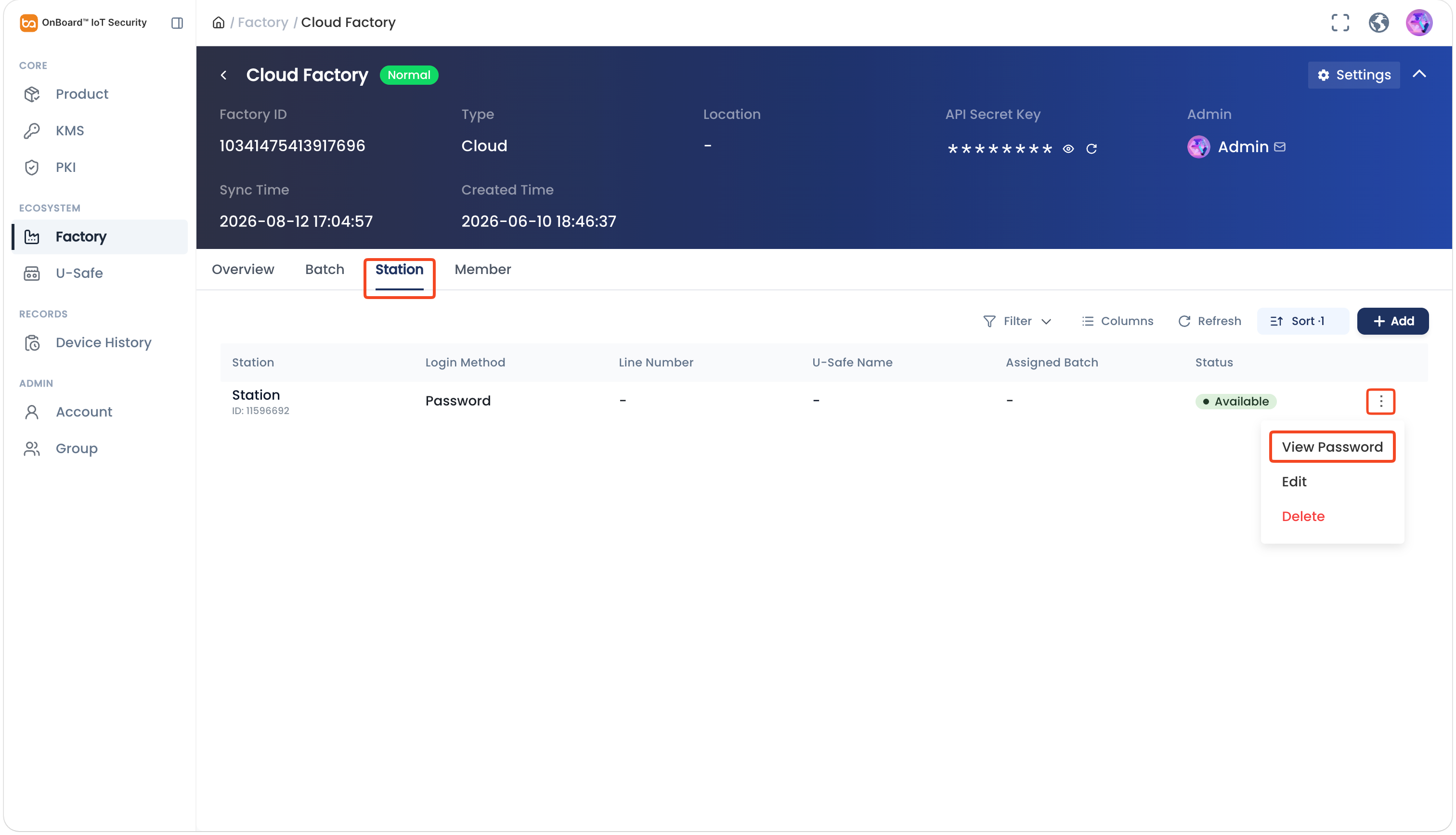
-
In the Password window, you can check and copy the sign-in password for the programming station.

 Download User Manual