How to check keys in OnBoard™ IoT Security
This article will guide you through the following operations in OnBoard™ IoT Security (OBIS).
- Check basic information
- Check usage count
- Check audit
- Check members
Prerequisites
Before getting started, please ensure that you have permissions for the corresponding key.
Check basic information
-
Sign in to OBIS.
-
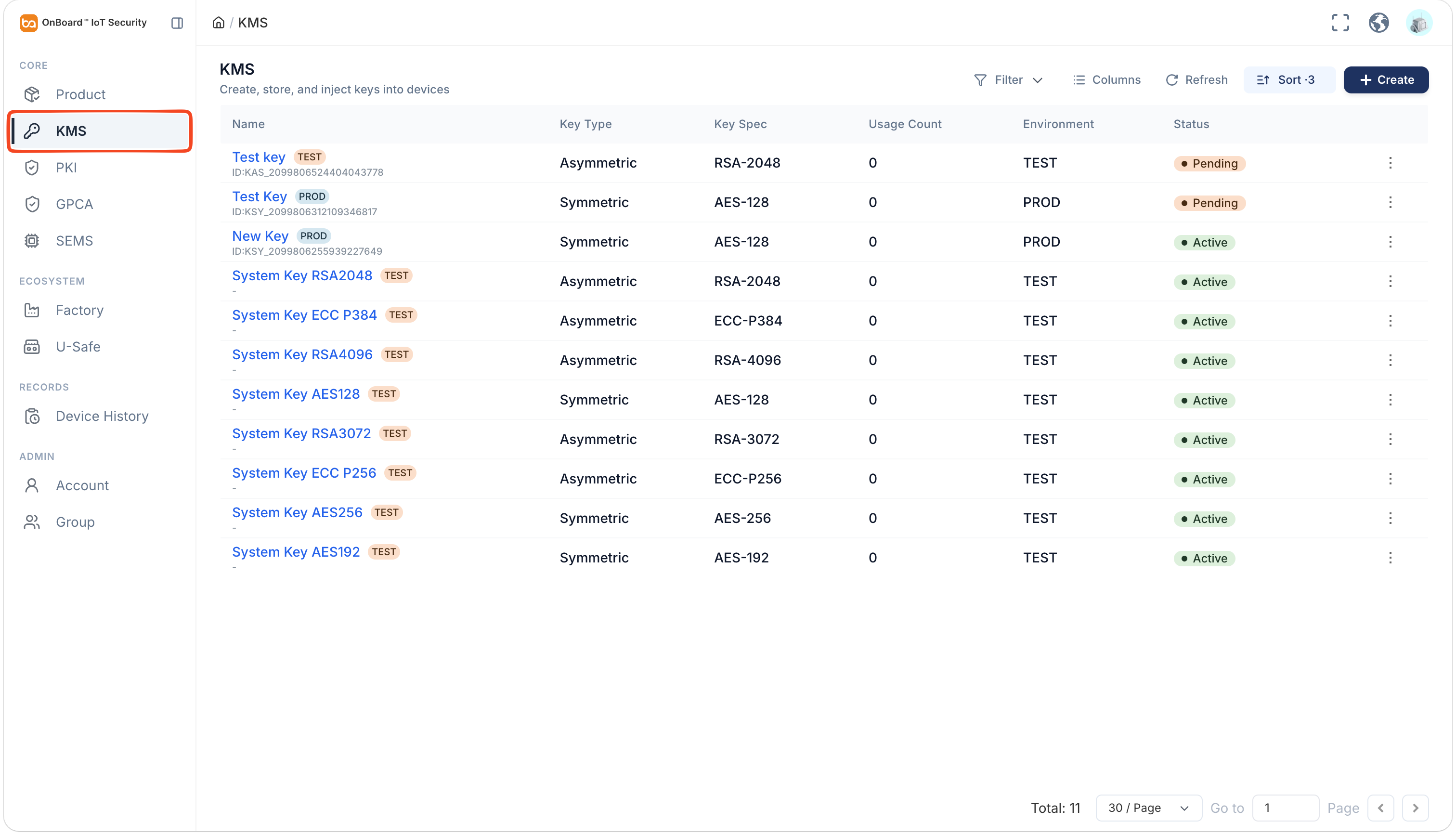
In the Core section of the left menu, click KMS, and then select the corresponding key.
tipClick the Filter
 , Sort
 , Refresh
 , and Columns Options
 icons to filter, sort, refresh data, and to customize which columns are shown and how they are ordered.
-
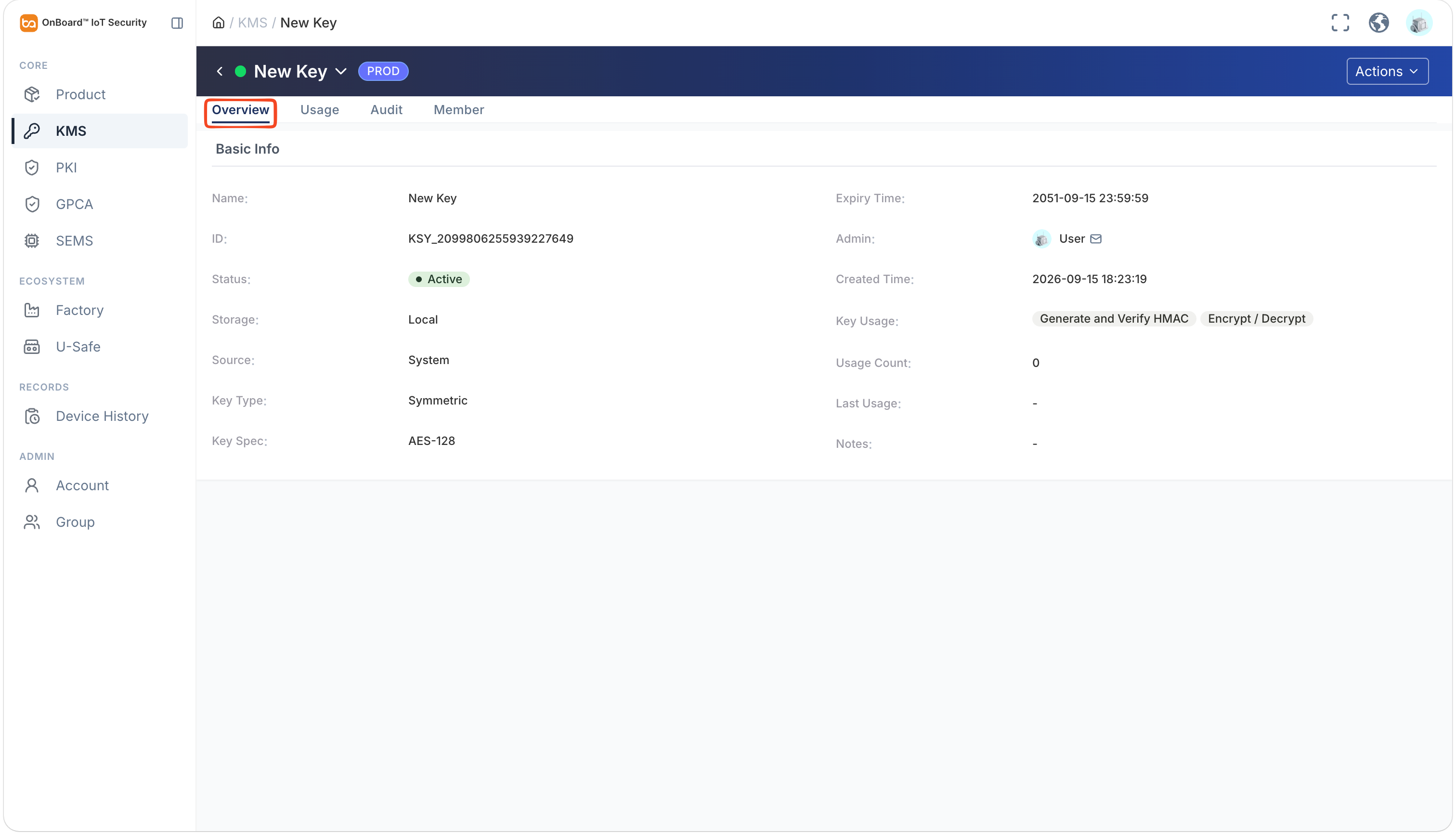
On the key page, you can check the key-related information (such as Key Type, Key Spec, and Key Usage).
Check usage count
Key usage count can be used to check key dependencies and impact scope.
-
Sign in to OBIS.
-
In the Core section of the left menu, click KMS, and then select the corresponding key.
-
On the Usage Count tab of the key page, you can check the usage count (such as Usage Count, First Used Time, and Last Used Time) for keys used by users and products.
tipClick the Filter
, Sort , Refresh , and Columns Options icons to filter, sort, refresh data, and to customize which columns are shown and how they are ordered.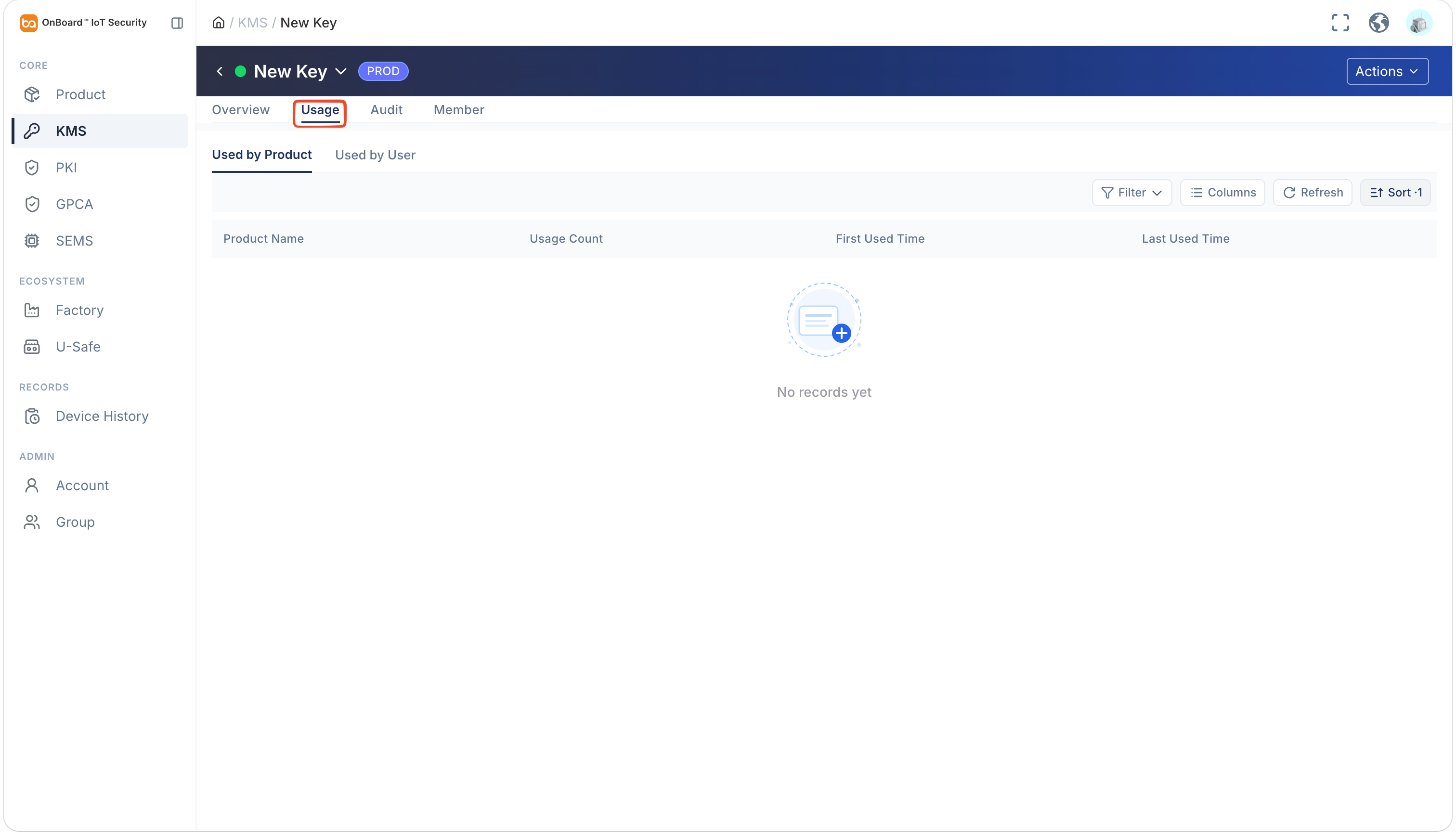
Check audit
Through the key operation logs, you can check the historical operations of the key.
-
Sign in to OBIS.
-
In the Core section of the left menu, click KMS, and then select the corresponding key.
-
On the Audit tab of the key page, you can check the key history (such as Operator, Operation Type, and Operation Time).
tipClick the Filter
, Sort , Refresh , and Columns Options icons to filter, sort, refresh data, and to customize which columns are shown and how they are ordered.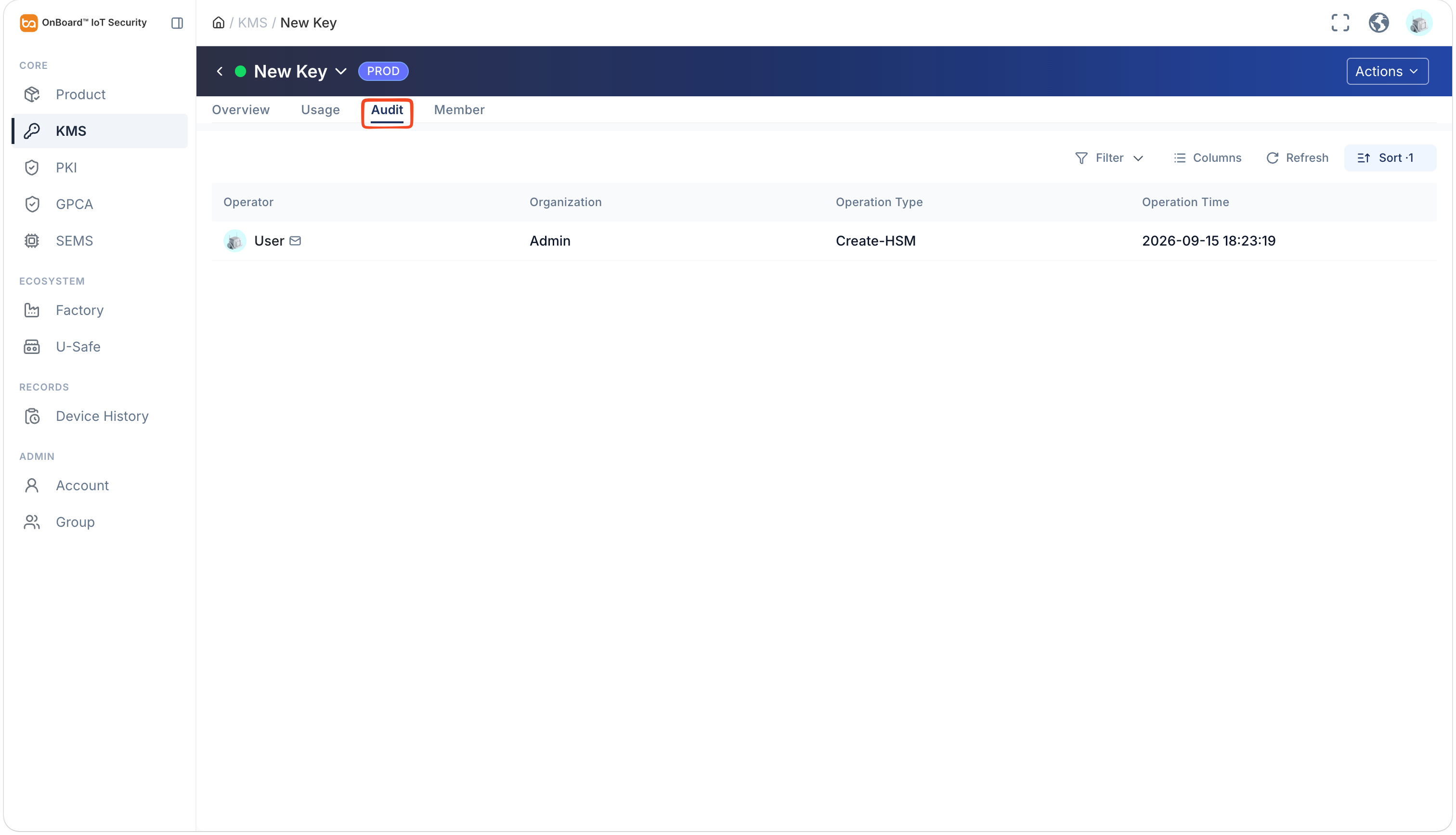
Check members
-
Sign in to OBIS.
-
In the Core section of the left menu, click KMS, and then select the corresponding key.
-
On the Member tab of the key page, you can check the user permissions for the key (such as Name, Role, and Permission).
tipClick the Filter
, Sort , Refresh , and Columns Options icons to filter, sort, refresh data, and to customize which columns are shown and how they are ordered.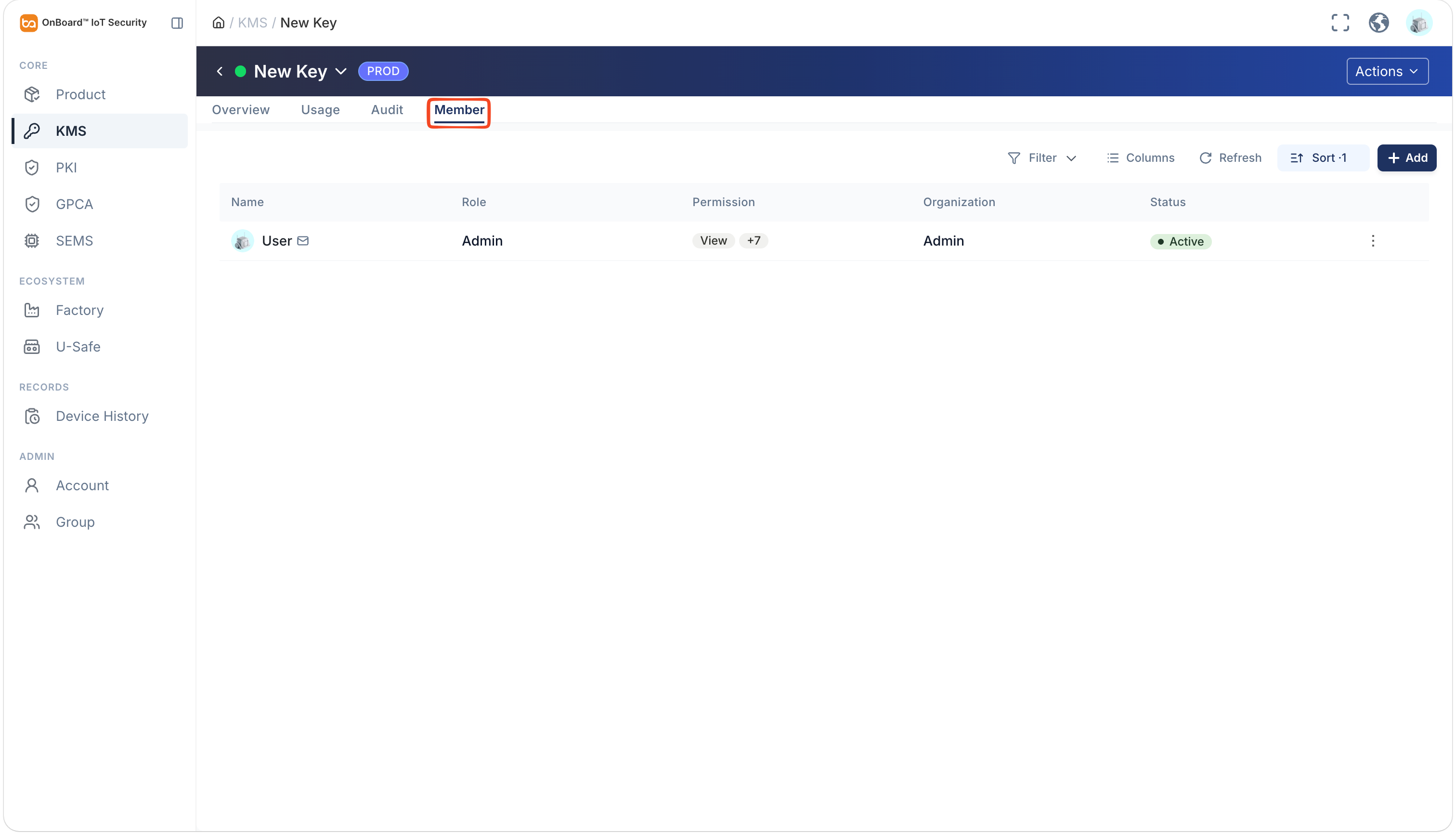

 Download User Manual