How to manage certificates in OnBoard™ IoT Security
This article will guide you through the following operations in OnBoard™ IoT Security (OBIS):
- Manage certificate permissions
- Download a certificate
- Lock or unlock a certificate
Prerequisites
Before getting started, please ensure that you have permissions for the corresponding certificate.
Manage certificate permissions
By default, the certificate creator is set as the Admin. To change the Admin, click the Options  icon for the Admin and select Transfer Admin on the Member tab, then choose the new Admin and click Confirm.
You can assign different operational permissions for the certificate to different members. The descriptions of these permissions are as follows:
| Permissions | Description |
|---|---|
| View | View certificate details (read-only). |
| Edit | Allow cryptographic configuration for the certificate. |
| Create Authorization | Allow the certificate to be referenced in product and SE Profile configurations. |
| Lock | Lock a certificate. |
| unlock | Unlock a locked certificate. |
| Add Member | Add members to this certificate and assign them permissions that do not exceed your own permissions. |
| Revoke | Revoke a certificate. |
| Destroy | Destroy a certificate. |
You can adjust and set user permissions for certificates by following these steps:
-
Sign in to OBIS.
-
In the Core section of the left menu, click PKI. Expand the corresponding certificate chain and then select the corresponding certificate.
-
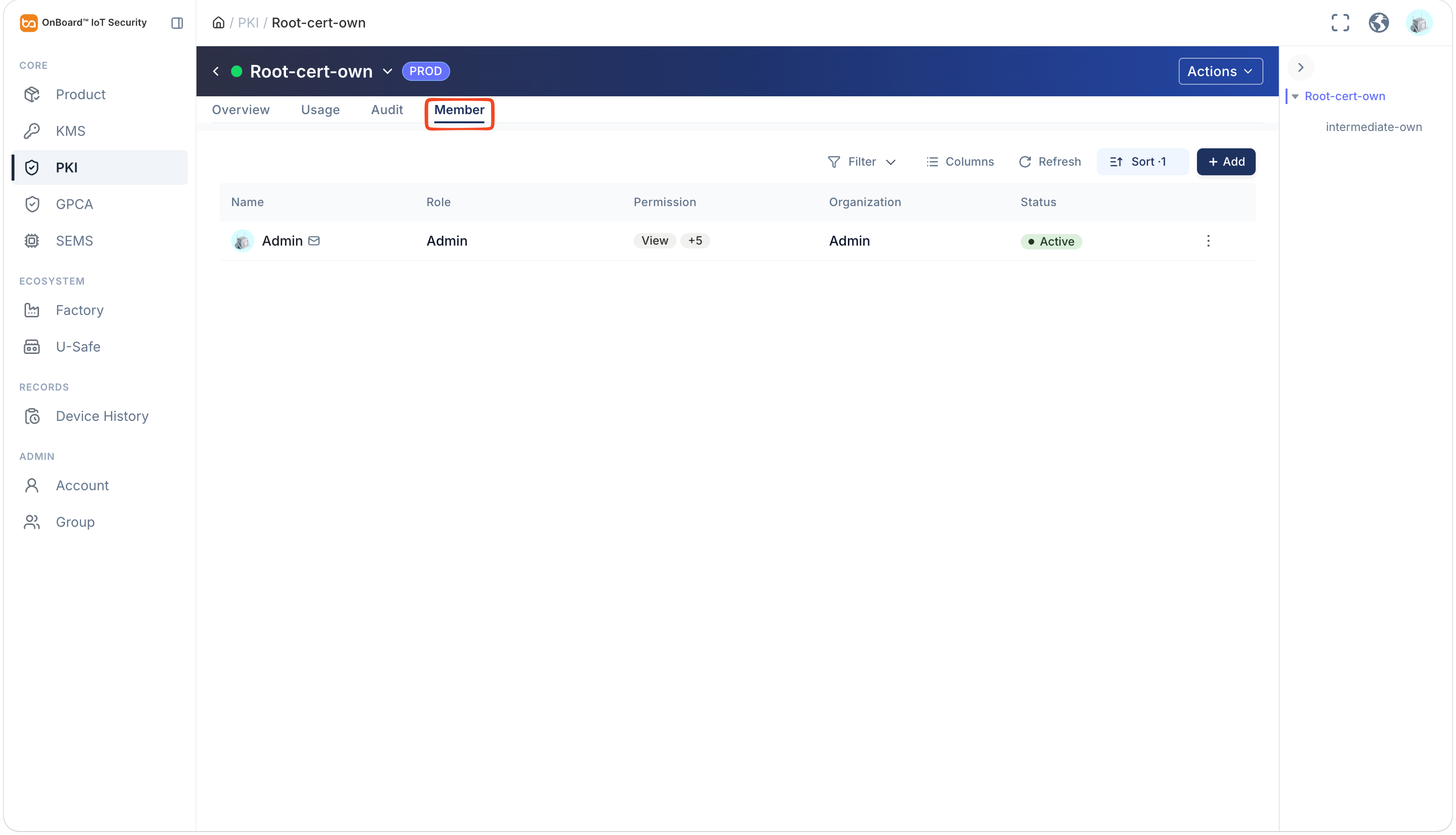
On the certificate page, you can manage the user permissions for the certificate on the Member tab.
Download a certificate
Only certificates in the Active state can be downloaded, and the same user can download the same certificate a maximum of 10 times per hour.
-
Sign in to OBIS.
-
In the Core section of the left menu, click PKI. Expand the corresponding certificate chain, and then click the Options
icon for the corresponding certificate and select Download Cert.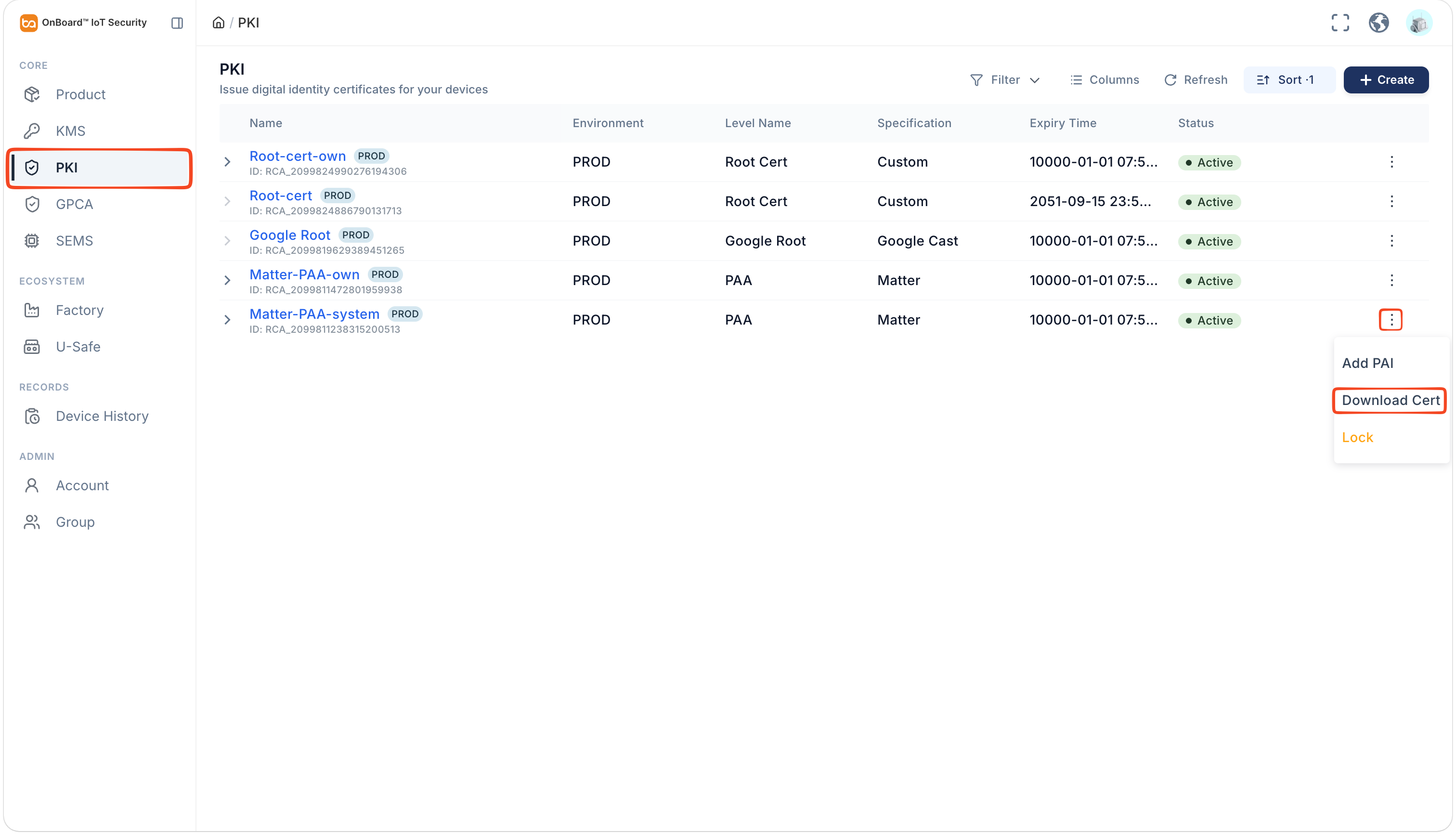
Lock or unlock a certificate
Once the certificate is locked, it can't be selected when configuring Certificates for the product.
-
Sign in to OBIS.
-
In the Core section of the left menu, click PKI. Expand the corresponding certificate chain, and then click the Options
icon for the corresponding certificate and select Lock or Unlock. Click Confirm to lock or unlock the certificate. When locking a certificate, you can optionally provide a reason.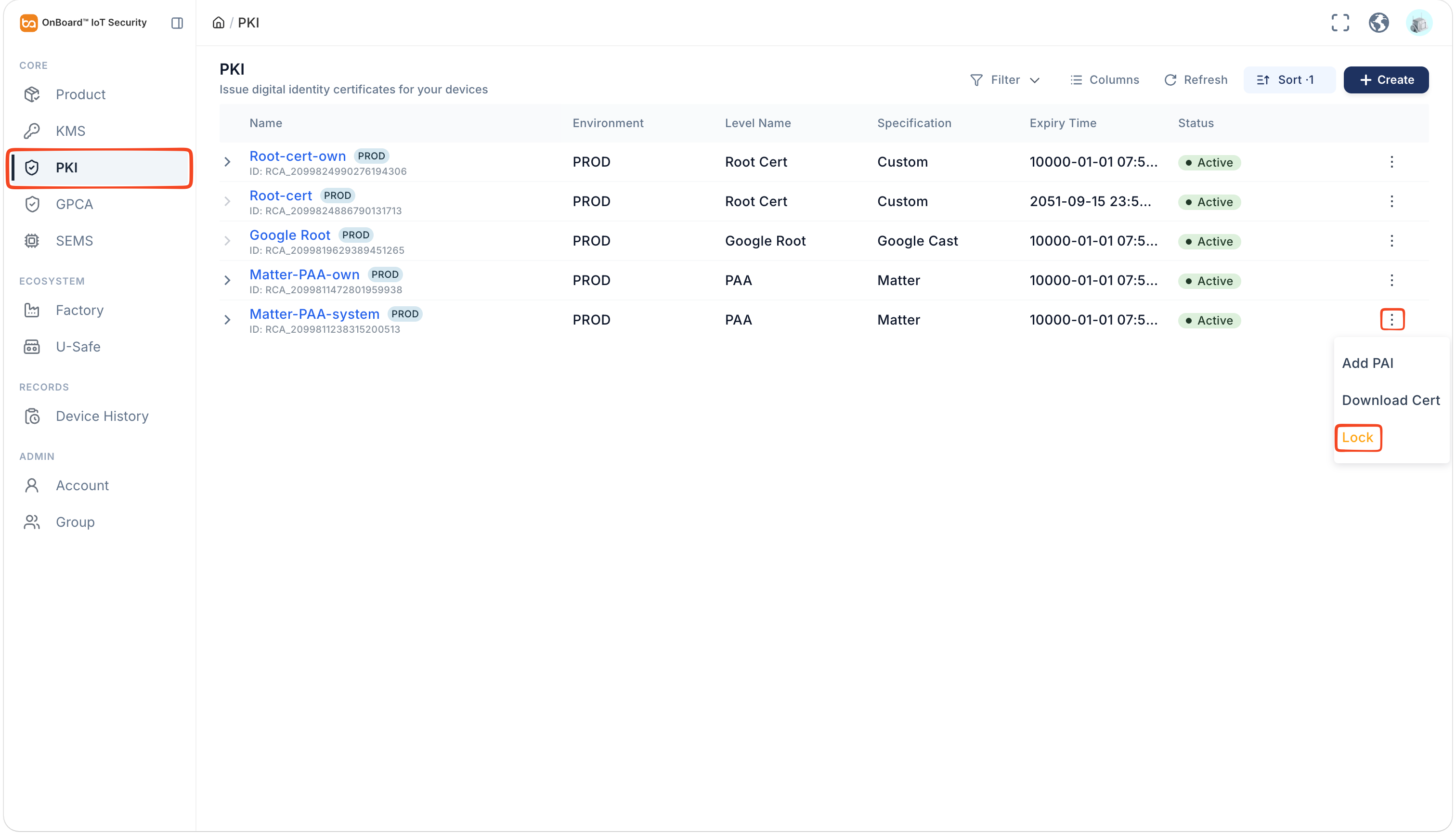

 Download User Manual