How to manage certificates in OnBoard™ IoT Security
This article will guide you through the following operations in OnBoard™ IoT Security (OBIS):
- Manage certificate permissions
- Revoke a certificate
- Delete a certificate
Prerequisites
Before getting started, please ensure that you have OBIS role permissions as a System Manager or Resource Manager, or have operational permissions for the corresponding certificate.
Manage certificate permissions
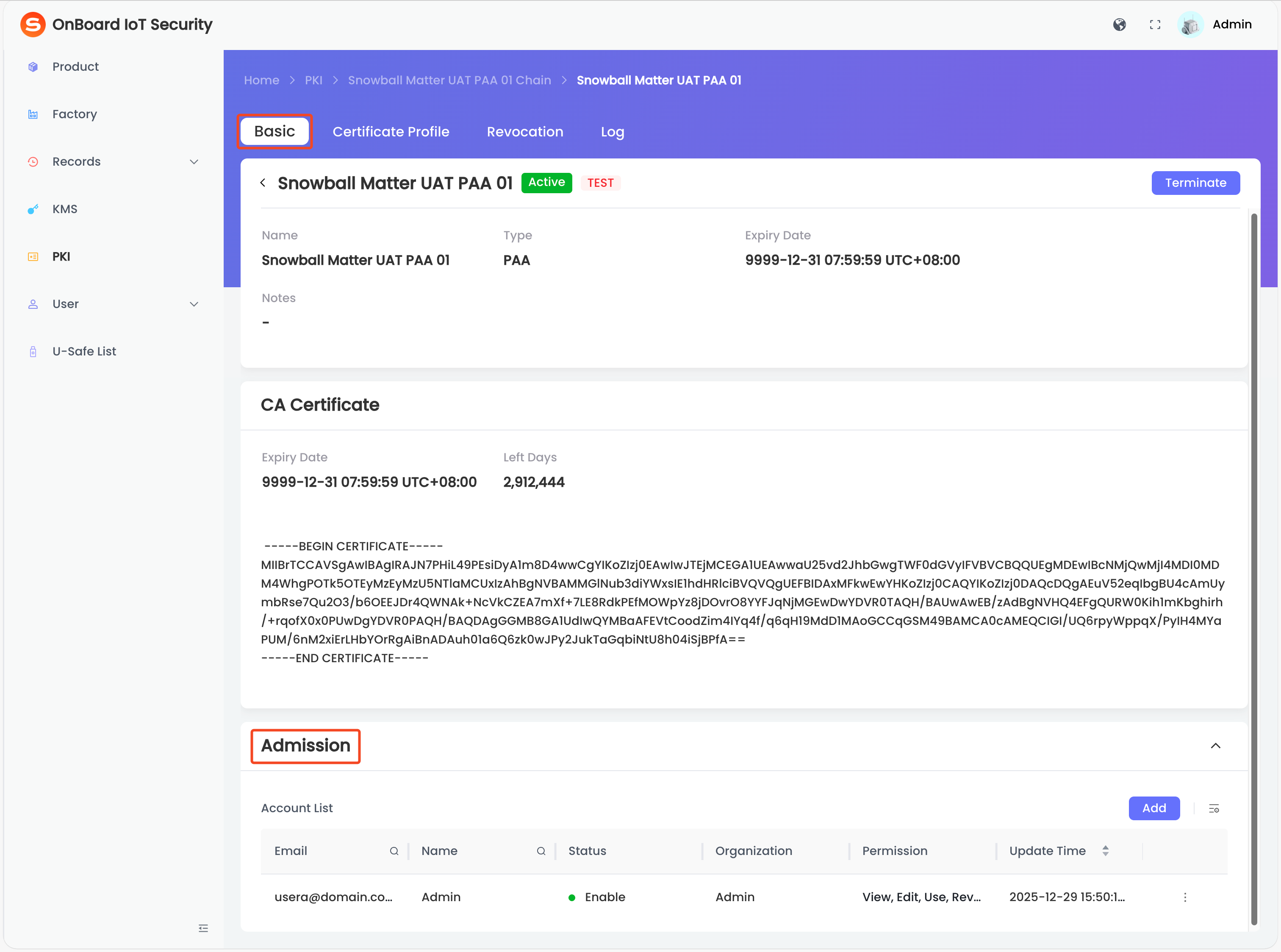
You can adjust and set user permissions (View, Edit, Use, Revoke, Grant, and Delete) for certificates by following these steps:
-
Sign in to OBIS.
-
In the left menu, click PKI, and then select the corresponding certificate chain.
-
Select the corresponding certificate name. On the certificate page, you can manage the certificate permissions in the Admission area.
Revoke a certificate
Once a certificate is revoked, the corresponding device can no longer perform commissioning operations.
-
Sign in to OBIS.
-
In the left menu, click PKI, and then select the corresponding certificate chain.
-
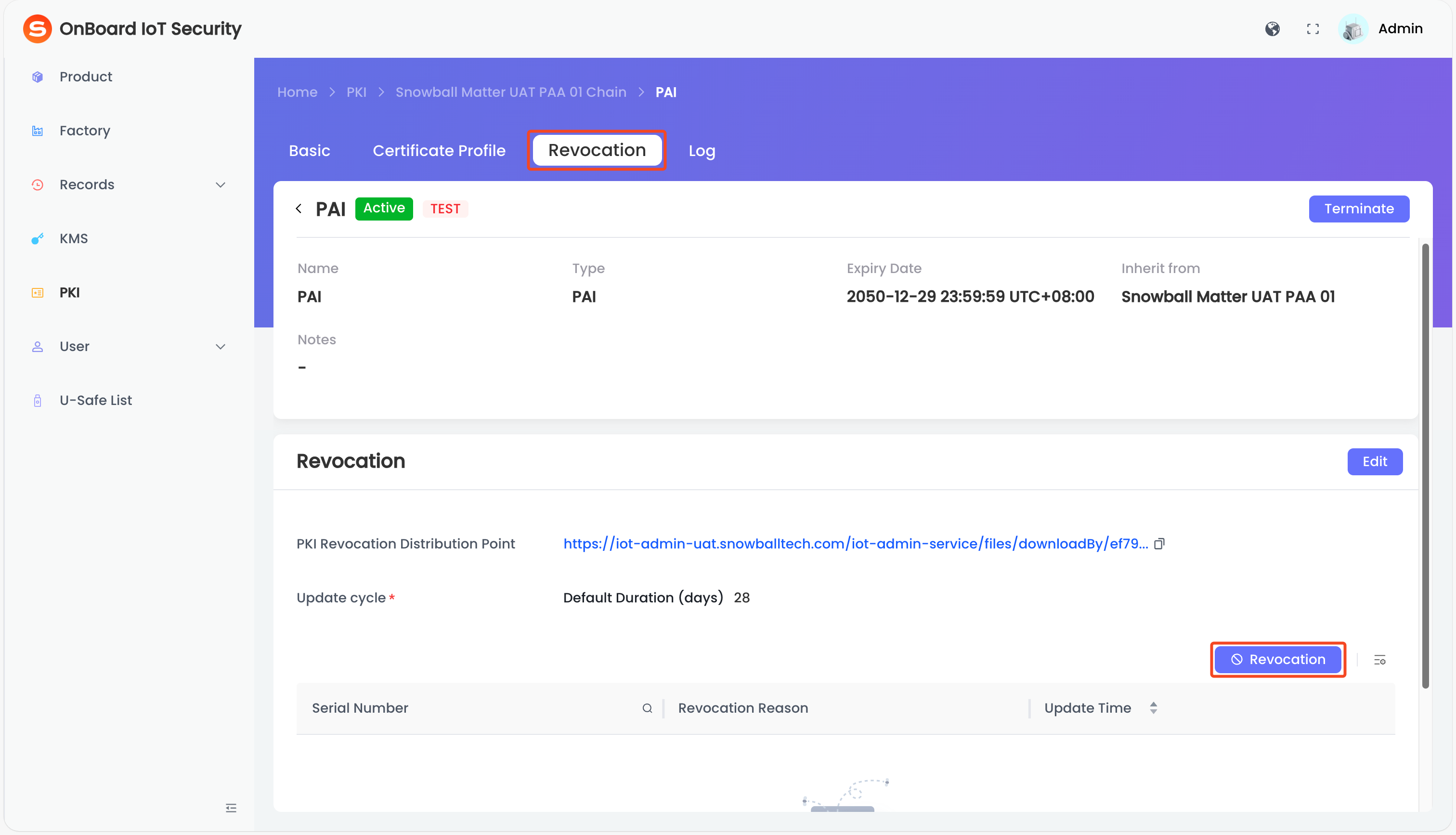
Select the corresponding certificate name. On the Revocation tab of the certificate page, click Revocation.
-
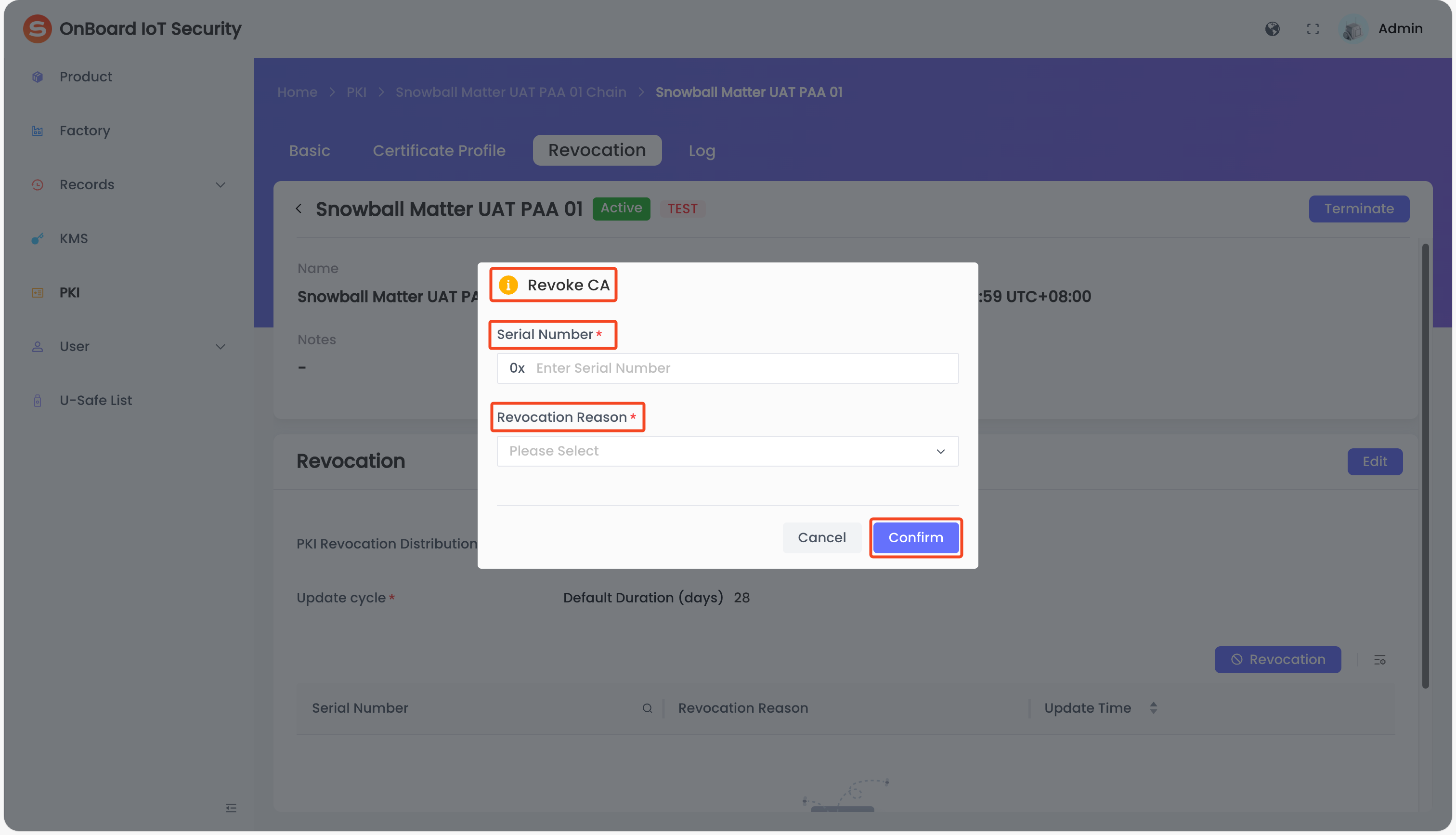
In the Revoke CA window, enter the Serial Number and select the Revocation Reason, and then click Confirm to revoke the certificate.
tipYou can check the serial number on the device page.
Delete a certificate
Before deleting a certificate, please ensure:
- All sub-certificates under the certificate have been deleted. If the certificate is the parent certificate and the sub-certificates have not been deleted, you will see the message "Certificate cannot be deleted. It has the following sub certificates" along with a list of the sub-certificates.
- The certificate is not referenced by any resources. If it is referenced, you will see the message "Certificate cannot be deleted, the certificate is currently used by the following list" along with a list of the referencing resources.
-
Sign in to OBIS.
-
In the left menu, click PKI, and then select the corresponding certificate chain.
-
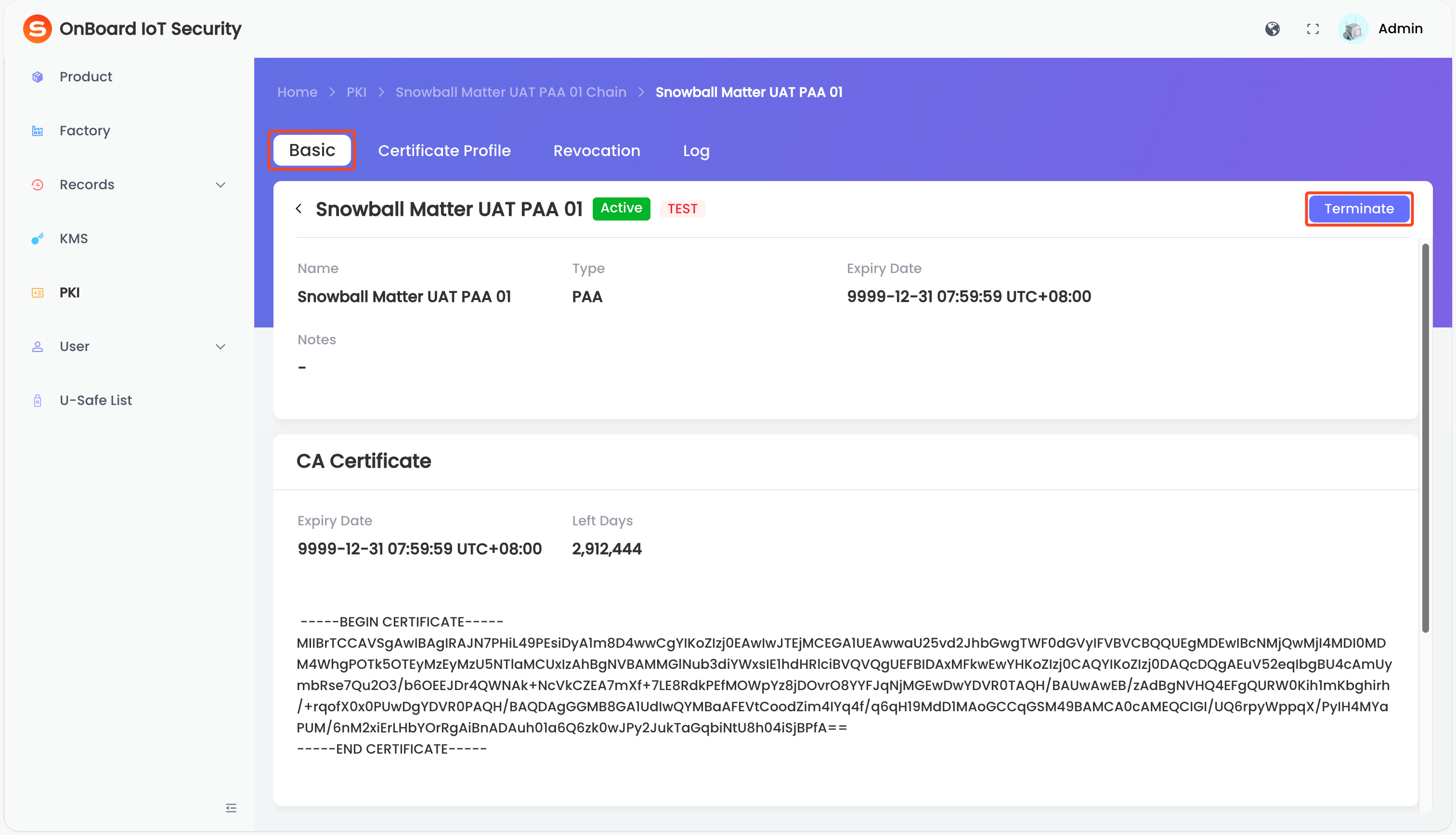
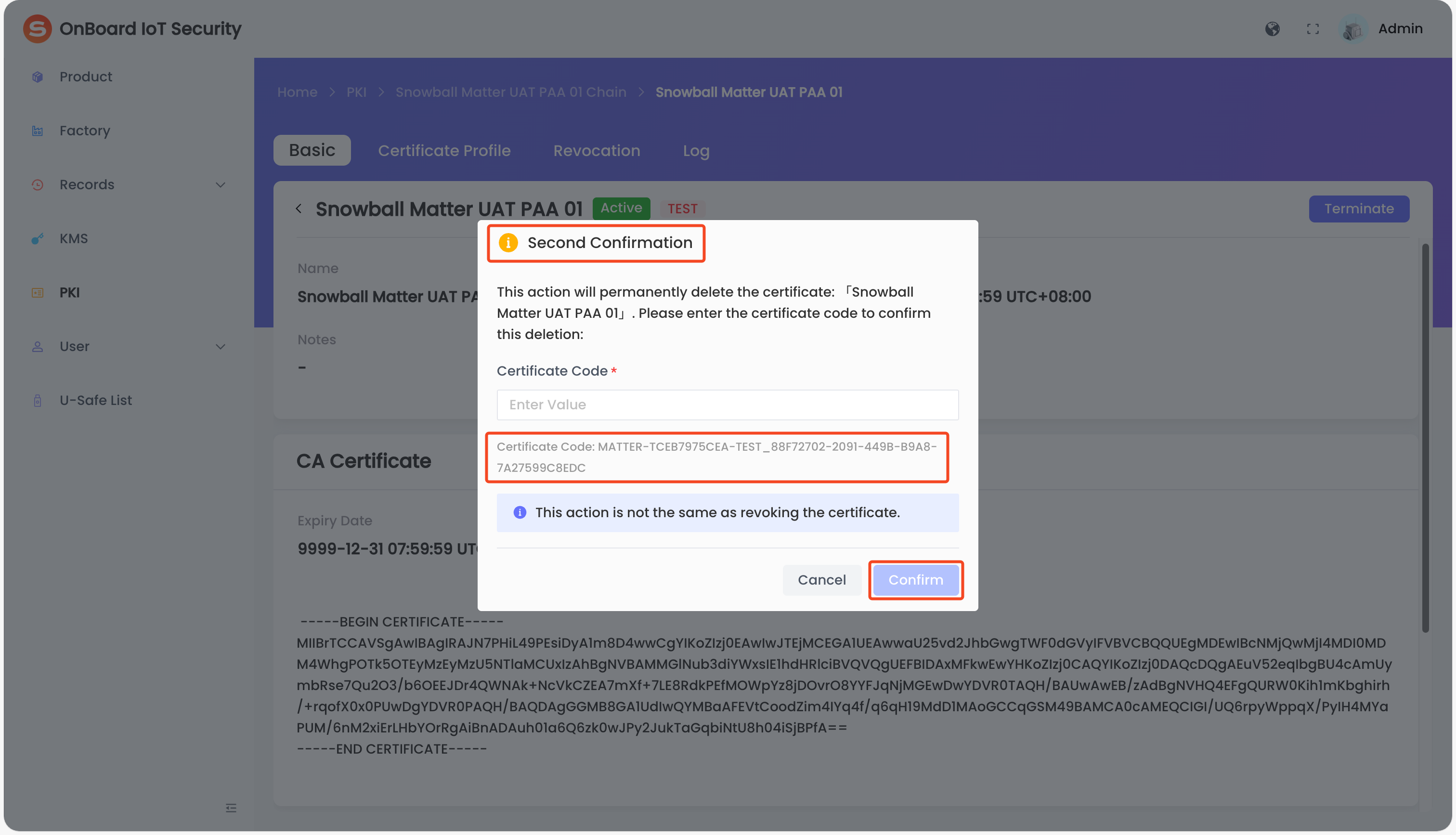
Select the corresponding certificate name. On the certificate page, click Terminate.
-
In the Second Confirmation window, enter the certificate code prompted at the bottom of the window, and then click Confirm to delete the certificate.

 Download User Manual