How to check batches in OnBoard™ IoT Security
This article will guide you on how to check batch information and configuration in OnBoard™ IoT Security (OBIS).
Prerequisites
Before getting started, please ensure that you have product role permissions for the corresponding product.
Instructions
-
Sign in to OBIS.
-
In the Core section of the left menu, click Product, and then select the corresponding product to navigate to the product page.
-
On the product page, select the TEST or PROD environment. Select the Batch tab, and then select the corresponding batch to navigate to the batch page.
tipClick the Filter
 , Sort
 , Refresh
 , and Columns Options
 icons to filter, sort, refresh data, and to customize which columns are shown and how they are ordered.
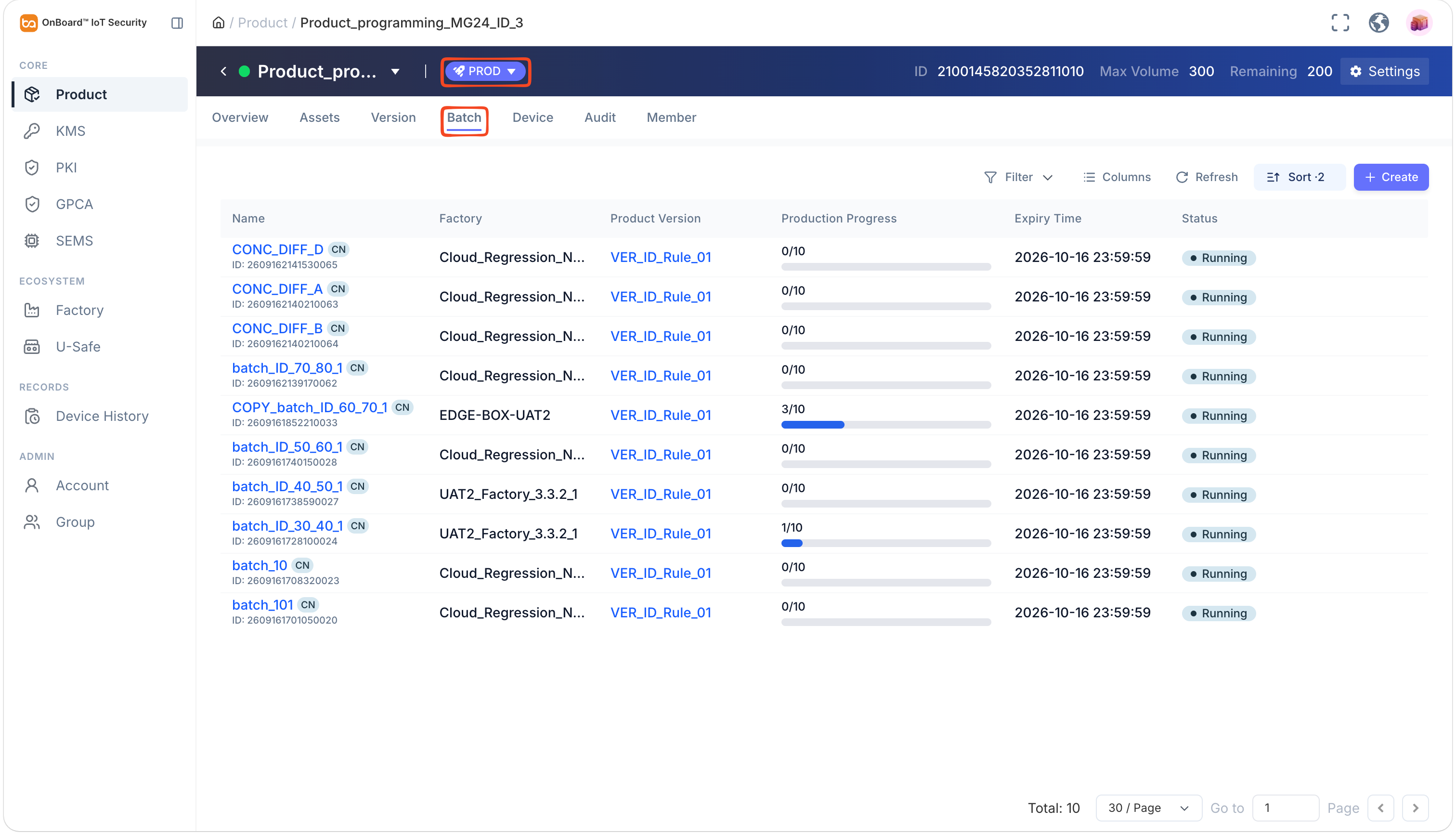
Status Description Generating The status when the batch is being generated after creation. Generate Failed The status after the batch generation fails. You can try to regenerate it: On the Batch tab of the product, click the Options  icon for the corresponding batch and then select Resync.
Generated The status after the batch is successfully generated. Running The status after the batch is successfully synchronized with the factory. Stopped The status after the batch is stopped. Finished The status after the batch programming is finished. Expired The batch has expired before the programming is finished. Description of Batch Sync (batch synchronization status):
Status Description Waiting The status before the batch is successfully generated. Syncing The status when the batch is successfully generated and starts synchronizing with the factory. Sync Failed The status after synchronization fails. You can try resynchronizing: On the Batch tab of the product, click the Options icon for the corresponding batch and then select Resync.Synced The status after the batch is successfully synchronized with the factory. Deleted The status after the batch is deleted. Description of Records (programming data synchronization status):
Status Description No Records The state before the batch starts programming. Uploading The status when the batch has started programming but is not yet completed, and the programming data is being uploaded. Uploaded The status after the batch programming is finished and all programming data has been fully uploaded. -
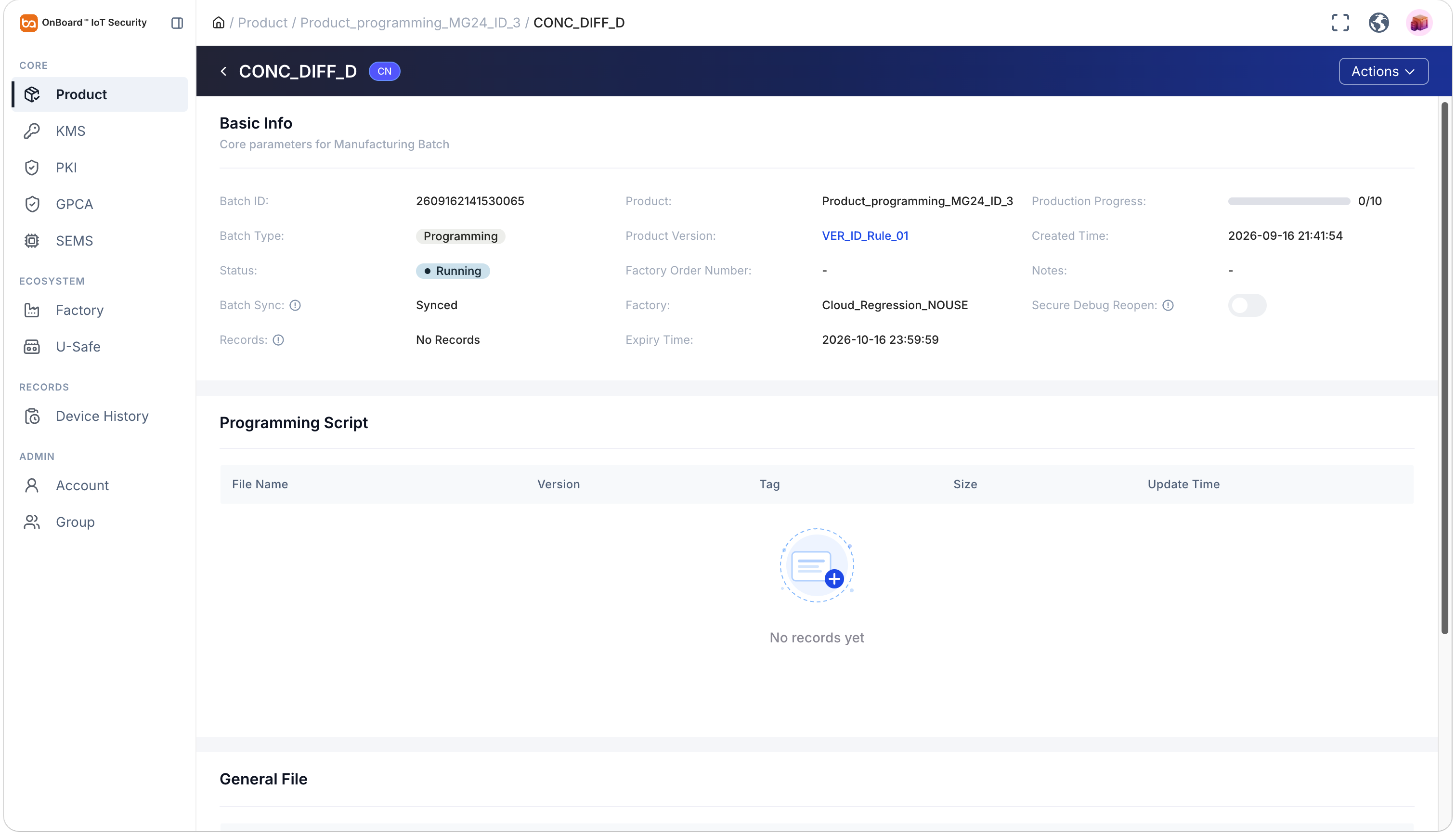
On the batch page, you can check the batch-related information (such as Batch ID, Factory Order Number, and Production Progress).

 Download User Manual