How to manage products in OnBoard™ IoT Security
In the configuration section of the corresponding asset, the following operations can be performed on the files uploaded during asset configuration:
- You can deactivate, activate, or remove the files when configuring Keys, Certificates, Firmware, General File, and Programming Script.
- Files added during the configuration of Firmware, Matter Config (uploaded CD file), Factory Data (uploaded file), General File, and Programming Script can only be downloaded by users within the same tenant.
Unable to deactivate or remove certificates and keys that are referenced by assets.
This article will guide you through the following operations in OnBoard™ IoT Security (OBIS):
- Edit product information
- Archive or unarchive a product
- Deactivate or activate a product resource
- Remove a product resource
- Add a product asset type
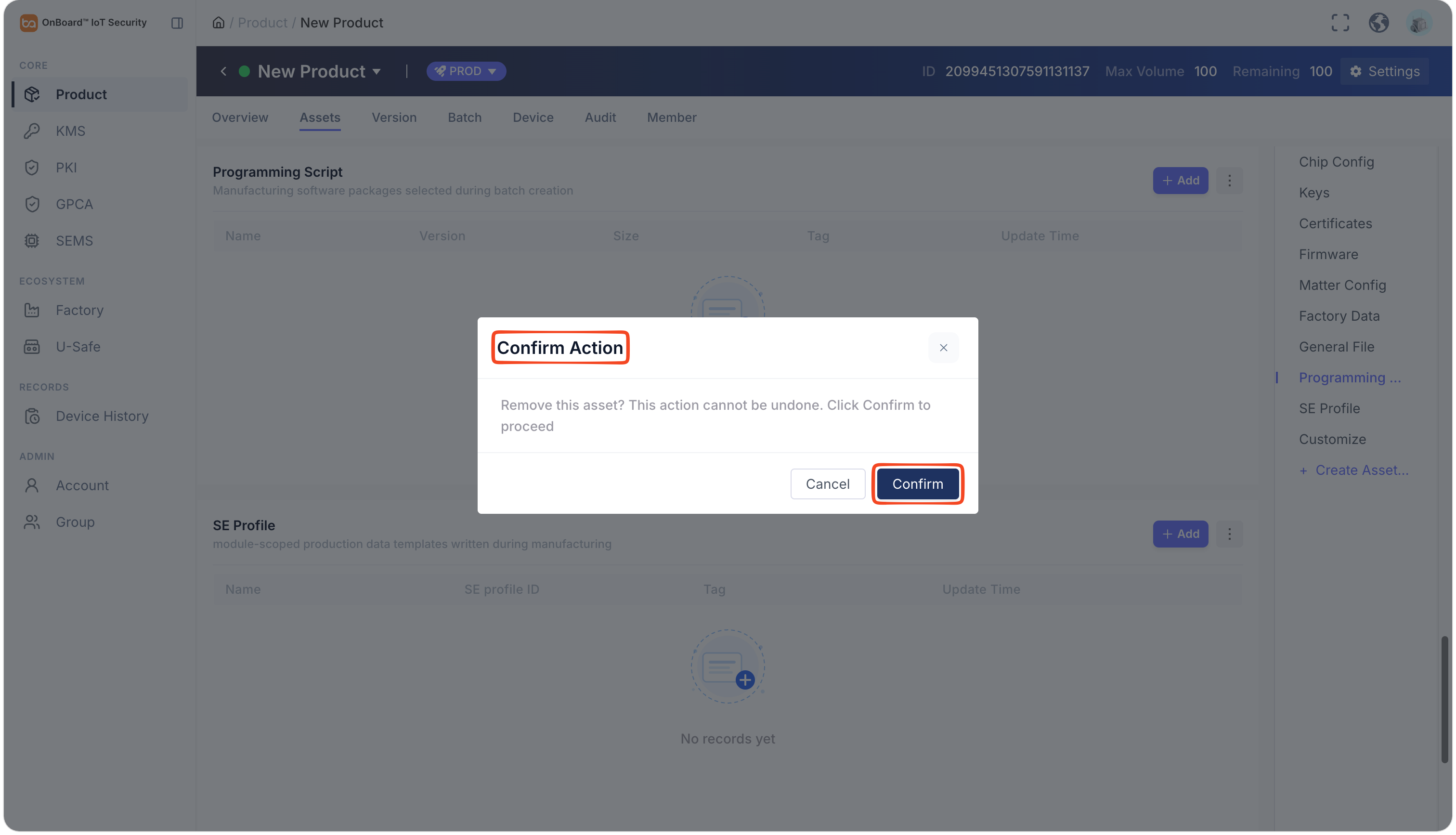
- Remove a product asset type
Prerequisites
Before getting started, please ensure that you have product role permissions for the corresponding product: Product Owner, Product Manager, or Resource Manager (can only deactivate, activate, or remove product assets).
Edit product information
The Resource Manager doesn't have permission to edit the product information.
-
Sign in to OBIS.
-
In the Core section of the left menu, click Product, and then select the corresponding product to navigate to the product page.
-
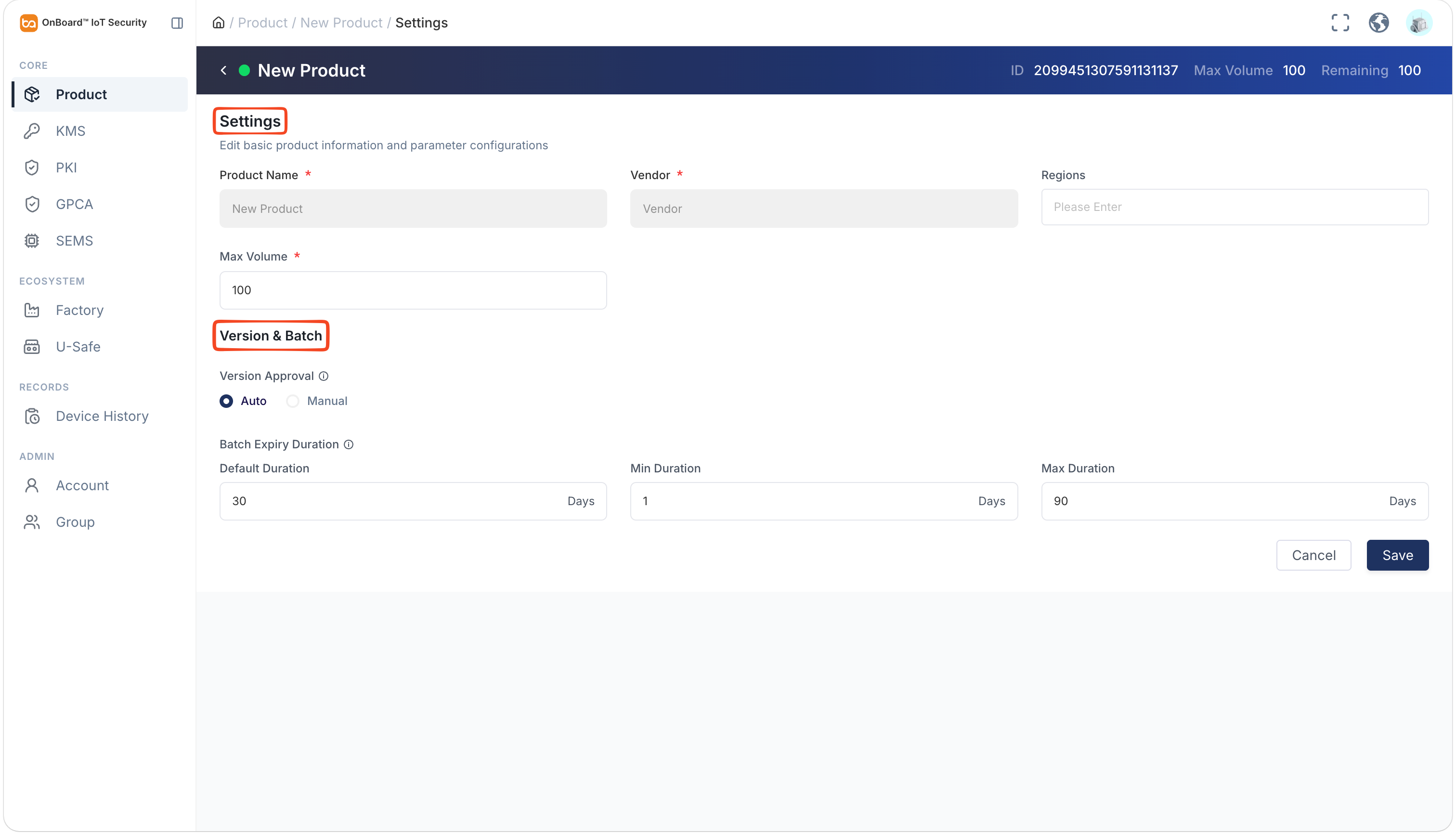
Click Settings to edit the corresponding product information.
noteFor more information, refer to the description of product basic information.
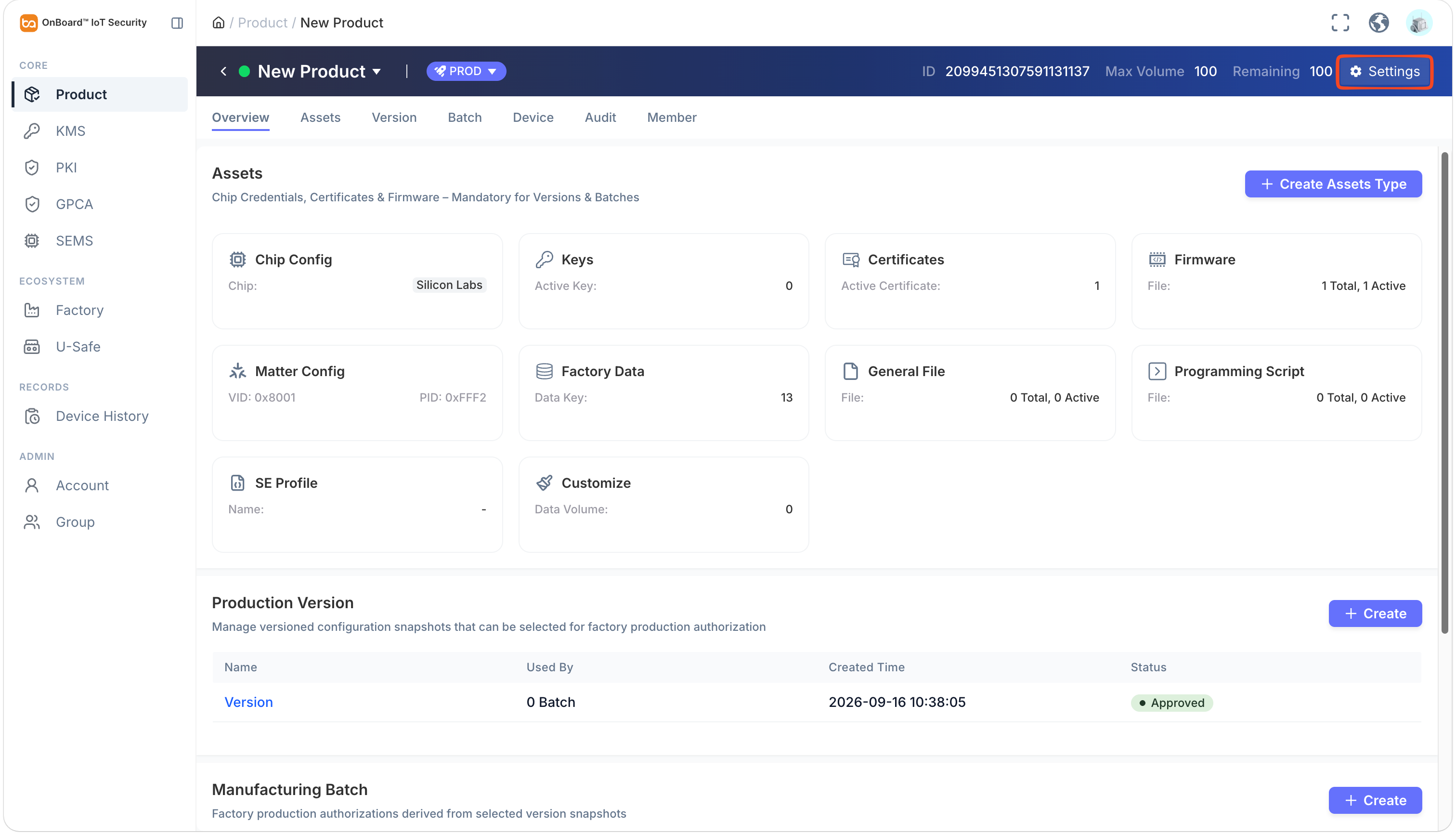
- Settings section: Regions and Max.Volume
- Version & Batch section: Version Approval and Batch Expiry Duration
Archive or unarchive a product
Once a product is archived, no further editing can be made, including information modifications, resource configuration, version creation, and batch creation. The Resource Manager doesn't have permission to manage product archiving.
-
Sign in to OBIS.
-
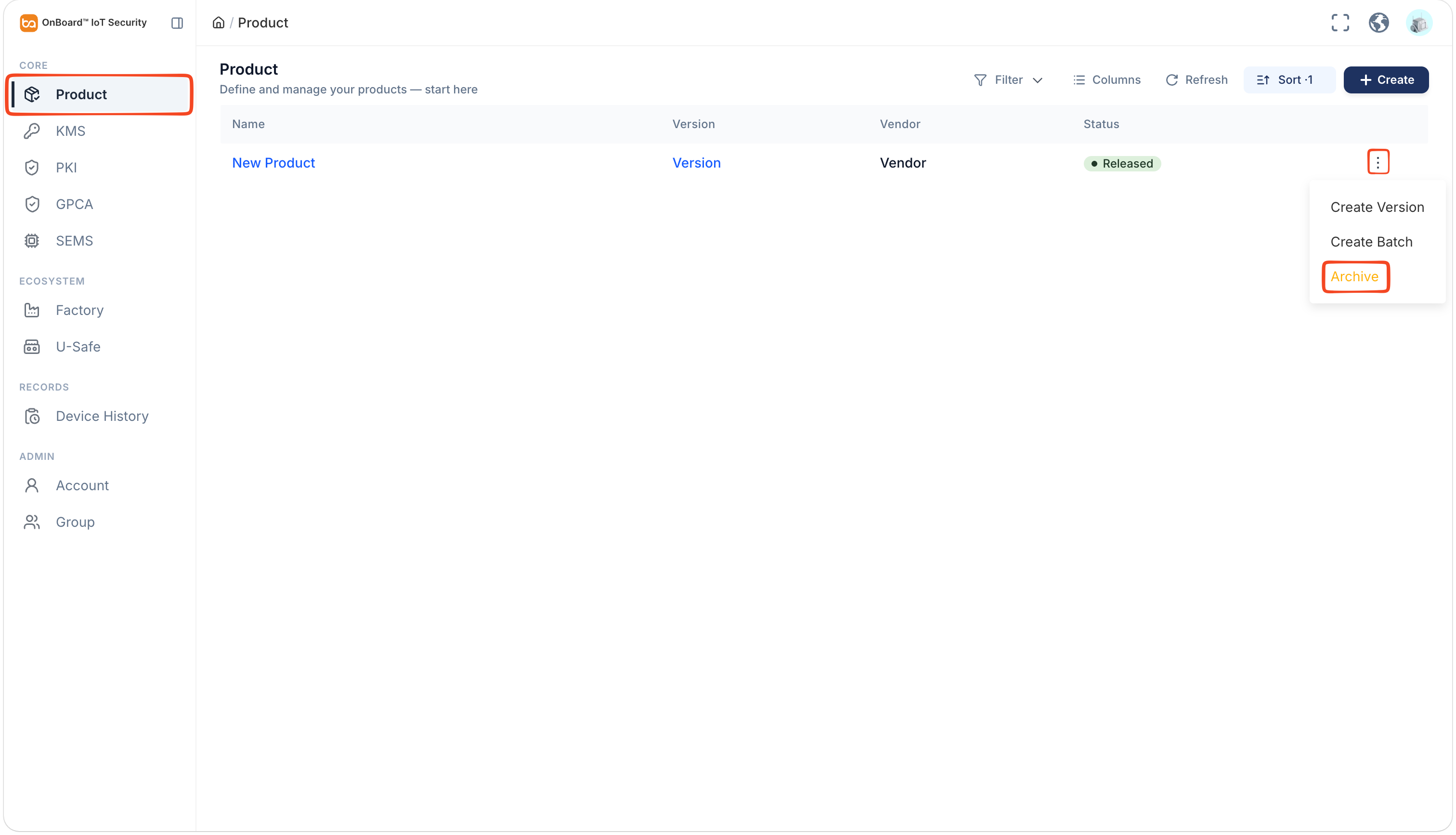
In the Core section of the left menu, click Product.
-
Click the Options
 icon for the corresponding product and then select Archive or Unarchive to archive or unarchive the product.
Deactivate or activate a product resource
-
Sign in to OBIS.
-
In the Core section of the left menu, click Product, and then select the corresponding product to navigate to the product page.
-
Select the Assets tab, and then find the corresponding resource in the Keys, Certificates, Firmware, General File, Programming Script, or SE Profile section. Then click the Options
icon and select Deactivate or Active to deactivate or activate the product resource.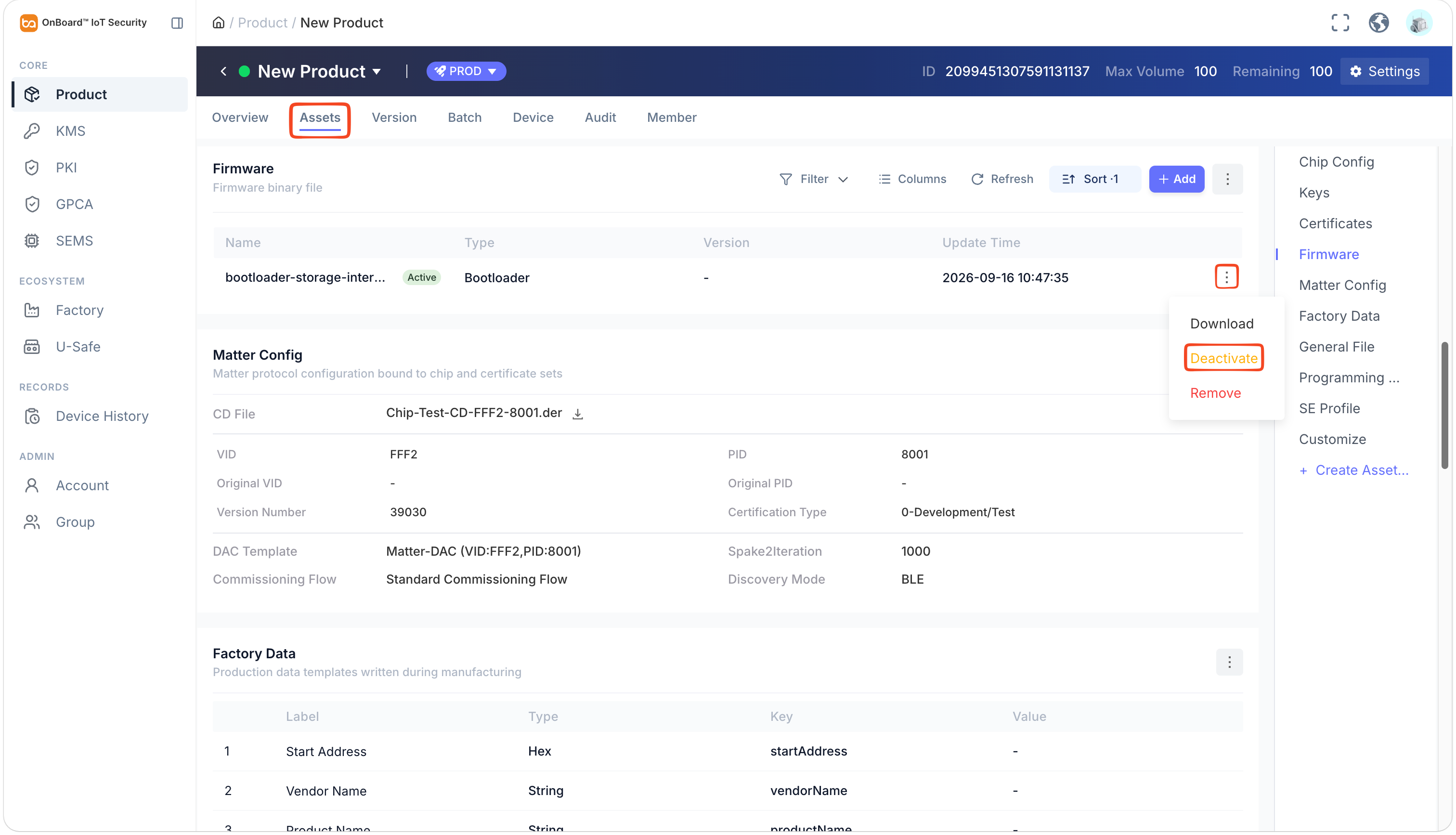
Remove a product resource
Before removing a key and certificate, please ensure that it has not been used to create versions or batches. Otherwise, you will see the message "Resource is in use and cannot be deactivated or removed".
-
Sign in to OBIS.
-
In the Core section of the left menu, click Product, and then select the corresponding product to navigate to the product page.
-
Select the Assets tab, and then find the corresponding resource in the Keys, Certificates, Firmware, General File, Programming Script, or SE Profile section. Then click the Options
icon and select Remove to remove the product resource.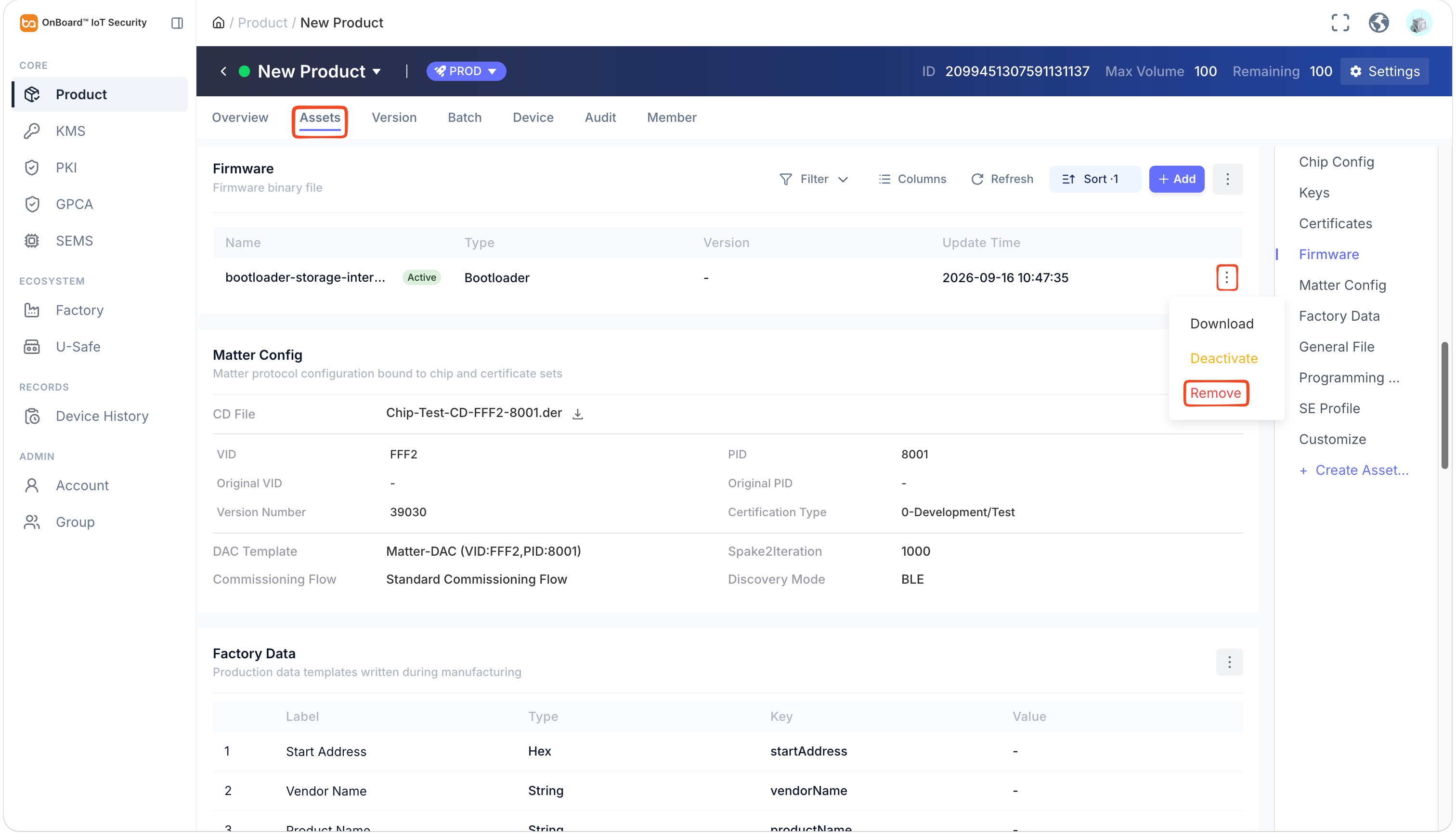
Add a product asset type
-
Sign in to OBIS.
-
In the Core section of the left menu, click Product, and then select the corresponding product to navigate to the product page.
-
On the product page, click Create Assets Type.
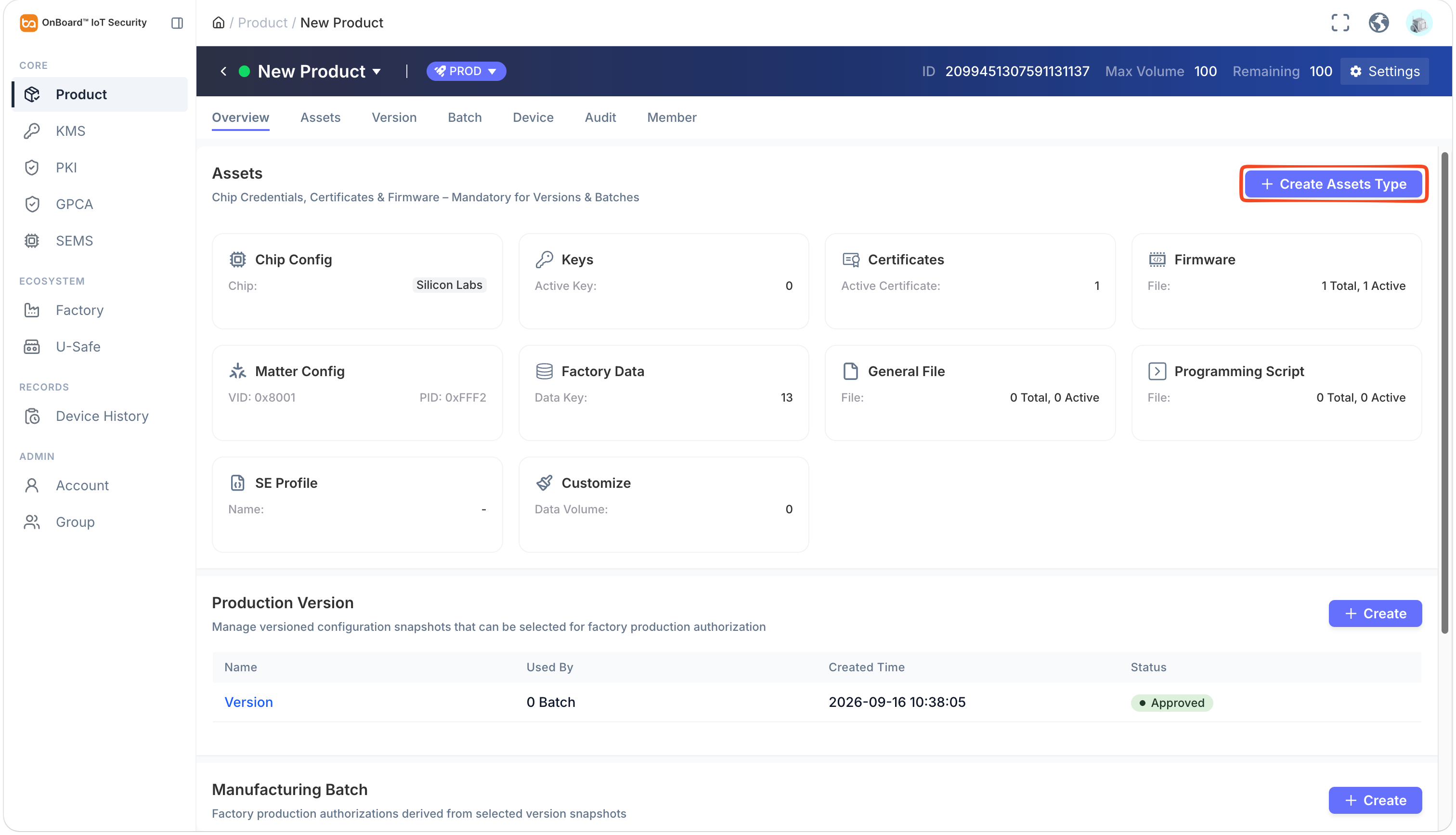
-
In the Confirm Action window, select the asset type that you want to add (assets that already exist can't be added, with the exception of custom assets), and then click Confirm to add the asset type.
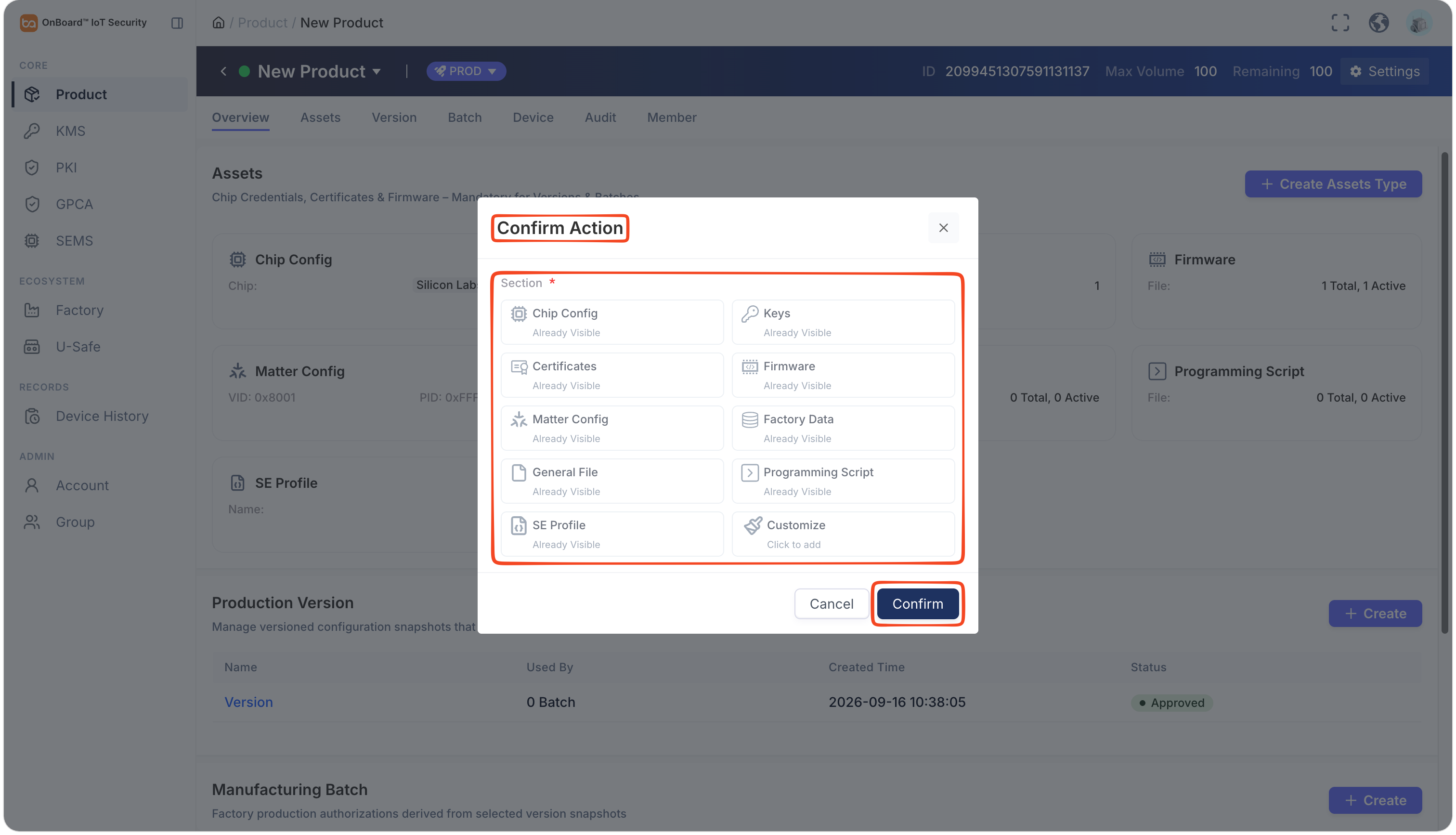
Remove a product asset type
Before removing an asset type, please ensure that none of the resources under that type have been used to create versions or batches. Otherwise, the Remove option will be grayed out and unclickable.
-
Sign in to OBIS.
-
In the Core section of the left menu, click Product, and then select the corresponding product to navigate to the product page.
-
Select the Assets tab, click the Option icon for the corresponding asset and then select Remove.
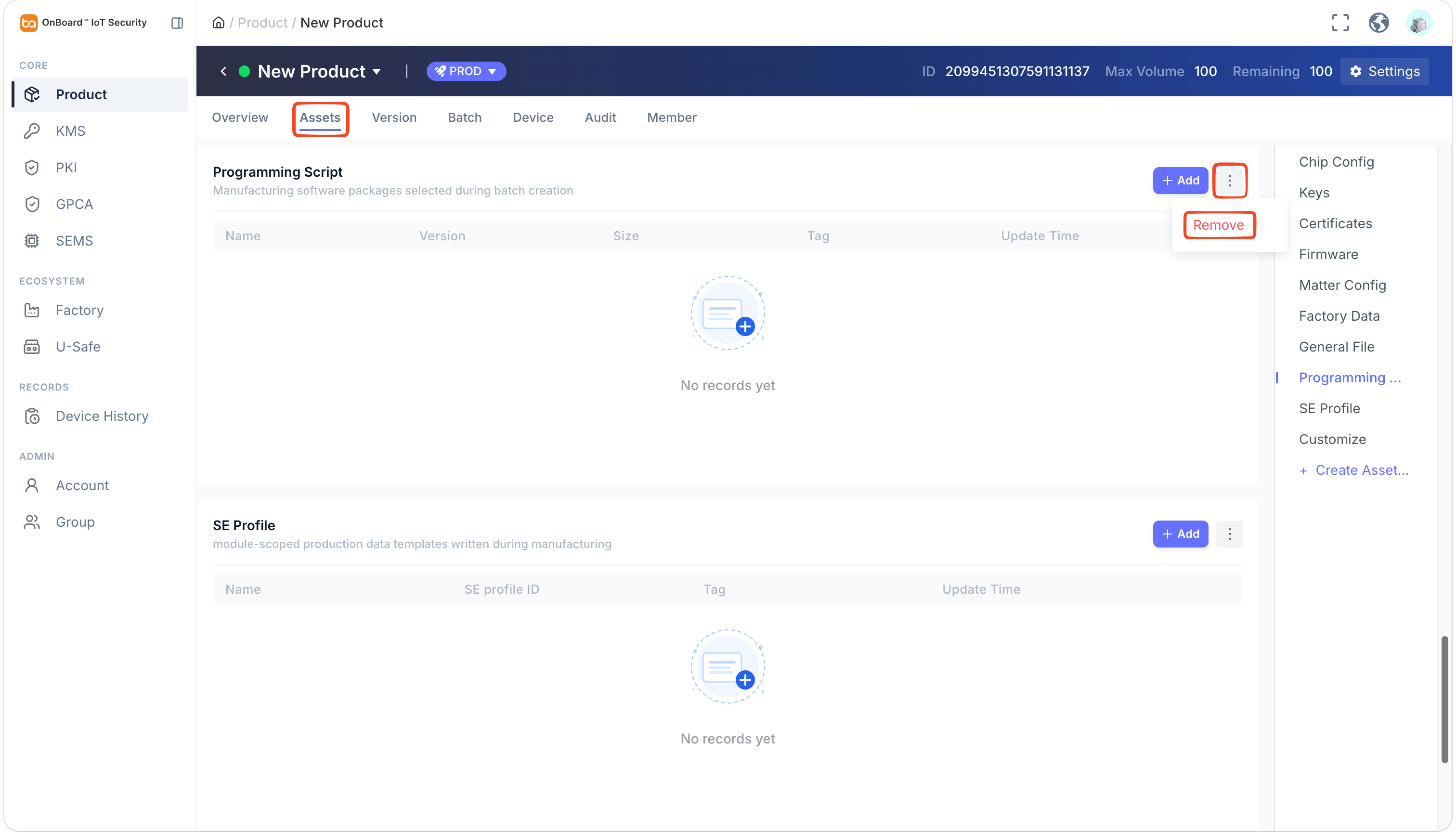
-
In the Confirm Action window, click Confirm to remove the asset.

 Download User Manual