How to execute device programming in Programming Station
Currently, the Programming Station client is available only on Windows.
This article will guide you on how to use the Programming Station client to execute device programming.
Prerequisites
Before getting started, please ensure that you can sign in to the Programming Station client.
Instructions
-
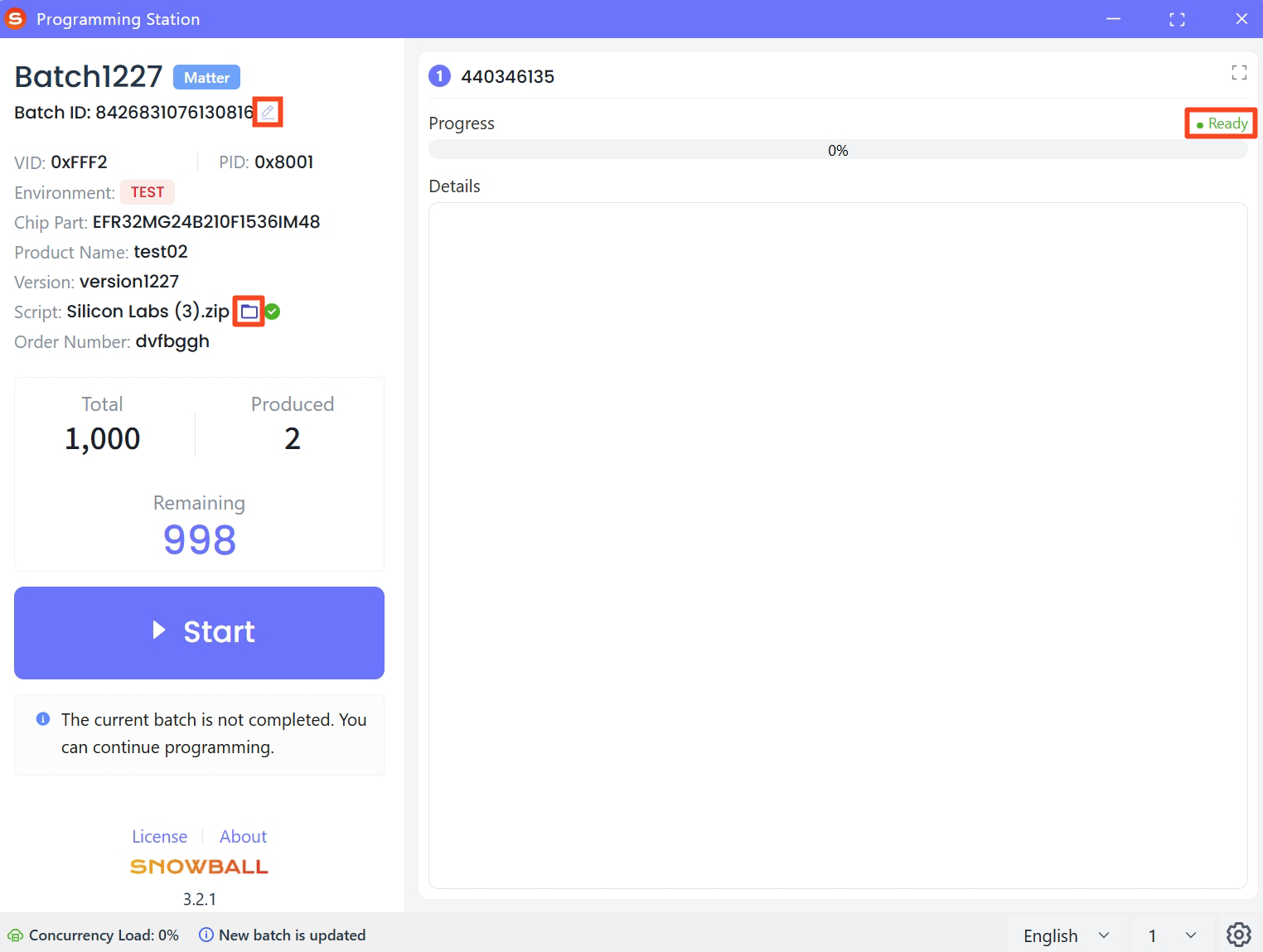
Sign in to the Programming Station client, and then verify that the device status is Ready.
tipIf the programming script is not selected when creating a batch, or if you want to select a different programming script, you can click the Folder
 icon to select the required programming script (any script format is supported). Additionally, you can click the Settings
 icon in the bottom-right corner and select Script Download Path to customize the default script download path.
If the programming station is not yet assigned to a batch, you can click the Edit
 icon, and then enter the batch ID to query and retrieve the corresponding batch information.
-
In the main window, click the Settings
icon in the bottom-right corner and then select Channel Configuration.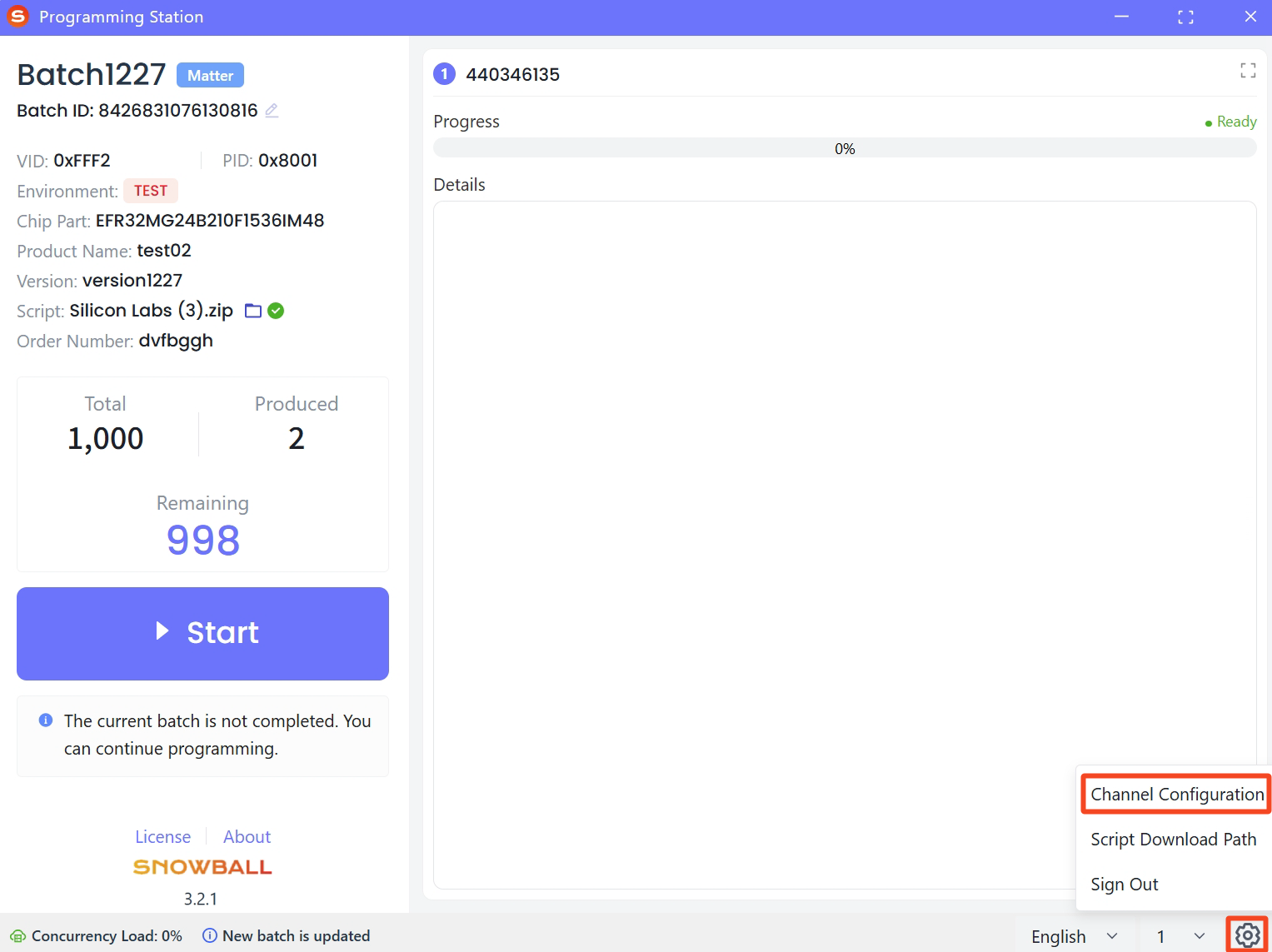
-
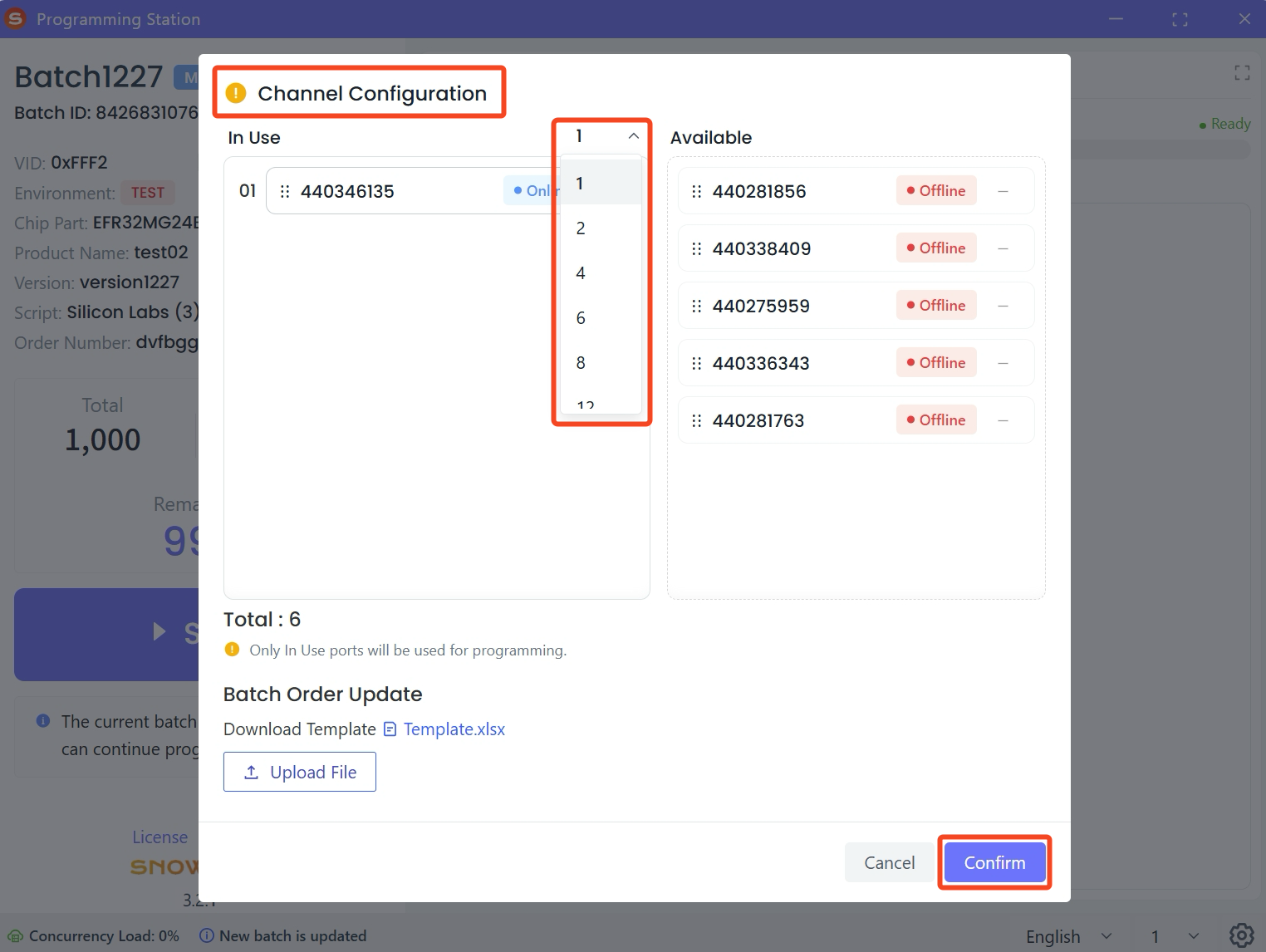
In the Channel Configuration window, set the number of connected programmers.
tipSet the number of connected programmers to adjust the number of devices programmed simultaneously. Currently, the system supports setting the number of connected programmers as 1, 2, 4, 6, 8, 12, and 16, which you can select as needed.
Meanwhile, the In Use and Available ports can be dragged and reordered.
-
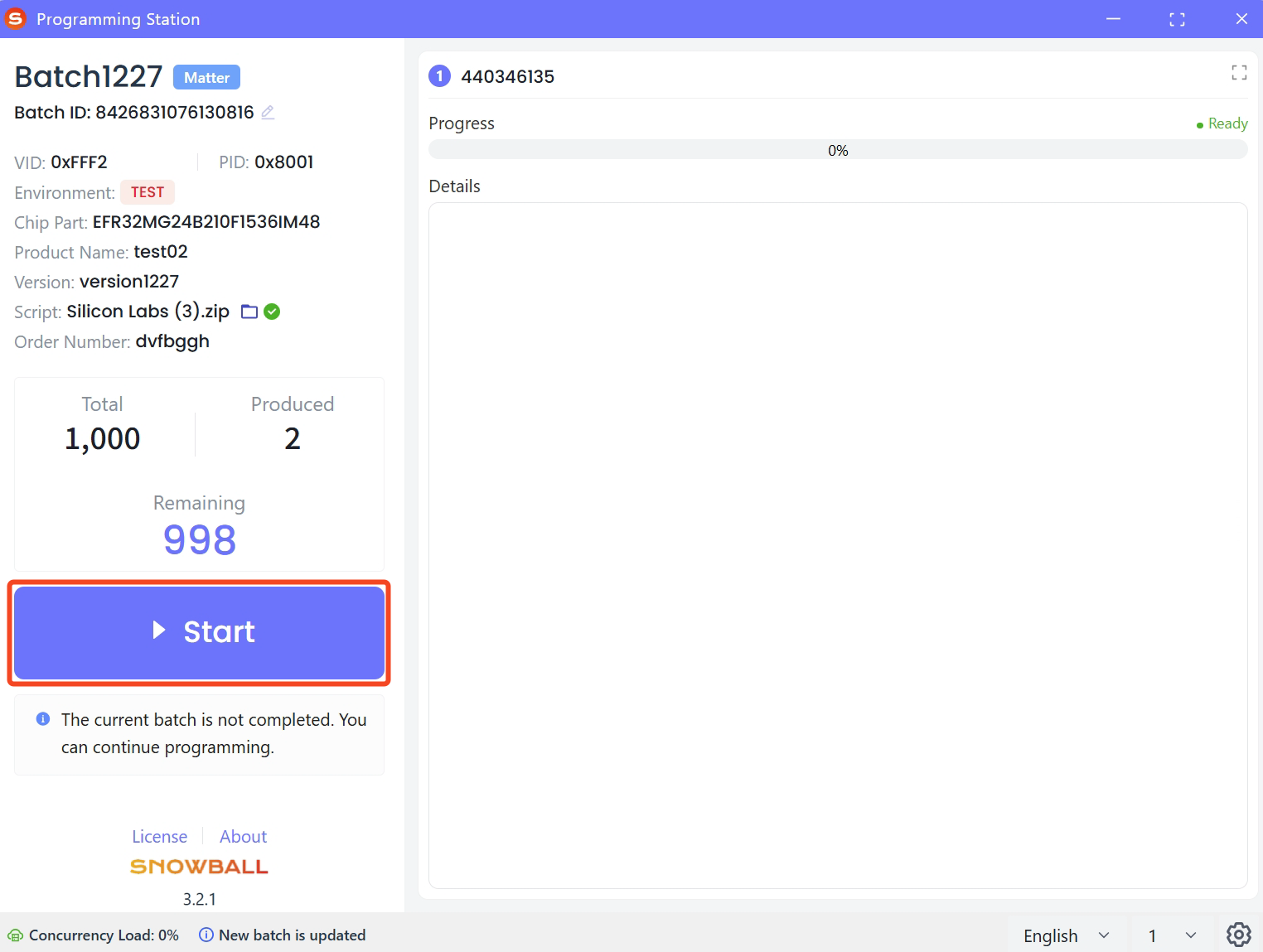
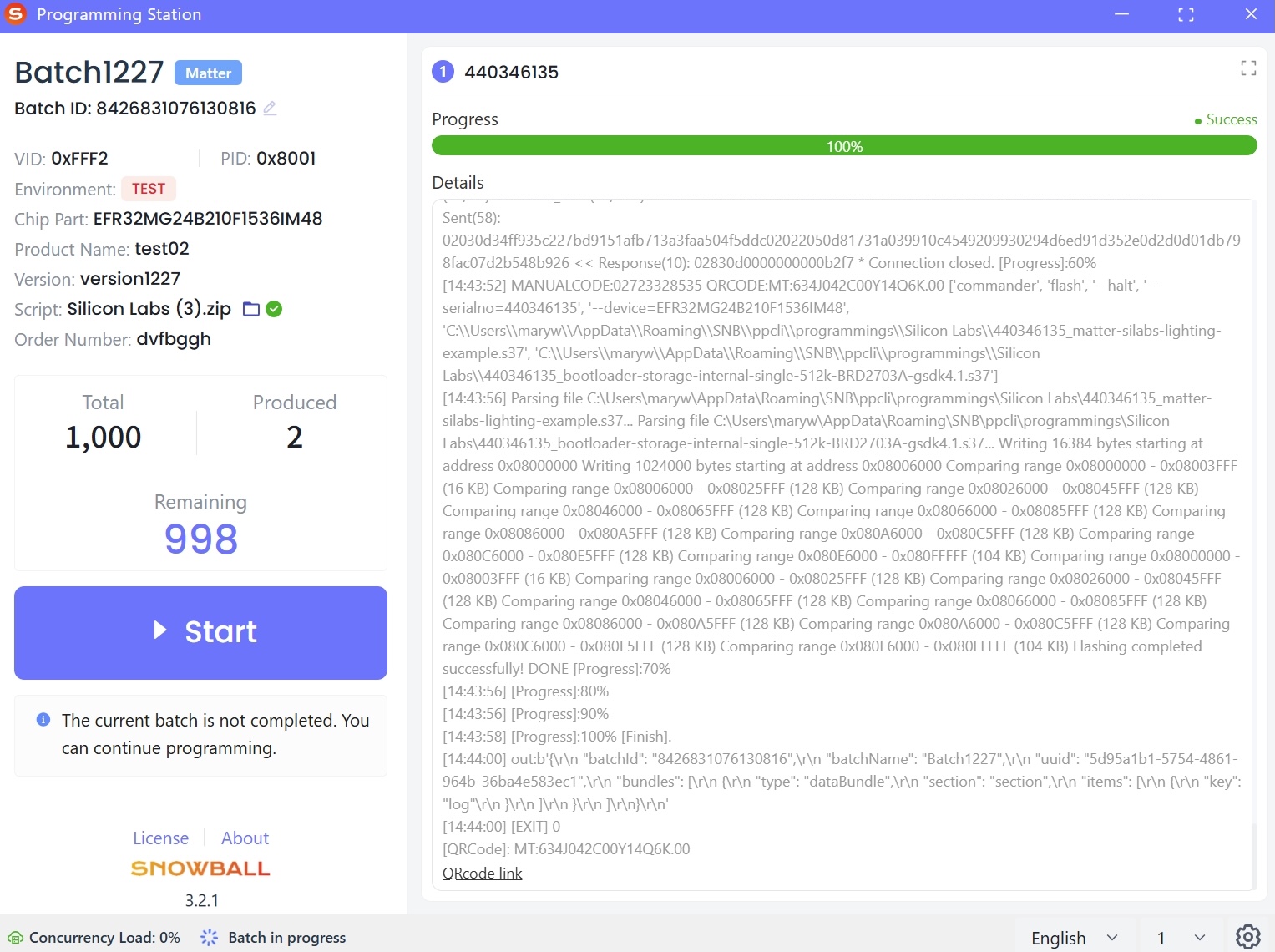
After verifying that the information is correct, click Start in the main window to execute device programming.
tipThe Concurrency Load in the bottom-left corner of the client indicates the server load when multiple programming stations are simultaneously programming:
-
If the load ≥ 90%, you will see the message "Concurrency limit nearly reached. Please contact the factory administrator to check the server", and you can continue programming at this point.
-
If the load = 100%, you will see the message "Concurrency limit reached. Please contact the factory administrator to check the server", and you can still continue programming.
-
-
After programming is completed, the programming details will be displayed.
tipYou can also check the programming details in OnBoard™ IoT Security (OBIS).

 Download User Manual