How to check factories in OnBoard™ IoT Security
This article will guide you on how to check factory information, factory status, programming station information, and batch information in OnBoard™ IoT Security (OBIS).
Prerequisites
Before getting started, please ensure that you have factory role permissions as a Factory Admin or Factory Manager.
Check factory status
-
Sign in to OBIS.
-
In the Ecosystem section of the left menu, click Factory. On the Factory page, the Status column will display three statuses: Normal, Locked, and Pending.
tipThe factory list only displays the factories you are involved in.
Click the Filter
 , Sort
 , Refresh
 , and Columns Options
 icons to filter, sort, refresh data, and to customize which columns are shown and how they are ordered.
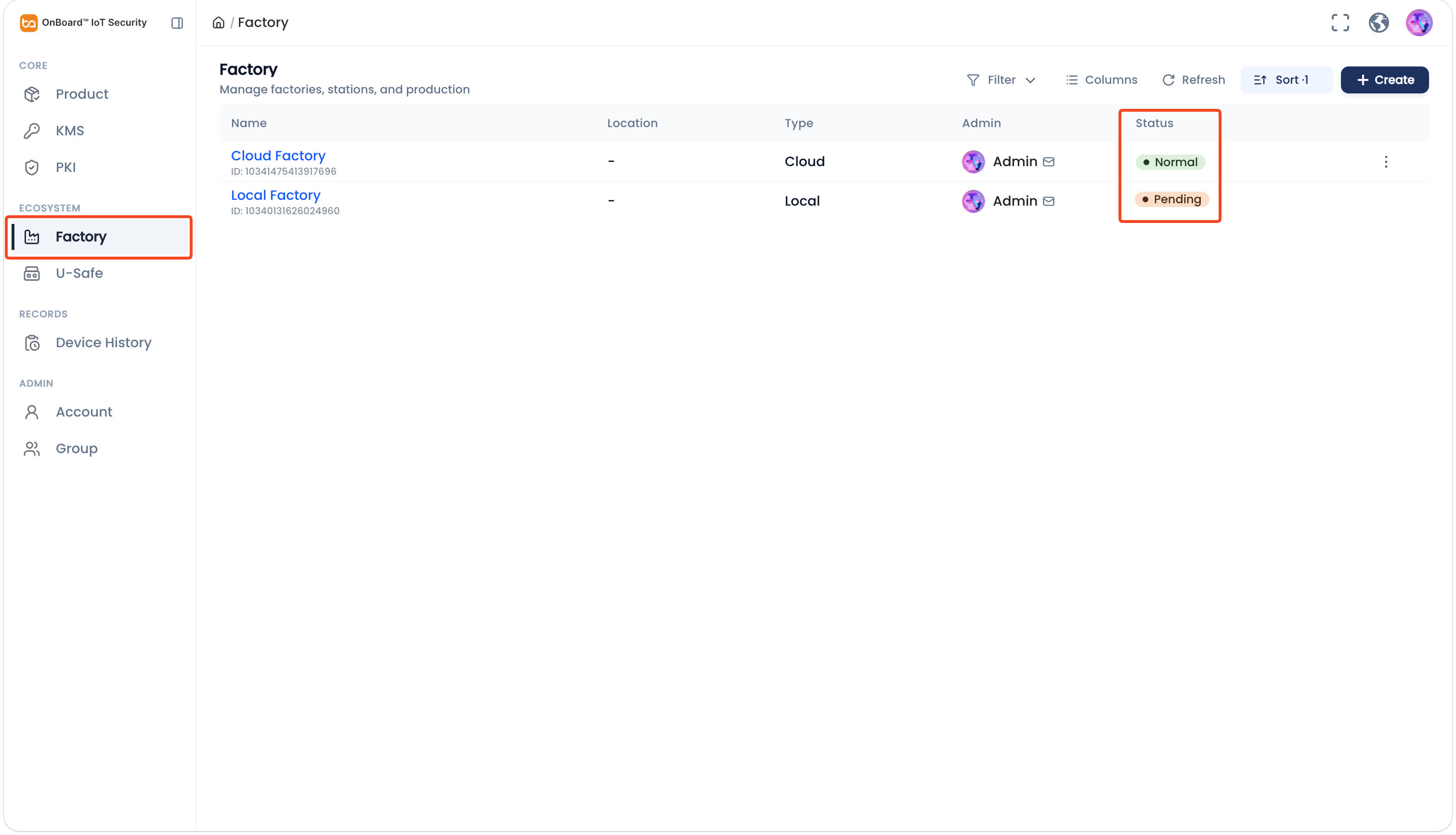
Description of factory status:
Status Description Normal The factory can be selected when creating a batch. - Local factory: Once an HSM U-Safe is added to the local factory, the status will change from Pending to Normal.
- Cloud factory: The initial status of a cloud factory is Normal.
Locked The factory has been locked, and can't be used normally. Pending The factory status after the factory creation but without adding an HSM U-Safe, and the factory can't be selected when creating a batch.
Note: This status applies only to local factories.
Check the factory information
-
Sign in to OBIS.
-
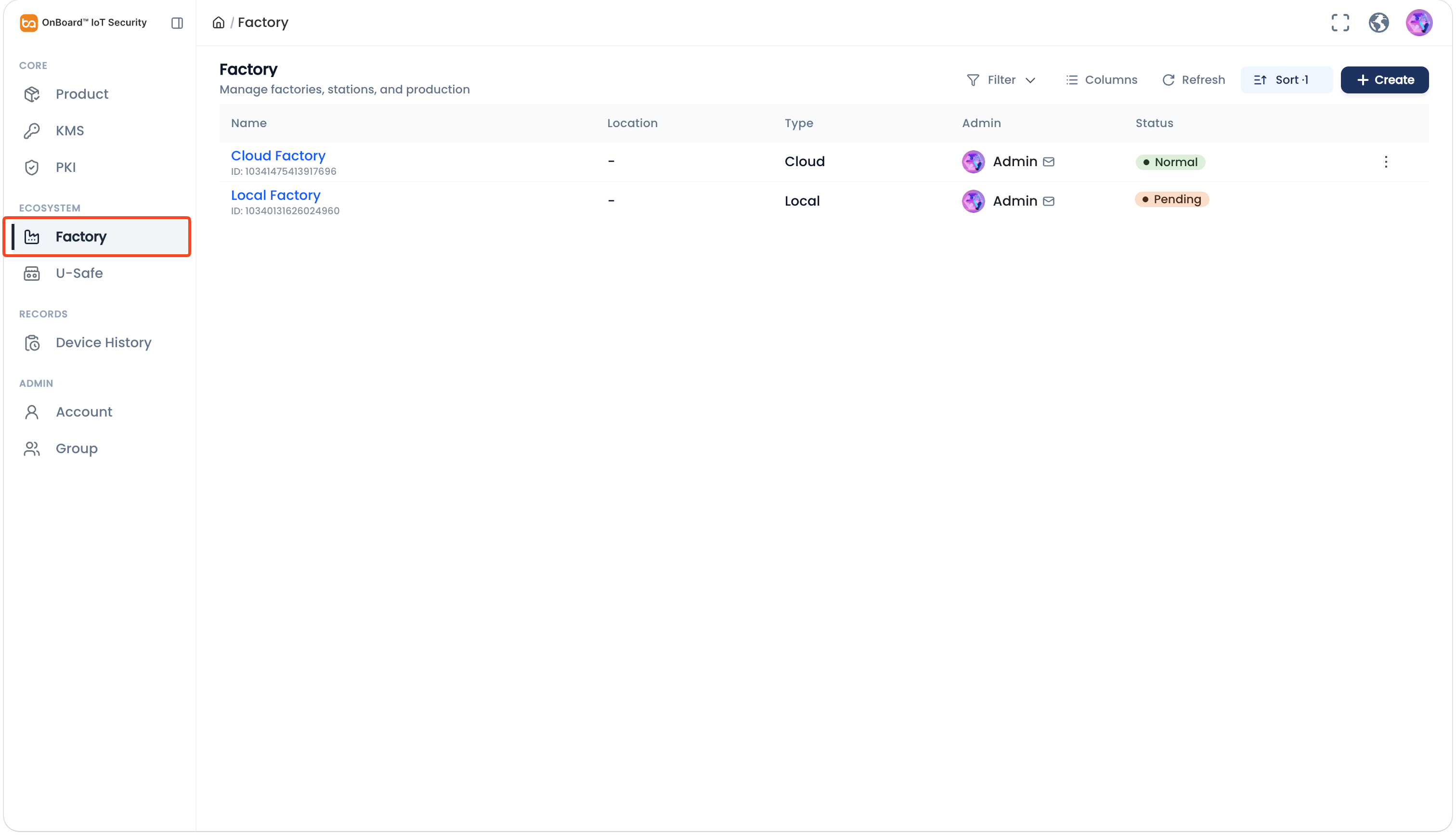
In the Ecosystem section of the left menu, click Factory, and then you can check the factory list on the Factory page.
-
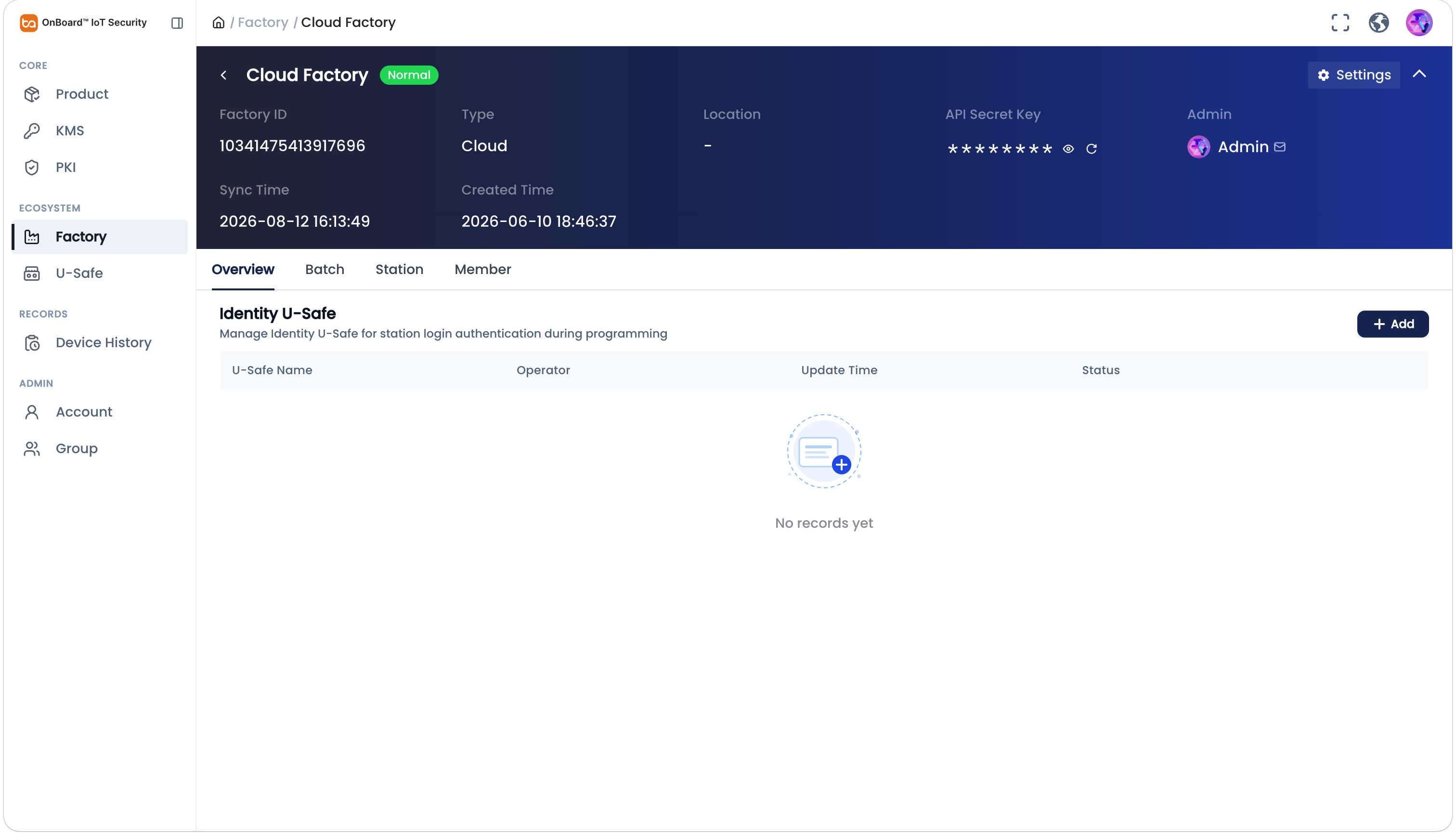
Select the corresponding factory to navigate to the factory page, and then you can check the factory-related information (such as Factory ID, Type, and Location).
tipFor a local factory, after contacting Snowball for assistance in deploying OnBoard Edge Service, the corresponding service address can be found in the factory information. This service address will be used to sign in to OnBoard Edge Service and the Programming Station client.
Check the programming station information
-
Sign in to OBIS.
-
In the Ecosystem section of the left menu, click Factory, and then select the corresponding factory to navigate to the factory page.
-
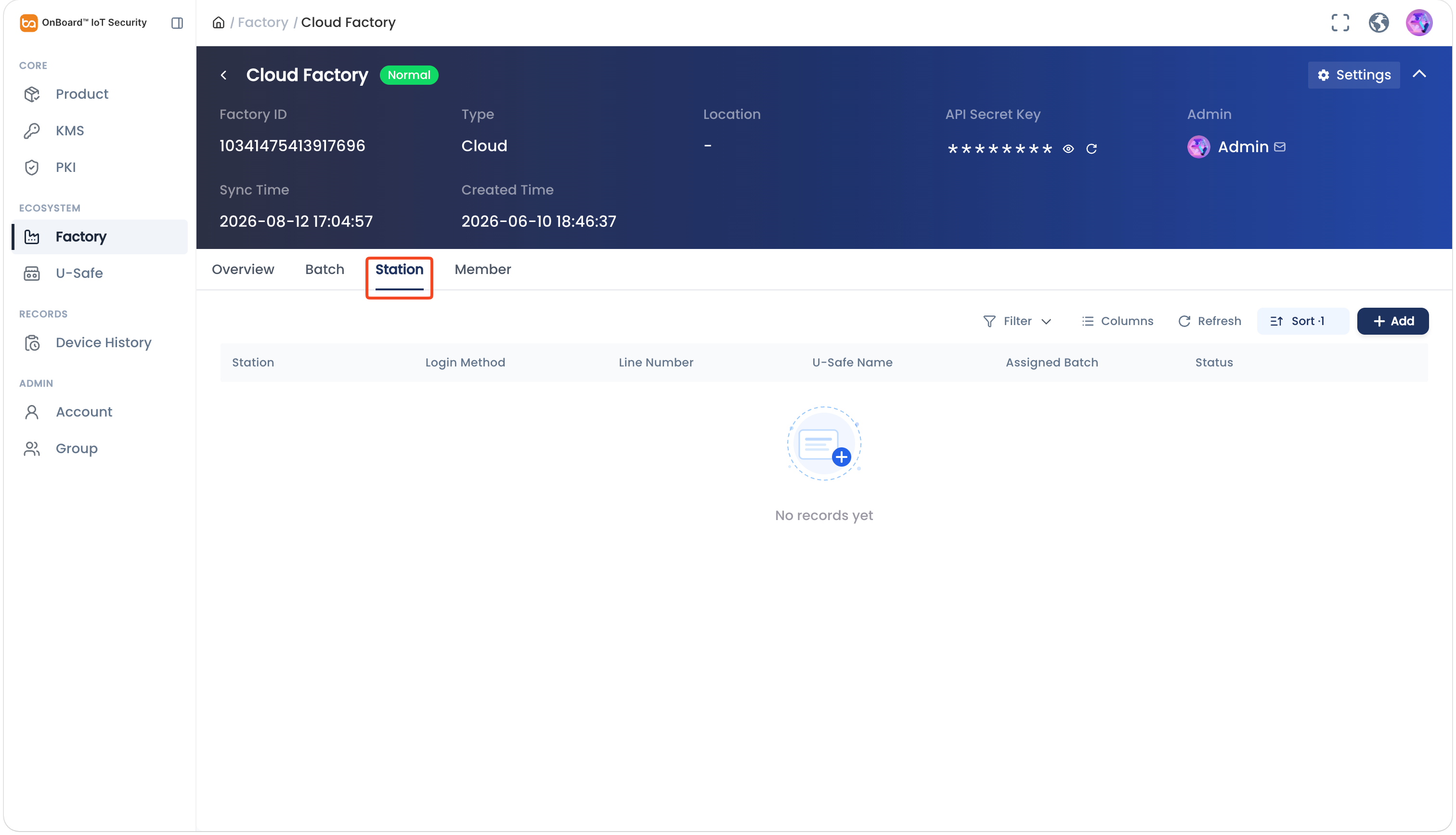
On the factory page, select the Station tab, and then you can check the programming station information (such as Login Method, Status, and Assigned Batch).
Check the batch information
- Local factory
- Cloud factory
After selecting the corresponding factory when creating a batch, the Batch tab on the factory page will synchronize the batch data.
-
Sign in to OBIS.
-
In the Ecosystem section of the left menu, click Factory, and then select the corresponding factory to navigate to the factory page.
-
On the factory page, select the Batch tab, and then you can check the batch information (such as Batch, Version, and Production Progress).
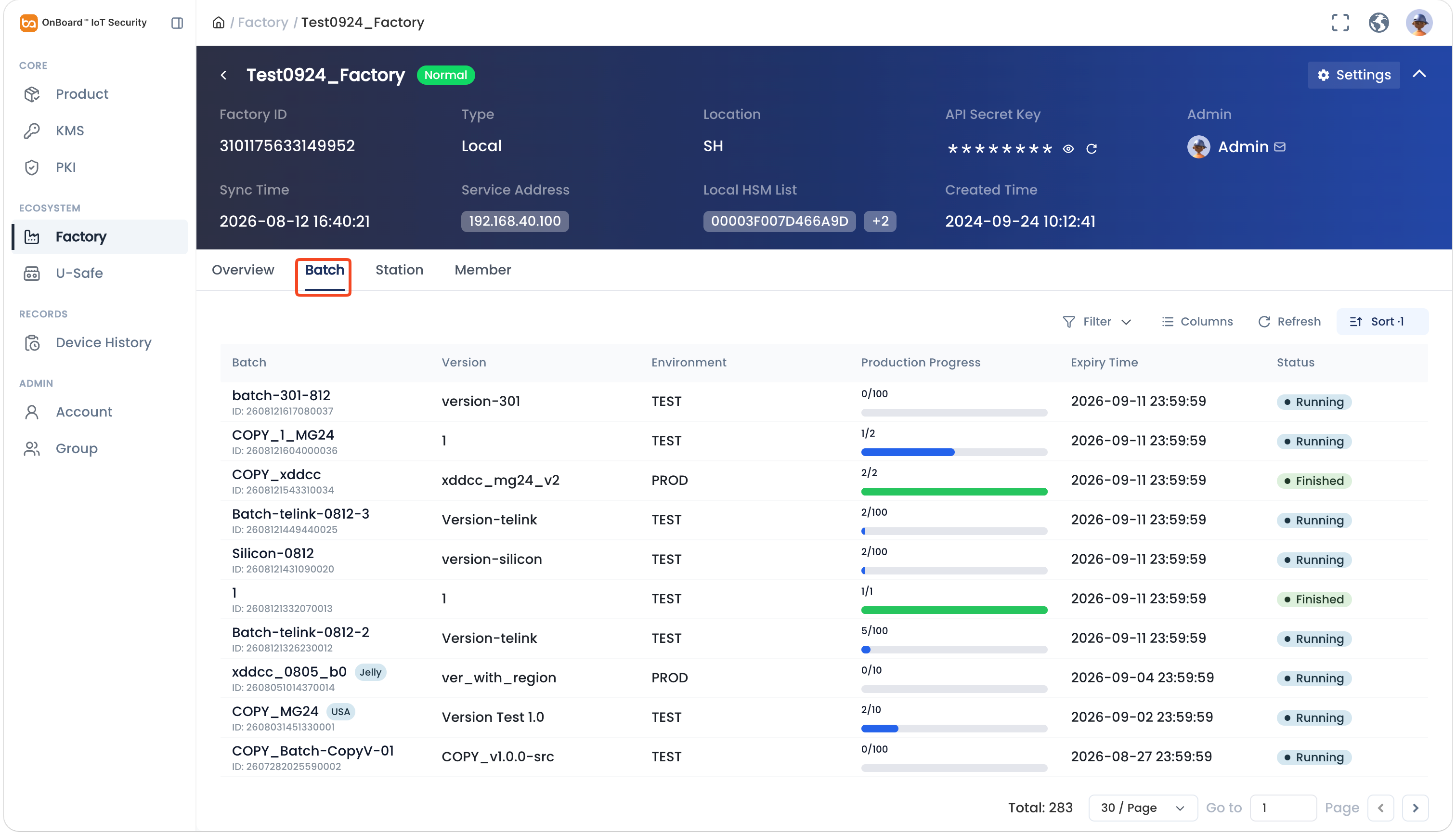
After selecting the corresponding factory when creating a batch, the Batch tab on the factory page will synchronize the batch data.
-
Sign in to OBIS.
-
In the Ecosystem section of the left menu, click Factory, and then select the corresponding factory to navigate to the factory page.
-
On the factory page, select the Batch tab, and then you can check the batch information (such as Batch, Version, and Production Progress).
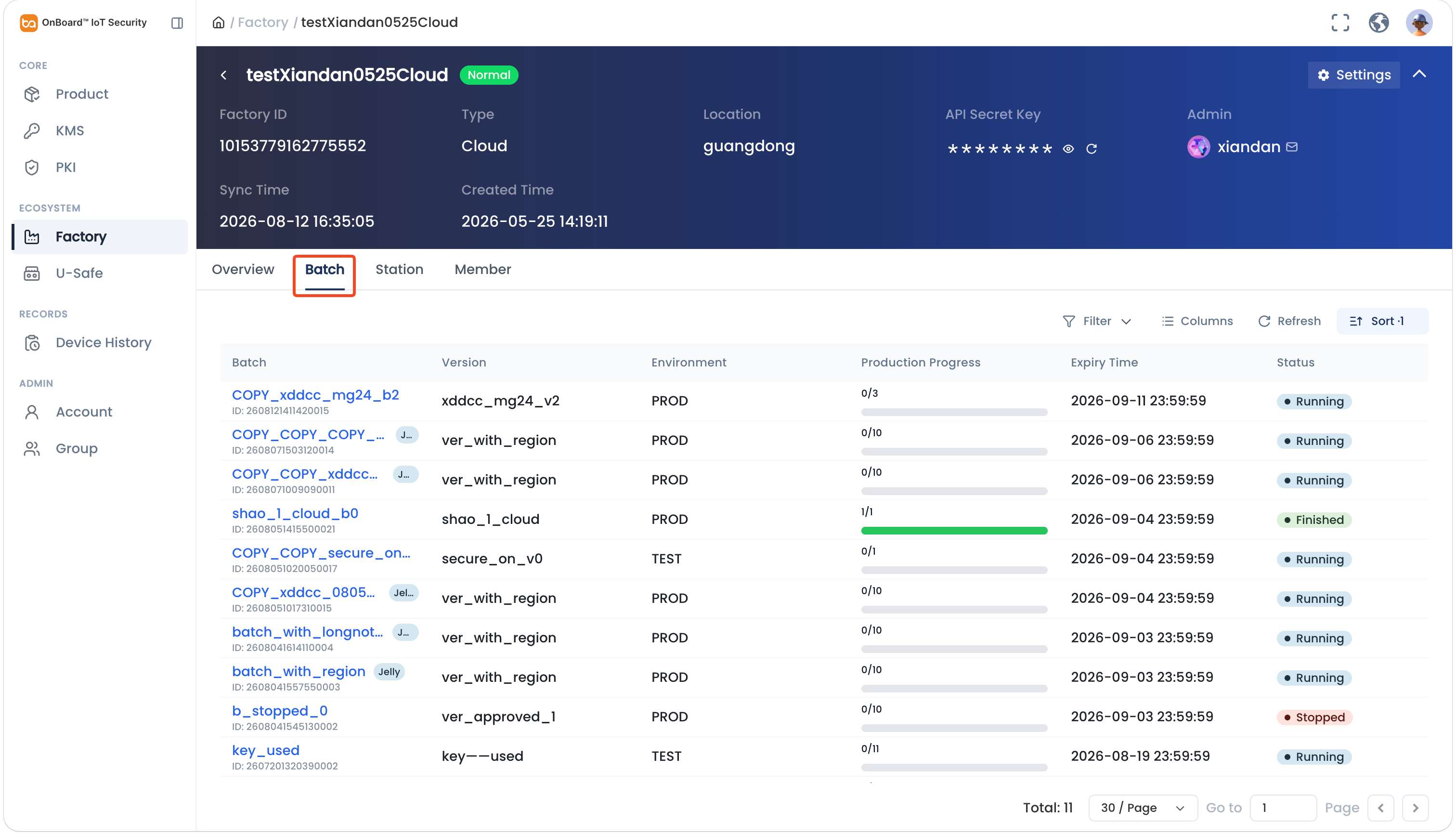
-
Select the corresponding batch to navigate to the batch page, and then you can check the batch-related information.

 Download User Manual