How to check SE Profiles in OnBoard™ IoT Security
This article will guide you through the following operations in OnBoard™ IoT Security (OBIS).
- Check basic information
- Check usage
- Check scripts
- Check members
Prerequisites
Before getting started, please ensure that:
- You have OBIS role permissions as a System Manager or SE Resource Manager.
- You have permissions for the corresponding SE Profile.
Check basic information
-
Sign in to OBIS.
-
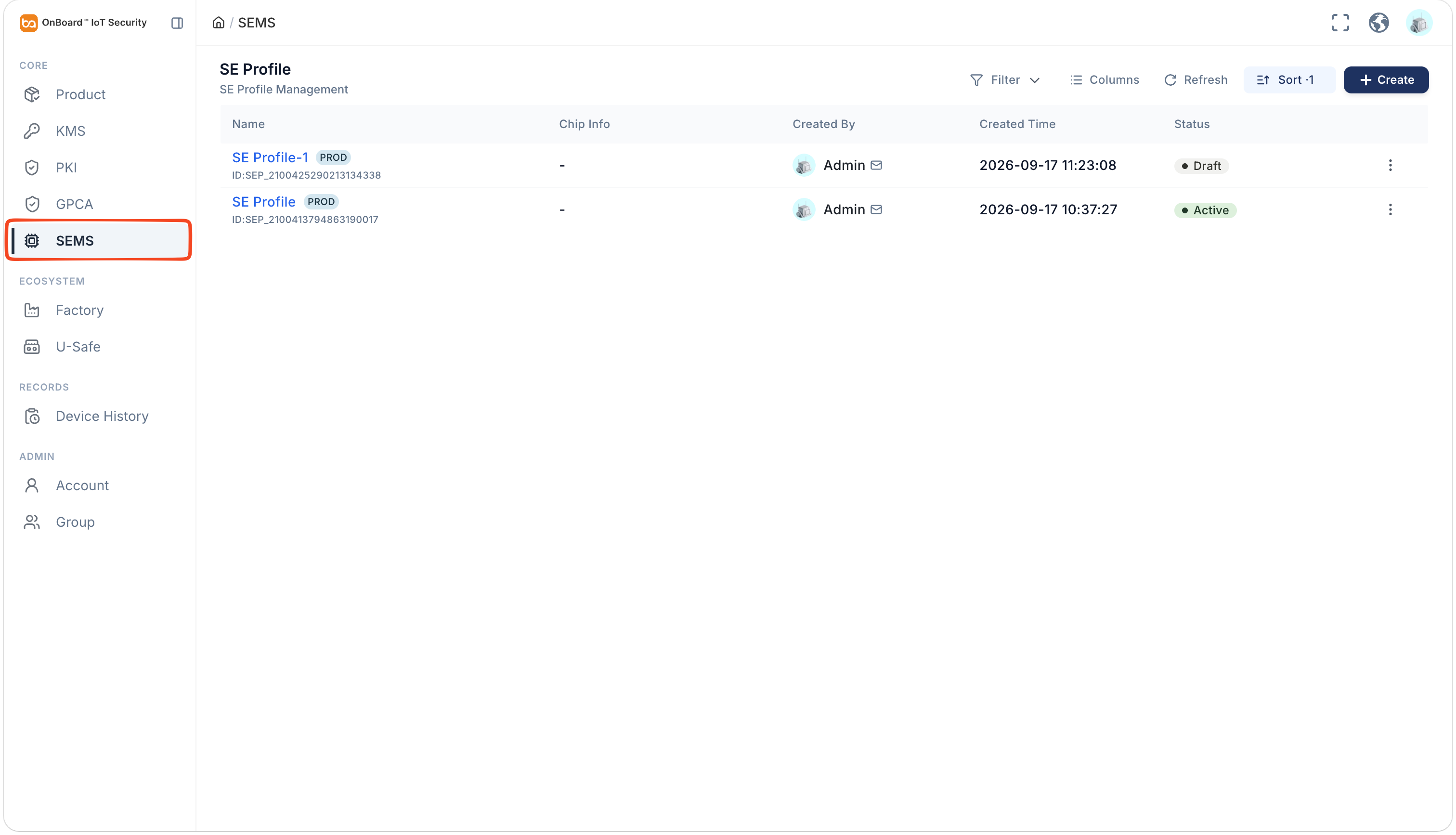
In the Core section of the left menu, click SEMS, and then select the corresponding SE Profile.
tipClick the Filter
 , Sort
 , Refresh
 , and Columns Options
 icons to filter, sort, refresh data, and to customize which columns are shown and how they are ordered.
-
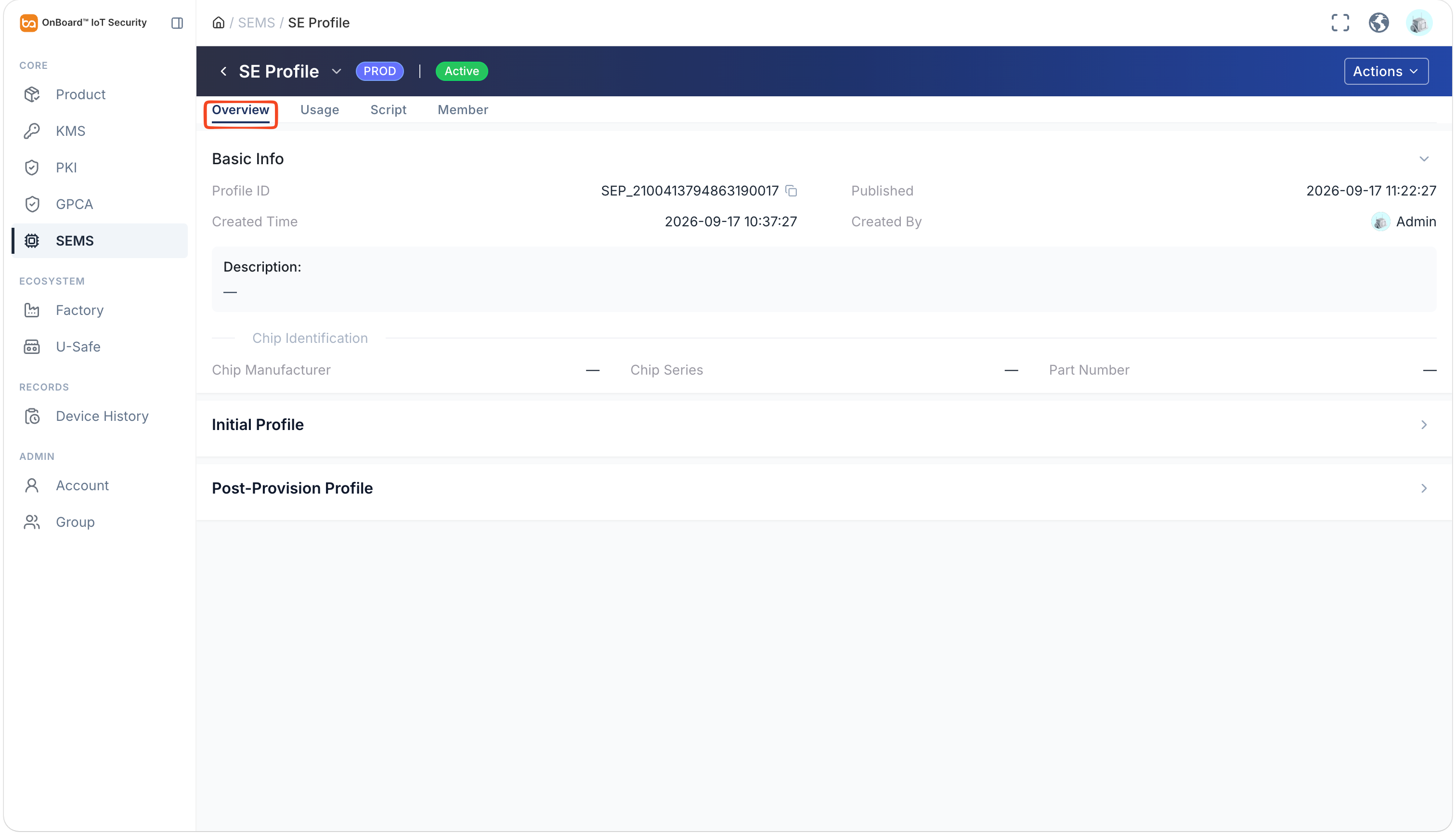
On the SE Profile page, you can check the SE Profile related information (Basic Info, Initial Profile, and Post-Provision Profile).
Check usage
SE Profile usage can be used to check its reference records and the current data status of the associated objects.
-
Sign in to OBIS.
-
In the Core section of the left menu, click SEMS, and then select the corresponding SE Profile.
-
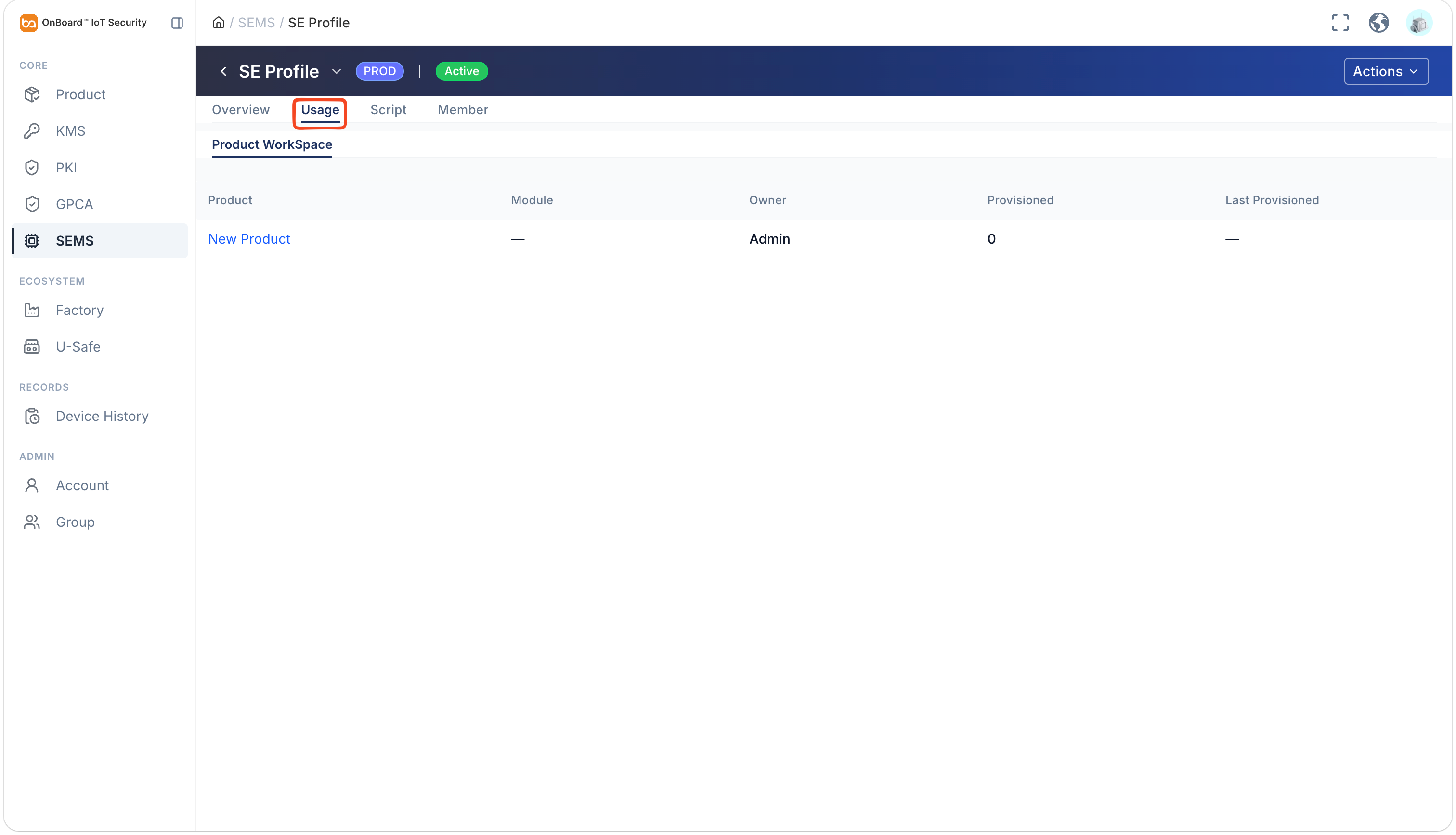
On the Usage tab of the SE Profile page, you can check the usage details for the SE Profile (such as associated products and the number of times it has been provisioned).
Check scripts
When the SE Profile is in the Draft state, the Script tab will not be displayed.
-
Sign in to OBIS.
-
In the Core section of the left menu, click SEMS, and then select the corresponding SE Profile.
-
On the Script tab of the SE Profile page, you can check the scripts information (such as Name, Target SD, and OCE).
tipClick the Filter
, Sort , Refresh , and Columns Options icons to filter, sort, refresh data, and to customize which columns are shown and how they are ordered.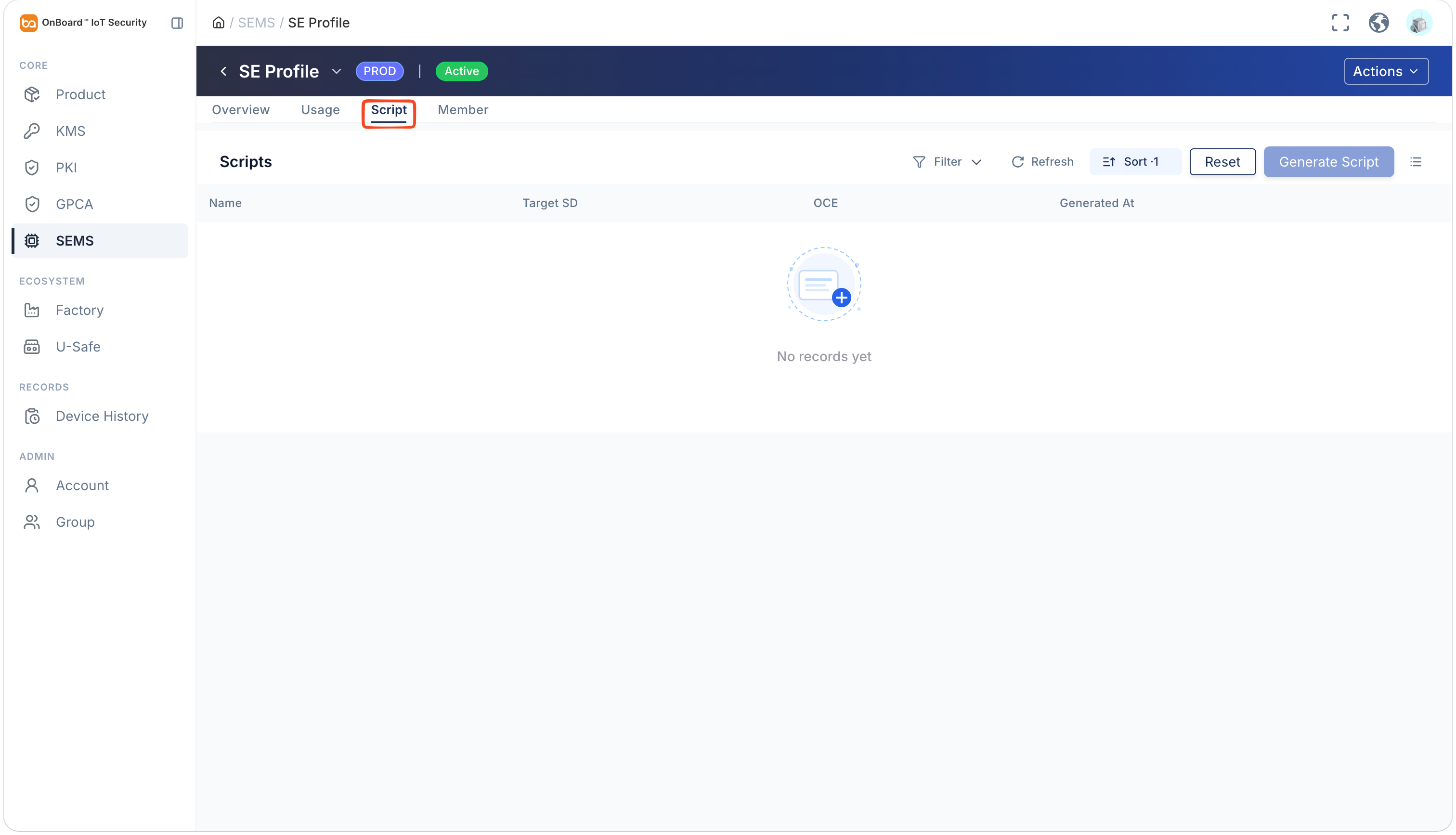
Check members
AMSD collaborators don't have permission to check the Member tab.
-
Sign in to OBIS.
-
In the Core section of the left menu, click SEMS, and then select the corresponding SE Profile.
-
On the Member tab of the SE Profile page, you can check the permissions that members have for this SE Profile (such as Name, Role, Permission, and Access Scope).
tipClick the Filter
, Sort , Refresh , and Columns Options icons to filter, sort, refresh data, and to customize which columns are shown and how they are ordered.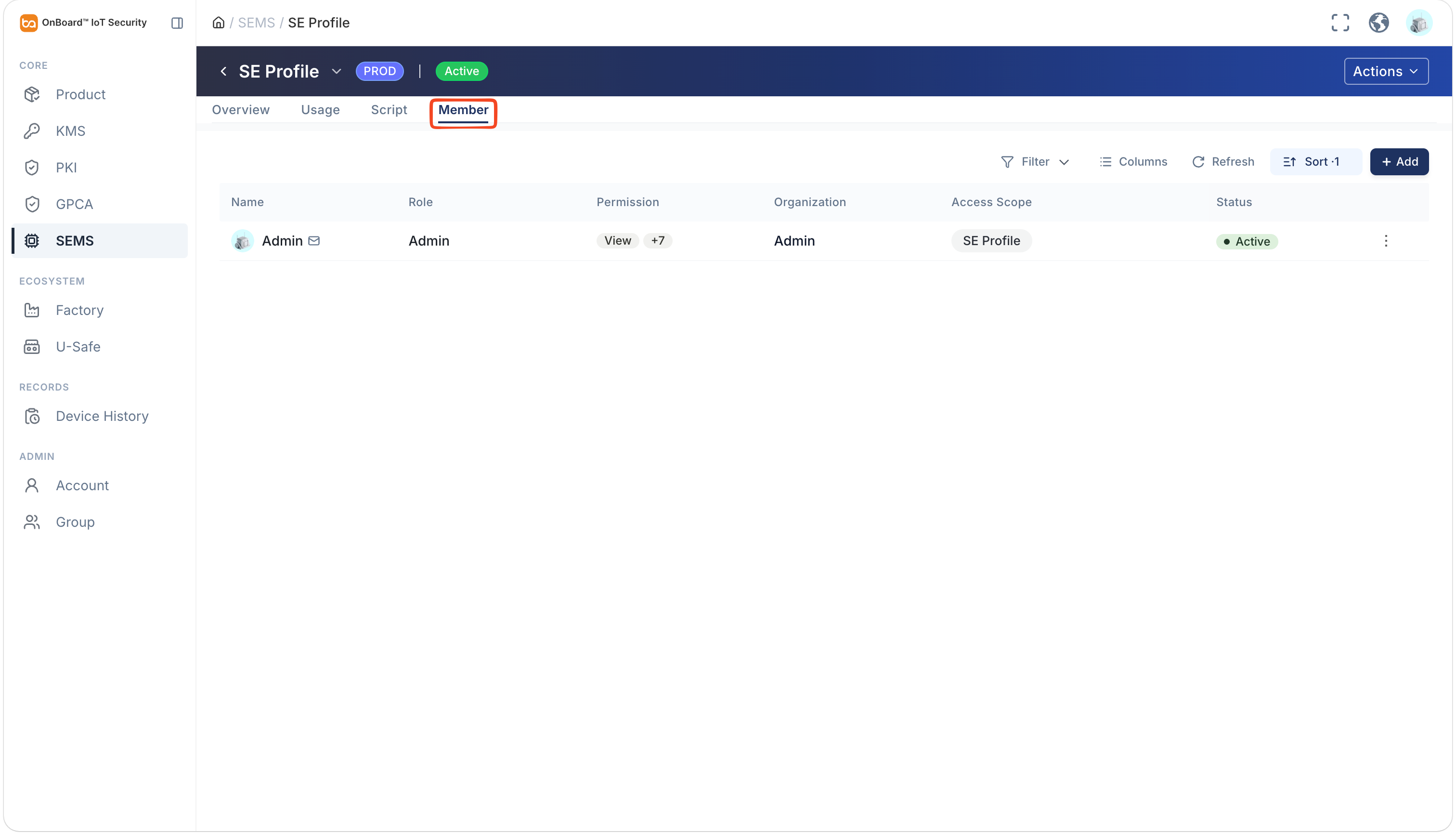

 Download User Manual