How to create an SE Profile in OnBoard™ IoT Security
This article will guide you on how to create an SE Profile in OnBoard™ IoT Security (OBIS).
Prerequisites
Before getting started, please ensure that you have OBIS role permissions as a System Manager or SE Resource Manager.
Instructions
After an SE Profile is created and configured, it can be selected when configuring an SE Profile for a product.
-
Sign in to OBIS.
-
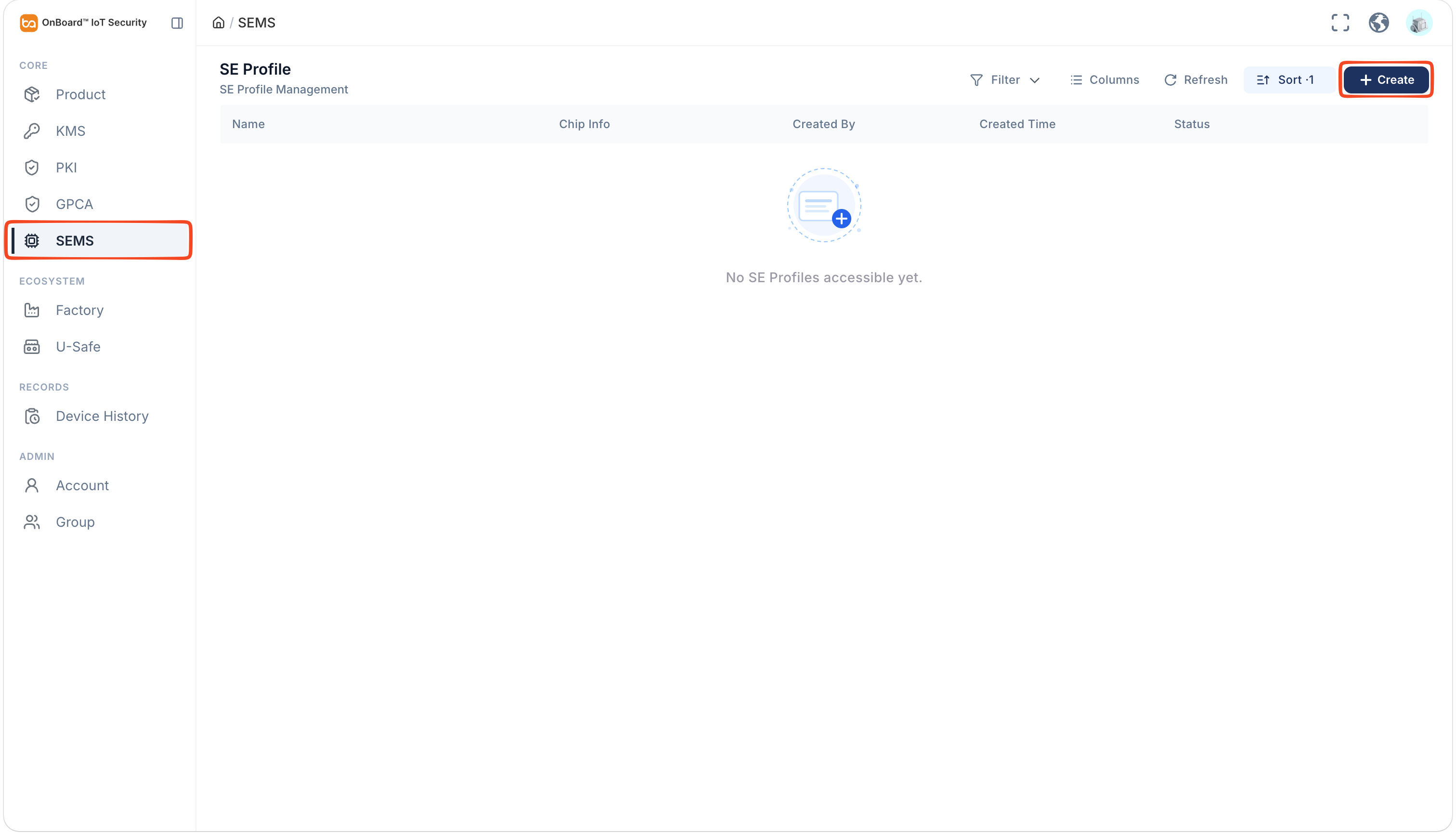
In the Core section of the left menu, click SEMS, and then click Create on the SE Profile page.
-
In the Create SE Profile panel, select and enter the SE Profile basic information.
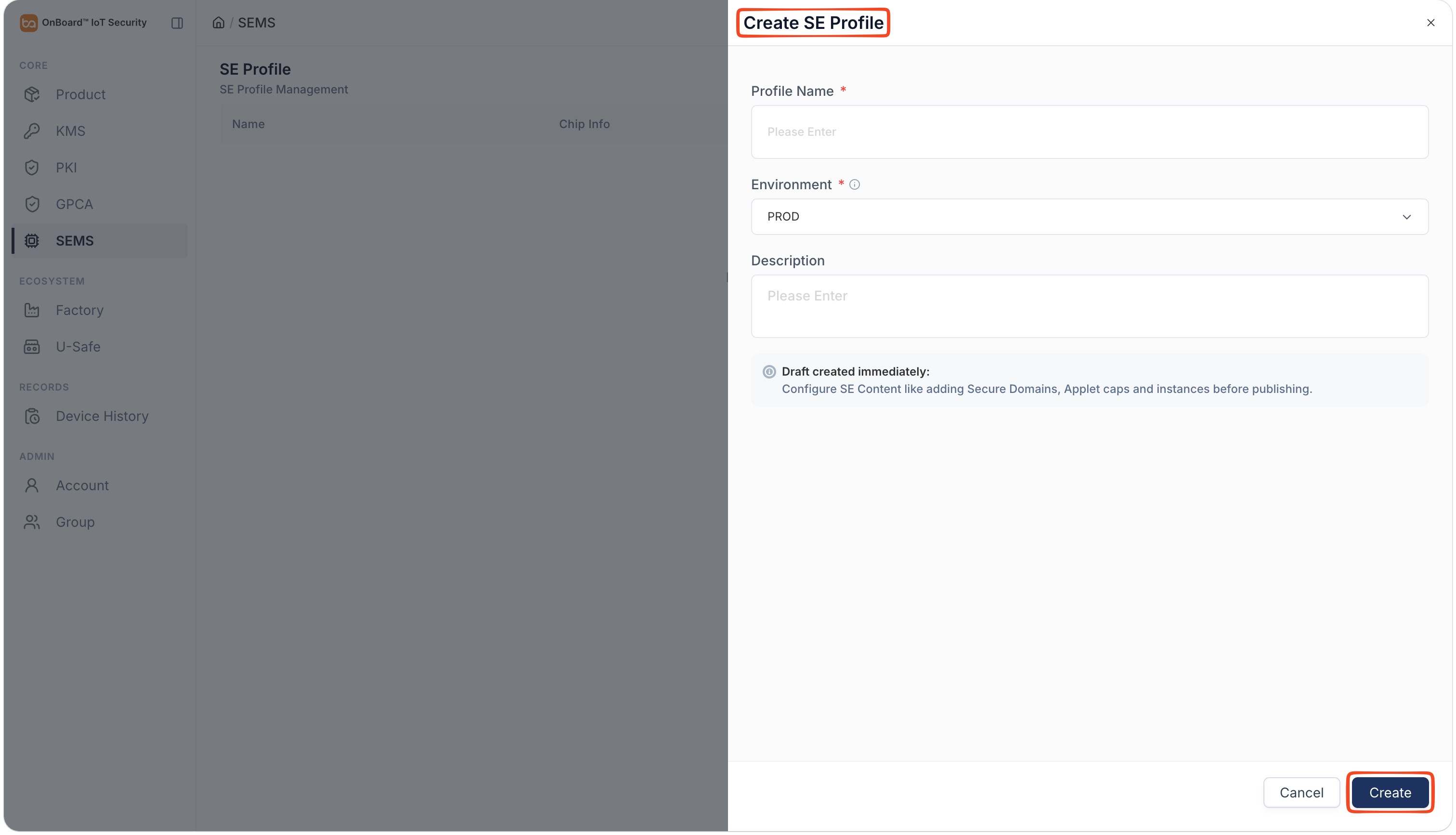
Description of SE Profile basic Information:
Information Mandatory Description Profile Name Yes The SE Profile name must be unique in the same environment. Environment Yes Two environments can be selected: PROD and TEST. Description No Provide additional information related to the SE Profile, such as special requirements and important notes. -
Click Create to complete the creation of the SE Profile.
By default, the SE Profile creator is set as the Admin. To change the Admin, click the Options  icon for the Admin and select Transfer Admin on the Member tab, then choose the new Admin and click Confirm.
After an SE Profile is created, its initial status is Draft. Once it's published, the SE Profile status will change to Active.

 Download User Manual