How to manage scripts in OnBoard™ IoT Security
When the SE Profile is in the Draft state, the Script tab is not displayed.
This article will guide you through the following operations in OnBoard™ IoT Security (OBIS):
- Generate a script
- Download a script
- Delete a script
Prerequisites
Before getting started, please ensure that:
- You have OBIS role permissions as a System Manager or SE Resource Manager.
- You have permissions for the corresponding SE Profile.
Generate a script
SEMS uses the SCP11c security protocol to encrypt and encapsulate scripts, ensuring their secure delivery to devices.
-
Sign in to OBIS.
-
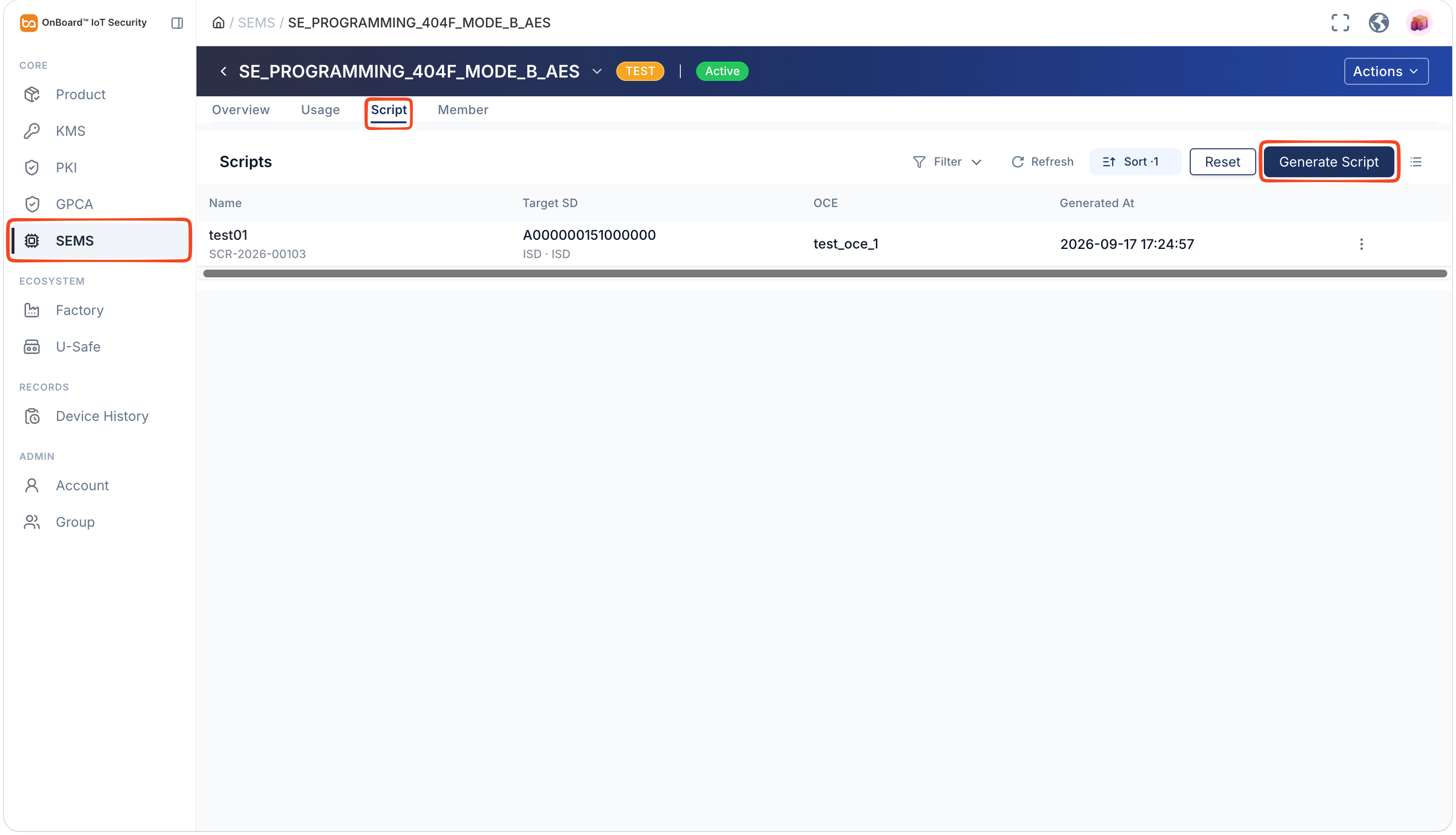
In the Core section of the left menu, click SEMS, and then select the corresponding SE Profile.
-
On the Scripts tab of the SE Profile page, click Generate Script.
-
In the Generate SCP11c Script panel, select and upload the relevant information.
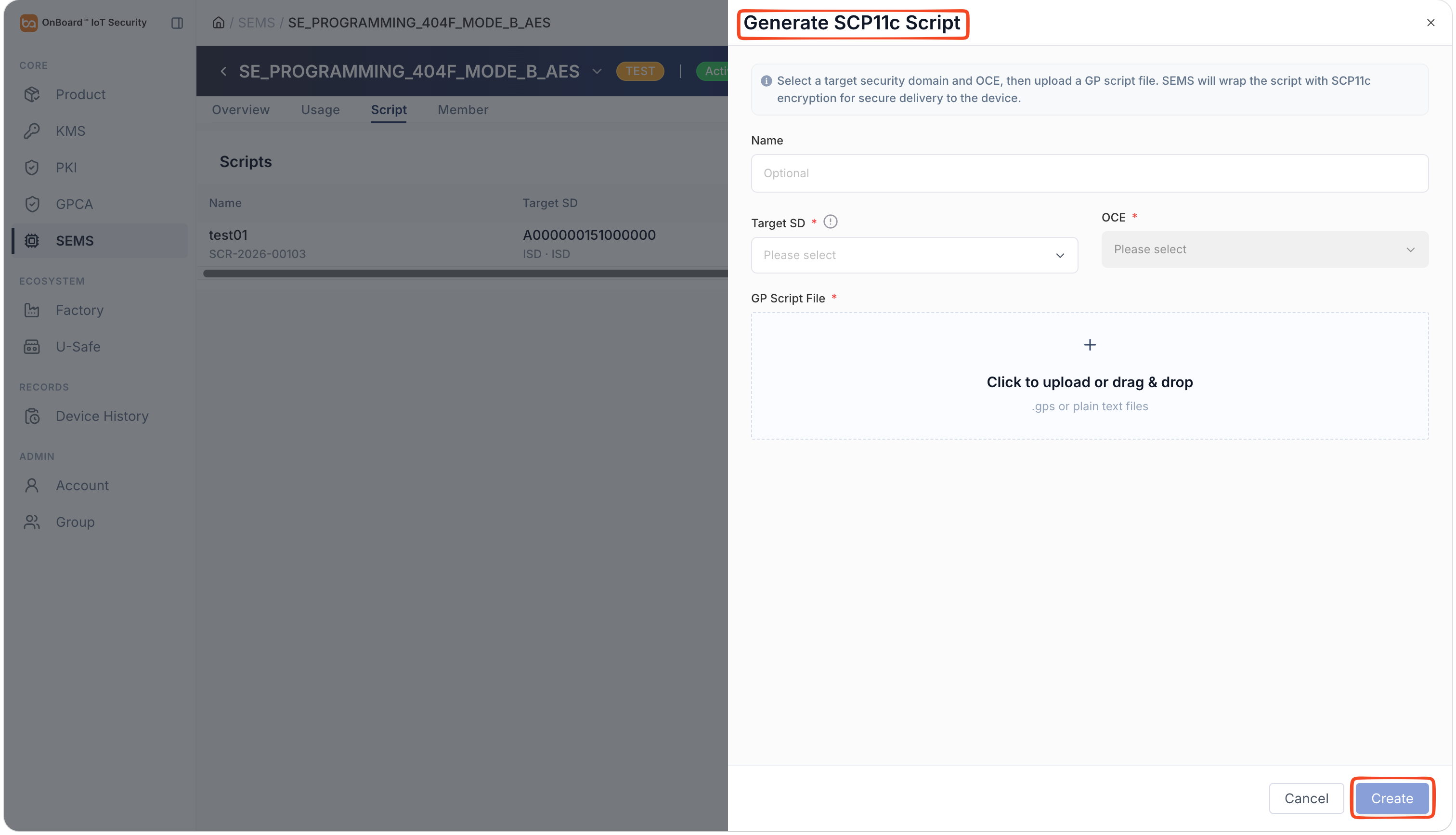
Description of the script information:
Information Description Name The script name. Target SD Select the target security domain for which the script is to be generated. OCE Select the OCE certificate to be associated with the script. The available options are the OCE certificates defined under CA-KLOC within the SCP11c configuration of the target security domain. GP Script File In the GP Script File area, click the Add  icon to select and upload a file in .gps or .txt format, or directly drag the script file into the upload area. The maximum supported file size is 1 MB.
-
Click Create to generate the script.
Download a script
-
Sign in to OBIS.
-
In the Core section of the left menu, click SEMS, and then select the corresponding SE Profile.
-
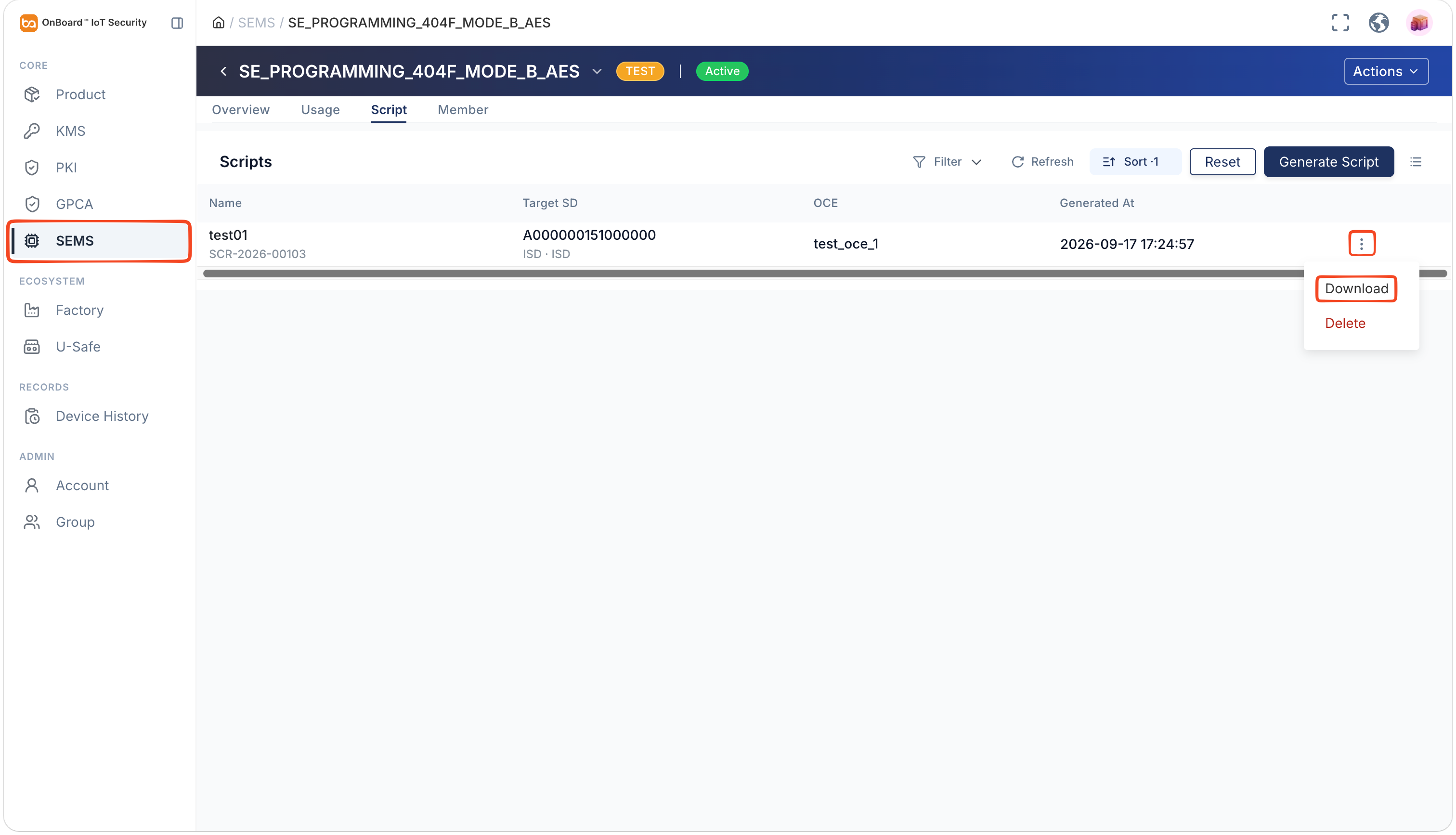
On the Scripts tab of the SE Profile, click the Options
 icon for the corresponding script and select Download.
Delete a script
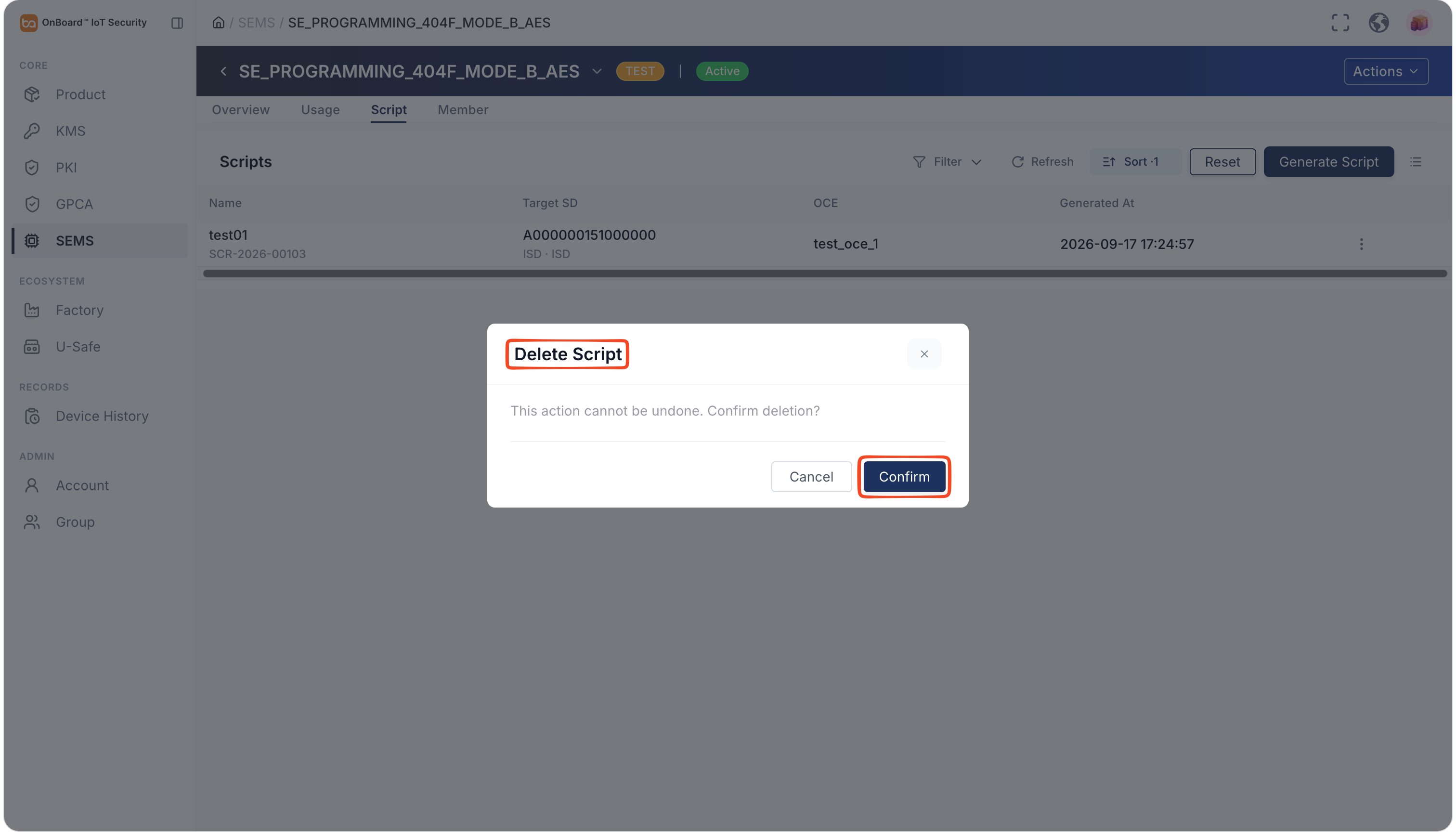
The deleted script cannot be recovered. Please proceed with caution.
-
Log in to OBIS.
-
In the Core section of the left menu, click SEMS, then select the corresponding SE Profile.
-
On the Script tab of the SE Profile, click the Options
icon for the corresponding script and select Delete.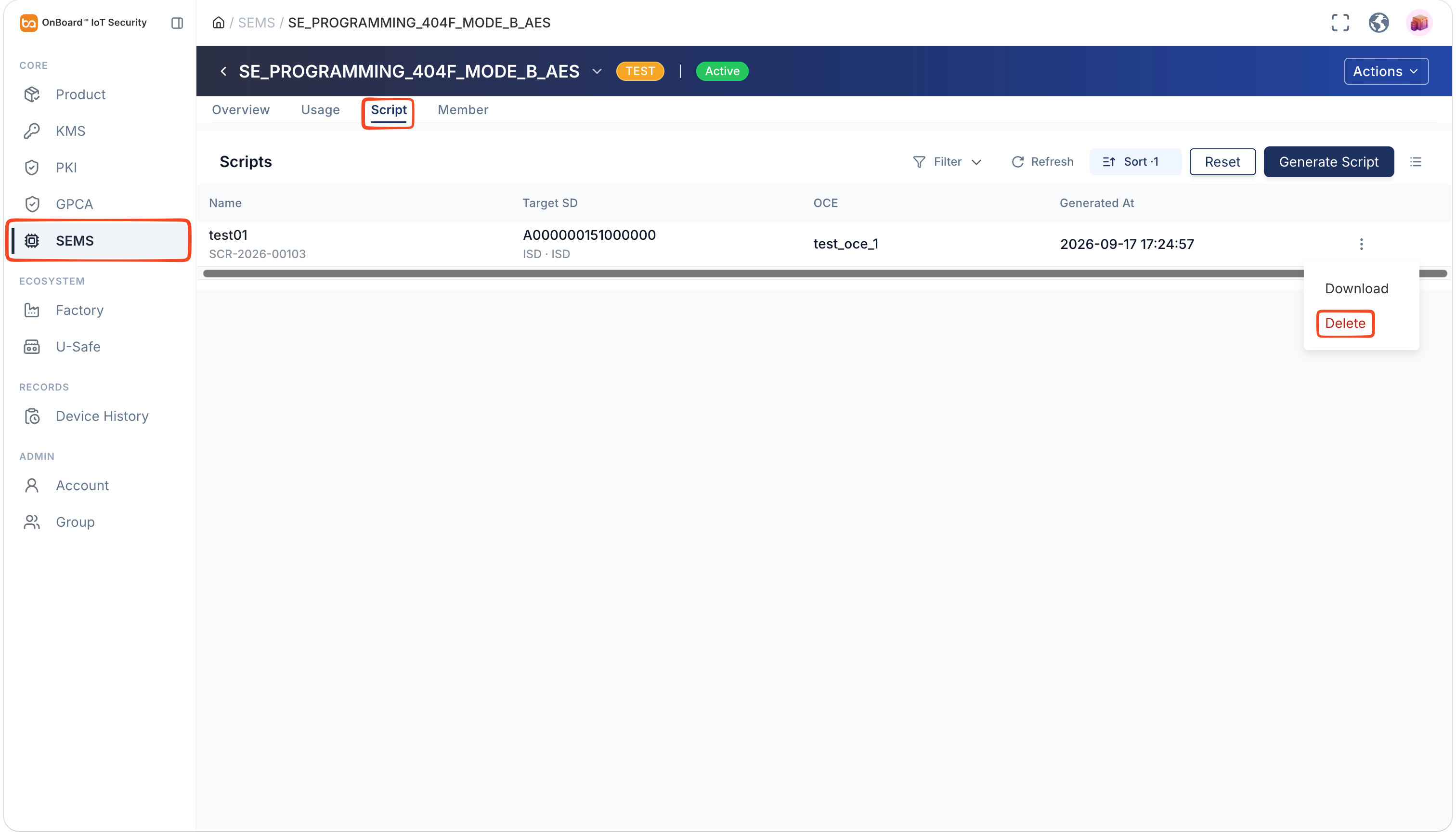
-
In the Delete Script window, click Confirm to delete the script.

 Download User Manual