How to check products in OnBoard™ IoT Security
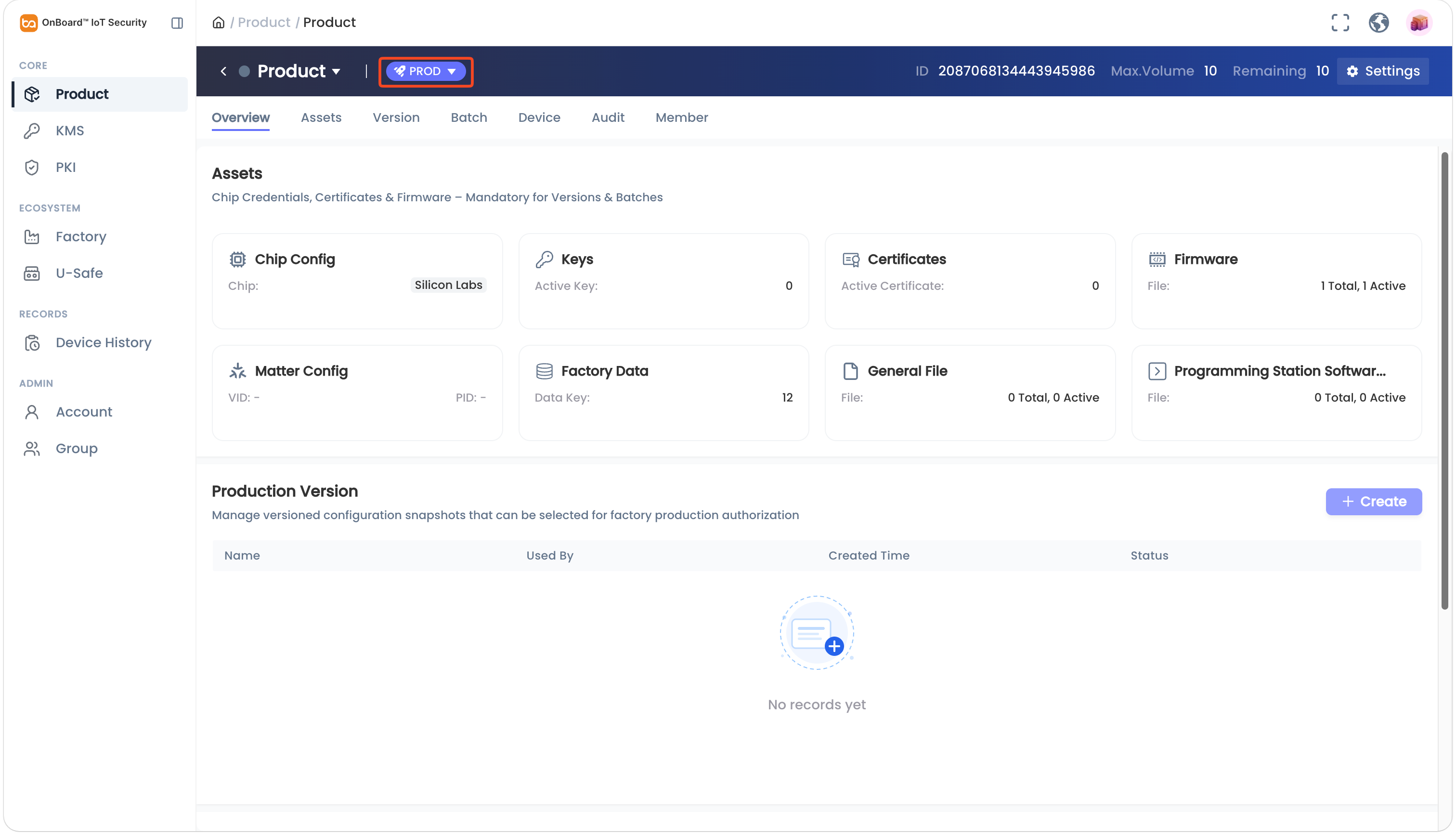
In the configuration section of the corresponding asset, you can download the files when configuring Firmware, Matter Config (uploaded CD file), Factory Data (uploaded file), General File, and Programming Station Software Package.
This article will guide you on how to check product basic information and configurations in OnBoard™ IoT Security (OBIS).
Prerequisites
Before getting started, please ensure that you have product role permissions for the corresponding product.
Instructions
-
Sign in to OBIS.
-
In the Core section of the left menu, click Product, and then select the corresponding product to navigate to the product page.
tip- The product list only displays the products you are involved in.
- Click the Filter
 , Sort
 , Refresh
 , and Columns Options
 icons to filter, sort, refresh data, and to customize which columns are shown and how they are ordered.
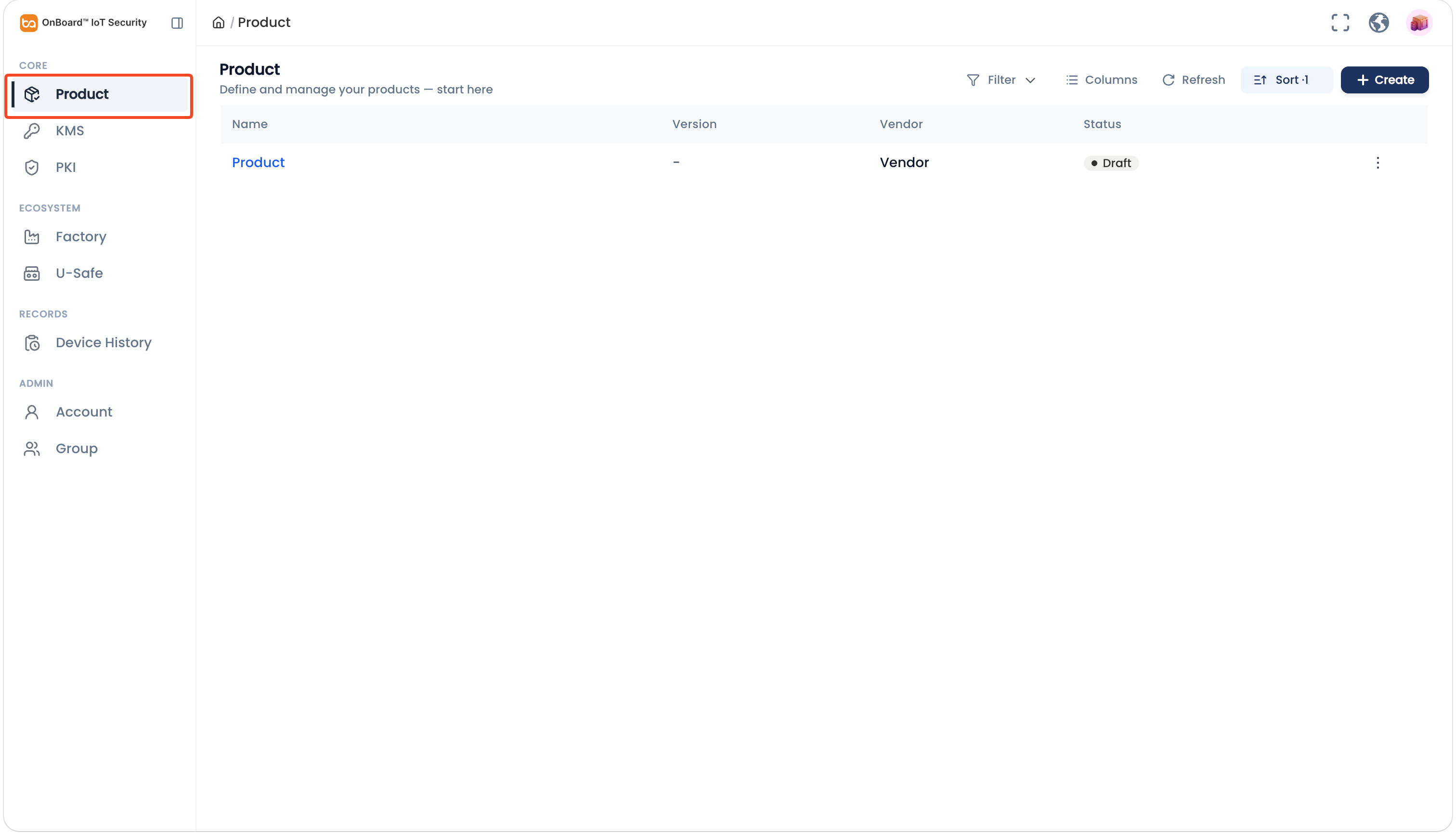
Description of product status:
Status Description Draft Status before a version is created. Released Status after a version is created.
Note: If all versions of a product are deleted, the product status will revert to Draft. -
On the product page, select the TEST or PROD environment, you can check the product-related information (such as Assets, Production Version, and Manufacturing Batch).

 Download User Manual