How to create a version in OnBoard™ IoT Security
This article will guide you on how to create a version in OnBoard™ IoT Security (OBIS) to prepare for batch creation. Each product can create multiple versions.
Prerequisites
Before getting started, please ensure that:
- The product has already been configured.
- You have product role permissions for the corresponding product: Product Owner, Product Manager, or Version Manager.
Instructions
Supports quickly creating a new version based on a historical version. Select the corresponding version on the Version tab, then click Actions and select Copy.
-
Sign in to OBIS.
-
In the Core section of the left menu, click Product, and then select the corresponding product to navigate to the product page.
-
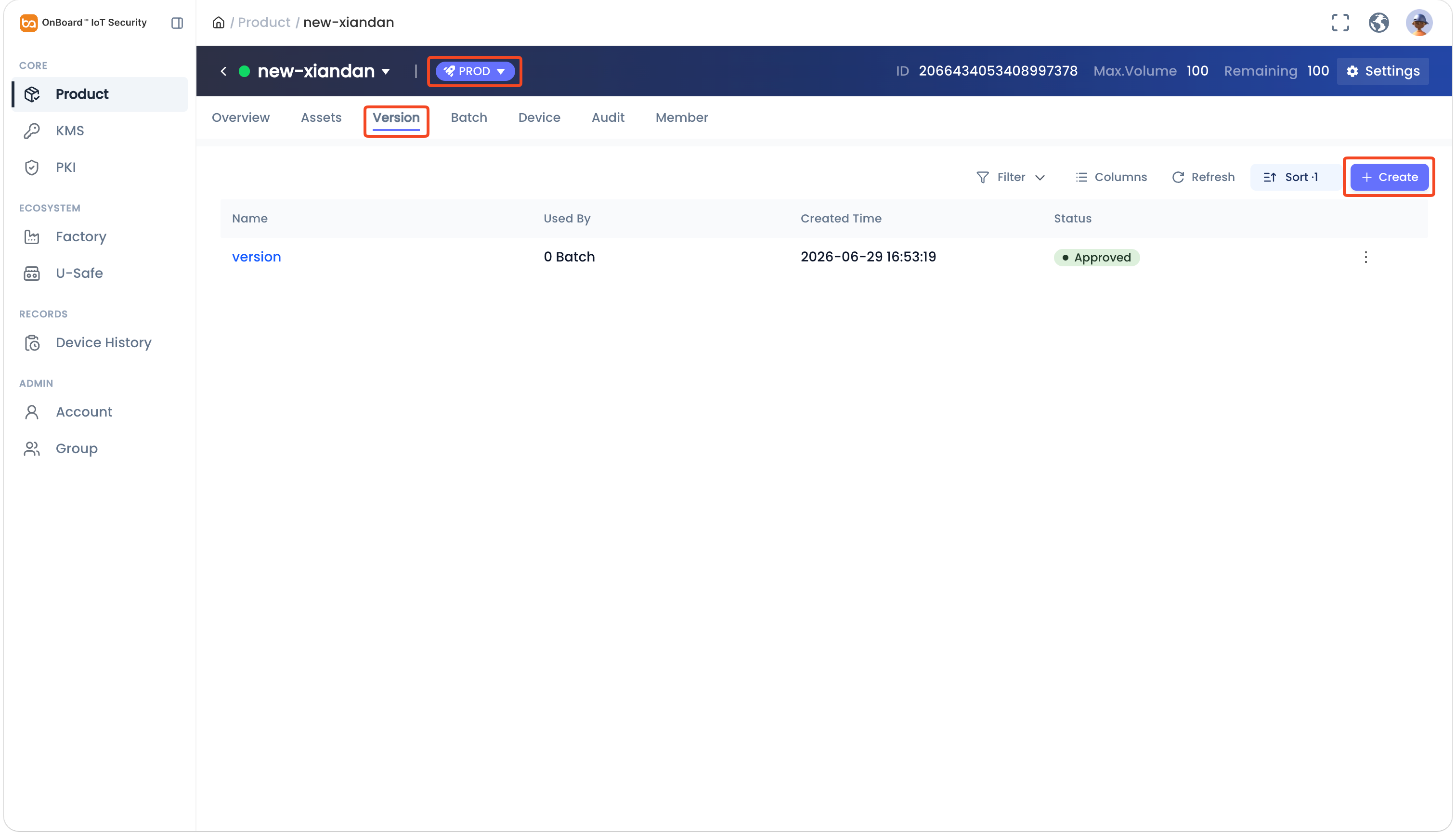
On the product page, select the TEST or PROD environment, select the Version tab and then click Create. The page will navigate to the Create Version tab.
tipIf the Create button appears grayed out, it is currently unavailable. Please check whether all required assets for your product have been configured. Once everything is properly configured, the Create button will be enabled automatically.
-
On the Create Version tab, select and enter the version-related information.
tipWhen adding product assets, only assets that have not been deactivated can be selected. For more information, refer to Deactivate or activate a product asset.
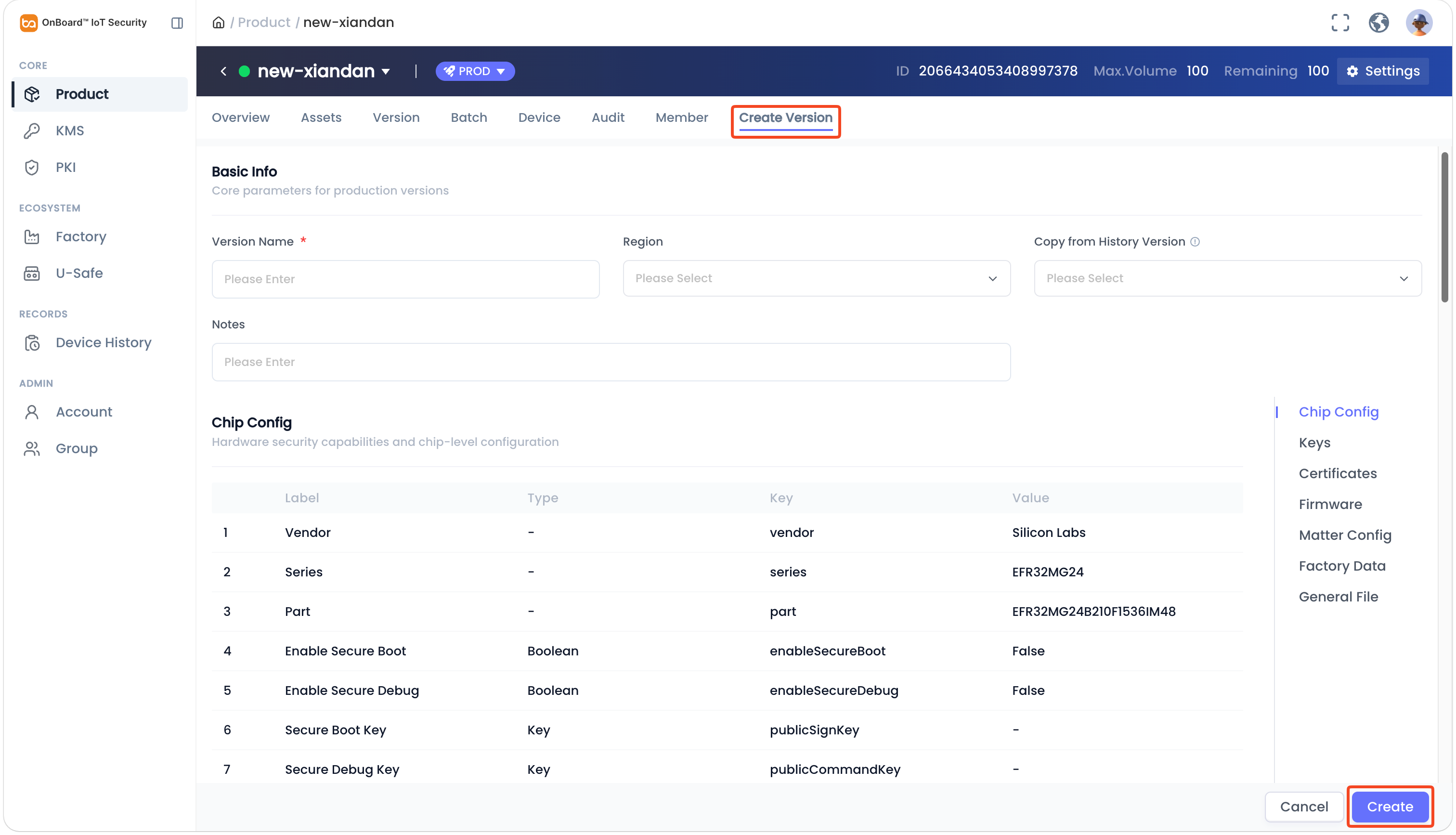
Description of version information:
Information Mandatory Description Version Name Yes The version name must be unique within the same environment. Region No Select and set the region for the version.
Note: Available regions depend on the supported regions configured when the product was created.Copy from History Version No You can select a historical version as a template for modification. Notes No Provide additional information related to the version, such as special requirements and important notes. Chip Config Yes The Chip Config configured on the Assets tab. Keys No The Keys configured on the Assets tab. Certificates Yes The Certificates configured on the Assets tab. Firmware No The Firmware configured on the Assets tab. Matter Config Yes The Matter Config configured on the Assets tab. The CD File and PID can be reselected, while other information can't be modified. Factory Data Yes The Factory Data configured on the Assets tab. All values can be modified.
Note: All Factory Data items marked as required must be provided with valid values. Otherwise, the version can't be created.General File No The General File configured on the Assets tab. -
After verifying that all information is correct, click Create at the bottom of the page to complete the version creation.
If manual approval was enabled when the product was created, versions created in the PROD environment will require manual approval by the Product Owner or Product Manager.
- Before the version is approved, the version status is Pending and it can't be used to create a batch.
- Once the version is approved, the version status changes to Approved.

 Download User Manual